change wheel RAM 1500 2021 User Guide
[x] Cancel search | Manufacturer: RAM, Model Year: 2021, Model line: 1500, Model: RAM 1500 2021Pages: 496, PDF Size: 20.89 MB
Page 174 of 496

172STARTING AND OPERATING
OPERATION
Air Suspension Switch
The indicator lamps 1 through 4 will illuminate
to show the current position of the vehicle.
Flashing indicator lamps will show a position
which the system is working to achieve. When
raising or lowering, the flashing indicator lamp
is the position the system is working to achieve.
Pushing the height selector switch up once will
move the suspension one position higher from
the current position, assuming all conditions
are met (i.e. key in ON/RUN position, engine
running, speed below threshold, etc). The
height selector switch can be pushed up
multiple times, each push will raise the
requested level by one position up to a maximum position of OR or the highest position
allowed based on current conditions (i.e.
vehicle speed, etc).
Pushing the height selector switch down once
will move the suspension one position lower
from the current level, assuming all conditions
are met (i.e. key in ON/RUN position, engine
running, doors closed, speed below threshold,
etc). The height selector switch can be pushed
down multiple times, each push will lower the
requested level by one position down to a
minimum of Entry/Exit Mode or the lowest
position allowed based on current conditions
(i.e. vehicle speed, etc.)
Automatic height changes will occur based on
vehicle speed and the current vehicle height.
The indicator lamps and instrument cluster
display messages will operate the same for
automatic changes and user requested
changes.
Off-Road 1 (OR1) – Indicator lamps 4, 3, 2,
and 1 will be illuminated when the vehicle is
in OR1.
Normal Ride Height (NRH) – Indicator lamps
4, 3, and 2 will be illuminated when the
vehicle is in this position.
Aero Mode – Indicator lamps 4 and 3 will be
illuminated when the vehicle is in this posi
-
tion.
Entry/Exit Mode – Indicator lamp 4 will be
illuminated when the vehicle is in Entry Exit
Mode. Entry/Exit mode can be requested up
to 33 mph (53 km/h). If vehicle speed is reduced to, and kept below, 15 mph
(24 km/h) indicator lamp 3 will flash and
indicator lamp 4 will remain solid until
Entry/Exit Mode is achieved at which point
indicator lamp 3 will turn off.
Transport Mode – No indicator lamps will be
illuminated. Transport Mode is disabled by
driving the vehicle.
Tire/Jack Mode – Indicator lamps 4 and 1 will
be illuminated. Tire/Jack Mode is disabled by
driving the vehicle.
Wheel Alignment Mode – Indicator lamps 2,
3, and 4 will be illuminated. Wheel Alignment
Mode is disabled by driving the vehicle.
21_DT_OM_EN_USC_t.book Page 172
Page 199 of 496
STARTING AND OPERATING197
NOTE:
If the vehicle is driven above approximately
15 mph (25 km/h), the instrument cluster
display will instruct the driver to slow down. If
the vehicle is driven above approximately
18 mph (30 km/h), the system will cancel. The
driver must then reactivate the system by
pushing the ParkSense Active Park Assist
switch.
When pushed, the LED on the ParkSense Active
Park Assist switch will blink momentarily, and
then the LED will turn off if any of the above
conditions are not present.
PARALLEL/PERPENDICULAR PARKING
S
PACE ASSISTANCE OPERATION
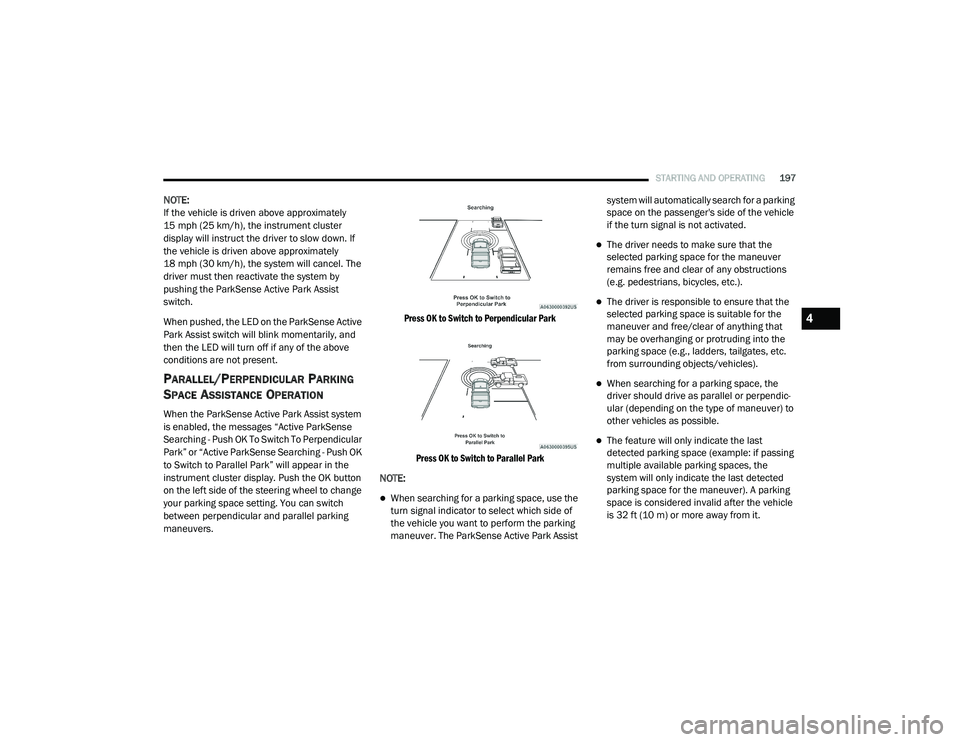
When the ParkSense Active Park Assist system
is enabled, the messages “Active ParkSense
Searching - Push OK To Switch To Perpendicular
Park” or “Active ParkSense Searching - Push OK
to Switch to Parallel Park” will appear in the
instrument cluster display. Push the OK button
on the left side of the steering wheel to change
your parking space setting. You can switch
between perpendicular and parallel parking
maneuvers.
Press OK to Switch to Perpendicular Park
Press OK to Switch to Parallel Park
NOTE:
When searching for a parking space, use the
turn signal indicator to select which side of
the vehicle you want to perform the parking
maneuver. The ParkSense Active Park Assist system will automatically search for a parking
space on the passenger's side of the vehicle
if the turn signal is not activated.
The driver needs to make sure that the
selected parking space for the maneuver
remains free and clear of any obstructions
(e.g. pedestrians, bicycles, etc.).
The driver is responsible to ensure that the
selected parking space is suitable for the
maneuver and free/clear of anything that
may be overhanging or protruding into the
parking space (e.g., ladders, tailgates, etc.
from surrounding objects/vehicles).
When searching for a parking space, the
driver should drive as parallel or perpendic
-
ular (depending on the type of maneuver) to
other vehicles as possible.
The feature will only indicate the last
detected parking space (example: if passing
multiple available parking spaces, the
system will only indicate the last detected
parking space for the maneuver). A parking
space is considered invalid after the vehicle
is 32 ft (10 m) or more away from it.
4
21_DT_OM_EN_USC_t.book Page 197
Page 203 of 496

STARTING AND OPERATING201
Left Lane Departure — Both Lane Lines
Detected
When the LaneSense system is on and both
the lane markings have been detected, the
system is "armed" to provide visual warnings
in the instrument cluster display and a torque
warning in the steering wheel if an uninten -
tional lane departure occurs .The lane lines
turn from gray to white and the LaneSense
telltale is solid green.
Lanes Sensed (White Lines) With Green Telltale
When the LaneSense system senses a lane
drift situation, the left lane line turns solid
yellow. The LaneSense telltale changes
from solid green to solid yellow. At this time
torque is applied to the steering wheel in the
opposite direction of the lane boundary. For example: If approaching the left side of
the lane the steering wheel will turn to the
right.
Lane Sensed (Solid Yellow Lane Line) With Solid Yellow Telltale
When the LaneSense system senses the lane
has been approached and is in a lane depar -
ture situation, the left lane line flashes yellow
(on/off). The LaneSense telltale changes
from solid yellow to flashing yellow. At this
time torque is applied to the steering wheel in
the opposite direction of the lane boundary. For example: If approaching the left side of
the lane the steering wheel will turn to the
right.
Lane Approached (Flashing Yellow Lane Line) With Flashing Yellow Telltale
NOTE:
The LaneSense system operates with similar
behavior for a right lane departure.
4
21_DT_OM_EN_USC_t.book Page 201
Page 207 of 496

STARTING AND OPERATING205
If the camera delay is turned off, the camera
image will close and display the previous screen
after shifting out of REVERSE.
If active guidelines are enabled, the lines are
overlaid on the image in the Rear View to
illustrate the width of the vehicle. The view will
also include the side view mirrors and its
projected back up path based on the steering
wheel position.
There are different colored zones to indicate the
distance to the rear of the vehicle. Refer to the
chart below:
Modes Of Operation
Standard Rear View can be manually activated
by selecting “Back Up Camera” through the
Controls menu within the Uconnect system. Top View
The Top View will show in the Uconnect system
with Rear View and Front View in a split screen
display. There are integrated ParkSense arcs in
the image at the front and rear of the vehicle.
The arcs will change color from yellow to red
corresponding the distance zones to the
oncoming object.
Surround View Camera View
NOTE:
Front tires will be seen in the image when the
tires are turned.
Due to wide angle cameras in the mirrors, the
image will appear distorted.
The Top View will show which doors are open.
Open front doors will block the outside
image.
Rear View This is the default view of the system
in REVERSE and is always paired with
the Top View of the vehicle with
optional active guidelines for the
projected path when enabled.
Rear Cross Path View Pressing the Rear Cross Path soft key
will give the driver a wider angle view
of the rear camera system. The Top
View will be disabled when this is
selected.
Front View The Front View will show you what is
immediately in front of the vehicle
and is always paired with the Top View
of the vehicle.
Zone
Distance To The Rear
Of The Vehicle
Red 0 - 1 ft (0 - 30 cm)
Yellow 1 ft - 6.5 ft
(30 cm - 2 m)
Green 6.5 ft or greater
(2 m or greater)
4
21_DT_OM_EN_USC_t.book Page 205
Page 226 of 496

224STARTING AND OPERATING
Adjusting GAIN
NOTE:
This should only be performed in a traffic free
environment at speeds of approximately
20–25 mph (30–40 km/h).
1. Make sure the trailer brakes are in good
working condition, functioning normally
and properly adjusted. See your trailer
dealer if necessary.
2. Hook up the trailer and make the electrical connections according to the trailer
manufacturer's instructions.
3. When a trailer is plugged in with electric or EOH brakes, the trailer connected message
should appear in the instrument cluster
display (if the connection is not recognized by the ITBM, braking functions will not be
available), the GAIN setting will illuminate
and the correct type of trailer must be
selected from the instrument cluster display
options.
4. Push the UP or DOWN button on the steering wheel until “TRAILER TOW”
appears on the screen.
5. Push the RIGHT arrow on the steering wheel to enter “TRAILER TOW”.
6. Push the UP or DOWN buttons until the Trailer Brake Type appears on the screen.
7. Push the RIGHT arrow and then push the UP or DOWN buttons until the proper Trailer
Brake Type appears on the screen. 8. In a traffic-free environment, tow the trailer
on a dry, level surface at a speed of
20–25 mph (30–40 km/h) and squeeze
the manual brake control lever completely.
9. If the trailer wheels lockup (indicated by squealing tires), reduce the GAIN setting; if
the trailer wheels turn freely, increase the
GAIN setting.
Repeat steps 8 and 9 until the GAIN setting is at
a point just below trailer wheel lockup. If towing
a heavier trailer, trailer wheel lockup may not be
attainable even with the maximum GAIN setting
of 10.
*The suggested selection may change depending on the customer preferences for braking performance. Condition of the trailer brakes, driving and road state may also affect the
selection.
Light Electric Heavy Electric Light EOHHeavy EOH
Type of Trailer Brakes Electric Trailer Brakes Electric Trailer Brakes Electric over Hydraulic
Trailer BrakesElectric over Hydraulic
Trailer Brakes
Load *Under 10,000 lbs *Above 10,000 lbs *Under 10,000 lbs *Above 10,000 lbs
21_DT_OM_EN_USC_t.book Page 224
Page 245 of 496
MULTIMEDIA243
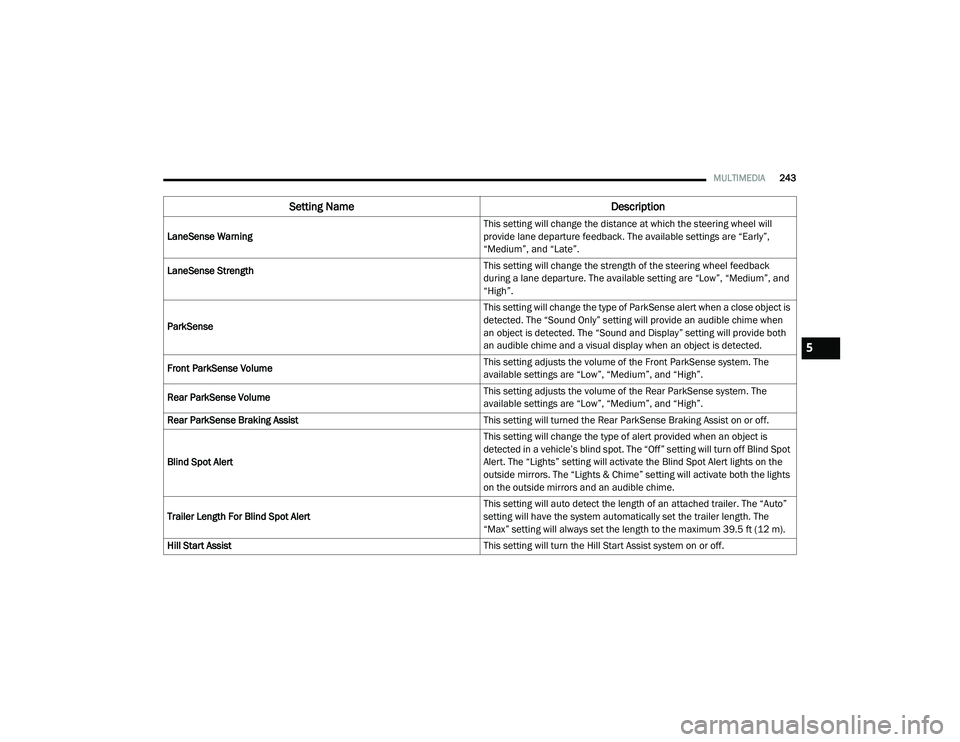
LaneSense Warning This setting will change the distance at which the steering wheel will
provide lane departure feedback. The available settings are “Early”,
“Medium”, and “Late”.
LaneSense Strength
This setting will change the strength of the steering wheel feedback
during a lane departure. The available setting are “Low”, “Medium”, and
“High”.
ParkSense This setting will change the type of ParkSense alert when a close object is
detected. The “Sound Only” setting will provide an audible chime when
an object is detected. The “Sound and Display” setting will provide both
an audible chime and a visual display when an object is detected.
Front ParkSense Volume This setting adjusts the volume of the Front ParkSense system. The
available settings are “Low”, “Medium”, and “High”.
Rear ParkSense Volume This setting adjusts the volume of the Rear ParkSense system. The
available settings are “Low”, “Medium”, and “High”.
Rear ParkSense Braking Assist This setting will turned the Rear ParkSense Braking Assist on or off.
Blind Spot Alert This setting will change the type of alert provided when an object is
detected in a vehicle’s blind spot. The “Off” setting will turn off Blind Spot
Alert. The “Lights” setting will activate the Blind Spot Alert lights on the
outside mirrors. The “Lights & Chime” setting will activate both the lights
on the outside mirrors and an audible chime.
Trailer Length For Blind Spot Alert This setting will auto detect the length of an attached trailer. The “Auto”
setting will have the system automatically set the trailer length. The
“Max” setting will always set the length to the maximum 39.5 ft (12 m).
Hill Start Assist This setting will turn the Hill Start Assist system on or off.
Setting NameDescription
5
21_DT_OM_EN_USC_t.book Page 243
Page 248 of 496
246MULTIMEDIA
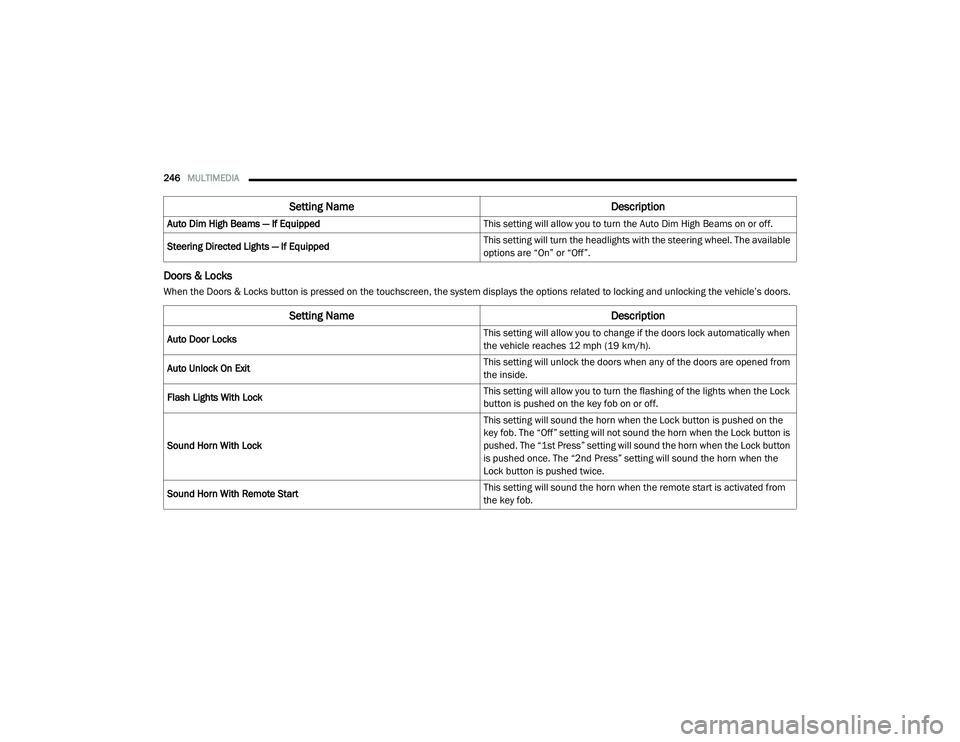
Doors & Locks
When the Doors & Locks button is pressed on the touchscreen, the system displays the options related to locking and unlocking the vehicle’s doors.Auto Dim High Beams — If Equipped
This setting will allow you to turn the Auto Dim High Beams on or off.
Steering Directed Lights — If Equipped This setting will turn the headlights with the steering wheel. The available
options are “On” or “Off”.
Setting Name
Description
Setting NameDescription
Auto Door Locks This setting will allow you to change if the doors lock automatically when
the vehicle reaches 12 mph (19 km/h).
Auto Unlock On Exit This setting will unlock the doors when any of the doors are opened from
the inside.
Flash Lights With Lock This setting will allow you to turn the flashing of the lights when the Lock
button is pushed on the key fob on or off.
Sound Horn With Lock This setting will sound the horn when the Lock button is pushed on the
key fob. The “Off” setting will not sound the horn when the Lock button is
pushed. The “1st Press” setting will sound the horn when the Lock button
is pushed once. The “2nd Press” setting will sound the horn when the
Lock button is pushed twice.
Sound Horn With Remote Start This setting will sound the horn when the remote start is activated from
the key fob.
21_DT_OM_EN_USC_t.book Page 246
Page 253 of 496
MULTIMEDIA251
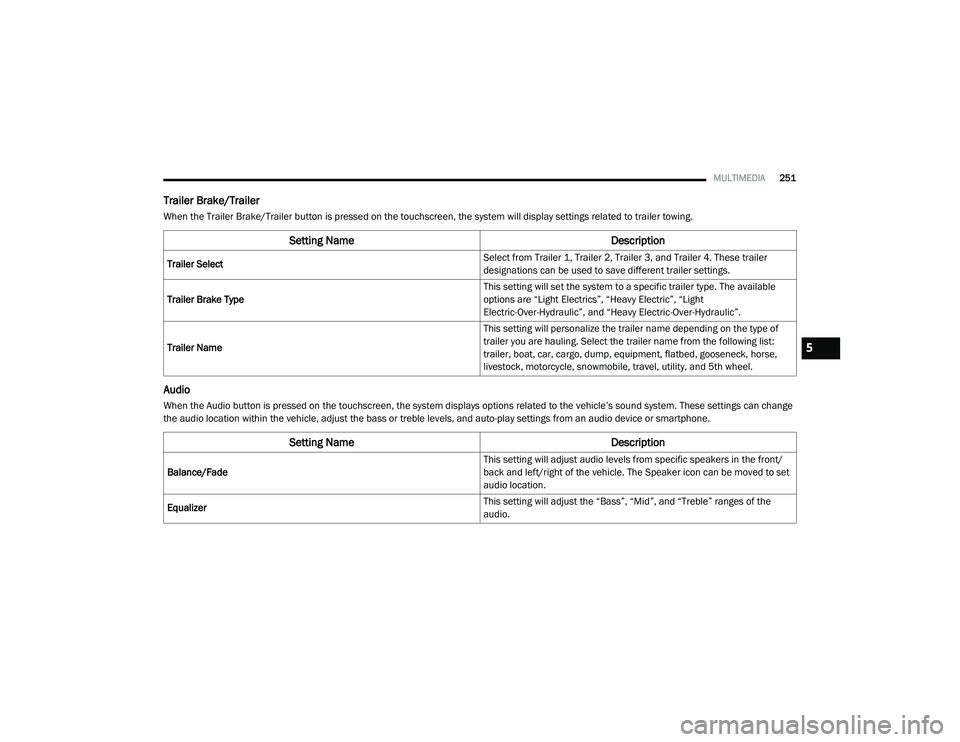
Trailer Brake/Trailer
When the Trailer Brake/Trailer button is pressed on the touchscreen, the system will display settings related to trailer towing.
Audio
When the Audio button is pressed on the touchscreen, the system displays options related to the vehicle’s sound system. These settings can change
the audio location within the vehicle, adjust the bass or treble levels, and auto-play settings from an audio device or smartphone.
Setting Name Description
Trailer Select Select from Trailer 1, Trailer 2, Trailer 3, and Trailer 4. These trailer
designations can be used to save different trailer settings.
Trailer Brake Type This setting will set the system to a specific trailer type. The available
options are “Light Electrics”, “Heavy Electric”, “Light
Electric-Over-Hydraulic”, and “Heavy Electric-Over-Hydraulic”.
Trailer Name This setting will personalize the trailer name depending on the type of
trailer you are hauling. Select the trailer name from the following list:
trailer, boat, car, cargo, dump, equipment, flatbed, gooseneck, horse,
livestock, motorcycle, snowmobile, travel, utility, and 5th wheel.
Setting Name
Description
Balance/Fade This setting will adjust audio levels from specific speakers in the front/
back and left/right of the vehicle. The Speaker icon can be moved to set
audio location.
Equalizer This setting will adjust the “Bass”, “Mid”, and “Treble” ranges of the
audio.
5
21_DT_OM_EN_USC_t.book Page 251
Page 256 of 496
254MULTIMEDIA
HEAD-UP DISPLAY (HUD)
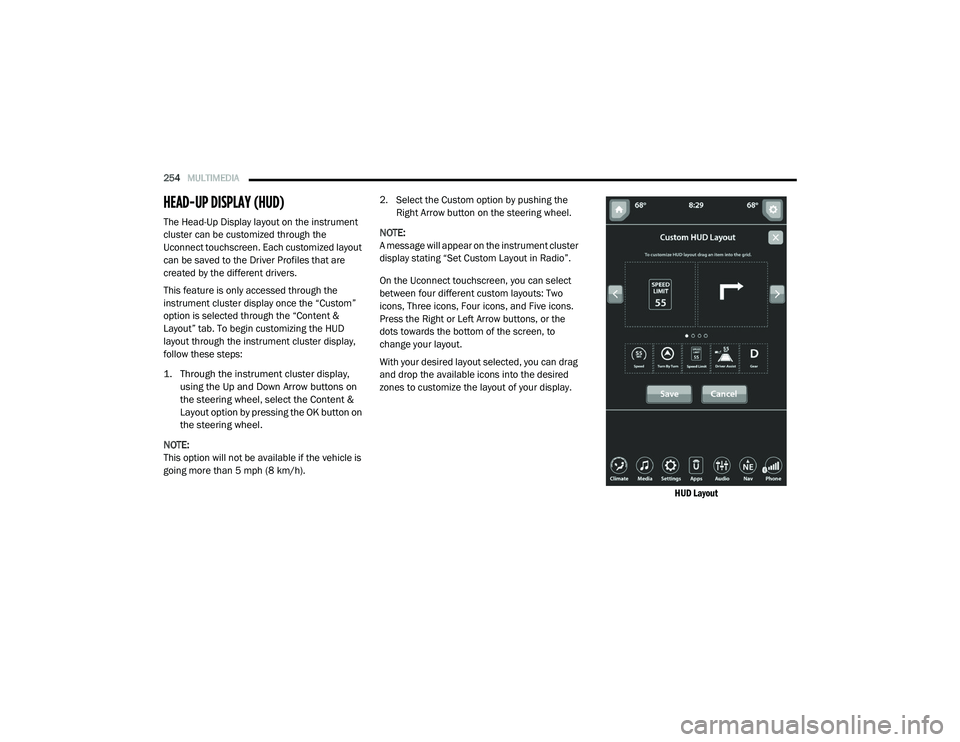
The Head-Up Display layout on the instrument
cluster can be customized through the
Uconnect touchscreen. Each customized layout
can be saved to the Driver Profiles that are
created by the different drivers.
This feature is only accessed through the
instrument cluster display once the “Custom”
option is selected through the “Content &
Layout” tab. To begin customizing the HUD
layout through the instrument cluster display,
follow these steps:
1. Through the instrument cluster display,
using the Up and Down Arrow buttons on
the steering wheel, select the Content &
Layout option by pressing the OK button on
the steering wheel.
NOTE:
This option will not be available if the vehicle is
going more than 5 mph (8 km/h). 2. Select the Custom option by pushing the
Right Arrow button on the steering wheel.
NOTE:
A message will appear on the instrument cluster
display stating “Set Custom Layout in Radio”.
On the Uconnect touchscreen, you can select
between four different custom layouts: Two
icons, Three icons, Four icons, and Five icons.
Press the Right or Left Arrow buttons, or the
dots towards the bottom of the screen, to
change your layout.
With your desired layout selected, you can drag
and drop the available icons into the desired
zones to customize the layout of your display.
HUD Layout
21_DT_OM_EN_USC_t.book Page 254
Page 263 of 496
MULTIMEDIA261
GO
Once the last digit of a station has been
entered, press “GO”. The Direct Tune screen will
close, and the system will automatically tune to
that station.
Radio Voice Commands
Use your voice to quickly get to the AM, FM, or
SiriusXM® Satellite Radio stations you would
like to hear. (Subscription or included
SiriusXM® Satellite Radio trial required.)
Push the VR button on the steering wheel
and wait for the beep to say a command. See
some examples below.
“Tune to ninety-five-point-five FM”
“Tune to Satellite Channel Hits 1”
Did You Know: At any time, if you are not sure of
what to say or want to learn a Voice Command,
push the VR button and say “ Help”. The
system provides you with a list of commands.
SiriusXM® Satellite Radio Mode — If
Equipped
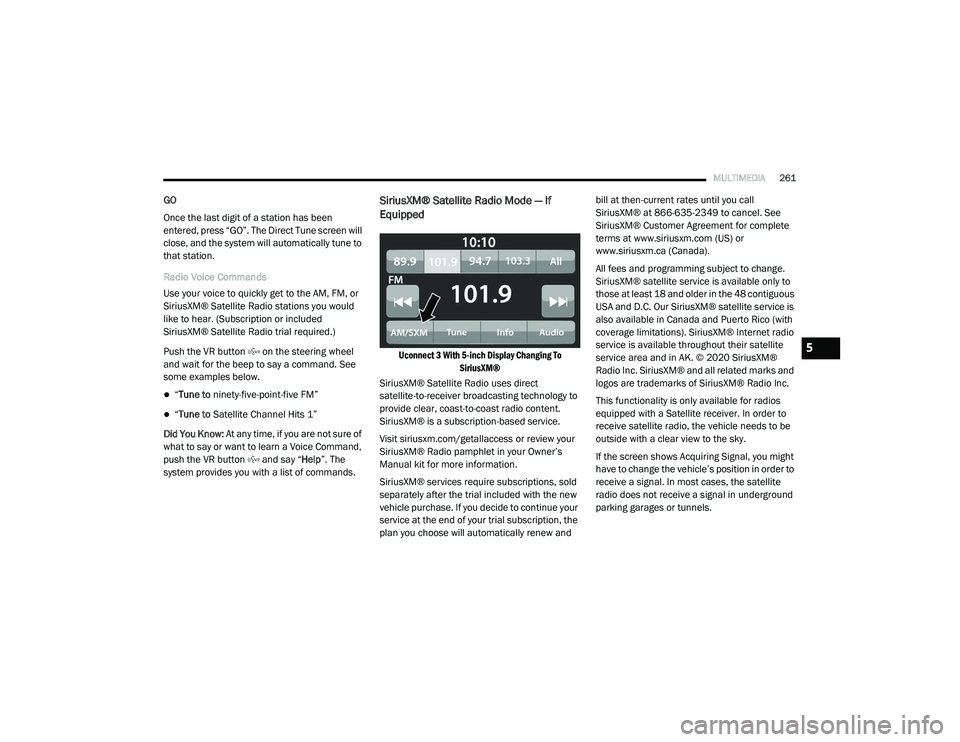
Uconnect 3 With 5-inch Display Changing To SiriusXM®
SiriusXM® Satellite Radio uses direct
satellite-to-receiver broadcasting technology to
provide clear, coast-to-coast radio content.
SiriusXM® is a subscription-based service.
Visit siriusxm.com/getallaccess or review your
SiriusXM® Radio pamphlet in your Owner’s
Manual kit for more information.
SiriusXM® services require subscriptions, sold
separately after the trial included with the new
vehicle purchase. If you decide to continue your
service at the end of your trial subscription, the
plan you choose will automatically renew and bill at then-current rates until you call
SiriusXM® at 866-635-2349 to cancel. See
SiriusXM® Customer Agreement for complete
terms at www.siriusxm.com (US) or
www.siriusxm.ca (Canada).
All fees and programming subject to change.
SiriusXM® satellite service is available only to
those at least 18 and older in the 48 contiguous
USA and D.C. Our SiriusXM® satellite service is
also available in Canada and Puerto Rico (with
coverage limitations). SiriusXM® Internet radio
service is available throughout their satellite
service area and in AK. © 2020 SiriusXM®
Radio Inc. SiriusXM® and all related marks and
logos are trademarks of SiriusXM® Radio Inc.
This functionality is only available for radios
equipped with a Satellite receiver. In order to
receive satellite radio, the vehicle needs to be
outside with a clear view to the sky.
If the screen shows Acquiring Signal, you might
have to change the vehicle’s position in order to
receive a signal. In most cases, the satellite
radio does not receive a signal in underground
parking garages or tunnels.5
21_DT_OM_EN_USC_t.book Page 261