door lock RAM 1500 2021 Owner's Manual
[x] Cancel search | Manufacturer: RAM, Model Year: 2021, Model line: 1500, Model: RAM 1500 2021Pages: 496, PDF Size: 20.89 MB
Page 81 of 496
GETTING TO KNOW YOUR VEHICLE79
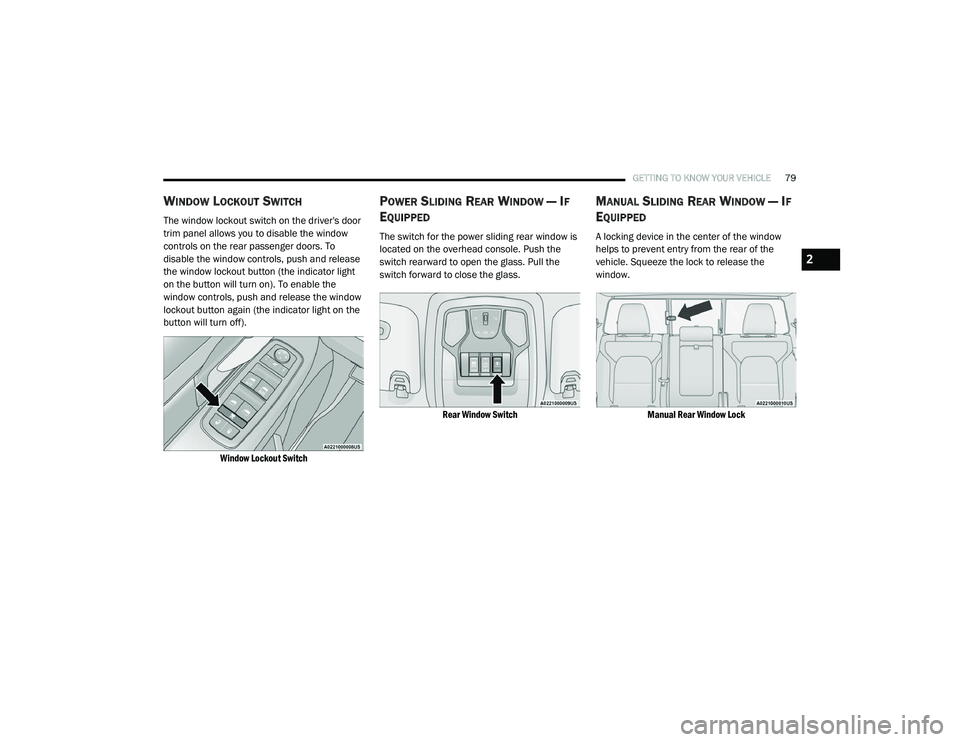
WINDOW LOCKOUT SWITCH
The window lockout switch on the driver's door
trim panel allows you to disable the window
controls on the rear passenger doors. To
disable the window controls, push and release
the window lockout button (the indicator light
on the button will turn on). To enable the
window controls, push and release the window
lockout button again (the indicator light on the
button will turn off).
Window Lockout Switch
POWER SLIDING REAR WINDOW — IF
E
QUIPPED
The switch for the power sliding rear window is
located on the overhead console. Push the
switch rearward to open the glass. Pull the
switch forward to close the glass.
Rear Window Switch
MANUAL SLIDING REAR WINDOW — IF
E
QUIPPED
A locking device in the center of the window
helps to prevent entry from the rear of the
vehicle. Squeeze the lock to release the
window.
Manual Rear Window Lock
2
21_DT_OM_EN_USC_t.book Page 79
Page 87 of 496
GETTING TO KNOW YOUR VEHICLE85
TO CLOSE THE HOOD
Hoods equipped with gas props are closed from
the point where the props no longer hold the
hood open.
TAILGATE
OPENING
The tailgate may be opened by pushing the
tailgate release pad located on the tailgate
door.
The tailgate damper strut will lower the tailgate
to the open position (if equipped).
Electronic Tailgate Release — If Equipped
The key fob may be equipped with an
electronic release feature for the
tailgate, allowing hands-free tailgate
opening. To activate, push and
release the Tailgate Release button on the key
fob twice within five seconds. The tailgate door
will unlatch, and slowly lower into the open
position.
If equipped, a button on the center overhead
console inside the vehicle can be used to
release the tailgate. An indicator light may also
signal when the tailgate is open.
For the tailgate to lower, the vehicle must be
stationary and in PARK or NEUTRAL. NOTE:
The optional Tri-Fold Tonneau Cover
Úpage 97
may prevent electronic tailgate release. The
Tonneau Cover must be removed or folded up
before releasing the tailgate.
CLOSING
To close the tailgate, push it upward until both
sides are securely latched.
LOCKING TAILGATE
The tailgate can be locked using the key fob
lock button.
MULTIFUNCTION TAILGATE — IF
E
QUIPPED
The 60/40 multifunction tailgate has two swing
doors to allow for closer access to the pickup
box with the doors open.
Opening
The tailgate must be latched closed to open the
swing doors. Push the paddle down, then pull
the release handle beneath the tailgate
lowering handle. This opens the 60 split door.
WARNING!
Be sure the hood is fully latched before
driving your vehicle. If the hood is not fully
latched, it could open when the vehicle is in
motion and block your vision. Failure to follow
this warning could result in serious injury or
death.
CAUTION!
To prevent possible damage, do not slam the
hood to close it. Use a firm downward push at
the front center of the hood to ensure that
both latches engage.
2
21_DT_OM_EN_USC_t.book Page 85
Page 95 of 496
GETTING TO KNOW YOUR VEHICLE93
LOCKING AND UNLOCKING RAMBOX
Push and release the lock or unlock button on
the key fob to lock and unlock all doors, the
tailgate and the RamBox Úpage 17. To unlatch
the storage bin manually, insert the emergency
key into the keyhole and turn clockwise. Always
return the key to the upright (vertical) position
before removing it from the keyhole.
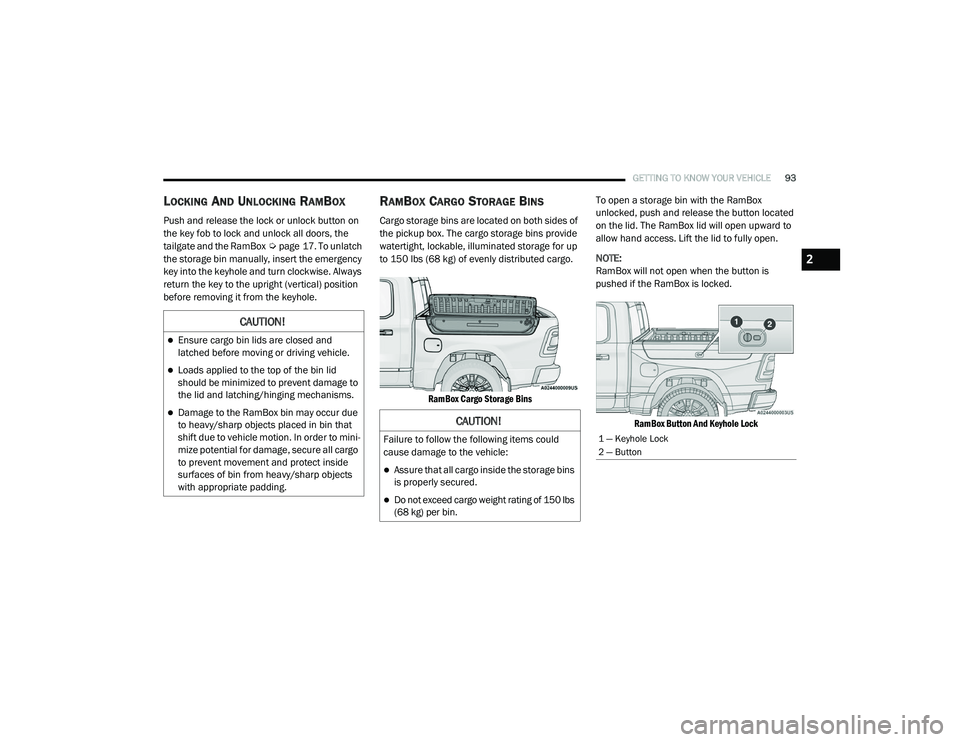
RAMBOX CARGO STORAGE BINS
Cargo storage bins are located on both sides of
the pickup box. The cargo storage bins provide
watertight, lockable, illuminated storage for up
to 150 lbs (68 kg) of evenly distributed cargo.
RamBox Cargo Storage Bins
To open a storage bin with the RamBox
unlocked, push and release the button located
on the lid. The RamBox lid will open upward to
allow hand access. Lift the lid to fully open.
NOTE:
RamBox will not open when the button is
pushed if the RamBox is locked.
RamBox Button And Keyhole Lock
CAUTION!
Ensure cargo bin lids are closed and
latched before moving or driving vehicle.
Loads applied to the top of the bin lid
should be minimized to prevent damage to
the lid and latching/hinging mechanisms.
Damage to the RamBox bin may occur due
to heavy/sharp objects placed in bin that
shift due to vehicle motion. In order to mini -
mize potential for damage, secure all cargo
to prevent movement and protect inside
surfaces of bin from heavy/sharp objects
with appropriate padding.CAUTION!
Failure to follow the following items could
cause damage to the vehicle:
Assure that all cargo inside the storage bins
is properly secured.
Do not exceed cargo weight rating of 150 lbs
(68 kg) per bin.
1 — Keyhole Lock
2 — Button
2
21_DT_OM_EN_USC_t.book Page 93
Page 184 of 496

182STARTING AND OPERATING
To Set A Desired ACC Speed
When the vehicle reaches the speed desired,
push the SET (+) button or the SET (-) button
and release. The instrument cluster display will
show the set speed.
NOTE:
Fixed Speed Cruise Control can be used without
an ACC distance set. To change between the
different modes, push the ACC on/off button
which turns the ACC and the Fixed Speed Cruise
Control off. Pushing the Fixed Speed Cruise
Control on/off button will result in turning on
(changing to) Fixed Speed Cruise Control mode. If ACC is set when the vehicle speed is
below
20 mph (32 km/h), the set speed will default to
20 mph (20 km/h).
NOTE:
Fixed Speed Cruise Control cannot be set below
20 mph (32 km/h).
If either system is set when the vehicle speed is
above 20 mph (32 km/h), the set speed shall
be the current speed of the vehicle.
NOTE:
Keeping your foot on the accelerator pedal
can cause the vehicle to continue to accel -
erate beyond the set speed. If this occurs, the
message “ACC DRIVER OVERRIDE” will
display in the instrument cluster display.
If you continue to accelerate beyond the set
speed while an ACC distance is also set, the
system will not be controlling the distance
between your vehicle and the vehicle ahead.
The vehicle speed will only be determined by
the position of the accelerator pedal.
To Cancel
The following conditions cancel the ACC or Fixed
Speed Cruise Control systems:
The brake pedal is applied
The CANC (cancel) button is pushed
The Anti-Lock Brake system (ABS) activates
The trailer brake is applied manually (if
equipped)
The gear selector is removed from the DRIVE
position
The Electronic Stability Control/Traction
Control System (ESC/TCS) activates
The vehicle parking brake is applied
The Trailer Sway Control (TSC) activates
The driver switches ESC to Full Off mode
The braking temperature exceeds normal
range (overheated)
The following conditions will only cancel the ACC
system:
Driver seat belt is unbuckled at low speeds
Driver door is opened at low speeds
WARNING!
In the Fixed Speed Cruise Control mode, the
system will not react to vehicles ahead. In
addition, the proximity warning does not
activate and no alarm will sound even if you
are too close to the vehicle ahead since
neither the presence of the vehicle ahead nor
the vehicle-to-vehicle distance is detected. Be
sure to maintain a safe distance between
your vehicle and the vehicle ahead. Always be
aware which mode is selected.
21_DT_OM_EN_USC_t.book Page 182
Page 198 of 496

196STARTING AND OPERATING
New vehicles from the dealership must have
at least 30 miles (48 km) accumulated
before the ParkSense Active Park Assist
system is fully calibrated and performs accu -
rately. This is due to the system’s dynamic
vehicle calibration to improve the perfor -
mance of the feature.
The driver must control the vehicle’s brakes.
The automatic emergency braking feature is
NOT intended to substitute for the driver
during REVERSE maneuvers.
ENABLING AND DISABLING THE
P
ARKSENSE ACTIVE PARK ASSIST
S
YSTEM
The ParkSense Active Park Assist
system can be enabled and disabled
with the ParkSense Active Park Assist
switch, located on the switch panel
below the Uconnect display.
NOTE:
If your vehicle is equipped with a 12-inch
Uconnect display, the ParkSense Active Park
Assist switch is located above the display. To enable or disable the ParkSense Active Park
Assist system, push the ParkSense Active Park
Assist switch once (LED turns on). Pushing the
switch a second time will disable the system
(LED turns off).
The ParkSense Active Park Assist system will
turn off automatically for any of the following
conditions:
Parking maneuver is completed.
Vehicle speed is greater than 18 mph
(30 km/h) when searching for a parking
space.
Vehicle speed is greater than 5 mph (7 km/h)
during active steering guidance into the
parking space.
Steering wheel is touched during active
steering guidance into the parking space.
ParkSense Front/Rear Park Assist switch is
pushed.
Driver's door is opened.
Tailgate is opened.
Electronic Stability Control/Anti-Lock Braking
System intervention.NOTE:
The ParkSense Active Park Assist system will
allow a maximum of eight shifts between DRIVE
and REVERSE. If the maneuver cannot be
completed within eight shifts, the system will
cancel and the instrument cluster display will
instruct the driver to complete the maneuver
manually.
The ParkSense Active Park Assist system will
only operate and search for a parking space
when the following conditions are present:
Gear selector is in DRIVE.
The ignition is in the ON/RUN position.
The ParkSense Active Park Assist switch is
activated.
Driver's door is closed.
Tailgate is closed.
Vehicle speed is less than 15 mph (25 km/h).
The outer surface and the underside of the
front and rear fascias/bumpers are clean
and clear of snow, ice, mud, dirt or other
obstruction.
21_DT_OM_EN_USC_t.book Page 196
Page 207 of 496

STARTING AND OPERATING205
If the camera delay is turned off, the camera
image will close and display the previous screen
after shifting out of REVERSE.
If active guidelines are enabled, the lines are
overlaid on the image in the Rear View to
illustrate the width of the vehicle. The view will
also include the side view mirrors and its
projected back up path based on the steering
wheel position.
There are different colored zones to indicate the
distance to the rear of the vehicle. Refer to the
chart below:
Modes Of Operation
Standard Rear View can be manually activated
by selecting “Back Up Camera” through the
Controls menu within the Uconnect system. Top View
The Top View will show in the Uconnect system
with Rear View and Front View in a split screen
display. There are integrated ParkSense arcs in
the image at the front and rear of the vehicle.
The arcs will change color from yellow to red
corresponding the distance zones to the
oncoming object.
Surround View Camera View
NOTE:
Front tires will be seen in the image when the
tires are turned.
Due to wide angle cameras in the mirrors, the
image will appear distorted.
The Top View will show which doors are open.
Open front doors will block the outside
image.
Rear View This is the default view of the system
in REVERSE and is always paired with
the Top View of the vehicle with
optional active guidelines for the
projected path when enabled.
Rear Cross Path View Pressing the Rear Cross Path soft key
will give the driver a wider angle view
of the rear camera system. The Top
View will be disabled when this is
selected.
Front View The Front View will show you what is
immediately in front of the vehicle
and is always paired with the Top View
of the vehicle.
Zone
Distance To The Rear
Of The Vehicle
Red 0 - 1 ft (0 - 30 cm)
Yellow 1 ft - 6.5 ft
(30 cm - 2 m)
Green 6.5 ft or greater
(2 m or greater)
4
21_DT_OM_EN_USC_t.book Page 205
Page 211 of 496
STARTING AND OPERATING209
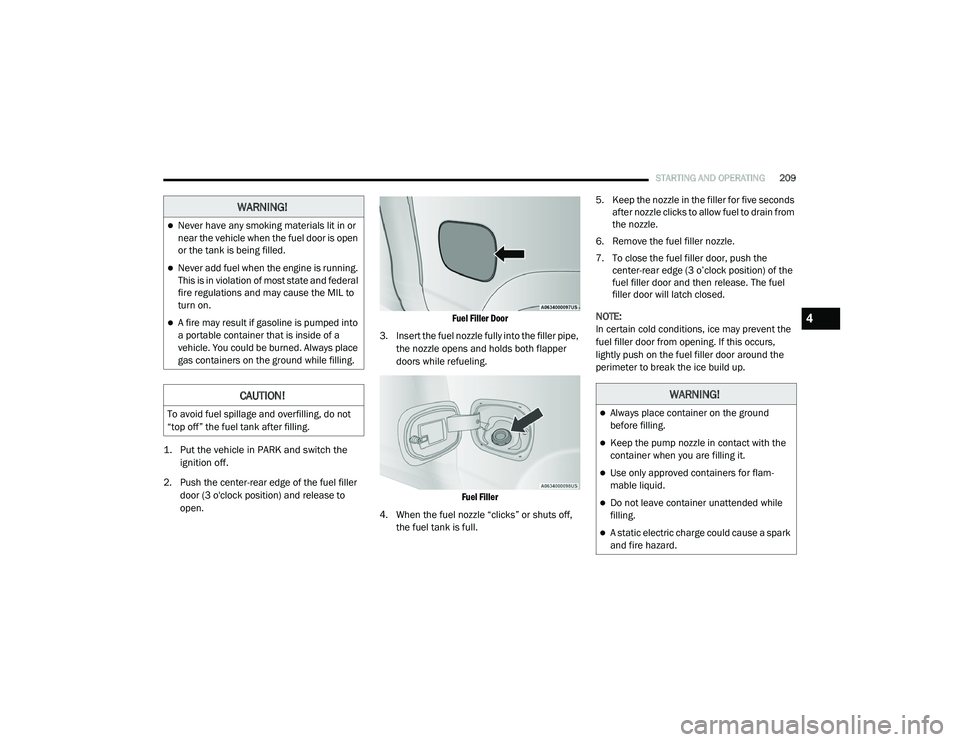
1. Put the vehicle in PARK and switch the
ignition off.
2. Push the center-rear edge of the fuel filler door (3 o'clock position) and release to
open.
Fuel Filler Door
3. Insert the fuel nozzle fully into the filler pipe, the nozzle opens and holds both flapper
doors while refueling.
Fuel Filler
4. When the fuel nozzle “clicks” or shuts off, the fuel tank is full. 5. Keep the nozzle in the filler for five seconds
after nozzle clicks to allow fuel to drain from
the nozzle.
6. Remove the fuel filler nozzle.
7. To close the fuel filler door, push the center-rear edge (3 o’clock position) of the
fuel filler door and then release. The fuel
filler door will latch closed.
NOTE:
In certain cold conditions, ice may prevent the
fuel filler door from opening. If this occurs,
lightly push on the fuel filler door around the
perimeter to break the ice build up.
WARNING!
Never have any smoking materials lit in or
near the vehicle when the fuel door is open
or the tank is being filled.
Never add fuel when the engine is running.
This is in violation of most state and federal
fire regulations and may cause the MIL to
turn on.
A fire may result if gasoline is pumped into
a portable container that is inside of a
vehicle. You could be burned. Always place
gas containers on the ground while filling.
CAUTION!
To avoid fuel spillage and overfilling, do not
“top off” the fuel tank after filling.
WARNING!
Always place container on the ground
before filling.
Keep the pump nozzle in contact with the
container when you are filling it.
Use only approved containers for flam -
mable liquid.
Do not leave container unattended while
filling.
A static electric charge could cause a spark
and fire hazard.
4
21_DT_OM_EN_USC_t.book Page 209
Page 248 of 496
246MULTIMEDIA
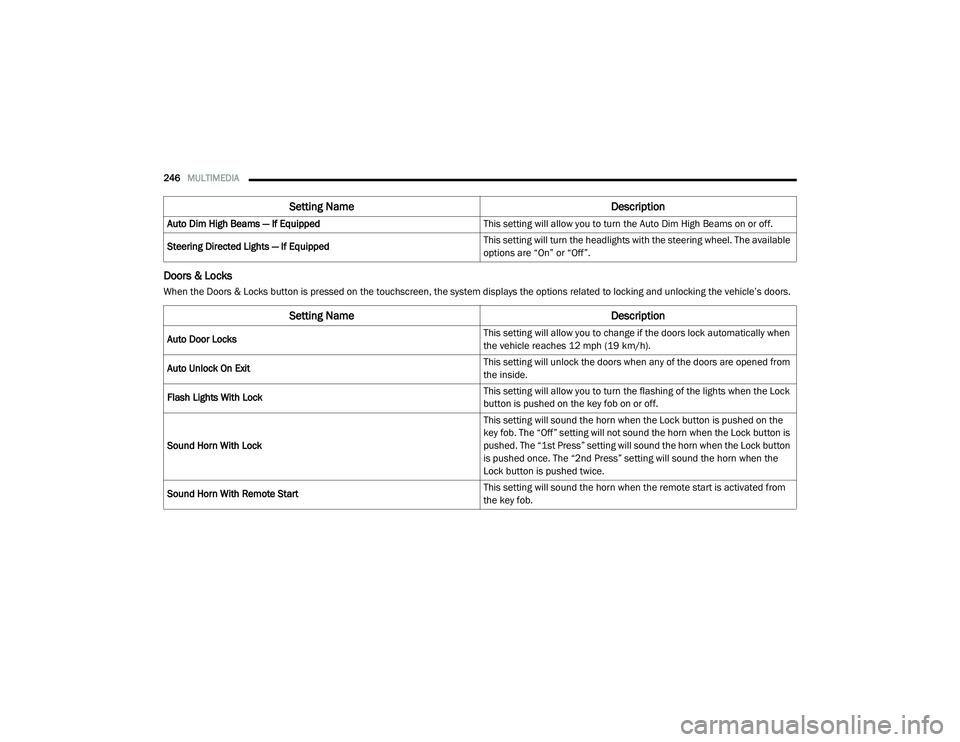
Doors & Locks
When the Doors & Locks button is pressed on the touchscreen, the system displays the options related to locking and unlocking the vehicle’s doors.Auto Dim High Beams — If Equipped
This setting will allow you to turn the Auto Dim High Beams on or off.
Steering Directed Lights — If Equipped This setting will turn the headlights with the steering wheel. The available
options are “On” or “Off”.
Setting Name
Description
Setting NameDescription
Auto Door Locks This setting will allow you to change if the doors lock automatically when
the vehicle reaches 12 mph (19 km/h).
Auto Unlock On Exit This setting will unlock the doors when any of the doors are opened from
the inside.
Flash Lights With Lock This setting will allow you to turn the flashing of the lights when the Lock
button is pushed on the key fob on or off.
Sound Horn With Lock This setting will sound the horn when the Lock button is pushed on the
key fob. The “Off” setting will not sound the horn when the Lock button is
pushed. The “1st Press” setting will sound the horn when the Lock button
is pushed once. The “2nd Press” setting will sound the horn when the
Lock button is pushed twice.
Sound Horn With Remote Start This setting will sound the horn when the remote start is activated from
the key fob.
21_DT_OM_EN_USC_t.book Page 246
Page 249 of 496
MULTIMEDIA247
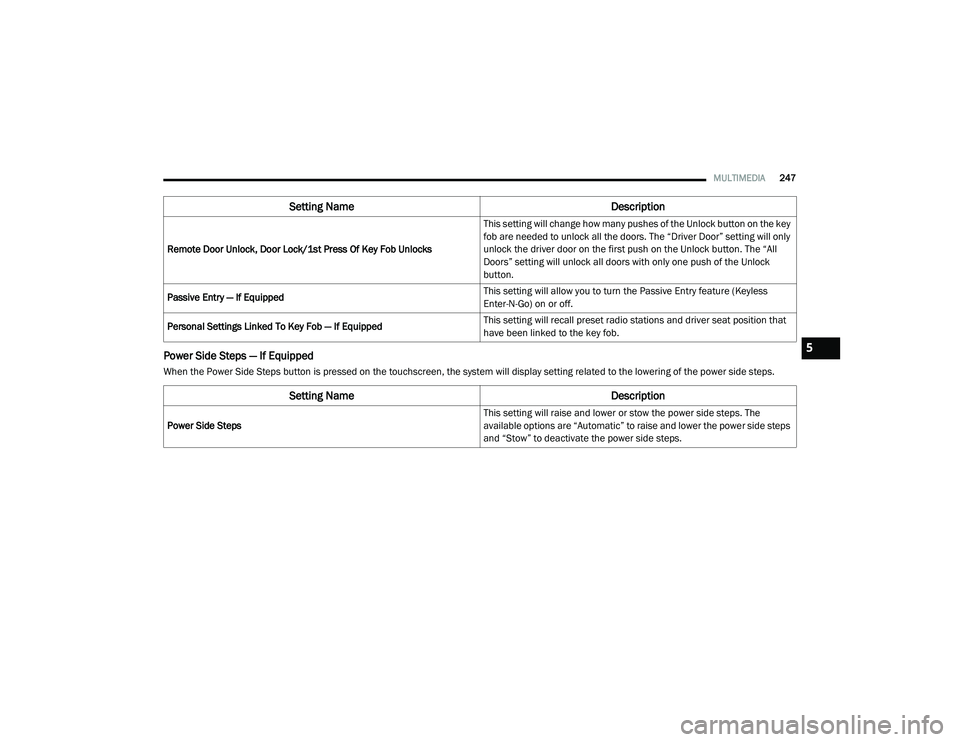
Power Side Steps — If Equipped
When the Power Side Steps button is pressed on the touchscreen, the system will display setting related to the lowering of the power side steps.Remote Door Unlock, Door Lock/1st Press Of Key Fob Unlocks
This setting will change how many pushes of the Unlock button on the key
fob are needed to unlock all the doors. The “Driver Door” setting will only
unlock the driver door on the first push on the Unlock button. The “All
Doors” setting will unlock all doors with only one push of the Unlock
button.
Passive Entry — If Equipped This setting will allow you to turn the Passive Entry feature (Keyless
Enter-N-Go) on or off.
Personal Settings Linked To Key Fob — If Equipped This setting will recall preset radio stations and driver seat position that
have been linked to the key fob.
Setting Name
Description
Setting NameDescription
Power Side Steps This setting will raise and lower or stow the power side steps. The
available options are “Automatic” to raise and lower the power side steps
and “Stow” to deactivate the power side steps.
5
21_DT_OM_EN_USC_t.book Page 247
Page 287 of 496
MULTIMEDIA285
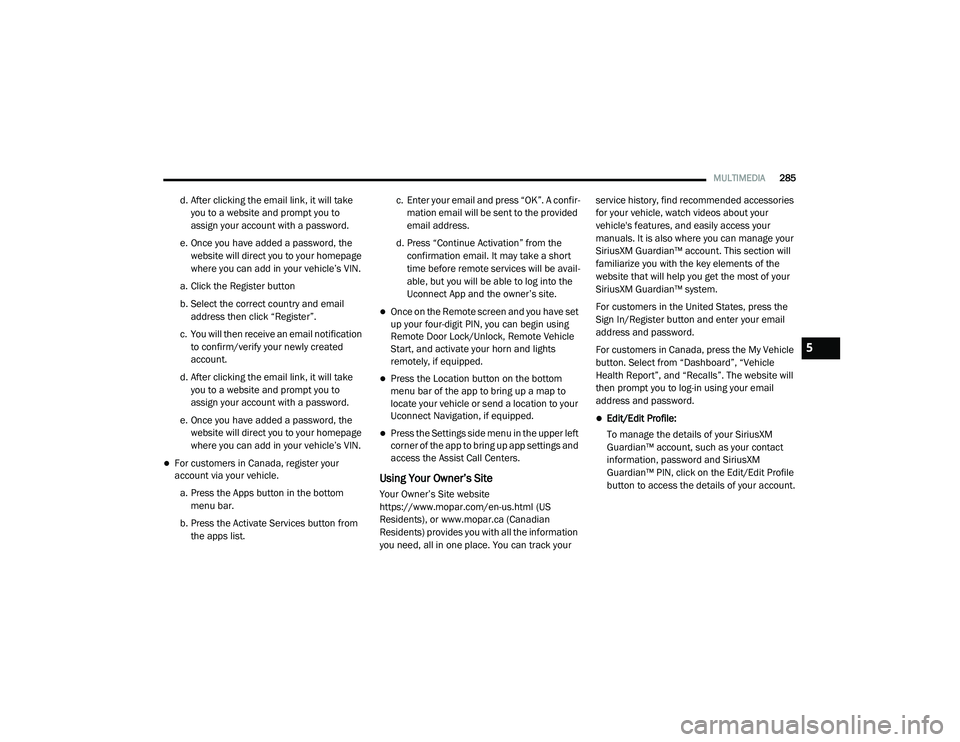
d. After clicking the email link, it will take
you to a website and prompt you to
assign your account with a password.
e. Once you have added a password, the website will direct you to your homepage
where you can add in your vehicle’s VIN.
a. Click the Register button
b. Select the correct country and email address then click “Register”.
c. You will then receive an email notification to confirm/verify your newly created
account.
d. After clicking the email link, it will take you to a website and prompt you to
assign your account with a password.
e. Once you have added a password, the website will direct you to your homepage
where you can add in your vehicle’s VIN.
For customers in Canada, register your
account via your vehicle.
a. Press the Apps button in the bottom menu bar.
b. Press the Activate Services button from the apps list. c. Enter your email and press “OK”. A confir
-
mation email will be sent to the provided
email address.
d. Press “Continue Activation” from the confirmation email. It may take a short
time before remote services will be avail -
able, but you will be able to log into the
Uconnect App and the owner’s site.
Once on the Remote screen and you have set
up your four-digit PIN, you can begin using
Remote Door Lock/Unlock, Remote Vehicle
Start, and activate your horn and lights
remotely, if equipped.
Press the Location button on the bottom
menu bar of the app to bring up a map to
locate your vehicle or send a location to your
Uconnect Navigation, if equipped.
Press the Settings side menu in the upper left
corner of the app to bring up app settings and
access the Assist Call Centers.
Using Your Owner’s Site
Your Owner’s Site website
https://www.mopar.com/en-us.html (US
Residents), or www.mopar.ca (Canadian
Residents) provides you with all the information
you need, all in one place. You can track your service history, find recommended accessories
for your vehicle, watch videos about your
vehicle's features, and easily access your
manuals. It is also where you can manage your
SiriusXM Guardian™ account. This section will
familiarize you with the key elements of the
website that will help you get the most of your
SiriusXM Guardian™ system.
For customers in the United States, press the
Sign In/Register button and enter your email
address and password.
For customers in Canada, press the My Vehicle
button. Select from “Dashboard”, “Vehicle
Health Report”, and “Recalls”. The website will
then prompt you to log-in using your email
address and password.
Edit/Edit Profile:
To manage the details of your SiriusXM
Guardian™ account, such as your contact
information, password and SiriusXM
Guardian™ PIN, click on the Edit/Edit Profile
button to access the details of your account.
5
21_DT_OM_EN_USC_t.book Page 285