reset RAM 1500 2021 Owner's Manual
[x] Cancel search | Manufacturer: RAM, Model Year: 2021, Model line: 1500, Model: RAM 1500 2021Pages: 496, PDF Size: 20.89 MB
Page 261 of 496

MULTIMEDIA259
UCONNECT MODES
STEERING WHEEL AUDIO CONTROLS
The remote sound system controls are located
on the rear surface of the steering wheel at the
three and nine o’clock positions.
Remote Sound System Controls
The right-hand control is a rocker-type switch
with a push button in the center and controls
the volume and mode of the sound system.
Pushing the top of the rocker switch will
increase the volume, and pushing the bottom of
the rocker switch will decrease the volume.
Pushing the center button will make the radio
switch between the various modes available
(AM/FM/SXM or Media, etc.). The left-hand control is a rocker-type switch with
a push button in the center. The function of the
left-hand control is different depending on
which mode you are in.
The following describes the left-hand control
operation in each mode:
Radio Operation
Pushing the top of the switch will Seek Up for
the next available station and pushing the
bottom of the switch will Seek Down for the next
available station.
The button located in the center of the left-hand
control will tune to the next preset station that
you have programmed in the radio presets.
Media Mode
Pushing the top of the switch skips to the next
track on the selected media (AUX/USB/
Bluetooth®). Pushing the switch up twice will go
forward two tracks. Pushing the bottom switch
goes to the beginning of the current track, or the
beginning of the previous track if it is within
eight seconds after the current track begins to
play. Double pressing the bottom button switch
will skip to the previous track if it is after eight
seconds into the current track.
RADIO MODE
Radio Controls
Uconnect 3 With 5-inch Display
1 — Preset Radio Stations
2 — All Preset Radio Stations
3 — Seek Up
4 — Audio Settings
5 — Station Info
6 — Tune
7 — Radio Band (AM/FM)
8 — Seek Down
5
21_DT_OM_EN_USC_t.book Page 259
Page 264 of 496
262MULTIMEDIA
No Subscription
Radios equipped with a Satellite receiver
require a subscription to the SiriusXM® Service.
When the Radio does not have the necessary
subscription, the Radio is able to receive the
Preview channel only.
Acquiring SiriusXM® Subscription
To activate the SiriusXM® Satellite Radio
subscription, US visit siriusxm.com/
getallaccess or call: 1-800-643-2112
Canada visit https://www.siriusxm.ca/ or call:
1-800-465-2001 (English) or 1-800-387-9983
(French).
NOTE:
You will need to provide the SiriusXM® ID (RID)
located at the bottom of the Channel 0 screen.
The Satellite Mode is activated by a press of the
SXM button on the touchscreen. When in Satellite Mode:
The SXM button on the touchscreen is high
-
lighted.
The SiriusXM® Presets are displayed at the
top of the screen.
The SiriusXM® Channel Number is displayed
in the center.
The Program Information is displayed at the
bottom of the Channel Number.
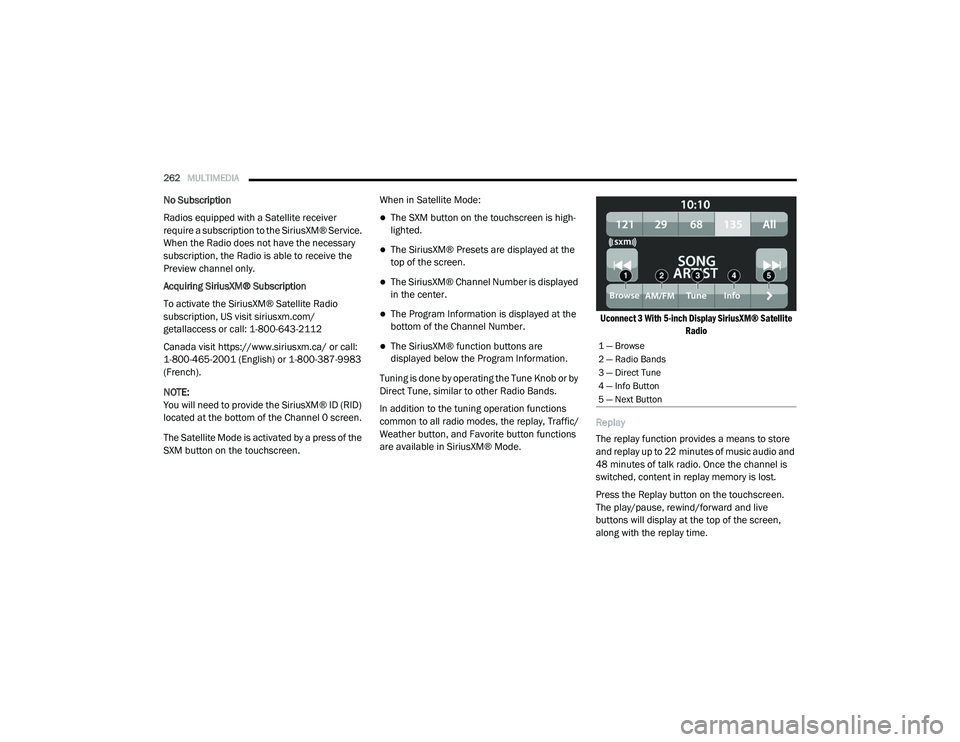
The SiriusXM® function buttons are
displayed below the Program Information.
Tuning is done by operating the Tune Knob or by
Direct Tune, similar to other Radio Bands.
In addition to the tuning operation functions
common to all radio modes, the replay, Traffic/
Weather button, and Favorite button functions
are available in SiriusXM® Mode.
Uconnect 3 With 5-inch Display SiriusXM® Satellite
Radio
Replay
The replay function provides a means to store
and replay up to 22 minutes of music audio and
48 minutes of talk radio. Once the channel is
switched, content in replay memory is lost.
Press the Replay button on the touchscreen.
The play/pause, rewind/forward and live
buttons will display at the top of the screen,
along with the replay time.1 — Browse
2 — Radio Bands
3 — Direct Tune
4 — Info Button
5 — Next Button
21_DT_OM_EN_USC_t.book Page 262
Page 266 of 496
264MULTIMEDIA
Favorites
Press the Favorites button on the touchscreen
to activate the favorites menu, which will time
out within 20 seconds in absence of user
interaction.
You can exit the Favorites Menu by a press of
the X button.
The favorites feature enables you to set a
favorite artist or song that is currently playing.
The radio then uses this information to alert you
when either the favorite artist or song is being
played at any time by any of the SiriusXM®
Channels.
The maximum number of favorites that can be
stored in the Radio is 50.
Favorite Artist: While the song is playing, to set
a favorite artist, press the Favorites button on
the touchscreen and then the Favorite Artist
button on the touchscreen.
Favorite Song: While the song is playing, to set
a favorite song, press the Favorites button on
the touchscreen and then the Favorite Song
button on the touchscreen. Browse In SXM
Press the Browse button on the touchscreen to
edit Presets, Favorites, Game Zone, and Jump
settings, along with providing the SiriusXM®
Channel List.
This Screen contains many submenus. You can
exit submenus to return to a parent menu by
pressing the Back arrow.
All
Press the All button on the Browse Screen.
When pressing the All button, the following
categories become available:
Channel List Press the Channel List to display
all the SiriusXM® Channel Numbers. You can
scroll the Channel List by pressing the Up and
Down arrows, located on the right side of the
screen. Scrolling can also be done by oper
-
ating the Tune/Scroll knob.
Genre List Press the Genre button on the
touchscreen to display a list of Genres. You
can select any desired Genre by pressing the
Genre List. The radio tunes to a channel with
the content in the selected Genre. Favorites
Press the Favorites button on the Browse
screen.
The Favorites menu provides a means to edit
the Favorites list and to configure the Alert
Settings, along with providing a list of Channels
currently airing any of the items in the Favorites
list.
You can scroll the Favorites list by pressing the
Up and Down arrows located at the right side of
the screen. Scrolling can also be done by
operating the Tune/Scroll knob as well.
Remove Favorites
Press the Remove Favorites tab at the top of the
screen. Press the Delete All button on the
touchscreen to delete all of the Favorites or
press the Trash Can icon next to the Favorite to
be deleted.
Alert Settings
Press the Alert Settings tab at the top of the
Favorites screen. The Alert Settings menu
allows you to choose from a visual alert or
audible and visual alert when one of your
favorites is airing on any of the SiriusXM®
channels.
21_DT_OM_EN_USC_t.book Page 264
Page 267 of 496
MULTIMEDIA265
Game Zone
Press the Game Zone button, located at the left
of the Browse screen. This feature provides you
with the ability to select teams, edit the
selection, and set alerts.
On Air
Press the On-Air tab at the top of the screen. The
On-Air list provides a list of Channels currently
airing any of the items in the Selections list, and
pressing any of the items in the list tunes the
radio to that channel.
Add/Delete — If Equipped
Press the Add/Delete button on the
touchscreen to activate the League Scroll list.
Press the chosen league and a scroll list of all
teams within the league will appear, then you
can select a team by pressing the
corresponding box. A check mark appears for all
teams that are chosen.
Remove Selection/Trash Can Icon
Press the Remove Selection tab at the top of the
screen. Press the Delete All button on the
touchscreen to delete all of the selections or
press the Trash Can icon next to the selection to
be deleted. Alert Settings
Press the Alert Setting tab at the top of the
screen. The Alert Settings menu allows you to
choose from “Alert me to on-air games upon
start” or “Alert upon score update” or both when
one or more of your selections is airing on any
of the SiriusXM® channels.
Tune Start
Tune Start begins playing the current song from
the beginning when you tune to a music
channel using one of the 12 presets. This
feature occurs the first time the preset is
selected during that current song.
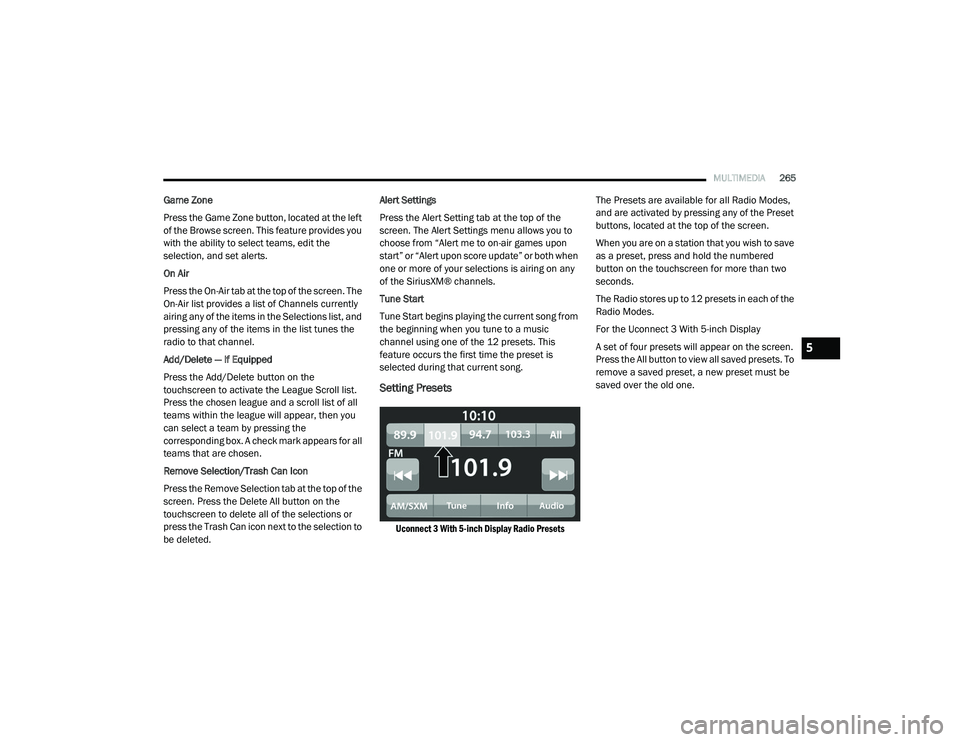
Setting Presets
Uconnect 3 With 5-inch Display Radio Presets
The Presets are available for all Radio Modes,
and are activated by pressing any of the Preset
buttons, located at the top of the screen.
When you are on a station that you wish to save
as a preset, press and hold the numbered
button on the touchscreen for more than two
seconds.
The Radio stores up to 12 presets in each of the
Radio Modes.
For the Uconnect 3 With 5-inch Display
A set of four presets will appear on the screen.
Press the All button to view all saved presets. To
remove a saved preset, a new preset must be
saved over the old one.
5
21_DT_OM_EN_USC_t.book Page 265
Page 293 of 496
MULTIMEDIA291
An ignition cycle is required for some remote
commands, such as Remote Vehicle Start
and Remote Door Lock/Unlock if following a
Remote Horn & Lights activation.
Your Remote Door Lock/Unlock request will
not be processed if the vehicle is in motion,
the ignition key is on or during an emergency
call.
NOTE:
All other remote services should be performed
via your Owner’s Site or through the Uconnect
App on your compatible device.
Remote Vehicle Start
Description
The Remote Vehicle Start feature provides you
with the ability to start the engine on your
vehicle without the keys and from virtually any
distance. Once started, the preset climate
controls in your vehicle can warm up or cool
down the interior.
You can also send a command to turn off an
engine that has been started using Remote
Vehicle Start. After 15 minutes, if you have not
entered your vehicle with the key, the engine
will shut off automatically. This remote function requires your vehicle to be
equipped with a factory-installed Remote Start
system.
You can set up push notifications every time a
command is sent to activate or cancel Remote
Start.
Working Vehicle Conditions
The vehicle must be off or in ACC mode.
The vehicle has been started with the key fob
within the last 14 days.
The vehicle must be in PARK or at a standstill.
The vehicle’s security system has been
armed and not triggered since the last
vehicle start.
The doors, hood, and trunk/liftgate are
closed.
The vehicle’s check engine light must be off.
The vehicle must have at least a quarter tank
of fuel, along with oil and battery power.
The vehicle’s hazard lights must be off.
If equipped, the vehicle must have an auto
-
matic transmission.
The vehicle must be in an open area with cell
tower reception.
Your mobile device must have a cellular or
Wi-Fi connection.
If the Panic button has been pressed, the
vehicle must be started at least once after
alarming the system.
NOTE:
The SiriusXM Guardian™ Customer Care agents
are not authorized for Remote Vehicle Start
services. Contact the Uconnect Care Team for
assistance
Remote Horn & Lights
Description
It is easy to locate a vehicle in a dark, crowded
or noisy parking area by activating the horn and
lights. It may also help if you need to draw
attention to your vehicle for any reason.
If you want, you can set up push notifications
every time a command is sent to turn on the
horn and lights.
5
21_DT_OM_EN_USC_t.book Page 291
Page 307 of 496
MULTIMEDIA305
2.Why do I need an email address? Without
an email address, customers cannot
register for SiriusXM Guardian™. Customers
need to register so they can subscribe to
receive additional services and create a
SiriusXM Guardian™ Security PIN for
remote command requests.
3. How do I create a SiriusXM Guardian™
security PIN? Set up your SiriusXM
Guardian™ Security PIN during the
registration process. The SiriusXM
Guardian™ Security PIN will be required to
authenticate you when accessing your
account via SiriusXM Guardian™ Call or
performing any remote services, such as
Remote Door Lock/Unlock, Remote Horn &
Lights, or Remote Vehicle Start.
4. What if I forgot my SiriusXM Guardian™
security PIN? If you’ve already activated
services and forgot your SiriusXM
Guardian™ Security PIN, you can reset the
PIN by selecting Edit Profile on your Owner’s
Site.
5. How do I update my SiriusXM Guardian™
payment account address? Your SiriusXM
Guardian™ Payment Account address can be updated online, or by calling SiriusXM
Guardian™ Customer Care from ASSIST in
your vehicle. To update online: login to your
Owner’s Site, and select Edit Profile >
SiriusXM Guardian™ Payment Account.
6. How do I update my SiriusXM Guardian™
profile? Your name, home address, phone
number, email address and SiriusXM
Guardian™ Security PIN can be updated
online on your Owner’s Site. Log in to your
Owner’s Site then select Edit Profile to edit
your personal information. Make your edits
and click Save.
7. Can I try features or packages before I buy
them? Your new vehicle purchase may have
come with an included trial period for
certain Apps and services.
8. Can I access every App and service while
driving? No, some applications and services
are not available while driving. For your own
safety, it is not possible to use some of the
touchscreen features while the vehicle is in
motion (e.g. key pad).
9. What happens when my subscription
comes up for renewal? If you have added a
credit card to your account information, your subscription will be automatically
renewed for a term length in accordance
with the service plan that you have selected
at the then current subscription rate and on
every renewal date thereafter, unless you
cancel your subscription by calling SiriusXM
Guardian™ Care. If you have not added a
credit card to your account, SiriusXM
Guardian™ will send you an email or letter
in advance of your expiration date to remind
you that your subscription is ending soon.
10. How do I manage my SiriusXM Guardian™
notification preferences? Contact SiriusXM
Guardian™ Customer Care, or go to your
Owner’s Site and then update your
preferences on the SiriusXM Guardian™
customer web portal.
11. How do I purchase a subscription? Contact
SiriusXM Guardian™ Customer Care by
pushing the ASSIST button on your rearview
mirror.
12. How do I update my credit card
information? Login to your Owner’s Site,
and select Edit Profile, then select SiriusXM
Guardian™ Payment Account.
5
21_DT_OM_EN_USC_t.book Page 305
Page 321 of 496

SAFETY319
The BSM detection zone covers approximately
one lane width on both sides of the vehicle 12 ft
(3.8 m). The zone length starts at the outside
rear view mirror and extends approximately
10 ft (3 m) beyond the rear fascia/bumper of
the vehicle. The BSM system monitors the
detection zones on both sides of the vehicle
when the vehicle speed reaches approximately
6 mph (10 km/h) or higher and will alert the
driver of vehicles in these areas.
NOTE:
The BSM system DOES NOT alert the driver
about rapidly approaching vehicles that are
outside the detection zones.
BSM may experience dropouts (blinking on
and off) of the side mirror warning indicator
lamps when a motorcycle or any small object
remains at the side of the vehicle for
extended periods of time (more than a couple
of seconds).
The vehicle’s taillights, where the radar sensors
are located, must remain free of snow, ice, and
dirt/road contamination so that the BSM
system can function properly. Do not block the
taillights with foreign objects (bumper stickers,
bicycle racks, etc.).
Radar Sensor Locations
If the system detects degraded performance
due to contamination or foreign objects, a
message will warn you of a blocked sensor and
the warning indicators in side view mirrors will
be on. The warning indicators will remain
illuminated until blockage clearing conditions
are met. First clear the taillights around the
sensors of the blockage. After removing the
blockage, the following procedure can be used
to reset the system:
Cycle the ignition from ON to OFF and then back
ON.
If the blockage message is still present after
cycling the ignition and driving in traffic, check
again for a blockage. The system may also detect a blockage if the
vehicle is operated in areas with extremely low
radar returns such as a desert or parallel to a
large elevation drop.
The BSM system notifies the driver of objects in
the detection zones by illuminating the BSM
warning light located in the outside mirrors, in
addition to sounding an audible (chime) alert
and reducing the radio volume Ú
page 322.
Warning Light Location
The BSM system monitors the detection zone
from three different entry points (side, rear,
front) while driving to see if an alert is
necessary. The BSM system will issue an alert
during these types of zone entries.
6
21_DT_OM_EN_USC_t.book Page 319
Page 328 of 496
326SAFETY
When FCW status is set to “Warning and
Braking”, this allows the system to warn the
driver of a possible collision with the vehicle
in front using audible/visual warnings and it
applies autonomous braking.
The FCW system state is defaulted to “Full
On” from one ignition cycle to the next. If the
system is turned off, it will reset to “Full On”
when the vehicle is restarted.
FCW Braking Status And Sensitivity
The FCW Sensitivity and Active Braking status
are programmable through the Uconnect
system Ú page 237.
Far
When the sensitivity of FCW is set to the
“Far” setting and the system status is
“Only Warning”, this allows the system to
warn the driver of a possible more distant
collision with the vehicle in front using
audible/visual warnings.
More cautious drivers that do not mind
frequent warnings may prefer this
setting.
Medium
When the sensitivity of FCW is set to the
“Medium” setting and the system status
is “Only Warning”, this allows the system
to warn the driver of a possible collision
with the vehicle in front using audible/
visual warnings.
Near
When the sensitivity of FCW is set to the
“Near” setting and the system status is
“Only Warning”, this allows the system to
warn the driver of a possible closer colli -
sion with the vehicle in front using
audible/visual warnings.
This setting provides less reaction time
than the “Far” and “Medium” settings,
which allows for a more dynamic driving
experience.
More dynamic or aggressive drivers that
want to avoid frequent warnings may
prefer this setting.
FCW Limited Warning
If the instrument cluster displays “ACC/FCW
Limited Functionality” or “ACC/FCW Limited
Functionality Clean Front Windshield”
momentarily, there may be a condition that
limits FCW functionality. Although the vehicle is
still driveable under normal conditions, the
active braking may not be fully available. Once
the condition that limited the system
performance is no longer present, the system
will return to its full performance state. If the
problem persists, see an authorized dealer.
Service FCW Warning
If the system turns off, and the instrument
cluster displays:
ACC/FCW Unavailable Service Required
Cruise/FCW Unavailable Service Required
This indicates there is an internal system fault.
Although the vehicle is still drivable under
normal conditions, have the system checked by
an authorized dealer.
21_DT_OM_EN_USC_t.book Page 326
Page 329 of 496

SAFETY327
Pedestrian Emergency Braking (PEB) — If
Equipped
PEB is a subsystem of the FCW system that
provides the driver with audible and visual
warnings in the instrument cluster display, and
may apply automatic braking when it detects a
potential frontal collision with a pedestrian.
If a PEB event begins at a speed below 37 mph
(60 km/h), the system may provide braking to
mitigate the potential collision with a
pedestrian. If the PEB event stops the vehicle
completely, the system will hold the vehicle at a
standstill for two seconds and then release the
brakes. When the system determines a collision
with the pedestrian in front of you is no longer
probable, the warning message will be
deactivated.
The minimum speed for PEB activation is 3 mph
(5 km/h). Turning PEB On Or Off
NOTE:
The default status of PEB is “On.” This allows
the system to warn you of a possible frontal
collision with the pedestrian.
The PEB button is located in the Uconnect
display in the controls settings Ú
page 237.
To turn the PEB system off, push the Pedestrian
Emergency Braking button once.
To turn the PEB system back on, push the
Pedestrian Emergency Braking button again.
Changing the PEB status to “Off” deactivates
the system, so no warning or active braking will
be available in case of a possible frontal
collision with the pedestrian. NOTE:
The PEB system will NOT retain the last setting
selected by the driver after ignition shut down.
The system will reset to the default setting when
the vehicle is restarted.
TIRE PRESSURE MONITORING SYSTEM
(TPMS)
TPMS will warn the driver of a low tire pressure
based on the vehicle recommended cold
placard pressure.
NOTE:
The TPMS Warning Light will illuminate in the
instrument cluster and a chime will sound when
tire pressure is low in one or more of the four
active road tires. In addition, the instrument
cluster will display a graphic showing the pres -
sure values of each tire with the low tire pres -
sure values in a different color, or the Uconnect
radio will display a TPMS message; when this
occurs you must increase the tire pressure to
the recommended cold placard pressure in
order for the TPMS Warning Light to turn off.
The tire pressure will vary with temperature by
about 1 psi (7 kPa) for every 12°F (6.5°C). This
means that when the outside temperature
decreases, the tire pressure will decrease. Tire
WARNING!
Pedestrian Emergency Braking (PEB) is not
intended to avoid a collision on its own, nor
can PEB detect every type of potential colli -
sion with a pedestrian. The driver has the
responsibility to avoid a collision by con -
trolling the vehicle via braking and steering.
Failure to follow this warning could lead to
serious injury or death.
6
21_DT_OM_EN_USC_t.book Page 327
Page 355 of 496

SAFETY353
eye irritation, rinse the area with cool water.
For nose or throat irritation, move to fresh air.
If the irritation continues, see your doctor. If
these particles settle on your clothing, follow
the garment manufacturer’s instructions for
cleaning.
Do not drive your vehicle after the air bags have
deployed. If you are involved in another
collision, the air bags will not be in place to
protect you.
NOTE:
Air bag covers may not be obvious in the inte -
rior trim, but they will open during air bag
deployment.
After any collision, the vehicle should be
taken to an authorized dealer immediately.
Enhanced Accident Response System
In the event of an impact, if the communication
network remains intact, and the power remains
intact, depending on the nature of the event,
the Occupant Restraint Controller (ORC) will
determine whether to have the Enhanced
Accident Response System perform the
following functions:
Cut off fuel to the engine (if equipped)
Cut off battery power to the electric motor (if
equipped)
Flash hazard lights as long as the battery has
power
Turn on the interior lights, which remain on
as long as the battery has power or for
15 minutes from the intervention of the
Enhanced Accident Response System
Unlock the power door locks
Your vehicle may also be designed to perform
any of these other functions in response to the
Enhanced Accident Response System:
Turn off the Fuel Filter Heater, Turn off the
HVAC Blower Motor, Close the HVAC Circula -
tion Door
Cut off battery power to the:
Engine
Electric Motor (if equipped)
Electric power steering
Brake booster
Electric park brake
Automatic transmission gear selector
Horn
Front wiper
Headlamp washer pump
NOTE:
After an accident, remember to cycle the igni -
tion to the STOP (OFF/LOCK) position and
remove the key from the ignition switch to avoid
draining the battery. Carefully check the vehicle
for fuel leaks in the engine compartment and on
the ground near the engine compartment and
fuel tank before resetting the system and
starting the engine. If there are no fuel leaks or
damage to the vehicle electrical devices (e.g.
headlights) after an accident, reset the system
by following the procedure described below. If
you have any doubt, contact an authorized
dealer.
WARNING!
Deployed air bags and seat belt
pretensioners cannot protect you in another
collision. Have the air bags, seat belt
pretensioners, and the seat belt retractor
assemblies replaced by an authorized dealer
immediately. Also, have the Occupant
Restraint Controller System serviced as well.
6
21_DT_OM_EN_USC_t.book Page 353