key RAM 1500 2021 Repair Manual
[x] Cancel search | Manufacturer: RAM, Model Year: 2021, Model line: 1500, Model: RAM 1500 2021Pages: 496, PDF Size: 20.89 MB
Page 279 of 496
MULTIMEDIA277
Voice Commands (Dial by Saying a Name,
Call by Saying a Phonebook Name, Redial or
Call Back)
Favorites
Mobile Phonebook
Recent Call Log
SMS Message Viewer
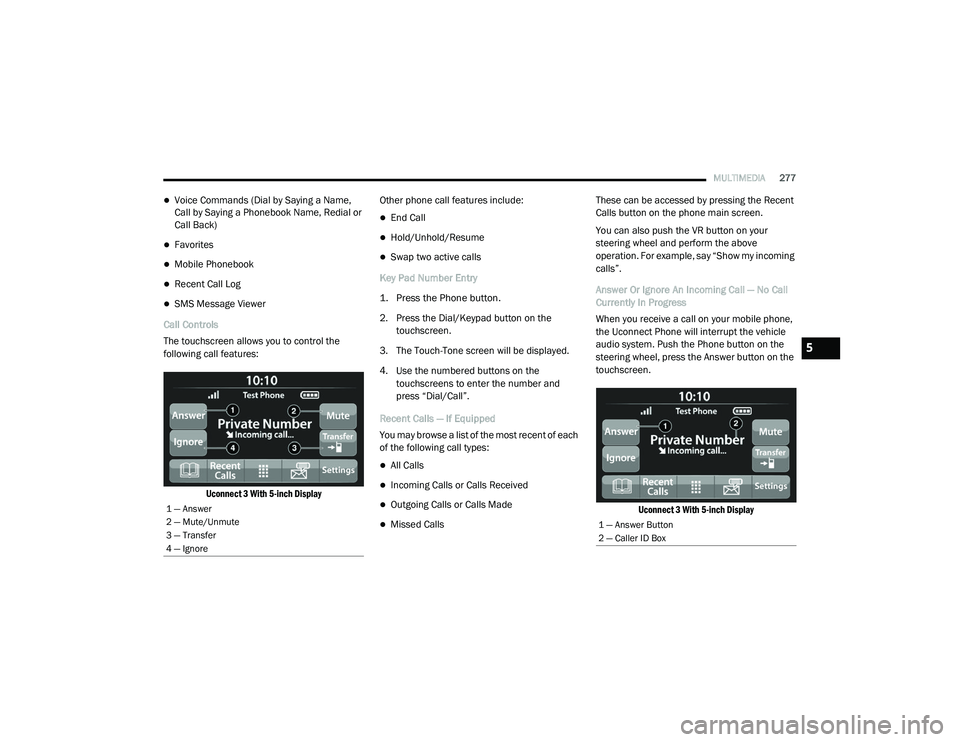
Call Controls
The touchscreen allows you to control the
following call features:
Uconnect 3 With 5-inch Display
Other phone call features include:
End Call
Hold/Unhold/Resume
Swap two active calls
Key Pad Number Entry
1. Press the Phone button.
2. Press the Dial/Keypad button on the touchscreen.
3. The Touch-Tone screen will be displayed.
4. Use the numbered buttons on the touchscreens to enter the number and
press “Dial/Call”.
Recent Calls — If Equipped
You may browse a list of the most recent of each
of the following call types:
All Calls
Incoming Calls or Calls Received
Outgoing Calls or Calls Made
Missed Calls These can be accessed by pressing the Recent
Calls button on the phone main screen.
You can also push the VR button on your
steering wheel and perform the above
operation. For example, say “Show my incoming
calls”.
Answer Or Ignore An Incoming Call — No Call
Currently In Progress
When you receive a call on your mobile phone,
the Uconnect Phone will interrupt the vehicle
audio system. Push the Phone button on the
steering wheel, press the Answer button on the
touchscreen.
Uconnect 3 With 5-inch Display
1 — Answer
2 — Mute/Unmute
3 — Transfer
4 — Ignore
1 — Answer Button
2 — Caller ID Box
5
21_DT_OM_EN_USC_t.book Page 277
Page 280 of 496
278MULTIMEDIA
Answer Or Ignore An Incoming Call — Call
Currently In Progress
If a call is currently in progress and you have
another incoming call, you will hear the same
network tones for call waiting that you normally
hear when using your mobile phone. Push the
Phone button on the steering wheel, press the
Answer button on the touchscreen, or press the
Caller ID box to place the current call on hold
and answer the incoming call.
NOTE:
Phones that are compatible with the Uconnect
system in the market today do not support
rejecting an incoming call when another call is
in progress. Therefore, the user can only answer
an incoming call or ignore it.
Do Not Disturb
With Do Not Disturb, you can disable
notifications from incoming calls and texts,
allowing you to keep your eyes on the road and
hands on the wheel. For your convenience,
there is a counter display to keep track of your
missed calls and text messages while Do Not
Disturb is active. Do Not Disturb can automatically reply with a
text message, a call, or both when declining an
incoming call and send it to voicemail.
Automatic reply messages can be:
“I am driving right now, I will get back to you
shortly”.
Create a custom auto reply message up to
160 characters.
NOTE:
Only the first 25 characters can be seen on the
touchscreen while typing a custom message.
While in Do Not Disturb, Conference Call can be
selected so you can still place a second call
without being interrupted by incoming calls.
NOTE:
Reply with text message is not compatible
with iPhones®.
Auto reply with text message is only available
on phones that support Bluetooth® Message
Access Profile (MAP). Place/Retrieve A Call From Hold
During an active call, press the Hold or Call On
Hold button on the Phone main screen.
Making A Second Call While Current Call Is In
Progress
You can place a call on hold by pressing the
Hold button on the Phone main screen, then
dial a number from the keypad (if supported by
your mobile phone), recent calls, SMS Inbox or
from the phonebooks.
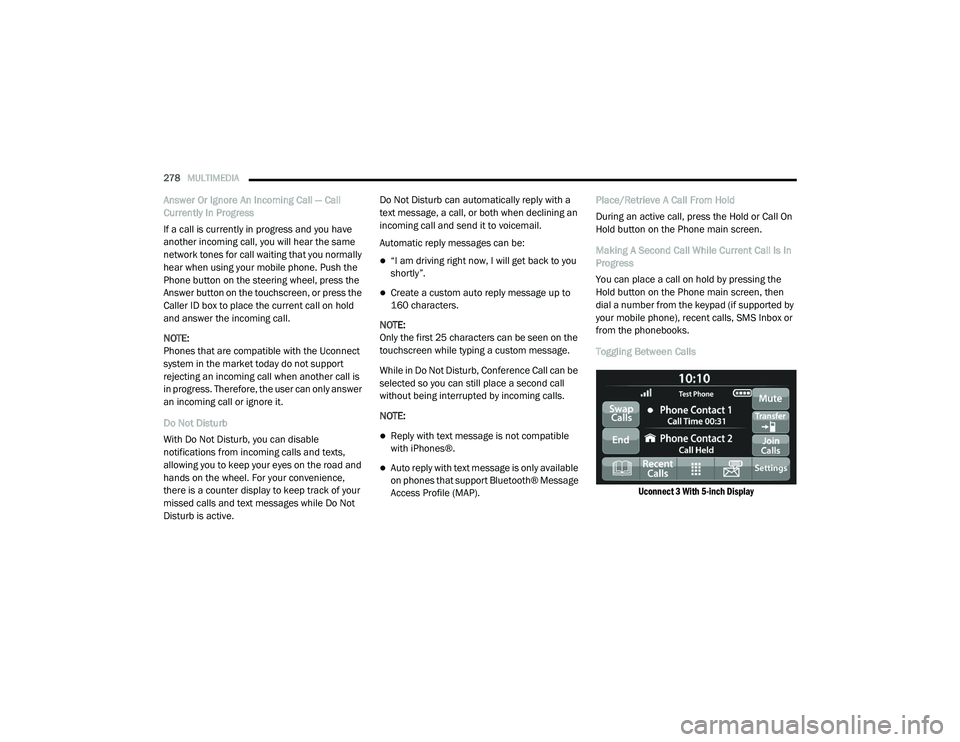
Toggling Between Calls
Uconnect 3 With 5-inch Display
21_DT_OM_EN_USC_t.book Page 278
Page 283 of 496

MULTIMEDIA281
NOTE:
Only use the numbering listed in the provided
table. Otherwise, the system will not transpose
the message. Did You Know:
Your mobile phone must have the
full implementation of the Message Access Profile
(MAP) to take advantage of this feature. For
details about MAP, visit UconnectPhone.com.
Apple® iPhone® iOS 6 or later supports reading
incoming text messages only. For further
information on how to enable this feature on
your Apple® iPhone®, refer to your iPhone’s®
“User Manual”.
Did You Know: Voice Text Reply is not
compatible with iPhone®, but if your vehicle is
equipped with Siri® Eyes Free, you can use your
voice to send a text message.
Siri® Eyes Free — If Equipped
When used with your Apple® iPhone®
connected to your vehicle via Bluetooth®, Siri
lets you use your voice to send text messages,
select media, place phone calls and much
more. Siri uses your natural language to
understand what you mean and responds back
to confirm your requests. The system is
designed to keep your eyes on the road and
your hands on the wheel by letting Siri help you
perform useful tasks. To enable Siri, push and hold, then release the
Uconnect Voice Recognition (VR) button on the
steering wheel. After you hear a double beep,
you can ask Siri to play podcasts and music, get
directions, read text messages, and many other
useful requests.
Bluetooth® Communication Link
Mobile phones may lose connection to the
Uconnect Phone. When this happens, the
connection can generally be re-established by
restarting the mobile phone. Your mobile phone
is recommended to remain in Bluetooth® ON
mode.
Power-Up
After switching the ignition key from OFF to
either the ON/RUN or ACC position, or after a
language change, you must wait at least
15 seconds prior to using the system
Ú
page 482.
PRE-DEFINED VOICE TEXT REPLY
RESPONSES
Yes. Stuck in
traffic. See you later.
No. Start without
me. I’ll be late.
Okay. Where are
you? I will be 5
25, 30, 45,
60> minutes late.
Call me.
Are you there
yet?
I’ll call you later. I need
directions. See you in 5
minutes.
I’m on my
way. Can’t talk
right now.
I’m lost. Thanks.
5
21_DT_OM_EN_USC_t.book Page 281
Page 287 of 496
MULTIMEDIA285
d. After clicking the email link, it will take
you to a website and prompt you to
assign your account with a password.
e. Once you have added a password, the website will direct you to your homepage
where you can add in your vehicle’s VIN.
a. Click the Register button
b. Select the correct country and email address then click “Register”.
c. You will then receive an email notification to confirm/verify your newly created
account.
d. After clicking the email link, it will take you to a website and prompt you to
assign your account with a password.
e. Once you have added a password, the website will direct you to your homepage
where you can add in your vehicle’s VIN.
For customers in Canada, register your
account via your vehicle.
a. Press the Apps button in the bottom menu bar.
b. Press the Activate Services button from the apps list. c. Enter your email and press “OK”. A confir
-
mation email will be sent to the provided
email address.
d. Press “Continue Activation” from the confirmation email. It may take a short
time before remote services will be avail -
able, but you will be able to log into the
Uconnect App and the owner’s site.
Once on the Remote screen and you have set
up your four-digit PIN, you can begin using
Remote Door Lock/Unlock, Remote Vehicle
Start, and activate your horn and lights
remotely, if equipped.
Press the Location button on the bottom
menu bar of the app to bring up a map to
locate your vehicle or send a location to your
Uconnect Navigation, if equipped.
Press the Settings side menu in the upper left
corner of the app to bring up app settings and
access the Assist Call Centers.
Using Your Owner’s Site
Your Owner’s Site website
https://www.mopar.com/en-us.html (US
Residents), or www.mopar.ca (Canadian
Residents) provides you with all the information
you need, all in one place. You can track your service history, find recommended accessories
for your vehicle, watch videos about your
vehicle's features, and easily access your
manuals. It is also where you can manage your
SiriusXM Guardian™ account. This section will
familiarize you with the key elements of the
website that will help you get the most of your
SiriusXM Guardian™ system.
For customers in the United States, press the
Sign In/Register button and enter your email
address and password.
For customers in Canada, press the My Vehicle
button. Select from “Dashboard”, “Vehicle
Health Report”, and “Recalls”. The website will
then prompt you to log-in using your email
address and password.
Edit/Edit Profile:
To manage the details of your SiriusXM
Guardian™ account, such as your contact
information, password and SiriusXM
Guardian™ PIN, click on the Edit/Edit Profile
button to access the details of your account.
5
21_DT_OM_EN_USC_t.book Page 285
Page 289 of 496
MULTIMEDIA287
How It Works
1. Push the SOS Call button; the indicator light will turn green indicating a call has
been placed.
NOTE:
In case the SOS Call button is accidentally
pushed, there is a 10-second delay before
the SOS call is placed. The system will
verbally alert you that a call is about to be
made. To cancel the SOS Call connection,
push the SOS Call button on the rearview
mirror or press the Cancel button on the
touchscreen within 10 seconds.
During an SOS Call, the Bluetooth® paired
phone is disconnected so incoming or
outgoing calls will go through your mobile
device versus the hands-free system which is
not available due to the SOS Call.
2. Once a connection between the vehicle and a SiriusXM Guardian™ Customer Care agent is
made, the agent will stay on the line with you.
NOTE:
Calls between the vehicle occupants and the
SiriusXM Guardian™ Customer Care center may
be recorded or monitored for quality assurance purposes. Through your enrollment in and use
of the SiriusXM Guardian™ services, you
consent to being recorded.
SOS Call System Limitations
Vehicles that have been purchased in the US
and that travel into Mexico and Canada may
have limited services. In particular, responses
to SOS calls or other emergency services may
be unavailable or very limited. Vehicles
purchased outside the United States and
Canada are unable to receive SiriusXM
Guardian™ services.
If the SOS Call system detects a malfunction,
any of the following may occur at the time the
malfunction is detected:
The light will continuously be illuminated red.
The screen will display the following message
“Vehicle phone requires service. Please
contact your dealer.”
An in-vehicle audio message will state
“Vehicle phone requires service. Please
contact your dealer.”
Even if the SOS Call system is fully functional,
factors beyond FCA US LLC’s control may
prevent or stop SOS Call system operation. These include, but are not limited to, the
following factors:
The ignition key is in OFF position.
The vehicle’s electrical systems are not
intact.
The vehicle battery loses power or becomes
disconnected during a vehicle crash.
The SOS Call system software and/or hard
-
ware is damaged during a vehicle crash.
LTE (voice/data) or 3G or 4G (data) coverage
and/or GPS signals are unavailable or
obstructed.
Network congestion.
Weather conditions.
Buildings, structures, geographic terrain, or
tunnels.
If your vehicle loses battery power for any
reason (including during or after an accident)
the SOS Call System, among other vehicle
systems, will not operate.
5
21_DT_OM_EN_USC_t.book Page 287
Page 292 of 496
290MULTIMEDIA
activated your SiriusXM Guardian™
system). Enter the SiriusXM Guardian™
Security PIN on the keypad.
3. It may take 30 seconds or more for the command to go through to your vehicle.
4. A message will let you know if the command was received by your vehicle.
Using A Remote Command Through Your
Owner’s Site
1. Log on to your Owner’s Site using the username and password you used when
activating your SiriusXM Guardian™
services in your vehicle.
NOTE:
If you forgot your username or password, links
are provided on the website to help you retrieve
them.
2. If you have more than one vehicle registered into your Owner’s Site, select the
vehicle you want to send the command to by
clicking on its image along the top.
3. On your dashboard, you will see remote commands. Press the desired icon to
activate that feature. 4. You will then be asked to enter your
SiriusXM Guardian™ Security PIN (this is the
same four-digit code established when you
activated your SiriusXM Guardian™
system). Please enter your SiriusXM
Guardian™ Security PIN.
5. A message will appear on the screen to let you know if the command was received by
your vehicle.
Contacting SiriusXM Guardian™ Customer Care
(for example, in case of an accidental lock-out):
1. Contact SiriusXM Guardian™ Customer Care if you are unable to lock your vehicle
through the Uconnect App or your key fob.
2. For security purposes, the SiriusXM Guardian™ Customer Care agent will verify
your identity by asking for your four-digit
SiriusXM Guardian™ Security PIN.
3. After providing your SiriusXM Guardian™ Security PIN, you can ask them to perform a
remote command.
NOTE:
Anyone with access to your PIN may request
Remote Door Lock/Unlock. It is your responsi -
bility to protect your PIN appropriately.Remote Door Lock/Unlock
Description
The Remote Door Lock/Unlock feature provides
you the ability to lock or unlock the door on your
vehicle without the keys and from virtually any
distance.
Working Vehicle Conditions
The vehicle must in PARK or at a standstill.
The vehicle must be in an open area with cell
tower reception.
Your mobile device must have a cellular or
Wi-Fi connection.
Requirements
Vehicle must be properly equipped with the
SiriusXM Guardian™ system.
Vehicle must have an operable LTE (voice/
data) or 3G or 4G (data) network connection.
If using the Uconnect App to command your
vehicle, your device must be compatible and
be connected to an operable LTE (voice/
data) or 3G or 4G (data) network connection.
Vehicle must be registered with SiriusXM
Guardian™ and have an active subscription
that includes the applicable feature.
21_DT_OM_EN_USC_t.book Page 290
Page 293 of 496
MULTIMEDIA291
An ignition cycle is required for some remote
commands, such as Remote Vehicle Start
and Remote Door Lock/Unlock if following a
Remote Horn & Lights activation.
Your Remote Door Lock/Unlock request will
not be processed if the vehicle is in motion,
the ignition key is on or during an emergency
call.
NOTE:
All other remote services should be performed
via your Owner’s Site or through the Uconnect
App on your compatible device.
Remote Vehicle Start
Description
The Remote Vehicle Start feature provides you
with the ability to start the engine on your
vehicle without the keys and from virtually any
distance. Once started, the preset climate
controls in your vehicle can warm up or cool
down the interior.
You can also send a command to turn off an
engine that has been started using Remote
Vehicle Start. After 15 minutes, if you have not
entered your vehicle with the key, the engine
will shut off automatically. This remote function requires your vehicle to be
equipped with a factory-installed Remote Start
system.
You can set up push notifications every time a
command is sent to activate or cancel Remote
Start.
Working Vehicle Conditions
The vehicle must be off or in ACC mode.
The vehicle has been started with the key fob
within the last 14 days.
The vehicle must be in PARK or at a standstill.
The vehicle’s security system has been
armed and not triggered since the last
vehicle start.
The doors, hood, and trunk/liftgate are
closed.
The vehicle’s check engine light must be off.
The vehicle must have at least a quarter tank
of fuel, along with oil and battery power.
The vehicle’s hazard lights must be off.
If equipped, the vehicle must have an auto
-
matic transmission.
The vehicle must be in an open area with cell
tower reception.
Your mobile device must have a cellular or
Wi-Fi connection.
If the Panic button has been pressed, the
vehicle must be started at least once after
alarming the system.
NOTE:
The SiriusXM Guardian™ Customer Care agents
are not authorized for Remote Vehicle Start
services. Contact the Uconnect Care Team for
assistance
Remote Horn & Lights
Description
It is easy to locate a vehicle in a dark, crowded
or noisy parking area by activating the horn and
lights. It may also help if you need to draw
attention to your vehicle for any reason.
If you want, you can set up push notifications
every time a command is sent to turn on the
horn and lights.
5
21_DT_OM_EN_USC_t.book Page 291
Page 296 of 496
294MULTIMEDIA
How It Works
1. Use the Uconnect App to find the
destination.
There are multiple ways to find a destina -
tion. After selecting the “Location” tab at
the bottom of the App, press the search box
to browse through one of the categories pro -
vided, or type the name or keyword in the
search box at the top of the App. You can
also select categories such as Favorites or
Contact List.
2. Select your destination from the list that appears. Location information will then be
displayed on the map.
From this screen, you will be able to:
View the location on a map.
See the distance from your current loca-
tion.
Send the address by selecting “Send to
Vehicle” from the mobile app.
3. Send the destination to the Uconnect Navigation in your vehicle. You can also call
the destination by pressing the Call button. 4. Confirm your destination inside your vehicle
by pressing the Send To Vehicle option on
the pop-up that appears on the radio
touchscreen.
Requirements
Vehicle must be properly equipped with the
Uconnect system and a Uconnect 4C or
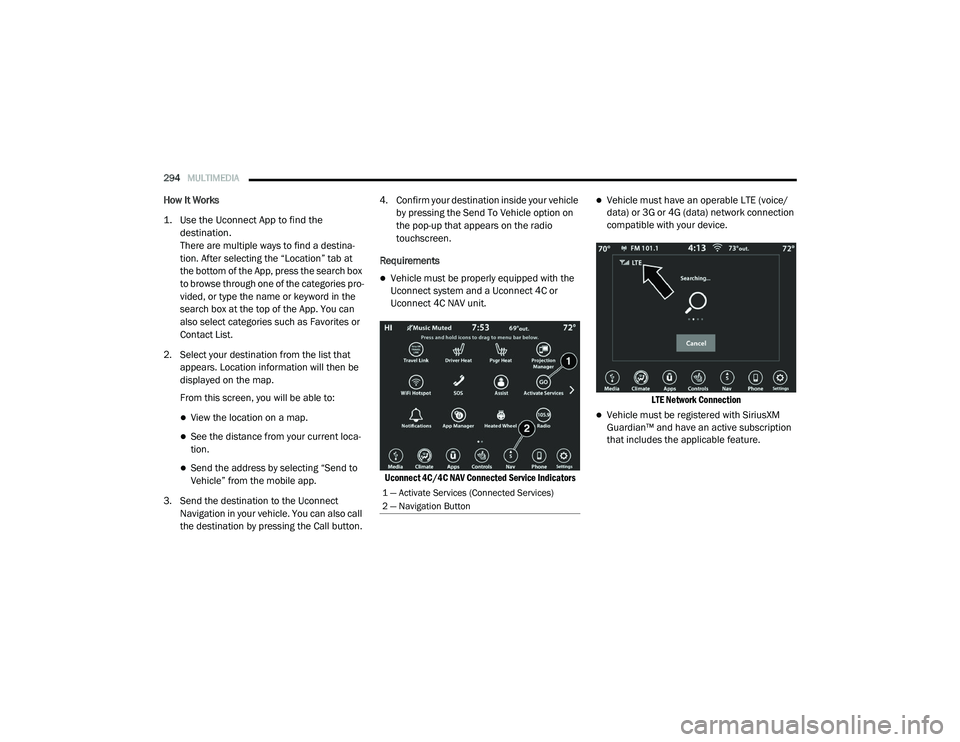
Uconnect 4C NAV unit.
Uconnect 4C/4C NAV Connected Service Indicators
Vehicle must have an operable LTE (voice/
data) or 3G or 4G (data) network connection
compatible with your device.
LTE Network Connection
Vehicle must be registered with SiriusXM
Guardian™ and have an active subscription
that includes the applicable feature.
1 — Activate Services (Connected Services)
2 — Navigation Button
21_DT_OM_EN_USC_t.book Page 294
Page 299 of 496
MULTIMEDIA297
Stolen Vehicle Assistance
Description
If your vehicle is stolen, the SiriusXM Guardian™
Customer Care agent may be able to locate the
stolen vehicle and work with law enforcement to
help recover it.
How It Works
1. If your vehicle is stolen, contact local law enforcement as soon as possible. They will
work with you to file a stolen vehicle report.
2. Next, inform SiriusXM Guardian™ Customer Care that your vehicle has been stolen. The SiriusXM Guardian™ Customer Care
Agent will ask for the stolen vehicle report
number (as issued by your local law enforce
-
ment). If you have downloaded the
Uconnect App, you can push the “Settings”
menu button on your device, select “Help”,
and then select “SiriusXM Guardian™ Cus -
tomer Care” to make the call.
3. SiriusXM Guardian™ Customer Care will authenticate that you are the owner of the
vehicle and contact the law enforcement
with whom you filed the stolen vehicle
report.
4. SiriusXM Guardian™ Customer Care will work with your local law enforcement to
locate the vehicle. You will be contacted by
law enforcement if your vehicle is
recovered. While the investigation is
ongoing, you should also contact your
insurance company to inform it of the
situation. Requirements
Vehicle must be properly equipped with the
Uconnect system.
Vehicle must have an operable LTE (voice/
data) or 3G or 4G (data) network connection
compatible with your device.
Vehicle must be registered with SiriusXM
Guardian™ and have an active subscription
that includes the applicable feature.
NOTE:
Not all features of SiriusXM Guardian™ are
available everywhere at all times, particularly in
remote or enclosed areas.
Monthly Vehicle Health Report
Description
Monthly Vehicle Health Report is a Uconnect
service through which a summary of the
performance of your vehicle’s key systems will
be sent to you every month so you can stay on
top of your vehicle’s maintenance needs. This is
provided as a convenience to you and does not
substitute for regular maintenance to your
vehicle.
WARNING!
Always drive safely with your hands on the
steering wheel and obey all applicable laws.
You have full responsibility and assume all
risks related to the use of the features and
applications in this vehicle. Only use the
features and applications in this vehicle when
it is safe to do so. Failure to comply may result
in an accident involving in serious injury or
death.
5
21_DT_OM_EN_USC_t.book Page 297
Page 300 of 496
298MULTIMEDIA
In order to provide the Monthly Vehicle Health
Report, the Uconnect system in your vehicle
may collect and transmit vehicle data to
SiriusXM Guardian™ and to FCA, such as your
vehicle’s health and performance, your
vehicle’s location, your utilization of the
features in your vehicle, and other data.
This data collection and transmission begins
when you enroll in SiriusXM Guardian™ and will
continue even if you cancel your SiriusXM
Guardian™ subscription unless you call
SiriusXM Guardian™ Customer Care and tell
them to deactivate your Uconnect Services.
Please see the Uconnect Privacy Policy for more
information, located at
www.driveuconnect.com/connectedservices/
privacy (US Residents) or
www.driveuconnect.ca (Canadian Residents).
For more information on SiriusXM Guardian™
private policy, see https://siriusxmcvs.com/
privacy-policy.Vehicle Health Alert
Description
Your vehicle will send you an email alert if it
senses a problem with one of your vehicle’s key
systems. For further information, go to your
Owner’s website.
NOTE:
Vehicle Health Alert emails require you to
register and activate services. During this
process you will be asked to provide an email
address to which the reports will be sent.
In-Vehicle Notifications — If Equipped
Description
Your vehicle will send you notifications to
remind you when services are needed, or to
alert you of other important information, such
as recall notices. When you receive a
notification through your touchscreen, press OK
to dismiss the message, or press Call Care to
speak with a SiriusXM Guardian™ Customer
Care agent. NOTE:
Pressing OK or the X button on the pop-up
screen will dismiss or close the pop-up, and the
In-Vehicle Messages mailbox will display. In the
Mailbox, you can reopen messages or delete
messages.
Amazon Alexa® Skill — If Equipped
Enjoy the convenience of using your voice to
command your vehicle with Amazon Alexa®!
With Amazon Alexa®, you can connect to your
vehicle and remotely access key services and
features.
If your vehicle is equipped with Uconnect
Navigation, you can send a destination directly
to your vehicle using Alexa®.
If you need assistance, you can always ask
Alexa® for help, or complete a list of commands
by saying: “Alexa®, ask
with my car.”
21_DT_OM_EN_USC_t.book Page 298