instrument cluster RAM 1500 2021 Manual Online
[x] Cancel search | Manufacturer: RAM, Model Year: 2021, Model line: 1500, Model: RAM 1500 2021Pages: 496, PDF Size: 20.89 MB
Page 242 of 496
240MULTIMEDIA
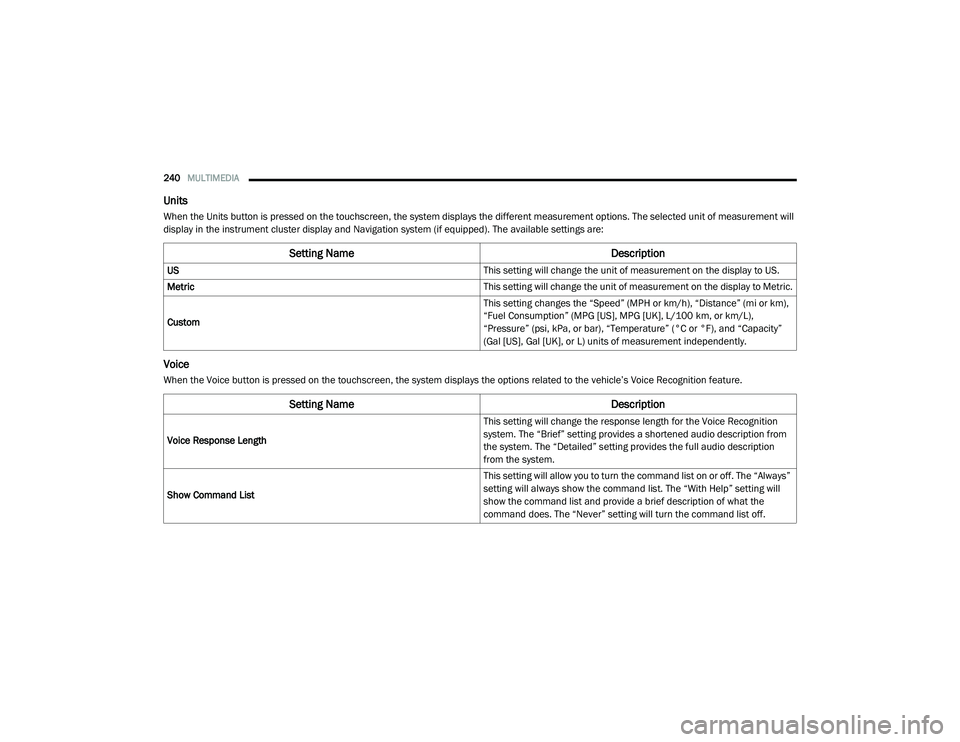
Units
When the Units button is pressed on the touchscreen, the system displays the different measurement options. The selected unit of measurement will
display in the instrument cluster display and Navigation system (if equipped). The available settings are:
Voice
When the Voice button is pressed on the touchscreen, the system displays the options related to the vehicle’s Voice Recognition feature.
Setting Name Description
US This setting will change the unit of measurement on the display to US.
Metric This setting will change the unit of measurement on the display to Metric.
Custom This setting changes the “Speed” (MPH or km/h), “Distance” (mi or km),
“Fuel Consumption” (MPG [US], MPG [UK], L/100 km, or km/L),
“Pressure” (psi, kPa, or bar), “Temperature” (°C or °F), and “Capacity”
(Gal [US], Gal [UK], or L) units of measurement independently.
Setting Name
Description
Voice Response Length This setting will change the response length for the Voice Recognition
system. The “Brief” setting provides a shortened audio description from
the system. The “Detailed” setting provides the full audio description
from the system.
Show Command List This setting will allow you to turn the command list on or off. The “Always”
setting will always show the command list. The “With Help” setting will
show the command list and provide a brief description of what the
command does. The “Never” setting will turn the command list off.
21_DT_OM_EN_USC_t.book Page 240
Page 251 of 496
MULTIMEDIA249
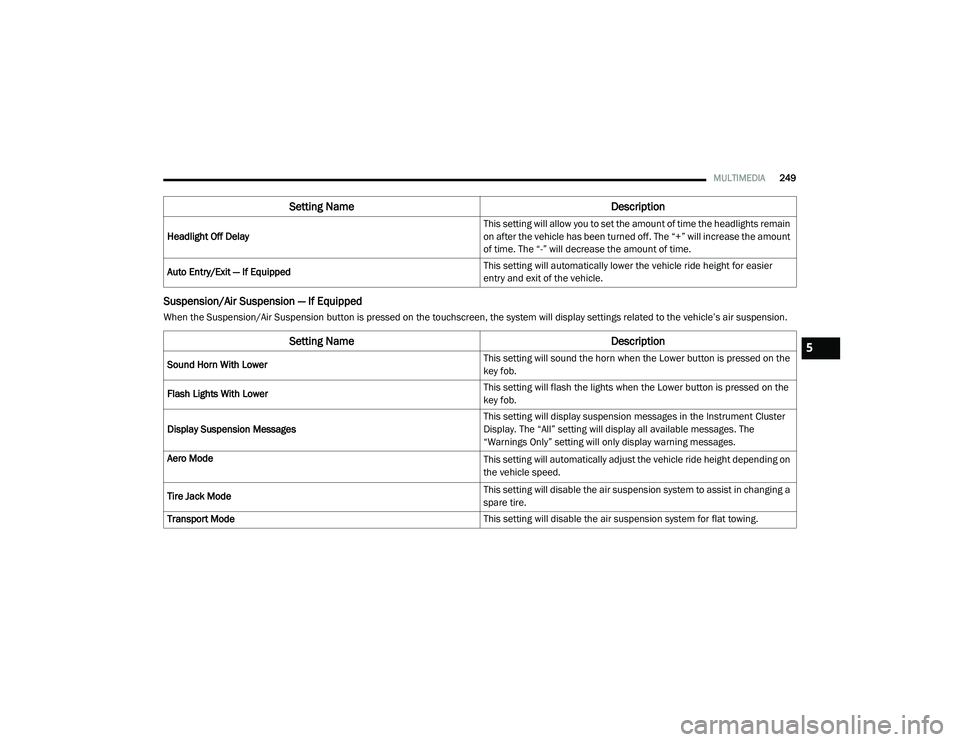
Suspension/Air Suspension — If Equipped
When the Suspension/Air Suspension button is pressed on the touchscreen, the system will display settings related to the vehicle’s air suspension.Headlight Off Delay
This setting will allow you to set the amount of time the headlights remain
on after the vehicle has been turned off. The “+” will increase the amount
of time. The “-” will decrease the amount of time.
Auto Entry/Exit — If Equipped This setting will automatically lower the vehicle ride height for easier
entry and exit of the vehicle.
Setting Name
Description
Setting NameDescription
Sound Horn With Lower This setting will sound the horn when the Lower button is pressed on the
key fob.
Flash Lights With Lower This setting will flash the lights when the Lower button is pressed on the
key fob.
Display Suspension Messages This setting will display suspension messages in the Instrument Cluster
Display. The “All” setting will display all available messages. The
“Warnings Only” setting will only display warning messages.
Aero Mode
This setting will automatically adjust the vehicle ride height depending on
the vehicle speed.
Tire Jack Mode This setting will disable the air suspension system to assist in changing a
spare tire.
Transport Mode This setting will disable the air suspension system for flat towing.
5
21_DT_OM_EN_USC_t.book Page 249
Page 254 of 496

252MULTIMEDIA
Phone/Bluetooth®
When the Phone/Bluetooth® button is pressed on the touchscreen, the system displays the options related to Bluetooth® connectivity from an external
audio device or smartphone. The list of paired audio devices or smartphones can be accessed from this menu.Speed Adjusted Volume
This setting will adjust audio volume as speeds increase. At a higher
setting, the volume will increase more as the vehicle speeds up. The
available setting are “Off”, “1”, “2”, and “3”.
Surround Sound — If Equipped This setting will turn the Surround Sound system on or off.
AUX Volume Offset This setting will tune the audio levels from a device connected through
the AUX port. The available settings are “+” and “-”.
Auto Play This setting will automatically begin playing audio from a connected
device.
Loudness This setting will improve audio quality at lower volumes.
Setting NameDescription
Setting NameDescription
Phone Pop-Ups Displayed In Cluster This setting will activate phone message pop-ups in the instrument
cluster display.
Do Not Disturb This setting will open the “Do Not Disturb” settings menu. The settings
are Auto Reply (both, text, call), Auto Reply Message (custom, default),
and Custom Auto Reply Message (create message).
Paired Phones This setting will show the list of paired phones.
Paired Audio Sources This setting will show the list of paired audio sources.
Paired Phones And Audio Devices This setting will show the list of paired phones and audio devices.
21_DT_OM_EN_USC_t.book Page 252
Page 256 of 496
254MULTIMEDIA
HEAD-UP DISPLAY (HUD)
The Head-Up Display layout on the instrument
cluster can be customized through the
Uconnect touchscreen. Each customized layout
can be saved to the Driver Profiles that are
created by the different drivers.
This feature is only accessed through the
instrument cluster display once the “Custom”
option is selected through the “Content &
Layout” tab. To begin customizing the HUD
layout through the instrument cluster display,
follow these steps:
1. Through the instrument cluster display,
using the Up and Down Arrow buttons on
the steering wheel, select the Content &
Layout option by pressing the OK button on
the steering wheel.
NOTE:
This option will not be available if the vehicle is
going more than 5 mph (8 km/h). 2. Select the Custom option by pushing the
Right Arrow button on the steering wheel.
NOTE:
A message will appear on the instrument cluster
display stating “Set Custom Layout in Radio”.
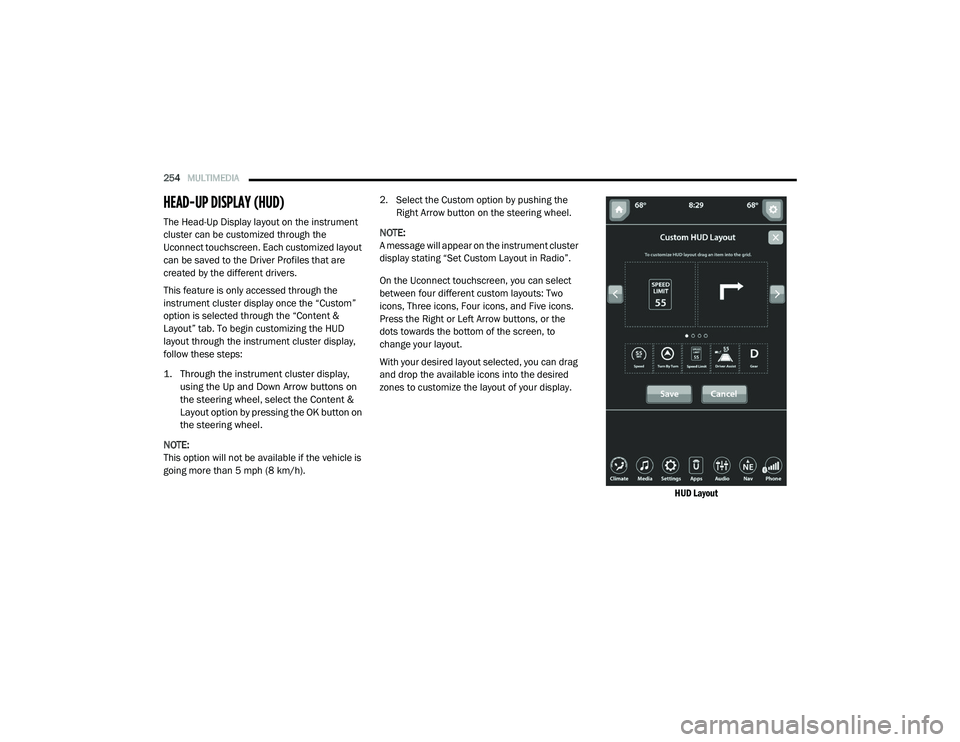
On the Uconnect touchscreen, you can select
between four different custom layouts: Two
icons, Three icons, Four icons, and Five icons.
Press the Right or Left Arrow buttons, or the
dots towards the bottom of the screen, to
change your layout.
With your desired layout selected, you can drag
and drop the available icons into the desired
zones to customize the layout of your display.
HUD Layout
21_DT_OM_EN_USC_t.book Page 254
Page 257 of 496

MULTIMEDIA255
The following are the available icons that can be customized in the cluster:
NOTE:
After the HUD layout customization is completed, press the Save button located in the upper left corner of the touchscreen, and then the OK button
under the “Save changes?” screen. Once saved, the instrument cluster will display a message “Setting Saved”.
Press the X button located in the upper right corner of the touchscreen, and then press the Cancel button to exit out of customizing the HUD layout.
Doing this will not retain any information customized in the layout view. The instrument cluster display will return to the layout options screen.
Pressing any other menu item on the touchscreen, for example “Climate”, will take the user back to whatever screen they were previously on before
accessing the HUD layout Ú page 118.
Feature Name IconDescription
Speed This icon will show the vehicle’s current speed.
Turn-By-Turn — If Equipped This icon will show the upcoming direction for
Navigation.
Speed Limit This icon will show the current speed limit of the
area you are driving in.
Driver Assist/Adaptive Cruise Control/Cruise Control And Lane Sense — If Equipped This icon will show information related to Driver
Assist, Adaptive Cruise Control, Cruise Control, and Lane Sense.
Gear This icon will show the current gear the vehicle
is in.
5
21_DT_OM_EN_USC_t.book Page 255
Page 314 of 496
312SAFETY
Electronic Brake Force Distribution (EBD)
EBD manages the distribution of the braking
torque between the front and rear axles by
limiting braking pressure to the rear axle. This is
done to prevent overslip of the rear wheels to
avoid vehicle instability, and to prevent the rear
axle from entering the Anti-Lock Brake System
(ABS) before the front axle.
Electronic Roll Mitigation (ERM)
The ERM system anticipates the potential for
wheel lift by monitoring the driver’s steering
wheel input and the speed of the vehicle. When
ERM determines that the rate of change of the
steering wheel angle and vehicle’s speed are
sufficient to potentially cause wheel lift, it then
applies the appropriate brake and may also
reduce engine power to lessen the chance that
wheel lift will occur. ERM can only reduce the
chance of wheel lift occurring during severe or
evasive driving maneuvers; it cannot prevent
wheel lift due to other factors, such as road
conditions, leaving the roadway, striking objects
or other vehicles.
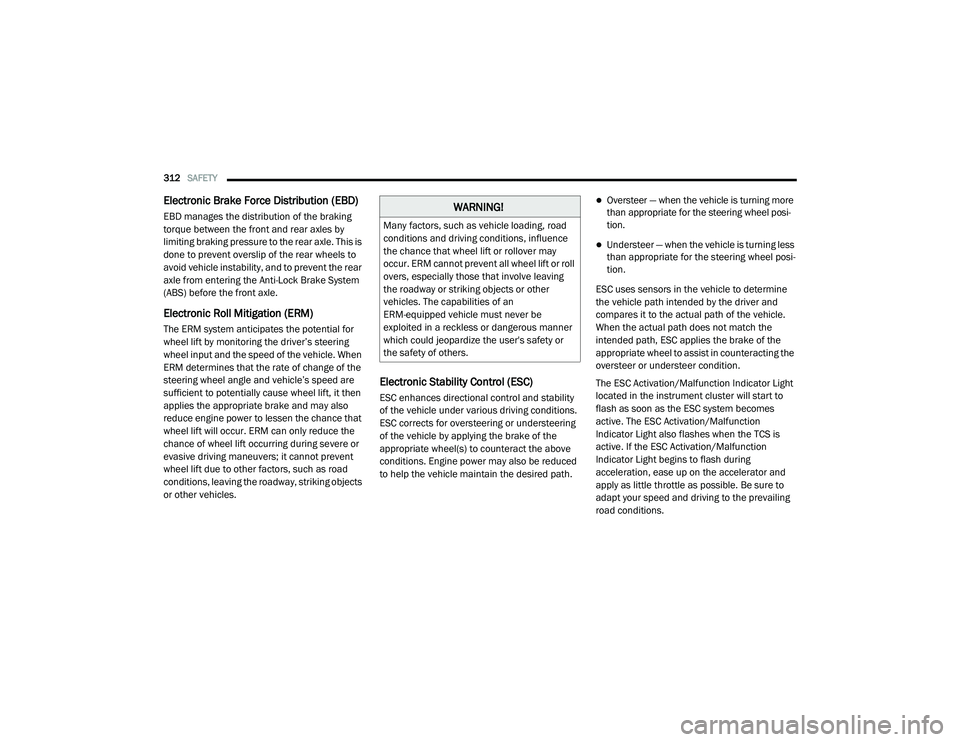
Electronic Stability Control (ESC)
ESC enhances directional control and stability
of the vehicle under various driving conditions.
ESC corrects for oversteering or understeering
of the vehicle by applying the brake of the
appropriate wheel(s) to counteract the above
conditions. Engine power may also be reduced
to help the vehicle maintain the desired path.
Oversteer — when the vehicle is turning more
than appropriate for the steering wheel posi -
tion.
Understeer — when the vehicle is turning less
than appropriate for the steering wheel posi -
tion.
ESC uses sensors in the vehicle to determine
the vehicle path intended by the driver and
compares it to the actual path of the vehicle.
When the actual path does not match the
intended path, ESC applies the brake of the
appropriate wheel to assist in counteracting the
oversteer or understeer condition.
The ESC Activation/Malfunction Indicator Light
located in the instrument cluster will start to
flash as soon as the ESC system becomes
active. The ESC Activation/Malfunction
Indicator Light also flashes when the TCS is
active. If the ESC Activation/Malfunction
Indicator Light begins to flash during
acceleration, ease up on the accelerator and
apply as little throttle as possible. Be sure to
adapt your speed and driving to the prevailing
road conditions.
WARNING!
Many factors, such as vehicle loading, road
conditions and driving conditions, influence
the chance that wheel lift or rollover may
occur. ERM cannot prevent all wheel lift or roll
overs, especially those that involve leaving
the roadway or striking objects or other
vehicles. The capabilities of an
ERM-equipped vehicle must never be
exploited in a reckless or dangerous manner
which could jeopardize the user's safety or
the safety of others.
21_DT_OM_EN_USC_t.book Page 312
Page 316 of 496
314SAFETY
(Continued)
Full Off — If Equipped
This mode is intended for off-highway or
off-road use only and should not be used on any
public roadways. In this mode, TCS and ESC
features are turned off. To enter the “Full Off”
mode, push and hold the ESC OFF switch for five
seconds while the vehicle is stopped with the
engine running. After five seconds, a chime will
sound, the ESC OFF Indicator Light will
illuminate, and the “ESC OFF” message will
display in the instrument cluster. To turn ESC on
again, momentarily push the ESC OFF switch.NOTE:
System may switch from ESC “Full Off” to
“Partial Off” mode when vehicle exceeds a
predetermined speed. When the vehicle speed
slows below the predetermined speed the
system will return to ESC “Full Off”.
ESC modes may also be affected by drive
modes (if equipped).
ESC Activation/Malfunction Indicator Light
And ESC OFF Indicator Light
The ESC Activation/Malfunction
Indicator Light in the instrument
cluster will come on when the ignition
is placed in the ON/RUN mode. It
should go out with the engine running. If the
ESC Activation/Malfunction Indicator Light
comes on continuously with the engine running,
a malfunction has been detected in the ESC
system. If this light remains on after several
ignition cycles, and the vehicle has been driven
several miles (kilometers) at speeds greater
than 30 mph (48 km/h), see an authorized
dealer as soon as possible to have the problem
diagnosed and corrected.
WARNING!
When in “Partial Off” mode, the TCS func -
tionality of ESC, (except for the limited slip
feature described in the TCS section), has
been disabled and the “ESC OFF Indicator
Light” will be illuminated. When in “Partial
Off” mode, the engine power reduction
feature of TCS is disabled, and the
enhanced vehicle stability offered by the
ESC system is reduced.
Trailer Sway Control (TSC) is disabled when
the ESC system is in the “Partial Off” mode.
WARNING!
In the ESC “Full Off” mode, the engine
torque reduction and stability features are
disabled. Therefore, enhanced vehicle
stability offered by the ESC system is
unavailable. In an emergency evasive
maneuver, the ESC system will not engage
to assist in maintaining stability. ESC “Full
Off” mode is intended for off-highway or
off-road use only.
The Electronic Stability Control (ESC)
cannot prevent the natural laws of physics
from acting on the vehicle, nor can it
increase the traction afforded by prevailing
road conditions. ESC cannot prevent all
accidents, including those resulting from
excessive speed in turns, driving on very
slippery surfaces, or hydroplaning. ESC also
cannot prevent collisions.
WARNING! (Continued)
21_DT_OM_EN_USC_t.book Page 314
Page 318 of 496
316SAFETY
NOTE:
During HDC the +/- shifter input is used for HDC
target speed selection, but will not affect the
gear chosen by the transmission. When actively
controlling HDC the transmission will shift
appropriately for the driver-selected set speed
and corresponding driving conditions.
Driver Override
The driver may override HDC activation with
throttle or brake application at any time.
Deactivating HDC
HDC will be deactivated but remain available if
any of the following conditions occur:
The driver overrides HDC set speed with
throttle or brake application.
The vehicle speed exceeds 20 mph (32 km/h)
but remains below 40 mph (64 km/h).
The vehicle is on a downhill grade of insuffi -
cient magnitude, is on level ground, or is on
an uphill grade.
The vehicle is shifted to PARK. Disabling HDC
HDC will be deactivated and disabled if any of
the following conditions occur:
The driver pushes the HDC switch.
The driveline is shifted out of the 4WD Low.
The parking brake is applied.
The driver door opens.
The vehicle is driven greater than 20 mph
(32 km/h) for greater than 70 seconds.
The vehicle is driven greater than 40 mph
(64 km/h) (HDC exits immediately).
HDC detects excessive brake temperature.
Feedback To The Driver
The instrument cluster has an HDC icon and the
HDC switch has an LED icon, which offers
feedback to the driver about the state HDC is in.
The cluster icon and switch lamp will illumi -
nate and remain on solid when HDC is
enabled or activated. This is the normal oper -
ating condition for HDC.
The cluster icon and switch lamp will flash for
several seconds, then extinguish when the
driver pushes the HDC switch but enable
conditions are not met.
The cluster icon and switch lamp will flash for
several seconds, then extinguish when HDC
disables due to excess speed.
The cluster icon and switch lamp will flash
when HDC deactivates due to overheated
brakes. The flashing will stop and HDC will
activate again once the brakes have cooled
sufficiently.
WARNING!
HDC is only intended to assist the driver in
controlling vehicle speed when descending
hills. The driver must remain attentive to the
driving conditions and is responsible for
maintaining a safe vehicle speed.
21_DT_OM_EN_USC_t.book Page 316
Page 325 of 496

SAFETY323
a trailer will be detected using the blind spot
radar within 90 seconds of forward move -
ment of the vehicle. The vehicle must be
moving above 6 mph (10 km/h) to activate the feature. Once the trailer has been
detected, the system will default to the
maximum blind spot zone until the length has
been verified. You will see “Auto” in the
instrument panel cluster .
Maximum Mode — When “Max Mode” is
selected, the system will default to the
maximum blind spot zone regardless of what
size trailer is attached .
NOTE:
Selected setting is stored when the ignition is
placed in the OFF position. To change this
setting, it must be selected through the
Uconnect settings Ú page 237.
Trailer Length Detection
Once the trailer presence has been established,
the trailer length will be established (by making
a 90 degree turn) and then the trailer length
category (example 10-20 ft (3 m to 6 m)) will be
displayed. This can take up to 30 seconds after
completing the turn. NOTE:
During the same ignition cycle, if the vehicle is
at a standstill for a minimum of 90 seconds, a
new “trailer detection request” is enabled by
the system once the vehicle resumes motion.
Maximum length supported by the Trailer Merge
Assist feature is 39.5 ft (12 m). Trailer length is
considered the forward most portion of the
trailer hitch to the rearward most portion of the
body, fascia/bumper, or ramp of the trailer.
Maximum width supported by the Trailer Merge
Assist feature is 8.5 ft (2.59 m). Trailer width is
measured at the widest portion of the trailer
and may include wheels, tires, finders, or rails.
NOTE:
Fifth wheel or gooseneck trailers are not
supported by Trailer Merge Assist.
NOTE:
The ability to detect a trailer may be degraded in
crowded or busy environments. Busy parking
lots, narrow areas surrounded with trees, or any
other crowded area may prevent the radar
sensors from being able to adequately detect
the trailer. The system will try to detect a trailer
at every ignition cycle or 90 seconds of stand
-
still.
Trailer Length Detection
Trailer length will be identified and placed into
one of the following categories:
Trailer length up to 10 ft (3 m) — Blind spot
zone will be adjusted to 10 ft (3 m) .
Trailer length between 10 ft to 20 ft (3 m to
6 m) — Blind spot zone will be adjusted to
20 ft (6 m) .
Trailer length between 20 ft to 30 ft (6 m to
9 m) — Blind spot zone will be adjusted to
30 ft (9 m) .
1 — Trailer Length
2 — Trailer Width
3 — Trailer Hitch
6
21_DT_OM_EN_USC_t.book Page 323
Page 326 of 496

324SAFETY
Trailer length between 30 ft and 39.5 ft (9 m
to 12 m) — Blind spot zone will be adjusted to
Max distance .
NOTE:
Trailer length is determined within +/- 3 ft (1 m)
of actual length. Trailers that are the same size
as the category limit, 10/20/30 ft (3/6/9 m),
could be subject to being placed in the category
above or below the correct one.
Trailer Merge Warning
Trailer Merge Warning is the extension of the
blind spot function to cover the length of the
trailer, plus a safety margin, to warn the driver
when there is a vehicle in the adjacent lane. The
driver is alerted by the illumination of the BSM
warning light located in the outside mirror on
the side the other vehicle is detected on. In
addition, an audible (chime) alert will be heard
and radio volume will be reduced Ú page 322.
NOTE:
The Trailer Merge Alert system DOES NOT
alert the driver about rapidly approaching
vehicles that are outside the detection zones.
The Blind Spot Monitoring (BSM) system may
experience drop outs (blinking on and off) of the side mirror warning indicator lamps when
a motorcycle or any small object remains at
the side of the vehicle for extended periods of
time (more than a couple of seconds).
Crowded areas such as parking lots, neigh
-
borhoods, etc. may lead to an increased
amount of false alerts. This is normal opera -
tion.
FORWARD COLLISION WARNING (FCW)
W
ITH MITIGATION — IF EQUIPPED
FCW with Mitigation provides the driver with
audible warnings, visual warnings (within the
instrument cluster display), and may apply a
brake jerk to warn the driver when it detects a potential frontal collision. The warnings and
limited braking are intended to provide the
driver with enough time to react, avoid or
mitigate the potential collision.
NOTE:
FCW monitors the information from the forward
looking sensors as well as the Electronic Brake
Controller (EBC), to calculate the probability of a
forward collision. When the system determines
that a forward collision is probable, the driver
will be provided with audible and visual warn-
ings as well as a possible brake jerk warning.
If the driver does not take action based upon
these progressive warnings, then the system
will provide a limited level of active braking to
help slow the vehicle and mitigate the potential
forward collision. If the driver reacts to the warn
-
ings by braking and the system determines that
the driver intends to avoid the collision by
braking but has not applied sufficient brake
force, the system will compensate and provide
additional brake force as required.
If a FCW with Mitigation event begins at a speed
below 32 mph (52 km/h), the system may
provide the maximum braking possible to miti -
gate the potential forward collision. If the
WARNING!
The Blind Spot Monitoring system is only an
aid to help detect objects in the blind spot
zones. The BSM system is not designed to
detect pedestrians, bicyclists, or animals.
Even if your vehicle is equipped with the BSM
system, always check your vehicle’s mirrors,
glance over your shoulder, and use your turn
signal before changing lanes. Failure to do so
can result in serious injury or death.
21_DT_OM_EN_USC_t.book Page 324