mirror RAM 1500 2022 User Guide
[x] Cancel search | Manufacturer: RAM, Model Year: 2022, Model line: 1500, Model: RAM 1500 2022Pages: 496, PDF Size: 18.03 MB
Page 60 of 496

58GETTING TO KNOW YOUR VEHICLE
Cargo/Bed Lights Button On Headlight Switch (Vehicles Sold In Canada)
Cargo Lights
When the vehicle is stationary, these lights can
also be turned on using the switch located just
inside the pickup box, on the lower part of the bed
light lens. A telltale will illuminate in the instrument
cluster display when these lights are on. Pushing
the switch a second time will turn the lights off.
Bed Light Switch (Without RamBox)
The cargo light and bed lights (if equipped) will turn
on for approximately 30 seconds when a key fob
unlock button is pushed, as part of the Illuminated
Entry feature. When these lights are activated using the button
on the headlight switch the cargo lights, trailer
spotter lights, and trailer hitch light will remain
illuminated when the vehicle transmission is in
PARK, NEUTRAL, or REVERSE. The lights will turn
off when the vehicle transmission is placed in
DRIVE.
When the vehicle is placed in the REVERSE
position, the trailer hitch light will turn on
automatically. The trailer hitch light will turn off
when the vehicle is placed in the DRIVE position.
NOTE:The bed lights are not affected by gear selection.
NOTE:For vehicles shipped to or sold in the states of
California or Mississippi, the cargo, bed, and mirror
spotter lights will not work while the vehicle is in
motion. In every other state, the cargo and mirror
spotter lights will turn off when the vehicle is in
motion, but the bed light will remain on.
22_DT_OM_EN_USC_t.book Page 58
Page 62 of 496
60GETTING TO KNOW YOUR VEHICLE
NOTE:The courtesy/reading lights will remain on until the
switch is pushed a second time, so be sure they
have been turned off before exiting the vehicle. If
the interior lights are left on after the ignition is
turned off, they will automatically turn off after
10 minutes.
Dimmer Controls
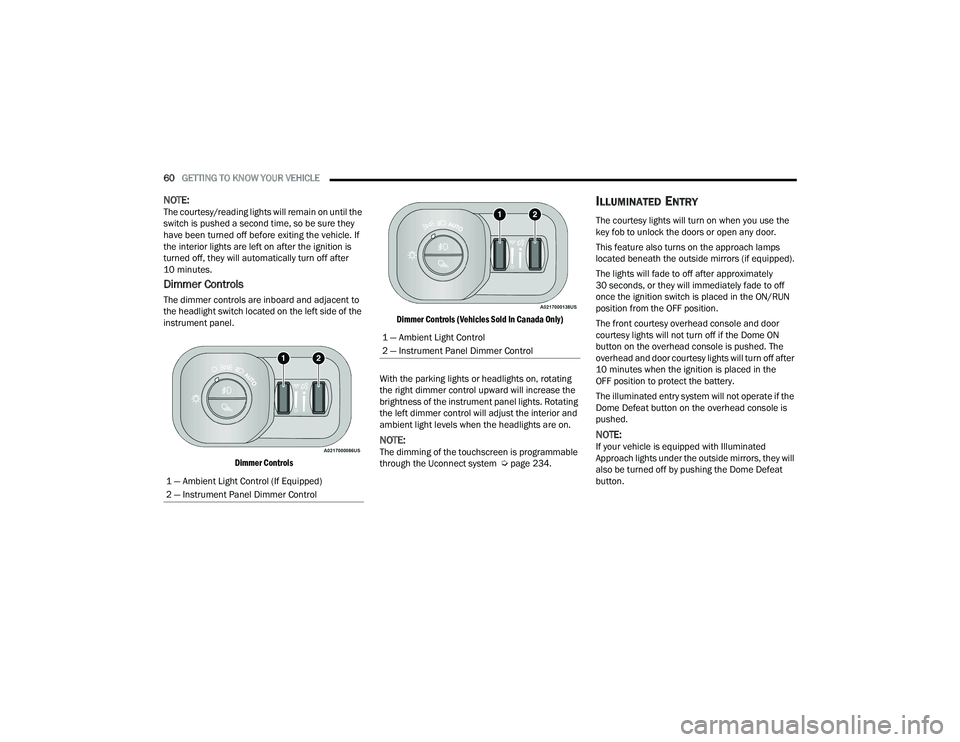
The dimmer controls are inboard and adjacent to
the headlight switch located on the left side of the
instrument panel.
Dimmer Controls Dimmer Controls (Vehicles Sold In Canada Only)
With the parking lights or headlights on, rotating
the right dimmer control upward will increase the
brightness of the instrument panel lights. Rotating
the left dimmer control will adjust the interior and
ambient light levels when the headlights are on.
NOTE:The dimming of the touchscreen is programmable
through the Uconnect system Ú page 234.
ILLUMINATED ENTRY
The courtesy lights will turn on when you use the
key fob to unlock the doors or open any door.
This feature also turns on the approach lamps
located beneath the outside mirrors (if equipped).
The lights will fade to off after approximately
30 seconds, or they will immediately fade to off
once the ignition switch is placed in the ON/RUN
position from the OFF position.
The front courtesy overhead console and door
courtesy lights will not turn off if the Dome ON
button on the overhead console is pushed. The
overhead and door courtesy lights will turn off after
10 minutes when the ignition is placed in the
OFF position to protect the battery.
The illuminated entry system will not operate if the
Dome Defeat button on the overhead console is
pushed.
NOTE:If your vehicle is equipped with Illuminated
Approach lights under the outside mirrors, they will
also be turned off by pushing the Dome Defeat
button.
1 — Ambient Light Control (If Equipped)
2 — Instrument Panel Dimmer Control
1 — Ambient Light Control
2 — Instrument Panel Dimmer Control
22_DT_OM_EN_USC_t.book Page 60
Page 66 of 496

64GETTING TO KNOW YOUR VEHICLE
Rear Defrost Button
Press and release the Rear Defrost
button on the touchscreen, or push and
release the button on the faceplate, to
turn on the rear window defroster and the
heated outside mirrors (if equipped). The Rear
Defrost indicator illuminates when the rear window
defroster is on. The rear window defroster
automatically turns off after 10 minutes.
Driver And Passenger Temperature Up And
Down Buttons
These buttons provide the driver and passenger
with independent temperature control.
Push the red button (or rotate knob if
equipped) on the faceplate, press the red
button on the touchscreen, or press and
slide the temperature bar towards the
red arrow button on the touchscreen for warmer
temperature settings.
Push the blue button (or rotate knob if
equipped) on the faceplate, press the
blue button on the touchscreen, or press
and slide the temperature bar towards
the blue arrow button on the touchscreen for
cooler temperature settings.
NOTE:
The numbers within the temperature display will
only appear if the system is equipped with an
automatic climate control system.
Up and down buttons are only available on vehi -
cles equipped with a 12-inch display.
SYNC Button
Press the SYNC button on the
touchscreen to toggle the SYNC feature
on/off. The SYNC indicator illuminates
when SYNC is on. SYNC synchronizes the
passenger temperature setting with the driver
temperature setting. Changing the passenger’s
temperature setting while in SYNC will
automatically exit this feature.
NOTE:The SYNC button is only available on the touch-
screen.
Blower Control
Blower Control regulates the amount of
air forced through the climate control
system. There are seven blower speeds
available. Adjusting the blower will cause
automatic mode to switch to manual operation.
The speeds can be selected using either the
blower control knob on the faceplate or the
buttons on the touchscreen.
Faceplate
The blower speed increases as you turn the blower
control knob clockwise from the lowest blower
setting. The blower speed decreases as you turn
the blower control knob counterclockwise.
CAUTION!
Failure to follow these cautions can cause
damage to the heating elements:
Use care when washing the inside of the rear
window. Do not use abrasive window cleaners
on the interior surface of the window. Use a
soft cloth and a mild washing solution, wiping
parallel to the heating elements. Labels can
be peeled off after soaking with warm water.
Do not use scrapers, sharp instruments, or
abrasive window cleaners on the interior
surface of the window.
Keep all objects a safe distance from the
window.
22_DT_OM_EN_USC_t.book Page 64
Page 68 of 496
66GETTING TO KNOW YOUR VEHICLE
A/C Button
Push the A/C button to engage the Air
Conditioning (A/C). The A/C indicator
illuminates when A/C is on.
NOTE:
For Manual Climate Controls, if the system is in
Mix, Floor or Defrost mode, the A/C can be
turned off, but the A/C system shall remain
active to prevent fogging of the windows.
If fog or mist appears on the windshield or side
glass, select Defrost mode, and increase blower
speed if needed.
If your air conditioning performance seems
lower than expected, check the front of the A/C
condenser (located in front of the radiator), for
an accumulation of dirt or insects. Clean with a
gentle water spray from the front of the radiator
and through the condenser.
Recirculation Button
Push the Recirculation button to change
the system between recirculation mode
and outside air mode. The Recirculation
indicator and the A/C indicator illuminate
when the Recirculation button is pressed.
Recirculation can be used when outside
conditions, such as smoke, odors, dust, or
humidity are present. Recirculation can be used in
all modes except for Defrost. Recirculation may be
unavailable if conditions exist that could create fogging on the inside of the windshield. The A/C
can be deselected manually without disturbing the
mode control selection. Continuous use of the
Recirculation mode may make the inside air stuffy
and window fogging may occur. Extended use of
this mode is not recommended.
On systems with Manual Climate Controls, the
Recirculation mode is not allowed in Defrost mode
to improve window cleaning operation.
Recirculation is disabled automatically if this mode
is selected. Attempting to use Recirculation while
in this mode causes the LED in the control button
to blink and then turn off.
Front Defrost Setting
Turn the mode control knob to the Front
Defrost mode setting. Air comes from the
windshield and side window demist
outlets. When the defrost button is
selected, the blower level may increase. Use
Defrost mode with maximum temperature settings
for best windshield and side window defrosting
and defogging.
Rear Defrost Button
Push and release the Rear Defrost
Control button to turn on the rear window
defroster and the heated outside mirrors
(if equipped). The Rear Defrost indicator
illuminates when the rear window defroster is on. The rear window defroster automatically turns off
after 10 minutes.
Temperature Control
Temperature Control regulates the temperature of
the air forced through the climate system.
The temperature increases as you
turn the temperature control knob
clockwise.
The temperature decreases as you
turn the temperature control knob
counterclockwise.
CAUTION!
Failure to follow these cautions can cause
damage to the heating elements:
Use care when washing the inside of the rear
window. Do not use abrasive window cleaners
on the interior surface of the window. Use a
soft cloth and a mild washing solution, wiping
parallel to the heating elements. Labels can
be peeled off after soaking with warm water.
Do not use scrapers, sharp instruments, or
abrasive window cleaners on the interior
surface of the window.
Keep all objects a safe distance from the
window.
22_DT_OM_EN_USC_t.book Page 66
Page 129 of 496

GETTING TO KNOW YOUR INSTRUMENT PANEL127
BATTERY SAVER ON/BATTERY SAVER
M
ODE MESSAGE — ELECTRICAL LOAD
R
EDUCTION ACTIONS — IF EQUIPPED
This vehicle is equipped with an Intelligent Battery
Sensor (IBS) to perform additional monitoring of
the electrical system and status of the vehicle
battery.
In cases when the IBS detects charging system
failure, or the vehicle battery conditions are
deteriorating, electrical load reduction actions will
take place to extend the driving time and distance
of the vehicle. This is done by reducing power to or
turning off non-essential electrical loads.
Load reduction is only active when the engine is
running. It will display a message if there is a risk
of battery depletion to the point where the vehicle
may stall due to lack of electrical supply, or will not
restart after the current drive cycle.
When load reduction is activated, the message
“Battery Saver On Some Systems May Have
Reduced Power” will appear in the instrument
cluster. These messages indicate the vehicle battery has a
low state of charge and continues to lose electrical
charge at a rate that the charging system cannot
sustain.NOTE:
The charging system is independent from load
reduction. The charging system performs a diag
-
nostic on the charging system continuously.
If the Battery Charge Warning Light is on it may
indicate a problem with the charging system
Ú page 129.
The electrical loads that may be switched off
(if equipped), and vehicle functions which can be
affected by load reduction:
Heated Seats / Vented Seats / Heated Wheel
Rear Defroster And Heated Mirrors
HVAC System
115 Volts AC Power Inverter System
Audio and Telematics System
Loss of the battery charge may indicate one or
more of the following conditions:
The charging system cannot deliver enough
electrical power to the vehicle system because
the electrical loads are larger than the capability
of charging system. The charging system is still
functioning properly.
Turning on all possible vehicle electrical loads
(e.g. HVAC to max settings, exterior and interior
lights, overloaded power outlets +12 Volts,
115 Volts AC, USB ports) during certain driving
conditions (city driving, towing, frequent stop -
ping).
Installing options like additional lights, upfitter
electrical accessories, audio systems, alarms
and similar devices.
Unusual driving cycles (short trips separated by
long parking periods).
The vehicle was parked for an extended period
of time (weeks, months).
The battery was recently replaced and was not
charged completely.
The battery was discharged by an electrical load
left on when the vehicle was parked.
The battery was used for an extended period
with the engine not running to supply radio,
lights, chargers, +12 Volt portable appliances
like vacuum cleaners, game consoles and
similar devices.
3
22_DT_OM_EN_USC_t.book Page 127
Page 142 of 496
140 (Continued)
STARTING AND OPERATING
STARTING THE ENGINE
GASOLINE ENGINE
Before starting your vehicle, adjust your seat,
adjust both inside and outside mirrors, and fasten
your seat belt.
The starter should not be operated for more than
10-second intervals. Waiting at least 10 to 15
seconds between such intervals will protect the
starter from overheating. DIESEL ENGINE
Before starting your vehicle, adjust your seat, both
inside and outside mirrors, and fasten your seat
belts.
The starter is allowed to crank for up to 25-second
intervals. Waiting at least two minutes between
such intervals will protect the starter from
overheating.
WARNING!
When leaving the vehicle, always make sure
the keyless ignition node is in the OFF posi-
tion, remove the key fob from the vehicle and
lock the vehicle.
Never leave children alone in a vehicle, or with
access to an unlocked vehicle. Allowing chil -
dren to be in a vehicle unattended is
dangerous for a number of reasons. A child or
others could be seriously or fatally injured.
Children should be warned not to touch the
parking brake, brake pedal or the gear
selector.
Do not leave the key fob in or near the vehicle,
or in a location accessible to children, and do
not leave the ignition of a vehicle equipped
with Keyless Enter ‘n Go™ in the ACC or
ON/RUN position. A child could operate power
windows, other controls, or move the vehicle.
Do not leave children or animals inside parked
vehicles in hot weather. Interior heat buildup
may cause serious injury or death.
WARNING!WARNING!
Before exiting a vehicle, always come to a
complete stop, then shift the automatic trans -
mission into PARK and apply the parking brake.
Always make sure the ENGINE START/STOP
button is in the OFF position, key fob is removed
from the vehicle and vehicle is locked.
Never leave children alone in a vehicle, or with
access to an unlocked vehicle. Leaving chil -
dren in a vehicle unattended is dangerous for
a number of reasons. A child or others could
be seriously or fatally injured. Children should
be warned not to touch the parking brake,
brake pedal or the gear selector.
Do not leave the key fob in or near the vehicle,
or in a location accessible to children, and do
not leave the ignition of a vehicle equipped
with Keyless Enter ‘n Go™ in the ACC or ON/
RUN position. A child could operate power
windows, other controls, or move the vehicle.
Do not leave children or animals inside parked
vehicles in hot weather. Interior heat buildup
may cause serious injury or death.
22_DT_OM_EN_USC_t.book Page 140
Page 185 of 496
STARTING AND OPERATING183
NOTE:
The “BRAKE!” screen in the instrument cluster
display is a warning for the driver to take action and
does not mean that the Forward Collision Warning
system is applying the brakes autonomously.
Overtake Aid
When driving with Adaptive Cruise Control (ACC)
engaged, and following a vehicle, the system will
provide an additional acceleration up to the ACC
set speed to assist in passing the vehicle. This
additional acceleration is triggered when the driver
utilizes the left turn signal and will only be active
when passing on the left hand side.
ACC Operation At Stop
In the event that the ACC system brings your
vehicle to a standstill while following the vehicle in
front, if the vehicle in front starts moving within two
seconds of your vehicle coming to a standstill, your
vehicle will resume motion without the need for
any driver action.
If the vehicle in front does not start moving within
two seconds of your vehicle coming to a standstill,
the driver will either have to push the RES (resume)
button, or apply the accelerator pedal to reengage
the ACC to the existing set speed.
NOTE:After the ACC system holds your vehicle at a stand -
still for approximately three consecutive minutes, the parking brake will be activated, and the ACC
system will be canceled.
While ACC is holding your vehicle at a standstill, if
the driver seat belt is unbuckled or the driver door
is opened, the parking brake will be activated, and
the ACC system will be canceled.
Display Warnings And Maintenance
“WIPE FRONT RADAR SENSOR IN FRONT OF
VEHICLE” WARNING
The “ACC/FCW Unavailable Wipe Front Radar
Sensor” warning will display and a chime will
sound when conditions temporarily limit system
performance.
This most often occurs at times of poor visibility,
such as in snow or heavy rain. The ACC system may
also become temporarily blinded due to
obstructions, such as mud, dirt or ice. In these
cases, the instrument cluster display will display
“ACC/FCW Unavailable Wipe Front Radar Sensor”
and the system will deactivate.The “ACC/FCW Unavailable Wipe Front Radar
Sensor” message can sometimes be displayed
while driving in highly reflective areas (i.e. ice and
snow, or tunnels with reflective tiles). The ACC
system will recover after the vehicle has left these
areas. Under rare conditions, when the radar is not
tracking any vehicles or objects in its path this
warning may temporarily occur.
NOTE:If the “ACC/FCW Unavailable Wipe Front Radar
Sensor” warning is active, Fixed Speed Cruise
Control is still available.
If weather conditions are not a factor, the driver
should examine the sensor. It may require cleaning
or removal of an obstruction. The sensor is located
in the camera in the center of the windshield, on
the forward side of the rearview mirror.
To keep the ACC system operating properly, it is
important to note the following maintenance
items:
Always keep the sensor clean. Carefully clear
the windshield.
Do not remove any screws from the sensor.
Doing so could cause an ACC system malfunc
-
tion or failure and require a sensor realignment.
Do not attach or install any accessories near the
sensor, including transparent material. Doing so
could cause an ACC system failure or malfunc -
tion.
WARNING!
When the ACC system is resumed, the driver
must ensure that there are no pedestrians,
vehicles or objects in the path of the vehicle.
Failure to follow these warnings can result in a
collision and death or serious personal injury.
4
22_DT_OM_EN_USC_t.book Page 183
Page 186 of 496

184STARTING AND OPERATING
When the condition that deactivated the system is
no longer present, the system will return to the
“Adaptive Cruise Control Off” state and will resume
function by simply reactivating it.
NOTE:
If the “ACC/FCW Unavailable Wipe Front Radar
Sensor” message occurs frequently (e.g. more
than once on every trip) without any snow, rain,
mud, or other obstruction, have the radar
sensor realigned at an authorized dealer.
Installing a snow plow, front-end protector, an
aftermarket grille or modifying the grille is not
recommended. Doing so may block the sensor
and inhibit ACC/FCW operation.
“CLEAN FRONT WINDSHIELD” WARNING
The “ACC/FCW Limited Functionality Clean Front
Windshield” warning will display and a chime will
sound when conditions temporarily limit system
performance. This most often occurs at times of
poor visibility, such as in snow or heavy rain and
fog. The ACC system may also become temporarily
blinded due to obstructions, such as mud, dirt, or
ice on windshield, driving directly into the sun and
fog on the inside of glass. In these cases, the
instrument cluster display will show “ACC/FCW
Limited Functionality Clean Front Windshield” and
the system will have degraded performance. This message can sometimes be displayed while
driving in adverse weather conditions. The ACC/
FCW system will recover after the vehicle has left
these areas. Under rare conditions, when the
camera is not tracking any vehicles or objects in its
path this warning may temporarily occur.
If weather conditions are not a factor, the driver
should examine the windshield and the camera
located on the back side of the inside rear view
mirror. They may require cleaning or removal of an
obstruction.
When the condition that created limited
functionality is no longer present, the system will
return to full functionality.
NOTE:If the “ACC/FCW Limited Functionality Clean Front
Windshield” message occurs frequently (e.g. more
than once on every trip) without any snow, rain,
mud, or other obstruction, have the windshield and
forward facing camera inspected at an authorized
dealer.
SERVICE ACC/FCW WARNING
If the system turns off, and the instrument cluster
displays “ACC/FCW Unavailable Service Required”
or “Cruise/FCW Unavailable Service Required”,
there may be an internal system fault or a
temporary malfunction that limits ACC
functionality. Although the vehicle is still drivable under normal conditions, ACC will be temporarily
unavailable. If this occurs, try activating ACC again
later, following an ignition cycle. If the problem
persists, see an authorized dealer.
Precautions While Driving With ACC
NOTE:
Aftermarket add-ons such as snow plows, lift
kits, and brush/grille bars can hinder module
performance. Ensure the radar/camera has no
obstructions in the field of view.
Height modifications can limit module perfor
-
mance and functionality.
Do not put stickers or easy passes over the
camera/radar field of view.
Any modifications to the vehicle that may
obstruct the field of view of the radar/camera
are not recommended.
In certain driving situations, ACC may have
detection issues. In these cases, ACC may brake
late or unexpectedly. The driver needs to stay alert
and may need to intervene. The following are
examples of these types of situations:
22_DT_OM_EN_USC_t.book Page 184
Page 202 of 496
200STARTING AND OPERATING
NOTE:If snow, ice, mud, or any foreign substance builds
up on the camera lens, clean the lens, rinse with
water, and dry with a soft cloth. Do not cover the
lens.
Zoom View
When the Rear View Camera image is being
displayed, and the vehicle speed is below 8 mph
(13 km/h) while in any gear, Zoom View is
available. By pressing the “magnifying glass” icon
in the upper left of the display screen, the image
will zoom in to four times the standard view.
Pressing the icon a second time will return the view
to the standard Back Up Camera display. When Zoom View is selected while the vehicle is in
REVERSE, then shifted to DRIVE, the camera delay
view will display the standard Back Up Camera
view. If the vehicle is then returned to REVERSE
gear from DRIVE, the Zoom View selection will
automatically resume.
NOTE:The Zoom View button and AUX button (if
equipped) will not be available when the vehicle is
shifted into REVERSE and the Trailer Reverse
Steering Control (TRSC) feature (if equipped) is
activated.
Shifting to NEUTRAL from any gear will maintain
the selected view (Zoom or Standard) as long as
the vehicle is below 8 mph (13 km/h).
If the vehicle is in PARK, Zoom View is available
until the gear selector is placed in DRIVE or
REVERSE and speeds are at or above 8 mph
(13 km/h).
NOTE:
If the vehicle is in DRIVE, NEUTRAL, or REVERSE,
and speed is greater than or equal to 8 mph
(13 km/h), Zoom View is unavailable and the
icon will appear grey.
While in Zoom View, the guidelines will not be
visible.
For information on Auxiliary Cameras (if equipped),
see Ú page 206.
SURROUND VIEW CAMERA SYSTEM —
IF EQUIPPED
The Surround View Camera system allows you to
see an on-screen image of the surroundings and
the Top View of your vehicle. This occurs whenever
the gear selector is in REVERSE or when enabled
through the Uconnect system. The Top View of the
vehicle will also show if any doors are open. The
image will be displayed on the touchscreen along
with a caution note “Check Entire Surroundings”.
After five seconds, this note will disappear. The
Surround View Camera system is comprised of four
cameras located in the front grille, rear tailgate
and side mirrors.
NOTE:
Removing the tailgate will disable the rearview
camera function.
The Surround View Camera system has
programmable settings that may be selected
through the Uconnect system Ú page 234.
Press this button on the touchscreen to
enter the Surround View Camera menu in
the Uconnect system.
When the vehicle is shifted into REVERSE, the Rear
View and Top View is the default view of the
system.
CAUTION!
To avoid vehicle damage, ParkView should
only be used as a parking aid. The ParkView
camera is unable to view every obstacle or
object in your drive path.
To avoid vehicle damage, the vehicle must be
driven slowly when using ParkView to be able
to stop in time when an obstacle is seen. It is
recommended that the driver look frequently
over his/her shoulder when using ParkView.
22_DT_OM_EN_USC_t.book Page 200
Page 203 of 496
STARTING AND OPERATING201
If the camera delay is turned on, the camera image
will display for up to 10 seconds after shifting out
of REVERSE. The camera image will stop
displaying, close, and display the previous screen
if the vehicle speed exceeds 8 mph (13 km/h), the
vehicle is shifted into PARK, or the ignition is
placed in the OFF position. The X button on the
touchscreen disables the display of the camera
image.
If the camera delay is turned off, the camera image
will close and display the previous screen after
shifting out of REVERSE.
If active guidelines are enabled, the lines are
overlaid on the image in the Rear View and Top
View to illustrate the width of the vehicle and its
projected path based on steering wheel position.
The guidelines have different colored zones to
indicate the distance an object in the view is from
the rear of the vehicle. Refer to the chart below: Modes Of Operation
Standard Rear View can be manually activated by
selecting “Back Up Camera” through the Controls
menu within the Uconnect system.
Top View
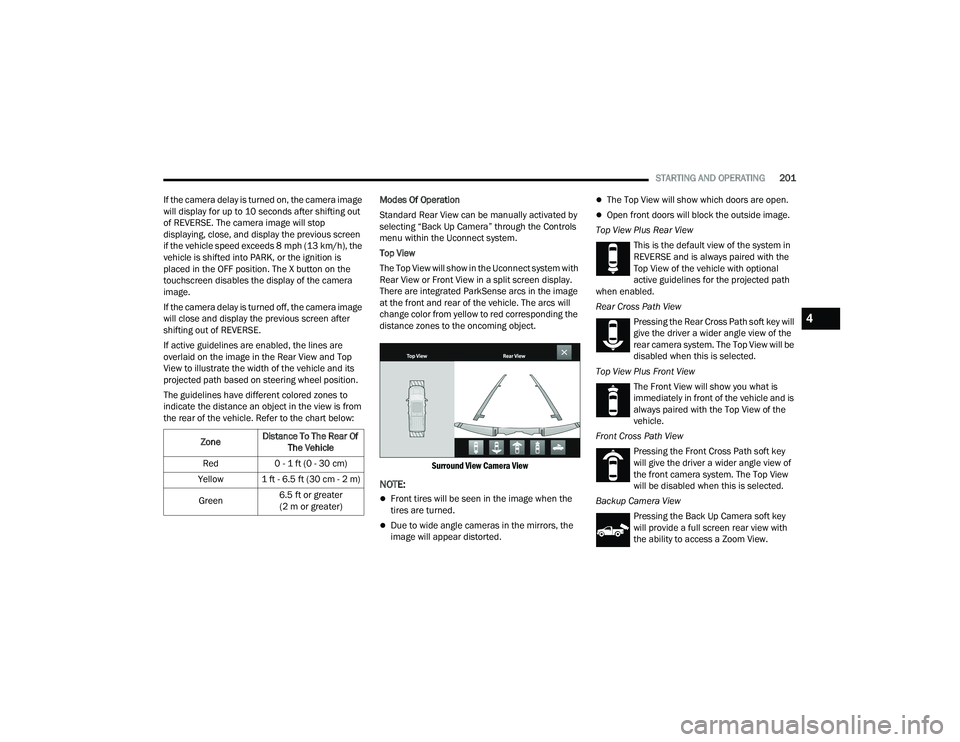
The Top View will show in the Uconnect system with
Rear View or Front View in a split screen display.
There are integrated ParkSense arcs in the image
at the front and rear of the vehicle. The arcs will
change color from yellow to red corresponding the
distance zones to the oncoming object.
Surround View Camera View
NOTE:
Front tires will be seen in the image when the
tires are turned.
Due to wide angle cameras in the mirrors, the
image will appear distorted.
The Top View will show which doors are open.
Open front doors will block the outside image.
Top View Plus Rear View This is the default view of the system in
REVERSE and is always paired with the
Top View of the vehicle with optional
active guidelines for the projected path
when enabled.
Rear Cross Path View
Pressing the Rear Cross Path soft key will
give the driver a wider angle view of the
rear camera system. The Top View will be
disabled when this is selected.
Top View Plus Front View The Front View will show you what is
immediately in front of the vehicle and is
always paired with the Top View of the
vehicle.
Front Cross Path View Pressing the Front Cross Path soft key
will give the driver a wider angle view of
the front camera system. The Top View
will be disabled when this is selected.
Backup Camera View Pressing the Back Up Camera soft key
will provide a full screen rear view with
the ability to access a Zoom View.
Zone
Distance To The Rear Of
The Vehicle
Red 0 - 1 ft (0 - 30 cm)
Yellow 1 ft - 6.5 ft (30 cm - 2 m)
Green 6.5 ft or greater
(2 m or greater)
4
22_DT_OM_EN_USC_t.book Page 201