ignition RAM 1500 2023 User Guide
[x] Cancel search | Manufacturer: RAM, Model Year: 2023, Model line: 1500, Model: RAM 1500 2023Pages: 416, PDF Size: 20.59 MB
Page 27 of 416

GETTING TO KNOW YOUR VEHICLE25
POWER DOOR LOCKS — IF EQUIPPED
The power door lock switches are located on each front
door panel. Push the switch to lock or unlock the doors.
Power Door Lock Switches
The driver’s door will unlock automatically if the key fob is
detected inside the vehicle when the door lock button on
the front door panel is used to lock the door. This will occur
for two attempts. Upon the third attempt, the doors will
lock even if the key fob is inside.
NOTE:If the key fob is located next to a mobile phone, laptop, or
other electronic device, the wireless signal may get
blocked, and the driver’s door may not unlock
automatically. If the door lock switch is pushed while the ignition is in
ACC or ON/RUN and the driver's door is open, the doors
will not lock.
If a rear door is locked, it cannot be opened from inside
the vehicle without first unlocking the door. The door may
be unlocked manually by raising the lock knob.
POWER SIDE STEPS — IF EQUIPPED
The Power Side Steps will extend a step for easier entry
and exit of the vehicle.
When configured for Auto mode, the Power Side Steps will
deploy when any of the doors are opened, or when the
deploy setting is activated through the touchscreen. When
configured for Store mode, the steps will not deploy unless
the setting is selected manually through the Controls
menu within the touchscreen.
If the vehicle speed exceeds 5 mph (8 km/h), or if the
retract setting is selected within Uconnect Settings
Úpage 191, the steps will retract.
KEYLESS ENTER ‘N GO™ —
P
ASSIVE ENTRY
The Passive Entry system is an enhancement to the
vehicle’s key fob and a feature of Keyless Enter ‘n Go™ —
Passive Entry. This feature allows you to lock and unlock
the vehicle’s door(s) without having to push the key fob
lock or unlock buttons.
NOTE:
Passive Entry may be programmed on or off within
Uconnect Settings Úpage 191.
The key fob may not be detected by the vehicle Passive
Entry system if it is located next to a mobile phone,
laptop, or other electronic device; these devices may
block the key fob’s wireless signal and prevent the
Passive Entry system from locking/unlocking the
vehicle.
Passive Entry Unlock initiates illuminated approach
(low beams, license plate lamp, position lamps) for
whichever duration is set between 0, 30, 60 or
90 seconds. Passive Entry Unlock also initiates two
flashes of the turn signals.
If wearing gloves, if it has been raining/snowing, or if
there is salt/dirt covering the Passive Entry door
handle, the unlock sensitivity can be affected, resulting
in a slower response time.
The doors may unlock when water is sprayed on the
Passive Entry door handles, if the key fob is located
outside of the vehicle within 5 ft (1.5 m) of the handle.
If the vehicle is unlocked by Passive Entry and no door
is opened within 60 seconds, the vehicle will relock and
(if equipped) will arm the Vehicle Security system.
2
23_DT_OM_EN_USC_t.book Page 25
Page 28 of 416
26GETTING TO KNOW YOUR VEHICLE
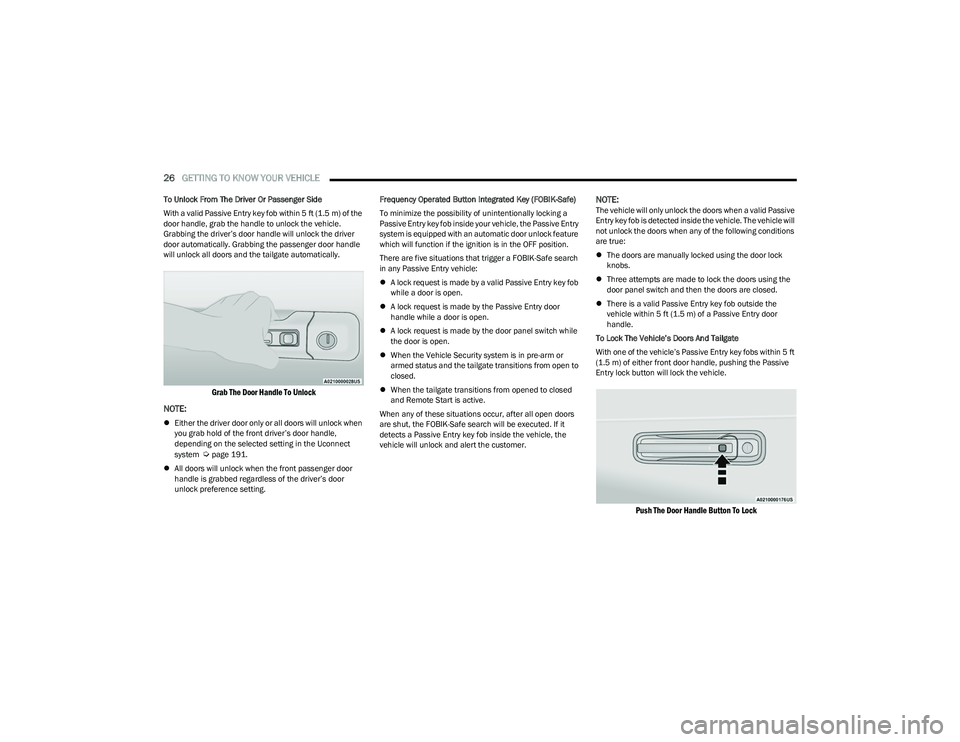
To Unlock From The Driver Or Passenger Side
With a valid Passive Entry key fob within 5 ft (1.5 m) of the
door handle, grab the handle to unlock the vehicle.
Grabbing the driver’s door handle will unlock the driver
door automatically. Grabbing the passenger door handle
will unlock all doors and the tailgate automatically.
Grab The Door Handle To Unlock
NOTE:
Either the driver door only or all doors will unlock when
you grab hold of the front driver’s door handle,
depending on the selected setting in the Uconnect
system
Úpage 191.
All doors will unlock when the front passenger door
handle is grabbed regardless of the driver’s door
unlock preference setting. Frequency Operated Button Integrated Key (FOBIK-Safe)
To minimize the possibility of unintentionally locking a
Passive Entry key fob inside your vehicle, the Passive Entry
system is equipped with an automatic door unlock feature
which will function if the ignition is in the OFF position.
There are five situations that trigger a FOBIK-Safe search
in any Passive Entry vehicle:
A lock request is made by a valid Passive Entry key fob
while a door is open.
A lock request is made by the Passive Entry door
handle while a door is open.
A lock request is made by the door panel switch while
the door is open.
When the Vehicle Security system is in pre-arm or
armed status and the tailgate transitions from open to
closed.
When the tailgate transitions from opened to closed
and Remote Start is active.
When any of these situations occur, after all open doors
are shut, the FOBIK-Safe search will be executed. If it
detects a Passive Entry key fob inside the vehicle, the
vehicle will unlock and alert the customer.
NOTE:The vehicle will only unlock the doors when a valid Passive
Entry key fob is detected inside the vehicle. The vehicle will
not unlock the doors when any of the following conditions
are true:
The doors are manually locked using the door lock
knobs.
Three attempts are made to lock the doors using the
door panel switch and then the doors are closed.
There is a valid Passive Entry key fob outside the
vehicle within 5 ft (1.5 m) of a Passive Entry door
handle.
To Lock The Vehicle’s Doors And Tailgate
With one of the vehicle’s Passive Entry key fobs within 5 ft
(1.5 m) of either front door handle, pushing the Passive
Entry lock button will lock the vehicle.
Push The Door Handle Button To Lock
23_DT_OM_EN_USC_t.book Page 26
Page 31 of 416

GETTING TO KNOW YOUR VEHICLE29
DRIVER MEMORY SETTINGS — IF EQUIPPED
This feature allows the driver to save up to two different
memory profiles for easy recall through a memory switch.
Each memory profile saves desired position settings for
the following features:
Driver’s seat
Easy Entry/Exit seat operation (if equipped)
Adjustable pedals (if equipped)
Side mirrors
NOTE:Your vehicle is equipped with two key fobs, each can be
linked to either memory position 1 or 2. The driver memory settings switch is located on the driver
door, next to the door handle, and consists of three
buttons:
The set (S) button, which is used to activate the
memory save function.
The (1) and (2) buttons which are used to recall either
of two saved memory profiles.
Memory Settings Switch
PROGRAMMING THE MEMORY FEATURE
To create a new memory profile, perform the following:
NOTE:Saving a new memory profile will erase the selected profile
from memory.
1. Place the vehicle’s ignition in the ON/RUN position
(do not start the engine).
2. Adjust all memory profile settings to desired preferences (i.e., driver’s seat, outside mirrors,
adjustable pedals (if equipped), and radio station
presets). 3. Push the set (S) button on the memory switch, and
then push the desired memory button (1 or 2) within
five seconds. The instrument cluster display will
display which memory position has been set.
NOTE:Memory profiles can be set without the vehicle in PARK,
but the vehicle must be in PARK to recall a memory profile.
LINKING AND UNLINKING THE KEY FOB
T
O MEMORY
Your key fob can be programmed to recall one of two
saved memory profiles.
NOTE:Before programming your key fob you must select the
“Personal Settings Linked to Key Fob” feature through the
Uconnect system
Úpage 191.
To program your key fob, perform the following:
1. Place the vehicle’s ignition in the OFF position.
2. Select a desired memory profile 1 or 2.
3. Once the profile has been recalled, push and release the set (S) button on the memory switch.
4. Push and release button (1) or (2) accordingly. “Memory Profile Set” (1 or 2) will display in the
instrument cluster.
5. Push and release the lock button on the key fob within 10 seconds.
NOTE:Your key fob can be unlinked from your memory settings
by pushing the set (S) button, followed by pushing the
unlock button on the key fob within 10 seconds.
WARNING!
Persons who are unable to feel pain to the skin
because of advanced age, chronic illness, diabetes,
spinal cord injury, medication, alcohol use, exhaus -
tion, or other physical conditions must exercise care
when using the steering wheel heater. It may cause
burns even at low temperatures, especially if used
for long periods.
Do not place anything on the steering wheel that
insulates against heat, such as a blanket or steering
wheel covers of any type or material. This may cause
the steering wheel heater to overheat.
2
23_DT_OM_EN_USC_t.book Page 29
Page 35 of 416
GETTING TO KNOW YOUR VEHICLE33
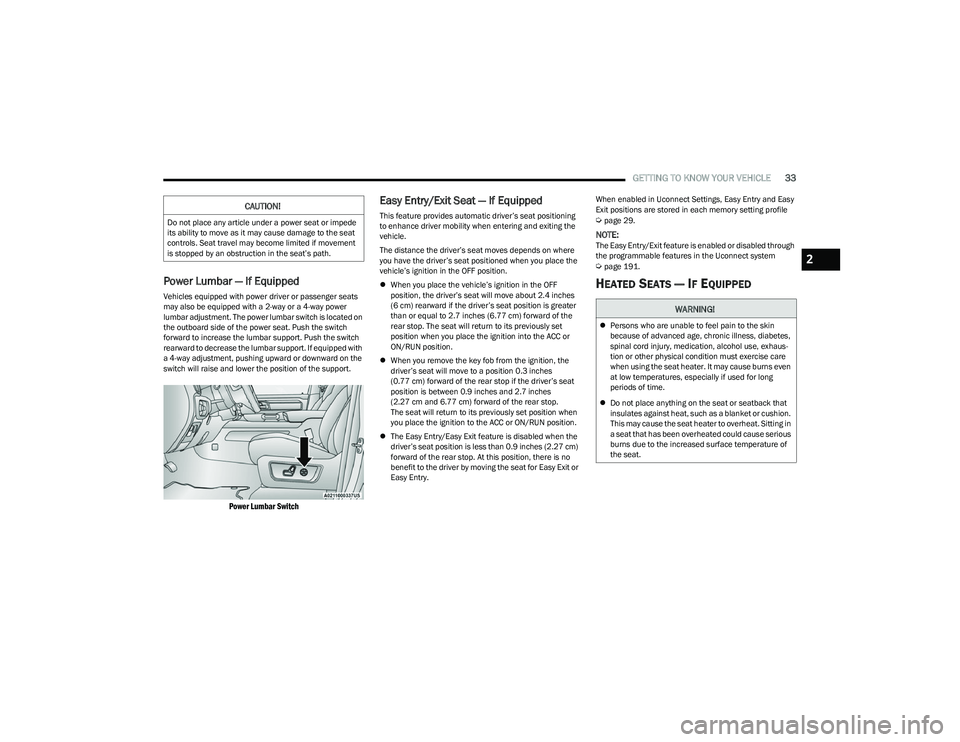
Power Lumbar — If Equipped
Vehicles equipped with power driver or passenger seats
may also be equipped with a 2-way or a 4-way power
lumbar adjustment. The power lumbar switch is located on
the outboard side of the power seat. Push the switch
forward to increase the lumbar support. Push the switch
rearward to decrease the lumbar support. If equipped with
a 4-way adjustment, pushing upward or downward on the
switch will raise and lower the position of the support.
Power Lumbar Switch
Easy Entry/Exit Seat — If Equipped
This feature provides automatic driver’s seat positioning
to enhance driver mobility when entering and exiting the
vehicle.
The distance the driver’s seat moves depends on where
you have the driver’s seat positioned when you place the
vehicle’s ignition in the OFF position.
When you place the vehicle’s ignition in the OFF
position, the driver’s seat will move about 2.4 inches
(6 cm) rearward if the driver’s seat position is greater
than or equal to 2.7 inches (6.77 cm) forward of the
rear stop. The seat will return to its previously set
position when you place the ignition into the ACC or
ON/RUN position.
When you remove the key fob from the ignition, the
driver’s seat will move to a position 0.3 inches
(0.77 cm) forward of the rear stop if the driver’s seat
position is between 0.9 inches and 2.7 inches
(2.27 cm and 6.77 cm) forward of the rear stop.
The seat will return to its previously set position when
you place the ignition to the ACC or ON/RUN position.
The Easy Entry/Easy Exit feature is disabled when the
driver’s seat position is less than 0.9 inches (2.27 cm)
forward of the rear stop. At this position, there is no
benefit to the driver by moving the seat for Easy Exit or
Easy Entry. When enabled in Uconnect Settings, Easy Entry and Easy
Exit positions are stored in each memory setting profile Úpage 29.
NOTE:The Easy Entry/Exit feature is enabled or disabled through
the programmable features in the Uconnect system
Úpage 191.
HEATED SEATS — IF EQUIPPED
CAUTION!
Do not place any article under a power seat or impede
its ability to move as it may cause damage to the seat
controls. Seat travel may become limited if movement
is stopped by an obstruction in the seat’s path.
WARNING!
Persons who are unable to feel pain to the skin
because of advanced age, chronic illness, diabetes,
spinal cord injury, medication, alcohol use, exhaus -
tion or other physical condition must exercise care
when using the seat heater. It may cause burns even
at low temperatures, especially if used for long
periods of time.
Do not place anything on the seat or seatback that
insulates against heat, such as a blanket or cushion.
This may cause the seat heater to overheat. Sitting in
a seat that has been overheated could cause serious
burns due to the increased surface temperature of
the seat.
2
23_DT_OM_EN_USC_t.book Page 33
Page 43 of 416

GETTING TO KNOW YOUR VEHICLE41
The illuminated entry lighting fades to off after about 30
seconds or it will fade to off immediately once the ignition
is placed into the ON/RUN position.
NOTE:The approach lighting will not function when the gear
selector is moved out of the PARK position.
POWER MIRRORS
The power mirror switch is located on the driver's side door
trim panel.
Power Mirror Controls
The power mirror controls consist of mirror select buttons
and a four-way mirror control switch. To adjust a mirror,
push the mirror select button for the mirror that you want
to adjust. Using the mirror control switch, push on any of
the four arrows for the direction that you want the mirror
to move.
Power Mirror Movement
Power mirror preselected positions can be controlled by
the optional Driver Memory Settings feature Úpage 29.
POWER FOLDING OUTSIDE MIRRORS
F
OR STANDARD AND TRAILER TOW —
I
F EQUIPPED
The power folding mirrors can be folded rearward and
unfolded into the normal driving position.
The switch for the power folding mirrors is located
between the power mirror switches L (left) and R (right).
Push the switch once and the mirrors will fold in, push the
switch a second time and the mirrors will return to the
normal driving position.
If the mirror is manually folded after a powered cycle, a
potential extra button push is required to get the mirrors
back to the normal driving position. If the mirror does not
fold automatically, check for ice or dirt buildup at the pivot
area, which can cause excessive drag.
Power Folding Mirror Switch
1 — Left Mirror Selection
2 — Mirror Direction Control
3 — Right Mirror Selection
2
23_DT_OM_EN_USC_t.book Page 41
Page 45 of 416

GETTING TO KNOW YOUR VEHICLE43
Use this QR code to access your digital
experience.
HomeLink® replaces up to three
hand-held transmitters that operate
devices such as garage door
openers, motorized gates, lighting,
or home security systems. The
HomeLink® unit is powered by your
vehicle’s 12 Volt battery.
The HomeLink® buttons that are located in the over -
head console or sun visor designate the three different
HomeLink® channels.
To operate HomeLink®, push and release any of the
programmed HomeLink® buttons. These buttons will
activate the devices they are programmed to with each
press of the corresponding HomeLink® button.
The HomeLink® indicator light is located above the
center button.
NOTE:HomeLink® is disabled when the Vehicle Security system
is active Úpage 402.
BEFORE YOU BEGIN PROGRAMMING
H
OMELINK®
For efficient programming and accurate transmission of
the Radio Frequency signal, it is recommended that a new
battery be placed in the hand-held transmitter of the
device that is being programmed to the HomeLink®
system. Make sure your hand-held transmitter is
programmed to activate the device you are trying to
program your HomeLink® button to.
Ensure that your vehicle is parked outside of the garage
before you begin programming.
It is recommended that you erase all the channels of your
HomeLink® before you use it for the first time.
ERASING ALL THE HOMELINK®
C
HANNELS
To erase the channels, follow this procedure:
1. Place the ignition switch into the ON/RUN position.
2. Push and hold the two outside HomeLink® buttons
(I and III) for up to 20 seconds, or until the
HomeLink® indicator light flashes.
NOTE:Erasing all channels should only be performed when
programming HomeLink® for the first time. Do not erase
channels when programming additional buttons.
IDENTIFYING WHETHER YOU HAVE A
R
OLLING CODE OR NON-ROLLING CODE
D
EVICE
Before programming a device to one of your HomeLink®
buttons, you must determine whether the device has a
rolling code or non-rolling code.
Rolling Code Devices
To determine if your device has a rolling code, a good
indicator is its manufacturing date. Typically, devices
manufactured after 1995 have rolling codes. A device with
a rolling code will also have a “LEARN” or “TRAIN” button
located where the antenna is attached to the device. The
button may not be immediately visible when looking at the
device. The name and color of the button may vary slightly
by manufacturer.
NOTE:The “LEARN” or “TRAIN” button is not the button you
normally use to operate the device.
Non-rolling Code Devices
Most devices manufactured before 1995 will not have a
rolling code. These devices will also not have a “LEARN” or
“TRAIN” button.
2
23_DT_OM_EN_USC_t.book Page 43
Page 46 of 416
44GETTING TO KNOW YOUR VEHICLE
PROGRAMMING HOMELINK® TO A
G
ARAGE DOOR OPENER
To program any of the HomeLink® buttons to activate your
garage door opener motor, proceed as follows:
NOTE:All HomeLink® buttons are programmed using this
procedure. You do not need to erase all channels when
programming additional buttons.
1. Place the ignition switch into the ON/RUN position.
2. Place the garage door opener transmitter
1 to 3 inches (3 to 8 cm) away from the HomeLink®
button you wish to program, while keeping the
HomeLink® indicator light in view.
3. Push and hold the HomeLink® button you want to program while you push and hold the garage door
opener transmitter button you are trying to replicate.
4. Continue to hold both buttons and observe the HomeLink® indicator light. The HomeLink® indicator
light will flash slowly and then rapidly. Once this
happens, release both buttons.
NOTE:Make sure the garage door opener motor is plugged in
before moving on to the rolling code/non-rolling code final
steps. Rolling Code Garage Door Opener Final Steps
NOTE:You have 30 seconds in which to initiate rolling code final
step 2, after completing rolling code final step 1.
1. At the garage door opener motor (in the garage),
locate the “LEARN” or “TRAIN” button. This can
usually be found where the hanging antenna wire is
attached to the garage door opener motor. Firmly
push and release the “LEARN” or “TRAIN” button.
2. Return to the vehicle and push the programmed HomeLink® button three times (holding the button
for two seconds each time). If the garage door opener
motor operates, programming is complete.
3. Push the programmed HomeLink® button to confirm that the garage door opener motor operates. If the
garage door opener motor does not operate, repeat
the final steps for the rolling code procedure.
Non-Rolling Code Garage Door Opener Final Steps
1. Push and hold the programmed HomeLink® button and observe the HomeLink® indicator light. If the
HomeLink® indicator light stays on constantly,
programming is complete.
2. Push the programmed HomeLink® button to confirm that the garage door opener motor operates. If the
garage door opener motor does not operate, repeat
the steps from the beginning.
PROGRAMMING HOMELINK® TO A
M
ISCELLANEOUS DEVICE
The procedure on how to program HomeLink® to a
miscellaneous device follows the same procedure as
programming to a garage door opener
Úpage 44. Be sure
to determine if the device has a rolling code, or non-rolling
code before beginning the programming process.
NOTE:Canadian Radio Frequency (RF) laws require transmitter
signals to time-out (or quit) after several seconds of trans -
mission, which may not be long enough for HomeLink® to
pick up the signal during programming. Similar to this
Canadian law, some U.S. gate operators are designed to
time-out in the same manner. The procedure may need to
be performed multiple times to successfully pair the
device to your HomeLink® buttons.
WARNING!
Your motorized door or gate will open and close while
you are programming the universal transmitter.
Do not program the transmitter if people or pets are
in the path of the door or gate.
Do not run your vehicle in a closed garage or
confined area while programming the transmitter.
Exhaust gas from your vehicle contains carbon
monoxide (CO) which is odorless and colorless.
Carbon monoxide is poisonous when inhaled and
can cause you and others to be severely injured
or killed.
23_DT_OM_EN_USC_t.book Page 44
Page 47 of 416
GETTING TO KNOW YOUR VEHICLE45
REPROGRAMMING A SINGLE
H
OMELINK® BUTTON
To reprogram a single HomeLink® button that has been
previously trained, without erasing all the channels, refer
to the following procedure. Be sure to determine whether
the new device you want to program the HomeLink®
button to has a rolling code, or non-rolling code.
1. Place the ignition in the ON/RUN position, without
starting the engine.
2. Push and hold the desired HomeLink® button until the HomeLink® indicator light begins to flash after
20 seconds. Do not release the button.
3. Without releasing the button , proceed with Step 2 in
“Programming HomeLink® To A Garage Door
Opener”
Úpage 44, and follow all remaining steps.
CANADIAN/GATE OPERATOR
P
ROGRAMMING
For programming transmitters in Canada/United States
that require the transmitter signals to “time-out” after
several seconds of transmission:
Canadian Radio Frequency (RF) laws require transmitter
signals to time-out (or quit) after several seconds of
transmission, which may not be long enough for
HomeLink® to pick up the signal during programming.
Similar to this Canadian law, some U.S. gate operators are
designed to time-out in the same manner.
It may be helpful to unplug the device during the cycling
process to prevent possible overheating of the garage
door or gate motor.
1. Place the ignition in the ON/RUN position.
NOTE:For vehicles equipped with Keyless Enter ‘n Go™, place
the ignition in the RUN position. Make sure while
programming HomeLink® with the engine on that your
vehicle is outside of your garage, or that the garage door
remains open at all times.
2. Place the hand-held transmitter 1 to 3 inches
(3 to 8 cm) away from the HomeLink® button you
wish to program while keeping the HomeLink®
indicator light in view.
3. Continue to push and hold the HomeLink® button while you push and release (cycle) your hand-held
transmitter every two seconds until HomeLink® has
successfully accepted the frequency signal. The
indicator light will flash slowly and then rapidly when
fully trained.
4. Watch for the HomeLink® indicator to change flash rates. When it changes, it is programmed. It may take
up to 30 seconds or longer in rare cases. The garage
door may open and close while you are programming.
5. Push and hold the programmed HomeLink® button and observe the indicator light.
NOTE:
If the indicator light stays on constantly, program -
ming is complete and the garage door/device
should activate when the HomeLink® button is
pushed.
To program the two remaining HomeLink®
buttons, repeat each step for each remaining
button. DO NOT erase the channels. If you unplugged the garage door opener/device for
programming, plug it back in at this time.
Reprogramming A Single HomeLink® Button
(Canadian/Gate Operator)
To reprogram a channel that has been previously trained,
follow these steps:
1. Place the ignition in the ON/RUN position.
2. Press and hold the desired HomeLink® button until
the indicator light begins to flash after 20 seconds.
Do not release the button.
3. Without releasing the button, proceed with “Canadian/Gate Operator Programming” Step 2 and
follow all remaining steps.
SECURITY
It is advised to erase all channels before you sell or turn in
your vehicle.
To do this, push and hold the two outside buttons for
20 seconds until the indicator flashes. Note that all
channels will be erased. Individual channels cannot be
erased.
The HomeLink® Universal Transceiver is disabled when
the Vehicle Security system is active.
2
23_DT_OM_EN_USC_t.book Page 45
Page 49 of 416
GETTING TO KNOW YOUR VEHICLE47
NOTE:For vehicles sold in Canada, rotate the headlight switch
clockwise from the parking lights and instrument panel
lights position to the first detent to turn on headlights,
parking lights, and instrument panel lights. Rotate the
headlight switch to the second detent for the AUTO
position.
NOTE:
Your vehicle is equipped with plastic headlight and fog
light (if equipped) lenses that are lighter and less
susceptible to stone breakage than glass lights. Plastic
is not as scratch resistant as glass and therefore
different lens cleaning procedures must be followed.
To minimize the possibility of scratching the lenses and
reducing light output, avoid wiping with a dry cloth.
To remove road dirt, wash with a mild soap solution
followed by rinsing.
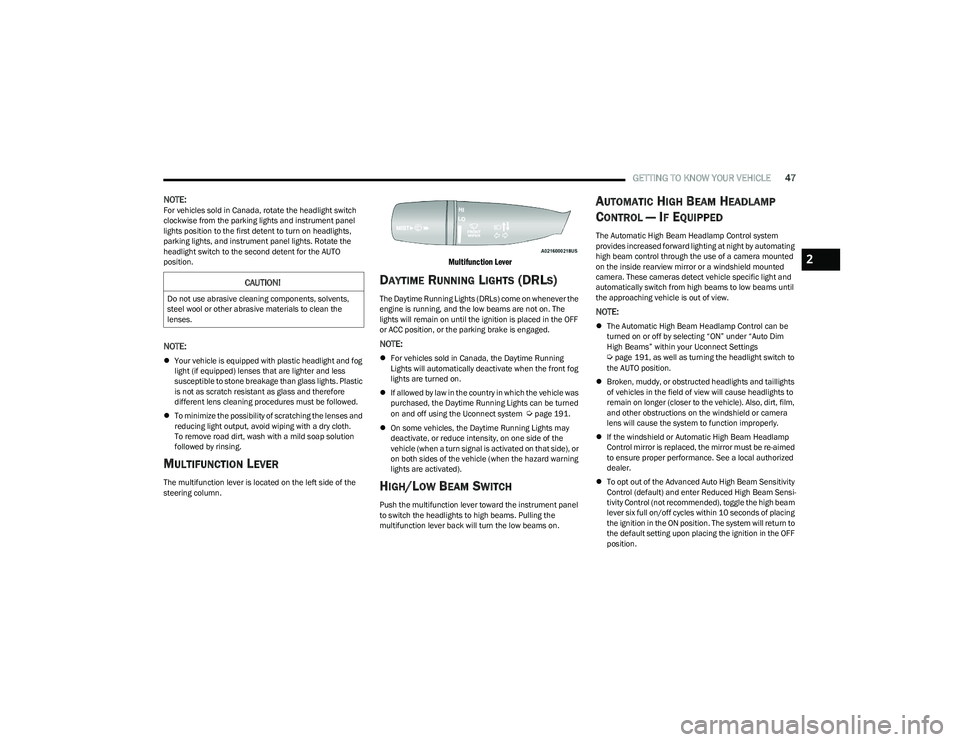
MULTIFUNCTION LEVER
The multifunction lever is located on the left side of the
steering column.
Multifunction Lever
DAYTIME RUNNING LIGHTS (DRLS)
The Daytime Running Lights (DRLs) come on whenever the
engine is running, and the low beams are not on. The
lights will remain on until the ignition is placed in the OFF
or ACC position, or the parking brake is engaged.
NOTE:
For vehicles sold in Canada, the Daytime Running
Lights will automatically deactivate when the front fog
lights are turned on.
If allowed by law in the country in which the vehicle was
purchased, the Daytime Running Lights can be turned
on and off using the Uconnect system
Úpage 191.
On some vehicles, the Daytime Running Lights may
deactivate, or reduce intensity, on one side of the
vehicle (when a turn signal is activated on that side), or
on both sides of the vehicle (when the hazard warning
lights are activated).
HIGH/LOW BEAM SWITCH
Push the multifunction lever toward the instrument panel
to switch the headlights to high beams. Pulling the
multifunction lever back will turn the low beams on.
AUTOMATIC HIGH BEAM HEADLAMP
C
ONTROL — IF EQUIPPED
The Automatic High Beam Headlamp Control system
provides increased forward lighting at night by automating
high beam control through the use of a camera mounted
on the inside rearview mirror or a windshield mounted
camera. These cameras detect vehicle specific light and
automatically switch from high beams to low beams until
the approaching vehicle is out of view.
NOTE:
The Automatic High Beam Headlamp Control can be
turned on or off by selecting “ON” under “Auto Dim
High Beams” within your Uconnect Settings
Úpage 191, as well as turning the headlight switch to
the AUTO position.
Broken, muddy, or obstructed headlights and taillights
of vehicles in the field of view will cause headlights to
remain on longer (closer to the vehicle). Also, dirt, film,
and other obstructions on the windshield or camera
lens will cause the system to function improperly.
If the windshield or Automatic High Beam Headlamp
Control mirror is replaced, the mirror must be re-aimed
to ensure proper performance. See a local authorized
dealer.
To opt out of the Advanced Auto High Beam Sensitivity
Control (default) and enter Reduced High Beam Sensi -
tivity Control (not recommended), toggle the high beam
lever six full on/off cycles within 10 seconds of placing
the ignition in the ON position. The system will return to
the default setting upon placing the ignition in the OFF
position.
CAUTION!
Do not use abrasive cleaning components, solvents,
steel wool or other abrasive materials to clean the
lenses.
2
23_DT_OM_EN_USC_t.book Page 47
Page 50 of 416
48GETTING TO KNOW YOUR VEHICLE
FLASH-TO-PASS
You can signal another vehicle with your headlights by
lightly pulling the multifunction lever toward you. This will
cause the high beam headlights to turn on, and remain on,
until the lever is released.
AUTOMATIC HEADLIGHTS — IF EQUIPPED
This system automatically turns the headlights on or off
according to ambient light levels. To turn the system on,
rotate the headlight switch to the AUTO position.
When the system is on, the Headlight Delay feature is
also on. This means the headlights will stay on for up to
90 seconds after you place the ignition into the OFF
position. To turn the automatic headlights off, turn the
headlight switch out of the AUTO position.
NOTE:The engine must be running before the headlights will turn
on in the Automatic Mode.
PARKING LIGHTS AND PANEL LIGHTS
To turn on the parking lights and instrument panel lights,
rotate the headlight switch clockwise. To turn off the
parking lights, rotate the headlight switch back to the O
(off) position.
NOTE:Vehicles sold in Canada are equipped with a headlight
switch with an AUTO and ON detent but without an OFF
detent. Headlights will be deactivated when the headlight
switch is placed in the parking lights position. However,
the Daytime Running Lights (DRLs) will be activated along
with the front and rear marker lights. The DRLs may be
deactivated when the parking brake is engaged.
AUTOMATIC HEADLIGHTS WITH WIPERS
If your vehicle is equipped with Automatic Headlights, it
also has this customer-programmable feature. When your
headlights are in the automatic mode and the engine is
running, they will automatically turn on when the wiper
system is on. This feature is programmable through the
Uconnect system
Úpage 191.
If your vehicle is equipped with the Rain Sensing Wiper
system
Úpage 53, and it is activated, the headlights will
automatically turn on after the wipers complete five wipe
cycles within approximately one minute. They will turn off
approximately four minutes after the wipers completely
stop.
NOTE:When your headlights come on during the daytime, the
instrument panel lights will automatically dim to the lower
nighttime intensity.
HEADLIGHT DELAY
To assist when exiting the vehicle, the headlight delay
feature will leave the headlights on for up to 90 seconds.
This delay is initiated when the ignition is placed in the OFF
position while the headlight switch is on, and then the
headlight switch is cycled off. Headlight delay can be
canceled by either turning the headlight switch on then
off, or by placing the ignition in the ON position.
NOTE:
This feature can be programmed through the Uconnect
system Úpage 191.
The headlight delay feature is automatically activated if
the headlight switch is left in the AUTO position when
the ignition is placed in the OFF position.
LIGHTS-ON REMINDER
If the headlights, parking lights, or cargo lights are left on
after the ignition is placed in the OFF position, the vehicle
will chime when the driver’s door is opened.
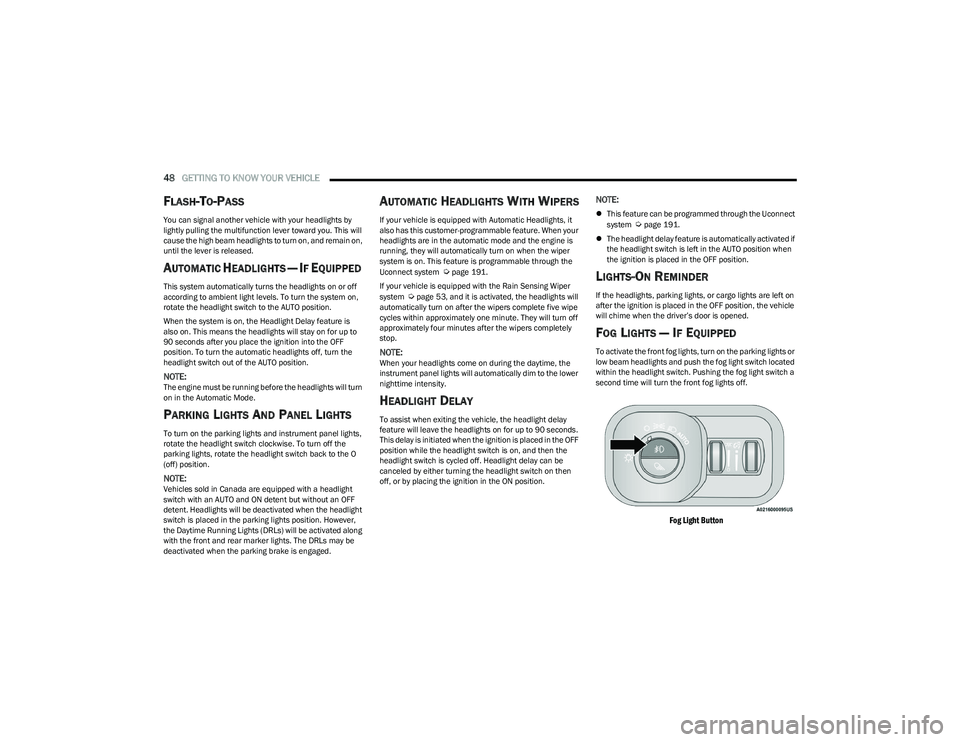
FOG LIGHTS — IF EQUIPPED
To activate the front fog lights, turn on the parking lights or
low beam headlights and push the fog light switch located
within the headlight switch. Pushing the fog light switch a
second time will turn the front fog lights off.
Fog Light Button
23_DT_OM_EN_USC_t.book Page 48