trailer RAM 1500 2023 Owner's Guide
[x] Cancel search | Manufacturer: RAM, Model Year: 2023, Model line: 1500, Model: RAM 1500 2023Pages: 416, PDF Size: 20.59 MB
Page 160 of 416

158STARTING AND OPERATING
NOTE:
The driver is always responsible for controlling the
vehicle, responsible for any surrounding objects, and
must intervene as required.
The system is provided to assist the driver and not to
substitute the driver.
During a semi-automatic maneuver, if the driver
touches the steering wheel after being instructed to
remove their hands from the steering wheel, the
system will cancel, and the driver will be required to
manually complete the parking maneuver.
The system may not work in all conditions
(e.g. environmental conditions such as heavy rain,
snow, etc., or if searching for a parking space that has
surfaces that will absorb the ultrasonic sensor waves).
New vehicles from the dealership must have at least
30 miles (48 km) accumulated before the ParkSense
Active Park Assist system is fully calibrated and
performs accurately. This is due to the system’s
dynamic vehicle calibration to improve the perfor -
mance of the feature.
The driver must control the vehicle’s brakes. The auto -
matic emergency braking feature is NOT intended to
substitute for the driver during REVERSE maneuvers.ENABLING AND DISABLING THE
P
ARKSENSE ACTIVE PARK ASSIST
S
YSTEM
The ParkSense Active Park Assist system can
be enabled and disabled with the ParkSense
Active Park Assist switch, located on the switch
panel below the Uconnect display.
NOTE:If your vehicle is equipped with a 12-inch Uconnect
display, the ParkSense Active Park Assist switch is located
above the display.
To enable or disable the ParkSense Active Park Assist
system, push the ParkSense Active Park Assist switch
once (LED turns on). Pushing the switch a second time will
disable the system (LED turns off).
The ParkSense Active Park Assist system will turn off
automatically for any of the following conditions:
Parking maneuver is completed.
Vehicle speed is greater than 18 mph (30 km/h) when
searching for a parking space.
Vehicle speed is greater than 5 mph (7 km/h) during
active steering guidance into the parking space.
Steering wheel is touched during active steering guid -
ance into the parking space.
ParkSense Front/Rear Park Assist switch is pushed.
Driver's door is opened.
Tailgate is opened.
Electronic Stability Control/Anti-Lock Braking System
intervention.
Vehicle is in 4WD Low.
Axle Locker is active.
Trailer is connected.
Trailer Reverse Steering Control (TRSC) is active.
Snowplow is connected.
NOTE:The ParkSense Active Park Assist system will allow a
maximum of eight shifts between DRIVE and REVERSE. If
the maneuver cannot be completed within eight shifts, the
system will cancel and the instrument cluster display will
instruct the driver to complete the maneuver manually.
The ParkSense Active Park Assist system will only operate
and search for a parking space when the following
conditions are present:
Gear selector is in DRIVE.
The ignition is in the ON/RUN position.
The ParkSense Active Park Assist switch is activated.
Driver's door is closed.
Tailgate is closed.
Vehicle speed is less than 15 mph (25 km/h).
The outer surface and the underside of the front and
rear fascias/bumpers are clean and clear of snow, ice,
mud, dirt or other obstruction.
NOTE:If the vehicle is driven above approximately 15 mph
(25 km/h), the instrument cluster display will instruct the
driver to slow down. If the vehicle is driven above approxi -
mately 18 mph (30 km/h), the system will cancel. The driver must then reactivate the system by pushing the
ParkSense Active Park Assist switch.
23_DT_OM_EN_USC_t.book Page 158
Page 165 of 416
STARTING AND OPERATING163
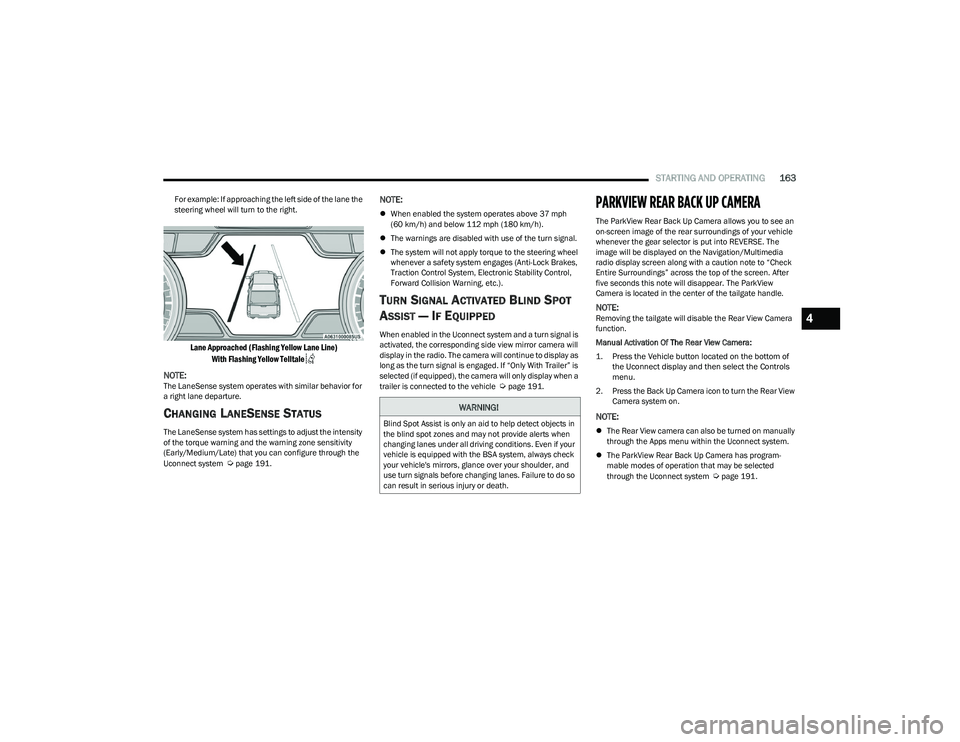
For example: If approaching the left side of the lane the
steering wheel will turn to the right.
Lane Approached (Flashing Yellow Lane Line)
With Flashing Yellow Telltale
NOTE:
The LaneSense system operates with similar behavior for
a right lane departure.
CHANGING LANESENSE STATUS
The LaneSense system has settings to adjust the intensity
of the torque warning and the warning zone sensitivity
(Early/Medium/Late) that you can configure through the
Uconnect system
Úpage 191.
NOTE:
When enabled the system operates above 37 mph
(60 km/h) and below 112 mph (180 km/h).
The warnings are disabled with use of the turn signal.
The system will not apply torque to the steering wheel
whenever a safety system engages (Anti-Lock Brakes,
Traction Control System, Electronic Stability Control,
Forward Collision Warning, etc.).
TURN SIGNAL ACTIVATED BLIND SPOT
A
SSIST — IF EQUIPPED
When enabled in the Uconnect system and a turn signal is
activated, the corresponding side view mirror camera will
display in the radio. The camera will continue to display as
long as the turn signal is engaged. If “Only With Trailer” is
selected (if equipped), the camera will only display when a
trailer is connected to the vehicle
Úpage 191.
PARKVIEW REAR BACK UP CAMERA
The ParkView Rear Back Up Camera allows you to see an
on-screen image of the rear surroundings of your vehicle
whenever the gear selector is put into REVERSE. The
image will be displayed on the Navigation/Multimedia
radio display screen along with a caution note to “Check
Entire Surroundings” across the top of the screen. After
five seconds this note will disappear. The ParkView
Camera is located in the center of the tailgate handle.
NOTE:Removing the tailgate will disable the Rear View Camera
function.
Manual Activation Of The Rear View Camera:
1. Press the Vehicle button located on the bottom of
the Uconnect display and then select the Controls
menu.
2. Press the Back Up Camera icon to turn the Rear View Camera system on.
NOTE:
The Rear View camera can also be turned on manually
through the Apps menu within the Uconnect system.
The ParkView Rear Back Up Camera has program -
mable modes of operation that may be selected
through the Uconnect system
Úpage 191.
WARNING!
Blind Spot Assist is only an aid to help detect objects in
the blind spot zones and may not provide alerts when
changing lanes under all driving conditions. Even if your
vehicle is equipped with the BSA system, always check
your vehicle's mirrors, glance over your shoulder, and
use turn signals before changing lanes. Failure to do so
can result in serious injury or death.
4
23_DT_OM_EN_USC_t.book Page 163
Page 167 of 416
STARTING AND OPERATING165
When Zoom View is selected while the vehicle is in
REVERSE, then shifted to DRIVE, the camera delay view
will display the standard Back Up Camera view. If the
vehicle is then returned to REVERSE gear from DRIVE, the
Zoom View selection will automatically resume.
NOTE:The Zoom View button and AUX button (if equipped) will
not be available when the vehicle is shifted into REVERSE
and the Trailer Reverse Steering Control (TRSC) feature
(if equipped) is activated.
Shifting to NEUTRAL from any gear will maintain the
selected view (Zoom or Standard) as long as the vehicle is
below 8 mph (13 km/h).
If the vehicle is in PARK, Zoom View is available until the
gear selector is placed in DRIVE or REVERSE and speeds
are at or above 8 mph (13 km/h).
NOTE:
If the vehicle is in DRIVE, NEUTRAL, or REVERSE, and
speed is greater than or equal to 8 mph (13 km/h),
Zoom View is unavailable and the icon will appear grey.
While in Zoom View, the guidelines will not be visible.
For information on Auxiliary Cameras (if equipped), see
Úpage 170.
SURROUND VIEW CAMERA SYSTEM —
IF EQUIPPED
The Surround View Camera system allows you to see an
on-screen image of the surroundings and the Top View of
your vehicle. This occurs whenever the gear selector is in
REVERSE or when enabled through the Uconnect system.
The Top View of the vehicle will also show if any doors are
open. The image will be displayed on the touchscreen
along with a caution note “Check Entire Surroundings”.
After five seconds, this note will disappear. The Surround
View Camera system is comprised of four cameras located
in the front grille, rear tailgate and side mirrors.
NOTE:
Removing the tailgate will disable the Rear View
Camera function.
The Surround View Camera system has programmable
settings that may be selected through the Uconnect
system
Úpage 191.
Press this button on the touchscreen to enter
the Surround View Camera menu in the
Uconnect system.
When the vehicle is shifted into REVERSE, the Rear View
and Top View is the default view of the system. If the camera delay is turned on, the camera image will
display for up to 10 seconds after shifting out of REVERSE.
The camera image will stop displaying, close, and display
the previous screen if the vehicle speed exceeds 8 mph
(13 km/h), the vehicle is shifted into PARK, or the ignition
is placed in the OFF position. The touchscreen X button on
the touchscreen disables the display of the camera image.
If the camera delay is turned off, the camera image will
close and display the previous screen after shifting out of
REVERSE.
If active guidelines are enabled, the lines are overlaid on
the image in the Rear View and Top View to illustrate the
width of the vehicle and its projected path based on
steering wheel position.
The guidelines have different colored zones to indicate the
distance an object in the view is from the rear of the
vehicle. Refer to the chart below:
Modes Of Operation
Standard Rear View can be manually activated by
selecting “Back Up Camera” through the Controls menu
within the Uconnect system.Zone
Distance To The Rear Of The
Vehicle
Red 0 - 1 ft
(0 - 30 cm)
Yellow 1 ft - 6.5 ft
(30 cm - 2 m)
Green 6.5 ft or greater
(2 m or greater)
4
23_DT_OM_EN_USC_t.book Page 165
Page 168 of 416
166STARTING AND OPERATING
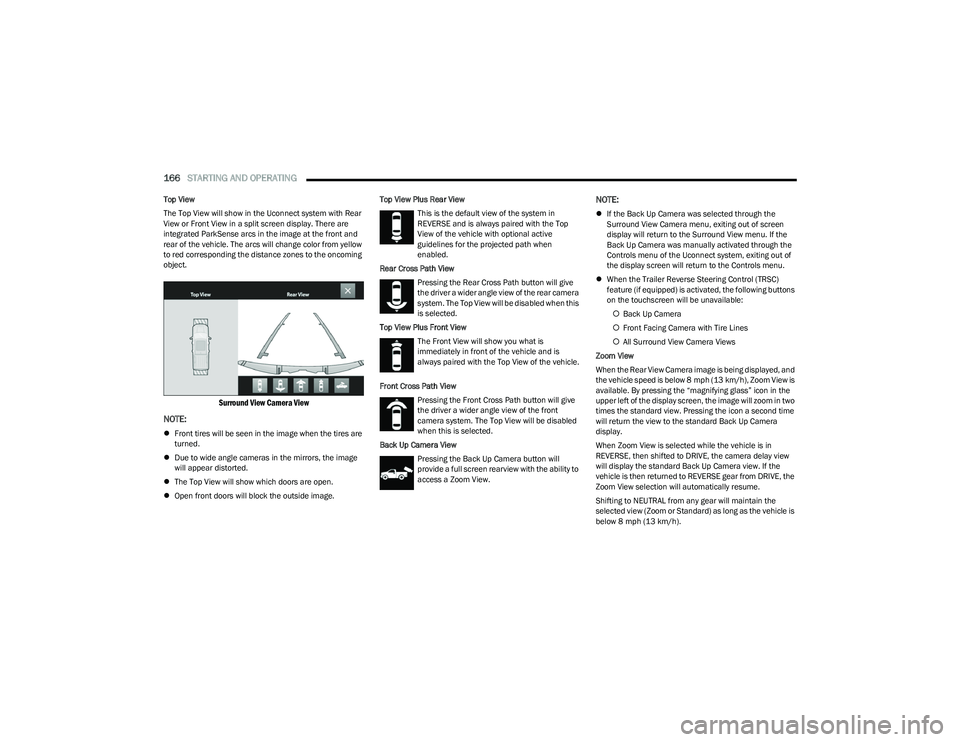
Top View
The Top View will show in the Uconnect system with Rear
View or Front View in a split screen display. There are
integrated ParkSense arcs in the image at the front and
rear of the vehicle. The arcs will change color from yellow
to red corresponding the distance zones to the oncoming
object.
Surround View Camera View
NOTE:
Front tires will be seen in the image when the tires are
turned.
Due to wide angle cameras in the mirrors, the image
will appear distorted.
The Top View will show which doors are open.
Open front doors will block the outside image. Top View Plus Rear View
This is the default view of the system in
REVERSE and is always paired with the Top
View of the vehicle with optional active
guidelines for the projected path when
enabled.
Rear Cross Path View Pressing the Rear Cross Path button will give
the driver a wider angle view of the rear camera
system. The Top View will be disabled when this
is selected.
Top View Plus Front View The Front View will show you what is
immediately in front of the vehicle and is
always paired with the Top View of the vehicle.
Front Cross Path View Pressing the Front Cross Path button will give
the driver a wider angle view of the front
camera system. The Top View will be disabled
when this is selected.
Back Up Camera View Pressing the Back Up Camera button will
provide a full screen rearview with the ability to
access a Zoom View.
NOTE:
If the Back Up Camera was selected through the
Surround View Camera menu, exiting out of screen
display will return to the Surround View menu. If the
Back Up Camera was manually activated through the
Controls menu of the Uconnect system, exiting out of
the display screen will return to the Controls menu.
When the Trailer Reverse Steering Control (TRSC)
feature (if equipped) is activated, the following buttons
on the touchscreen will be unavailable:
Back Up Camera
Front Facing Camera with Tire Lines
All Surround View Camera Views
Zoom View
When the Rear View Camera image is being displayed, and
the vehicle speed is below 8 mph (13 km/h), Zoom View is
available. By pressing the “magnifying glass” icon in the
upper left of the display screen, the image will zoom in two
times the standard view. Pressing the icon a second time
will return the view to the standard Back Up Camera
display.
When Zoom View is selected while the vehicle is in
REVERSE, then shifted to DRIVE, the camera delay view
will display the standard Back Up Camera view. If the
vehicle is then returned to REVERSE gear from DRIVE, the
Zoom View selection will automatically resume.
Shifting to NEUTRAL from any gear will maintain the
selected view (Zoom or Standard) as long as the vehicle is
below 8 mph (13 km/h).
23_DT_OM_EN_USC_t.book Page 166
Page 170 of 416
168STARTING AND OPERATING
Deactivation
The Forward Facing Camera is deactivated in the following
conditions:
The vehicle exceeds 8 mph (13 km/h), except when
vehicle is in 4WD Low.
The touchscreen X button is pressed.
The vehicle is shifted into PARK.
The ignition is placed in the OFF position.
NOTE:If the vehicle is in 4WD Low, the Forward Facing Camera
image will be displayed until the touchscreen X button is
pressed or the ignition is placed in the OFF position.
TRAILER CAMERAS — IF EQUIPPED
TRAILER SURROUND VIEW CAMERA
S
YSTEM — IF EQUIPPED
The Trailer Surround View Camera system allows you to
see an on-screen image of the surroundings and the Top
View of a trailer using four mountable cameras. This
occurs whenever the More Cams button is selected, or
when enabled through the Uconnect system. The image
will be displayed on the Uconnect display along with a
caution note “Check Entire Surroundings”. After five
seconds, this note will disappear.
NOTE:
Trailer Surround View Camera kit is only available for
vehicles equipped with the Surround View Camera
system.
The Trailer Surround View Camera system has
programmable settings that may be selected through
the Uconnect system
Úpage 191.
Set Up
The Trailer Surround View Camera system includes an
installation kit with a Trailer Surround View Module and
four Trailer Surround View Cameras that must be installed
on your trailer prior to connecting to your vehicle. See the
installation instructions included with the Trailer Surround
View installation kit for more information. Once the Trailer
Surround View Module and cameras are installed and the
trailer is connected to the vehicle via the 12-way
connector, the settings Trailer Surround Camera settings
can be accessed. The Trailer Surround Camera settings
can be accessed through Uconnect Settings by pressing
the Trailer button in the Trailer Settings or the Camera
Settings. The system requires input of the trailer
dimensions prior to use of the system.
NOTE:
If a trailer is connected but the trailer dimensions have
not been entered in the Trailer Surround settings page,
the system will default to the settings page.
If a trailer is not connected and any button is selected,
a message will appear: “Connect Trailer Equipped With
Trailer Surround View System”. Inputting Trailer Values
For the Trailer Surround View Camera system to function,
all fields must be entered. When a value is needed the
screen will display “Required”.
Activation
The Trailer Surround Camera can be activated through the
Uconnect system when the vehicle is in PARK, NEUTRAL,
OR DRIVE.
When the vehicle is shifted into REVERSE, Surround View
Camera showing the Top View and Back Up Camera is the
default view of the system. Press the More Cams button
and press the Trailer tab to access the Trailer Cameras.
Press Trailer Surround Camera button to access Top View
and Rear View of the trailer.
If the camera delay is turned on, the camera image will
display for up to 10 seconds after shifting out of REVERSE.
The camera image will not display for 10 seconds if the
vehicle speed exceeds 8 mph (13 km/h), the vehicle is
shifted into PARK, or the ignition is placed in the OFF
position. The touchscreen X button disables the display of
the camera image.
Setting
Description
Trailer Length Input the total length of the
trailer
Trailer Width Input the total width of the
trailer
Camera Height Input the height of the
mounted camera
23_DT_OM_EN_USC_t.book Page 168
Page 171 of 416
STARTING AND OPERATING169
If the camera delay is turned off, the camera image will
close and display the previous screen after shifting out of
REVERSE.
Modes Of Operation
The Trailer Surround View Camera system offers two
different camera displays:
Top View split screen with one selected mounted
camera
Full screen view of a selected mounted camera
Press the More Cams button on the Surround View screen
and select the Trailer tab to access the Trailer Cameras.
Press Trailer Surround Camera button to access the
default Top View and Rear View of the trailer.
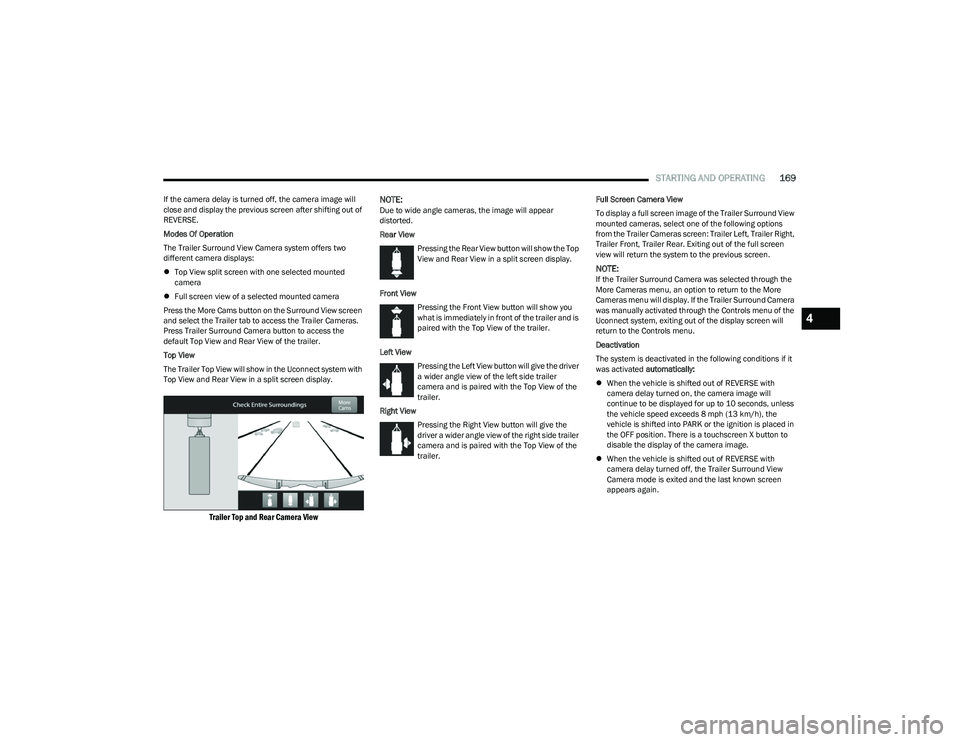
Top View
The Trailer Top View will show in the Uconnect system with
Top View and Rear View in a split screen display.
Trailer Top and Rear Camera View
NOTE:
Due to wide angle cameras, the image will appear
distorted.
Rear View
Pressing the Rear View button will show the Top
View and Rear View in a split screen display.
Front View Pressing the Front View button will show you
what is immediately in front of the trailer and is
paired with the Top View of the trailer.
Left View Pressing the Left View button will give the driver
a wider angle view of the left side trailer
camera and is paired with the Top View of the
trailer.
Right View Pressing the Right View button will give the
driver a wider angle view of the right side trailer
camera and is paired with the Top View of the
trailer. Full Screen Camera View
To display a full screen image of the Trailer Surround View
mounted cameras, select one of the following options
from the Trailer Cameras screen: Trailer Left, Trailer Right,
Trailer Front, Trailer Rear. Exiting out of the full screen
view will return the system to the previous screen.
NOTE:If the Trailer Surround Camera was selected through the
More Cameras menu, an option to return to the More
Cameras menu will display. If the Trailer Surround Camera
was manually activated through the Controls menu of the
Uconnect system, exiting out of the display screen will
return to the Controls menu.
Deactivation
The system is deactivated in the following conditions if it
was activated
automatically:
When the vehicle is shifted out of REVERSE with
camera delay turned on, the camera image will
continue to be displayed for up to 10 seconds, unless
the vehicle speed exceeds 8 mph (13 km/h), the
vehicle is shifted into PARK or the ignition is placed in
the OFF position. There is a touchscreen X button to
disable the display of the camera image.
When the vehicle is shifted out of REVERSE with
camera delay turned off, the Trailer Surround View
Camera mode is exited and the last known screen
appears again.
4
23_DT_OM_EN_USC_t.book Page 169
Page 172 of 416
170STARTING AND OPERATING
The system is deactivated in the following conditions if it
was activated manually from the Uconnect controls menu
via the Trailer Surround Camera button:
The touchscreen X button is pressed
Vehicle is shifted into PARK
Ignition is placed in the OFF position
Vehicle speed is over 8 mph (13 km/h) for 10 seconds
NOTE:If the Trailer Surround Camera is activated manually, and
the vehicle is shifted into REVERSE, deactivation methods
for automatic activation are assumed.
The camera delay system is turned off manually through
the Uconnect system
Úpage 191.
NOTE:
If snow, ice, mud, or any foreign substance builds up on
the camera lenses, clean the lenses, rinse with water,
and dry with a soft cloth. Do not cover the lenses.
If a malfunction with the system has occurred, see an
authorized dealer.
AUX CAMERA — IF EQUIPPED
Your vehicle may be equipped with one or two AUX
Cameras, which display rearview and side view images
from the trailer on the touchscreen.
NOTE:Two Aux Cameras are only available on vehicles with NAV
equipped radios if the vehicle is not equipped with a
Center High Mounted Stop Lamp (CHMSL) and Surround
View Camera system.
Activation
The AUX Camera is activated by first pressing the Back Up
Camera or Cargo Camera (if equipped) button on the
touchscreen, followed by the AUX button located in the
upper left corner of the rearview display. On vehicles with
Surround View Camera (if equipped), the AUX Camera can
be activated when the vehicle is in REVERSE by first
pressing the More Cams button in the Surround View
screen, followed by the AUX tab. The AUX camera can also be activated when the vehicle is
in REVERSE by pressing the AUX button.
If equipped with two AUX Cameras, you can switch
between each camera by pressing the AUX 1 or AUX 2
buttons on the Trailer Camera display.
Deactivation
The AUX Camera is deactivated by pressing the
touchscreen X button. This will return the display back to
the previously displayed screen.NOTE:
If the AUX button is pressed and no AUX Camera is
connected, the touchscreen will display a blue screen
along with the message “Camera System Unavailable.”
The screen can be exited out by pressing the touch -
screen X button. This will return the display back to the
previously displayed screen.
Zoom View is not available with the AUX Camera
feature.
The display will always default to the Trailer Camera
display AUX 1.
WARNING!
Drivers must be careful when backing up even when
using the Trailer Surround View Camera. Always check
carefully behind your vehicle, and be sure to check for
pedestrians, animals, other vehicles, obstructions, or
blind spots before backing up. You are responsible for
the safety of your surroundings and must continue to
pay attention while backing up. Failure to do so can
result in serious injury or death.
CAUTION!
To avoid vehicle damage, Trailer Surround View
should only be used as a parking aid. The Trailer
Surround View Camera is unable to view every
obstacle or object in your drive path.
To avoid vehicle damage, the vehicle must be driven
slowly when using Trailer Surround View to be able to
stop in time when an obstacle is seen. It is recom -
mended that the driver look frequently over his/her
shoulder when using Trailer Surround View.
AUX 1 Camera Button
AUX 2 Camera Button
23_DT_OM_EN_USC_t.book Page 170
Page 175 of 416

STARTING AND OPERATING173
TRAILER TOWING
In this section you will find safety tips and information on
limits to the type of towing you can reasonably do with your
vehicle. Before towing a trailer, carefully review this
information to tow your load as efficiently and safely as
possible.
To maintain the New Vehicle Limited Warranty coverage,
follow the requirements and recommendations in this
manual concerning vehicles used for trailer towing.
COMMON TOWING DEFINITIONS
The following trailer towing related definitions will assist
you in understanding the following information:
Gross Vehicle Weight Rating (GVWR)
The GVWR is the total allowable weight of your vehicle.
This includes driver, passengers, cargo and tongue
weight. The total load must be limited so that you do not
exceed the GVWR
Úpage 172.
Gross Trailer Weight (GTW)
The GTW is the weight of the trailer plus the weight of all
cargo, consumables and equipment (permanent or
temporary) loaded in or on the trailer in its “loaded and
ready for operation” condition.
The recommended way to measure GTW is to put your fully
loaded trailer on a vehicle scale. The entire weight of the
trailer must be supported by the scale.
Gross Combination Weight Rating (GCWR)
The GCWR is the total allowable weight of your vehicle and
trailer when weighed in combination.
Gross Axle Weight Rating (GAWR)
The GAWR is the maximum capacity of the front and rear
axles. Distribute the load over the front and rear axles
evenly. Make sure that you do not exceed either front or
rear GAWR
Úpage 172.
Tongue Weight (TW)
The TW is the downward force exerted on the hitch ball by
the trailer. You must consider this as part of the load on
your vehicle.
Trailer Frontal Area
The frontal area is the maximum height multiplied by the
maximum width of the front of a trailer.
Trailer Sway Control (TSC)
The TSC can be a mechanical telescoping link that can be
installed between the hitch receiver and the trailer tongue
that typically provides adjustable friction associated with
the telescoping motion to dampen any unwanted trailer
swaying motions while traveling.
The electronic TSC (If equipped) recognizes a swaying
trailer and automatically applies individual wheel brakes
and/or reduces engine power to attempt to eliminate the
trailer sway.
Weight-Carrying Hitch
A weight-carrying hitch supports the trailer tongue weight,
just as if it were luggage located at a hitch ball or some
other connecting point of the vehicle. These kinds of
hitches are commonly used to tow small and medium
sized trailers.
WARNING!
If the gross trailer weight is 5,000 lb (2,267 kg) or
more, it is recommended to use a weight-distributing
hitch to ensure stable handling of your vehicle. If you
use a standard weight-carrying hitch, you could lose
control of your vehicle and cause a collision.
WARNING!
It is important that you do not exceed the maximum
front or rear GAWR. A dangerous driving condition can
result if either rating is exceeded. You could lose control
of the vehicle and have a collision.
4
23_DT_OM_EN_USC_t.book Page 173
Page 176 of 416
174STARTING AND OPERATING
Weight-Distributing Hitch
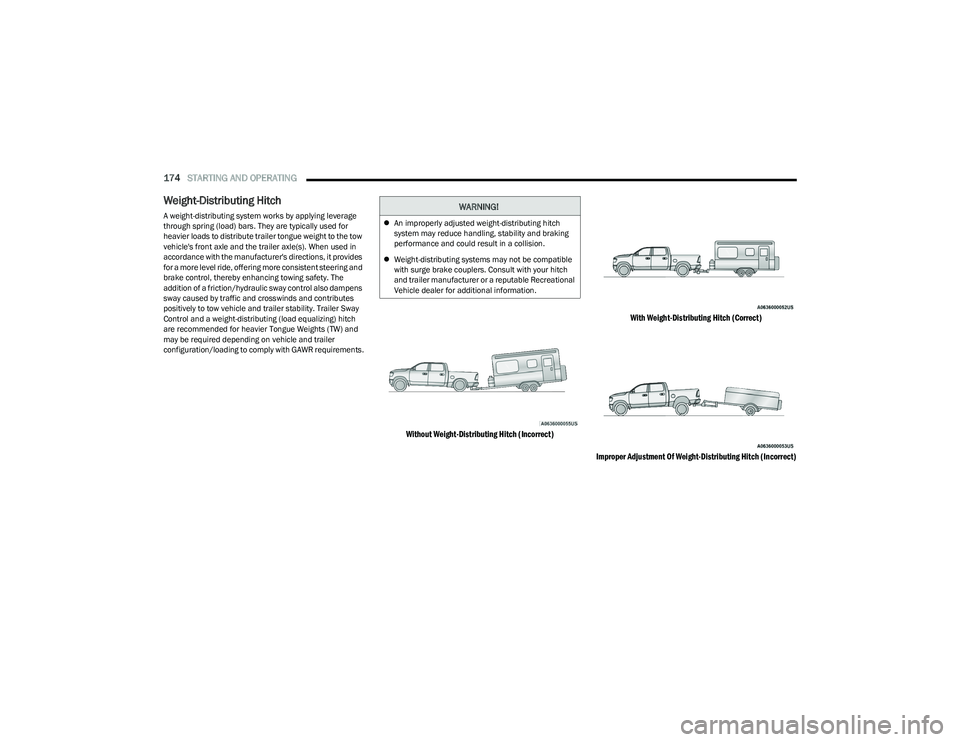
A weight-distributing system works by applying leverage
through spring (load) bars. They are typically used for
heavier loads to distribute trailer tongue weight to the tow
vehicle's front axle and the trailer axle(s). When used in
accordance with the manufacturer's directions, it provides
for a more level ride, offering more consistent steering and
brake control, thereby enhancing towing safety. The
addition of a friction/hydraulic sway control also dampens
sway caused by traffic and crosswinds and contributes
positively to tow vehicle and trailer stability. Trailer Sway
Control and a weight-distributing (load equalizing) hitch
are recommended for heavier Tongue Weights (TW) and
may be required depending on vehicle and trailer
configuration/loading to comply with GAWR requirements.
Without Weight-Distributing Hitch (Incorrect) With Weight-Distributing Hitch (Correct)
Improper Adjustment Of Weight-Distributing Hitch (Incorrect)
WARNING!
An improperly adjusted weight-distributing hitch
system may reduce handling, stability and braking
performance and could result in a collision.
Weight-distributing systems may not be compatible
with surge brake couplers. Consult with your hitch
and trailer manufacturer or a reputable Recreational
Vehicle dealer for additional information.
23_DT_OM_EN_USC_t.book Page 174
Page 177 of 416
STARTING AND OPERATING175
RECOMMENDED DISTRIBUTION HITCH
ADJUSTMENT
Towing With Air Suspension — If Equipped
1. Verify that the vehicle is at the normal ride height.
NOTE:The vehicle must remain in the engine run position with all
doors closed while attaching a trailer for proper leveling of
the air suspension system.
2. Position the truck to be ready to connect to the trailer
(do not connect the trailer).
3. Enable tire jack mode through the instrument cluster or touchscreen radio settings. Tire jack mode will be
canceled and the procedure must be restarted if the
vehicle is driven at speeds above 5 mph (8 km/h).
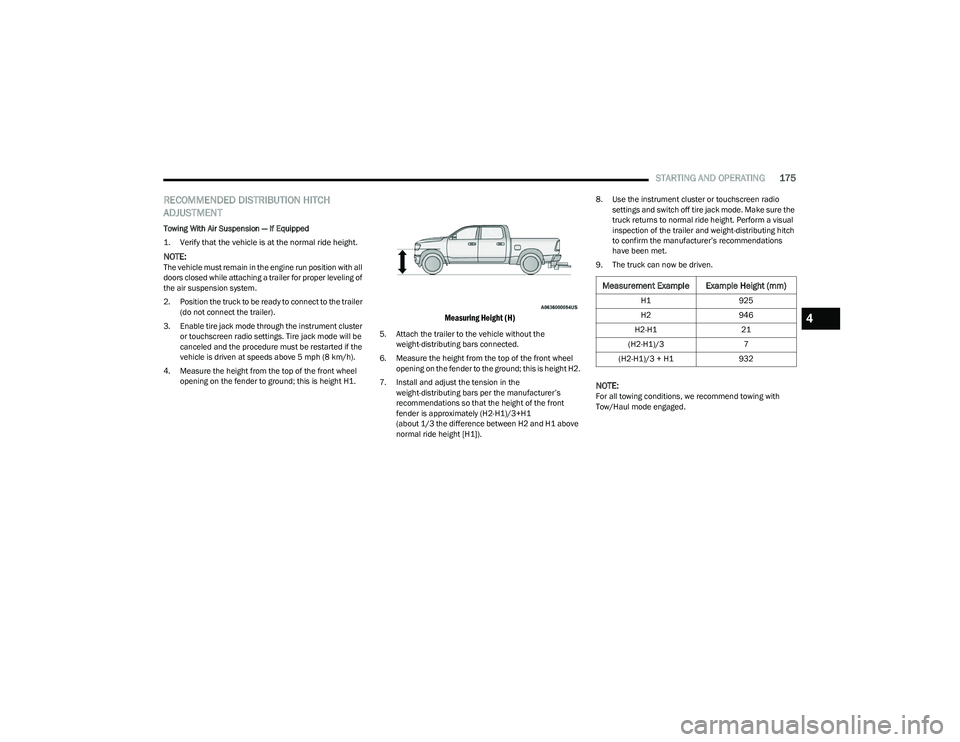
4. Measure the height from the top of the front wheel opening on the fender to ground; this is height H1.
Measuring Height (H)
5. Attach the trailer to the vehicle without the weight-distributing bars connected.
6. Measure the height from the top of the front wheel opening on the fender to the ground; this is height H2.
7. Install and adjust the tension in the weight-distributing bars per the manufacturer’s
recommendations so that the height of the front
fender is approximately (H2-H1)/3+H1
(about 1/3 the difference between H2 and H1 above
normal ride height [H1]). 8. Use the instrument cluster or touchscreen radio
settings and switch off tire jack mode. Make sure the
truck returns to normal ride height. Perform a visual
inspection of the trailer and weight-distributing hitch
to confirm the manufacturer’s recommendations
have been met.
9. The truck can now be driven.
NOTE:For all towing conditions, we recommend towing with
Tow/Haul mode engaged.
Measurement Example Example Height (mm)
H1 925
H2 946
H2-H1 21
(H2-H1)/3 7
(H2-H1)/3 + H1 932
4
23_DT_OM_EN_USC_t.book Page 175