instrument cluster RAM 1500 2023 Repair Manual
[x] Cancel search | Manufacturer: RAM, Model Year: 2023, Model line: 1500, Model: RAM 1500 2023Pages: 416, PDF Size: 20.59 MB
Page 162 of 416

160STARTING AND OPERATING
The system may then instruct the driver to wait for steering
to complete before then instructing to check surroundings
and move backward.
Move Backward Into Parallel Parking Space
Move Backward Into Perpendicular Parking Space
The system may instruct several more gear shifts
(DRIVE and REVERSE), with hands off of the steering
wheel, before instructing the driver to check surroundings
and complete the parking maneuver. When the vehicle is in the parking position, the maneuver
is complete and the driver will be instructed to check the
vehicle's parking position, then shift the vehicle into PARK.
The message "Active ParkSense Complete - Check Parking
Position" will be displayed momentarily.
NOTE:
It is the driver's responsibility to use the brake and
accelerator during the semi-automatic parking
maneuver.
It is the driver's responsibility to use the brake and stop
the vehicle. The driver should check their surroundings
and be prepared to stop the vehicle either when
instructed to, or when driver intervention is required.
When the system instructs the driver to remove their
hands from the steering wheel, the driver should check
their surroundings and begin to back up slowly.
The ParkSense Active Park Assist system will allow a
maximum of eight shifts between DRIVE and REVERSE.
If the maneuver cannot be completed within eight
shifts, the system will cancel and the instrument
cluster display will instruct the driver to complete the
maneuver manually.
The system will cancel the maneuver if the vehicle
speed exceeds 5 mph (7 km/h) during active steering
guidance into the parking space. The system will
provide a warning to the driver at 3 mph (5 km/h) that
tells them to slow down. The driver is then responsible
for completing the maneuver if the system is canceled.
If the system is canceled during the maneuver for any
reason, the driver must take control of the vehicle.
WARNING!
Drivers must be careful when performing parallel or
perpendicular parking maneuvers even when using the
ParkSense Active Park Assist system. Always check
carefully behind and in front of your vehicle, look
behind and in front of you, and be sure to check for
pedestrians, animals, other vehicles, obstructions, and
blind spots before backing up and moving forward. You
are responsible for safety and must continue to pay
attention to your surroundings. Failure to do so can
result in serious injury or death.
CAUTION!
The ParkSense Active Park Assist system is only a
parking aid and it is unable to recognize every
obstacle, including small obstacles. Parking curbs
might be temporarily detected or not detected at all.
Obstacles located above or below the sensors’ field
of view will not be detected when they are in close
proximity.
The vehicle must be driven slowly when using the
ParkSense Active Park Assist system in order to be
able to stop in time when an obstacle is detected.
It is recommended that the driver looks over his/her
shoulders when using the ParkSense Active Park
Assist system.
23_DT_OM_EN_USC_t.book Page 160
Page 163 of 416
STARTING AND OPERATING161
LANESENSE — IF EQUIPPED
LANESENSE OPERATION
The LaneSense system is operational at speeds above
37 mph (60 km/h) and below 112 mph (180 km/h).
The LaneSense system uses a forward looking camera to
detect lane markings and measure vehicle position within
the lane boundaries.
When both lane markings are detected and the driver
drifts out of the lane (no turn signal applied), the
LaneSense system provides a haptic warning in the form
of torque applied to the steering wheel, as well as a visual
warning in the instrument cluster display, to prompt the
driver to remain within the lane boundaries.
The driver may manually override the haptic warning by
applying force to the steering wheel at any time.
When only a single lane marking is detected and the driver
drifts across the lane marking (no turn signal applied), the
LaneSense system provides a visual warning through the
instrument cluster display to prompt the driver to remain
within the lane.
When only a single lane marking is detected, a haptic or a
torque warning will not be provided.
NOTE:
When operating conditions have been met, the Lane -
Sense system will monitor if the driver’s hands are on
the steering wheel and provide an audible and visual
warning to the driver if removed. The system will cancel
if the driver does not return their hands to the wheel.
LaneSense will disable when a snowplow is connected
to the vehicle.
TURNING LANESENSE ON OR OFF
The LaneSense button is located on the switch
panel below the Uconnect display.
NOTE:If your vehicle is equipped with a 12-inch Uconnect Display
screen, the LaneSense button is located above the
display.
To turn the LaneSense system on, push the LaneSense
button (LED turns off). A “LaneSense On” message is
shown in the instrument cluster display.
To turn the LaneSense system off, push the LaneSense
button again (LED turns on).
NOTE:The LaneSense system will retain the last system state on
or off from the last ignition cycle when the ignition is
placed in the ON/RUN position.
LANESENSE WARNING MESSAGE
The LaneSense system will indicate the current lane drift
condition through the instrument cluster display.
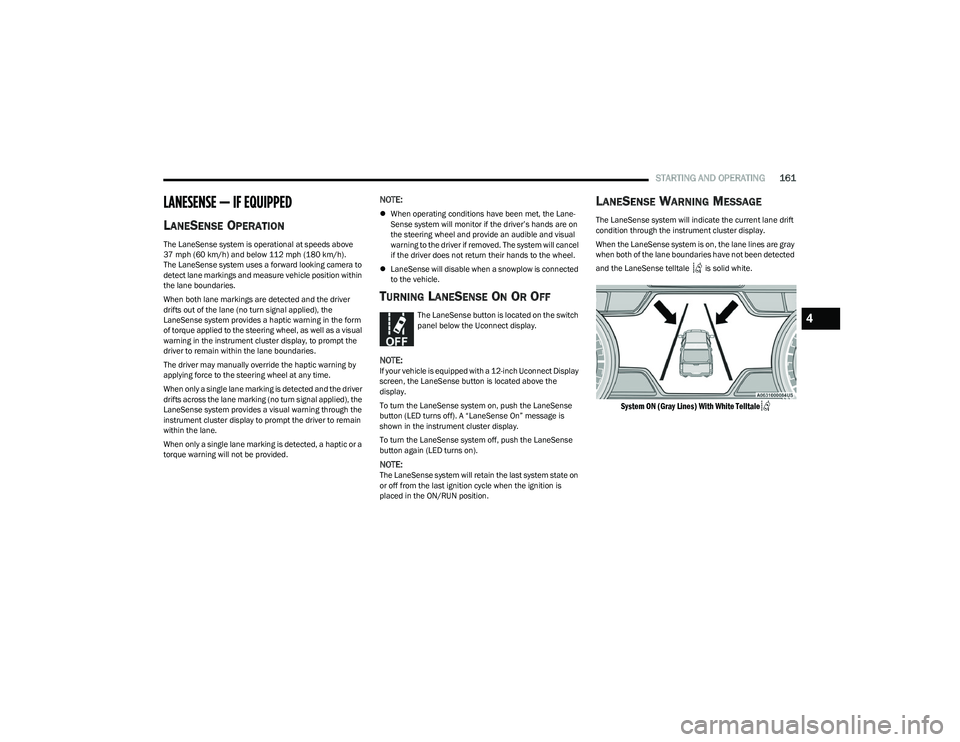
When the LaneSense system is on, the lane lines are gray
when both of the lane boundaries have not been detected
and the LaneSense telltale is solid white.
System ON (Gray Lines) With White Telltale
4
23_DT_OM_EN_USC_t.book Page 161
Page 164 of 416
162STARTING AND OPERATING
Left Lane Departure — Only Left Lane Detected
When the LaneSense system is on, the LaneSense Tell -
tale is solid white when only the left lane marking
has been detected and the system is ready to provide
visual warnings in the instrument cluster display if an
unintentional lane departure occurs on the left side.
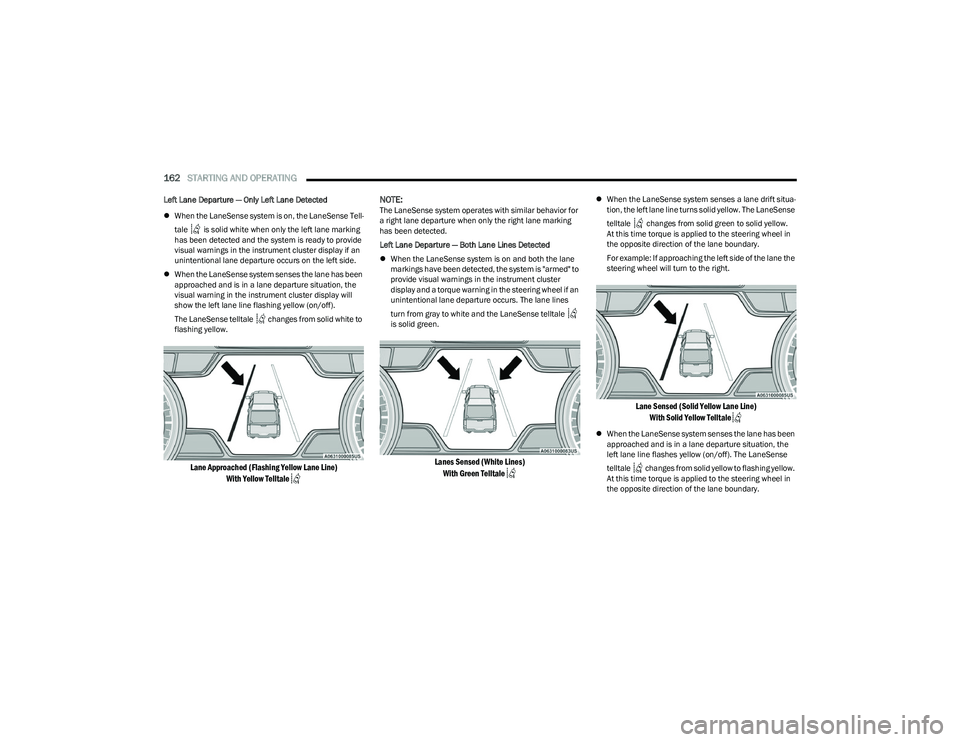
When the LaneSense system senses the lane has been
approached and is in a lane departure situation, the
visual warning in the instrument cluster display will
show the left lane line flashing yellow (on/off).
The LaneSense telltale changes from solid white to
flashing yellow.
Lane Approached (Flashing Yellow Lane Line)
With Yellow Telltale
NOTE:
The LaneSense system operates with similar behavior for
a right lane departure when only the right lane marking
has been detected.
Left Lane Departure — Both Lane Lines Detected
When the LaneSense system is on and both the lane
markings have been detected, the system is "armed" to
provide visual warnings in the instrument cluster
display and a torque warning in the steering wheel if an
unintentional lane departure occurs. The lane lines
turn from gray to white and the LaneSense telltale
is solid green.
Lanes Sensed (White Lines)
With Green Telltale
When the LaneSense system senses a lane drift situa -
tion, the left lane line turns solid yellow. The LaneSense
telltale changes from solid green to solid yellow.
At this time torque is applied to the steering wheel in
the opposite direction of the lane boundary.
For example: If approaching the left side of the lane the
steering wheel will turn to the right.
Lane Sensed (Solid Yellow Lane Line)
With Solid Yellow Telltale
When the LaneSense system senses the lane has been
approached and is in a lane departure situation, the
left lane line flashes yellow (on/off). The LaneSense
telltale changes from solid yellow to flashing yellow.
At this time torque is applied to the steering wheel in
the opposite direction of the lane boundary.
23_DT_OM_EN_USC_t.book Page 162
Page 177 of 416
STARTING AND OPERATING175
RECOMMENDED DISTRIBUTION HITCH
ADJUSTMENT
Towing With Air Suspension — If Equipped
1. Verify that the vehicle is at the normal ride height.
NOTE:The vehicle must remain in the engine run position with all
doors closed while attaching a trailer for proper leveling of
the air suspension system.
2. Position the truck to be ready to connect to the trailer
(do not connect the trailer).
3. Enable tire jack mode through the instrument cluster or touchscreen radio settings. Tire jack mode will be
canceled and the procedure must be restarted if the
vehicle is driven at speeds above 5 mph (8 km/h).
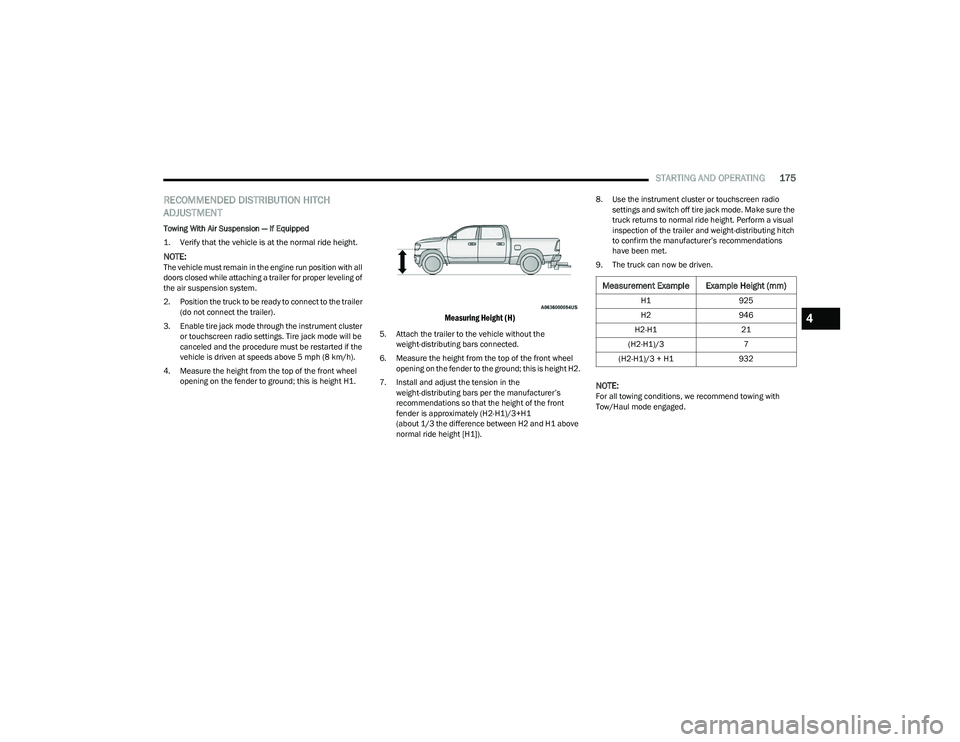
4. Measure the height from the top of the front wheel opening on the fender to ground; this is height H1.
Measuring Height (H)
5. Attach the trailer to the vehicle without the weight-distributing bars connected.
6. Measure the height from the top of the front wheel opening on the fender to the ground; this is height H2.
7. Install and adjust the tension in the weight-distributing bars per the manufacturer’s
recommendations so that the height of the front
fender is approximately (H2-H1)/3+H1
(about 1/3 the difference between H2 and H1 above
normal ride height [H1]). 8. Use the instrument cluster or touchscreen radio
settings and switch off tire jack mode. Make sure the
truck returns to normal ride height. Perform a visual
inspection of the trailer and weight-distributing hitch
to confirm the manufacturer’s recommendations
have been met.
9. The truck can now be driven.
NOTE:For all towing conditions, we recommend towing with
Tow/Haul mode engaged.
Measurement Example Example Height (mm)
H1 925
H2 946
H2-H1 21
(H2-H1)/3 7
(H2-H1)/3 + H1 932
4
23_DT_OM_EN_USC_t.book Page 175
Page 179 of 416
STARTING AND OPERATING177
Consider the following items when computing the weight
on the rear axle of the vehicle:
The tongue weight of the trailer.
The weight of any other type of cargo or equipment put
in or on your vehicle.
The weight of the driver and all passengers.
NOTE:Remember that everything put into or on the trailer adds
to the load on your vehicle. Also, additional
factory-installed options or dealer-installed options must
be considered as part of the total load on your vehicle.
Refer to the Tire And Loading Information Placard for the
maximum combined weight of occupants and cargo for
your vehicle.
TRAILER REVERSE STEERING
C
ONTROL — IF EQUIPPED
Feature Overview
Trailer Reverse Steering Control (TRSC) is a feature that
will assist the driver when backing up a trailer. By turning
the knob located on the center stack, you can more
accurately control the direction the trailer will go. The driver controls the accelerator and the brake while
steering with the use of the Trailer Reverse Steering
Control knob. The trailer is steered according to the
direction the knob is turned.
This feature will also allow the driver to back up a vehicle
and trailer in a straight line when the knob is rested in its
center position.
Minimal setup is required to use this feature.
Set Up:
To use the system, hitch your trailer to the truck and
ensure all electrical wiring is connected
Úpage 182.
The system will automatically calibrate an attached trailer
during normal forward driving with no additional action
needed from the driver. If the vehicle has not had enough
time to automatically calibrate after connecting a trailer,
you will see a “Calibrate Trailer” message in the
instrument cluster when pressing the TRSC button to
activate the system. If this is the case, perform the
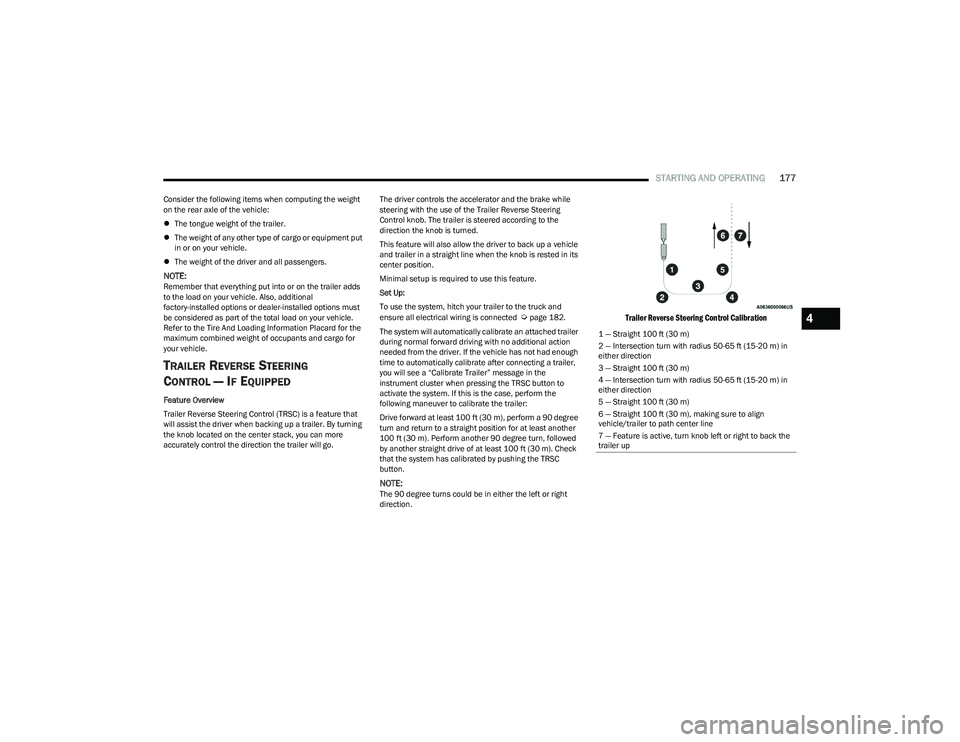
following maneuver to calibrate the trailer:
Drive forward at least 100 ft (30 m), perform a 90 degree
turn and return to a straight position for at least another
100 ft (30 m). Perform another 90 degree turn, followed
by another straight drive of at least 100 ft (30 m). Check
that the system has calibrated by pushing the TRSC
button.
NOTE:The 90 degree turns could be in either the left or right
direction.
Trailer Reverse Steering Control Calibration
1 — Straight 100 ft (30 m) 2 — Intersection turn with radius 50-65 ft (15-20 m) in
either direction
3 — Straight 100 ft (30 m)4 — Intersection turn with radius 50-65 ft (15-20 m) in
either direction
5 — Straight 100 ft (30 m)6 — Straight 100 ft (30 m), making sure to align vehicle/trailer to path center line
7 — Feature is active, turn knob left or right to back the
trailer up
4
23_DT_OM_EN_USC_t.book Page 177
Page 180 of 416
178STARTING AND OPERATING
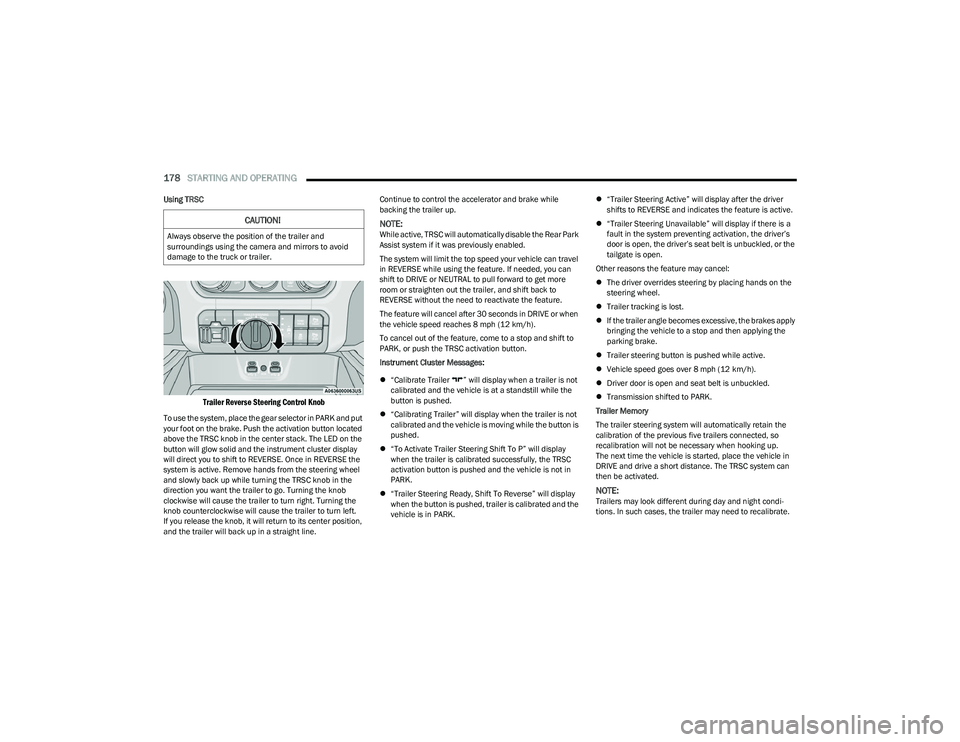
Using TRSC
Trailer Reverse Steering Control Knob
To use the system, place the gear selector in PARK and put
your foot on the brake. Push the activation button located
above the TRSC knob in the center stack. The LED on the
button will glow solid and the instrument cluster display
will direct you to shift to REVERSE. Once in REVERSE the
system is active. Remove hands from the steering wheel
and slowly back up while turning the TRSC knob in the
direction you want the trailer to go. Turning the knob
clockwise will cause the trailer to turn right. Turning the
knob counterclockwise will cause the trailer to turn left.
If you release the knob, it will return to its center position,
and the trailer will back up in a straight line. Continue to control the accelerator and brake while
backing the trailer up.
NOTE:While active, TRSC will automatically disable the Rear Park
Assist system if it was previously enabled.
The system will limit the top speed your vehicle can travel
in REVERSE while using the feature. If needed, you can
shift to DRIVE or NEUTRAL to pull forward to get more
room or straighten out the trailer, and shift back to
REVERSE without the need to reactivate the feature.
The feature will cancel after 30 seconds in DRIVE or when
the vehicle speed reaches 8 mph (12 km/h).
To cancel out of the feature, come to a stop and shift to
PARK, or push the TRSC activation button.
Instrument Cluster Messages:
“Calibrate Trailer ” will display when a trailer is not
calibrated and the vehicle is at a standstill while the
button is pushed.
“Calibrating Trailer” will display when the trailer is not
calibrated and the vehicle is moving while the button is
pushed.
“To Activate Trailer Steering Shift To P” will display
when the trailer is calibrated successfully, the TRSC
activation button is pushed and the vehicle is not in
PARK.
“Trailer Steering Ready, Shift To Reverse” will display
when the button is pushed, trailer is calibrated and the
vehicle is in PARK.
“Trailer Steering Active” will display after the driver
shifts to REVERSE and indicates the feature is active.
“Trailer Steering Unavailable” will display if there is a
fault in the system preventing activation, the driver’s
door is open, the driver’s seat belt is unbuckled, or the
tailgate is open.
Other reasons the feature may cancel:
The driver overrides steering by placing hands on the
steering wheel.
Trailer tracking is lost.
If the trailer angle becomes excessive, the brakes apply
bringing the vehicle to a stop and then applying the
parking brake.
Trailer steering button is pushed while active.
Vehicle speed goes over 8 mph (12 km/h).
Driver door is open and seat belt is unbuckled.
Transmission shifted to PARK.
Trailer Memory
The trailer steering system will automatically retain the
calibration of the previous five trailers connected, so
recalibration will not be necessary when hooking up.
The next time the vehicle is started, place the vehicle in
DRIVE and drive a short distance. The TRSC system can
then be activated.
NOTE:Trailers may look different during day and night condi -
tions. In such cases, the trailer may need to recalibrate.
CAUTION!
Always observe the position of the trailer and
surroundings using the camera and mirrors to avoid
damage to the truck or trailer.
23_DT_OM_EN_USC_t.book Page 178
Page 183 of 416
STARTING AND OPERATING181
Trailer Brake Status Indicator Light
This light indicates the trailer electrical connection status.
If no electrical connection is detected after the ignition is
turned on, pushing the GAIN adjustment button or sliding
the manual brake control lever will display the GAIN
setting for 10 seconds and the Trailer Brake Status
Indicator Light will not be displayed.
If a fault is detected in the trailer wiring or the Integrated
Trailer Brake Module (ITBM), the Trailer Brake Status
Indicator Light will flash.
Adjusting GAIN
NOTE:This should only be performed in a traffic free environment
at speeds of approximately 20–25 mph (30–40 km/h).
1. Make sure the trailer brakes are in good working
condition, functioning normally and properly
adjusted. See your trailer dealer if necessary.
2. Hook up the trailer and make the electrical connections according to the trailer manufacturer's
instructions.
3. When a trailer is plugged in with electric or EOH brakes, the trailer connected message should appear
in the instrument cluster display (if the connection is
not recognized by the ITBM, braking functions will not
be available), the GAIN setting will illuminate and the
correct type of trailer must be selected from the
instrument cluster display options.
4. Push the UP or DOWN button on the steering wheel until “TRAILER TOW” appears on the screen.
5. Push the RIGHT arrow on the steering wheel to enter “TRAILER TOW”. 6. Push the UP or DOWN buttons until the Trailer Brake
Type appears on the screen.
7. Push the RIGHT arrow and then push the UP or DOWN buttons until the proper Trailer Brake Type appears
on the screen.
8. In a traffic-free environment, tow the trailer on a dry, level surface at a speed of 20–25 mph
(30–40 km/h) and squeeze the manual brake
control lever completely.
9. If the trailer wheels lockup (indicated by squealing tires), reduce the GAIN setting; if the trailer wheels
turn freely, increase the GAIN setting.
Repeat steps 8 and 9 until the GAIN setting is at a point
just below trailer wheel lockup. If towing a heavier trailer,
trailer wheel lockup may not be attainable even with the
maximum GAIN setting of 10.
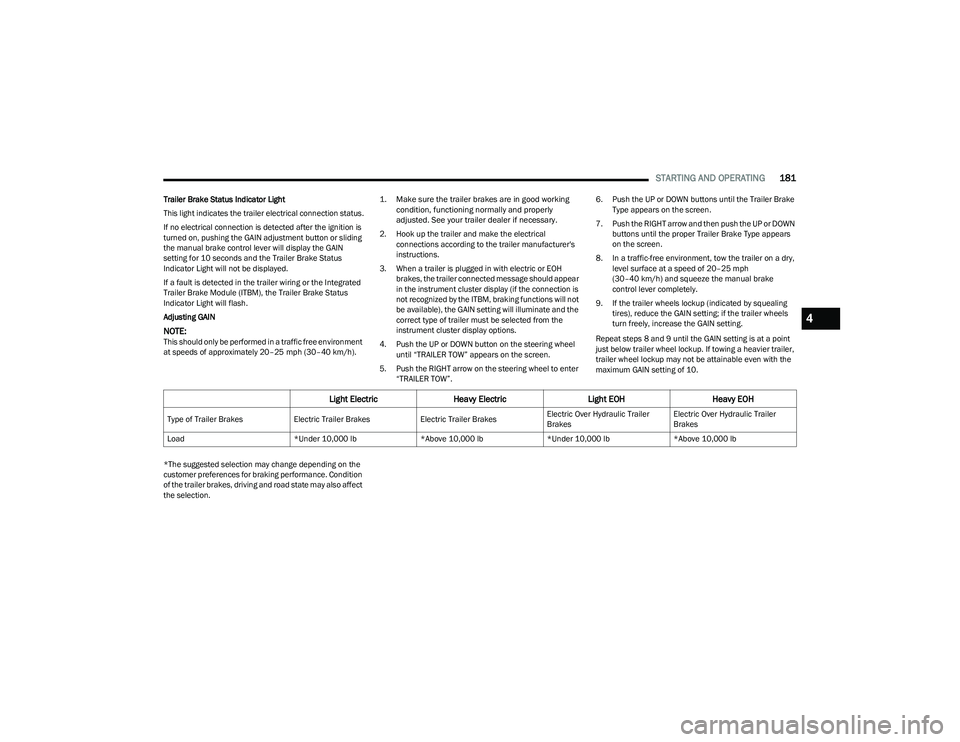
*The suggested selection may change depending on the
customer preferences for braking performance. Condition
of the trailer brakes, driving and road state may also affect
the selection.
Light Electric Heavy Electric Light EOHHeavy EOH
Type of Trailer Brakes Electric Trailer BrakesElectric Trailer BrakesElectric Over Hydraulic Trailer
BrakesElectric Over Hydraulic Trailer
Brakes
Load *Under 10,000 lb*Above 10,000 lb*Under 10,000 lb*Above 10,000 lb
4
23_DT_OM_EN_USC_t.book Page 181
Page 184 of 416
182STARTING AND OPERATING
Display Messages
The trailer brake control interacts with the instrument
cluster display. Display messages, along with a single
chime, will be displayed when a malfunction is determined
in the trailer connection, trailer brake control, or on the
trailer
Úpage 98.
NOTE:
An aftermarket controller may be available for use with
trailers with air or EOH trailer brake systems. To deter -
mine the type of brakes on your trailer and the avail -
ability of controllers, check with your trailer
manufacturer or dealer.
Removal of the ITBM will cause errors and it may cause
damage to the electrical system and electronic
modules of the vehicle. See an authorized dealer if an
aftermarket module is to be installed.
Towing Requirements — Trailer Lights
And Wiring
Whenever you pull a trailer, regardless of the trailer size,
stop lights and turn signals on the trailer are required for
motoring safety.
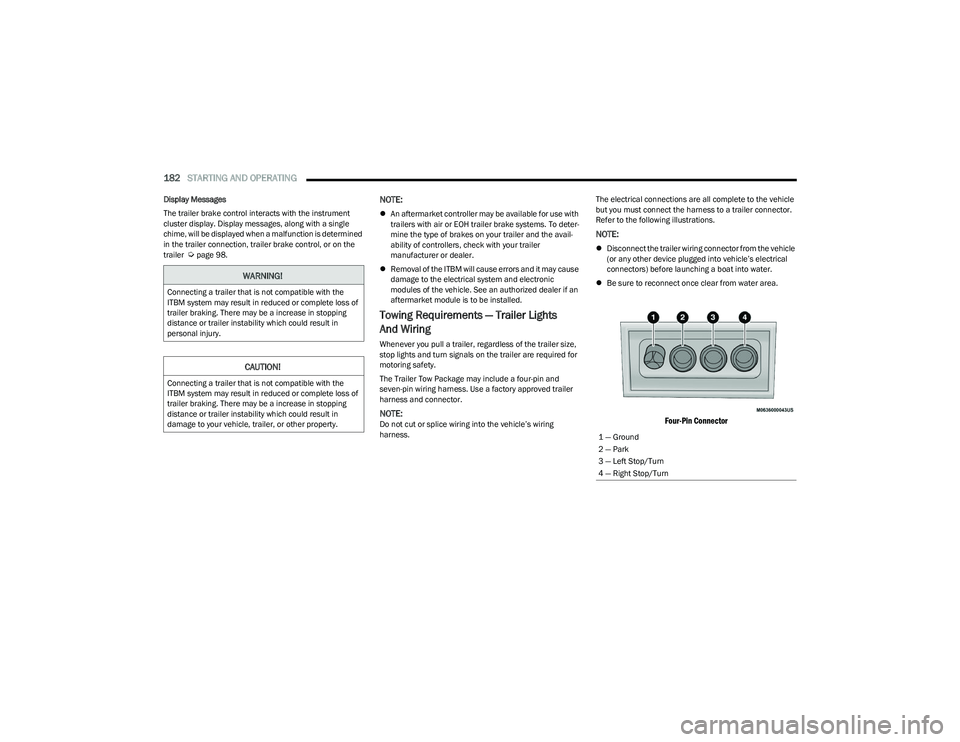
The Trailer Tow Package may include a four-pin and
seven-pin wiring harness. Use a factory approved trailer
harness and connector.
NOTE:Do not cut or splice wiring into the vehicle’s wiring
harness. The electrical connections are all complete to the vehicle
but you must connect the harness to a trailer connector.
Refer to the following illustrations.
NOTE:
Disconnect the trailer wiring connector from the vehicle
(or any other device plugged into vehicle’s electrical
connectors) before launching a boat into water.
Be sure to reconnect once clear from water area.
Four-Pin Connector
WARNING!
Connecting a trailer that is not compatible with the
ITBM system may result in reduced or complete loss of
trailer braking. There may be a increase in stopping
distance or trailer instability which could result in
personal injury.
CAUTION!
Connecting a trailer that is not compatible with the
ITBM system may result in reduced or complete loss of
trailer braking. There may be a increase in stopping
distance or trailer instability which could result in
damage to your vehicle, trailer, or other property.
1 — Ground
2 — Park
3 — Left Stop/Turn
4 — Right Stop/Turn
23_DT_OM_EN_USC_t.book Page 182
Page 185 of 416
STARTING AND OPERATING183
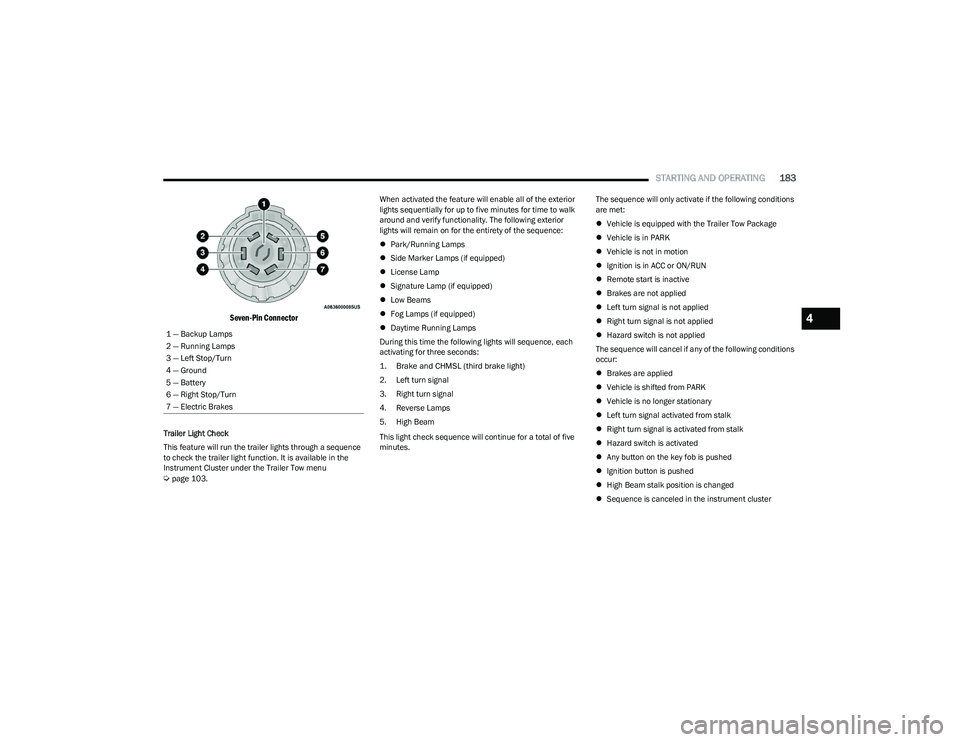
Seven-Pin Connector
Trailer Light Check
This feature will run the trailer lights through a sequence
to check the trailer light function. It is available in the
Instrument Cluster under the Trailer Tow menu
Úpage 103. When activated the feature will enable all of the exterior
lights sequentially for up to five minutes for time to walk
around and verify functionality. The following exterior
lights will remain on for the entirety of the sequence:
Park/Running Lamps
Side Marker Lamps (if equipped)
License Lamp
Signature Lamp (if equipped)
Low Beams
Fog Lamps (if equipped)
Daytime Running Lamps
During this time the following lights will sequence, each
activating for three seconds:
1. Brake and CHMSL (third brake light)
2. Left turn signal
3. Right turn signal
4. Reverse Lamps
5. High Beam
This light check sequence will continue for a total of five
minutes. The sequence will only activate if the following conditions
are met:
Vehicle is equipped with the Trailer Tow Package
Vehicle is in PARK
Vehicle is not in motion
Ignition is in ACC or ON/RUN
Remote start is inactive
Brakes are not applied
Left turn signal is not applied
Right turn signal is not applied
Hazard switch is not applied
The sequence will cancel if any of the following conditions
occur:
Brakes are applied
Vehicle is shifted from PARK
Vehicle is no longer stationary
Left turn signal activated from stalk
Right turn signal is activated from stalk
Hazard switch is activated
Any button on the key fob is pushed
Ignition button is pushed
High Beam stalk position is changed
Sequence is canceled in the instrument cluster
1 — Backup Lamps
2 — Running Lamps
3 — Left Stop/Turn
4 — Ground
5 — Battery
6 — Right Stop/Turn
7 — Electric Brakes
4
23_DT_OM_EN_USC_t.book Page 183
Page 195 of 416
MULTIMEDIA193
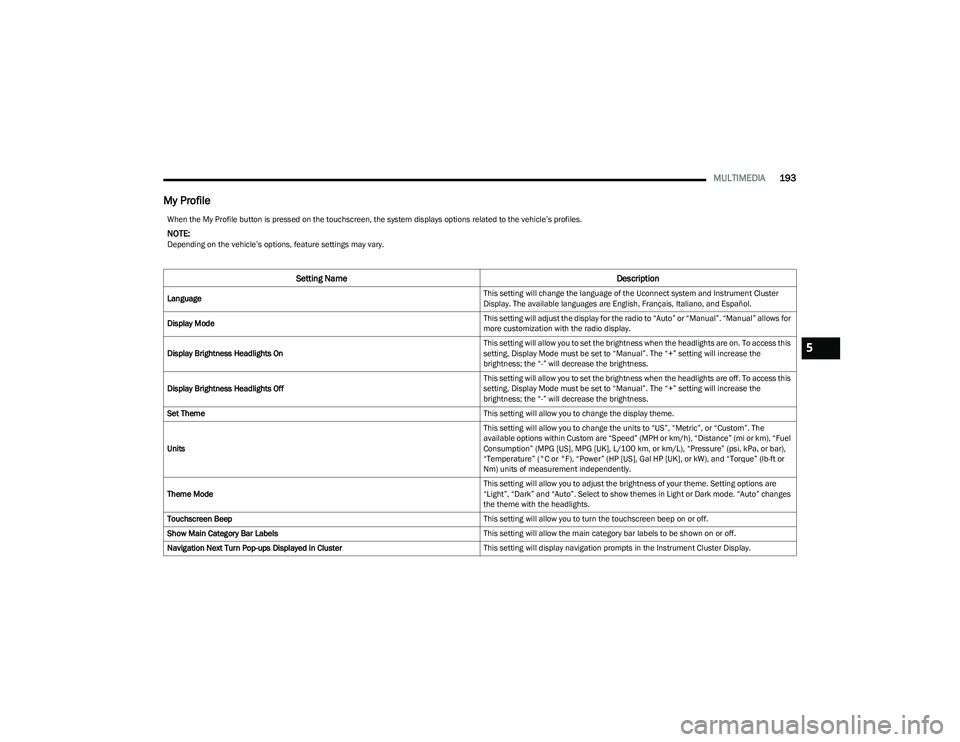
My Profile
When the My Profile button is pressed on the touchscreen, the system displays options related to the vehicle’s profiles.
NOTE:Depending on the vehicle’s options, feature settings may vary.
Setting Name Description
Language This setting will change the language of the Uconnect system and Instrument Cluster
Display. The available languages are English, Français, Italiano, and Español.
Display Mode This setting will adjust the display for the radio to “Auto” or “Manual”. “Manual” allows for
more customization with the radio display.
Display Brightness Headlights On This setting will allow you to set the brightness when the headlights are on. To access this
setting, Display Mode must be set to “Manual”. The “+” setting will increase the
brightness; the “-” will decrease the brightness.
Display Brightness Headlights Off This setting will allow you to set the brightness when the headlights are off. To access this
setting, Display Mode must be set to “Manual”. The “+” setting will increase the
brightness; the “-” will decrease the brightness.
Set Theme This setting will allow you to change the display theme.
Units This setting will allow you to change the units to “US”, “Metric”, or “Custom”. The
available options within Custom are “Speed” (MPH or km/h), “Distance” (mi or km), “Fuel
Consumption” (MPG [US], MPG [UK], L/100 km, or km/L), “Pressure” (psi, kPa, or bar),
“Temperature” (°C or °F), “Power” (HP [US], Gal HP [UK], or kW), and “Torque” (lb-ft or
Nm) units of measurement independently.
Theme Mode This setting will allow you to adjust the brightness of your theme. Setting options are
“Light”, “Dark” and “Auto”. Select to show themes in Light or Dark mode. “Auto” changes
the theme with the headlights.
Touchscreen Beep This setting will allow you to turn the touchscreen beep on or off.
Show Main Category Bar Labels This setting will allow the main category bar labels to be shown on or off.
Navigation Next Turn Pop-ups Displayed in Cluster This setting will display navigation prompts in the Instrument Cluster Display.
5
23_DT_OM_EN_USC_t.book Page 193