lock RAM 1500 2023 Manual PDF
[x] Cancel search | Manufacturer: RAM, Model Year: 2023, Model line: 1500, Model: RAM 1500 2023Pages: 416, PDF Size: 20.59 MB
Page 158 of 416

156STARTING AND OPERATING
Front Park Assist Audible Alerts
ParkSense will turn off the Front Park Assist audible alert
(chime) after approximately three seconds when an
obstacle has been detected, the vehicle is stationary, and
brake pedal is applied.
Adjustable Chime Volume Settings
The Front and Rear chime volume settings are
programmable through the Uconnect system
Ú
page 191.
ENABLING AND DISABLING FRONT
A
ND/OR REAR PARKSENSE
Front ParkSense can be enabled and disabled
with the Front ParkSense switch.
Rear ParkSense can be enabled and disabled
with the Rear ParkSense switch.
When the Front or Rear ParkSense switch is pushed to
disable the system, the instrument cluster display
Úpage 98 will show a vehicle graphic of the Front or Rear
ParkSense on/off state for two seconds.
When the gear selector is moved to REVERSE and the
Front or Rear system is disabled, the instrument cluster
display will show a vehicle graphic with “OFF” on the
corresponding side. This vehicle graphic will be displayed
for as long as the vehicle is in REVERSE.
NOTE:Arc alerts from the enabled ParkSense system, will
interrupt the five second messages, and the instrument
cluster display will show the vehicle graphic with the corre-
sponding arcs and “OFF” message. The Front or Rear ParkSense switch LED will be on when
Front or Rear ParkSense is disabled or requires service.
The Front or Rear ParkSense switch LED will be off when
the Front or Rear system is enabled. If the Front or Rear
ParkSense switch is pushed, and the system requires
service, the Front or Rear ParkSense switch LED will blink
momentarily, and then the LED will be on.
SERVICE THE PARKSENSE PARK ASSIST
S
YSTEM
During vehicle start up, when the ParkSense System has
detected a faulted condition, the instrument cluster will
actuate a single chime, once per ignition cycle, and it will
display the "PARKSENSE UNAVAILABLE WIPE REAR
SENSORS", "PARKSENSE UNAVAILABLE WIPE FRONT
SENSORS", or the "PARKSENSE UNAVAILABLE SERVICE
REQUIRED" message for five seconds. When the gear
selector is moved to REVERSE and the system has
detected a faulted condition, the instrument cluster
display will display a "WIPE OFF" message on the
corresponding blocked system while the vehicle is in
REVERSE. The system will continue to provide arc alerts
for the side that is functioning properly.
If "PARKSENSE UNAVAILABLE WIPE REAR SENSORS" or
"PARKSENSE UNAVAILABLE WIPE FRONT SENSORS"
appears in the instrument cluster display make sure the
outer surface and the underside of the rear fascia/
bumper and/or front fascia/bumper is clean and clear of
snow, ice, mud, dirt or other obstruction and then cycle the
ignition. If the message continues to appear see an
authorized dealer.
NOTE:Water from a car wash or road slush in freezing weather
may also cause sensors to become blocked.
If the "PARKSENSE UNAVAILABLE SERVICE REQUIRED"
message appears in the instrument cluster display, see
your authorized dealer.
CLEANING THE PARKSENSE SYSTEM
Clean the ParkSense sensors with water, car wash soap
and a soft cloth. Do not use rough or hard cloths. Do not
scratch or poke the sensors.
PARKSENSE SYSTEM USAGE
P
RECAUTIONS
NOTE:
Ensure that the front and rear fascias/bumpers are
free of snow, ice, mud, dirt and debris to keep the
ParkSense system operating properly.
Jackhammers, large trucks, and other vibrations could
affect the performance of ParkSense.
When you turn Front or Rear ParkSense off, the instru -
ment cluster display will show a vehicle graphic of the
Front or Rear ParkSense on/off state for two seconds.
Furthermore, once you turn Front or Rear ParkSense
off, it remains off until you turn it on again, even if you
cycle the ignition.
23_DT_OM_EN_USC_t.book Page 156
Page 160 of 416

158STARTING AND OPERATING
NOTE:
The driver is always responsible for controlling the
vehicle, responsible for any surrounding objects, and
must intervene as required.
The system is provided to assist the driver and not to
substitute the driver.
During a semi-automatic maneuver, if the driver
touches the steering wheel after being instructed to
remove their hands from the steering wheel, the
system will cancel, and the driver will be required to
manually complete the parking maneuver.
The system may not work in all conditions
(e.g. environmental conditions such as heavy rain,
snow, etc., or if searching for a parking space that has
surfaces that will absorb the ultrasonic sensor waves).
New vehicles from the dealership must have at least
30 miles (48 km) accumulated before the ParkSense
Active Park Assist system is fully calibrated and
performs accurately. This is due to the system’s
dynamic vehicle calibration to improve the perfor -
mance of the feature.
The driver must control the vehicle’s brakes. The auto -
matic emergency braking feature is NOT intended to
substitute for the driver during REVERSE maneuvers.ENABLING AND DISABLING THE
P
ARKSENSE ACTIVE PARK ASSIST
S
YSTEM
The ParkSense Active Park Assist system can
be enabled and disabled with the ParkSense
Active Park Assist switch, located on the switch
panel below the Uconnect display.
NOTE:If your vehicle is equipped with a 12-inch Uconnect
display, the ParkSense Active Park Assist switch is located
above the display.
To enable or disable the ParkSense Active Park Assist
system, push the ParkSense Active Park Assist switch
once (LED turns on). Pushing the switch a second time will
disable the system (LED turns off).
The ParkSense Active Park Assist system will turn off
automatically for any of the following conditions:
Parking maneuver is completed.
Vehicle speed is greater than 18 mph (30 km/h) when
searching for a parking space.
Vehicle speed is greater than 5 mph (7 km/h) during
active steering guidance into the parking space.
Steering wheel is touched during active steering guid -
ance into the parking space.
ParkSense Front/Rear Park Assist switch is pushed.
Driver's door is opened.
Tailgate is opened.
Electronic Stability Control/Anti-Lock Braking System
intervention.
Vehicle is in 4WD Low.
Axle Locker is active.
Trailer is connected.
Trailer Reverse Steering Control (TRSC) is active.
Snowplow is connected.
NOTE:The ParkSense Active Park Assist system will allow a
maximum of eight shifts between DRIVE and REVERSE. If
the maneuver cannot be completed within eight shifts, the
system will cancel and the instrument cluster display will
instruct the driver to complete the maneuver manually.
The ParkSense Active Park Assist system will only operate
and search for a parking space when the following
conditions are present:
Gear selector is in DRIVE.
The ignition is in the ON/RUN position.
The ParkSense Active Park Assist switch is activated.
Driver's door is closed.
Tailgate is closed.
Vehicle speed is less than 15 mph (25 km/h).
The outer surface and the underside of the front and
rear fascias/bumpers are clean and clear of snow, ice,
mud, dirt or other obstruction.
NOTE:If the vehicle is driven above approximately 15 mph
(25 km/h), the instrument cluster display will instruct the
driver to slow down. If the vehicle is driven above approxi -
mately 18 mph (30 km/h), the system will cancel. The driver must then reactivate the system by pushing the
ParkSense Active Park Assist switch.
23_DT_OM_EN_USC_t.book Page 158
Page 165 of 416
STARTING AND OPERATING163
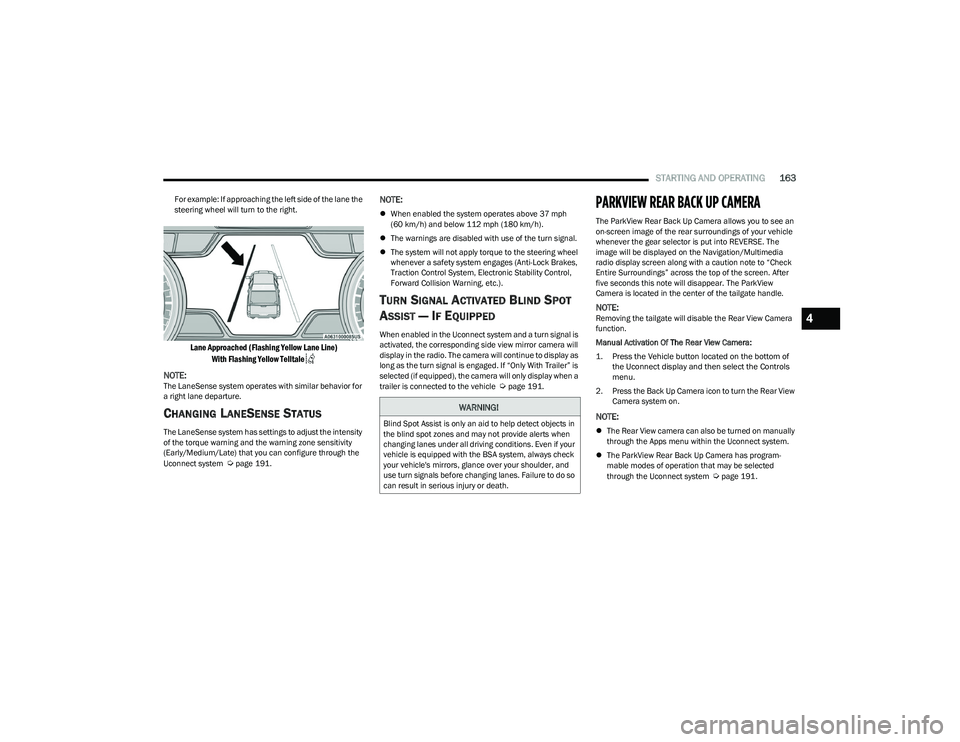
For example: If approaching the left side of the lane the
steering wheel will turn to the right.
Lane Approached (Flashing Yellow Lane Line)
With Flashing Yellow Telltale
NOTE:
The LaneSense system operates with similar behavior for
a right lane departure.
CHANGING LANESENSE STATUS
The LaneSense system has settings to adjust the intensity
of the torque warning and the warning zone sensitivity
(Early/Medium/Late) that you can configure through the
Uconnect system
Úpage 191.
NOTE:
When enabled the system operates above 37 mph
(60 km/h) and below 112 mph (180 km/h).
The warnings are disabled with use of the turn signal.
The system will not apply torque to the steering wheel
whenever a safety system engages (Anti-Lock Brakes,
Traction Control System, Electronic Stability Control,
Forward Collision Warning, etc.).
TURN SIGNAL ACTIVATED BLIND SPOT
A
SSIST — IF EQUIPPED
When enabled in the Uconnect system and a turn signal is
activated, the corresponding side view mirror camera will
display in the radio. The camera will continue to display as
long as the turn signal is engaged. If “Only With Trailer” is
selected (if equipped), the camera will only display when a
trailer is connected to the vehicle
Úpage 191.
PARKVIEW REAR BACK UP CAMERA
The ParkView Rear Back Up Camera allows you to see an
on-screen image of the rear surroundings of your vehicle
whenever the gear selector is put into REVERSE. The
image will be displayed on the Navigation/Multimedia
radio display screen along with a caution note to “Check
Entire Surroundings” across the top of the screen. After
five seconds this note will disappear. The ParkView
Camera is located in the center of the tailgate handle.
NOTE:Removing the tailgate will disable the Rear View Camera
function.
Manual Activation Of The Rear View Camera:
1. Press the Vehicle button located on the bottom of
the Uconnect display and then select the Controls
menu.
2. Press the Back Up Camera icon to turn the Rear View Camera system on.
NOTE:
The Rear View camera can also be turned on manually
through the Apps menu within the Uconnect system.
The ParkView Rear Back Up Camera has program -
mable modes of operation that may be selected
through the Uconnect system
Úpage 191.
WARNING!
Blind Spot Assist is only an aid to help detect objects in
the blind spot zones and may not provide alerts when
changing lanes under all driving conditions. Even if your
vehicle is equipped with the BSA system, always check
your vehicle's mirrors, glance over your shoulder, and
use turn signals before changing lanes. Failure to do so
can result in serious injury or death.
4
23_DT_OM_EN_USC_t.book Page 163
Page 168 of 416
166STARTING AND OPERATING
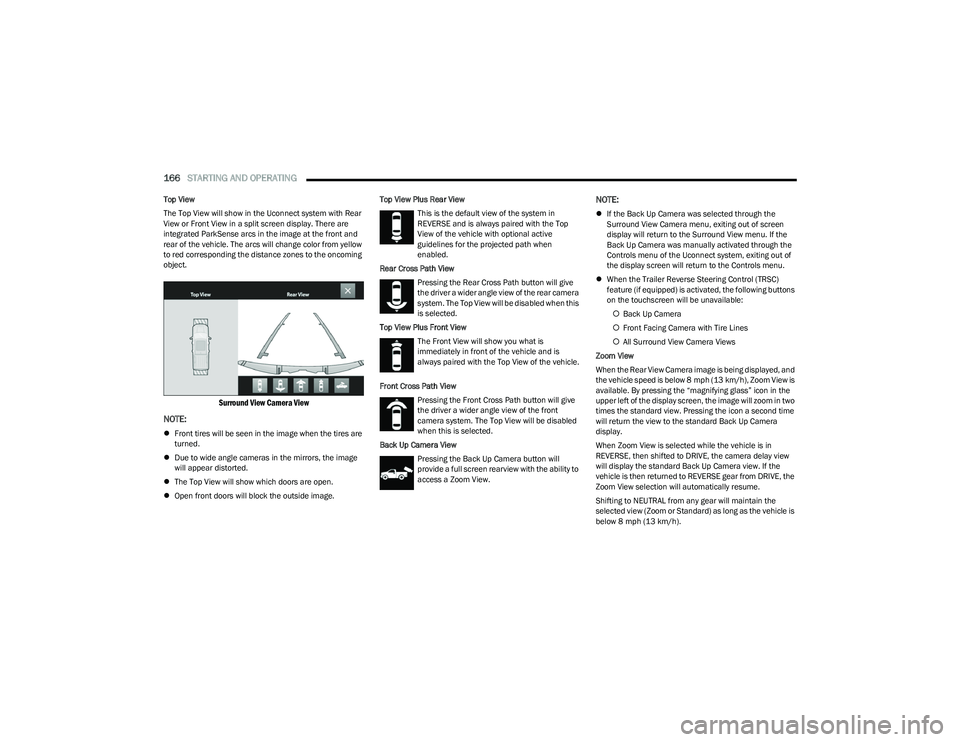
Top View
The Top View will show in the Uconnect system with Rear
View or Front View in a split screen display. There are
integrated ParkSense arcs in the image at the front and
rear of the vehicle. The arcs will change color from yellow
to red corresponding the distance zones to the oncoming
object.
Surround View Camera View
NOTE:
Front tires will be seen in the image when the tires are
turned.
Due to wide angle cameras in the mirrors, the image
will appear distorted.
The Top View will show which doors are open.
Open front doors will block the outside image. Top View Plus Rear View
This is the default view of the system in
REVERSE and is always paired with the Top
View of the vehicle with optional active
guidelines for the projected path when
enabled.
Rear Cross Path View Pressing the Rear Cross Path button will give
the driver a wider angle view of the rear camera
system. The Top View will be disabled when this
is selected.
Top View Plus Front View The Front View will show you what is
immediately in front of the vehicle and is
always paired with the Top View of the vehicle.
Front Cross Path View Pressing the Front Cross Path button will give
the driver a wider angle view of the front
camera system. The Top View will be disabled
when this is selected.
Back Up Camera View Pressing the Back Up Camera button will
provide a full screen rearview with the ability to
access a Zoom View.
NOTE:
If the Back Up Camera was selected through the
Surround View Camera menu, exiting out of screen
display will return to the Surround View menu. If the
Back Up Camera was manually activated through the
Controls menu of the Uconnect system, exiting out of
the display screen will return to the Controls menu.
When the Trailer Reverse Steering Control (TRSC)
feature (if equipped) is activated, the following buttons
on the touchscreen will be unavailable:
Back Up Camera
Front Facing Camera with Tire Lines
All Surround View Camera Views
Zoom View
When the Rear View Camera image is being displayed, and
the vehicle speed is below 8 mph (13 km/h), Zoom View is
available. By pressing the “magnifying glass” icon in the
upper left of the display screen, the image will zoom in two
times the standard view. Pressing the icon a second time
will return the view to the standard Back Up Camera
display.
When Zoom View is selected while the vehicle is in
REVERSE, then shifted to DRIVE, the camera delay view
will display the standard Back Up Camera view. If the
vehicle is then returned to REVERSE gear from DRIVE, the
Zoom View selection will automatically resume.
Shifting to NEUTRAL from any gear will maintain the
selected view (Zoom or Standard) as long as the vehicle is
below 8 mph (13 km/h).
23_DT_OM_EN_USC_t.book Page 166
Page 173 of 416

STARTING AND OPERATING171
REFUELING THE VEHICLE
The capless fuel filler is located on the left side of the
vehicle.
The capless system is sealed by two flapper doors.
1. Put the vehicle in PARK and switch the ignition off.
2. Push the center-rear edge of the fuel filler door
(3 o'clock position) and release to open.
Fuel Filler Door
3. Insert the fuel nozzle fully into the filler pipe, the nozzle opens and holds both flapper doors while
refueling.
Fuel Filler
4. When the fuel nozzle “clicks” or shuts off, the fuel tank is full.
5. Keep the nozzle in the filler for five seconds after nozzle clicks to allow fuel to drain from the nozzle.
6. Remove the fuel filler nozzle.
7. To close the fuel filler door, push the center-rear edge (3 o’clock position) of the fuel filler door and then
release. The fuel filler door will latch closed.
NOTE:In certain cold conditions, ice may prevent the fuel filler
door from opening. If this occurs, lightly push on the fuel
filler door around the perimeter to break the ice build up.
WARNING!
Never have any smoking materials lit in or near the
vehicle when the fuel door is open or the tank is
being filled.
Never add fuel when the engine is running. This is in
violation of most state and federal fire regulations
and may cause the MIL to turn on.
A fire may result if gasoline is pumped into a portable
container that is inside of a vehicle. You could be
burned. Always place gas containers on the ground
while filling.
CAUTION!
To avoid fuel spillage and overfilling, do not “top off” the
fuel tank after filling.
WARNING!
Always place container on the ground before filling.
Keep the pump nozzle in contact with the container
when you are filling it.
Use only approved containers for flammable liquid.
Do not leave container unattended while filling.
A static electric charge could cause a spark and
fire hazard.
4
23_DT_OM_EN_USC_t.book Page 171
Page 180 of 416
178STARTING AND OPERATING
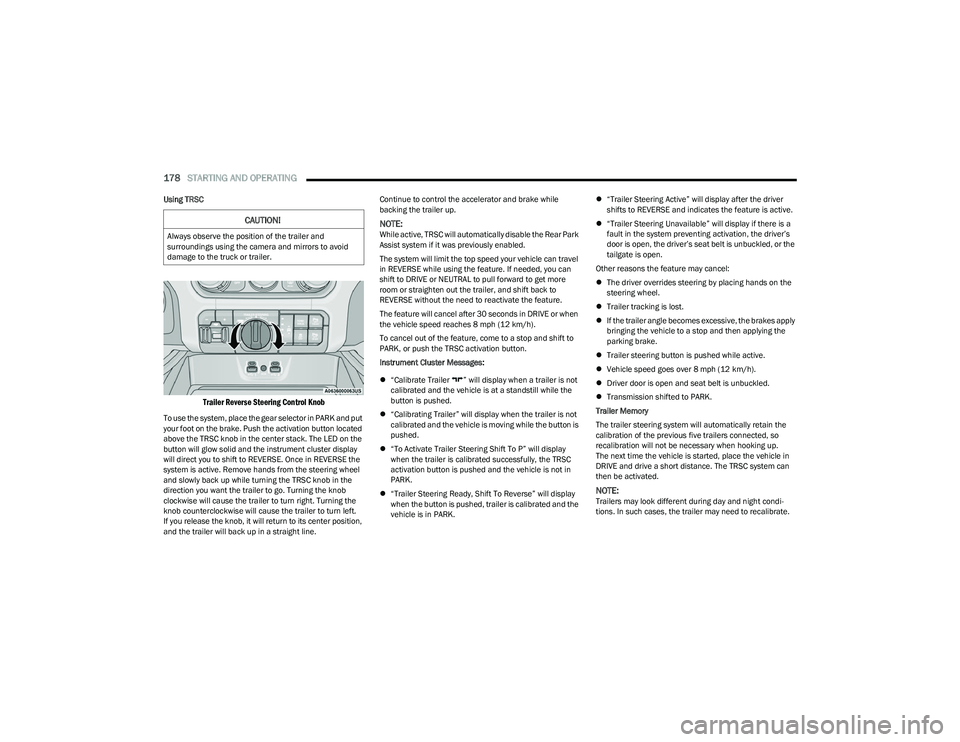
Using TRSC
Trailer Reverse Steering Control Knob
To use the system, place the gear selector in PARK and put
your foot on the brake. Push the activation button located
above the TRSC knob in the center stack. The LED on the
button will glow solid and the instrument cluster display
will direct you to shift to REVERSE. Once in REVERSE the
system is active. Remove hands from the steering wheel
and slowly back up while turning the TRSC knob in the
direction you want the trailer to go. Turning the knob
clockwise will cause the trailer to turn right. Turning the
knob counterclockwise will cause the trailer to turn left.
If you release the knob, it will return to its center position,
and the trailer will back up in a straight line. Continue to control the accelerator and brake while
backing the trailer up.
NOTE:While active, TRSC will automatically disable the Rear Park
Assist system if it was previously enabled.
The system will limit the top speed your vehicle can travel
in REVERSE while using the feature. If needed, you can
shift to DRIVE or NEUTRAL to pull forward to get more
room or straighten out the trailer, and shift back to
REVERSE without the need to reactivate the feature.
The feature will cancel after 30 seconds in DRIVE or when
the vehicle speed reaches 8 mph (12 km/h).
To cancel out of the feature, come to a stop and shift to
PARK, or push the TRSC activation button.
Instrument Cluster Messages:
“Calibrate Trailer ” will display when a trailer is not
calibrated and the vehicle is at a standstill while the
button is pushed.
“Calibrating Trailer” will display when the trailer is not
calibrated and the vehicle is moving while the button is
pushed.
“To Activate Trailer Steering Shift To P” will display
when the trailer is calibrated successfully, the TRSC
activation button is pushed and the vehicle is not in
PARK.
“Trailer Steering Ready, Shift To Reverse” will display
when the button is pushed, trailer is calibrated and the
vehicle is in PARK.
“Trailer Steering Active” will display after the driver
shifts to REVERSE and indicates the feature is active.
“Trailer Steering Unavailable” will display if there is a
fault in the system preventing activation, the driver’s
door is open, the driver’s seat belt is unbuckled, or the
tailgate is open.
Other reasons the feature may cancel:
The driver overrides steering by placing hands on the
steering wheel.
Trailer tracking is lost.
If the trailer angle becomes excessive, the brakes apply
bringing the vehicle to a stop and then applying the
parking brake.
Trailer steering button is pushed while active.
Vehicle speed goes over 8 mph (12 km/h).
Driver door is open and seat belt is unbuckled.
Transmission shifted to PARK.
Trailer Memory
The trailer steering system will automatically retain the
calibration of the previous five trailers connected, so
recalibration will not be necessary when hooking up.
The next time the vehicle is started, place the vehicle in
DRIVE and drive a short distance. The TRSC system can
then be activated.
NOTE:Trailers may look different during day and night condi -
tions. In such cases, the trailer may need to recalibrate.
CAUTION!
Always observe the position of the trailer and
surroundings using the camera and mirrors to avoid
damage to the truck or trailer.
23_DT_OM_EN_USC_t.book Page 178
Page 181 of 416

STARTING AND OPERATING179
(Continued)
Some trailers (such as boat trailers) will need to
recalibrate while loaded and unloaded.
NOTE:
The system may not detect a trailer in low light condi -
tions. In sunny conditions, the performance may be
degraded as shadows pass over the trailer.
The driver is always responsible for safe operation of
truck and trailer.
The driver is always in control of the truck as well as the
trailer and is responsible for controlling the throttle and
brakes.
The system may not function when the camera lens is
blocked, blurred (covered with water, snow, ice, dirt,
etc) and will not work unless the tailgate is upright and
fully latched.
TOWING REQUIREMENTS
To promote proper break-in of your new vehicle drivetrain
components, the following guidelines are recommended. Perform the maintenance listed in the Scheduled
Servicing section for the proper maintenance intervals
Úpage 333. When towing a trailer, never exceed the
GAWR or GCWR ratings.
Towing Requirements — Tires
Do not attempt to tow a trailer while using a compact
spare tire.
Do not drive more than 50 mph (80 km/h) when towing
while using a full size spare tire.
Proper tire inflation pressures are essential to the safe
and satisfactory operation of your vehicle.
Check the trailer tires for proper tire inflation pressures
before trailer usage.
Check for signs of tire wear or visible tire damage
before towing a trailer.
Replacing tires with a higher load carrying capacity will
not increase the vehicle's GVWR and GAWR limits.
For further information
Úpage 370.
CAUTION!
Do not tow a trailer at all during the first 500 miles
(805 km) the new vehicle is driven. The engine, axle
or other parts could be damaged.
Then, during the first 500 miles (805 km) that a
trailer is towed, do not drive over 50 mph (80 km/h)
and do not make starts at full throttle. This helps the
engine and other parts of the vehicle wear in at the
heavier loads.
WARNING!
Make certain that the load is secured in the trailer
and will not shift during travel. When trailering cargo
that is not fully secured, dynamic load shifts can
occur that may be difficult for the driver to control.
You could lose control of your vehicle and have a
collision.
When hauling cargo or towing a trailer, do not over -
load your vehicle or trailer. Overloading can cause a
loss of control, poor performance or damage to
brakes, axle, engine, transmission, steering, suspen -
sion, chassis structure or tires.
Safety chains must always be used between your
vehicle and trailer. Always connect the chains to the
hook retainers of the vehicle hitch. Cross the chains
under the trailer tongue and allow enough slack for
turning corners.
Vehicles with trailers should not be parked on a
grade. When parking, apply the parking brake on the
tow vehicle. Put the tow vehicle transmission in
PARK. For four-wheel drive vehicles, make sure the
transfer case is not in NEUTRAL. Always, block or
"chock" the trailer wheels.
GCWR must not be exceeded.
Total weight must be distributed between the tow
vehicle and the trailer such that the following four
ratings are not exceeded :
GVWR
GTW
GAWR
Tongue weight rating for the trailer hitch utilized
WARNING!
4
23_DT_OM_EN_USC_t.book Page 179
Page 183 of 416
STARTING AND OPERATING181
Trailer Brake Status Indicator Light
This light indicates the trailer electrical connection status.
If no electrical connection is detected after the ignition is
turned on, pushing the GAIN adjustment button or sliding
the manual brake control lever will display the GAIN
setting for 10 seconds and the Trailer Brake Status
Indicator Light will not be displayed.
If a fault is detected in the trailer wiring or the Integrated
Trailer Brake Module (ITBM), the Trailer Brake Status
Indicator Light will flash.
Adjusting GAIN
NOTE:This should only be performed in a traffic free environment
at speeds of approximately 20–25 mph (30–40 km/h).
1. Make sure the trailer brakes are in good working
condition, functioning normally and properly
adjusted. See your trailer dealer if necessary.
2. Hook up the trailer and make the electrical connections according to the trailer manufacturer's
instructions.
3. When a trailer is plugged in with electric or EOH brakes, the trailer connected message should appear
in the instrument cluster display (if the connection is
not recognized by the ITBM, braking functions will not
be available), the GAIN setting will illuminate and the
correct type of trailer must be selected from the
instrument cluster display options.
4. Push the UP or DOWN button on the steering wheel until “TRAILER TOW” appears on the screen.
5. Push the RIGHT arrow on the steering wheel to enter “TRAILER TOW”. 6. Push the UP or DOWN buttons until the Trailer Brake
Type appears on the screen.
7. Push the RIGHT arrow and then push the UP or DOWN buttons until the proper Trailer Brake Type appears
on the screen.
8. In a traffic-free environment, tow the trailer on a dry, level surface at a speed of 20–25 mph
(30–40 km/h) and squeeze the manual brake
control lever completely.
9. If the trailer wheels lockup (indicated by squealing tires), reduce the GAIN setting; if the trailer wheels
turn freely, increase the GAIN setting.
Repeat steps 8 and 9 until the GAIN setting is at a point
just below trailer wheel lockup. If towing a heavier trailer,
trailer wheel lockup may not be attainable even with the
maximum GAIN setting of 10.
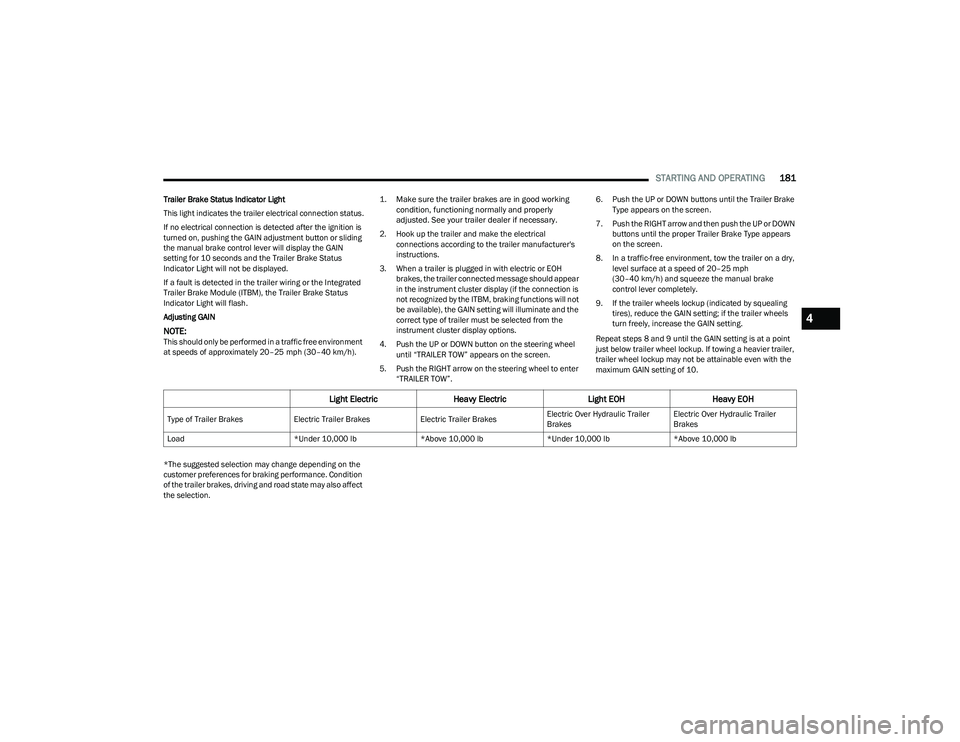
*The suggested selection may change depending on the
customer preferences for braking performance. Condition
of the trailer brakes, driving and road state may also affect
the selection.
Light Electric Heavy Electric Light EOHHeavy EOH
Type of Trailer Brakes Electric Trailer BrakesElectric Trailer BrakesElectric Over Hydraulic Trailer
BrakesElectric Over Hydraulic Trailer
Brakes
Load *Under 10,000 lb*Above 10,000 lb*Under 10,000 lb*Above 10,000 lb
4
23_DT_OM_EN_USC_t.book Page 181
Page 192 of 416

190STARTING AND OPERATING
OFF-ROAD DRIVING TIPS
Care should be taken when attempting to climb steep hills
or driving diagonally across a hill or slope. If natural
obstacles force you to travel diagonally up or down a hill,
choose a mild angle and keep as little side tilt as possible.
Keep the vehicle moving and make turns slowly and
cautiously.
If you must back down a hill, back straight down using
REVERSE gear. Never back down in NEUTRAL or diagonally
across the hill.
When driving over sand, mud, and other soft terrain, shift
to low gear and drive steadily. Apply the accelerator slowly
to avoid spinning the wheels.
Do not reduce the tire pressures for this type of driving.
After Driving Off-Road
Off-road operation puts more stress on your vehicle than
does most on-road driving. After going off-road, it is always
a good idea to check for damage. That way you can get any
problems taken care of right away and have your vehicle
ready when you need it.
Completely inspect the underbody of your vehicle.
Check tires, body structure, steering, suspension, and
exhaust system for damage.
Inspect the radiator for mud and debris and clean as
required.
Check threaded fasteners for looseness, particularly
on the chassis, drivetrain components, steering, and
suspension. Retighten them, if required, and torque to
the values specified in the Service Manual.
Check for accumulations of plants or brush. These
things could be a fire hazard. They might hide damage
to fuel lines, brake hoses, axle pinion seals, and
propeller shafts.
After extended operation in mud, sand, water, or
similar dirty conditions, have the radiator, fan, brake
rotors, wheels, brake linings, and axle yokes inspected
and cleaned as soon as possible.
If you experience unusual vibration after driving in
mud, slush or similar conditions, check the wheels for
impacted material. Impacted material can cause a
wheel imbalance and freeing the wheels of it will
correct the situation.
CAUTION!
Always check the depth of the standing water before
driving through it. Never drive through standing
water that is deeper than the bottom of the tire rims
mounted on the vehicle.
Determine the condition of the road or the path that
is under water and if there are any obstacles in the
way before driving through the standing water.
Do not exceed 5 mph (8 km/h) when driving through
standing water. This will minimize wave effects.
Driving through standing water may cause damage
to your vehicle’s drivetrain components. Always
inspect your vehicle’s fluids (i.e., engine oil, transmis -
sion, axle, etc.) for signs of contamination (i.e., fluid
that is milky or foamy in appearance) after driving
through standing water. Do not continue to operate
the vehicle if any fluid appears contaminated, as this
may result in further damage. Such damage is not
covered by the New Vehicle Limited Warranty.
Getting water inside your vehicle’s engine can cause
it to lock up and stall out, and cause serious internal
damage to the engine. Such damage is not covered
by the New Vehicle Limited Warranty.
WARNING!
Abrasive material in any part of the brakes may cause
excessive wear or unpredictable braking. You might not
have full braking power when you need it to prevent a
collision. If you have been operating your vehicle in dirty
conditions, get your brakes checked and cleaned as
necessary.
23_DT_OM_EN_USC_t.book Page 190
Page 201 of 416

MULTIMEDIA199
Clock
Rear Seat Alert When this setting is turned on and the rear doors are opened while the engine is running,
or if the engine is turned on within 10 minutes of the door opening, a message will
appear to check the rear seat when the vehicle is powered off.
ParkSense Front Camera Activation This setting will allow you to enable or disable the front camera when an obstacle is
detected.
Setting Name
Description
When the Clock button is pressed on the touchscreen, the system displays the different options related to the vehicle’s internal clock.
NOTE:Depending on the vehicle’s options, feature settings may vary.
Setting NameDescription
Sync Time With GPS This setting will sync the time to the GPS receiver in the system. The system will control
the time via the GPS location.
Set Time And Format/Time Format This setting will allow you to set the time format (AM/PM). Sync Time With GPS must be
off for this setting to be available. The “12 hrs” setting will set the time to a 12-hour
format. The “24 hrs” setting will set the time to a 24-hour format.
Set Time Hours This setting will allow you to set the hours. Sync Time With GPS must be off for this
setting to be available. The “+” setting will increase the hours. The “-” setting will
decrease the hours.
5
23_DT_OM_EN_USC_t.book Page 199