trailer Ram 3500 Chassis Cab 2019 Owner's Guide
[x] Cancel search | Manufacturer: RAM, Model Year: 2019, Model line: 3500 Chassis Cab, Model: Ram 3500 Chassis Cab 2019Pages: 607, PDF Size: 10.72 MB
Page 294 of 607

292 STARTING AND OPERATING
To Set A Desired ACC Speed
When the vehicle reaches the speed desired, push the SET (-)
button and release. The instrument cluster display will show
the set speed.
If the system is set when the vehicle speed is below 20 mph
(32 km/h), the set speed shall be defaulted to 20 mph
(32 km/h). If the system is set when the vehicle speed is
above 20 mph (32 km/h), the set speed shall be the current
speed of the vehicle.
NOTE:
ACC cannot be set if there is a stationary vehicle in front of
your vehicle in close proximity.
Remove your foot from the accelerator pedal, after the ACC
has been set. If you do not, the vehicle may continue to accel-
erate beyond the set speed. If this occurs:
• The message “ACC DRIVER OVERRIDE” will display in the instrument cluster display.
• The system will not be controlling the distance between your vehicle and the vehicle ahead. The vehicle speed will
only be determined by the position of the accelerator
pedal.
To Cancel
The following conditions cancel the system:
• The brake pedal is applied.
• The CANC (cancel) button is pushed.
• An Anti-Lock Brake System (ABS) event occurs.
• The gear selector is removed from the DRIVE position.
• The Electronic Stability Control/Traction Control System(ESC/TCS) activates.
• The vehicle parking brake is applied.
• Driver seatbelt is unbuckled at low speeds.
• Driver door is opened at low speeds.
• A Trailer Sway Control (TSC) event occurs.
• The driver switches ESC to full-off mode.
• The braking temperature exceeds normal range (over -
heated).
Page 300 of 607
298 STARTING AND OPERATING
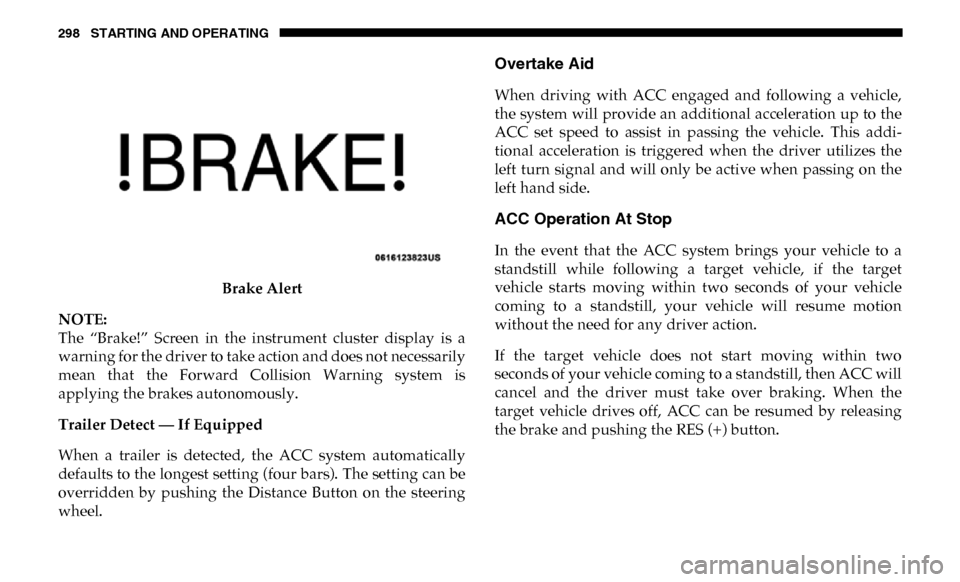
Brake Alert
NOTE:
The “Brake!” Screen in the instrument cluster display is a
warning for the driver to take action and does not necessarily
mean that the Forward Collision Warning system is
applying the brakes autonomously.
Trailer Detect — If Equipped
When a trailer is detected, the ACC system automatically
defaults to the longest setting (four bars). The setting can be
overridden by pushing the Distance Button on the steering
wheel.
Overtake Aid
When driving with ACC engaged and following a vehicle,
the system will provide an additional acceleration up to the
ACC set speed to assist in passing the vehicle. This addi -
tional acceleration is triggered when the driver utilizes the
left turn signal and will only be active when passing on the
left hand side.
ACC Operation At Stop
In the event that the ACC system brings your vehicle to a
standstill while following a target vehicle, if the target
vehicle starts moving within two seconds of your vehicle
coming to a standstill, your vehicle will resume motion
without the need for any driver action.
If the target vehicle does not start moving within two
seconds of your vehicle coming to a standstill, then ACC will
cancel and the driver must take over braking. When the
target vehicle drives off, ACC can be resumed by releasing
the brake and pushing the RES (+) button.
Page 305 of 607
STARTING AND OPERATING 303
Towing A Trailer
ACC while towing a trailer is recommended only with an
Integrated Trailer Brake Controller. Aftermarket trailer
brake controllers will not activate the trailer brakes when
ACC is braking.
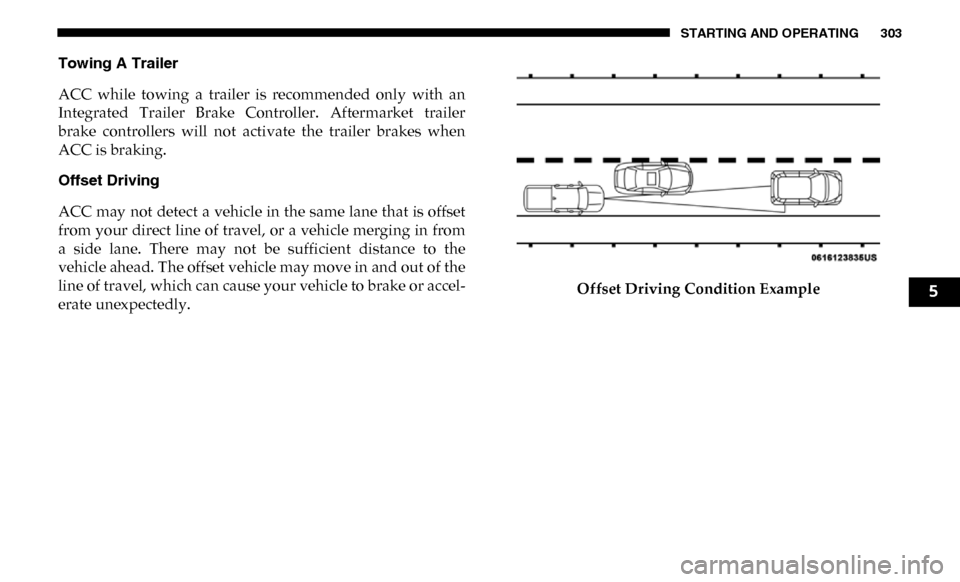
Offset Driving
ACC may not detect a vehicle in the same lane that is offset
from your direct line of travel, or a vehicle merging in from
a side lane. There may not be sufficient distance to the
vehicle ahead. The offset vehicle may move in and out of the
line of travel, which can cause your vehicle to brake or accel-
erate unexpectedly. Offset Driving Condition Example
5
Page 317 of 607

STARTING AND OPERATING 315
Enabling And Disabling ParkSense
ParkSense can be enabled and disabled with the ParkSense
switch.When the gear selector is moved to REVERSE and
the system is disabled, the instrument cluster
display will show the vehicle graphic with “Off”
over the arcs for as long as the vehicle is in REVERSE.
NOTE:
The ParkSense system will automatically disable when the
system detects that a trailer with trailer brakes has been
connected to the Integrated Trailer Brake Module. The
instrument cluster display will show an “Off” message over
the arcs if the ParkSense system is off, or a “Trailer” message
if the system is on, for as long as the vehicle is in REVERSE.
The ParkSense switch LED will be on when ParkSense is
disabled or defective. The ParkSense switch LED will be off
when the system is enabled.
If the ParkSense switch is pushed, and the system is disabled
or requires service, the ParkSense switch LED will blink
momentarily, and then the LED will be on.
Service The ParkSense Rear Park Assist System
During vehicle start up, when the Rear ParkSense System
has detected a faulted condition, the instrument cluster
display will show the "Rear ParkSense Unavailable Service
Required" or the "Rear ParkSense Unavailable Wipe Sensors"
message.
When the gear selector is moved into REVERSE, a vehicle
graphic will show in the instrument cluster display, along
with the display overlay “Rear ParkSense Unavailable Wipe
Sensors.” If the system needs service, the display overlay will
read “Rear ParkSense Unavailable Service Required” Under
this condition, ParkSense will not operate.
If "Rear ParkSense Unavailable Wipe Sensors" appears in the
instrument cluster display make sure the outer surface and
the underside of the rear fascia/bumper is clean and clear of
snow, ice, mud, dirt or other obstruction, and then cycle the
ignition. If the message continues to appear, see an autho -
rized dealer.
If "Rear ParkSense Unavailable Service Required" appears in
the instrument cluster display, see an authorized dealer.
5
Page 318 of 607

316 STARTING AND OPERATING
(Continued)
Cleaning The ParkSense System
Clean the ParkSense sensors with water, car wash soap and
a soft cloth. Do not use rough or hard cloths. Do not scratch
or poke the sensors. Otherwise, you could damage the
sensors.
ParkSense System Usage Precautions
NOTE:
• Ensure that the rear bumper is free of snow, ice, mud, dirtand debris to keep the ParkSense system operating prop -
erly.
• Jackhammers, large trucks, and other vibrations could affect the performance of ParkSense.
• When you move the gear selector into REVERSE with ParkSense turned off, the instrument cluster display will
show "Off" on the vehicle graphic arcs for as long as the
vehicle is in REVERSE.
• ParkSense, when on, will reduce the volume of the radio when it is sounding a tone. • Clean the ParkSense sensors regularly, taking care not to
scratch or damage them. The sensors must not be covered
with ice, snow, slush, mud, dirt or debris. Failure to do so
can result in the system not working properly. The Park -
Sense system might not detect an obstacle behind the
fascia/bumper, or it could provide a false indication that
an obstacle is behind the fascia/bumper.
• Ensure the ParkSense system is OFF if objects such as bicycle carriers, trailer hitches, etc., are placed within
18 inches (45 cm) of the rear fascia/bumper while driving
the vehicle. Failure to do so can result in the system misin -
terpreting a close obstacle as a sensor problem, causing the
"Rear ParkSense Unavailable Service Required" message
to appear in the instrument cluster display.
WARNING!
• Drivers must be careful when backing up even when using ParkSense. Always check carefully behind your
vehicle, look behind you, and be sure to check for
pedestrians, animals, other vehicles, obstructions, and
blind spots before backing up. You are responsible for
safety and must continue to pay attention to your
surroundings. Failure to do so can result in serious
injury or death.
Page 327 of 607

STARTING AND OPERATING 325
(Continued)
• Clean the ParkSense sensors regularly, taking care not toscratch or damage them. The sensors must not be covered
with ice, snow, slush, mud, dirt or debris. Failure to do so
can result in the system not working properly. The Park -
Sense system might not detect an obstacle behind or in
front of the fascia/bumper, or it could provide a false indi -
cation that an obstacle is behind or in front of the fascia/
bumper.
• Use the ParkSense switch to turn the ParkSense system off if obstacles such as bicycle carriers, trailer hitches, etc. are
placed within 18 inches (45 cm) from the rear fascia/
bumper. Failure to do so can result in the system misinter -
preting a close obstacle as a sensor problem, causing the
“Front/Rear ParkSense Unavailable Service Required”
message to be appear in the instrument cluster display.
WARNING!
• Drivers must be careful when backing up even when using ParkSense. Always check carefully behind your
vehicle, look behind you, and be sure to check for
pedestrians, animals, other vehicles, obstructions, and
blind spots before backing up. You are responsible for
safety and must continue to pay attention to your
surroundings. Failure to do so can result in serious
injury or death.
• Before using ParkSense, it is strongly recommendedthat the ball mount and hitch ball assembly is discon -
nected from the vehicle when the vehicle is not used for
towing. Failure to do so can result in injury or damage
to vehicles or obstacles because the hitch ball will be
much closer to the obstacle than the rear fascia when
the loudspeaker sounds the continuous tone. Also, the
sensors could detect the ball mount and hitch ball
assembly, depending on its size and shape, giving a
false indication that an obstacle is behind the vehicle.
CAUTION!
• ParkSense is only a parking aid and it is unable to recognize every obstacle, including small obstacles.
Parking curbs might be temporarily detected or not
detected at all. Obstacles located above or below the
sensors will not be detected when they are in close
proximity.
• The vehicle must be driven slowly when using Park -
Sense in order to be able to stop in time when an
obstacle is detected. It is recommended that the driver
looks over his/her shoulder when using ParkSense.
WARNING! (Continued)
5
Page 331 of 607

STARTING AND OPERATING 329
NOTE:
• If the vehicle in is DRIVE, NEUTRAL, or REVERSE, andspeed is greater than or equal to 8 mph (13 km/h), ZoomView is unavailable and the icon will appear grey.
• While in Zoom View, the guidelines will not be visible.
AUX Camera — If Equipped
Your vehicle may be equipped with a single AUX Camera,
which displays a rearview image from the trailer on the
touchscreen.
Activating AUX Camera
Backup Camera Only: The AUX Camera is activated by first
pressing the Backup Camera button on the touchscreen,
followed by the AUX button located in the upper left corner of
the rearview display. The AUX camera can also be activated
when the vehicle is in REVERSE by pressing the AUX button.
Surround View Camera: The AUX Camera is activated by
first pressing the Cargo Camera button on the touchscreen,
followed by the AUX button located in the upper left corner
of the rearview display. The AUX Camera can also be acti -
vated by pressing the Backup Camera button or Surround
View Camera button on the touchscreen, followed by the
AUX button. Deactivation
The AUX Camera is deactivated by pressing the “X” in the
upper right corner of the touchscreen. This will return the
display back to the previously displayed screen.
NOTE:
• If the AUX button is pressed and no AUX Camera is
connected, the touchscreen will display a blue screen along
with the message “Camera System Unavailable.” The
screen can be exited out by pressing the “X” in the upper
right hand corner. This will return the display back to the
previously displayed screen.
• Zoom View is not available with the AUX Camera feature.
• The display will always default to the Trailer Camera display (AUX 1).
• The “X” button is not available when the vehicle is in REVERSE unless it is acting as a back button within
camera views. The camera image must always be
displayed when the vehicle is in REVERSE.
5
Page 333 of 607
STARTING AND OPERATING 331
The following table shows the approximate distances for each zone:
Modes Of Operation
Standard Backup Camera view can be manually activated by
selecting “Backup Camera” through the Controls menu
within the Uconnect screen.
Refer to “Parkview Rear Back Up Camera” in this section for
more information on activation conditions.
Top View
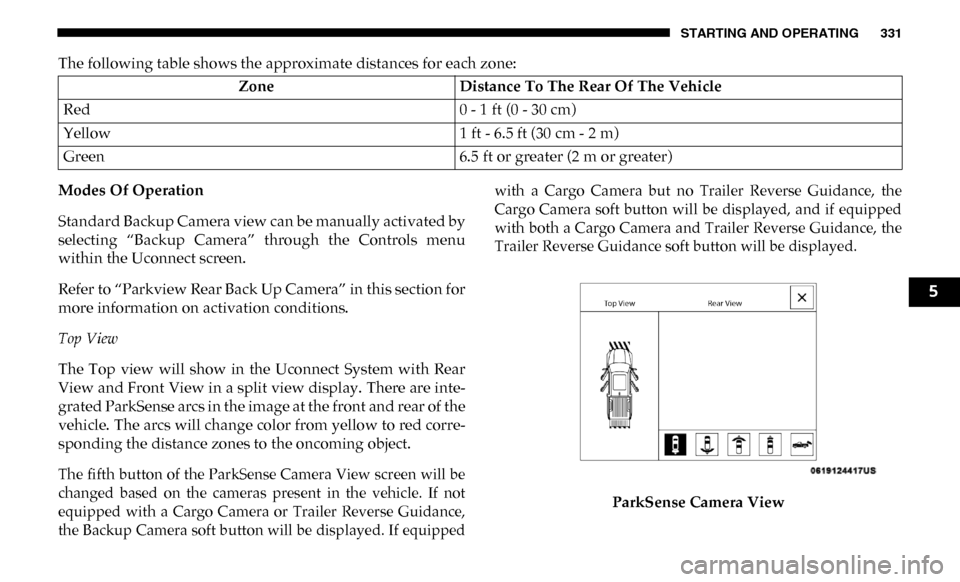
The Top view will show in the Uconnect System with Rear
View and Front View in a split view display. There are inte-
grated ParkSense arcs in the image at the front and rear of the
vehicle. The arcs will change color from yellow to red corre -
sponding the distance zones to the oncoming object.
The fifth button of the ParkSense Camera View screen will be
changed based on the cameras present in the vehicle. If not
equipped with a Cargo Camera or Trailer Reverse Guidance,
the Backup Camera soft button will be displayed. If equipped with a Cargo Camera but no Trailer Reverse Guidance, the
Cargo Camera soft button will be displayed, and if equipped
with both a Cargo Camera and Trailer Reverse Guidance, the
Trailer Reverse Guidance soft button will be displayed.
ParkSense Camera View
Zone
Distance To The Rear Of The Vehicle
Red 0 - 1 ft (0 - 30 cm)
Yellow 1 ft - 6.5 ft (30 cm - 2 m)
Green 6.5 ft or greater (2 m or greater)
5
Page 335 of 607

STARTING AND OPERATING 333
Cargo Camera Pressing the Cargo Camera soft key will provide
a full screen view of the cargo area.
NOTE:
If the Cargo Camera view was selected through the Rear
View Camera screen, exiting out of the Cargo Camera screen
will return to the Rear View Camera screen. If the Cargo
Camera was manually activated through the Controls menu
of the Uconnect display, exiting out of the display screen will
return to the Controls menu.
Trailer Reverse Guidance Pressing the Trailer Reverse Guidance soft key
will provide a full screen view of the cargo area
and trailer.
NOTE:
If the Trailer Reverse Guidance was selected through the
Rear View Camera screen, exiting out of the Trailer Reverse
Guidance screen will return to the Rear View Camera screen. If the Trailer Reverse Guidance was manually activated
through the Controls menu of the Uconnect display, exiting
out of the display screen will return to the Controls menu.
Zoom View
When the Rear View Camera image is being displayed, and
the vehicle speed is below 8 mph (13 km/h) while in any
gear selector position, Zoom View is available. By pressing
the “magnifying glass” icon in the upper left of the display
screen, the image will zoom in to four times the standard
view. Pressing the icon a second time will return the view to
the standard Backup Camera display.
When Zoom View is selected while the vehicle is in
REVERSE, then shifted to DRIVE, the camera delay view will
display the standard Backup Camera view. If the vehicle is
then returned to REVERSE gear from DRIVE, the Zoom
View selection will automatically resume.
Shifting to NEUTRAL from any gear will maintain the
selected view (Zoom or Standard) as long as the vehicle is
below 8 mph (13 km/h).
5
Page 337 of 607

STARTING AND OPERATING 335
Forward Facing Camera With Tire Lines — If Equipped
The Forward Facing Camera displays a front view image of
the road ahead, along with tire lines to guide the driver when
driving on narrow roads.
Activation
The Forward Facing Camera can be activated by pressing the
Forward Camera soft button on the touchscreen.
Once activated, the camera image will remain on as long as
the vehicle speed is below 8 mph (13 km/h).
Deactivation
The Forward Facing Camera is deactivated in the following
conditions:
• The vehicle speed exceeds 8 mph (13 km/h) for 10seconds.
• The “X” button on the display is pressed.
• Vehicle is shifted into PARK.
• Ignition is cycled to OFF.
NOTE:
The Forward Facing Camera cannot be deactivated when the
vehicle is in 4LO. Trailer Reverse Guidance — If Equipped
The Trailer Reverse Guidance feature assists the driver in
backing up a trailer by providing adjustable camera views of
the trailer and surrounding area. The cameras are mounted
on the side mirrors and the images will be displayed
side-by-side on the touchscreen. Left and right camera
images are swapped and mirrored on the touchscreen to
show the equivalent area behind the vehicle as though the
driver is using the side mirrors.
Activation
The Trailer Reverse Guidance feature can be activated by
pressing the Trailer Reverse Guidance button on the touch
-
screen.
5