ignition RAM CHASSIS CAB 2021 Owners Manual
[x] Cancel search | Manufacturer: RAM, Model Year: 2021, Model line: CHASSIS CAB, Model: RAM CHASSIS CAB 2021Pages: 463, PDF Size: 21.5 MB
Page 241 of 463

MULTIMEDIA239
Key Off Options/Engine Off Options
When the Key Off Options/Engine Off Options button is pressed on the touchscreen, the system displays the options related to vehicle shutoff. These
settings will only activate when the ignition is set to OFF.
Suspension/Air Suspension
When the Suspension/Air Suspension button is pressed on the touchscreen, the system will display settings related to the vehicle’s air suspension.
Setting Name Description
Easy Exit SeatThis setting adjusts the seats to make exiting the vehicle easier.
Key Off/Engine Off Power Delay This setting will keep certain electrical features running after the engine is turned off.
When any door is opened, the electronics will deactivate. The available settings are “0 sec”,
“45 sec”, “5 min”, and “10 min”.
Headlight Off Delay This setting will allow you to set the amount of time the headlights remain on after the vehicle
has been turned off. The “+” will increase the amount of time. The “-” will decrease the
amount of time.
Auto Entry/Exit This setting will automatically lower the vehicle ride height for easier entry and exit of the
vehicle.
Setting Name
Description
Sound Horn With LowerThis setting will sound the horn when the Lower button is pressed on the key fob.
Flash Lights With Lower This setting will flash the lights when the Lower button is pressed on the key fob.
Display Suspension Messages This setting will display suspension messages in the Instrument Cluster Display. The “All”
setting will display all available messages. The “Warnings Only” setting will only display
warning messages.
5
21_DPF_OM_EN_USC_t.book Page 239
Page 242 of 463

240MULTIMEDIA
AUX Switches — If Equipped
When the AUX Switches button is pressed on the touchscreen, the system displays the options related to the four vehicle AUX switches.Aero Mode
This setting will automatically adjust the vehicle ride height depending on the vehicle speed.
Tire Jack Mode This setting will disable the air suspension system to assist in changing a spare tire.
Transport Mode This setting will disable the air suspension system for flat towing.
Wheel Alignment Mode This setting must be activated before performing a wheel alignment. Refer to an authorized
dealer for further information.
Four Corner Air Suspension Modes There are three air suspension modes designed to protect the system in unique situations.
Tire Jack Mode is selected to assist in changing a spare tire. Transport Mode is selected to
assist when the vehicle is being flat bed towed. Wheel Alignment Mode is selected before
performing a wheel alignment. Refer to an authorized dealer for information.
Setting Name
Description
Setting NameDescription
AUX 1-4This setting will adjust the type and power source for the four vehicle AUX switches. There are
two types: “Latching” and “Momentary”. The power source for the AUX switches can either be
set to run off the “Battery” or from the “Ignition”. In addition to setting the type and power
source, you can set if the vehicle will recall the previous state at which the AUX switches were
set. The Recalled Last State setting can be set to “On” or “Off”. Last state conditions are met
only if the type is set to Latching and the power source is set to Ignition.
21_DPF_OM_EN_USC_t.book Page 240
Page 257 of 463
MULTIMEDIA255
MEDIA MODE
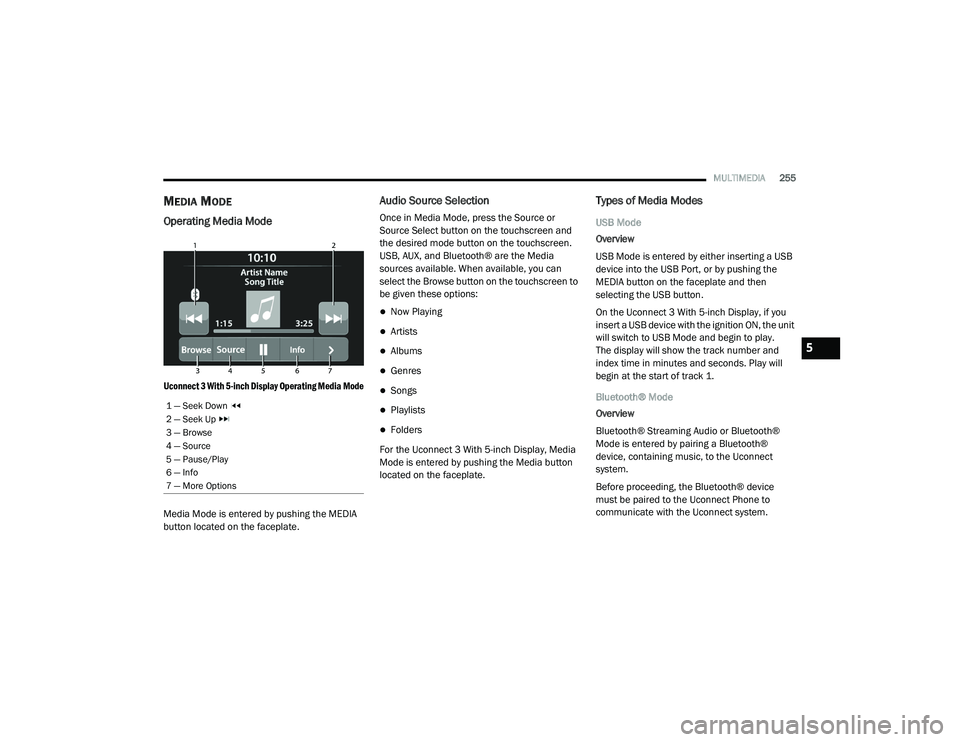
Operating Media Mode
Uconnect 3 With 5-inch Display Operating Media Mode
Media Mode is entered by pushing the MEDIA
button located on the faceplate.
Audio Source Selection
Once in Media Mode, press the Source or
Source Select button on the touchscreen and
the desired mode button on the touchscreen.
USB, AUX, and Bluetooth® are the Media
sources available. When available, you can
select the Browse button on the touchscreen to
be given these options:
Now Playing
Artists
Albums
Genres
Songs
Playlists
Folders
For the Uconnect 3 With 5-inch Display, Media
Mode is entered by pushing the Media button
located on the faceplate.
Types of Media Modes
USB Mode
Overview
USB Mode is entered by either inserting a USB
device into the USB Port, or by pushing the
MEDIA button on the faceplate and then
selecting the USB button.
On the Uconnect 3 With 5-inch Display, if you
insert a USB device with the ignition ON, the unit
will switch to USB Mode and begin to play.
The display will show the track number and
index time in minutes and seconds. Play will
begin at the start of track 1.
Bluetooth® Mode
Overview
Bluetooth® Streaming Audio or Bluetooth®
Mode is entered by pairing a Bluetooth®
device, containing music, to the Uconnect
system.
Before proceeding, the Bluetooth® device
must be paired to the Uconnect Phone to
communicate with the Uconnect system.
1 — Seek Down
2 — Seek Up
3 — Browse
4 — Source
5 — Pause/Play
6 — Info
7 — More Options
5
21_DPF_OM_EN_USC_t.book Page 255
Page 258 of 463
256MULTIMEDIA
On the Uconnect 3 With 5-inch Display, push the
MEDIA button located on the faceplate. Once in
Media Mode, press the Source button on the
touchscreen and select the Bluetooth® button
Úpage 258.
To access Bluetooth® Mode, press the
Bluetooth® button on the left side of the
touchscreen or under the Source Select/Select
Source button (if equipped).
AUX Mode
Overview
Auxiliary Mode (AUX) is entered by inserting an
AUX device using a cable with a 3.5 mm audio
jack into the AUX port or pushing the MEDIA
button on the faceplate and then selecting the
Source button and then the AUX button.
To insert an Auxiliary device, gently insert the
Auxiliary device cable into the AUX Port. If you
insert an Auxiliary device with the ignition and
the radio on, the unit will switch to AUX Mode
and begin to play. Controlling The Auxiliary Device
The control of the Auxiliary device (e.g.,
selecting playlists, play, fast forward, etc.)
cannot be provided by the radio; use the device
controls instead. Adjust the volume with the
Volume button, Volume/Mute rotary knob, or
the On/Off rotary knob, or with the volume of
the attached device.
NOTE:
The radio unit is acting as the amplifier for audio
output from the Auxiliary device. Therefore, if
the volume control on the Auxiliary device is set
too low, there will be insufficient audio signal for
the radio unit to play the music on the device.
Seek Up /Seek Down
In USB Mode, press the Seek Up button on the
touchscreen for the next selection on the USB
device. Press and release the Seek Down
button on the touchscreen to return to the
beginning of the current selection, or to return
to the beginning of the previous selection if the
USB device is within the first three seconds of
the current selection.
In Bluetooth® Mode, press and release the
Seek Up button on the touchscreen for the next
selection on the Bluetooth® device. Press and release the Seek Down button on the
touchscreen to return to the beginning of the
current selection, or return to the beginning of
the previous selection if the Bluetooth® device
is within the first second of the current
selection.
Browse
In USB Mode, press the Browse button on the
touchscreen to display the browse window.
In USB Mode, the left side of the browse window
displays a list of ways you can browse through
the contents of the USB device. If supported by
the device, you can browse by Folder, Artist,
Playlist, Album, Song, etc. Press the desired
button on the touchscreen on the left side of the
screen. The center of the browse window shows
items and its sub-functions, which can be
scrolled through by pressing the Up and Down
buttons to the right. The Tune/Scroll knob can
also be used to scroll.
On the Uconnect 3 With 5-inch Display, rotate the
Browse button on the touchscreen to scroll
through and select a desired track on the device.
Press the Exit button on the touchscreen if you
wish to cancel the Browse function.
21_DPF_OM_EN_USC_t.book Page 256
Page 262 of 463
260MULTIMEDIA
The system handles multiple inputs in the same
phrase or sentence such as “make a phone call”
and “to Kelly Smith”. For multiple inputs in the
same phrase or sentence, the system identifies
the topic or context and provides the associated
follow-up prompt such as “Who do you want to
call?” in the case where a phone call was
requested but the specific name was not
recognized.
The system utilizes continuous dialog. When the
system requires more information from the
user, it will ask a question to which the user can
respond without pushing the Voice Command
button on the steering wheel.
Help Command
If you need assistance at any prompt, or if you
want to know your options at any prompt, say
“Help” following the beep.
To activate the Uconnect Phone from idle,
simply push the Phone button (if active) on your
steering wheel and say a command or say
“Help”. All Phone sessions begin with a push
of the VR button or the Phone button. Cancel Command
At any prompt, after the beep, you can say
“Cancel” and you will be returned to the main
menu.
You can also push the VR button or Phone
button on your steering wheel when the system
is listening for a command and be returned to
the main or previous menu.
Pair (Link) Uconnect Phone To A Mobile Phone
Use this QR code to access your
digital experience.
To begin using your Uconnect Phone, you must
pair your compatible Bluetooth®-enabled
mobile phone. Mobile phone pairing is the
process of establishing a wireless connection
between a cellular phone and the Uconnect
system.
To complete the pairing process, you will need
to reference your mobile phone’s manual. Please visit UconnectPhone.com for complete
mobile phone compatibility information.
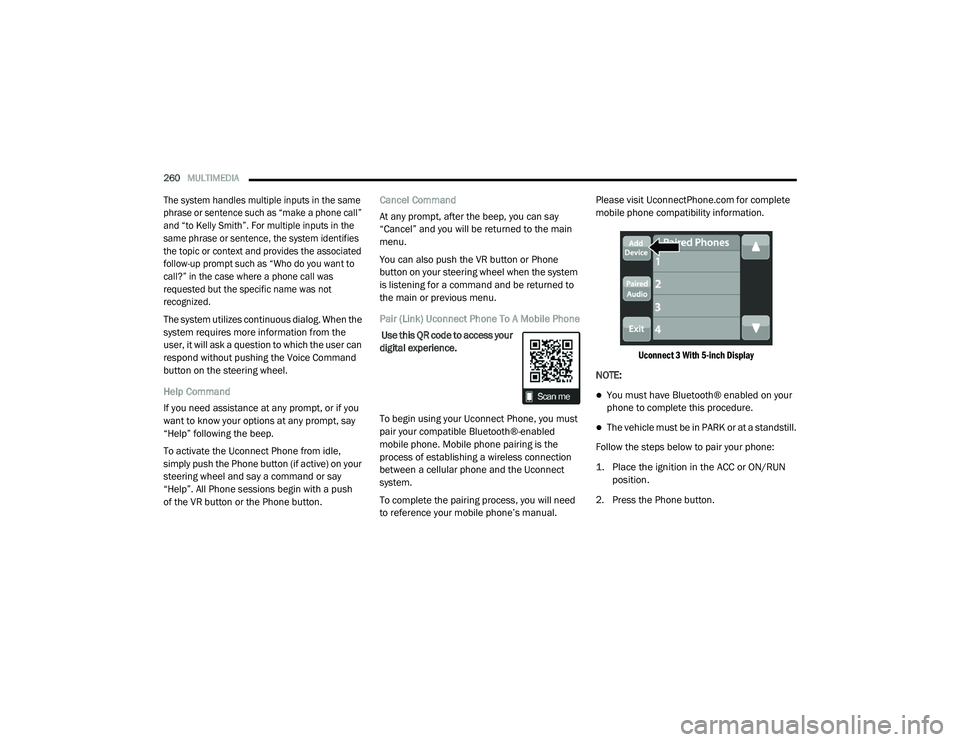
Uconnect 3 With 5-inch Display
NOTE:
You must have Bluetooth® enabled on your
phone to complete this procedure.
The vehicle must be in PARK or at a standstill.
Follow the steps below to pair your phone:
1. Place the ignition in the ACC or ON/RUN position.
2. Press the Phone button.
21_DPF_OM_EN_USC_t.book Page 260
Page 268 of 463
266MULTIMEDIA
Place/Retrieve A Call From Hold
During an active call, press the Hold or Call On
Hold button on the Phone main screen.
Making A Second Call While Current Call Is In
Progress
You can place a call on hold by pressing the
Hold button on the Phone main screen, then
dial a number from the keypad (if supported by
your mobile phone), recent calls, SMS Inbox or
from the phonebooks.
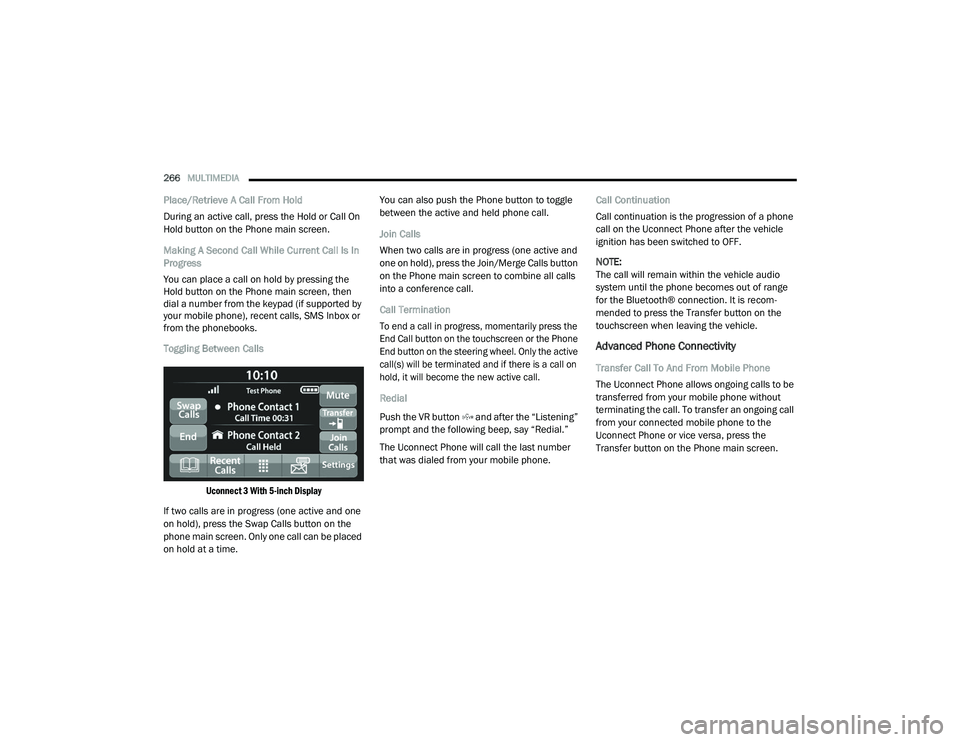
Toggling Between Calls
Uconnect 3 With 5-inch Display
If two calls are in progress (one active and one
on hold), press the Swap Calls button on the
phone main screen. Only one call can be placed
on hold at a time. You can also push the Phone button to toggle
between the active and held phone call.
Join Calls
When two calls are in progress (one active and
one on hold), press the Join/Merge Calls button
on the Phone main screen to combine all calls
into a conference call.
Call Termination
To end a call in progress, momentarily press the
End Call button on the touchscreen or the Phone
End button on the steering wheel. Only the active
call(s) will be terminated and if there is a call on
hold, it will become the new active call.
Redial
Push the VR button and after the “Listening”
prompt and the following beep, say “Redial.”
The Uconnect Phone will call the last number
that was dialed from your mobile phone.
Call Continuation
Call continuation is the progression of a phone
call on the Uconnect Phone after the vehicle
ignition has been switched to OFF.
NOTE:
The call will remain within the vehicle audio
system until the phone becomes out of range
for the Bluetooth® connection. It is recom
-
mended to press the Transfer button on the
touchscreen when leaving the vehicle.
Advanced Phone Connectivity
Transfer Call To And From Mobile Phone
The Uconnect Phone allows ongoing calls to be
transferred from your mobile phone without
terminating the call. To transfer an ongoing call
from your connected mobile phone to the
Uconnect Phone or vice versa, press the
Transfer button on the Phone main screen.
21_DPF_OM_EN_USC_t.book Page 266
Page 271 of 463
MULTIMEDIA269
The system is designed to keep your eyes on the
road and your hands on the wheel by letting Siri
help you perform useful tasks.
To enable Siri, push and hold, then release the
Uconnect Voice Recognition (VR) button on the
steering wheel. After you hear a double beep,
you can ask Siri to play podcasts and music, get
directions, read text messages, and many other
useful requests.
Bluetooth® Communication Link
Mobile phones may lose connection to the Uconnect
Phone. When this happens, the connection can
generally be re-established by restarting the mobile
phone. Your mobile phone is recommended to
remain in Bluetooth® ON mode.
Power-Up
After switching the ignition key from OFF to either
the ON/RUN or ACC position, or after a language
change, you must wait at least 15 seconds prior
to using the system
Ú
page 449.
RADIO OPERATION AND MOBILE PHONES
Under certain conditions, the mobile phone being
on in your vehicle can cause erratic or noisy
performance from your radio. This condition may be
lessened or eliminated by relocating the mobile
phone antenna. This condition is not harmful to
the radio. If your radio performance does not
satisfactorily “clear” by the repositioning of the
antenna, it is recommended that the radio volume
be turned down or off during mobile phone
operation when not using Uconnect (if equipped).
REGULATORY AND SAFETY
I
NFORMATION
USA/CANADA
Exposure to Radio Frequency Radiation
The radiated output power of the internal
wireless radio is far below the FCC and IC radio
frequency exposure limits. Nevertheless, the
wireless radio will be used in such a manner
that the radio is 8 in (20 cm) or further from the
human body. The internal wireless radio operates within
guidelines found in radio frequency safety
standards and recommendations, which reflect
the consensus of the scientific community.
The radio manufacturer believes the internal
wireless radio is safe for use by consumers.
The level of energy emitted is far less than the
electromagnetic energy emitted by wireless
devices such as mobile phones. However, the
use of wireless radios may be restricted in some
situations or environments, such as aboard
airplanes. If you are unsure of restrictions, you
are encouraged to ask for authorization before
turning on the wireless radio Ú
page 449.
5
21_DPF_OM_EN_USC_t.book Page 269
Page 276 of 463
274SAFETY
Anti-Lock Brake System (ABS) Warning
Light
The yellow ABS Warning Light will turn on when
the ignition is placed in the ON/RUN mode and
may stay on for as long as four seconds.
If the ABS Warning Light remains on or comes
on while driving, it indicates that the anti-lock
portion of the brake system is not functioning
and that service is required. However, the
conventional brake system will continue to
operate normally if the ABS Warning Light is on.
If the ABS Warning Light is on, the brake system
should be serviced as soon as possible to
restore the benefits of Anti-Lock brakes. If the
ABS Warning Light does not come on when the
ignition is placed in the ON/RUN mode, have
the light repaired as soon as possible.
ELECTRONIC BRAKE CONTROL (EBC)
S
YSTEM
Your vehicle is equipped with an advanced
Electronic Brake Control (EBC) system. This
system includes Anti-Lock Brake System (ABS),
Brake Assist System (BAS), Electronic Brake
Force Distribution (EBD), Hill Start Assist (HSA), Electronic Roll Mitigation (ERM), Electronic
Stability Control (ESC), and Traction Control
System (TCS). These systems work together to
enhance both vehicle stability and control in
various driving conditions.
Your vehicle may also be equipped with Trailer
Sway Control (TSC) and Hill Descent Control
(HDC).
Brake Assist System (BAS)
The BAS is designed to optimize the vehicle’s
braking capability during emergency braking
maneuvers. The system detects an emergency
braking situation by sensing the rate and amount
of brake application and then applies optimum
pressure to the brakes. This can help reduce
braking distances. The BAS complements the
Anti-Lock Brake System (ABS). Applying the
brakes very quickly results in the best BAS
assistance. To receive the benefit of the system,
you must apply continuous braking pressure
during the stopping sequence (do not “pump” the
brakes). Do not reduce brake pedal pressure
unless braking is no longer desired. Once the
brake pedal is released, the BAS is deactivated.
Brake System Warning Light
The red Brake System Warning Light will turn on
when the ignition is placed in the ON/RUN mode
and may stay on for as long as four seconds.
If the Brake System Warning Light remains on or
comes on while driving, it indicates that the
brake system is not functioning properly and
that immediate service is required. If the Brake
System Warning Light does not come on when
the ignition is placed in the ON/RUN mode,
have the light repaired as soon as possible.
WARNING!
The Brake Assist System (BAS) cannot prevent
the natural laws of physics from acting on
the vehicle, nor can it increase the traction
afforded by prevailing road conditions.
BAS cannot prevent collisions, including those
resulting from excessive speed in turns, driving
on very slippery surfaces, or hydroplaning.
The capabilities of a BAS-equipped vehicle
must never be exploited in a reckless or
dangerous manner, which could jeopardize
the user's safety or the safety of others.
21_DPF_OM_EN_USC_t.book Page 274
Page 279 of 463

SAFETY277
(Continued)
NOTE:
For vehicles with multiple partial ESC modes,
the push and release of the button will toggle
the ESC modes. Multiple attempts may be
required to return to "ESC On" mode.
Full Off — If Equipped
This mode is intended for off-highway or
off-road use only and should not be used on any
public roadways. In this mode, TCS and ESC
features are turned off. To enter the “Full Off”
mode, push and hold the ESC OFF button for
five seconds while the vehicle is stopped with the engine running. After five seconds, a chime
will sound, the ESC OFF Indicator Light will
illuminate, and the “ESC OFF” message will
display in the instrument cluster. To turn ESC on
again, momentarily push the ESC OFF button.
NOTE:
System may switch from ESC “Full Off” to
“Partial Off” mode when vehicle exceeds a
predetermined speed. When the vehicle speed
slows below the predetermined speed the
system will return to ESC “Full Off”.
ESC modes may also be affected by drive
modes (if equipped).
ESC Activation/Malfunction Indicator Light
And ESC OFF Indicator Light
The ESC Activation/Malfunction Indicator
Light in the instrument cluster will come
on when the ignition is placed in the ON
mode. It should go out with the engine
running. If the ESC Activation/Malfunction Indicator
Light comes on continuously with the engine
running, a malfunction has been detected in the
ESC system. If this light remains on after several
ignition cycles, and the vehicle has been driven
several miles (kilometers) at speeds greater than
30 mph (48 km/h), see an authorized dealer as
soon as possible to have the problem diagnosed
and corrected.
WARNING!
When in “Partial Off” mode, the TCS function -
ality of ESC, except for the limited slip
feature described in the TCS section, has
been disabled and the ESC OFF Indicator
Light will be illuminated. When in “Partial
Off” mode, the engine power reduction
feature of TCS is disabled, and the enhanced
vehicle stability offered by the ESC system is
reduced.
Trailer Sway Control (TSC) is disabled when
the ESC system is in the “Partial Off” mode.
WARNING!
In the ESC “Full Off” mode, the engine
torque reduction and stability features are
disabled. Therefore, enhanced vehicle
stability offered by the ESC system is
unavailable. In an emergency evasive
maneuver, the ESC system will not engage
to assist in maintaining stability. ESC “Full
Off” mode is intended for off-highway or
off-road use only.
The Electronic Stability Control (ESC)
cannot prevent the natural laws of physics
from acting on the vehicle, nor can it
increase the traction afforded by prevailing
road conditions. ESC cannot prevent all
accidents, including those resulting from
excessive speed in turns, driving on very
slippery surfaces, or hydroplaning. ESC also
cannot prevent collisions.
WARNING! (Continued)
6
21_DPF_OM_EN_USC_t.book Page 277
Page 280 of 463

278SAFETY
The ESC Activation/Malfunction Indicator Light
starts to flash as soon as the tires lose traction
and the ESC system becomes active. The ESC
Activation/Malfunction Indicator Light also
flashes when TCS is active. If the ESC Activation/
Malfunction Indicator Light begins to flash during
acceleration, ease up on the accelerator and
apply as little throttle as possible. Be sure to
adapt your speed and driving to the prevailing
road conditions.
The ESC OFF Indicator Light indicates
that the Electronic Stability Control
(ESC) is in a reduced mode.
NOTE:
The ESC Activation/Malfunction Indicator
Light and the ESC OFF Indicator Light come
on momentarily each time the ignition is
placed in the ON position.
Each time the ignition is placed in the ON
position, the ESC system will be on even if it
was turned off previously.
The ESC system will make buzzing or clicking
sounds when it is active. This is normal; the
sounds will stop when ESC becomes inactive
following the maneuver that caused the ESC
activation.
Hill Descent Control (HDC) — If Equipped
HDC is intended for low speed off-road driving
while in 4WD Low. HDC maintains vehicle speed
while descending hills during various driving
situations. HDC controls vehicle speed by
actively controlling the brakes.
HDC Has Three States:
1. Off (feature is not enabled and will not activate).
2. Enabled (feature is enabled and ready but activation conditions are not met, or driver
is actively overriding with brake or throttle
application).
3. Active (feature is enabled and actively controlling vehicle speed).
Enabling HDC
HDC is enabled by pushing the HDC switch, but
the following conditions must also be met to
enable HDC:
The driveline is in 4WD Low.
The vehicle speed is below 5 mph (8 km/h).
The parking brake is released.
The driver door is closed. Activating HDC
Once HDC is enabled it will activate
automatically if driven down a grade of
sufficient magnitude. The set speed for HDC is
selectable by the driver, and can be adjusted by
using the gear shift +/-. The following
summarizes the HDC set speeds:
HDC Target Set Speeds
P = No set speed. HDC may be enabled but
will not activate.
R = 0.6 mph (1 km/h)
N = 1.2 mph (2 km/h)
D = 0.6 mph (1 km/h)
1st = 0.6 mph (1 km/h)
2nd = 1.2 mph (2 km/h)
3rd = 1.8 mph (3 km/h)
4th = 2.5 mph (4 km/h)
5th = 3.1 mph (5 km/h)
6th = 3.7 mph (6 km/h)
7th = 4.3 mph (7 km/h)
21_DPF_OM_EN_USC_t.book Page 278