change wheel RAM CHASSIS CAB 2023 User Guide
[x] Cancel search | Manufacturer: RAM, Model Year: 2023, Model line: CHASSIS CAB, Model: RAM CHASSIS CAB 2023Pages: 444, PDF Size: 20.51 MB
Page 140 of 444

138STARTING AND OPERATING
You can switch between DRIVE and ERS mode at
any vehicle speed. When the gear selector is in the
DRIVE position, the transmission will operate
automatically, shifting between all available gears.
Tapping the ERS “-” switch will activate ERS mode,
display the current gear in the instrument cluster,
and set that gear as the top available gear. Once in
ERS mode, tapping “-” or “+” will change the top
available gear.
Electronic Range Select
To exit ERS mode, simply push and hold the
ERS “+” switch until the gear limit display
disappears from the instrument cluster.
NOTE:To select the proper gear position for maximum
deceleration (engine braking), simply push and
hold the ERS “-” switch. The transmission will shift
to the range from which the vehicle can best be
slowed down.
Overdrive Operation
The automatic transmission includes an
electronically controlled Overdrive (FIFTH and SIXTH
gears). The transmission will automatically shift into
Overdrive if the following conditions are present:
The gear selector is in the DRIVE position.
The transmission fluid has reached an
adequate temperature.
The engine coolant has reached an adequate
temperature.
Vehicle speed is sufficiently high.
The TOW/HAUL switch has not been activated.
The driver is not heavily pressing the acceler -
ator.
When To Use TOW/HAUL Mode
When driving in hilly areas, towing a trailer, carrying
a heavy load, etc., and frequent transmission
shifting occurs, push the TOW/HAUL switch to
activate TOW/HAUL mode. This will improve
performance and reduce the potential for
transmission overheating or failure due to
excessive shifting. When operating in TOW/HAUL
mode, transmission upshifts are delayed, and the
transmission will automatically downshift (for
engine braking) when the throttle is closed and/or
during steady braking maneuvers.
TOW/HAUL Switch
1 — GEAR “+” Switch
2 — GEAR “–” Switch
WARNING!
Do not downshift for additional engine braking
on a slippery surface. The drive wheels could
lose their grip and the vehicle could skid,
causing a collision or personal injury.
CAUTION!
When using ERS for engine braking while
descending steep grades, be careful not to
overspeed the engine. Apply the brakes as
needed to prevent engine overspeed.
23_DPF_OM_EN_USC_t.book Page 138
Page 149 of 444

STARTING AND OPERATING147
2H OR 4H TO 4L
NOTE:
When shifting into or out of 4L some gear noise
may be heard. This noise is normal and is not detri -
mental to the vehicle or occupants.
With the vehicle rolling at 2 to 3 mph (3 to 5 km/h),
shift the transmission into NEUTRAL. While the
vehicle is coasting at 2 to 3 mph (3 to 5 km/h),
shift the transfer case lever firmly to the desired
position. Do not pause in transfer case Neutral.
NOTE:
Pausing in transfer case N (Neutral) in vehicles
equipped with an automatic transmission may
require shutting the engine OFF to avoid gear
clash while completing the shift. If difficulty
occurs, shift the transmission into Neutral, hold
your foot on the brake, and turn the engine OFF.
Complete the range shift to the desired position.
Shifting into or out of 4L is possible with the
vehicle completely stopped, however difficulty
may occur due to the mating teeth not being prop -
erly aligned. Several attempts may be required for
teeth alignment and shift completion to occur.
The preferred method is with the vehicle rolling 2
to 3 mph (3 to 5 km/h). Avoid attempting to
engage or disengage 4L with the vehicle moving
faster than 2 to 3 mph (3 to 5 km/h).
Do not attempt to shift into or out of 4L while the
transmission is in gear.
Transfer Case Position Indicator Light
The Transfer Case Position Indicator Light in the
instrument cluster is used to alert the driver that
the front axle is fully engaged and all four wheels
are driving.
LIMITED-SLIP DIFFERENTIAL
The limited-slip differential provides additional
traction on snow, ice, mud, sand and gravel,
particularly when there is a difference between the
traction characteristics of the surface under the
right and left rear wheels. During normal driving
and cornering, the limited-slip unit performs
similarly to a conventional differential. On slippery
surfaces, however, the differential delivers more of
the driving effort to the rear wheel having the
better traction.
The limited-slip differential is especially helpful
during slippery driving conditions. With both rear
wheels on a slippery surface, a slight application of
the accelerator will supply maximum traction.
When starting with only one rear wheel on an
excessively slippery surface, slight momentary
application of the parking brake may be necessary
to gain maximum traction. Care should be taken to avoid sudden
accelerations when both rear wheels are on a
slippery surface. This could cause both rear wheels
to spin, and allow the vehicle to slide sideways on
the crowned surface of a road or in a turn.
POWER TAKE OFF (PTO) OPERATION —
IF EQUIPPED
This vehicle when equipped with PTO Prep and the
AS66RC/AS69RC automatic 6-speed, will allow for
an aftermarket upfit with a transmission driven
PTO. The customer will have the ability to operate
the PTO in either a “stationary”, “mobile” or
“remote” mode. The vehicles will be factory set to
the “stationary” mode. To select a different mode,
or to change any other PTO setting, you will need to
enter the commercial vehicle menu on the
instrument cluster screen. Details of the PTO
selection modes and further PTO information is
available at the Ram Truck Body Builder’s web site:
https://www.ramtrucks.com/ram-commercial/
body-builders-guide.html
WARNING!
On vehicles equipped with a limited-slip
differential never run the engine with one rear
wheel off the ground since the vehicle may drive
through the rear wheel remaining on the ground.
You could lose control of the vehicle.
4
23_DPF_OM_EN_USC_t.book Page 147
Page 166 of 444
164STARTING AND OPERATING
warning in the form of torque applied to the
steering wheel, as well as a visual warning in the
instrument cluster display to prompt the driver to
remain within the lane boundaries.
The driver may manually override the haptic
warning by applying torque to the steering wheel at
any time.
When only a single lane marking is detected and
the driver drifts across that lane marking (no turn
signal applied), the LaneSense system provides a
visual warning through the instrument cluster
display to prompt the driver to remain within the
lane.
When only a single lane marking is detected, a
haptic (torque) warning will not be provided.
NOTE:When operating conditions have been met, the
LaneSense system will monitor if the driver’s
hands are on the steering wheel and provide an
audible and visual warning to the driver if removed.
The system will cancel if the driver does not return
their hands to the wheel.
TURNING LANESENSE ON OR OFF
The LaneSense button is located on the
switch panel below the Uconnect display.
NOTE:If your vehicle is equipped with a 12–inch
Uconnect Display screen, the LaneSense button is
located above the display.
To turn the LaneSense system on, push the
LaneSense button (LED turns off). A “LaneSense
On” message is shown in the instrument cluster
display.
To turn the LaneSense system off, push the
LaneSense button again (LED turns on).
NOTE:The LaneSense system will retain the last system
state (on or off) from the last ignition cycle when
the ignition is changed to the ON/RUN position.
LANESENSE WARNING MESSAGE
The LaneSense system will indicate the current
lane drift condition through the instrument cluster
display.
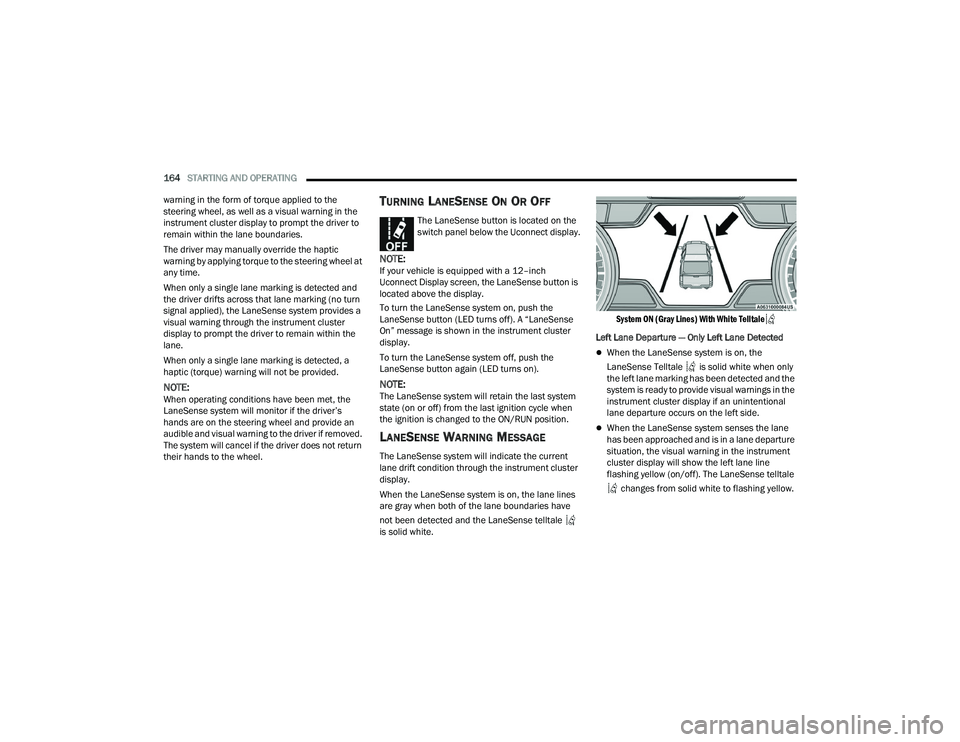
When the LaneSense system is on, the lane lines
are gray when both of the lane boundaries have
not been detected and the LaneSense telltale
is solid white.
System ON (Gray Lines) With White Telltale
Left Lane Departure — Only Left Lane Detected
When the LaneSense system is on, the
LaneSense Telltale is solid white when only
the left lane marking has been detected and the
system is ready to provide visual warnings in the
instrument cluster display if an unintentional
lane departure occurs on the left side.
When the LaneSense system senses the lane
has been approached and is in a lane departure
situation, the visual warning in the instrument
cluster display will show the left lane line
flashing yellow (on/off). The LaneSense telltale
changes from solid white to flashing yellow.
23_DPF_OM_EN_USC_t.book Page 164
Page 167 of 444

STARTING AND OPERATING165
Lane Crossed (Flashing Yellow Lane Line) With Yellow Telltale
NOTE:The LaneSense system operates with similar
behavior for a right lane departure when only the
right lane marking has been detected.
Left Lane Departure — Both Lane Lines Detected
When the LaneSense system is on, and both the
lane markings have been detected, the system
is ready to provide visual warnings in the instru-
ment cluster display and a torque warning in the
steering wheel if an unintentional lane depar -
ture occurs. The lane lines turn from gray to
white and the LaneSense telltale is solid
green.
Lanes Sensed (White Lines) With Green Telltale
When the LaneSense system senses a lane drift
situation, the left lane line turns solid yellow.
The LaneSense telltale changes from solid
green to solid yellow. At this time torque is
applied to the steering wheel in the opposite
direction of the lane boundary.
For example: If approaching the left side of the
lane the steering wheel will turn to the right.
Lane Approached (Solid Yellow Lane Line) With Solid
Yellow Telltale
When the LaneSense system senses the lane
has been approached and is in a lane departure
situation, the left lane line flashes yellow (on/
off). The LaneSense telltale changes from
solid yellow to flashing yellow. At this time
torque is applied to the steering wheel in the
opposite direction of the lane boundary.
4
23_DPF_OM_EN_USC_t.book Page 165
Page 171 of 444
STARTING AND OPERATING169
If the camera delay is turned off, the camera image
will close and display the previous screen after
shifting out of REVERSE.
If active guidelines are enabled, the lines are
overlaid on the image in the Rear View to illustrate
the width of the vehicle. The view will also include
the side view mirrors and its projected back up
path based on the steering wheel position.
There are different colored zones to indicate the
distance to the rear of the vehicle. Refer to the
chart below:
Modes Of Operation
Standard Rear View can be manually activated by
selecting “Back Up Camera” through the Controls
menu within the Uconnect system.
Top View
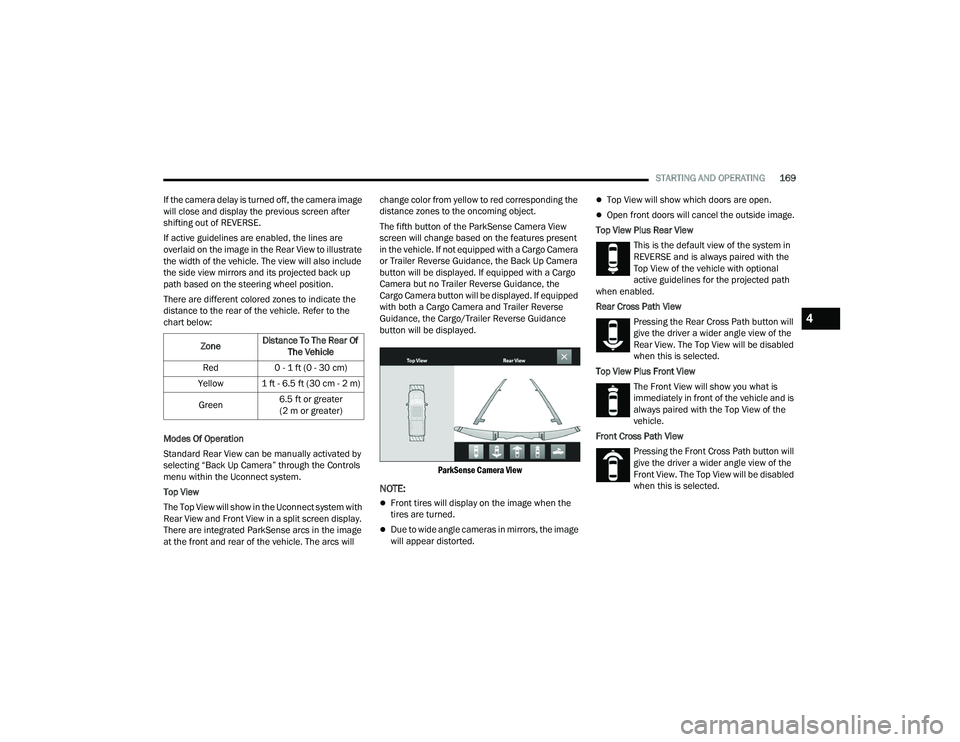
The Top View will show in the Uconnect system with
Rear View and Front View in a split screen display.
There are integrated ParkSense arcs in the image
at the front and rear of the vehicle. The arcs will change color from yellow to red corresponding the
distance zones to the oncoming object.
The fifth button of the ParkSense Camera View
screen will change based on the features present
in the vehicle. If not equipped with a Cargo Camera
or Trailer Reverse Guidance, the Back Up Camera
button will be displayed. If equipped with a Cargo
Camera but no Trailer Reverse Guidance, the
Cargo Camera button will be displayed. If equipped
with both a Cargo Camera and Trailer Reverse
Guidance, the Cargo/Trailer Reverse Guidance
button will be displayed.
ParkSense Camera View
NOTE:
Front tires will display on the image when the
tires are turned.
Due to wide angle cameras in mirrors, the image
will appear distorted.
Top View will show which doors are open.
Open front doors will cancel the outside image.
Top View Plus Rear View This is the default view of the system in
REVERSE and is always paired with the
Top View of the vehicle with optional
active guidelines for the projected path
when enabled.
Rear Cross Path View
Pressing the Rear Cross Path button will
give the driver a wider angle view of the
Rear View. The Top View will be disabled
when this is selected.
Top View Plus Front View The Front View will show you what is
immediately in front of the vehicle and is
always paired with the Top View of the
vehicle.
Front Cross Path View Pressing the Front Cross Path button will
give the driver a wider angle view of the
Front View. The Top View will be disabled
when this is selected.
Zone
Distance To The Rear Of
The Vehicle
Red 0 - 1 ft (0 - 30 cm)
Yellow 1 ft - 6.5 ft (30 cm - 2 m)
Green 6.5 ft or greater
(2 m or greater)
4
23_DPF_OM_EN_USC_t.book Page 169
Page 183 of 444

STARTING AND OPERATING181
Each axle GAWR is determined by the components
in the system with the lowest load carrying capacity
(axle, springs, tires or wheels). Heavier axles or
suspension components sometimes specified by
purchasers for increased durability does not
necessarily increase the vehicle's GVWR.
TIRE SIZE
The tire size on the Vehicle Certification Label
represents the actual tire size on your vehicle.
Replacement tires must be equal to the load
capacity of this tire size.
RIM SIZE
This is the rim size that is appropriate for the tire
size listed.
INFLATION PRESSURE
This is the cold tire inflation pressure for your
vehicle for all loading conditions up to full GAWR.
CURB WEIGHT
The curb weight of a vehicle is defined as the total
weight of the vehicle with all fluids, including
vehicle fuel, at full capacity conditions, and with no
occupants or cargo loaded into the vehicle. The
front and rear curb weight values are determined
by weighing your vehicle on a commercial scale
before any occupants or cargo are added.
LOADING
The actual total weight and the weight of the front
and rear of your vehicle at the ground can best be
determined by weighing it when it is loaded and
ready for operation.
The entire vehicle should first be weighed on a
commercial scale to ensure that the GVWR has not
been exceeded. The weight on the front and rear of the
vehicle should then be determined separately to be
sure that the load is properly distributed over the front
and rear axles. Weighing the vehicle may show that the
GAWR of either the front or rear axle has been
exceeded but the total load is within the specified
GVWR. If so, weight must be shifted from front to rear
or rear to front as appropriate until the specified weight
limitations are met. Store the heavier items down low
and be sure that the weight is distributed equally. Stow
all loose items securely before driving.
Improper weight distributions can have an adverse
effect on the way your vehicle steers and handles
and the way the brakes operate.
TRAILER TOWING
In this section you will find safety tips and
information on limits to the type of towing you can
reasonably do with your vehicle. Before towing a
trailer, carefully review this information to tow your
load as efficiently and safely as possible.
To maintain the New Vehicle Limited Warranty
coverage, follow the requirements and
recommendations in this manual concerning
vehicles used for trailer towing.
COMMON TOWING DEFINITIONS
The following trailer towing related definitions will
assist you in understanding the following
information:
Gross Vehicle Weight Rating (GVWR)
The GVWR is the total allowable weight of your
vehicle. This includes driver, passengers, cargo
and tongue weight. The total load must be limited
so that you do not exceed the GVWR Ú page 180.
Gross Trailer Weight (GTW)
The GTW is the weight of the trailer plus the weight
of all cargo, consumables and equipment
(permanent or temporary) loaded in or on the
trailer in its "loaded and ready for operation"
condition.WARNING!
Do not load your vehicle any heavier than the
GVWR, maximum Payload or maximum front and
rear GAWR. If you do, parts on your vehicle can
break, or it can change the way your vehicle
handles. This could cause you to lose control.
Overloading can shorten the life of your vehicle.
4
23_DPF_OM_EN_USC_t.book Page 181
Page 191 of 444

STARTING AND OPERATING189
Adjusting GAIN
NOTE:This should only be performed in a traffic-free envi -
ronment at speeds of approximately 20–25 mph
(30–40 km/h).
1. Make sure the trailer brakes are in good working condition, functioning normally and
properly adjusted. See a trailer dealer if
necessary.
2. Hook up the trailer and make the electrical connections according to the trailer
manufacturer's instructions.
3. When a trailer with electric/EOH brakes is plugged in, the trailer connected message
should appear in the instrument cluster
display (if the connection is not recognized by the ITBM, braking functions will not be
available), the GAIN setting will illuminate and
the correct type of trailer must be selected
from the instrument cluster display options.
4. Push the UP or DOWN button on the steering wheel until “TRAILER TOW” appears on the
screen.
5. Push the RIGHT arrow on the steering wheel to enter “TRAILER TOW”.
6. Push the UP or DOWN buttons until the Trailer Brake Type appears on the screen.
7. Push the RIGHT arrow and then push the UP or DOWN buttons until the proper Trailer Brake
Type appears on the screen. 8. In a traffic-free environment, tow the trailer on
a dry, level surface at a speed of 20–25 mph
(30–40 km/h) and squeeze the manual brake
control lever completely.
9. If the trailer wheels lockup (indicated by squealing tires), reduce the GAIN setting; if the
trailer wheels turn freely, increase the GAIN
setting.
Repeat steps 8 and 9 until the GAIN setting is at a
point just below trailer wheel lockup. If towing a
heavier trailer, trailer wheel lockup may not be
attainable even with the maximum GAIN setting
of 10.
* The suggested selection depends and may change depending on the customer preferences for braking performance. Condition of the trailer brakes, driving
and road state may also affect the selection.
Light Electric Heavy Electric Light EOHHeavy EOH
Type of Trailer Brakes Electric Trailer Brakes Electric Trailer Brakes Electric over Hydraulic Trailer
BrakesElectric over Hydraulic Trailer
Brakes
Load *Under 10,000 lb (4,536 kg) *Above 10,000 lb (4,536 kg) *Under 10,000 lb (4,536 kg) *Above 10,000 lb (4,536 kg)
4
23_DPF_OM_EN_USC_t.book Page 189
Page 206 of 444
204MULTIMEDIA
Voice Options This setting will allow you to change the voice options for the radio to “Male”
or “Female”.
Wake Up Word This setting will allow you to set the system “Wake Up” word. The available
options are “Off”, “Hey, Uconnect”, and “Hey, Ram”.
Voice Barge-in This setting will allow Voice Barge-in to be turned on or off.
Show Command List This setting will allow the Command List to be shown. The options are “On”
and “Off”.
Navigation Settings This setting will redirect to the list of Navigation settings. Refer to your
Uconnect Owner’s Manual Supplement for further information.
Auto-On Driver Heated/Ventilated Seat & Heated Steering Wheel This setting will activate the vehicle’s comfort system and heated seats or
heated steering wheel when the vehicle is remote started or ignition is
started. The “Off” setting will not activate the comfort systems. The “Remote
Start” setting will only activate the comfort systems when using Remote Start.
The “All Start” setting will activate the comfort systems whenever the vehicle
is started.
Radio Power Off This setting will keep certain electrical features running after the engine is
turned off. When any door is opened, the electronics will deactivate. The
available settings are “0 sec”, “45 sec”, “5 min”, and “10 min”.
Radio Off With Door This setting will allow you to determine if the radio shuts off when any of the
doors are opened.
Audio Settings This setting will open the submenu, containing the audio settings
Ú
page 217.
App Drawer Favoriting Pop-ups This setting will allow you to favorite app drawer pop-ups with “On” and “Off”
options.
Setting Name
Description
23_DPF_OM_EN_USC_t.book Page 204
Page 208 of 444
206MULTIMEDIA
Safety/Driving Assistance
When the Safety/Driving Assistance button is selected on the touchscreen, the system displays the options related to the vehicle’s safety settings. These
options will differ depending on the features equipped on the vehicle. The settings may display in list form or within subfolders on the screen. To access a
subfolder, select the desired folder; the available options related to that feature will then display on the screen.
NOTE:Depending on the vehicle’s options, feature settings may vary.
Setting Name Description
Forward Collision Warning Sensitivity This setting will change the distance at which the Forward Collision Warning
(FCW) alert sounds. The “Medium” setting will have the FCW system signal
when an object is in view, and the possibility of a collision is detected. The
“Near” setting will have the FCW system signal when the object is closer to the
vehicle. The “Far” setting will have the FCW system signal when an object is at
a far distance from the vehicle.
Forward Collision Warning This setting will turn the Forward Collision Warning system on or off. The “Off”
setting will deactivate the FCW system. The “Warning Only” setting will provide
only an audible chime when a collision is detected. The “Warning + Active
Braking” setting will provide an audible chime and apply some brake pressure
when a collision is detected.
Pedestrian Emergency Braking This setting will turn the Pedestrian Emergency Braking system on or off.
LaneSense Warning
This setting will change the distance at which the steering wheel will provide lane
departure feedback. The available settings are “Early”, “Medium”, and “Late”.
LaneSense Strength This setting will change the strength of the steering wheel feedback during a
lane departure. The available settings are “Low”, “Medium”, and “High”.
23_DPF_OM_EN_USC_t.book Page 206
Page 228 of 444

226MULTIMEDIA
Push the VR button on the steering wheel and
wait for the beep to say a command. See an
example:
“ Tune to ninety-five-point-five FM”
“Tune to Satellite Channel Hits 1”
Did You Know: At any time, if you are not sure of
what to say or want to learn a Voice Command,
push the VR button and say “ Help”. The system
provides you with a list of commands.
SiriusXM® Satellite Radio Mode —
If Equipped
Uconnect 3 With 5-inch Display Changing To SiriusXM®
NOTE:Some SiriusXM® features are not supported by all
SiriusXM® channels or content, for example song
and artist favorites, sport game notifications, tune
start, and others.
SiriusXM® Satellite Radio uses direct
satellite-to-receiver broadcasting technology to
provide clear, coast-to-coast radio content.
SiriusXM® is a subscription-based service.
Visit
https://www.siriusxm.com/phx/getlogin or
review your SiriusXM® Radio pamphlet in your
Owner’s Manual kit for more information.
SiriusXM® services require subscriptions, sold
separately after the trial included with the new
vehicle purchase. If you decide to continue your
service at the end of your trial subscription, the
plan you choose will automatically renew and bill at
then-current rates until you call SiriusXM® at
866-635-2349 to cancel. See SiriusXM®
Customer Agreement for complete terms at
www.siriusxm.com (US) or www.siriusxm.ca
(Canada). All fees and programming subject to change.
SiriusXM® satellite service is available only to
those at least 18 and older in the 48 contiguous
US and D.C. Our SiriusXM® satellite service is also
available in Canada and Puerto Rico (with
coverage limitations). SiriusXM® Internet radio
service is available throughout their satellite
service area and in AK. © 2022 SiriusXM® Radio
Inc. SiriusXM® and all related marks and logos are
trademarks of SiriusXM® Radio Inc.
This functionality is only available for radios
equipped with a Satellite receiver. In order to
receive satellite radio, the vehicle needs to be
outside with a clear view to the sky.
If the screen shows “Acquiring Signal”, you might
have to change the vehicle’s position in order to
receive a signal. In most cases, the satellite radio
does not receive a signal in underground parking
garages or tunnels.
No Subscription
Radios equipped with a Satellite receiver require a
subscription to the SiriusXM® Service. When the
radio does not have the necessary subscription,
the radio is able to receive the Preview channel
only.
23_DPF_OM_EN_USC_t.book Page 226