wheel RAM PROMASTER 2021 Owner's Manual
[x] Cancel search | Manufacturer: RAM, Model Year: 2021, Model line: PROMASTER, Model: RAM PROMASTER 2021Pages: 288, PDF Size: 15.22 MB
Page 83 of 288

STARTING AND OPERATING81
TRAILER TOWING WEIGHTS (MAXIMUM
T
RAILER WEIGHT RATINGS)
NOTE:
For trailer towing information (maximum trailer
weight ratings) refer to the following website
addresses:
ramtrucks.com/en/towing_guide/
ramtruck.ca (Canada)
rambodybuilder.com
TRAILER AND TONGUE WEIGHT
Never exceed the maximum tongue weight
stamped on your bumper or trailer hitch.
Weight Distribution
Consider the following items when computing
the weight on the rear axle of the vehicle:The tongue weight of the trailer.
The weight of any other type of cargo or
equipment put in or on your vehicle.
The weight of the driver and all passengers.
NOTE:
Remember that everything put into or on the
trailer adds to the load on your vehicle. Also,
additional factory-installed options or
dealer-installed options must be considered as
part of the total load on your vehicle. Refer to the Tire And Loading Information placard for the
maximum combined weight of occupants and
cargo for your vehicle Ú
page 245.
TOWING REQUIREMENTS
To promote proper break-in of your new vehicle
drivetrain components, the following guidelines
are recommended.
Perform the maintenance listed in the
Scheduled Servicing Úpage 211. When towing
a trailer, never exceed the GAWR or GCWR
ratings.
CAUTION!
Always load a trailer with 60% of the weight in
the front of the trailer. This places 10% of the
GTW on the tow hitch of your vehicle. Loads
balanced over the wheels or heavier in the
rear can cause the trailer to sway severely
side to side which will cause loss of control of
the vehicle and trailer. Failure to load trailers
heavier in front is the cause of many trailer
collisions.
CAUTION!
Do not tow a trailer at all during the first
500 miles (805 km) the new vehicle is driven. The engine, axle or other parts could
be damaged.
Then, during the first 500 miles (805 km)
that a trailer is towed, do not drive over
50 mph (80 km/h) and do not make starts
at full throttle. This helps the engine and
other parts of the vehicle wear in at the
heavier loads.
4
21_VF_OM_EN_USC_t.book Page 81
Page 84 of 288

82STARTING AND OPERATING
(Continued)
Towing Requirements — Tires
Do not attempt to tow a trailer while using a
compact spare tire.
Do not drive more than 50 mph (80 km/h) when towing while using a full size spare tire.
Proper tire inflation pressures are essential
to the safe and satisfactory operation of your
vehicle.
Check the trailer tires for proper tire inflation
pressures before trailer usage.
Check for signs of tire wear or visible tire
damage before towing a trailer.
Replacing tires with a higher load carrying
capacity will not increase the vehicle's GVWR
and GAWR limits.
For further information Ú page 240.
Towing Requirements — Trailer Brakes
Do not interconnect the hydraulic brake
system or vacuum system of your vehicle
with that of the trailer. This could cause inad -
equate braking and possible personal injury.
WARNING!
Make certain that the load is secured in the
trailer and will not shift during travel. When
trailering cargo that is not fully secured,
dynamic load shifts can occur that may be
difficult for the driver to control. You could
lose control of your vehicle and have a
collision.
When hauling cargo or towing a trailer, do
not overload your vehicle or trailer. Over -
loading can cause a loss of control, poor
performance or damage to brakes, axle,
engine, transmission, steering, suspension,
chassis structure or tires.
Safety chains must always be used
between your vehicle and trailer. Always
connect the chains to the hook retainers of
the vehicle hitch. Cross the chains under
the trailer tongue and allow enough slack
for turning corners.
Vehicles with trailers should not be parked
on a grade. When parking, apply the
parking brake on the tow vehicle. Put the
tow vehicle transmission in PARK. For
four-wheel drive vehicles, make sure the
transfer case is not in NEUTRAL. Always,
block or "chock" the trailer wheels.
GCWR must not be exceeded.
Total weight must be distributed between
the tow vehicle and the trailer such that the
following four ratings are not exceeded :
GVWR
GTW
GAWR
Tongue weight rating for the trailer
hitch utilized.
WARNING! (Continued)
21_VF_OM_EN_USC_t.book Page 82
Page 87 of 288

STARTING AND OPERATING85
RECREATIONAL TOWING (BEHIND MOTORHOME)
TOWING THIS VEHICLE BEHIND ANOTHER VEHICLE
R
ECREATIONAL TOWING
Recreational towing is allowed ONLY if the front
wheels are OFF the ground. This may be
accomplished using a tow dolly or vehicle
trailer. If using a tow dolly, follow this procedure:
1. Properly secure the dolly to the tow vehicle, following the dolly manufacturer's
instructions.
2. Drive the front wheels onto the tow dolly. 3. Firmly apply the parking brake. Place the
transmission in PARK.
4. Properly secure the front wheels to the dolly, following the dolly manufacturer's
instructions.
5. Release the parking brake.
Towing Condition Wheels OFF the Ground Automatic Transmission
Flat Tow NONENOT ALLOWED
Dolly Tow Front
OK
Rear NOT ALLOWED
On Trailer ALLOK
NOTE:
When towing your vehicle, always follow applicable state and provincial laws. Contact state and provincial Highway Safety offices for additional details.
CAUTION!
DO NOT flat tow this vehicle. Damage to the
drivetrain will result. If this vehicle requires
towing, make sure the drive wheels are OFF
the ground.
Towing this vehicle in violation of the above
requirements can cause severe transmis -
sion damage. Damage from improper
towing is not covered under the New
Vehicle Limited Warranty.
4
21_VF_OM_EN_USC_t.book Page 85
Page 88 of 288

86STARTING AND OPERATING
DRIVING TIPS
DRIVING ON SLIPPERY SURFACES
Acceleration
Rapid acceleration on snow covered, wet, or
other slippery surfaces may cause the driving
wheels to pull erratically to the right or left. This
phenomenon occurs when there is a difference
in the surface traction under the front (driving)
wheels.
Traction
When driving on wet or slushy roads, it is
possible for a wedge of water to build-up
between the tire and road surface. This is
hydroplaning and may cause partial or
complete loss of vehicle control and stopping
ability. To reduce this possibility, the following
precautions should be observed:
Slow down during rainstorms or when the
roads are slushy.
Slow down if the road has standing water or
puddles.
Replace the tires when tread wear indicators
first become visible.
Keep tires properly inflated.
Maintain sufficient distance between your
vehicle and the vehicle in front of you to avoid
a collision in a sudden stop.
DRIVING THROUGH WATER
Driving through water more than a few inches/
centimeters deep will require extra caution to
ensure safety and prevent damage to your
vehicle.
Flowing/Rising Water
WARNING!
Rapid acceleration on slippery surfaces is
dangerous. Unequal traction can cause
sudden pulling of the front wheels. You could
lose control of the vehicle and possibly have a
collision. Accelerate slowly and carefully
whenever there is likely to be poor traction
(ice, snow, wet, mud, loose sand, etc.).
WARNING!
Do not drive on or across a road or path
where water is flowing and/or rising (as in
storm run-off). Flowing water can wear away
the road or path's surface and cause your
vehicle to sink into deeper water.
Furthermore, flowing and/or rising water can
carry your vehicle away swiftly. Failure to
follow this warning may result in injuries that
are serious or fatal to you, your passengers,
and others around you.
21_VF_OM_EN_USC_t.book Page 86
Page 102 of 288
100MULTIMEDIA
SAFETY AND GENERAL INFORMATION
Safety Guidelines
Please read the manual carefully before using
the system. It contains instructions on how to
use the system in a safe and effective manner. Please read and follow these safety
precautions. Failure to do so may result in injury
or property damage.
Glance at the screen only when it is safe to do
so. If prolonged viewing of the screen is
required, park in a safe location and set the
parking brake.
Stop use immediately if a problem occurs.
Failure to do so may cause injury or damage
to the product. Return it to an authorized
dealer to repair.
Ensure the volume level of the system is set
to a level that still allows you to hear outside
traffic and emergency vehicles.
Safe Usage Of The Uconnect System
Your system is a sophisticated electronic
device. Do not let young children use your
system.
Permanent hearing loss may occur if you play
your music or sound system at loud volumes.
Exercise caution when setting the volume on
your system.
Keep drinks, rain and other sources of mois
-
ture away from your system. Besides damage
to your system, moisture can cause electric
shocks as with any electronic device.
NOTE:
Many features of this system are speed depen -
dent. For your own safety, it is not possible to
use some of the touchscreen features while the
vehicle is in motion.
Care And Maintenance
Touchscreen
Do not press the touchscreen with any hard
or sharp objects (pen, USB stick, jewelry, etc.)
which could scratch the touchscreen surface!
Do not spray any liquid or caustic chemicals
directly on the screen! Use a clean and dry
microfiber lens cleaning cloth in order to
clean the touchscreen.
If necessary, use a lint-free cloth dampened
with a cleaning solution, such as isopropyl
alcohol or an isopropyl alcohol and water
solution ratio of 50:50. Be sure to follow the
solvent manufacturer's precautions and
directions Ú page 274.
WARNING!
ALWAYS drive safely with your hands on the
steering wheel. You have full responsibility
and assume all risks related to the use of the
Uconnect features and applications in this
vehicle. Only use Uconnect when it is safe to
do so. Failure to do so may result in an
accident involving serious injury or death.
CAUTION!
Do NOT attach any object to the touchscreen,
doing so can result in breaking the
touchscreen.
21_VF_OM_EN_USC_t.book Page 100
Page 114 of 288
112MULTIMEDIA
PHONE MODE
Overview
Uconnect Phone is a voice-activated,
hands-free, in-vehicle communications system.
Uconnect Phone allows you to dial a phone
number with your mobile phone.
Uconnect Phone supports the following features:
Voice Activated Features
Hands-Free dialing via Voice (“Call John
Smith Mobile” or “Dial 248-555-1212”).
Hands-Free text-to-speech listening of your
incoming SMS messages.
Hands-Free Text Message Replying: Forward
one of 18 predefined SMS messages to
incoming calls/text messages.
Redialing last dialed numbers (“Redial”).
Calling back the last incoming call number
(“Call Back”).
Viewing call logs on screen (“Show Incoming
Calls,” “Show Outgoing Calls,” “Show Missed
Calls,” or “Show Recent Calls”).
Searching Contacts phone number (“Search
for John Smith Mobile”). Screen Activated Features
Dialing via Keypad using touchscreen.
Viewing and Calling contacts from Phone -
books displayed on the touchscreen.
Setting Favorite Contact phone numbers so
they are easily accessible on the Main Phone
screen.
Viewing and Calling contacts from recent call
logs.
Reviewing your recent Incoming SMS Messages.
Pairing up to 10 phones/audio devices for
easy access to connect to them quickly.
NOTE:
Your phone must be capable of SMS messaging
via Bluetooth® for messaging features to work
properly.
Your mobile phone’s audio is transmitted
through your vehicle’s audio system; the system
will automatically mute your radio when using
the Uconnect Phone.
For Uconnect customer support:
US — visit UconnectPhone.com or call 877-855-8400
Canada — visit UconnectPhone.com or call
800-465-2001 (English)
800-387-9983 (French)
Visit UconnectPhone.com
Uconnect Phone allows you to transfer calls
between the system and your mobile phone as
you enter or exit your vehicle and enables you
to mute the system's microphone for private
conversation.
The Uconnect Phone is driven through your
Bluetooth® “Hands-Free Profile” mobile
phone. Uconnect features Bluetooth®
technology — the global standard that enables
different electronic devices to connect to each
other without wires or a docking station.
WARNING!
ALWAYS drive safely with your hands on the
steering wheel. You have full responsibility
and assume all risks related to the use of the
Uconnect features and applications in this
vehicle. Only use Uconnect when it is safe to
do so. Failure to do so may result in an
accident involving serious injury or death.
21_VF_OM_EN_USC_t.book Page 112
Page 115 of 288
MULTIMEDIA113
Ensure you phone is turned on with
Bluetooth® active and has been paired to the
vehicle's Uconnect Phone. The Uconnect
Phone allows up to 10 mobile phones or audio
devices to be linked to the system. Only one
linked (or paired) mobile phone and one audio
device can be used with the system at a time.
Uconnect Phone Button
The Uconnect Phone button on your steering
wheel is used to get into the phone mode and
make calls, show recent, incoming or outgoing
calls, view phonebook, etc. When you press the
button you will hear a BEEP. The BEEP is your
signal to give a command.
Uconnect Voice Command Button
The Uconnect Voice Command button on your
steering wheel is only used for “barge in” and
when you are already in a call or want to make
another call.
The button on your steering wheel is also used
to access the Voice Commands for the
Uconnect Voice Command features.Phone Operation
Operation
Voice commands can be used to operate the
Uconnect Phone and to navigate through the
Uconnect Phone menu structure. Voice
commands are required after most Uconnect
Phone prompts. There are two general methods
for how Voice Command works:
1. Say compound commands like “Call John
Smith mobile”.
2. Say the individual commands and allow the system to guide you to complete the task.
You will be prompted for a specific command
and then guided through the available options.
Prior to giving a voice command, one must
wait for the beep, which follows the “Listen”
prompt or another prompt.
For certain operations, compound
commands can be used. For example,
instead of saying “Call” and then “John
Smith” and then “mobile”, the following
compound command can be said: “Call John
Smith mobile.”
For each feature explanation in this section,
only the compound command form of the
voice command is given. You can also break
the commands into parts and say each part
of the command when you are asked for it.
For example, you can use the compound
command form voice command “Search for
John Smith,” or you can break the
compound command form into two voice
commands: “Search Contacts” and when
asked, “John Smith.” Please remember, the
Uconnect Phone works best when you talk in
a normal conversational tone, as if speaking
to someone sitting a few feet/meters away
from you.
Natural Speech
Your Uconnect Phone Voice system uses a
Natural Language Voice Recognition (VR)
engine.
Natural speech allows the user to speak
commands in phrases or complete sentences.
The system filters out certain non-word
utterances and sounds such as “ah” and “eh.”
The system handles fill-in words such as
“I would like to”.
5
21_VF_OM_EN_USC_t.book Page 113
Page 116 of 288
114MULTIMEDIA
The system handles multiple inputs in the same
phrase or sentence such as “make a phone
call” and “to Kelly Smith”. For multiple inputs in
the same phrase or sentence, the system
identifies the topic or context and provides the
associated follow-up prompt such as “Who do
you want to call?” in the case where a phone
call was requested but the specific name was
not recognized.
The system utilizes continuous dialog. When the
system requires more information from the
user, it will ask a question to which the user can
respond without pushing the Voice Recognition
(VR) button on the steering wheel.
Help Command
If you need assistance at any prompt, or if you
want to know your options at any prompt, say
“Help” following the beep.
To activate the Uconnect Phone from idle,
simply push the Phone button (if active) on your
steering wheel and say a command or say
“Help”. All Uconnect Phone sessions begin with
a push of the VR button or Phone button on the
radio faceplate. Cancel Command
At any prompt, after the beep, you can say
“Cancel” and you will be returned to the main
menu.
You can also push the VR button or Phone
button on your steering wheel when the system
is listening for a command and be returned to
the main or previous menu.
Pair (Link) Uconnect Phone To A Mobile Phone
To begin using your Uconnect Phone, you must
pair your compatible Bluetooth®-enabled
mobile phone. Mobile phone pairing is the
process of establishing a wireless connection
between a cellular phone and the Uconnect
system.
To complete the pairing process, you will need
to reference your mobile phone’s manual.
Please visit UconnectPhone.com for complete
mobile phone compatibility information.
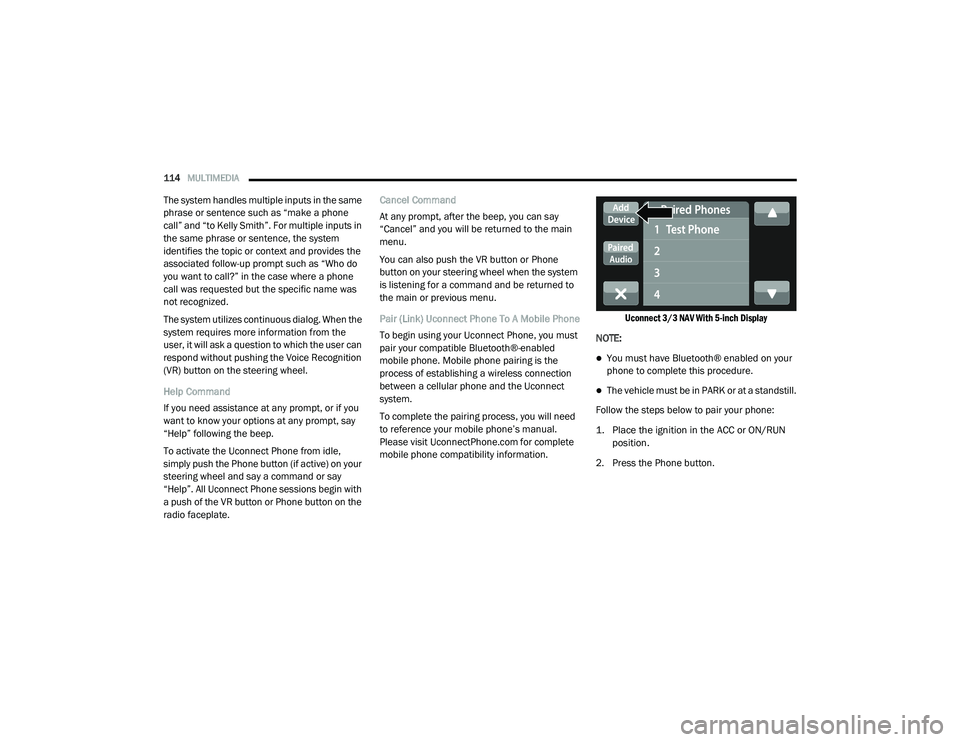
Uconnect 3/3 NAV With 5-inch Display
NOTE:
You must have Bluetooth® enabled on your
phone to complete this procedure.
The vehicle must be in PARK or at a standstill.
Follow the steps below to pair your phone:
1. Place the ignition in the ACC or ON/RUN position.
2. Press the Phone button.
21_VF_OM_EN_USC_t.book Page 114
Page 121 of 288
MULTIMEDIA119
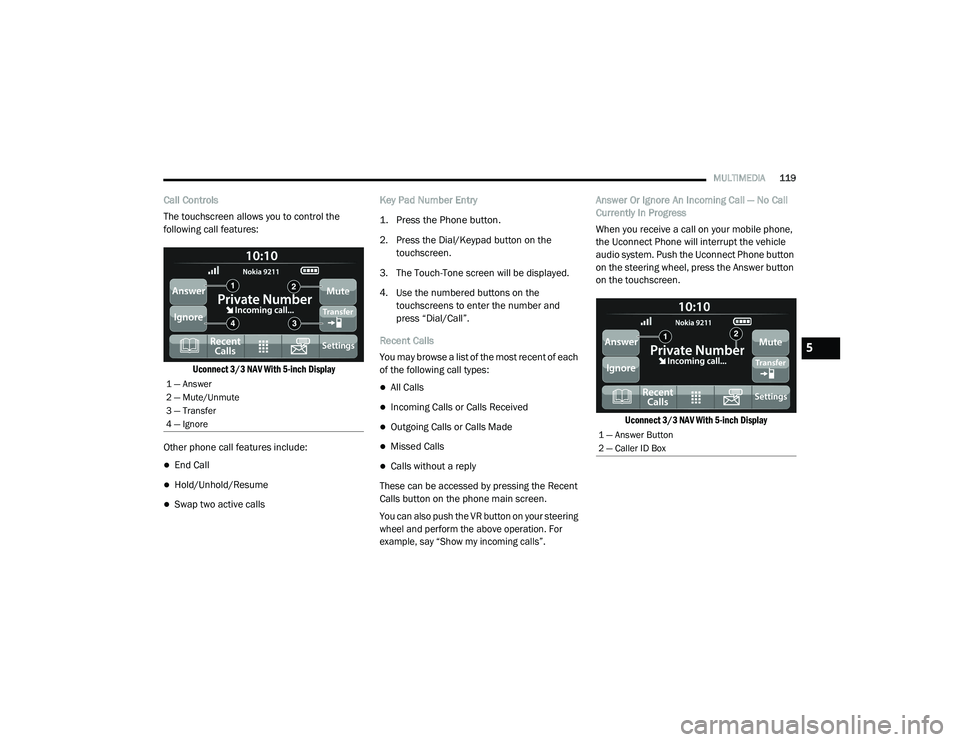
Call Controls
The touchscreen allows you to control the
following call features:
Uconnect 3/3 NAV With 5-inch Display
Other phone call features include:
End Call
Hold/Unhold/Resume
Swap two active calls Key Pad Number Entry
1. Press the Phone button.
2. Press the Dial/Keypad button on the
touchscreen.
3. The Touch-Tone screen will be displayed.
4. Use the numbered buttons on the touchscreens to enter the number and
press “Dial/Call”.
Recent Calls
You may browse a list of the most recent of each
of the following call types:
All Calls
Incoming Calls or Calls Received
Outgoing Calls or Calls Made
Missed Calls
Calls without a reply
These can be accessed by pressing the Recent
Calls button on the phone main screen.
You can also push the VR button on your steering
wheel and perform the above operation. For
example, say “Show my incoming calls”.
Answer Or Ignore An Incoming Call — No Call
Currently In Progress
When you receive a call on your mobile phone,
the Uconnect Phone will interrupt the vehicle
audio system. Push the Uconnect Phone button
on the steering wheel, press the Answer button
on the touchscreen.
Uconnect 3/3 NAV With 5-inch Display
1 — Answer
2 — Mute/Unmute
3 — Transfer
4 — Ignore
1 — Answer Button
2 — Caller ID Box
5
21_VF_OM_EN_USC_t.book Page 119
Page 122 of 288
120MULTIMEDIA
Answer Or Ignore An Incoming Call — Call
Currently In Progress
If a call is currently in progress and you have
another incoming call, you will hear the same
network tones for call waiting that you normally
hear when using your mobile phone. Push the
Uconnect Phone button on the steering wheel,
press the Answer button on the touchscreen, or
press the Caller ID box to place the current call
on hold and answer the incoming call.
NOTE:
Phones that are compatible with the Uconnect
system in the market today do not support
rejecting an incoming call when another call is
in progress. Therefore, the user can only answer
an incoming call or ignore it.
Do Not Disturb
With Do Not Disturb, you can disable
notifications from incoming calls and texts,
allowing you to keep your eyes on the road and
hands on the wheel. For your convenience,
there is a counter display to keep track of your
missed calls and text messages while Do Not
Disturb is active. Do Not Disturb can automatically reply with a
text message, a call, or both when declining an
incoming call and send it to voicemail.
Automatic reply messages can be:
“I am driving right now, I will get back to you
shortly.”
Create a custom auto reply message up to
160 characters.
NOTE:
Only the first 25 characters can be seen on the
touchscreen while typing a custom message.
While in Do Not Disturb, Conference Call can be
selected so you can still place a second call
without being interrupted by incoming calls.
NOTE:
Reply with text message is not compatible
with iPhones®.
Auto reply with text message is only available
on phones that support Bluetooth® Message
Access Profile (MAP). Place/Retrieve A Call From Hold
During an active call, press the Hold or Call On
Hold button on the Phone main screen.
Making A Second Call While Current Call Is In
Progress
You can place a call on hold by pressing the
Hold button on the Phone main screen, then
dial a number from the keypad, recent calls,
SMS Inbox or from the phonebooks.
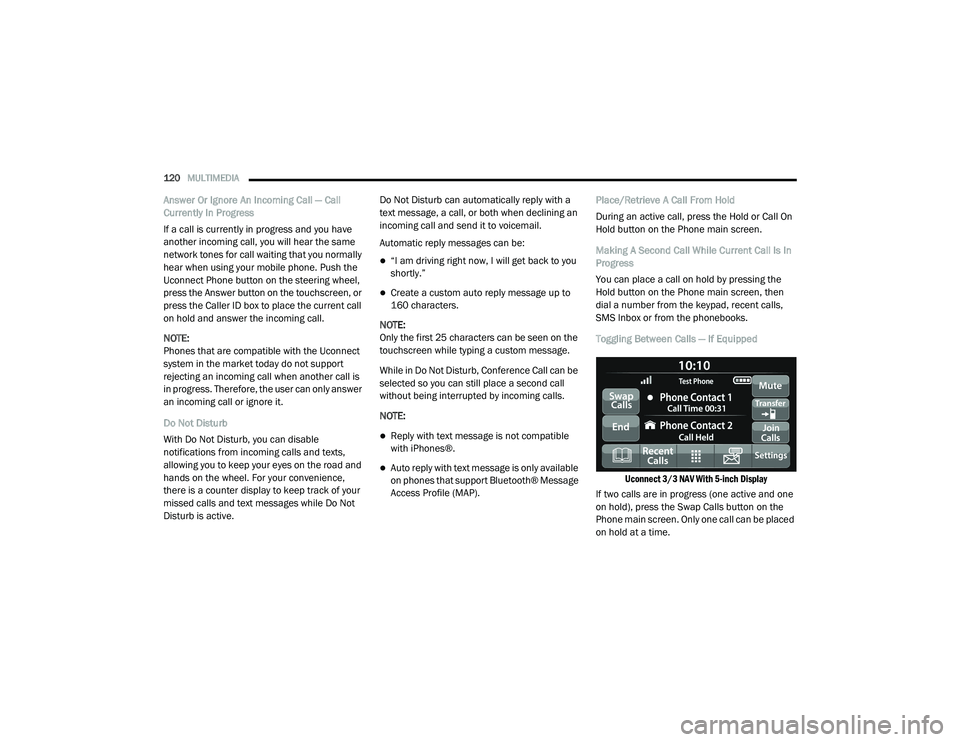
Toggling Between Calls — If Equipped
Uconnect 3/3 NAV With 5-inch Display
If two calls are in progress (one active and one
on hold), press the Swap Calls button on the
Phone main screen. Only one call can be placed
on hold at a time.
21_VF_OM_EN_USC_t.book Page 120