instrument cluster RAM PROMASTER 2023 User Guide
[x] Cancel search | Manufacturer: RAM, Model Year: 2023, Model line: PROMASTER, Model: RAM PROMASTER 2023Pages: 296, PDF Size: 12.31 MB
Page 50 of 296
48GETTING TO KNOW YOUR VEHICLE
WIRELESS CHARGING PAD —
I
F EQUIPPED
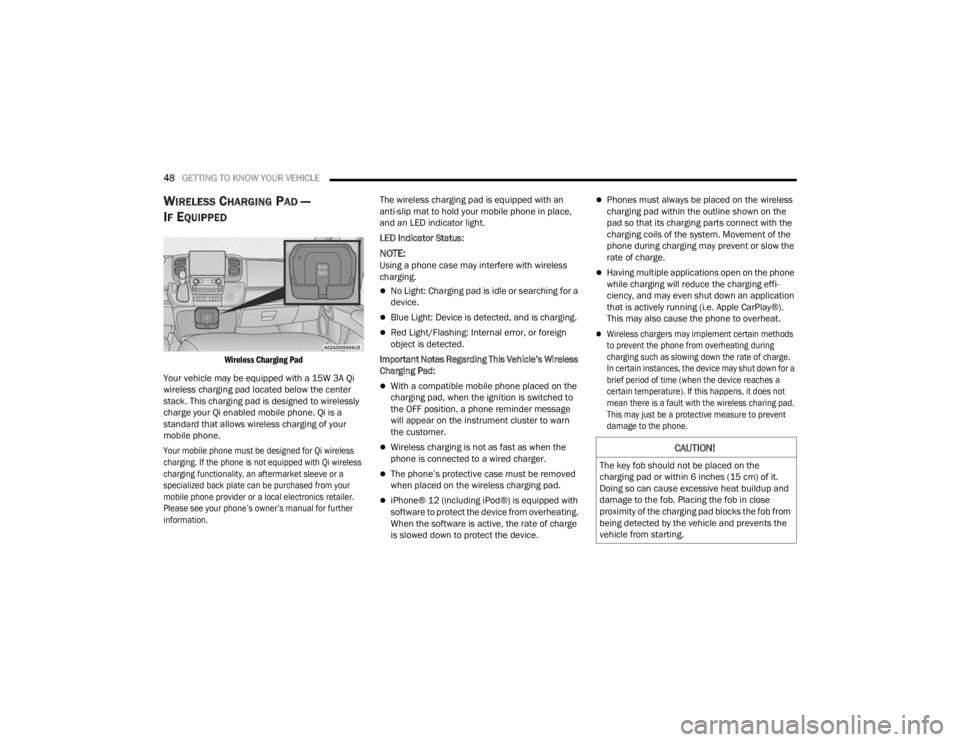
Wireless Charging Pad
Your vehicle may be equipped with a 15W 3A Qi
wireless charging pad located below the center
stack. This charging pad is designed to wirelessly
charge your Qi enabled mobile phone. Qi is a
standard that allows wireless charging of your
mobile phone.
Your mobile phone must be designed for Qi wireless
charging. If the phone is not equipped with Qi wireless
charging functionality, an aftermarket sleeve or a
specialized back plate can be purchased from your
mobile phone provider or a local electronics retailer.
Please see your phone’s owner’s manual for further
information.
The wireless charging pad is equipped with an
anti-slip mat to hold your mobile phone in place,
and an LED indicator light.
LED Indicator Status:
NOTE:Using a phone case may interfere with wireless
charging.
No Light: Charging pad is idle or searching for a
device.
Blue Light: Device is detected, and is charging.
Red Light/Flashing: Internal error, or foreign
object is detected.
Important Notes Regarding This Vehicle’s Wireless
Charging Pad:
With a compatible mobile phone placed on the
charging pad, when the ignition is switched to
the OFF position, a phone reminder message
will appear on the instrument cluster to warn
the customer.
Wireless charging is not as fast as when the
phone is connected to a wired charger.
The phone’s protective case must be removed
when placed on the wireless charging pad.
iPhone® 12 (including iPod®) is equipped with
software to protect the device from overheating.
When the software is active, the rate of charge
is slowed down to protect the device.
Phones must always be placed on the wireless
charging pad within the outline shown on the
pad so that its charging parts connect with the
charging coils of the system. Movement of the
phone during charging may prevent or slow the
rate of charge.
Having multiple applications open on the phone
while charging will reduce the charging effi -
ciency, and may even shut down an application
that is actively running (i.e. Apple CarPlay®).
This may also cause the phone to overheat.
Wireless chargers may implement certain methods
to prevent the phone from overheating during
charging such as slowing down the rate of charge.
In certain instances, the device may shut down for a
brief period of time (when the device reaches a
certain temperature). If this happens, it does not
mean there is a fault with the wireless charing pad.
This may just be a protective measure to prevent
damage to the phone.
CAUTION!
The key fob should not be placed on the
charging pad or within 6 inches (15 cm) of it.
Doing so can cause excessive heat buildup and
damage to the fob. Placing the fob in close
proximity of the charging pad blocks the fob from
being detected by the vehicle and prevents the
vehicle from starting.
23_VF_OM_EN_USC_t.book Page 48
Page 54 of 296
52
GETTING TO KNOW YOUR INSTRUMENT PANEL
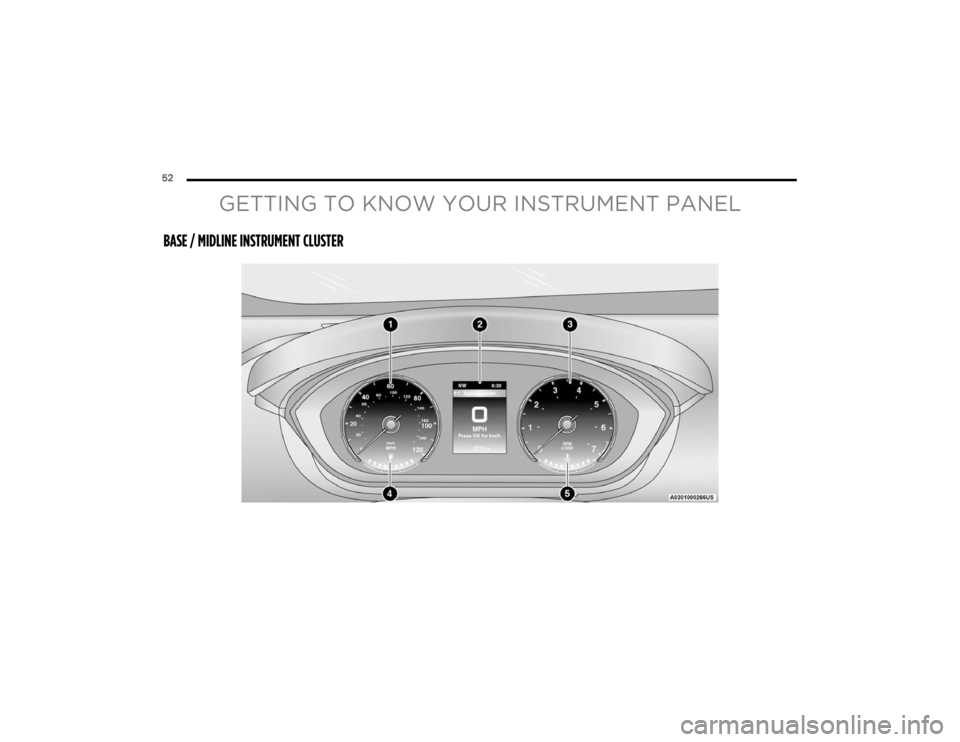
BASE / MIDLINE INSTRUMENT CLUSTER
23_VF_OM_EN_USC_t.book Page 52
Page 55 of 296
GETTING TO KNOW YOUR INSTRUMENT PANEL53
Use this QR code to access your
digital experience.
BASE / MIDLINE INSTRUMENT CLUSTER
D
ESCRIPTIONS
1. Speedometer
Indicates vehicle speed.
2. Instrument Cluster Display
The instrument cluster display features a
driver interactive display Ú page 56.
3. Tachometer
Indicates the engine speed in revolutions
per minute (RPM x 1000).
4. Fuel Gauge
The gauge shows the level of fuel in the
fuel tank when the ignition switch is in the
ON/RUN position.
The fuel pump symbol points to
the side of the vehicle where the
fuel door is located.
5. Temperature Gauge
The temperature gauge shows engine
coolant temperature. Any reading within the
normal range indicates that the engine
cooling system is operating satisfactorily.
The gauge pointer will likely indicate a
higher temperature when driving in hot
weather or up mountain grades. It should
not be allowed to exceed the upper limits of
the normal operating range.
NOTE:The hard telltales will illuminate for a bulb check
when the ignition is first cycled.
WARNING!
A hot engine cooling system is dangerous. You or
others could be badly burned by steam or boiling
coolant. It is recommended to call an authorized
dealer for service if your vehicle overheats
Ú page 233.
CAUTION!
Driving with a hot engine cooling system could
damage your vehicle. If the temperature gauge
reads “H” pull over and stop the vehicle. Idle the
vehicle with the air conditioner turned off until
the pointer drops back into the normal range.
If the pointer remains on the “H”, turn the
engine off immediately and call an authorized
dealer for service.
3
23_VF_OM_EN_USC_t.book Page 53
Page 56 of 296
54GETTING TO KNOW YOUR INSTRUMENT PANEL
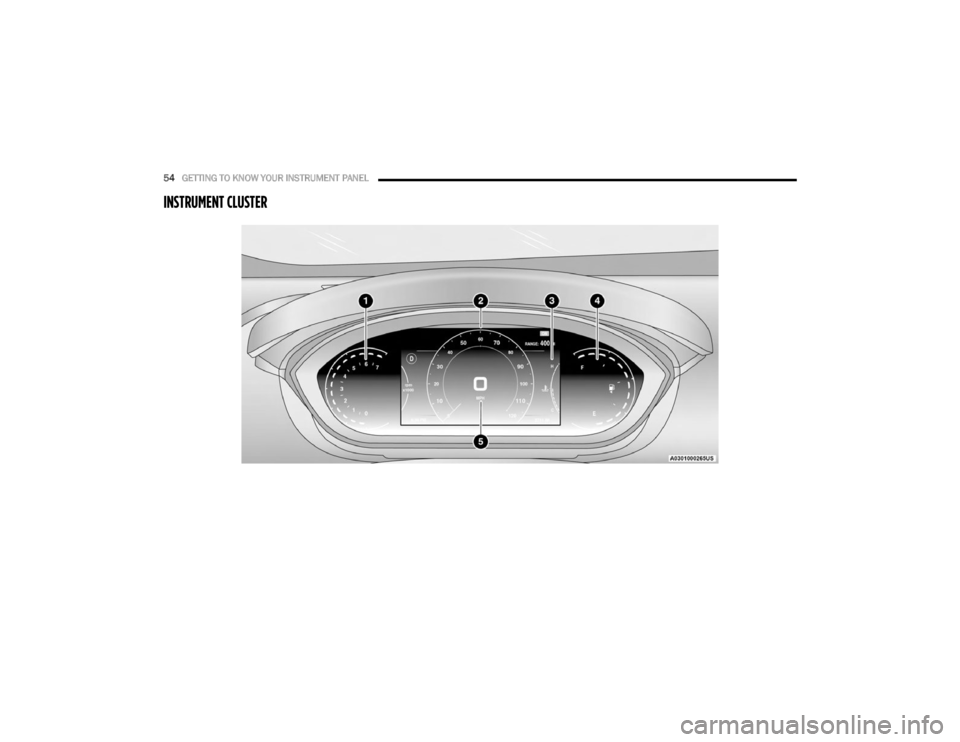
INSTRUMENT CLUSTER
23_VF_OM_EN_USC_t.book Page 54
Page 57 of 296
GETTING TO KNOW YOUR INSTRUMENT PANEL55
INSTRUMENT CLUSTER DESCRIPTIONS
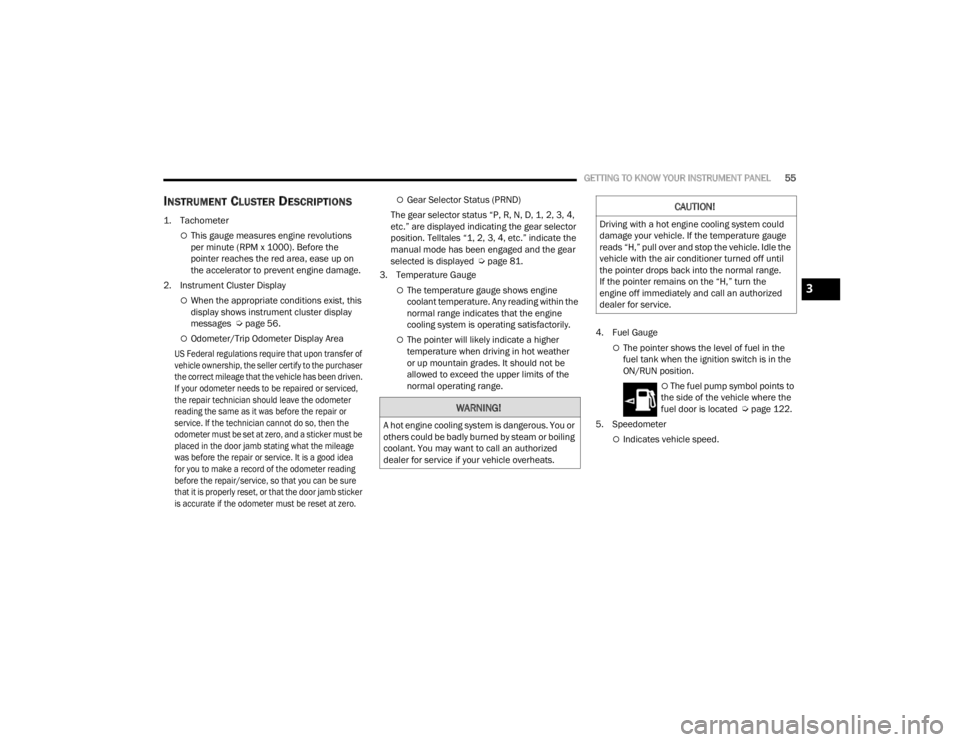
1. Tachometer
This gauge measures engine revolutions
per minute (RPM x 1000). Before the
pointer reaches the red area, ease up on
the accelerator to prevent engine damage.
2. Instrument Cluster Display
When the appropriate conditions exist, this
display shows instrument cluster display
messages Ú page 56.
Odometer/Trip Odometer Display Area
US Federal regulations require that upon transfer of
vehicle ownership, the seller certify to the purchaser
the correct mileage that the vehicle has been driven.
If your odometer needs to be repaired or serviced,
the repair technician should leave the odometer
reading the same as it was before the repair or
service. If the technician cannot do so, then the
odometer must be set at zero, and a sticker must be
placed in the door jamb stating what the mileage
was before the repair or service. It is a good idea
for you to make a record of the odometer reading
before the repair/service, so that you can be sure
that it is properly reset, or that the door jamb sticker
is accurate if the odometer must be reset at zero.
Gear Selector Status (PRND)
The gear selector status “P, R, N, D, 1, 2, 3, 4,
etc.” are displayed indicating the gear selector
position. Telltales “1, 2, 3, 4, etc.” indicate the
manual mode has been engaged and the gear
selected is displayed Ú page 81.
3. Temperature Gauge
The temperature gauge shows engine
coolant temperature. Any reading within the
normal range indicates that the engine
cooling system is operating satisfactorily.
The pointer will likely indicate a higher
temperature when driving in hot weather
or up mountain grades. It should not be
allowed to exceed the upper limits of the
normal operating range. 4. Fuel GaugeThe pointer shows the level of fuel in the
fuel tank when the ignition switch is in the
ON/RUN position.
The fuel pump symbol points to
the side of the vehicle where the
fuel door is located Ú page 122.
5. Speedometer
Indicates vehicle speed.
WARNING!
A hot engine cooling system is dangerous. You or
others could be badly burned by steam or boiling
coolant. You may want to call an authorized
dealer for service if your vehicle overheats.
CAUTION!
Driving with a hot engine cooling system could
damage your vehicle. If the temperature gauge
reads “H,” pull over and stop the vehicle. Idle the
vehicle with the air conditioner turned off until
the pointer drops back into the normal range.
If the pointer remains on the “H,” turn the
engine off immediately and call an authorized
dealer for service.
3
23_VF_OM_EN_USC_t.book Page 55
Page 58 of 296
56GETTING TO KNOW YOUR INSTRUMENT PANEL
INSTRUMENT CLUSTER DISPLAY
Your vehicle will be equipped with an instrument
cluster display, which offers useful information
to the driver. With the ignition in the OFF mode,
opening/closing of a door will activate the display
for viewing, and display the total miles, or
kilometers, in the odometer. Your instrument
cluster display is designed to display important
information about your vehicle’s systems and
features. Using a driver interactive display located
on the instrument panel, your instrument cluster
display can show you how systems are working and
give you warnings when they are not. The steering
wheel mounted controls allow you to scroll through
the main menus and submenus. You can access
the specific information you want and make
selections and adjustments.
LOCATION AND CONTROLS
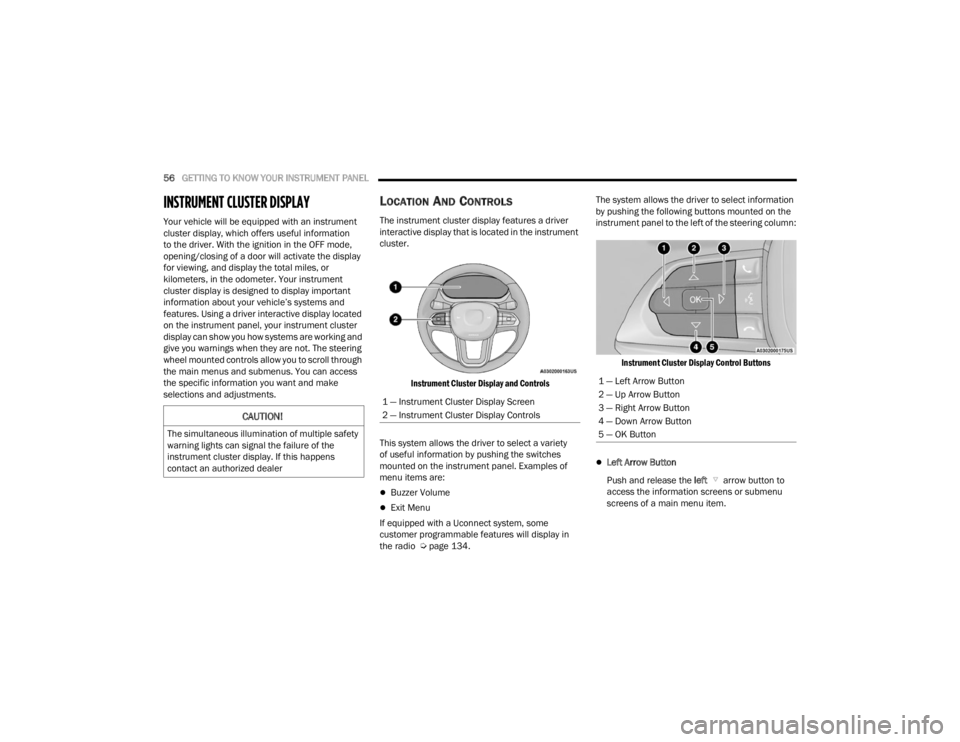
The instrument cluster display features a driver
interactive display that is located in the instrument
cluster.
Instrument Cluster Display and Controls
This system allows the driver to select a variety
of useful information by pushing the switches
mounted on the instrument panel. Examples of
menu items are:
Buzzer Volume
Exit Menu
If equipped with a Uconnect system, some
customer programmable features will display in
the radio Ú page 134. The system allows the driver to select information
by pushing the following buttons mounted on the
instrument panel to the left of the steering column:
Instrument Cluster Display Control Buttons
Left Arrow Button
Push and release the left arrow button to
access the information screens or submenu
screens of a main menu item.
CAUTION!
The simultaneous illumination of multiple safety
warning lights can signal the failure of the
instrument cluster display. If this happens
contact an authorized dealer
1 — Instrument Cluster Display Screen
2 — Instrument Cluster Display Controls
1 — Left Arrow Button
2 — Up Arrow Button
3 — Right Arrow Button
4 — Down Arrow Button
5 — OK Button
23_VF_OM_EN_USC_t.book Page 56
Page 59 of 296
GETTING TO KNOW YOUR INSTRUMENT PANEL57
Up Arrow Button
Push and release the up arrow button to
scroll upward through the main menu and
submenus.
Right Arrow Button
Push and release the right arrow button to
access the information screens or submenu
screens of a main menu item.
Down Arrow Button
Push and release the down arrow button to
scroll downward through the main menu and
submenus.
OK Button
Push the OK button to access/select the infor -
mation screens or submenu screens of a main
menu item. Push and hold the OK button for one
second to reset displayed/selected features
that can be reset.
NOTE:For vehicles with a 3.5 inch instrument cluster
display, press the OK button to toggle between
mph or km/h. For Screen Setup:
OK
button allows user to enter menu and
submenus.
Within each submenu layer, the up and
down arrow buttons will allow the user to
select the item of interest.
Pushing the OK button makes the selection and
a confirmation screen will appear (returning the
user to the first page of the submenu).
Pushing the left arrow button will exit each
submenu layer and return to the main menu.
Pushing the right arrow button will navigate
through each submenu layer.
CHANGE ENGINE OIL — IF EQUIPPED
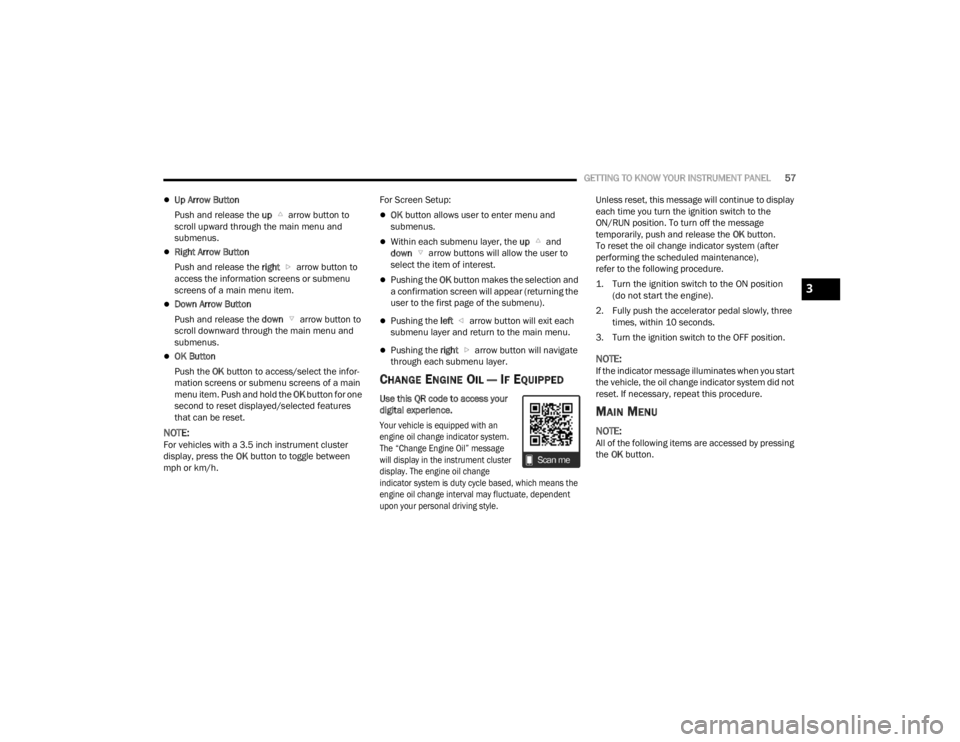
Use this QR code to access your
digital experience.
Your vehicle is equipped with an
engine oil change indicator system.
The “Change Engine Oil” message
will display in the instrument cluster
display. The engine oil change
indicator system is duty cycle based, which means the
engine oil change interval may fluctuate, dependent
upon your personal driving style.
Unless reset, this message will continue to display
each time you turn the ignition switch to the
ON/RUN position. To turn off the message
temporarily, push and release the
OK button.
To reset the oil change indicator system (after
performing the scheduled maintenance),
refer to the following procedure.
1. Turn the ignition switch to the ON position (do not start the engine).
2. Fully push the accelerator pedal slowly, three times, within 10 seconds.
3. Turn the ignition switch to the OFF position.
NOTE:If the indicator message illuminates when you start
the vehicle, the oil change indicator system did not
reset. If necessary, repeat this procedure.
MAIN MENU
NOTE:All of the following items are accessed by pressing
the OK button.
3
23_VF_OM_EN_USC_t.book Page 57
Page 60 of 296

58GETTING TO KNOW YOUR INSTRUMENT PANEL
Home
Speedometer Graph
This uses the round bar graph filling to visually
represent current speed. When a speed control
system is active, the graph also provides visual
cues for the different states of that particular
speed control system.
Trip
Vehicles with 7 Inch Instrument Cluster Display
Access to trip information is available through the
following submenus.
Instant Consumption – Shows the instant
consumption in real time (MPG or L/100 km or
km/L).
Average Consumption – Shows the average
consumption (MPG or L/100 km or km/L) of
Trip A or Trip B since the last reset.
Distance – Shows the total distance (mi or km)
traveled for Trip A or Trip B since the last reset.
Average Speed – Shows the average speed
(MPH or KM/H) of Trip A or Trip B since the last
reset.
Travel Time – Shows the total elapsed time of
travel since Trip A or Trip B has been reset.
Hold the OK button to reset feature information.
NOTE:During the reset the instruction line disappears
and a bar graph appears to indicate the resetting
status; when the bar graph is full the reset is
complete.
Vehicles with 3.5 Inch Instrument Cluster Display
Instant Information – Shows the instantaneous
consumption (MPG or L/100 km or km/L) and
distance to empty (mi or km).
Trip A – Shows the total distance (mi or km) trav -
eled, the total elapsed time of travel, average
consumption (MPG or L/100 km or km/L), and
the average speed (MPH or KM/H).
Trip B – Shows the total distance (mi or km) trav -
eled, the total elapsed time of travel, average
consumption (MPG or L/100 km or km/L), and
the average speed (MPH or KM/H).
Hold the OK button to reset feature information.
Driver Assist
The Driver Assist systems are electronic aids
designed to offer the driver help in certain driving
situations Ú page 86
Vehicle Info
Tire Pressure (TPMS)
TPMS shows the tire status with the numeric
pressure and the unit for each tire, when low
pressure is detected an alert mess and a yellow
telltale will pop-up in the instrument cluster display
Úpage 168.
Oil Temperature
A bar graph in your instrument cluster display will
show your current temperature of your oil.
Battery Voltage
A bar graph in your instrument cluster display will
show your current battery voltage.
Service Information – If Equipped
This feature can provide information on scheduled
maintenance. It will display either “Service
Distance” or “Service Days” Ú page 221.
23_VF_OM_EN_USC_t.book Page 58
Page 61 of 296

GETTING TO KNOW YOUR INSTRUMENT PANEL59
Audio
Push and release the up or down arrow
button until the Audio Menu icon/title is
highlighted in the instrument cluster display.
This menu will display the audio source
information, including the Song name, Artist name,
and audio source with an accompanying graphic.
Phone
This menu displays the current status of a phone
connected to the vehicle via Bluetooth®.
If no phone is connected, the menu will not
function when the OK button is pushed. Otherwise,
if a phone is connected, push the OK button to
enter the menu. The following items will display:
Recent calls: displays a list of the last 10 calls.
SMS reader: displays the last 10 text messages
and if they are read or unread.
Favorite numbers: displays a maximum of 10
favorite numbers.
Navigation
If activated, this menu item will display navigation
status and directions.
Messages
This menu item allows you to display the
information messages/malfunction stored.
The background color of the display varies
according to the priorities of the failure:
Failed Messages with low priority display in
yellow.
Failed Messages with high priority display in red.
SETTINGS
NOTE:Some items may be displayed and managed
through the Uconnect system. This may vary
according to your vehicle equipment. If equipped,
the following menu/submenu items are available
in the cluster display.
NOTE:If equipped, some customer programmable
features will display in the Uconnect system
Ú page 134.
3
23_VF_OM_EN_USC_t.book Page 59
Page 62 of 296

60GETTING TO KNOW YOUR INSTRUMENT PANEL
3.5 Inch Cluster Settings
*If Equipped
DisplayScreen Setup Top Left
Compass
Outside Temp
Date
Time
None
Center
Menu Title
Compass
Outside Temp
Date
Range To Empty
Average Economy
Current Economy
Odometer
Audio Info
None
Top Right
Compass
Outside Temp
Date
Time
None
23_VF_OM_EN_USC_t.book Page 60