radio RENAULT ALASKAN 2017 User Guide
[x] Cancel search | Manufacturer: RENAULT, Model Year: 2017, Model line: ALASKAN, Model: RENAULT ALASKAN 2017Pages: 340, PDF Size: 6.93 MB
Page 163 of 340

Air conditioner filter
The air conditioner system is equipped with an air
conditioner filter which collects and neutralises dirt,
pollen, dust, etc. To make sure that the air condi-
tioner heats, defogs and ventilates efficiently, re-
place the filter in accordance with the specified
maintenance intervals listed in the separate mainte-
nance booklet. To replace the filter, contact an ap- proved dealer or qualified workshop.
The filter should be replaced if the air flow decreases
significantly or if windows fog up easily when oper-
ating the heater or air conditioner. AUDIO OPERATION PRECAUTIONS WARNING
Do not adjust the audio system while driving so
that full attention may be given to vehicle opera-
tion.
Radio
• Radio reception is affected by station signal
strength, distance from radio transmitter, build-
ings, bridges, mountains and other external influ-
ences. Intermittent changes in reception quality
normally are caused by these external influences.
• Using
amobile phone in or near the vehicle may
influence radio reception quality. Compact Disc (CD) player
•
During cold weather or rainy days, the player
may malfunction due to the humidity. If this oc-
curs, remove the CD from CD player and dehu-
midify or ventilate the player completely.
• The player may skip while driving on rough roads. SAA0480
AUDIO SYSTEM (where fitted)
Display screen, heater and air conditioner, and audio system 4-31
Page 169 of 340
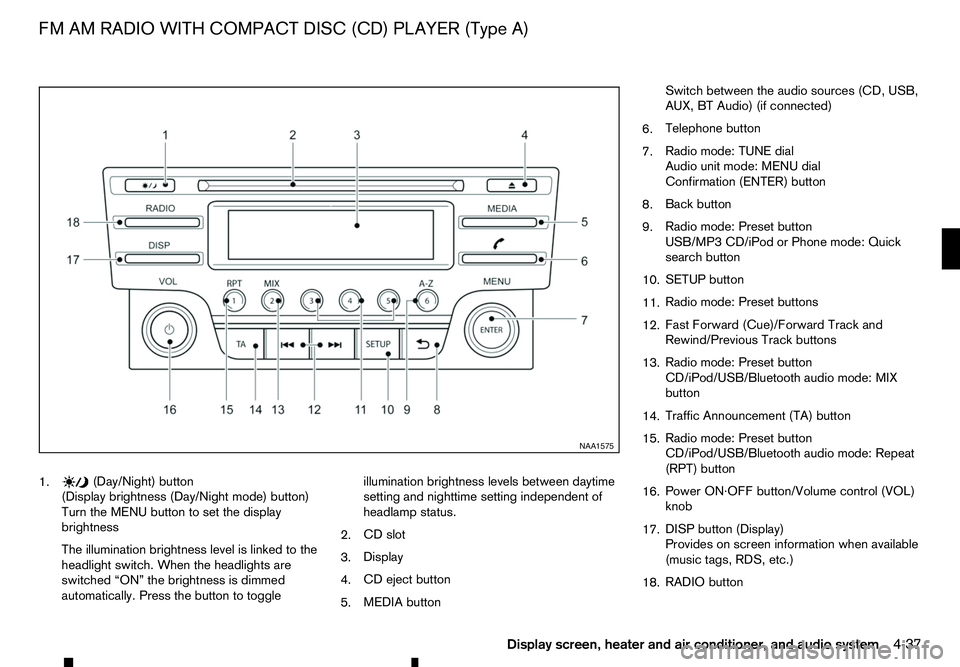
1. (Day/Night) button
(Display brightness (Day/Night mode) button)
Turn the MENU button to set the display
brightness
The illumination brightness level is linked to the
headlight switch. When the headlights are
switched “ON” the brightness is dimmed
automatically. Press the button to toggle illumination brightness levels between daytime
setting and nighttime setting independent of
headlamp status.
2. CD slot
3. Display
4. CD eject button
5. MEDIA button Switch between the audio sources (CD, USB,
AUX, BT Audio) (if connected)
6. Telephone button
7. Radio mode: TUNE dial
Audio unit mode: MENU dial
Confirmation (ENTER) button
8. Back button
9. Radio mode: Preset button
USB/MP3 CD/iPod or Phone mode: Quick
search button
10. SETUP button
11. Radio mode: Preset buttons
12. Fast Forward (Cue)/Forward Track and
Rewind/Previous Track buttons
13. Radio mode: Preset button
CD/iPod/USB/Bluetooth audio mode: MIX
button
14. Traffic Announcement (TA) button
15. Radio mode: Preset button
CD/iPod/USB/Bluetooth audio mode: Repeat
(RPT) button
16. Power ON·OFF button/Volume control (VOL)
knob
17. DISP button (Display)
Provides on screen information when available
(music tags, RDS, etc.)
18. RADIO button NAA1575
FM AM RADIO WITH COMPACT DISC (CD) PLAYER (Type A)
Display screen, heater and air conditioner, and audio system4-37
Page 170 of 340
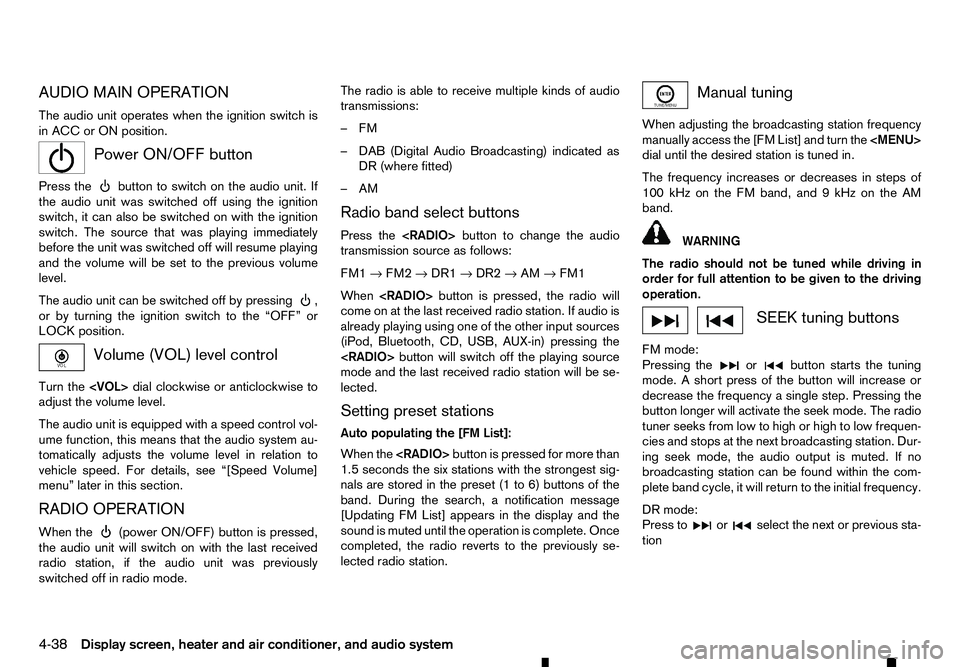
AUDIO MAIN OPERATION
The audio unit operates when the ignition switch is
in ACC or ON position.
m Power
ON/OFF button
Press the button to switch on the audio unit. If
the audio unit was switched off using the ignition
switch, it can also be switched on with the ignition
switch. The source that was playing immediately
before the unit was switched off will resume playing
and the volume will be set to the previous volume
level.
The audio unit can be switched off by pressing ,
or by turning the ignition switch to the “OFF” or
LOCK position. Volume (VOL) level control
Turn the
adjust the volume level.
The audio unit is equipped with aspeed control vol-
ume function, this means that the audio system au-
tomatically adjusts the volume level in relation to
vehicle speed. For details, see “[Speed Volume]
menu” later in this section.
RADIO OPERATION
When the (power ON/OFF) button is pressed,
the audio unit will switch on with the last received
radio station, if the audio unit was previously
switched off in radio mode. The radio is able to receive multiple kinds of audio
transmissions:
–FM
–D
AB (Digital Audio Broadcasting) indicated as
DR (where fitted)
–AM
Radio band select buttons
Press the
transmission source as follows:
FM1 →FM2 →DR1 →DR2 →AM →FM1
When
come on at the last received radio station. If audio is
already playing using one of the other input sources
(iPod, Bluetooth, CD, USB, AUX-in) pressing the
mode and the last received radio station will be se-
lected.
Setting preset stations
Auto populating the [FM List]: When the
1.5 seconds the six stations with the strongest sig-
nals are stored in the preset (1 to 6) buttons of the
band. During the search, anotification message
[Updating FM List] appears in the display and the
sound is muted until the operation is complete. Once
completed, the radio reverts to the previously se-
lected radio station. Manual tuning
When adjusting the broadcasting station frequency
manually access the [FM List] and turn the
Page 171 of 340
![RENAULT ALASKAN 2017 User Guide Preset station buttons
➀➁➂➃➄➅
Pressing apreset button for less than 2seconds will
select the stored radio station.
Pressing apreset button for more than 2seconds
while in the [FM list] or](/img/7/58394/w960_58394-170.png "RENAULT ALASKAN 2017 User Guide Preset station buttons
➀➁➂➃➄➅
Pressing apreset button for less than 2seconds will
select the stored radio station.
Pressing apreset button for more than 2seconds
while in the [FM list] or")
Preset station buttons
➀➁➂➃➄➅
Pressing apreset button for less than 2seconds will
select the stored radio station.
Pressing apreset button for more than 2seconds
while in the [FM list] or radio main screen will cause
the station currently being received to be stored
against that preset button.
• Twelve stations (if available) can be stored in the
FM bands. (Six each for FM1 and FM2)
• Twelve stations (if available) can be stored in the
DR bands. (Six each for DR1 and DR2) (where
fitted)
• Six stations (if available) can be set for the AM
band.
If the battery is disconnected, or if the fuse blows,
the radio memory will be erased. In that case, reset
the desired stations after battery connection or fuse
replacement.
DAB and Radio Data System (RDS)
operation (where fitted)
The RDS is asystem through which encoded digital
information is transmitted by FM radio stations in
addition to the normal FM radio broadcasting. The
RDS provides information services such as station
name, traffic information, or news.
DAB (Digital Audio Broadcast) NOTE
• When in DR mode operation is similar to FM
mode but may slightly differ.
• In some countries or regions, some of these
services may not be available.
Alternative Frequency (AF) mode:
The AF mode operates in the FM (radio) mode.
• The AF mode operates in the FM (radio), AUX or
CD mode (if FM was previously selected in the
radio mode).
• The AF function compares signal strengths and
selects the station with the optimum reception
conditions for the currently tuned-in station.
DAB and RDS functions
Programme Service (PS) function (station name
display function):
–F M:
When an RDS station is tuned in with seek or
manual tuning, the RDS data is received and the
PS name is displayed.
–D R:
When astation is tuned in with seek or manual
tuning, the data is received and the PS name is
displayed.
TA Traffic announcement
This function operates in FM/DR (Radio) mode. This
function will still operate in the background if any
media source is selected (CD, USB or MEDIA
mode). •
Pressing the
The TA indicator is displayed while TA mode is
on.
• When
switched off and the TA indicator will disappear
from the display.
Traffic announcement interrupt function:
When atraffic announcement is received, the an-
nouncement is tuned in and the display shows a
notification message with the radio station name e.g.
[TA: Radio 1].
Once the traffic announcement has finished, the unit
returns to the source that was active before the traf-
fic announcement started.
If
the traffic announcement interrupt mode is can-
celled. The TA mode returns to the standby mode
and the audio unit returns to the previous source.
SETUP BUTTON
To configure [Audio], [Clock], [Radio], and [Lan-
guage] settings, perform the following procedure:
1. Press the
4-39
Page 172 of 340
![RENAULT ALASKAN 2017 User Guide 2. Turn the
<MENU> dial clockwise or anticlock-
wise, the display will appear in the following or-
der:
[Audio] ⇔[Clock] ⇔[Radio] ⇔[Language]
After the desired levels have been set, press either](/img/7/58394/w960_58394-171.png "RENAULT ALASKAN 2017 User Guide 2. Turn the
<MENU> dial clockwise or anticlock-
wise, the display will appear in the following or-
der:
[Audio] ⇔[Clock] ⇔[Radio] ⇔[Language]
After the desired levels have been set, press either")
2. Turn the
Page 173 of 340
![RENAULT ALASKAN 2017 User Guide [Set Time]:
Select [Set Time] then adjust the clock as follows:
1. The hour display will start flashing. Turn the <MENU> dial to adjust the hour.
2. Press the <ENTER>button. The minute display
will st](/img/7/58394/w960_58394-172.png "RENAULT ALASKAN 2017 User Guide [Set Time]:
Select [Set Time] then adjust the clock as follows:
1. The hour display will start flashing. Turn the <MENU> dial to adjust the hour.
2. Press the <ENTER>button. The minute display
will st")
[Set Time]:
Select [Set Time] then adjust the clock as follows:
1. The hour display will start flashing. Turn the
Page 184 of 340
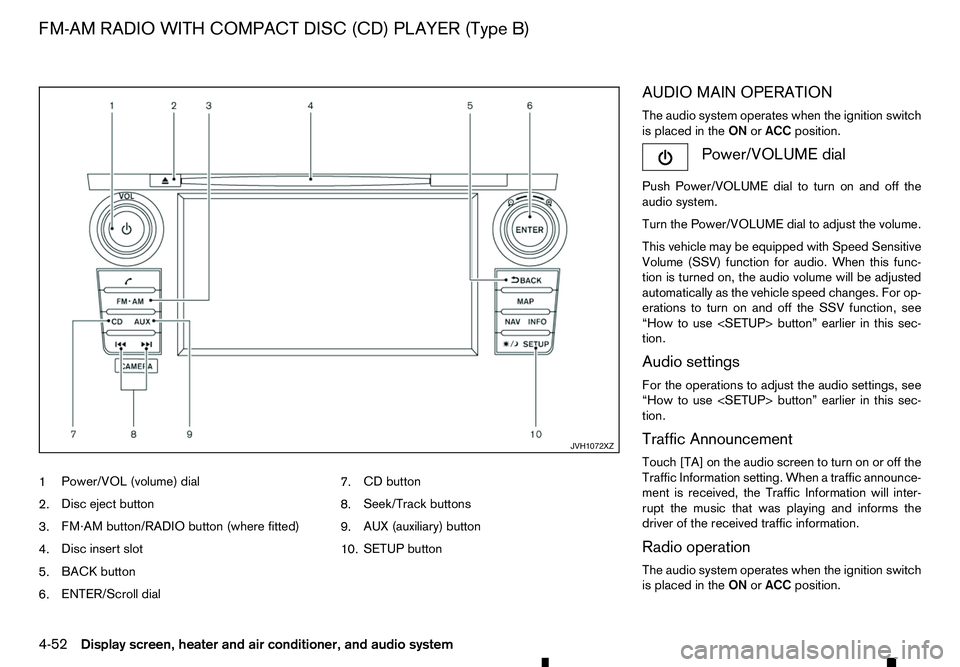
1
Power/VOL (volume) dial
2. Disc eject button
3. FM·AM button/RADIO button (where fitted)
4. Disc insert slot
5. BACK button
6. ENTER/Scroll dial 7.
CD button
8. Seek/Track buttons
9. AUX (auxiliary) button
10. SETUP button AUDIO MAIN OPERATION
The audio system operates when the ignition switch
is placed in the
ONorACC position. Power/VOLUME dial
Push Power/VOLUME dial to turn on and off the
audio system.
Turn the Power/VOLUME dial to adjust the volume.
This vehicle may be equipped with Speed Sensitive
Volume (SSV) function for audio. When this func-
tion is turned on, the audio volume will be adjusted
automatically as the vehicle speed changes. For op-
erations to turn on and off the SSV function, see
“How to use
tion.
Audio settings
For the operations to adjust the audio settings, see
“How to use
tion.
Traffic Announcement
Touch [TA] on the audio screen to turn on or off the
Traffic Information setting. When atraffic announce-
ment is received, the Traffic Information will inter-
rupt the music that was playing and informs the
driver of the received traffic information.
Radio operation
The audio system operates when the ignition switch is placed in the ONorACC position. JVH1072XZ
FM-AM RADIO WITH COMPACT DISC (CD) PLAYER (Type B)
4-52 Display screen, heater and air conditioner, and audio system
Page 185 of 340
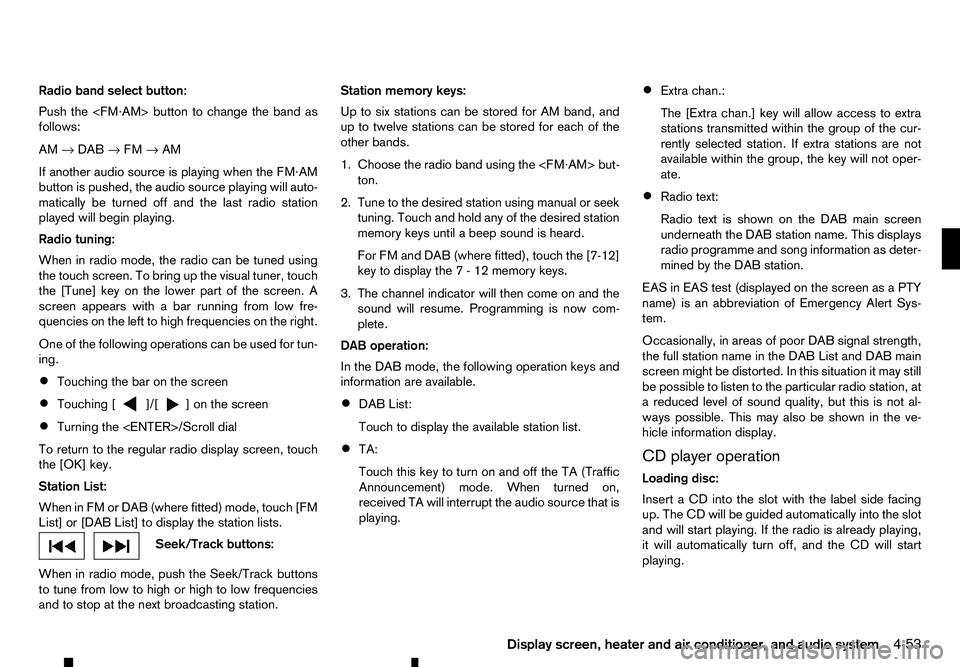
Radio band select button:
Push the
follows:
AM →DAB →FM →AM
If another audio source is playing when the FM·AM
button is pushed, the audio source playing will auto-
matically be turned off and the last radio station
played will begin playing.
Radio tuning:
When in radio mode, the radio can be tuned using
the touch screen. To bring up the visual tuner, touch
the [Tune] key on the lower part of the screen. A
screen appears with abar running from low fre-
quencies on the left to high frequencies on the right.
One of the following operations can be used for tun-
ing.
• Touching the bar on the screen
• Touching [ ]/[ ]o nt
he screen
• Turning the
To return to the regular radio display screen, touch
the [OK] key.
Station List:
When in FM or DAB (where fitted) mode, touch [FM
List] or [DAB List] to display the station lists. Seek/Track buttons:
When in radio mode, push the Seek/Track buttons
to tune from low to high or high to low frequencies
and to stop at the next broadcasting station. Station memory keys:
Up to six stations can be stored for AM band, and
up to twelve stations can be stored for each of the
other bands.
1. Choose the radio band using the
ton.
2. Tune to the desired station using manual or seek tuning. Touch and hold any of the desired station
memory keys until abeep sound is heard.
For FM and DAB (where fitted), touch the [7-12]
key to display the 7-12memory keys.
3. The channel indicator will then come on and the sound will resume. Programming is now com-
plete.
DAB operation:
In the DAB mode, the following operation keys and
information are available.
• DAB List:
Touch to display the available station list.
• TA:
Touch this key to turn on and off the TA (Traffic
Announcement) mode. When turned on,
received TA will interrupt the audio source that is
playing. •
Extra chan.:
The [Extra chan.] key will allow access to extra
stations transmitted within the group of the cur-
rently selected station. If extra stations are not
available within the group, the key will not oper-
ate.
• Radio text:
Radio text is shown on the DAB main screen
underneath the DAB station name. This displays
radio programme and song information as deter-
mined by the DAB station.
EAS in EAS test (displayed on the screen as aPTY
name) is an abbreviation of Emergency Alert Sys-
tem.
Occasionally, in areas of poor DAB signal strength,
the full station name in the DAB List and DAB main
screen might be distorted. In this situation it may still
be possible to listen to the particular radio station, at
ar educed level of sound quality, but this is not al-
ways possible. This may also be shown in the ve-
hicle information display.
CD player operation
Loading disc:
Insert aCDi nto the slot with the label side facing
up. The CD will be guided automatically into the slot
and will start playing. If the radio is already playing,
it will automatically turn off, and the CD will start
playing.
Display screen, heater and air conditioner, and audio system 4-53
Page 186 of 340
CAUTION
Do not force the compact disc into the slot. This
could damage the player. CD button:
When the CD button is pushed with the system off
and the CD loaded, the system will turn on and the
CD will start to play.
When the CD button is pushed with aCDloaded
while the radio playing, the radio will turned off and
the CD will start to play. Seek/Track button:
When the or button is pushed for more
than 1.5 seconds while the CD is being played, the
CD will play while fast forwarding or rewinding.
When the button is released, the CD will return to
normal play speed.
When the or button is pushed for less
than 1.5 seconds while the CD is being played, the
next track or the beginning of the current track on
the CD will be played. Push the button several times
to skip through the tracks on the CD. If the last track
on aCDiss kipped, the first track on the disc will
play. If the last track in afolder of an MP3 CD is
skipped, the first track of the next folder will play.
CD/MP3/WMA display mode:
While listening to aCDoranMP3/WMA CD, cer-
tain text may be displayed (when aCDencoded
with text is being used). Depending on how the CD or MP3/WMA CD is encoded, the text is displayed
listing the artist, album and song title. Operation
keys are also displayed on the screen.
Mix:
Touching the [Mix] key while an CD or MP3 CD is
playing will alternate the random play pattern as fol-
lows:
(CD)
(Normal)
→Mix →(Normal)
(CD with compressed audio files)
(Normal) →Random Folder →Random All →(Nor-
mal)
Repeat:
Touching the [Repeat] key while an CD or MP3 CD
is playing will alternate the repeat play pattern as fol-
lows:
(CD)
(Normal) →Repeat →(Normal)
(CD with compressed audio files)
(Normal) →Repeat Track →Repeat Folder →(Nor-
mal)
Browse:
Touch the [Browse] key to display the titles on the
CD in list format. Touch the title of asong in the list
to begin playing that song. If an MP3 CD is playing,
touching the [Browse] key will also list the folders
on the disc. Touch the [Folder Up] key to view the lists in the upper layer. Follow the procedure for
selecting asong with the touch screen to choose a
folder. Disc eject button:
When the Disc eject button is pushed while aCDis
loaded, the CD will be ejected.
If the CD is not removed within 10 seconds, the CD
will be reloaded.
USB (Universal Serial Bus) Connection
Port WARNING
Do not connect, disconnect or operate the USB
device while driving. Doing so can be adistrac-
tion. If distracted you could lose control of your
vehicle and cause an accident or serious injury.
CAUTION
• Do not force the USB device into the USB
port. Inserting the USB device tilted or up-
side-down into the port may damage the port.
Make sure that the USB device is connected
correctly into the USB port.
• Do not grab the USB port cover (where fitted)
when pulling the USB device out of the port.
This could damage the port and the cover.
• Do not leave the USB cable in
aplace where
it can be pulled unintentionally. Pulling the
cable may damage the port.
4-54 Display screen, heater and air conditioner, and audio system
Page 190 of 340
AUDIO CONTROL
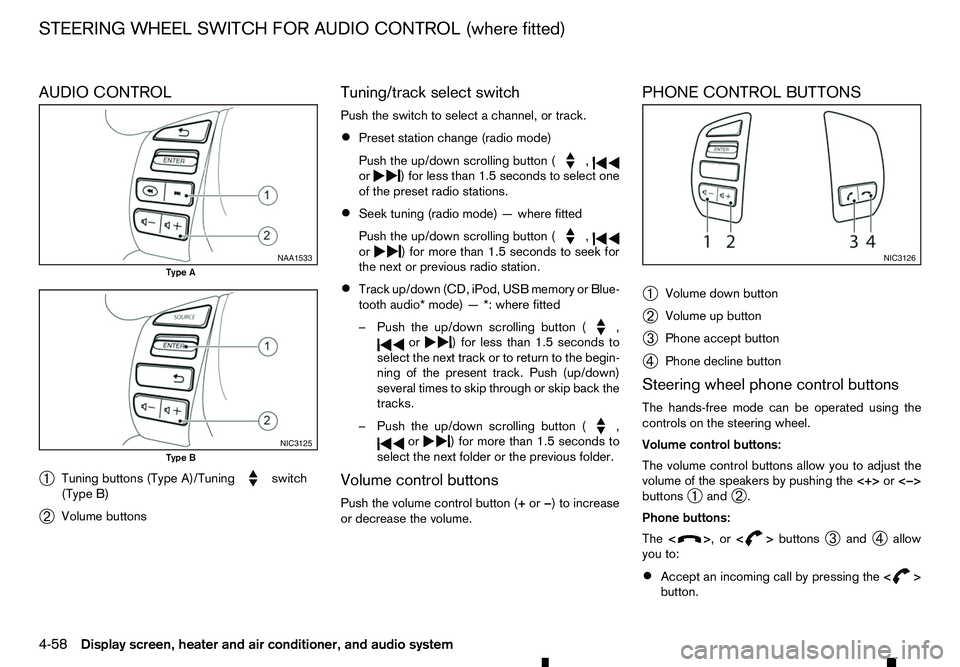
➀ Tuning buttons (Type A)/Tuning switch
(Type B)
➁ Volume buttons Tuning/track select switch
Push the switch to select
achannel, or track.
• Preset station change (radio mode)
Push the up/down scrolling button ( ,
or )f
or less than 1.5 seconds to select one
of the preset radio stations.
• Seek tuning (radio mode)
—where fitted
Push the up/down scrolling button ( ,
or )f
or more than 1.5 seconds to seek for
the next or previous radio station.
• Track up/down (CD, iPod, USB memory or Blue-
tooth audio* mode)
—*:where fitted
–P ush the up/down scrolling button ( ,
or )f
or less than 1.5 seconds to
select the next track or to return to the begin-
ning of the present track. Push (up/down)
several times to skip through or skip back the
tracks.
–P ush the up/down scrolling button ( ,
or )f
or more than 1.5 seconds to
select the next folder or the previous folder.
Volume control buttons
Push the volume control button (+ or−)toi ncrease
or decrease the volume. PHONE CONTROL BUTTONS
➀
Volume down button
➁ Volume up button
➂ Phone accept button
➃ Phone decline button
Steering wheel phone control buttons
The hands-free mode can be operated using the
controls on the steering wheel.
Volume control buttons:
The volume control buttons allow you to adjust the
volume of the speakers by pushing the <+>or<−>
buttons ➀and
➁.
Phone buttons:
The < > ,or<
> buttons
➂and
➃allow
you to:
• Accept an incoming call by pressing the
< >
button. NAA1533
Type A
NIC3125
Type B NIC3126
STEERING WHEEL SWITCH FOR AUDIO CONTROL (where fitted)
4-58 Display screen, heater and air conditioner, and audio system