key RENAULT ALASKAN 2017 Owner's Guide
[x] Cancel search | Manufacturer: RENAULT, Model Year: 2017, Model line: ALASKAN, Model: RENAULT ALASKAN 2017Pages: 340, PDF Size: 6.93 MB
Page 119 of 340
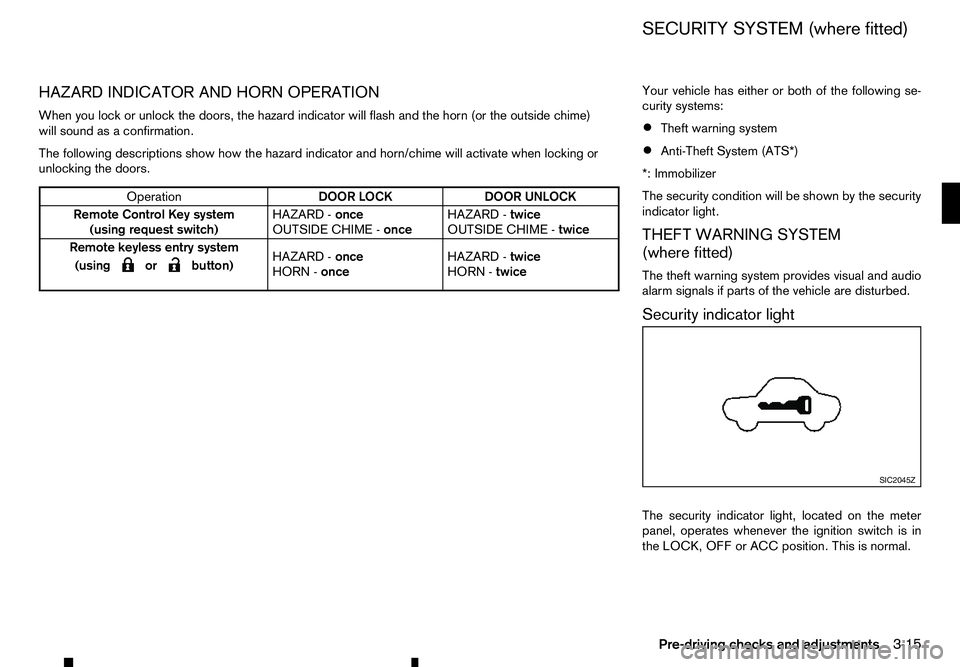
HAZARD INDICATOR AND HORN OPERATION
When you lock or unlock the doors, the hazard indicator will flash and the horn (or the outside chime) will sound as aconfirmation.
The following descriptions show how the hazard indicator and horn/chime will activate when locking or
unlocking the doors. Your vehicle has either or both of the following se-
curity systems:
• Theft warning system
• Anti-Theft System (ATS*)
*: Immobilizer
The security condition will be shown by the security
indicator light.
THEFT WARNING SYSTEM
(where fitted)
The theft warning system provides visual and audio
alarm signals if parts of the vehicle are disturbed.
Security indicator light
The security indicator light, located on the meter
panel, operates whenever the ignition switch is in
the LOCK, OFF or ACC position. This is normal. Operation
DOOR LOCK
DOOR UNLOCK
Remote Control Key system (using request switch) HAZARD -
once
OUTSIDE CHIME - onceHAZARD -
twice
OUTSIDE CHIME - twice
Remote keyless entry system
(using
m orm button)
HAZARD
-
once
HORN - once HAZARD -
twice
HORN - twice SIC2045Z
SECURITY SYSTEM (where fitted)
Pre-driving checks and adjustments 3-15
Page 120 of 340
How to activate system (where fitted)
1. Close all windows.
The system can be armed even if the windows
are open.
2. Place the ignition switch in the OFF position.
3. Carry the integrated key fob or the Remote Con- trol Key with you and get out of the vehicle.
4. Close and lock all doors. The doors can be locked with the integrated key fob, the Remote
Control Key, door handle request switch (where
fitted), power door lock switch or mechanical
key.
5. Confirm that the security indicator light comes on. The security indicator light glows for about
30 seconds and then blinks. The system is now
activated. If, during this 30 second time period,
the door is unlocked or the ignition switch is
placed in the ACC or ON position, the system
will not activate.
Even when the driver and/or passengers are in
the vehicle, the system will activate with all doors
locked with the ignition switch in the LOCK posi-
tion. When pushing the ignition switch to the ACC
or ON position, the system will be released.
Theft warning system operation
The vehicle security system will give the following
alarm:
• The hazard indicator blinks and the horn sounds
intermittently. •
The alarm automatically turns off after approxi-
mately 30 seconds. However, the alarm reacti-
vates if the vehicle is tampered with again.
The alarm is activated by:
• Unlocking the door without using the integrated
key fob, the Remote Control Key, the door handle
request switch (where fitted) or the mechanical
key. (Even if the door is opened by releasing the
door inside lock knob, the alarm will activate.)
How to stop alarm
• The alarm will stop only by unlocking
adoor by
pushing the UNLOCK button on the Remote
Control Key.
• The alarm will not stop if the ignition switch is
placed in the ACC or ON position.
ANTI-THEFT SYSTEM (ATS)
The Anti-Theft System (ATS) will not allow the en-
gine to start without the use of the registered ATS
key.
If the engine does not start using the registered ATS
key, it may be due to interference caused by:
• Another ATS key.
• Automated toll road device.
• Automated payment device.
• Other devices that transmit similar signals. Start the engine using the following procedure:
1. Remove any items that may be causing the inter-
ference away from the ATS key.
2. Leave the ignition switch in the ON position for approximately 5seconds.
3. Place the ignition switch in the OFF or LOCK position, and wait approximately 10 seconds.
4. Repeat steps 2and 3again.
5. Start the engine.
6. Repeat the steps above until all possible interfer- ences are eliminated.
If this procedure allows the engine to start,
RENAULT recommends placing the registered ATS
key separate from other devices to avoid interfer-
ence.
If ATS is malfunctioning, this light will remain on
while the ignition switch is in the ON position.
If the light remains on and/or the engine does
not start, contact an approved dealer or qualified
workshop for ATS service as soon as possible.
Be sure to bring all Remote Control Keys that you
have when visiting an approved dealer for ser-
vice.
3-16 Pre-driving checks and adjustments
Page 123 of 340
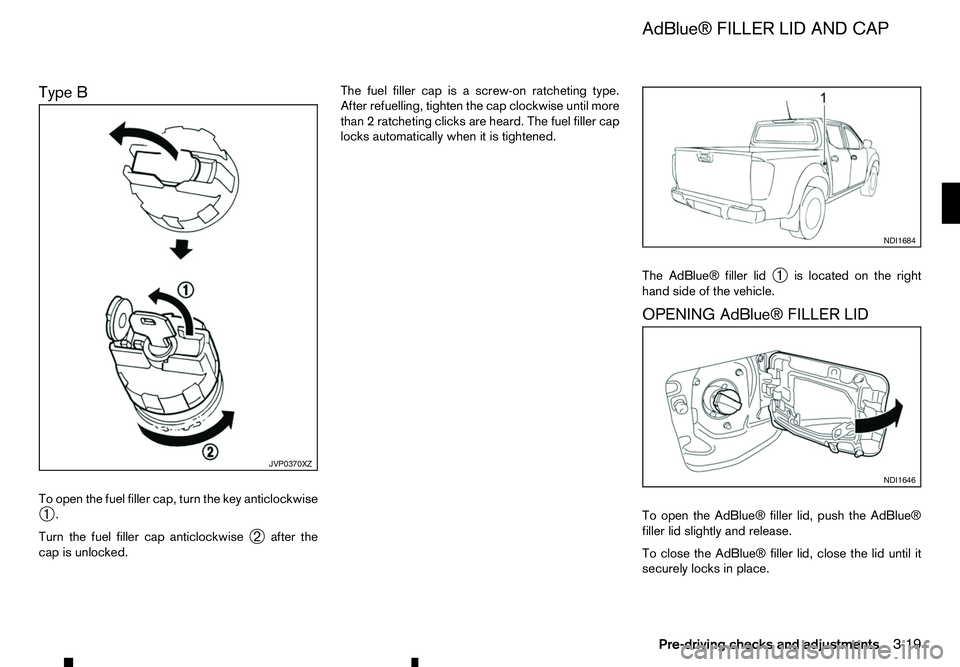
Type B
To open the fuel filler cap, turn the key anticlockwise
➀ .
Turn the fuel filler cap anticlockwise ➁after the
cap is unlocked. The fuel filler cap is
ascrew-on ratcheting type.
After refuelling, tighten the cap clockwise until more
than 2ratcheting clicks are heard. The fuel filler cap
locks automatically when it is tightened.
The AdBlue® filler lid➀is located on the right
hand side of the vehicle.
OPENING AdBlue® FILLER LID
To open the AdBlue® filler lid, push the AdBlue®
filler lid slightly and release.
To close the AdBlue® filler lid, close the lid until it
securely locks in place. JVP0370XZ NDI1684
NDI1646
AdBlue® FILLER LID AND CAP
Pre-driving checks and adjustments 3-19
Page 124 of 340
LOCKING AdBlue® FILLER LID
The AdBlue® filler lid is locked and unlocked using
the Keyless Entry System, see “Remote Control Key
system (where fitted)” earlier in this section for addi-
tional details.
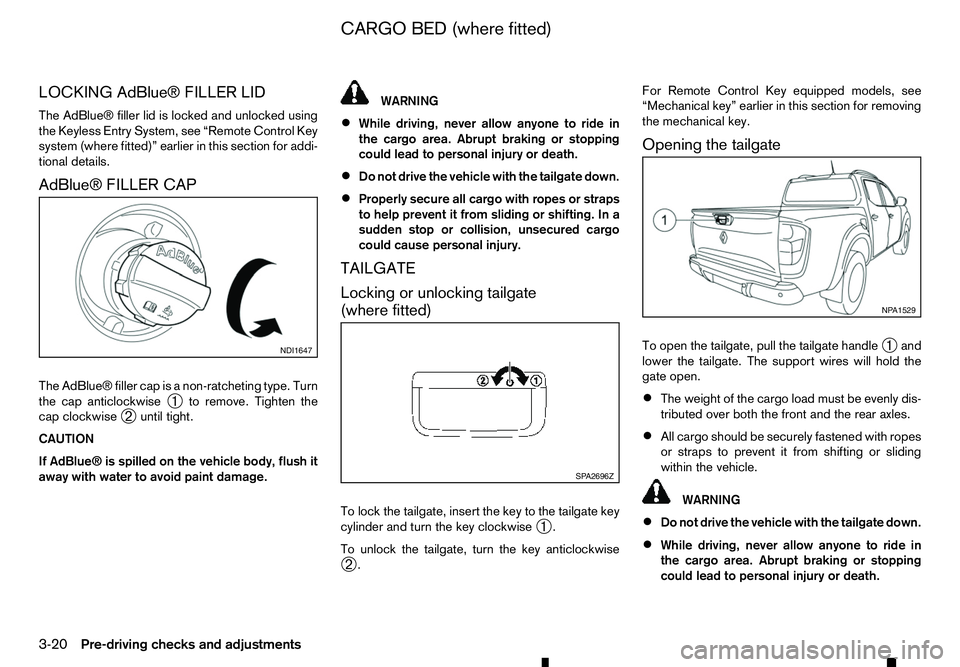
AdBlue® FILLER CAP
The AdBlue® filler cap is anon-ratcheting type. Turn
the cap anticlockwise ➀to remove. Tighten the
cap clockwise ➁until tight.
CAUTION
If AdBlue® is spilled on the vehicle body, flush it
away with water to avoid paint damage. WARNING
• While driving, never allow anyone to ride in
the cargo area. Abrupt braking or stopping
could lead to personal injury or death.
• Do not drive the vehicle with the tailgate down.
• Properly secure all cargo with ropes or straps
to help prevent it from sliding or shifting. In a
sudden stop or collision, unsecured cargo
could cause personal injury.
TAILGATE
Locking or unlocking tailgate
(where fitted)
To lock the tailgate, insert the key to the tailgate key
cylinder and turn the key clockwise ➀.
To unlock the tailgate, turn the key anticlockwise ➁ . For Remote Control Key equipped models, see
“Mechanical key” earlier in this section for removing
the mechanical key.
Opening the tailgate
To open the tailgate, pull the tailgate handle ➀and
lower the tailgate. The support wires will hold the
gate open.
• The weight of the cargo load must be evenly dis-
tributed over both the front and the rear axles.
• All cargo should be securely fastened with ropes
or straps to prevent it from shifting or sliding
within the vehicle. WARNING
• Do not drive the vehicle with the tailgate down.
• While driving, never allow anyone to ride in
the cargo area. Abrupt braking or stopping
could lead to personal injury or death. NDI1647
SP A2696Z NP A1529
CARGO BED (where fitted)
3-20 Pre-driving checks and adjustments
Page 135 of 340
11.
HOW TO USE TOUCH SCREEN
DISPLAY WARNING
• The glass display screen may break if it is hit
with ahard or sharp object. If the glass screen
breaks, do not touch it. Doing so could result
in an injury.
• To clean the display, never use
arough cloth,
alcohol, benzine, thinner or any kind of sol-
vent or paper towel with achemical cleaning
agent. They will scratch or deteriorate the
panel.
• Do not splash any liquid such as water or car
fragrance on the display. Contact with liquid
will cause the system to malfunction.
To help ensure safe driving, some functions cannot
be operated while driving.
The on-screen functions that are not available while
driving will be “greyed out” or muted.
Park the vehicle in asafe location and then operate
the navigation system.
CAUTION
• ALWAYS give your full attention to driving.
• Avoid using vehicle features that could dis-
tract you. If distracted, you could lose control
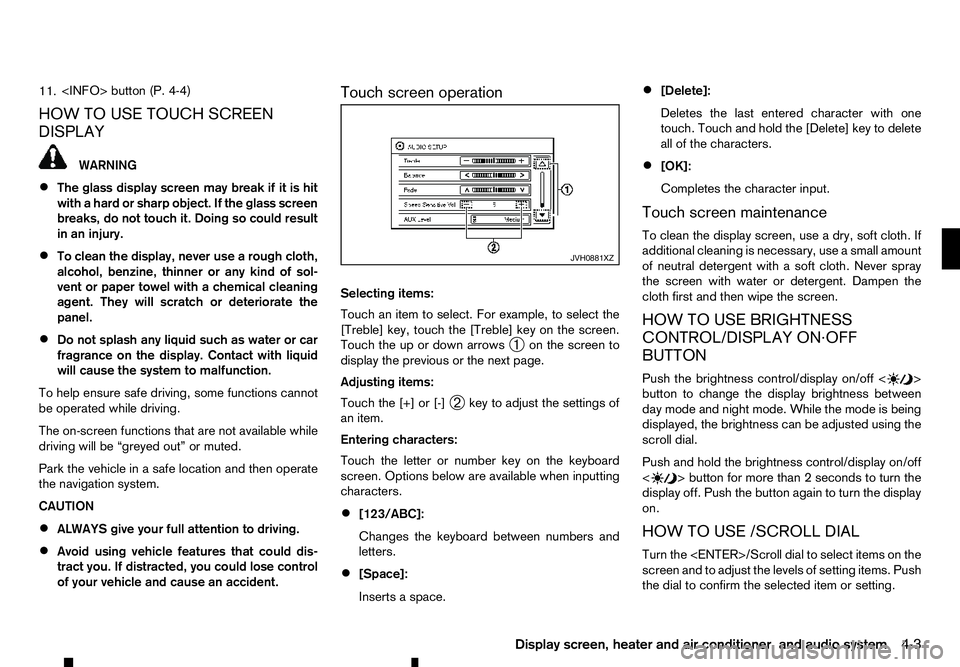
of your vehicle and cause an accident. Touch screen operation
Selecting items:
Touch an item to select. For example, to select the
[Treble] key, touch the [Treble] key on the screen.
Touch the up or down arrows
➀on the screen to
display the previous or the next page.
Adjusting items:
Touch the [+] or [-] ➁key to adjust the settings of
an item.
Entering characters:
Touch the letter or number key on the keyboard
screen. Options below are available when inputting
characters.
• [123/ABC]:
Changes the keyboard between numbers and
letters.
• [Space]:
Inserts
aspace. •
[Delete]:
Deletes the last entered character with one
touch. Touch and hold the [Delete] key to delete
all of the characters.
• [OK]:
Completes the character input.
Touch screen maintenance
To clean the display screen, use adry, soft cloth. If
additional cleaning is necessary, use asmall amount
of neutral detergent with asoft cloth. Never spray
the screen with water or detergent. Dampen the
cloth first and then wipe the screen.
HOW TO USE BRIGHTNESS
CONTROL/DISPLAY ON·OFF
BUTTON
Push the brightness control/display on/off < >
button to change the display brightness between
day mode and night mode. While the mode is being
displayed, the brightness can be adjusted using the
scroll dial.
Push and hold the brightness control/display on/off
< >b
utton for more than
2seconds to turn the
display off. Push the button again to turn the display
on.
HOW TO USE /SCROLL DIAL
Turn the
screen and to adjust the levels of setting items. Push
the dial to confirm the selected item or setting. JVH0881XZ
Display screen, heater and air conditioner, and audio system
4-3
Page 137 of 340
![RENAULT ALASKAN 2017 Owners Guide –[
Software Licenses]
• [Navigation]
• [Telephone
&Bluetooth]
• [Traffic Messages]
• [Radio]
[Audio] settings
Audio settings can be adjusted from the audio setup
screen.
This item is availab](/img/7/58394/w960_58394-136.png "RENAULT ALASKAN 2017 Owners Guide –[
Software Licenses]
• [Navigation]
• [Telephone
&Bluetooth]
• [Traffic Messages]
• [Radio]
[Audio] settings
Audio settings can be adjusted from the audio setup
screen.
This item is availab")
–[
Software Licenses]
• [Navigation]
• [Telephone
&Bluetooth]
• [Traffic Messages]
• [Radio]
[Audio] settings
Audio settings can be adjusted from the audio setup
screen.
This item is available only when the audio system is
turned on.
1. Push the
2. Touch the [Audio] key.
3. Select the item you wish to adjust.
[Bass]/[Treble]/[Balance]/[Fade]:
Touch the adjustment bar next to the corresponding
keys on the display to adjust the tone quality and
speaker balance.
The levels of these features can also be adjusted
with the
[Speed Sensitive Vol.]:
Speed sensitive volume function increases the vol-
ume of the audio system as the speed of the vehicle
increases. Choose the desired effect level from 0
(OFF) to 5. The higher the setting, the more the vol-
ume increases in relation to vehicle speed. [AUX Level]:
This feature controls the volume level of incoming
sound when an auxiliary device is connected to the
system. Select the level from [Quiet], [Medium], and
[Loud].
[System settings]
Various system settings can be adjusted from the
system settings.
1. Push the
2. Select the [System] key.
3. Select the item you wish to adjust.
[Display]:
Select the corresponding keys to adjust the set-
tings.
• [Brightness]:
Adjusts the brightness of the display.
• [Display Mode]:
Adjusts to fit the level of lighting in the vehicle.
Touch the [Display Mode] key to cycle through
options of the mode ([Day], [Night] and [Auto]).
• [Scroll Direction]:
Adjusts the direction of the menu scroll. Choose
either the up arrow or down arrow. [Clock]:
Select the corresponding keys to adjust the set-
tings.
• [Time Format]:
The time format setting can be selected from 12
hour and 24 hour formats.
• [Date Format]:
The day, month and year display can be selected
from five formats.
• [Clock Mode]:
Select the clock mode from [Manual], [Time
Zone] and [Auto].
When [Manual] is selected, you can set the clock
mode manually with the [Set Clock Manually]
key.
Select [Auto] to automatically maintain the time
using GPS.
• [Set Clock Manually]:
Mode (AM/PM) (where fitted), Hours, Minutes,
Day, Month and Year can be set manually if
“Manual” is selected in the Clock Mode setting.
• [Daylight Savings Time]:
Turns the daylight savings time ON or OFF.
• [Time Zone]:
Select the applicable time zone from the list.
Display screen, heater and air conditioner, and audio system 4-5
Page 138 of 340
![RENAULT ALASKAN 2017 Owners Guide [Language]:
Select
alanguage to be displayed on the screen.
[Camera Settings] (where fitted):
See “How to adjust the screen” later in this section
for details.
[Temperature Unit]:
Select the tempe](/img/7/58394/w960_58394-137.png "RENAULT ALASKAN 2017 Owners Guide [Language]:
Select
alanguage to be displayed on the screen.
[Camera Settings] (where fitted):
See “How to adjust the screen” later in this section
for details.
[Temperature Unit]:
Select the tempe")
[Language]:
Select
alanguage to be displayed on the screen.
[Camera Settings] (where fitted):
See “How to adjust the screen” later in this section
for details.
[Temperature Unit]:
Select the temperature unit from °C and °F.
[Touch Click]:
Turns the touch screen click feature on or off. When
turned on, aclick sound will be heard every time a
key on the screen is touched.
[Beep Tones]:
Turns the beep tones feature on or off. When turned
on, abeep sound will be heard as apop-up mes-
sage appears on the screen.
[Factory Settings]:
Select this key to return all settings to default.
[Software Licenses] (where fitted):
Select this key to view software licence information.
[System Software Version:]:
This key shows the current software version num-
ber.
[Navigation] settings
Navigation settings can be changed. See Naviga-
tion System Owner’s Manual for details. [Telephone
&Bluetooth] settings
Telephone &Bluetooth settings can be changed.
See “Bluetooth® Hands-Free Phone System (with
navigation system)” later in this section for details.
[Traffic Messages] settings
Traffic information guidance, announcement and
warning settings can be adjusted.
Traffic Announcement (TA) information can be re-
ceived only in areas where the service is available.
[Radio] settings
[RDS Reg]:
RDS messages can be turned ON or OFF. When
this item is turned ON, the received RDS informa-
tion will be shown on the audio screen.
RDS information can be received only in areas
where the service is available.
[Traffic Announcement]:
Traffic Announcement (TA) related messages can
be turned ON or OFF. When this item is turned ON,
the received traffic announcement information will
be tuned to automatically when received.
Traffic Announcement (TA) information can be re-
ceived only in areas where the service is available.
4-6 Display screen, heater and air conditioner, and audio system
Page 142 of 340
![RENAULT ALASKAN 2017 Owners Guide HOW TO ADJUST THE SCREEN
Adjusting screen (for models with
navigation system)
1. Push the <SETUP> button.
2. Select the [System] key.
3. Select the [Camera Settings] key.
4. Select the item you wish t](/img/7/58394/w960_58394-141.png "RENAULT ALASKAN 2017 Owners Guide HOW TO ADJUST THE SCREEN
Adjusting screen (for models with
navigation system)
1. Push the <SETUP> button.
2. Select the [System] key.
3. Select the [Camera Settings] key.
4. Select the item you wish t")
HOW TO ADJUST THE SCREEN
Adjusting screen (for models with
navigation system)
1. Push the
2. Select the [System] key.
3. Select the [Camera Settings] key.
4. Select the item you wish to adjust.
• [Display Mode]:
Adjusts to fit the level of lighting in the vehicle.
Touch the [Display Mode] key to cycle through
options of the mode ([Day], [Night] and [Auto]).
• [Brightness]:
Adjusts the brightness of the display.
• [Contrast]:
Adjusts the level of contrast.
• [Colour]:
Adjusts the level of the colour.
When [Brightness], [Contrast], or [Colour] are se-
lected the system will change to the camera view to
modify the settings using the
navigation system)
1. Push the
➁.
2. Turn the
the [Brightness] or the [Contrast] key.
3. Push the
4. Adjust the level using the
ton ➁to apply the adjustment.
NOTE
Do not adjust the Brightness or Contrast of the
reversing camera while the vehicle is moving.
OPERATING TIPS
• When the shift lever is shifted to the
R(Reverse)
position, the monitor screen automatically
changes to the reversing camera mode. How-
ever, the radio can be heard. •
It may take some time until the reversing camera
or the normal screen is displayed after the shift
lever has been shifted to
R(Reverse) from an-
other position or to another position from R(Re-
verse). Objects may be distorted momentarily
until the reversing camera screen is displayed
completely.
• When the temperature is extremely high or low,
the screen may not clearly display objects. This
is not
amalfunction.
• When strong light directly enters the camera,
objects may not be displayed clearly. This is not
am
alfunction.
• Vertical lines may be seen in objects on the
screen. This is due to strong reflected light from
the bumper. This is not
amalfunction.
• The screen may flicker under fluorescent light.
This is not
amalfunction.
• The colours of objects displayed by the revers-
ing camera may differ somewhat from those of
the actual object.
• Objects on the monitor may not be clear in a
dark place or at night. This is not
amalfunction.
• If dirt, rain or snow attaches to the camera, the
reversing camera may not clearly display objects.
Clean the camera. JVH0653XZ
4-10 Display screen, heater and air conditioner, and audio system
Page 178 of 340
The following operations are identical to the audio
main operation of the Compact Disc (CD) opera-
tion. For details, see “Compact Disc (CD)
operation” earlier in this section.
• List view
• ,
•
MIX (Random play)
• RPT (Repeat track)
• Folder browsing button
➄
While atrack with recorded music information tags
(ID3–tags) is being played, the title of the played
track is displayed. If the tags are not provided then
an otification message is displayed.
When the ➄
button is pressed repeatedly,
further information about the track can be displayed
along with the track title as follows:
Track time →Artist name →Album title →Track
time
Track details:
Al ong press on the ➄
button, the screen
displays the song title, artist name, and album title.
After afew seconds it returns to the main display or
press ➄
briefly. BLUETOOTH® OPERATION
Regulatory information
m Bluetooth®
is
at rademark
owned by Bluetooth SIG, Inc.
CE statement
Hereby Yanfeng Visteon Automotive Electronics
Co., Ltd. declares that this system is in compliance
with the essential requirements and other relevant
provisions of Directive 1999/5/EC.
m NOTE
The
audio system only supports Bluetooth® de-
vices with AVRCP (Audio Video Remote Control
Profile) version 1.4 or earlier. BLUETOOTH® settings
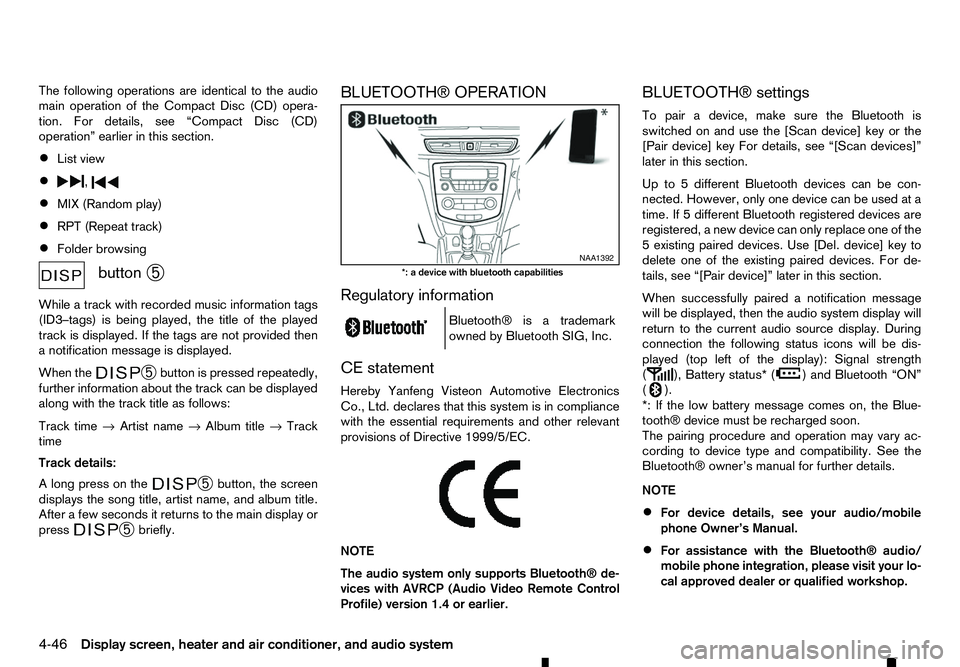
To pair
adevice, make sure the Bluetooth is
switched on and use the [Scan device] key or the
[Pair device] key For details, see “[Scan devices]”
later in this section.
Up to 5different Bluetooth devices can be con-
nected. However, only one device can be used at a
time. If 5different Bluetooth registered devices are
registered, anew device can only replace one of the
5e xisting paired devices. Use [Del. device] key to
delete one of the existing paired devices. For de-
tails, see “[Pair device]” later in this section.
When successfully paired anotification message
will be displayed, then the audio system display will
return to the current audio source display. During
connection the following status icons will be dis-
played (top left of the display): Signal strength
( ), Battery status* (
)a
nd Bluetooth “ON”
( ).
*: If the low battery message comes on, the Blue-
tooth® device must be recharged soon.
The pairing procedure and operation may vary ac-
cording to device type and compatibility. See the
Bluetooth® owner’s manual for further details.
NOTE
• For device details, see your audio/mobile
phone Owner’s Manual.
• For assistance with the Bluetooth® audio/
mobile phone integration, please visit your lo-
cal approved dealer or qualified workshop. NAA1392
*: ad evice with bluetooth capabilities
4-46 Display screen, heater and air conditioner, and audio system
Page 179 of 340
![RENAULT ALASKAN 2017 Owners Guide To set up the Bluetooth system with
adevice the
following items are available:
• [Scan devices]
Bluetooth devices can be paired with the sys-
tem.
Amaximum of 5Bluetooth devices can be
registered.
â](/img/7/58394/w960_58394-178.png "RENAULT ALASKAN 2017 Owners Guide To set up the Bluetooth system with
adevice the
following items are available:
• [Scan devices]
Bluetooth devices can be paired with the sys-
tem.
Amaximum of 5Bluetooth devices can be
registered.
â")
To set up the Bluetooth system with
adevice the
following items are available:
• [Scan devices]
Bluetooth devices can be paired with the sys-
tem.
Amaximum of 5Bluetooth devices can be
registered.
• [Pair device]
Bluetooth devices can be paired with the sys-
tem.
Amaximum of 5Bluetooth devices can be
registered.
• [Sel. device]
Paired Bluetooth devices are listed and can be
selected for connection.
• [Del. device]
Ar
egistered Bluetooth device can be deleted.
• [Bluetooth]
If this setting is turned off, the connection be-
tween the Bluetooth devices and the in-vehicle
Bluetooth module will be cancelled.
[Scan devices]:
1) Press the button. Select [Scan device]
The audio unit searches bluetooth devices and
shows all visible devices. Make sure your Bluetooth device is visible at this
time.
2) Select the device to be paired. Use the