buttons SAAB 9-7X 2008 Owner's Manual
[x] Cancel search | Manufacturer: SAAB, Model Year: 2008, Model line: 9-7X, Model: SAAB 9-7X 2008Pages: 426, PDF Size: 2.77 MB
Page 203 of 426
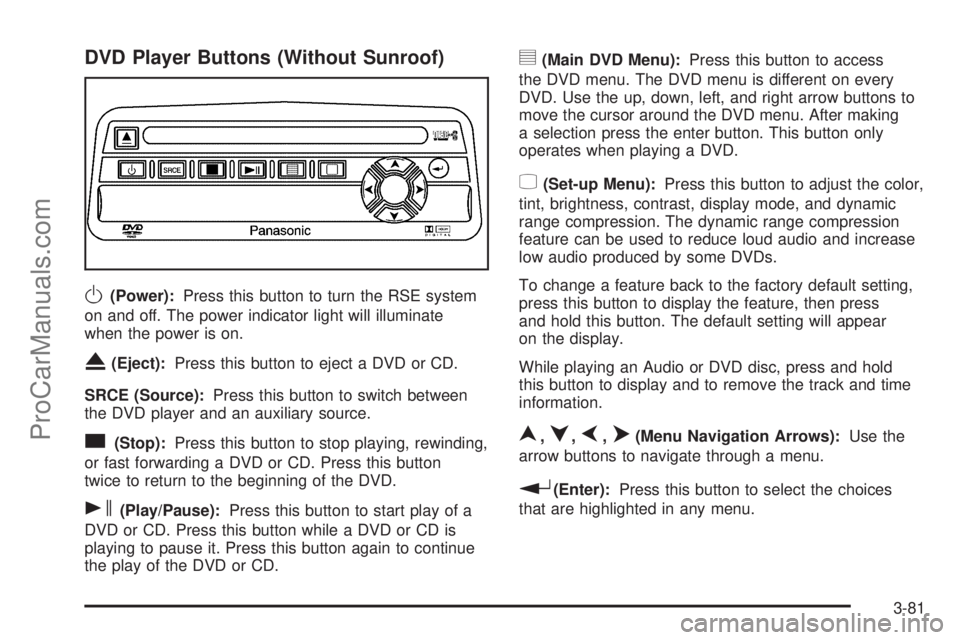
DVD Player Buttons (Without Sunroof)
O(Power):Press this button to turn the RSE system
on and off. The power indicator light will illuminate
when the power is on.
X(Eject):Press this button to eject a DVD or CD.
SRCE (Source):Press this button to switch between
the DVD player and an auxiliary source.
c(Stop):Press this button to stop playing, rewinding,
or fast forwarding a DVD or CD. Press this button
twice to return to the beginning of the DVD.
s(Play/Pause):Press this button to start play of a
DVD or CD. Press this button while a DVD or CD is
playing to pause it. Press this button again to continue
the play of the DVD or CD.
y(Main DVD Menu):Press this button to access
the DVD menu. The DVD menu is different on every
DVD. Use the up, down, left, and right arrow buttons to
move the cursor around the DVD menu. After making
a selection press the enter button. This button only
operates when playing a DVD.
z(Set-up Menu):Press this button to adjust the color,
tint, brightness, contrast, display mode, and dynamic
range compression. The dynamic range compression
feature can be used to reduce loud audio and increase
low audio produced by some DVDs.
To change a feature back to the factory default setting,
press this button to display the feature, then press
and hold this button. The default setting will appear
on the display.
While playing an Audio or DVD disc, press and hold
this button to display and to remove the track and time
information.
n,q,p,o(Menu Navigation Arrows):Use the
arrow buttons to navigate through a menu.
r(Enter):Press this button to select the choices
that are highlighted in any menu.
3-81
ProCarManuals.com
Page 204 of 426
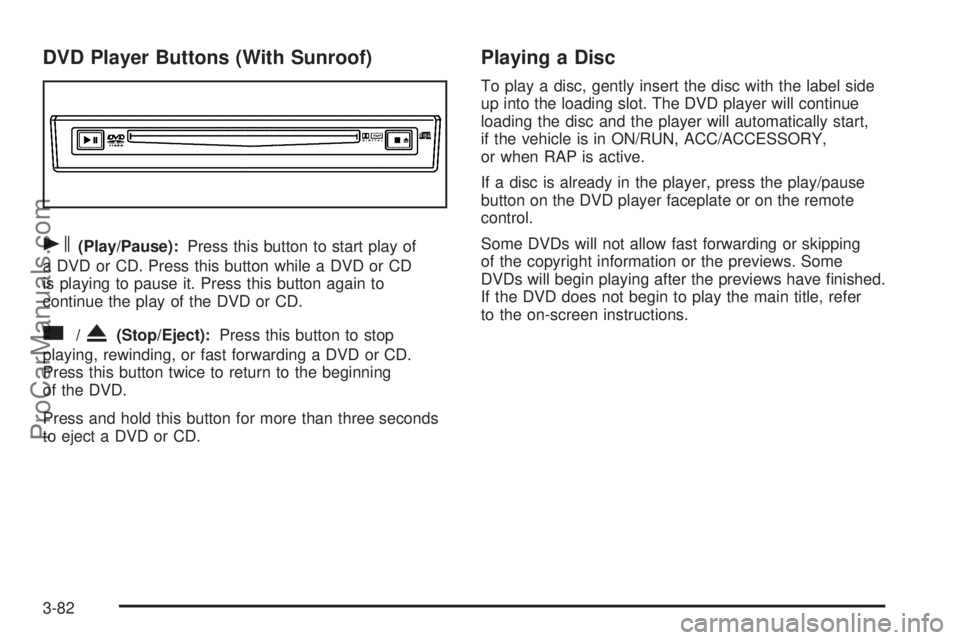
DVD Player Buttons (With Sunroof)
s(Play/Pause):Press this button to start play of
a DVD or CD. Press this button while a DVD or CD
is playing to pause it. Press this button again to
continue the play of the DVD or CD.
c/X(Stop/Eject):Press this button to stop
playing, rewinding, or fast forwarding a DVD or CD.
Press this button twice to return to the beginning
of the DVD.
Press and hold this button for more than three seconds
to eject a DVD or CD.
Playing a Disc
To play a disc, gently insert the disc with the label side
up into the loading slot. The DVD player will continue
loading the disc and the player will automatically start,
if the vehicle is in ON/RUN, ACC/ACCESSORY,
or when RAP is active.
If a disc is already in the player, press the play/pause
button on the DVD player faceplate or on the remote
control.
Some DVDs will not allow fast forwarding or skipping
of the copyright information or the previews. Some
DVDs will begin playing after the previews have nished.
If the DVD does not begin to play the main title, refer
to the on-screen instructions.
3-82
ProCarManuals.com
Page 206 of 426
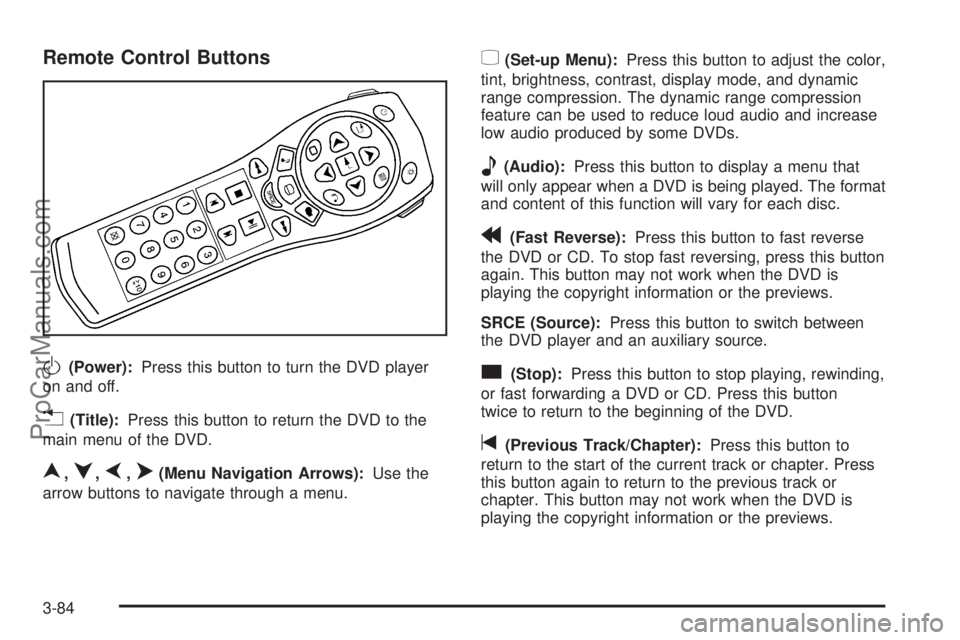
Remote Control Buttons
O(Power):Press this button to turn the DVD player
on and off.
v(Title):Press this button to return the DVD to the
main menu of the DVD.
n,q,p,o(Menu Navigation Arrows):Use the
arrow buttons to navigate through a menu.
z(Set-up Menu):Press this button to adjust the color,
tint, brightness, contrast, display mode, and dynamic
range compression. The dynamic range compression
feature can be used to reduce loud audio and increase
low audio produced by some DVDs.
e(Audio):Press this button to display a menu that
will only appear when a DVD is being played. The format
and content of this function will vary for each disc.
r(Fast Reverse):Press this button to fast reverse
the DVD or CD. To stop fast reversing, press this button
again. This button may not work when the DVD is
playing the copyright information or the previews.
SRCE (Source):Press this button to switch between
the DVD player and an auxiliary source.
c(Stop):Press this button to stop playing, rewinding,
or fast forwarding a DVD or CD. Press this button
twice to return to the beginning of the DVD.
t(Previous Track/Chapter):Press this button to
return to the start of the current track or chapter. Press
this button again to return to the previous track or
chapter. This button may not work when the DVD is
playing the copyright information or the previews.
3-84
ProCarManuals.com
Page 207 of 426
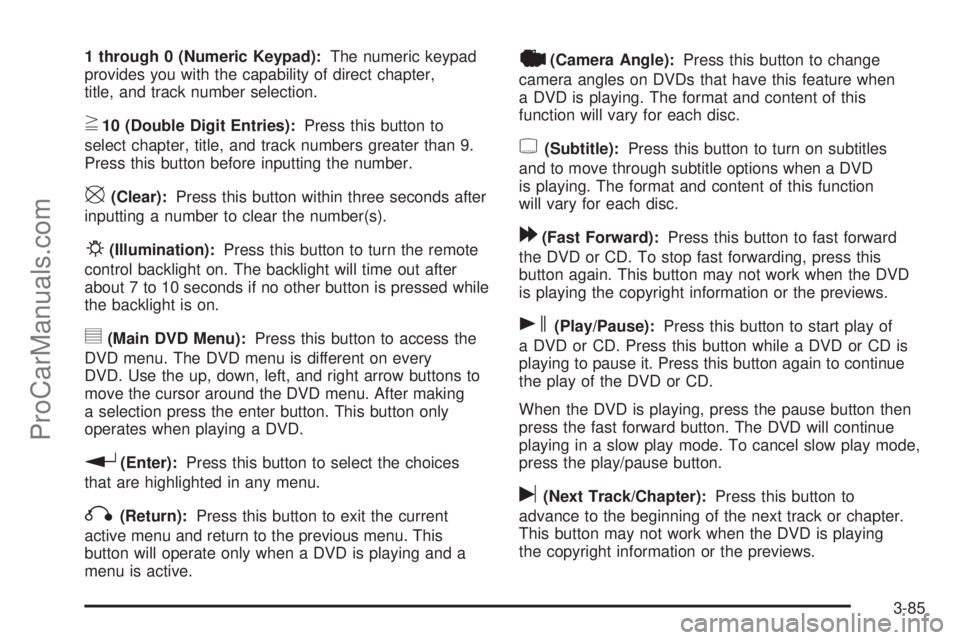
1 through 0 (Numeric Keypad):The numeric keypad
provides you with the capability of direct chapter,
title, and track number selection.
}10 (Double Digit Entries):Press this button to
select chapter, title, and track numbers greater than 9.
Press this button before inputting the number.
\(Clear):Press this button within three seconds after
inputting a number to clear the number(s).
P(Illumination):Press this button to turn the remote
control backlight on. The backlight will time out after
about 7 to 10 seconds if no other button is pressed while
the backlight is on.
y(Main DVD Menu):Press this button to access the
DVD menu. The DVD menu is different on every
DVD. Use the up, down, left, and right arrow buttons to
move the cursor around the DVD menu. After making
a selection press the enter button. This button only
operates when playing a DVD.
r(Enter):Press this button to select the choices
that are highlighted in any menu.
q(Return):Press this button to exit the current
active menu and return to the previous menu. This
button will operate only when a DVD is playing and a
menu is active.
|(Camera Angle):Press this button to change
camera angles on DVDs that have this feature when
a DVD is playing. The format and content of this
function will vary for each disc.
{(Subtitle):Press this button to turn on subtitles
and to move through subtitle options when a DVD
is playing. The format and content of this function
will vary for each disc.
[(Fast Forward):Press this button to fast forward
the DVD or CD. To stop fast forwarding, press this
button again. This button may not work when the DVD
is playing the copyright information or the previews.
s(Play/Pause):Press this button to start play of
a DVD or CD. Press this button while a DVD or CD is
playing to pause it. Press this button again to continue
the play of the DVD or CD.
When the DVD is playing, press the pause button then
press the fast forward button. The DVD will continue
playing in a slow play mode. To cancel slow play mode,
press the play/pause button.
u(Next Track/Chapter):Press this button to
advance to the beginning of the next track or chapter.
This button may not work when the DVD is playing
the copyright information or the previews.
3-85
ProCarManuals.com
Page 210 of 426
DVD Display Error Messages
The following errors may be displayed on the video
screen:
Disc Format Error:This message will be displayed if a
disc is inserted upside down, if the disc is not readable,
or if the format is not compatible with the DVD player.
Load/Eject Error:This message will be displayed if the
disc is not properly loaded or ejected.
Disc Play Error:This message will be displayed if the
DVD player cannot play the disc. Scratched or
damaged discs will cause this error.
Region Code Error:This message will be displayed if
the region code of the DVD is not compatible with
the region code of the DVD player.
No Disc:This message will be displayed if any of the
buttons on the DVD faceplate or remote control are
pressed and no disc is present in the DVD player.
DVD Distortion
There may be an experience with audio distortion
in the wireless headphones when operating cellular
phones, scanners, CB radios, Global Positioning
Systems (GPS)*, two-way radios, mobile fax,
or walkie talkies.
It might be necessary to turn off the DVD player when
operating one of these devices in or near the vehicle.
* Excludes the OnStar
®System.
Cleaning the Video Screen
Pour some isopropyl or rubbing alcohol on a clean
cloth and gently wipe the video screen. Do not spray
directly onto the screen and do not press too hard
or too long on the video screen.
3-88
ProCarManuals.com
Page 213 of 426
Audio Steering Wheel Controls
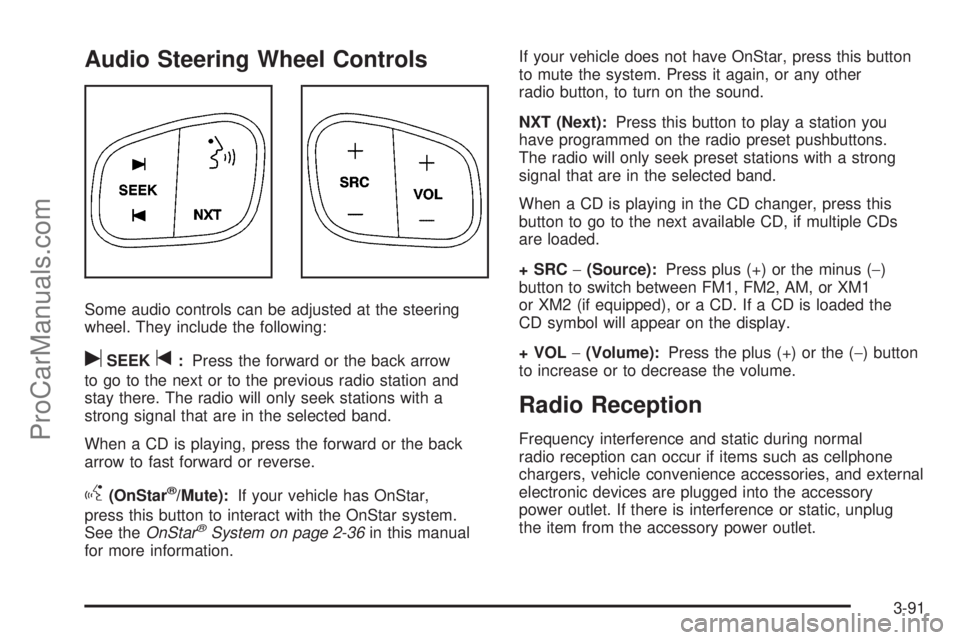
Some audio controls can be adjusted at the steering
wheel. They include the following:
uSEEKt:Press the forward or the back arrow
to go to the next or to the previous radio station and
stay there. The radio will only seek stations with a
strong signal that are in the selected band.
When a CD is playing, press the forward or the back
arrow to fast forward or reverse.
g(OnStar®/Mute):If your vehicle has OnStar,
press this button to interact with the OnStar system.
See theOnStar
®System on page 2-36in this manual
for more information.If your vehicle does not have OnStar, press this button
to mute the system. Press it again, or any other
radio button, to turn on the sound.
NXT (Next):Press this button to play a station you
have programmed on the radio preset pushbuttons.
The radio will only seek preset stations with a strong
signal that are in the selected band.
When a CD is playing in the CD changer, press this
button to go to the next available CD, if multiple CDs
are loaded.
+ SRC−(Source):Press plus (+) or the minus (−)
button to switch between FM1, FM2, AM, or XM1
or XM2 (if equipped), or a CD. If a CD is loaded the
CD symbol will appear on the display.
+ VOL−(Volume):Press the plus (+) or the (−) button
to increase or to decrease the volume.
Radio Reception
Frequency interference and static during normal
radio reception can occur if items such as cellphone
chargers, vehicle convenience accessories, and external
electronic devices are plugged into the accessory
power outlet. If there is interference or static, unplug
the item from the accessory power outlet.
3-91
ProCarManuals.com
Page 325 of 426
Federal Communications
Commission (FCC) and Industry
and Science Canada
The Tire Pressure Monitor System (TPMS) operates
on a radio frequency and complies with Part 15 of
the FCC Rules. Operation is subject to the following
two conditions:
1. This device may not cause harmful interference.
2. This device must accept any interference received,
including interference that may cause undesired
operation.
The Tire Pressure Monitor System (TPMS) operates
on a radio frequency and complies with RSS-210
of Industry and Science Canada. Operation is subject
to the following two conditions:
1. This device may not cause interference.
2. This device must accept any interference received,
including interference that may cause undesired
operation of the device.
Changes or modications to this system by other than
an authorized service facility could void authorization to
use this equipment.
Tire Pressure Monitor Operation
The Tire Pressure Monitor System (TPMS) is designed
to warn the driver when a low tire pressure condition
exists. TPMS sensors are mounted onto each tire
and wheel assembly, excluding the spare tire and wheel
assembly. The TPMS sensors monitor the air pressure
in the vehicle’s tires and transmits the tire pressure
readings to a receiver located in the vehicle.
The TPMS is designed to alert the driver if a low tire
pressure condition exists. Tire pressure levels may also
be checked using the Driver Information Center (DIC)
steering wheel control buttons. See “Tire Pressures”
underDIC Operation and Displays on page 3-45.
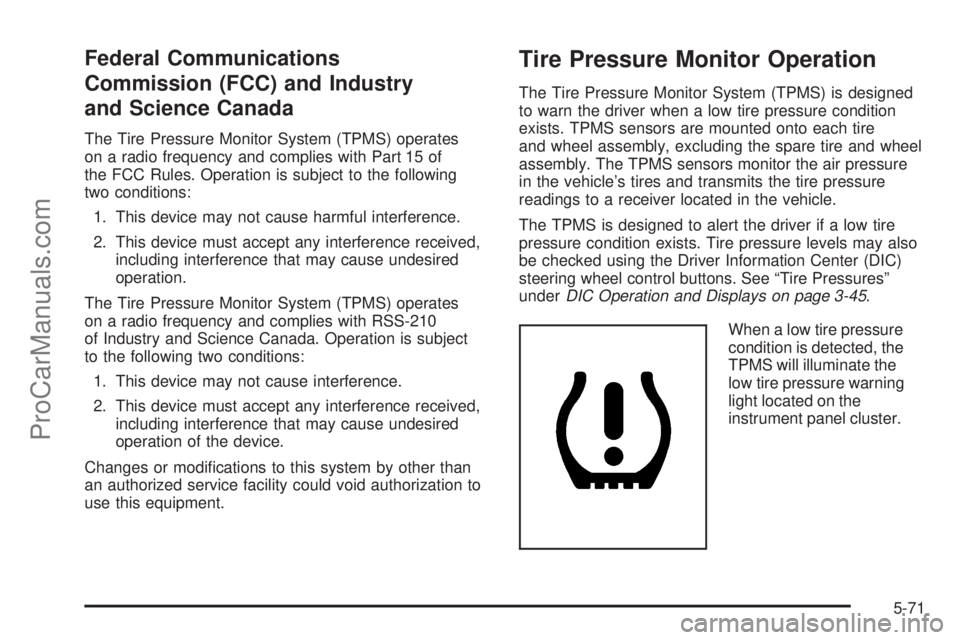
When a low tire pressure
condition is detected, the
TPMS will illuminate the
low tire pressure warning
light located on the
instrument panel cluster.
5-71
ProCarManuals.com
Page 356 of 426
When cleaning your vehicle’s interior, only use cleaners
specically designed for the surfaces being cleaned.
Permanent damage may result from using cleaners on
surfaces for which they were not intended. Use glass
cleaner only on glass. Remove any accidental over-spray
from other surfaces immediately. To prevent over-spray,
apply cleaner directly to the cleaning cloth.
Notice:If you use abrasive cleaners when cleaning
glass surfaces on your vehicle, you could scratch
the glass and/or cause damage to the rear window
defogger. When cleaning the glass on your
vehicle, use only a soft cloth and glass cleaner.
Many cleaners contain solvents that may become
concentrated in your vehicle’s breathing space.
Before using cleaners, read and adhere to all safety
instructions on the label. While cleaning your vehicle’s
interior, maintain adequate ventilation by opening
your vehicle’s doors and windows.
Dust may be removed from small buttons and knobs
using a small brush with soft bristles.
Your dealer/retailer has a product for cleaning your
vehicle’s glass. Should it become necessary, you can
also obtain a product from your dealer/retailer to remove
odors from your vehicle’s upholstery.Do not clean your vehicle using the following cleaners
or techniques:
Never use a knife or any other sharp object to
remove a soil from any interior surface.
Never use a stiff brush. It can cause damage to
your vehicle’s interior surfaces.
Never apply heavy pressure or rub aggressively
with a cleaning cloth. Use of heavy pressure
can damage your interior and does not improve
the effectiveness of soil removal.
Use only mild, neutral-pH soaps. Avoid laundry
detergents or dishwashing soaps with degreasers.
Using too much soap will leave a residue that
leaves streaks and attracts dirt. For liquid cleaners,
about 20 drops per gallon (3.78 L) of water is a
good guide.
Do not heavily saturate your upholstery while
cleaning.
Damage to your vehicle’s interior may result from
the use of many organic solvents such as naptha,
alcohol, etc.
5-102
ProCarManuals.com