change time Seat Ibiza 2017 MEDIA SYSTEM PLUS - NAVI SYSTEM
[x] Cancel search | Manufacturer: SEAT, Model Year: 2017, Model line: Ibiza, Model: Seat Ibiza 2017Pages: 88, PDF Size: 2.34 MB
Page 38 of 88
Audio and Media Mode
The image files must be stored on a compati-
b l
e d
ata storage device (e.g., a CD or an SD
card).
● Press the Infotainment button
›››
Fig. 1 12 and then press the
Im
ag
e s func-
tion b utt
on.
● Pr
ess the SOURCE function button to select
the sour c
e wher
e the pictures in question are
located.
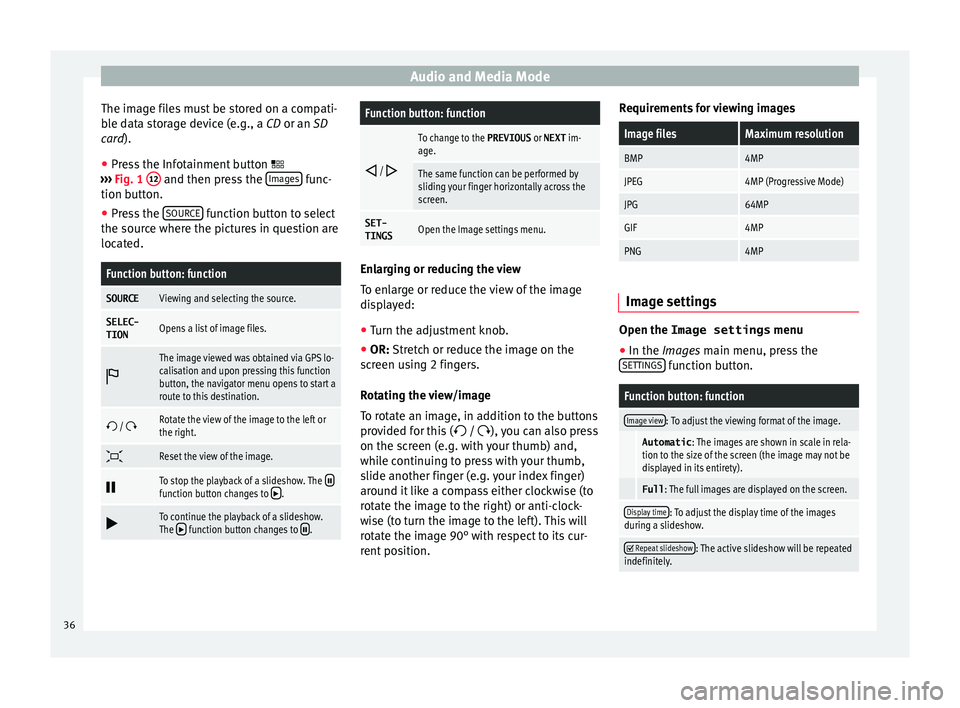
Function button: function
SOURCEViewing and selecting the source.
SELEC-
TIONOpens a list of image files.
The image viewed was obtained via GPS lo-
calisation and upon pressing this function
button, the navigator menu opens to start a
route to this destination.
/ Rotate the view of the image to the left or
the right.
Reset the view of the image.
To stop the playback of a slideshow. The function button changes to .
To continue the playback of a slideshow.
The function button changes to .
Function button: function
/
To change to the PREVIOUS
or NEXT im-
age.
The same function can be performed by
sliding your finger horizontally across the
screen.
SET- TINGSOpen the Image settings menu. Enlarging or reducing the view
To en
l
arge or reduce the view of the image
displayed:
● Turn the adjustment knob.
● OR: Stretch or reduce the image on the
s c
reen using 2 fingers.
Rotating the view/image
To rotate an image, in addition to the buttons
provided for this ( / ), you can also press
on the screen (e.g. with your thumb) and,
while continuing to press with your thumb,
slide another finger (e.g. your index finger)
around it like a compass either clockwise (to
rotate the image to the right) or anti-clock-
wise (to turn the image to the left). This will
rotate the image 90° with respect to its cur-
rent position. Requirements for viewing images
Image filesMaximum resolution
BMP4MP
JPEG4MP (Progressive Mode)
JPG64MP
GIF4MP
PNG4MP
Image settings
Open the Image settings
menu
● In the Ima ges main menu, press the
S ET
TINGS function button.
Function button: function
Image view: To adjust the viewing format of the image.
Automatic
: The images are shown in scale in rela-
tion to the size of the screen (the image may not be
displayed in its entirety).
Full : The full images are displayed on the screen.
Display time: To adjust the display time of the images
during a slideshow.
Repeat slideshow: The active slideshow will be repeated
indefinitely. 36
Page 42 of 88
Navigation*Route criteria: Meaning
Orange route: Shortest route
to the destination, even if it
results in longer travelling time. The route may have un-
conventional sections such as secondary roads. ●
Select the desired route by pressing it.
The setting f or the r
oute criteria in the Route
options menu is changed accordingly.
If no route is selected, then route guidance
starts automatically after about one minute
using the setting selected in the Route op- tions .
Navigation announcements (audible recom-
mendations for the driver)
Once the route has been calculated, the sys-
tem gives the first navigation announcement.
Up to 3 navigation announcements are given
before a turn, e.g. “Prepare to turn left”,
“Turn left in 300 metres” and “Now turn left”.
● Press the adjustment knob ››
›
Fig. 1 7 to
li s
t
en to the last audible navigation instruc-
tion.
The distances indicated largely depend on
the type of road and the speed at which you
are driving. For instance, navigation an-
nouncements are given much earlier on mo-
torways than on urban roads.
Appropriate navigation announcements are
also given on multi-lane roads, branching roads and at roundabouts, for example: “At
the round
about, take the second exit.”
A navigation announcement informs you
when you have reached your “destination”.
A navigation announcement informing you
that you have reached the “destination area”
is given if the exact destination cannot be
reached because it is located in a non-digi-
tised area. It also indicates the cardinal point
and the distance to the previously defined
destination. Navigation resumes “offroad”.
During dynamic route guidance , you receive
information about reported traffic congestion
on the route. An additional navigation an-
nouncement is given if the route is recalcula-
ted due to traffic congestion.
During a navigation announcement, you can
change its volume using the button
››› Fig. 1 6 up to a predefined minimum or
m ax
imum
volume. The following navigation
recommendations will then be made at the
adjusted volume.
For other adjustments to the navigation rec-
ommendations, see Navigation an-
nouncements settings. ››› page 48. Note
If you miss a turning during route guidance
and are c urr
ently unable to turn back, keep
on driving until the navigation system offers
a new route. Note
The quality of the navigation recommenda-
tions giv
en by the Infotainment system de-
pends on the navigation data available and
any reported traffic problems. Route
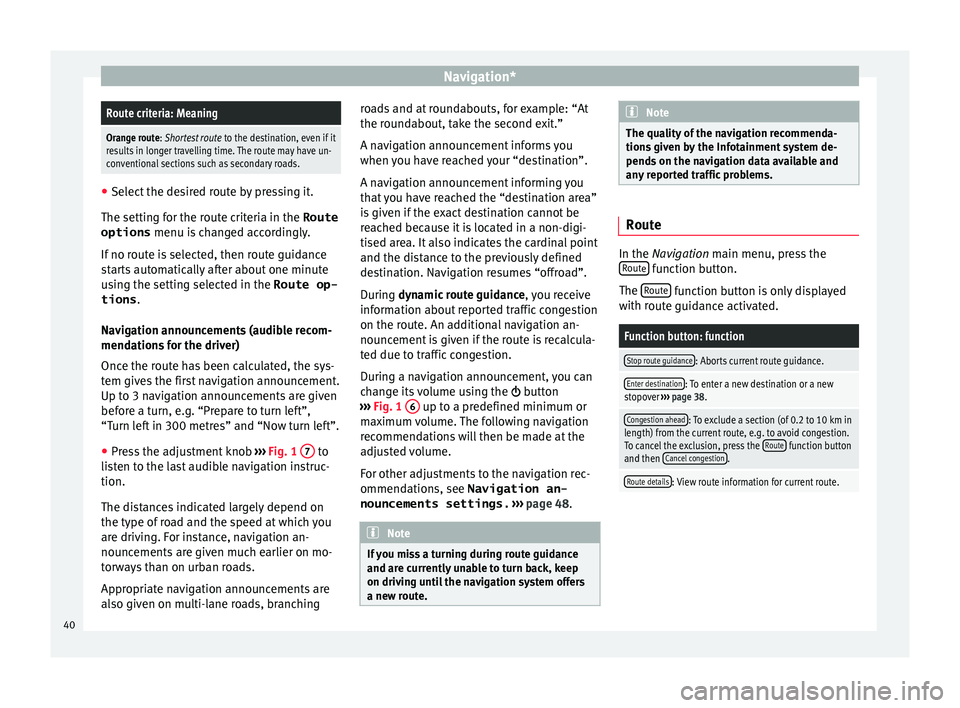
In the Navigation main menu, press the
R out
e function button.
The Rout
e function button is only displayed
w ith r
out
e guidance activated.
Function button: function
Stop route guidance: Aborts current route guidance.
Enter destination: To enter a new destination or a new
stopover ››› page 38.
Congestion ahead: To exclude a section (of 0.2 to 10 km in
length) from the current route, e.g. to avoid congestion.
To cancel the exclusion, press the Route
function button
and then Cancel congestion.
Route details: View route information for current route.40
Page 52 of 88
Vehicle Menu
Vehicle Menu Intr oduction t
o u
sing the menu (Ve-
hicle) By pressing button
›››
Fig. 1 9 of the info-
tainment sy
stem you will access its main
menu with the following options:
● VIEW
● MINIPLAYER, in the top right corner (Radio
or Media f
unction)
● PREVIOUS-NEXT (to change screen)
● SETTINGS ››
›
Booklet Instruction Manual,
chapter System setup (CAR)
With the function button VIEW you can ac-
c e
s
s the following information:
● CONSUMERS
● DRIVING DATA
● ECOTRAINER*
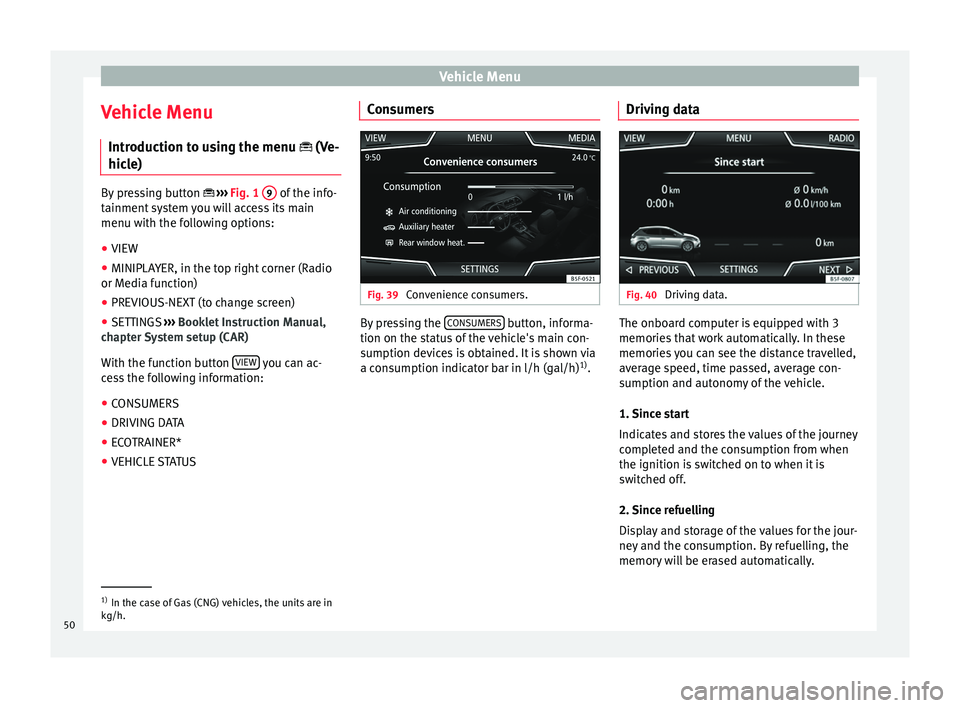
● VEHICLE STATUS Consumers Fig. 39
Convenience consumers. By pressing the
C
ONSUMERS button, informa-
tion on the s t
at
us of the vehicle's main con-
sumption devices is obtained. It is shown via
a consumption indicator bar in l/h (gal/h) 1)
. Driving data Fig. 40
Driving data. The onboard computer is equipped with 3
memorie
s
th
at work automatically. In these
memories you can see the distance travelled,
average speed, time passed, average con-
sumption and autonomy of the vehicle.
1. Since start
Indicates and stores the values of the journey
completed and the consumption from when
the ignition is switched on to when it is
switched off.
2. Since refuelling
Display and storage of the values for the jour-
ney and the consumption. By refuelling, the
memory will be erased automatically. 1)
In the case of Gas (CNG) vehicles, the units are in
kg/h.
50
Page 59 of 88
Telephone management system (PHONE)
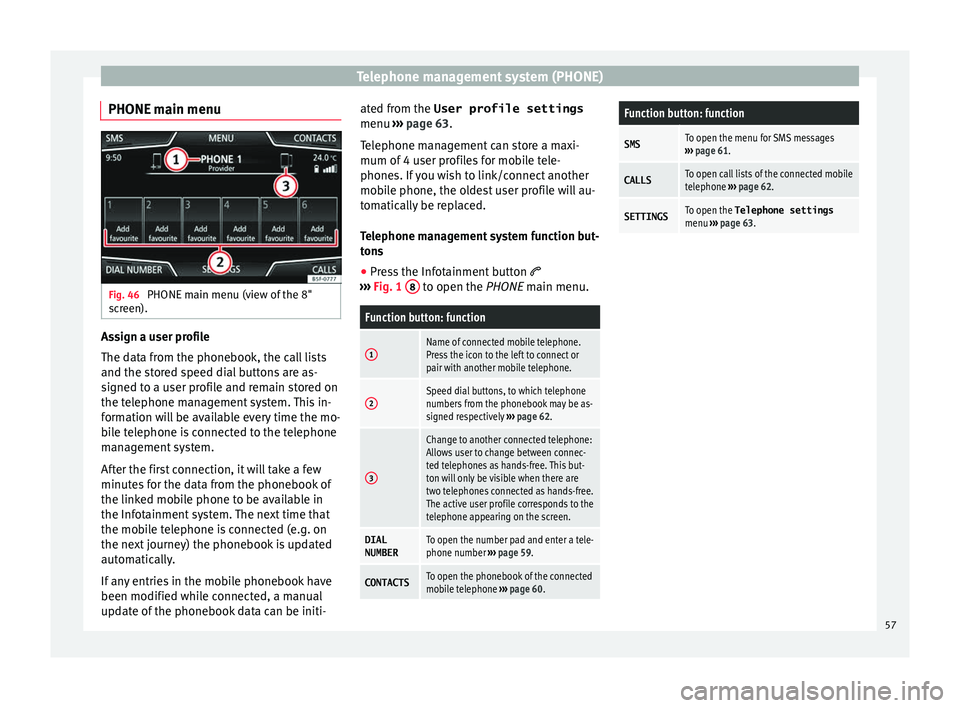
PHONE main menu Fig. 46
PHONE main menu (view of the 8"
s c
r
een). Assign a user profile
The d
at
a fr
om the phonebook, the call lists
and the stored speed dial buttons are as-
signed to a user profile and remain stored on
the telephone management system. This in-
formation will be available every time the mo-
bile telephone is connected to the telephone
management system.
After the first connection, it will take a few
minutes for the data from the phonebook of
the linked mobile phone to be available in
the Infotainment system. The next time that
the mobile telephone is connected (e.g. on
the next journey) the phonebook is updated
automatically.
If any entries in the mobile phonebook have
been modified while connected, a manual
update of the phonebook data can be initi- ated from the User profile settings
menu ›››
page 63.
Telephone management can store a maxi-
mum of 4 user profiles for mobile tele-
phones. If you wish to link/connect another
mobile phone, the oldest user profile will au-
tomatically be replaced.
Telephone management system function but-
tons
● Press the Infotainment button
›››
Fig. 1 8 to open the PHONE m
ain menu.
Function button: function
1Name of connected mobile telephone.
Press the icon to the left to connect or
pair with another mobile telephone.
2Speed dial buttons, to which telephone
numbers from the phonebook may be as-
signed respectively
››› page 62.
3
Change to another connected telephone:
Allows user to change between connec-
ted telephones as hands-free. This but-
ton will only be visible when there are
two telephones connected as hands-free.
The active user profile corresponds to the
telephone appearing on the screen.
DIAL
NUMBERTo open the number pad and enter a tele-
phone number ››› page 59.
CONTACTSTo open the phonebook of the connected
mobile telephone ››› page 60.
Function button: function
SMSTo open the menu for SMS messages
››› page 61.
CALLSTo open call lists of the connected mobile
telephone ››› page 62.
SETTINGSTo open the Telephone settings
menu ››› page 63. 57
Page 62 of 88
Telephone management system (PHONE)
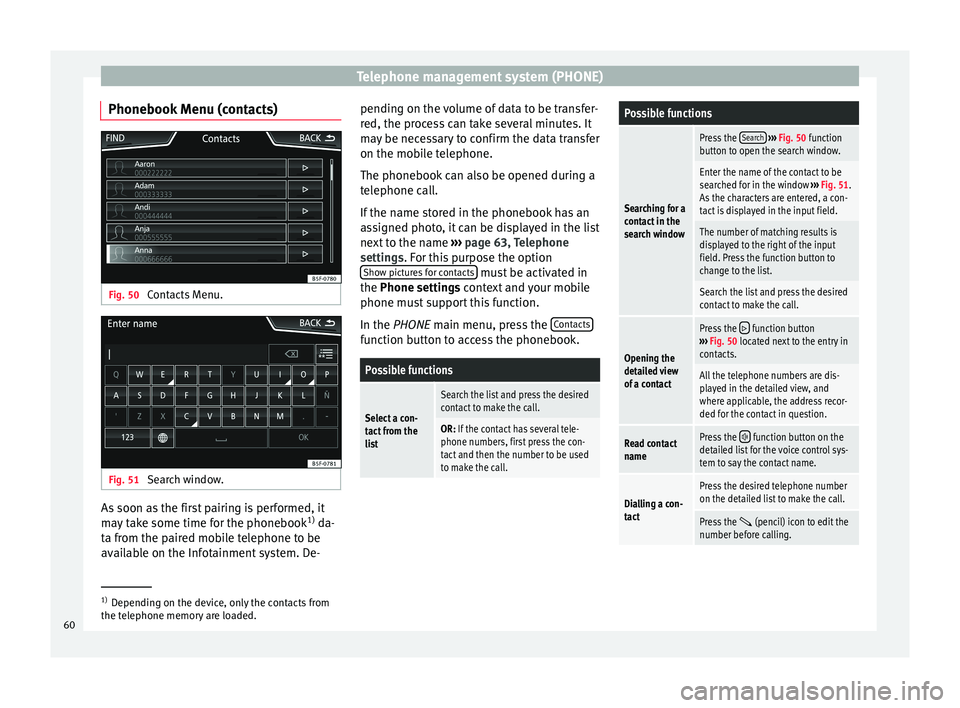
Phonebook Menu (contacts) Fig. 50
Contacts Menu. Fig. 51
Search window. As soon as the first pairing is performed, it
m
a
y
take some time for the phonebook 1)
da-
ta from the paired mobile telephone to be
available on the Infotainment system. De- pending on the volume of data to be transfer-
red, the proc
ess can take several minutes. It
may be necessary to confirm the data transfer
on the mobile telephone.
The phonebook can also be opened during a
telephone call.
If the name stored in the phonebook has an
assigned photo, it can be displayed in the list
next to the name ››› page 63, Telephone
settings. For this purpose the option Show pictures for contacts must be activated in
the Phone settin g
s
context and your mobile
phone must support this function.
In the PHONE main menu, press the Contacts function button to access the phonebook.
Possible functions
Select a con-
tact from the
list
Search the list and press the desired
contact to make the call.
OR: If the contact has several tele-
phone numbers, first press the con-
tact and then the number to be used
to make the call.
Possible functions
Searching for a
contact in the
search window
Press the
Search
››› Fig. 50 function
button to open the search window.
Enter the name of the contact to be
searched for in the window ››› Fig. 51.
As the characters are entered, a con-
tact is displayed in the input field.
The number of matching results is
displayed to the right of the input
field. Press the function button to
change to the list.
Search the list and press the desired
contact to make the call.
Opening the
detailed view
of a contact
Press the function button
››› Fig. 50 located next to the entry in
contacts.
All the telephone numbers are dis-
played in the detailed view, and
where applicable, the address recor-
ded for the contact in question.
Read contact
namePress the function button on the
detailed list for the voice control sys-
tem to say the contact name.
Dialling a con-
tact
Press the desired telephone number
on the detailed list to make the call.
Press the (pencil) icon to edit the
number before calling. 1)
Depending on the device, only the contacts from
the tel ephone memor
y are loaded.
60
Page 72 of 88
Full Link*
Pairing of portable devices supporting
the Mirr orLink®
, Andr oid Aut
o™
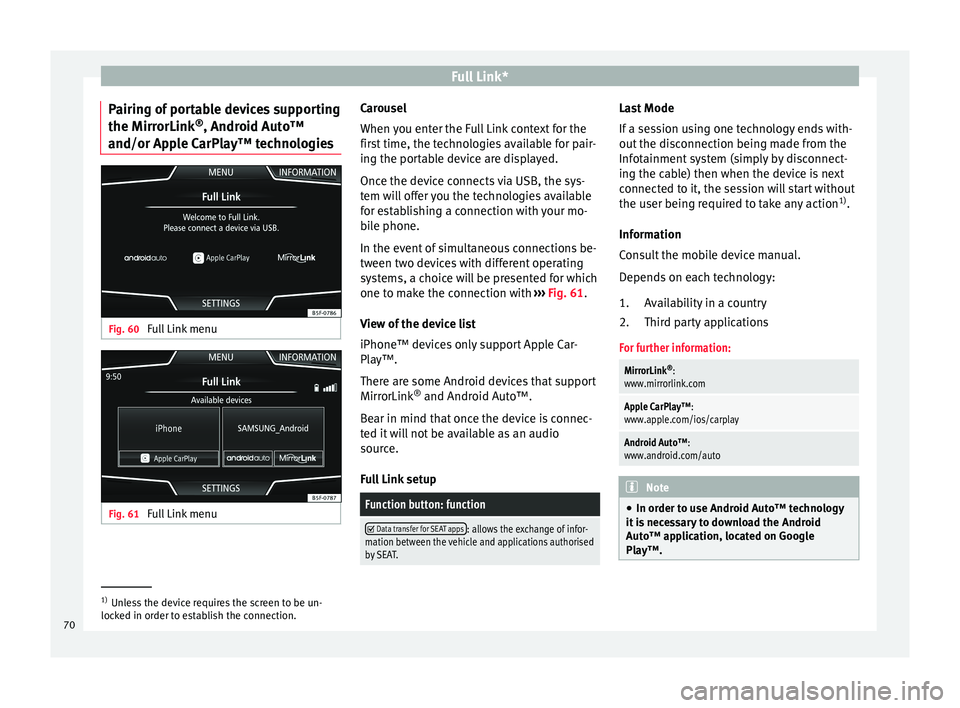
and/or Apple CarPlay™ technologies Fig. 60
Full Link menu Fig. 61
Full Link menu Carousel
When
y
ou ent
er the Full Link context for the
first time, the technologies available for pair-
ing the portable device are displayed.
Once the device connects via USB, the sys-
tem will offer you the technologies available
for establishing a connection with your mo- bile phone.
In the event of simultaneous connections be-
tween two devices with different operating
systems, a choice will be presented for which
one to make the connection with ››› Fig. 61.
View of the device list
iPhone™ devices only support Apple Car-
Play™.
There are some Android devices that support
MirrorLink ®
and Android Auto™.
Bear in mind that once the device is connec-
ted it will not be available as an audio
source.
Full Link setup
Function button: function
Data transfer for SEAT apps: allows the exchange of infor-
mation between the vehicle and applications authorised
by SEAT. Last Mode
If
a se
s
sion using one technology ends with-
out the disconnection being made from the
Infotainment system (simply by disconnect-
ing the cable) then when the device is next
connected to it, the session will start without
the user being required to take any action 1)
.
Information
Consult the mobile device manual.
Depends on each technology: Availability in a country
Third party applications
For further information:
MirrorLink ®
:
www.mirrorlink.com
Apple CarPlay™:
www.apple.com/ios/carplay
Android Auto™:
www.android.com/auto Note
● In order t o u
se Android Auto™ technology
it is necessary to download the Android
Auto™ application, located on Google
Play™. 1.
2.
1)
Unless the device requires the screen to be un-
lock ed in or
der to establish the connection.
70
Page 77 of 88
Setup
Setup
M enu and sy
s
tem settings
Main menu System settings
›› ›
table on page 1
The selection of possible settings will de-
pend on the country, the unit in question and
the vehicle equipment.
● Press the Infotainment button
› ›
›
Fig. 1 12 and then press the
S
ET
TINGS function button.
● To adjust the settings for a certain function,
pr e
s
s the appropriate function button in the
main menu. Changes are automatically stor-
ed when a menu is closed.
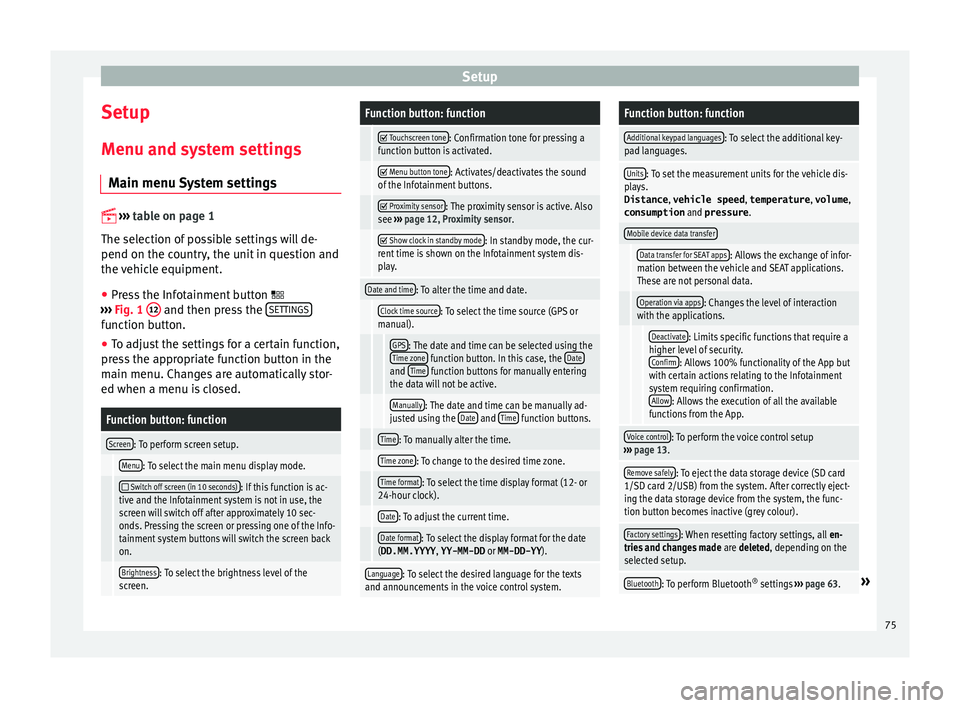
Function button: function
Screen: To perform screen setup.
Menu: To select the main menu display mode.
Switch off screen (in 10 seconds): If this function is ac-
tive and the Infotainment system is not in use, the
screen will switch off after approximately 10 sec-
onds. Pressing the screen or pressing one of the Info-
tainment system buttons will switch the screen back
on.
Brightness: To select the brightness level of the
screen.
Function button: function
Touchscreen tone: Confirmation tone for pressing a
function button is activated.
Menu button tone: Activates/deactivates the sound
of the Infotainment buttons.
Proximity sensor: The proximity sensor is active. Also
see ››› page 12, Proximity sensor .
Show clock in standby mode: In standby mode, the cur-
rent time is shown on the Infotainment system dis-
play.
Date and time: To alter the time and date.
Clock time source: To select the time source (GPS or
manual).
GPS: The date and time can be selected using the
Time zone function button. In this case, the Dateand Time function buttons for manually entering
the data will not be active.
Manually: The date and time can be manually ad-
justed using the Date and Time function buttons.
Time: To manually alter the time.
Time zone: To change to the desired time zone.
Time format: To select the time display format (12- or
24-hour clock).
Date: To adjust the current time.
Date format: To select the display format for the date
(DD.MM.YYYY , YY-MM-DD or MM-DD-YY ).
Language: To select the desired language for the texts
and announcements in the voice control system.
Function button: function
Additional keypad languages: To select the additional key-
pad languages.
Units: To set the measurement units for the vehicle dis-
plays.
Distance , vehicle speed , temperature, volume,
consumption and pressure .
Mobile device data transfer
Data transfer for SEAT apps: Allows the exchange of infor-
mation between the vehicle and SEAT applications.
These are not personal data.
Operation via apps: Changes the level of interaction
with the applications.
Deactivate: Limits specific functions that require a
higher level of security. Confirm
: Allows 100% functionality of the App but
with certain actions relating to the Infotainment
system requiring confirmation. Allow
: Allows the execution of all the available
functions from the App.
Voice control: To perform the voice control setup
››› page 13.
Remove safely: To eject the data storage device (SD card
1/SD card 2/USB) from the system. After correctly eject-
ing the data storage device from the system, the func-
tion button becomes inactive (grey colour).
Factory settings: When resetting factory settings, all en-
tries and changes made are deleted, depending on the
selected setup.
Bluetooth: To perform Bluetooth ®
settings ››› page 63.» 75
Page 78 of 88

SetupFunction button: function
System information: Viewing system information (device
number, hardware and software versions).
Update: To update navigation data ››› page 37 Do not
remove the memory card while the navigation data is
being installed.
Copyright: Copyright information.
Configuration wizard: Open the wizard to configure the ini-
tial setup of the Infotainment system. Note
For the proper functioning of the Infotain-
ment sy s
tem it is important that the date and
time set in the vehicle are correct. Sound and volume settings
M ak
in
g settings The selection of possible settings will de-
pend on the c
ou
ntr
y, the unit in question and
the vehicle equipment.
● Press the infotainment button
› ››
Fig. 1 12 .
● Press the Sou
nd function button to open
the m ain Sound settings
menu.
● Pr e
ss the function button on the main
menu corre
sponding to one where changes are to be made. All settings are applied in-
stant
aneously.
Overview of screen and function buttons
Function button: function
Volume: To adjust the volume settings.
Announcements: To set the playback volume of an-
nouncements, for example traffic announcements.
Navigation announcements: To adjust the playback vol-
ume of audible driving recommendations.
Voice control: To set the volume for voice control
playback.
Maximum switch-on volume: To set the maximum
switch-on volume of the equipment.
Speed-dependent volume adjustment (GALA): To deter-
mine the level of adjustment for speed-dependent
volume. The audio volume will increase automati-
cally as vehicle speed increases.
Entertainment fading while parking: To adjust the desired
decrease in volume with ParkPilot activated.
Entertainment fading (nav. announcements): Adjusts the
playback volume during a navigation announce-
ment.
AUX volume: To set the playback volume of the au-
dio sources connected via the AUX-IN multi-media
socket ( Low, Medium or High). Also see
››› page 76, Overview of screen and function but-
tons.
Function button: function
Bluetooth audio: To set the playback volume of the
audio sources connected via Bluetooth ®
(Low , Me-
dium or High ). Also see ››› page 76, Overview of
screen and function buttons.
Equaliser: To adjust the characteristics of the sound.
Balance - Fader: To adjust the distribution of the sound.
The cursor indicates the current distribution of the
sound inside the passenger compartment. To modify the
distribution of the sound, briefly press the passenger
compartment view for the desired position or use the ar-
row keys to change it gradually. To focus the distribution
of sound in the centre of the passenger compartment,
press the central function button located between the
arrows.
Sound focus: Optimises the sound in the passenger com-
partment.
Touchscreen tone: Confirmation tone for pressing a func-
tion button is activated.
No voice guidance during call: No audible driving instruc-
tions will be given during a telephone conversation. Adjust the playback volume for external au-
dio sour
c
e
s
If you need to increase the playback volume
for the external audio source, first lower the
base volume on the Infotainment system.
If the sound from the external audio source is
too low, increase the output volume on the
external audio source. If this is not enough,
change the input volume to medium or high.
76
Page 81 of 88
Index
Index
A
Af t
er s
tarting route guidance . . . . . . . . . . . . . . . . 39
AM . . . . . . . . . . . . . . . . . . . . . . . . . . . . . . . . . . . . . . 17
Android Auto™ . . . . . . . . . . . . . . . . . . . . . . . . . . . . 70
Apple CarPlay™ . . . . . . . . . . . . . . . . . . . . . . . . . . . 70
Areas where special regulations apply . . . . . . . . . 54
AUX-IN . . . . . . . . . . . . . . . . . . . . . . . . . . . . . . . . . . . 34 AUX-IN multimedia socket . . . . . . . . . . . . . . . . . 34
external audio source . . . . . . . . . . . . . . . . . . . . . 34
AUX-IN multimedia socket . . . . . . . . . . . . . . . . . . . 34
Avoid congestion . . . . . . . . . . . . . . . . . . . . . . . . . . 45
B Base volume . . . . . . . . . . . . . . . . . . . . . . . . . . . . . . . 9 change . . . . . . . . . . . . . . . . . . . . . . . . . . . . . . . . . 9
sound suppression (mute) . . . . . . . . . . . . . . . . . . 9
Bluetooth connect audio source . . . . . . . . . . . . . . . . . . . . . 34
profiles . . . . . . . . . . . . . . . . . . . . . . . . . . . . . . . . 54
select Bluetooth audio . . . . . . . . . . . . . . . . . . . . 29
settings . . . . . . . . . . . . . . . . . . . . . . . . . . . . . . . . 63
Buttons . . . . . . . . . . . . . . . . . . . . . . . . . . . . . . . . . . 10
C
Call lists . . . . . . . . . . . . . . . . . . . . . . . . . . . . . . . . . 62
Call mailbox . . . . . . . . . . . . . . . . . . . . . . . . . . . . . . 59
CAR Menu operating . . . . . . . . . . . . . . . . . . . . . . . . . . . . . . . 50
CD inserting and ejecting . . . . . . . . . . . . . . . . . . . . 32
mode . . . . . . . . . . . . . . . . . . . . . . . . . . . . . . . . . . 32
select . . . . . . . . . . . . . . . . . . . . . . . . . . . . . . . . . . 29
Check boxes . . . . . . . . . . . . . . . . . . . . . . . . . . . . . . 10 Communication between the Infotainment sys-
tem and mob ile devices . . . . . . . . . . . . . . . . . . . 66
Connectivity Box . . . . . . . . . . . . . . . . . . . . . . . . . . . 64
Controls . . . . . . . . . . . . . . . . . . . . . . . . . . . . . . . . . . . 4
Copyright . . . . . . . . . . . . . . . . . . . . . . . . . . . . . . . . 25 information . . . . . . . . . . . . . . . . . . . . . . . . . . . . . 76
Cursor . . . . . . . . . . . . . . . . . . . . . . . . . . . . . . . . . . . 11
D
DAB . . . . . . . . . . . . . . . . . . . . . . . . . . . . . . . . . . . . . 17 see: RADIO . . . . . . . . . . . . . . . . . . . . . . . . . . . . . 19
Delayed switch off (waiting time) . . . . . . . . . . . . . . 9
Delete all entries . . . . . . . . . . . . . . . . . . . . . . . . . . . . . . 75
user entries . . . . . . . . . . . . . . . . . . . . . . . . . . . . . 75
Delete data . . . . . . . . . . . . . . . . . . . . . . . . . . . . . . . 75
Delete entries . . . . . . . . . . . . . . . . . . . . . . . . . . . . . 75
Demo mode navigation . . . . . . . . . . . . . . . . . . . . . . . . . . . . . . 47
Destination memory . . . . . . . . . . . . . . . . . . . . . . . . 41
Dial number . . . . . . . . . . . . . . . . . . . . . . . . . . . . . . 59
Dial (telephone number) . . . . . . . . . . . . . . . . . . . . 59
Display use . . . . . . . . . . . . . . . . . . . . . . . . . . . . . . . . . . . . 10
Dynamic route guidance . . . . . . . . . . . . . . . . . . . . 45
E
Ejecting see: CD . . . . . . . . . . . . . . . . . . . . . . . . . . . . . . . . 32
EON . . . . . . . . . . . . . . . . . . . . . . . . . . . . . . . . . . . . . 22
Explosion risk areas telephone . . . . . . . . . . . . . . . . . . . . . . . . . . . . . . 54
External audio source . . . . . . . . . . . . . . . . . . . . . . 34 adjust the playback volume . . . . . . . . . . . . . . . . 76
Bluetooth audio . . . . . . . . . . . . . . . . . . . . . . . . . 34
MEDIA-IN . . . . . . . . . . . . . . . . . . . . . . . . . . . . . . . 33 External data storage device
MEDIA-IN . . . . . . . . . . . . . . . . . . . . . . . . . . . . . . . 33
USB
. . . . . . . . . . . . . . . . . . . . . . . . . . . . . . . . . . . 33
F
Factory settings . . . . . . . . . . . . . . . . . . . . . . . . . . . 75
Favourites (phonebook shortcuts) see PHONE . . . . . . . . . . . . . . . . . . . . . . . . . . . . . 62
FM . . . . . . . . . . . . . . . . . . . . . . . . . . . . . . . . . . . . . . 17
Frequency wavelength AM . . . . . . . . . . . . . . . . . . . . . . . . . . . . . . . . . . . . 17
change . . . . . . . . . . . . . . . . . . . . . . . . . . . . . . . . 17
DAB . . . . . . . . . . . . . . . . . . . . . . . . . . . . . . . . . . . 17
FM . . . . . . . . . . . . . . . . . . . . . . . . . . . . . . . . . . . . 17
Full Link . . . . . . . . . . . . . . . . . . . . . . . . . . . . . . . . . . 66 pairing . . . . . . . . . . . . . . . . . . . . . . . . . . . . . . . . . 70
setup . . . . . . . . . . . . . . . . . . . . . . . . . . . . . . . . . . 70
Function buttons . . . . . . . . . . . . . . . . . . . . . . . . . . 10 main menu Images . . . . . . . . . . . . . . . . . . . . . . . 35
MEDIA main menu . . . . . . . . . . . . . . . . . . . . . . . 28
RADIO main menu . . . . . . . . . . . . . . . . . . . . . . . 17
G GALA . . . . . . . . . . . . . . . . . . . . . . . . . . . . . . . . . . . . 76
I Ignition switched off delayed switch off (waiting time) . . . . . . . . . . . . 9
Images display . . . . . . . . . . . . . . . . . . . . . . . . . . . . . . . . . 35
main menu . . . . . . . . . . . . . . . . . . . . . . . . . . . . . 35
settings . . . . . . . . . . . . . . . . . . . . . . . . . . . . . . . . 36
Infotainment system buttons . . . . . . . . . . . . . . . . . 9
Input mask . . . . . . . . . . . . . . . . . . . . . . . . . . . . . . . 11
Interference from a mobile telephone . . . . . . . . . . 8
Introduction . . . . . . . . . . . . . . . . . . . . . . . . . . . . . . . 7
iPad . . . . . . . . . . . . . . . . . . . . . . . . . . . . . . . . . . . . . 33
79
Page 82 of 88
Index
iPhone . . . . . . . . . . . . . . . . . . . . . . . . . . . . . . . . . . . 33
iP od
. . . . . . . . . . . . . . . . . . . . . . . . . . . . . . . . . . . . . 33
K K
eypad . . . . . . . . . . . . . . . . . . . . . . . . . . . . . . . . . . 11
L Lowering the volume . . . . . . . . . . . . . . . . . . . . . . . . 8
M Main menu images . . . . . . . . . . . . . . . . . . . . . . . . . . . . . . . . . 35
MEDIA . . . . . . . . . . . . . . . . . . . . . . . . . . . . . . . . . 28
PHONE . . . . . . . . . . . . . . . . . . . . . . . . . . . . . . . . . 57
RADIO . . . . . . . . . . . . . . . . . . . . . . . . . . . . . . . . . 17
settings . . . . . . . . . . . . . . . . . . . . . . . . . . . . . . . . 75
sound . . . . . . . . . . . . . . . . . . . . . . . . . . . . . . . . . 76
Map display change . . . . . . . . . . . . . . . . . . . . . . . . . . . . . . . . 43
function buttons . . . . . . . . . . . . . . . . . . . . . . . . . 44
MEDIA AUX-IN multimedia socket . . . . . . . . . . . . . . . . . 34
bit rate . . . . . . . . . . . . . . . . . . . . . . . . . . . . . . . . . 25
Bluetooth audio . . . . . . . . . . . . . . . . . . . . . . . . . 34
CD mode . . . . . . . . . . . . . . . . . . . . . . . . . . . . . . . 32
CD with audio data . . . . . . . . . . . . . . . . . . . . . . . 25
change media source . . . . . . . . . . . . . . . . . . . . . 29
changing track . . . . . . . . . . . . . . . . . . . . . . . . . . 29
copyright . . . . . . . . . . . . . . . . . . . . . . . . . . . . . . . 25
Defective CD . . . . . . . . . . . . . . . . . . . . . . . . . . . . 32
external data storage device connected toUSB port . . . . . . . . . . . . . . . . . . . . . . . . . . . . . 33
fast forward . . . . . . . . . . . . . . . . . . . . . . . . . . . . . 29
function buttons . . . . . . . . . . . . . . . . . . . . . . . . . 28
insert a memory card . . . . . . . . . . . . . . . . . . . . . 32
inserting and ejecting a CD . . . . . . . . . . . . . . . . 32
iPod, iPad and iPhone . . . . . . . . . . . . . . . . . . . . 33 main menu . . . . . . . . . . . . . . . . . . . . . . . . . . . . . 28
MEDIA-IN . . . . . . . . . . . . . . . . . . . . . . . . . . . . . . . 33
medi
a mode . . . . . . . . . . . . . . . . . . . . . . . . . . . . 25
media source selection menu . . . . . . . . . . . . . . 29
memory card unreadable . . . . . . . . . . . . . . . . . . 32
messages and symbols . . . . . . . . . . . . . . . . . . . 28
MP3 files . . . . . . . . . . . . . . . . . . . . . . . . . . . . . . . 25
notes . . . . . . . . . . . . . . . . . . . . . . . . . . . . . . . . . . 28
playing order . . . . . . . . . . . . . . . . . . . . . . . . . . . . 27
playlists . . . . . . . . . . . . . . . . . . . . . . . . . . . . . . . . 26
play modes . . . . . . . . . . . . . . . . . . . . . . . . . . . . . 28
prepare a memory card for removal . . . . . . . . . 32
random play (Mix) . . . . . . . . . . . . . . . . . . . . . . . 28
remove a memory card . . . . . . . . . . . . . . . . . . . . 32
repeat function (Repeat) . . . . . . . . . . . . . . . . . . 28
requirements . . . . . . . . . . . . . . . . . . . . . . . . . . . 25
restrictions . . . . . . . . . . . . . . . . . . . . . . . . . . . . . 26
rewind . . . . . . . . . . . . . . . . . . . . . . . . . . . . . . . . . 29
scan (SCAN) . . . . . . . . . . . . . . . . . . . . . . . . . . . . 28
select data storage device . . . . . . . . . . . . . . . . . 29
select track . . . . . . . . . . . . . . . . . . . . . . . . . . . . . 30
settings . . . . . . . . . . . . . . . . . . . . . . . . . . . . . . . . 35
track information . . . . . . . . . . . . . . . . . . . . . . . . 28
track list . . . . . . . . . . . . . . . . . . . . . . . . . . . . . . . . 30
Unreadable CD . . . . . . . . . . . . . . . . . . . . . . . . . . 32
WMA files . . . . . . . . . . . . . . . . . . . . . . . . . . . . . . 25
Media playback sources . . . . . . . . . . . . . . . . . . . . 29 CD . . . . . . . . . . . . . . . . . . . . . . . . . . . . . . . . . . . . 29
SD card . . . . . . . . . . . . . . . . . . . . . . . . . . . . . . . . 29
select . . . . . . . . . . . . . . . . . . . . . . . . . . . . . . . . . . 29
USB . . . . . . . . . . . . . . . . . . . . . . . . . . . . . . . . . . . 29
Media sources Bluetooth audio . . . . . . . . . . . . . . . . . . . . . . . . . 29
Memory buttons . . . . . . . . . . . . . . . . . . . . . . . . . . . 20
Memory card insert . . . . . . . . . . . . . . . . . . . . . . . . . . . . . . . . . . 32
prepare a memory card for removal . . . . . . . . . 32 remove . . . . . . . . . . . . . . . . . . . . . . . . . . . . . . . . 32
select . . . . . . . . . . . . . . . . . . . . . . . . . . . . . . . . . . 29
u
nreadable . . . . . . . . . . . . . . . . . . . . . . . . . . . . . 32
Messages navigation . . . . . . . . . . . . . . . . . . . . . . . . . . . . . . 37
MirrorLink . . . . . . . . . . . . . . . . . . . . . . . . . . . . . . . . 71
Mobile signal amplifier . . . . . . . . . . . . . . . . . . . . . 64
Mute . . . . . . . . . . . . . . . . . . . . . . . . . . . . . . . . . . . . . 9
My destinations . . . . . . . . . . . . . . . . . . . . . . . . . . . 41
N
Navigation announcements . . . . . . . . . . . . . . . . . 40
Navigation data data update . . . . . . . . . . . . . . . . . . . . . . . . . . . . 37
NAV (navigation) . . . . . . . . . . . . . . . . . . . . . . . . . . 37 after starting route guidance . . . . . . . . . . . . . . . 39
areas not fully digitalised . . . . . . . . . . . . . . . . . 37
avoid congestion . . . . . . . . . . . . . . . . . . . . . . . . 45
change destination . . . . . . . . . . . . . . . . . . . . . . 40
change view . . . . . . . . . . . . . . . . . . . . . . . . . . . . 43
compass display . . . . . . . . . . . . . . . . . . . . . . . . . 43
congestion ahead . . . . . . . . . . . . . . . . . . . . . . . . 40
contacts . . . . . . . . . . . . . . . . . . . . . . . . . . . . . . . . 41
data update . . . . . . . . . . . . . . . . . . . . . . . . . . . . 37
demo mode . . . . . . . . . . . . . . . . . . . . . . . . . . . . . 47
destination memory . . . . . . . . . . . . . . . . . . . . . . 41
display traffic disruptions . . . . . . . . . . . . . . . . . 45
dynamic route guidance . . . . . . . . . . . . . . . 40, 45
entering destination . . . . . . . . . . . . . . . . . . . . . . 38
entering the home address . . . . . . . . . . . . . . . . 42
enter new destination . . . . . . . . . . . . . . . . . . . . 39
enter stopover . . . . . . . . . . . . . . . . . . . . . . . . . . . 40
exclude section . . . . . . . . . . . . . . . . . . . . . . . . . . 40
fast search for a POI . . . . . . . . . . . . . . . . . . . . . . 43
function buttons . . . . . . . . . . . . . . . . . . . . . . . . . 38
importing Personal POI . . . . . . . . . . . . . . . . . . . 46
importing vCards . . . . . . . . . . . . . . . . . . . . . . . . 46
80