trailer SKODA KODIAQ 2016 1.G User Guide
[x] Cancel search | Manufacturer: SKODA, Model Year: 2016, Model line: KODIAQ, Model: SKODA KODIAQ 2016 1.GPages: 344, PDF Size: 58.96 MB
Page 195 of 344
Alternative routes
With selection of alternative routes turned on, the following menu is displayed
after the calculation of a new route » Fig. 240.
Calculate the most economical route with shortest travelling time and
distance travelled – the route is highlighted green
Calculate the fastest route to the destination, even if a detour is neces-
sary - the route is highlighted in red
Calculate the shortest route to the destination, even if a longer travel-
ling time is required - the route is highlighted in orange
In the function surfaces of the alternative routes, information on the route
length and the estimated travel time and the following symbols are displayed
(applies to Infotainment Columbus).
Use of a toll motorway
Use of a train / ferry
Using a toll tunnel
Use of a toll road
Using a vignette duty highway
It is possible to select an already calculated alternative route before the calcu- lation of the remaining routes is completed.
Selecting the type of route will start the route guidance.
If no route selection is made within 30 s after the calculation of all routes, the
route guidance is automatically started according to the preferred route type.
Route calculation for the trailer
When driving with a trailer or any other accessory connected to the trailer
socket, we recommend that you switch on the trailer recognition, if necessary
to set the maximum speed for towing a trailer.
›
For calculating the route for towing a trailer, tap the function surface in the
main navigation menu
→
Route options
→
.
›
To set the top speed of the trailer, press the button, then tap on the
function surface
→
Driver assistance
→ Trailer recognition →
Maximum speedfor trailer
.
Demo mode
The Demo mode provides a travel simulation to the entered destination. The
function offers the option to travel through the calculated route “virtually”.
ABCWhen the Demo mode is turned on, a menu for route guidance in the Demo
mode or in normal operation is displayed before the start of route guidance.›
To switch on/off in the main menu Navigation, tap on the function surface
Tap →
Advanced settings
→
Demo mode
.
When the Demo mode is switched on, the route starting point can be defined.
›
In the Navigation main menu, tap the function surface
Tap →
Advanced set-tings
→
Define demo mode starting point
.
›
Define the starting point by entering the address or the current vehicle posi-
tion.
›
The demo mode starting point can also be set as long as the demo mode is
turned on by tap the desired map location and the menu item
Start Demo Mode
is selected » page 189 , Tap map point .
Graphical driving recommendations
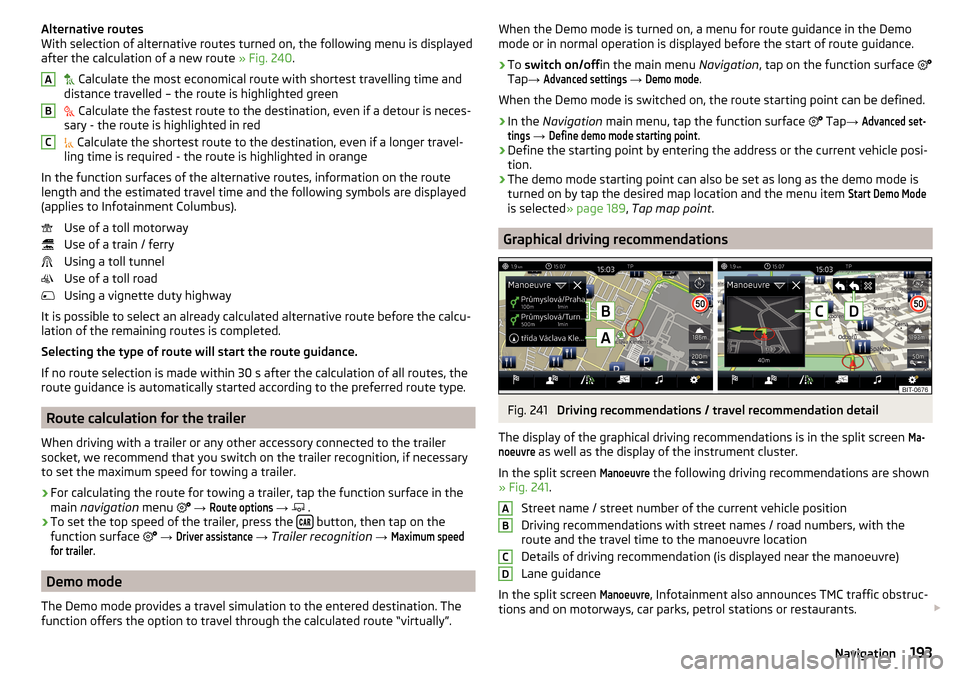
Fig. 241
Driving recommendations / travel recommendation detail
The display of the graphical driving recommendations is in the split screen
Ma-noeuvre
as well as the display of the instrument cluster.
In the split screen
Manoeuvre
the following driving recommendations are shown
» Fig. 241 .
Street name / street number of the current vehicle position
Driving recommendations with street names / road numbers, with the
route and the travel time to the manoeuvre location
Details of driving recommendation (is displayed near the manoeuvre)
Lane guidance
In the split screen
Manoeuvre
, Infotainment also announces TMC traffic obstruc-
tions and on motorways, car parks, petrol stations or restaurants.
ABCD193Navigation
Page 214 of 344
Accelerate to maximum speed when starting (launch control function)1)
The launch control function is available in mode S or Tiptronic.›
Disable the TCS » page 215, Braking and stabilisation systems .
›
START STOP deactivate » page 205, manually activate/deactivate system .
›
Fully depress and hold the brake pedal with your left foot.
›
Fully depress the accelerator pedal with your right foot.
›
Release the brake pedal - the vehicle is running at maximum acceleration.
Driving in neutral (“coasting”)
When releasing the accelerator pedal, the vehicle moves without the braking
effect of the engine.
Operating conditions
▶ The selector lever is in the D/S position.
▶ Driving mode Eco or Individual (Drive - Eco) is selected » page 251, Select the
driving mode (Driving Mode Selection) .
▶ The vehicle is travelling at more than 20 km/h.
▶ No trailer or other accessory is connected to the trailer socket.
The gear is selected again automatically, when you depress the accelerator or
brake pedal or pull the left rocker switch
-
towards the steering wheel
» page 211 , Manual shifting of gears (Tiptronic) .
WARNINGRapid acceleration, particularly on slippery roads, can lead to loss of control
of the vehicle – risk of accident!
Running in the engine and economical driving
Introduction
This chapter contains information on the following subjects:
Run in engine
212
Tips for economical driving
212
DriveGreen function
213Run in engine
During the first 1,500 km, the driving manner determines the quality of the
running in process on a new engine.
During the first 1,000 km , the engine should not be charged with more than
3/4 of the maximum permitted engine revs and without the trailer.
In the area of 1,000 to 1,500 kilometres , the engine load can be increased up
to the maximum permitted engine speed.
Tips for economical driving
The fuel consumption depends on the driving style, road condition, weather
conditions and the like.
For an economical driving style, the following instructions must be observed. ▶ Avoid unnecessary acceleration and braking.
▶ Observe the recommended gear » page 44.
▶ Avoid full throttle and high speeds.
▶ Reduce idling.
▶ Avoid short distances.
▶ Ensure the correct tyre inflation pressure is maintained » page 286.
▶ Avoid unnecessary ballast.
▶ Remove the roof rack when it is not needed.
▶ Only switch on electrical consumers (e.g. seat heating) for as long as they are
needed. In the Infotainment menu
→
→
Convenience consumers
up to
three consumers who currently have the largest share of fuel consumption,
can be displayed.
▶ Before switching on, ventilate the cooling system briefly and do not use the
cooling system with open windows.
▶ Do not leave windows open at high speed.
1)
This function is only valid for some engines.
212Driving
Page 218 of 344
Brake Assist (HBA)217Hill Start Assist (HHC)217
Multicollision brake (MCB)
218
Trailer stabilisation system (TSA)
218
The brake and stabilization systems are automatically activated each time the
ignition is switched on, unless otherwise indicated.
The error display is in Chapter » page 33, Warning lights .
WARNINGThe general information relating to the use of assistance systems must be
observed » page 215, in section Introduction .
Stability Control (ESC)
Read and observe
on page 216 first.
ESC improves vehicle stability in critical driving situations (e.g. if the vehicle
starts to skid) by the braking the individual wheels to maintain the direction.
During an ECS intervention, the warning light flashes in the instrument clus-
ter.
ESC Sport
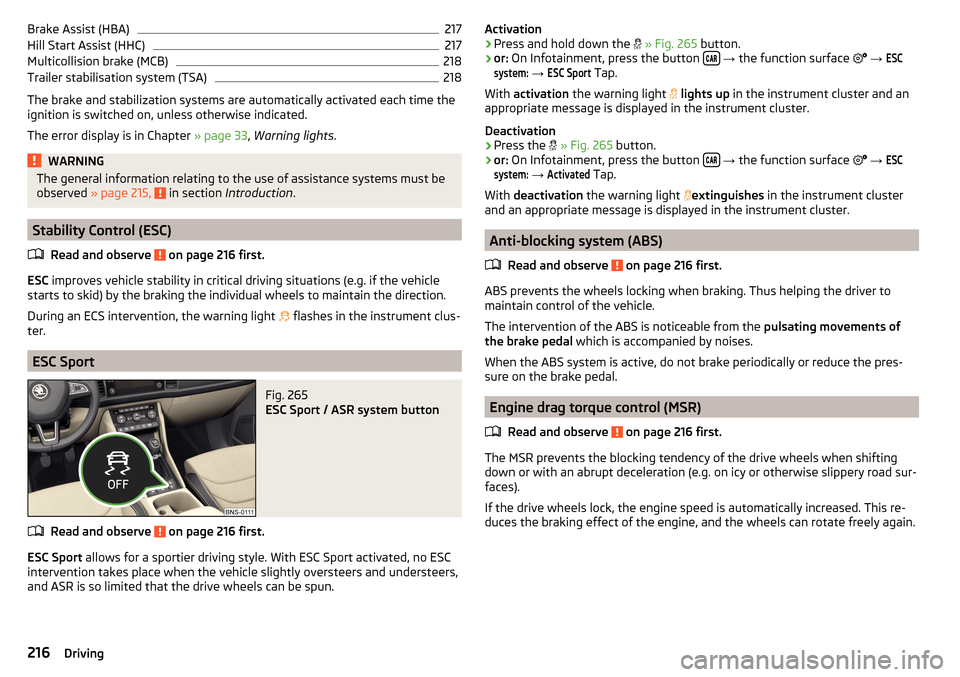
Fig. 265
ESC Sport / ASR system button
Read and observe on page 216 first.
ESC Sport allows for a sportier driving style. With ESC Sport activated, no ESC
intervention takes place when the vehicle slightly oversteers and understeers,
and ASR is so limited that the drive wheels can be spun.
Activation›Press and hold down the » Fig. 265 button.›
or: On Infotainment, press the button
→ the function surface
→
ESCsystem:
→
ESC Sport
Tap.
With activation the warning light
lights up in the instrument cluster and an
appropriate message is displayed in the instrument cluster.
Deactivation
›
Press the
» Fig. 265 button.
›
or: On Infotainment, press the button
→ the function surface
→
ESCsystem:
→
Activated
Tap.
With deactivation the warning light
extinguishes
in the instrument cluster
and an appropriate message is displayed in the instrument cluster.
Anti-blocking system (ABS)
Read and observe
on page 216 first.
ABS prevents the wheels locking when braking. Thus helping the driver to
maintain control of the vehicle.
The intervention of the ABS is noticeable from the pulsating movements of
the brake pedal which is accompanied by noises.
When the ABS system is active, do not brake periodically or reduce the pres-
sure on the brake pedal.
Engine drag torque control (MSR)
Read and observe
on page 216 first.
The MSR prevents the blocking tendency of the drive wheels when shiftingdown or with an abrupt deceleration (e.g. on icy or otherwise slippery road sur-
faces).
If the drive wheels lock, the engine speed is automatically increased. This re-
duces the braking effect of the engine, and the wheels can rotate freely again.
216Driving
Page 220 of 344
Multicollision brake (MCB)Read and observe
on page 216 first.
MCB helps to decrease speed after a collision by means of automatic braking
interventions and to stabilise the vehicle. This reduces the risk of a subse-
quent crash due to uncontrolled vehicle movement.
The automatic brake interventions can take place only if the following condi-
tions are met.
There was a front, side and rear-end collision of a certain severity.
The impact speed was greater than approx. 10 km/h.
The brakes, the ESL and other required electrical systems remain function-
al after impact.
The accelerator pedal is not actuated.
Trailer stabilisation system (TSA)
Read and observe
on page 216 first.
The TSA helps the combination stable in situations where the trailer sways
and then the whole trailer combination.
TSA brakes the individual wheels of the towing vehicle in order to damp the rocking motion of the entire vehicle combination.
The following conditions are required for the correct TSA function. The trailer was shipped from the factory or purchased from the ŠKODA
genuine accessories.
The trailer is electrically connected to the towing vehicle via the trailer
socket.
The parking aid is activated.
The speed is greater than 60 km/h.
Further information » page 261, Towing device and trailer .
OFF ROAD mode
Introduction
This chapter contains information on the following subjects:
Operating principle
219
Hill Descent Assistant
219
ESC OFF ROAD
220
TCS OFF ROAD
220
EDL OFF ROAD
220
ABS OFF ROAD
220
Show OFF ROAD in Infotainment
220
The OFF ROAD mode includes functions that help to overcome routes that are
difficult to navigate when travelling on non-paved roads.
But even with OFF ROAD mode activated, your vehicle is never a true SUV.
WARNINGThe general information relating to the use of assistance systems must be
observed » page 215, in section Introduction .
CAUTION
■
The OFF ROAD mode is not designed for the use on common roads.■All four wheels must be fitted with the same tyres approved by ŠKODA AUTO
to ensure the OFF ROAD mode operates correctly.218Driving
Page 224 of 344
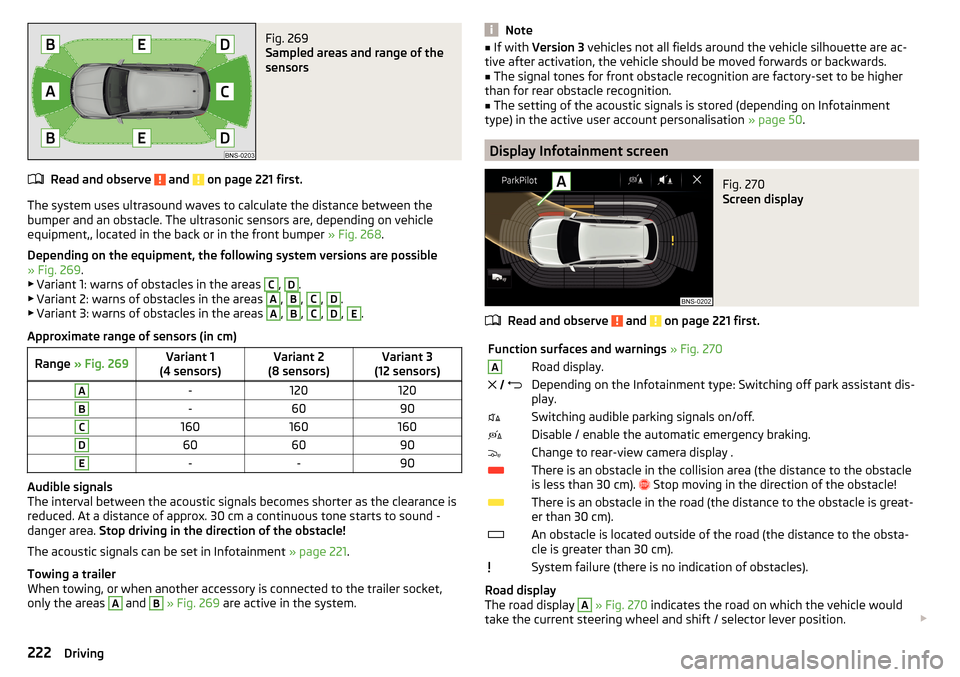
Fig. 269
Sampled areas and range of the
sensors
Read and observe and on page 221 first.
The system uses ultrasound waves to calculate the distance between the
bumper and an obstacle. The ultrasonic sensors are, depending on vehicle
equipment,, located in the back or in the front bumper » Fig. 268.
Depending on the equipment, the following system versions are possible
» Fig. 269 .
▶ Variant 1: warns of obstacles in the areas
C
,
D
.
▶ Variant 2: warns of obstacles in the areas
A
,
B
,
C
,
D
.
▶ Variant 3: warns of obstacles in the areas
A
,
B
,
C
,
D
,
E
.
Approximate range of sensors (in cm)
Range » Fig. 269Variant 1
(4 sensors)Variant 2
(8 sensors)Variant 3
(12 sensors)A-120120B-6090C160160160D606090E--90
Audible signals
The interval between the acoustic signals becomes shorter as the clearance is
reduced. At a distance of approx. 30 cm a continuous tone starts to sound -
danger area. Stop driving in the direction of the obstacle!
The acoustic signals can be set in Infotainment » page 221.
Towing a trailer
When towing, or when another accessory is connected to the trailer socket,
only the areas
A
and
B
» Fig. 269 are active in the system.
Note■
If with Version 3 vehicles not all fields around the vehicle silhouette are ac-
tive after activation, the vehicle should be moved forwards or backwards.■
The signal tones for front obstacle recognition are factory-set to be higher
than for rear obstacle recognition.
■
The setting of the acoustic signals is stored (depending on Infotainment
type) in the active user account personalisation » page 50.
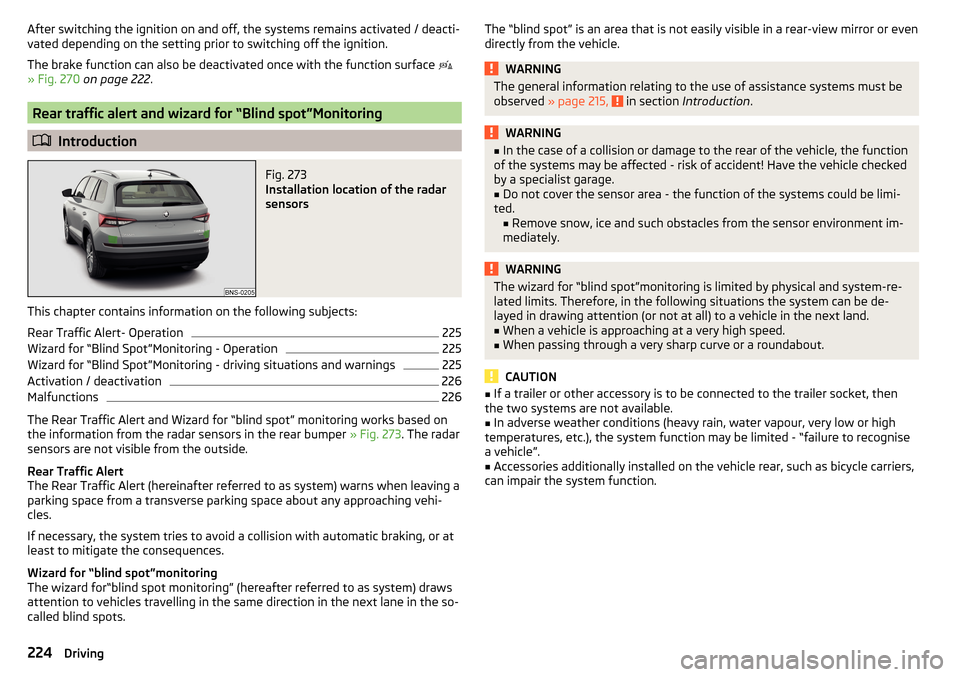
Display Infotainment screen
Fig. 270
Screen display
Read and observe and on page 221 first.
Function surfaces and warnings » Fig. 270ARoad display. Depending on the Infotainment type: Switching off park assistant dis-
play.Switching audible parking signals on/off.Disable / enable the automatic emergency braking.Change to rear-view camera display .There is an obstacle in the collision area (the distance to the obstacle
is less than 30 cm).
Stop moving in the direction of the obstacle!There is an obstacle in the road (the distance to the obstacle is great-
er than 30 cm).An obstacle is located outside of the road (the distance to the obsta-
cle is greater than 30 cm).System failure (there is no indication of obstacles).
Road display
The road display
A
» Fig. 270 indicates the road on which the vehicle would
take the current steering wheel and shift / selector lever position.
222Driving
Page 226 of 344
After switching the ignition on and off, the systems remains activated / deacti-
vated depending on the setting prior to switching off the ignition.
The brake function can also be deactivated once with the function surface
» Fig. 270 on page 222 .
Rear traffic alert and wizard for “Blind spot”Monitoring
Introduction
Fig. 273
Installation location of the radar
sensors
This chapter contains information on the following subjects:
Rear Traffic Alert- Operation
225
Wizard for “Blind Spot”Monitoring - Operation
225
Wizard for “Blind Spot”Monitoring - driving situations and warnings
225
Activation / deactivation
226
Malfunctions
226
The Rear Traffic Alert and Wizard for “blind spot” monitoring works based on
the information from the radar sensors in the rear bumper » Fig. 273. The radar
sensors are not visible from the outside.
Rear Traffic Alert
The Rear Traffic Alert (hereinafter referred to as system) warns when leaving a
parking space from a transverse parking space about any approaching vehi-
cles.
If necessary, the system tries to avoid a collision with automatic braking, or at
least to mitigate the consequences.
Wizard for “blind spot”monitoring
The wizard for“blind spot monitoring” (hereafter referred to as system) draws
attention to vehicles travelling in the same direction in the next lane in the so-
called blind spots.
The “blind spot” is an area that is not easily visible in a rear-view mirror or even
directly from the vehicle.WARNINGThe general information relating to the use of assistance systems must be
observed » page 215, in section Introduction .WARNING■
In the case of a collision or damage to the rear of the vehicle, the function
of the systems may be affected - risk of accident! Have the vehicle checked
by a specialist garage.■
Do not cover the sensor area - the function of the systems could be limi-
ted. ■ Remove snow, ice and such obstacles from the sensor environment im-
mediately.
WARNINGThe wizard for “blind spot”monitoring is limited by physical and system-re-
lated limits. Therefore, in the following situations the system can be de-
layed in drawing attention (or not at all) to a vehicle in the next land.■
When a vehicle is approaching at a very high speed.
■
When passing through a very sharp curve or a roundabout.
CAUTION
■ If a trailer or other accessory is to be connected to the trailer socket, then
the two systems are not available.■
In adverse weather conditions (heavy rain, water vapour, very low or high
temperatures, etc.), the system function may be limited - “failure to recognise
a vehicle”.
■
Accessories additionally installed on the vehicle rear, such as bicycle carriers,
can impair the system function.
224Driving
Page 229 of 344
Rear View Camera
Introduction
This chapter contains information on the following subjects:
Operating principle
227
Activation/deactivation
228
Function surfaces
228
Orientation lines and lane
228
Mode - traverse parking
229
Mode - parallel parking
229
Mode - driving up to a trailer / distance monitoring
230
Mode - monitor the area behind the vehicle
230
The rear view camera (following as system) helps the driver when parking and
manoeuvring by displaying the area behind the vehicle on Infotainment screen
(hereinafter only known as screen).
There are four modes available for different situations during the park and ma-
noeuvring action. The mode change is carried out using the function surfaces
on the screen » page 228.
WARNING■
The general information relating to the use of assistance systems must
be observed » page 215, in section Introduction .■
The system detects obstacles. The display of the auxiliary boxes and lines
is independent of the actual vehicle environment. The driver must judge for
themselves whether the vehicle can park safely in the selected parking
space.
■
The camera may not be soiled or obscured, otherwise the system function
will be significantly affected - there is a risk of accident. For information on
cleaning » page 271 .
CAUTION■
The camera image is distorted by contrast with eyesight. For this reason, the
screen display is only of limited use for estimating distances to following vehi-
cles.■
Some items, such as thin posts, chain link fences, grilles or uneven road sur-
faces may not be properly displayed in terms of screen resolution.
■
In a crash or damage the vehicle's rear camera can possibly deviate from the
correct position. If this is the case, have the sensor checked by a specialist ga-
rage.
Note
The camera is equipped with a cleaning system » page 75. The spraying is car-
ried out automatically when the rear window is sprayed.
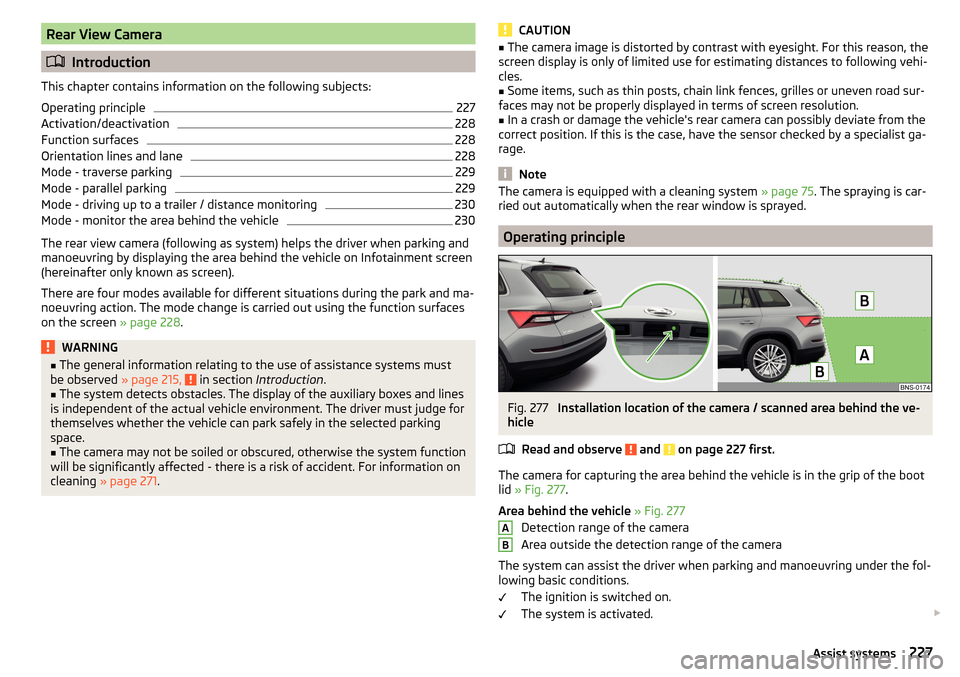
Operating principle
Fig. 277
Installation location of the camera / scanned area behind the ve-
hicle
Read and observe
and on page 227 first.
The camera for capturing the area behind the vehicle is in the grip of the bootlid » Fig. 277 .
Area behind the vehicle » Fig. 277
Detection range of the camera
Area outside the detection range of the camera
The system can assist the driver when parking and manoeuvring under the fol- lowing basic conditions.
The ignition is switched on.
The system is activated.
AB227Assist systems
Page 230 of 344
The luggage compartment lid is completely closed.
The vehicle is travelling at less than 15 km/h.
The area behind the vehicle is clearly visible.
The selected parking / manoeuvring area is clear and even.
Activation/deactivation
Fig. 278
Button for activation / deactiva-
tion
Read and observe and on page 227 first.
Activation
The system is activated by selecting reverse gear or pressing the symbol
button » Fig. 278 .
When activating, an alarm sounds and the symbol illuminates in the button.
The display mode for the traverse parking is displayed.
Deactivation
The system is deactivated by pressing the button, switching off the ignition
or when the speed exceeds 15 km/h (the symbol in the button then goes
out).
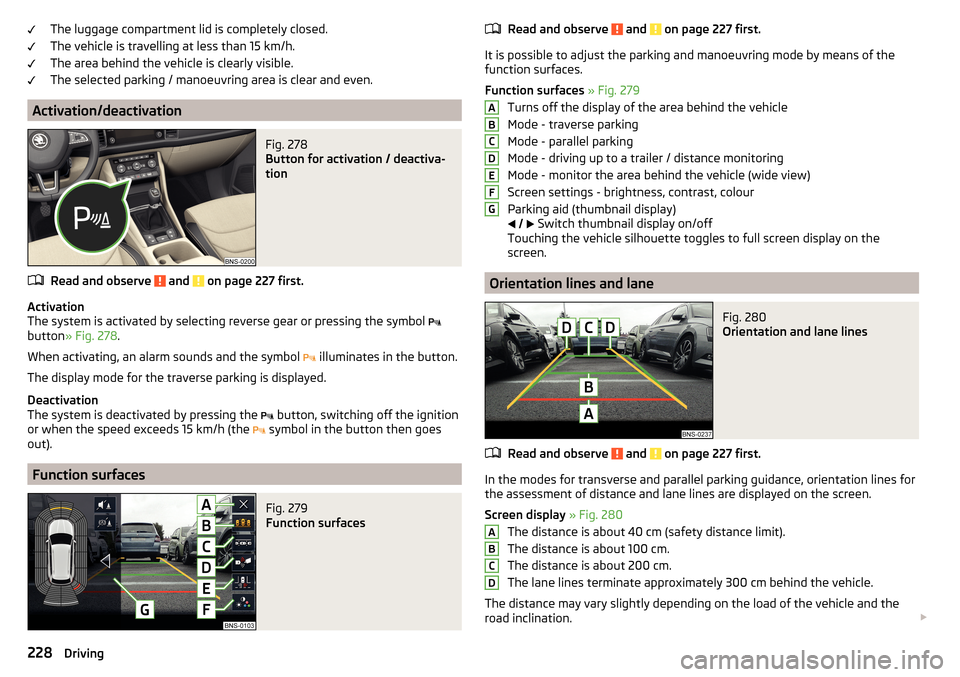
Function surfaces
Fig. 279
Function surfaces
Read and observe and on page 227 first.
It is possible to adjust the parking and manoeuvring mode by means of the
function surfaces.
Function surfaces » Fig. 279
Turns off the display of the area behind the vehicle
Mode - traverse parking
Mode - parallel parking
Mode - driving up to a trailer / distance monitoring
Mode - monitor the area behind the vehicle (wide view)
Screen settings - brightness, contrast, colour
Parking aid (thumbnail display)
Switch thumbnail display on/off
Touching the vehicle silhouette toggles to full screen display on the
screen.
Orientation lines and lane
Fig. 280
Orientation and lane lines
Read and observe and on page 227 first.
In the modes for transverse and parallel parking guidance, orientation lines for the assessment of distance and lane lines are displayed on the screen.
Screen display » Fig. 280
The distance is about 40 cm (safety distance limit).
The distance is about 100 cm.
The distance is about 200 cm.
The lane lines terminate approximately 300 cm behind the vehicle.
The distance may vary slightly depending on the load of the vehicle and the
road inclination.
ABCDEFGABCD228Driving
Page 232 of 344
›In this case, adjust the steering wheel so that the yellow lines 6 the red line8 fade into each other.›
Carefully reverse until
appears on the screen or the green line
7
is con-
gruent with the lateral boundary of the parking space (e.g. kerb)
2
.
›
Stop the vehicle and steer opposite until the yellow lines
6
the red line
8
fade into each other (required roadway alignment). Hold the steering wheel
in this position.
Orientation lines are displayed » Fig. 280 on page 228 on the screen.
›
Carefully move backwards.
›
Stop the vehicle when
appears on the screen, or at a safe distance from
the obstacle situated behind the vehicle.
Note
The guidance in the parking space is cancelled due to the system when the
steering wheel is set for a period of time against the required road direction.
The parking is to be started again.
Mode - driving up to a trailer / distance monitoring
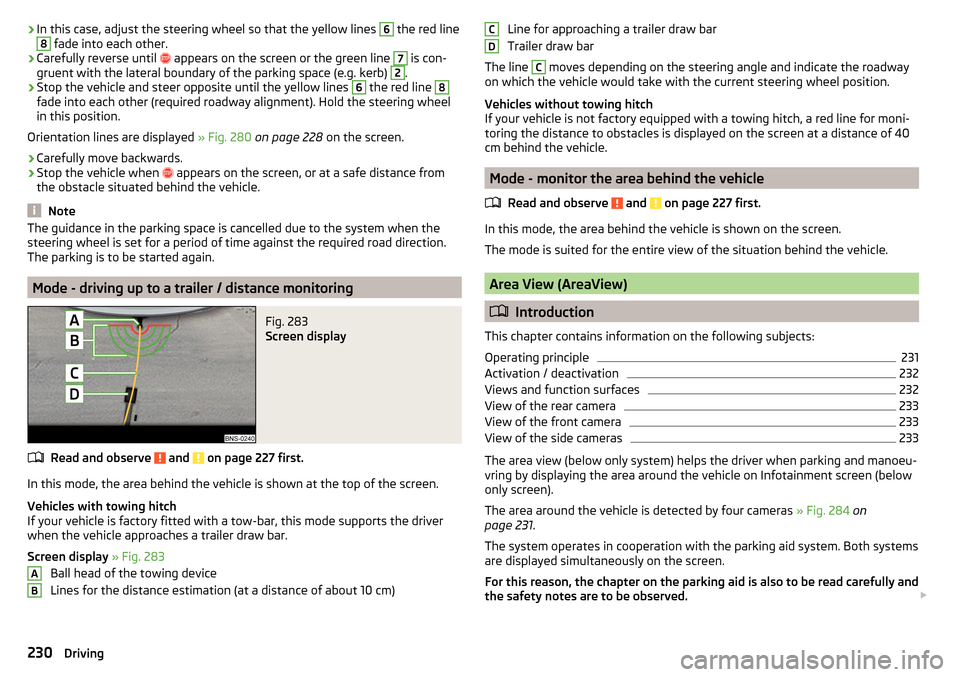
Fig. 283
Screen display
Read and observe and on page 227 first.
In this mode, the area behind the vehicle is shown at the top of the screen.
Vehicles with towing hitch
If your vehicle is factory fitted with a tow-bar, this mode supports the driver
when the vehicle approaches a trailer draw bar.
Screen display » Fig. 283
Ball head of the towing device
Lines for the distance estimation (at a distance of about 10 cm)
ABLine for approaching a trailer draw bar
Trailer draw bar
The line C
moves depending on the steering angle and indicate the roadway
on which the vehicle would take with the current steering wheel position.
Vehicles without towing hitch
If your vehicle is not factory equipped with a towing hitch, a red line for moni-
toring the distance to obstacles is displayed on the screen at a distance of 40
cm behind the vehicle.
Mode - monitor the area behind the vehicle
Read and observe
and on page 227 first.
In this mode, the area behind the vehicle is shown on the screen.
The mode is suited for the entire view of the situation behind the vehicle.
Area View (AreaView)
Introduction
This chapter contains information on the following subjects:
Operating principle
231
Activation / deactivation
232
Views and function surfaces
232
View of the rear camera
233
View of the front camera
233
View of the side cameras
233
The area view (below only system) helps the driver when parking and manoeu-
vring by displaying the area around the vehicle on Infotainment screen (below
only screen).
The area around the vehicle is detected by four cameras » Fig. 284 on
page 231 .
The system operates in cooperation with the parking aid system. Both systems
are displayed simultaneously on the screen.
For this reason, the chapter on the parking aid is also to be read carefully and
the safety notes are to be observed.
CD230Driving
Page 236 of 344
WARNING■The general information relating to the use of assistance systems must
be observed » page 215, in section Introduction .■
During the parking process, the system automatically performs rapid
steering movements. While it is doing so, do not place your hands between
the steering wheel – risk of injury!
■
During a parking manoeuvre on loose or slippery surfaces (gravel, snow,
ice, etc.) you may stray from the calculated road. It is therefore recommen-
ded that you do not use the system in such situations.
CAUTION
The correct evaluation of the parking space and the parking procedure de-
pends on the circumference of the wheels on the vehicle.■
The system only works correctly if the vehicle is fitted with the wheel size
approved by ŠKODA AUTO.
■
Abstain from using the system when the vehicle is fitted with snow chains or
a temporary spare wheel.
■
If wheels other than those approved by ŠKODA AUTO are fitted, the resulting
position of the vehicle in the parking space can differ slightly. This can be avoi-
ded by readjusting the system at a specialist garage.
CAUTION
If other vehicles are parked behind or on the curb, the system can drive your
vehicle over the kerb or up to the kerb - there is a risk of damage to the
wheels. If necessary, intervene in time.
Note
■ We recommend performing the parking at a safe speed to about 5 km/h.■The parking procedure can be stopped at any time by pressing the
» Fig. 289 on page 234 button or by a steering intervention.OperationFig. 289
System button
Read and observe and on page 234 first.
The system support is provided in the following manner.
▶ While the parking space search is going on, a measurement and evaluation of
the parking space size is completed.
▶ The display of the instrument cluster (hereinafter only display) shows suita-
ble parking spaces and a parking mode is recommended.
▶ The display shows instructions and information before the start and during
the parking.
▶ Based on the calculated road surface, the front wheels will be automatically
rotated during the parking.
Conditions for the system function
The system can look for a parking space only if the following basic conditions
are met.
The system is activated.
The vehicle is travelling at less than 40 km/h.
The vehicle is travelling at less than 20 km/h.
The distance to a number of parked vehicles is approximately 0.5 - 1.5 m.
TCS is activated » page 217.
The system can only carry out the parking procedure if the following basic con- ditions are met.
The vehicle is travelling at less than 7 km/h.
The parking procedure takes less than 6 minutes.
There is no driver intervention in the automatic steering operation.
TCS is activated » page 217.
The TCS does not engage.
No trailer or other accessory is connected to the trailer socket.
234Driving