ECU SKODA KODIAQ 2016 1.G Owner's Guide
[x] Cancel search | Manufacturer: SKODA, Model Year: 2016, Model line: KODIAQ, Model: SKODA KODIAQ 2016 1.GPages: 344, PDF Size: 58.96 MB
Page 134 of 344
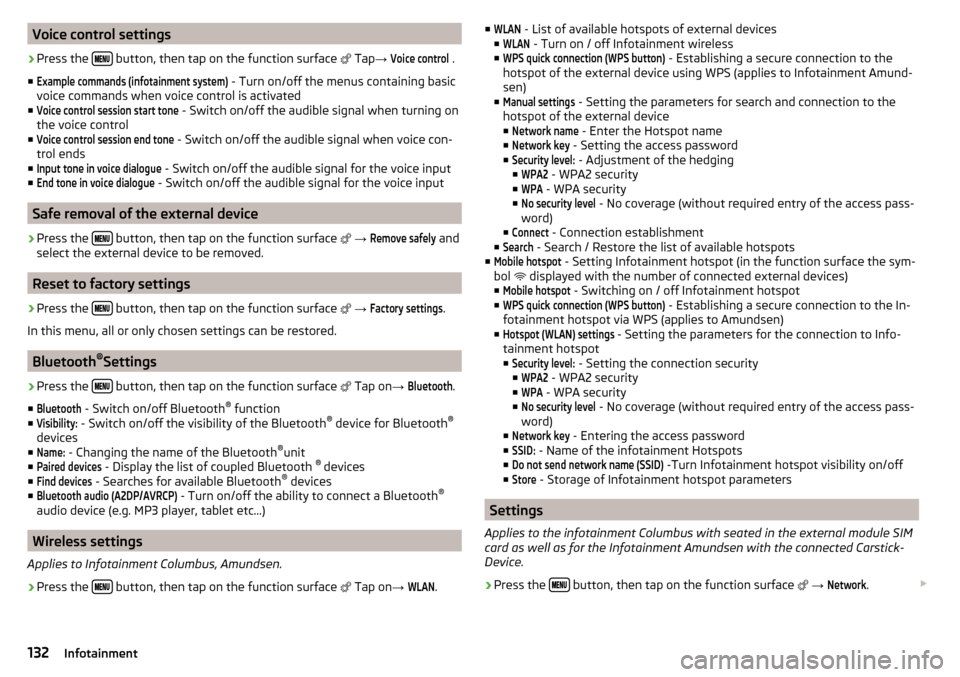
Voice control settings›
Press the button, then tap on the function surface
Tap →
Voice control
.
■
Example commands (infotainment system)
- Turn on/off the menus containing basic
voice commands when voice control is activated
■
Voice control session start tone
- Switch on/off the audible signal when turning on
the voice control
■
Voice control session end tone
- Switch on/off the audible signal when voice con-
trol ends
■
Input tone in voice dialogue
- Switch on/off the audible signal for the voice input
■
End tone in voice dialogue
- Switch on/off the audible signal for the voice input
Safe removal of the external device
›
Press the button, then tap on the function surface
→
Remove safely
and
select the external device to be removed.
Reset to factory settings
›
Press the button, then tap on the function surface
→
Factory settings
.
In this menu, all or only chosen settings can be restored.
Bluetooth ®
Settings
›
Press the button, then tap on the function surface
Tap on
→
Bluetooth
.
■
Bluetooth
- Switch on/off Bluetooth ®
function
■
Visibility:
- Switch on/off the visibility of the Bluetooth ®
device for Bluetooth ®
devices
■
Name:
- Changing the name of the Bluetooth ®
unit
■
Paired devices
- Display the list of coupled Bluetooth ®
devices
■
Find devices
- Searches for available Bluetooth ®
devices
■
Bluetooth audio (A2DP/AVRCP)
- Turn on/off the ability to connect a Bluetooth ®
audio device (e.g. MP3 player, tablet etc...)
Wireless settings
Applies to Infotainment Columbus, Amundsen.
›
Press the button, then tap on the function surface
Tap on
→
WLAN
.
■WLAN - List of available hotspots of external devices
■WLAN
- Turn on / off Infotainment wireless
■
WPS quick connection (WPS button)
- Establishing a secure connection to the
hotspot of the external device using WPS (applies to Infotainment Amund- sen)
■
Manual settings
- Setting the parameters for search and connection to the
hotspot of the external device ■
Network name
- Enter the Hotspot name
■
Network key
- Setting the access password
■
Security level:
- Adjustment of the hedging
■
WPA2
- WPA2 security
■
WPA
- WPA security
■
No security level
- No coverage (without required entry of the access pass-
word)
■
Connect
- Connection establishment
■
Search
- Search / Restore the list of available hotspots
■
Mobile hotspot
- Setting Infotainment hotspot (in the function surface the sym-
bol displayed with the number of connected external devices)
■
Mobile hotspot
- Switching on / off Infotainment hotspot
■
WPS quick connection (WPS button)
- Establishing a secure connection to the In-
fotainment hotspot via WPS (applies to Amundsen)
■
Hotspot (WLAN) settings
- Setting the parameters for the connection to Info-
tainment hotspot
■
Security level:
- Setting the connection security
■
WPA2
- WPA2 security
■
WPA
- WPA security
■
No security level
- No coverage (without required entry of the access pass-
word)
■
Network key
- Entering the access password
■
SSID:
- Name of the infotainment Hotspots
■
Do not send network name (SSID)
-Turn Infotainment hotspot visibility on/off
■
Store
- Storage of Infotainment hotspot parameters
Settings
Applies to the infotainment Columbus with seated in the external module SIM
card as well as for the Infotainment Amundsen with the connected Carstick-
Device.
›
Press the button, then tap on the function surface
→
Network
.
132Infotainment
Page 145 of 344
›To
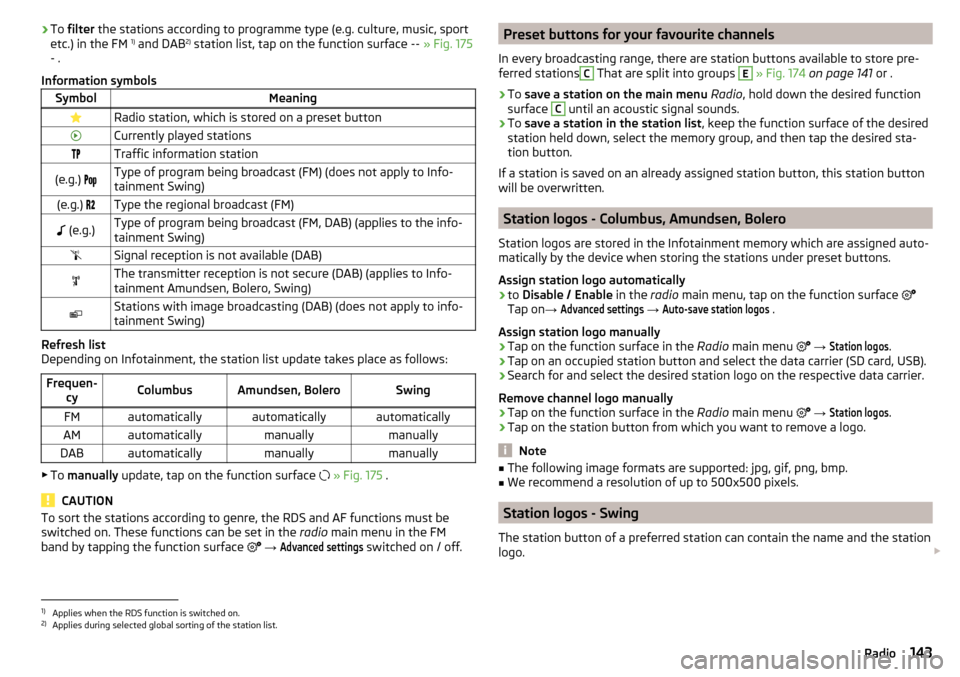
filter the stations according to programme type (e.g. culture, music, sport
etc.) in the FM 1)
and DAB 2)
station list, tap on the function surface -- » Fig. 175
- .
Information symbolsSymbolMeaningRadio station, which is stored on a preset buttonCurrently played stationsTraffic information station(e.g.) Type of program being broadcast (FM) (does not apply to Info-
tainment Swing)(e.g.) Type the regional broadcast (FM) (e.g.)Type of program being broadcast (FM, DAB) (applies to the info-
tainment Swing)Signal reception is not available (DAB)The transmitter reception is not secure (DAB) (applies to Info-
tainment Amundsen, Bolero, Swing)Stations with image broadcasting (DAB) (does not apply to info-
tainment Swing)
Refresh list
Depending on Infotainment, the station list update takes place as follows:
Frequen- cyColumbusAmundsen, BoleroSwingFMautomaticallyautomaticallyautomaticallyAMautomaticallymanuallymanuallyDABautomaticallymanuallymanually
▶To manually update, tap on the function surface
» Fig. 175 .
CAUTION
To sort the stations according to genre, the RDS and AF functions must be
switched on. These functions can be set in the radio main menu in the FM
band by tapping the function surface
→ Advanced settings
switched on / off.
Preset buttons for your favourite channels
In every broadcasting range, there are station buttons available to store pre-
ferred stationsC
That are split into groups
E
» Fig. 174 on page 141 or .
›
To save a station on the main menu Radio , hold down the desired function
surface
C
until an acoustic signal sounds.
›
To save a station in the station list , keep the function surface of the desired
station held down, select the memory group, and then tap the desired sta-
tion button.
If a station is saved on an already assigned station button, this station button will be overwritten.
Station logos - Columbus, Amundsen, Bolero
Station logos are stored in the Infotainment memory which are assigned auto- matically by the device when storing the stations under preset buttons.
Assign station logo automatically
›
to Disable / Enable in the radio main menu, tap on the function surface
Tap on →
Advanced settings
→
Auto-save station logos
.
Assign station logo manually
›
Tap on the function surface in the Radio main menu
→
Station logos
.
›
Tap on an occupied station button and select the data carrier (SD card, USB).
›
Search for and select the desired station logo on the respective data carrier.
Remove channel logo manually
›
Tap on the function surface in the Radio main menu
→
Station logos
.
›
Tap on the station button from which you want to remove a logo.
Note
■
The following image formats are supported: jpg, gif, png, bmp.■We recommend a resolution of up to 500x500 pixels.
Station logos - Swing
The station button of a preferred station can contain the name and the station
logo.
1)
Applies when the RDS function is switched on.
2)
Applies during selected global sorting of the station list.
143Radio
Page 171 of 344
›Tap the function surface
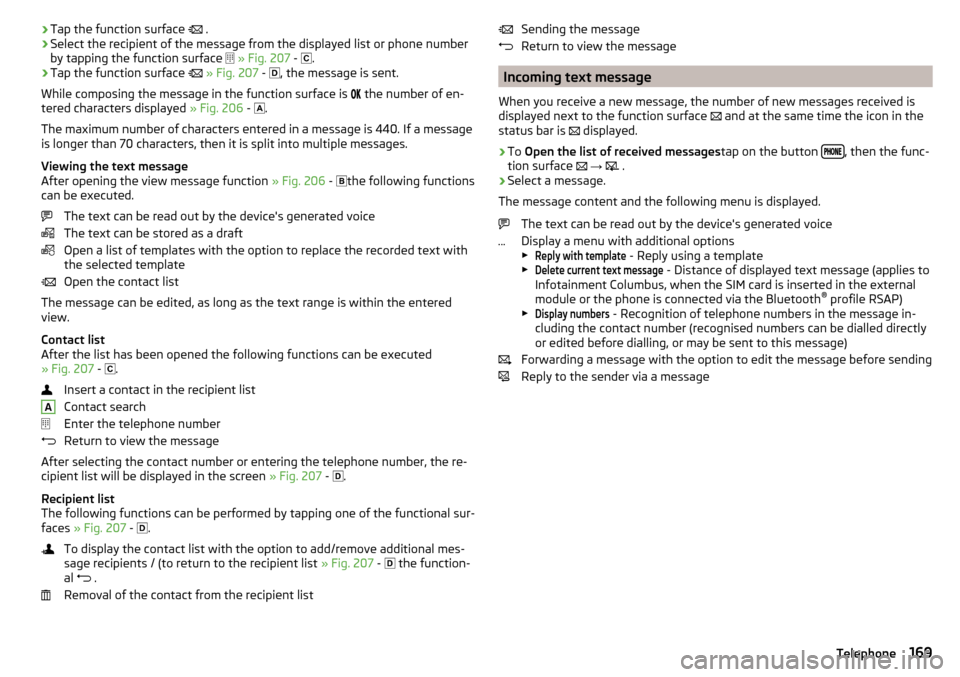
.›Select the recipient of the message from the displayed list or phone number
by tapping the function surface
» Fig. 207 -
.›
Tap the function surface
» Fig. 207 -
, the message is sent.
While composing the message in the function surface is
the number of en-
tered characters displayed » Fig. 206 -
.
The maximum number of characters entered in a message is 440. If a message
is longer than 70 characters, then it is split into multiple messages.
Viewing the text message
After opening the view message function » Fig. 206 -
the following functions
can be executed.
The text can be read out by the device's generated voice
The text can be stored as a draft
Open a list of templates with the option to replace the recorded text with
the selected template
Open the contact list
The message can be edited, as long as the text range is within the entered
view.
Contact list
After the list has been opened the following functions can be executed
» Fig. 207 -
.
Insert a contact in the recipient list
Contact search
Enter the telephone number
Return to view the message
After selecting the contact number or entering the telephone number, the re- cipient list will be displayed in the screen » Fig. 207 -
.
Recipient list
The following functions can be performed by tapping one of the functional sur-
faces » Fig. 207 -
.
To display the contact list with the option to add/remove additional mes-
sage recipients / (to return to the recipient list » Fig. 207 -
the function-
al .
Removal of the contact from the recipient list
ASending the message
Return to view the message
Incoming text message
When you receive a new message, the number of new messages received is
displayed next to the function surface
and at the same time the icon in the
status bar is
displayed.
›
To Open the list of received messages tap on the button , then the func-
tion surface
→
.
›
Select a message.
The message content and the following menu is displayed.
The text can be read out by the device's generated voice
Display a menu with additional options
▶
Reply with template
- Reply using a template
▶
Delete current text message
- Distance of displayed text message (applies to
Infotainment Columbus, when the SIM card is inserted in the external
module or the phone is connected via the Bluetooth ®
profile RSAP)
▶
Display numbers
- Recognition of telephone numbers in the message in-
cluding the contact number (recognised numbers can be dialled directly
or edited before dialling, or may be sent to this message)
Forwarding a message with the option to edit the message before sending
Reply to the sender via a message
169Telephone
Page 172 of 344
Hotspot (WLAN) and data connection
Hotspot (WLAN)
Introduction to the subject
Applies to Infotainment Columbus, Amundsen.
WLAN can be used to connect to the Internet, to playback audio files in the menu media (if the connected external device allows this) or for operating the
device using an application in the external device (e.g. ŠKODA Media Command
or ŠKODA One App).
The requirement for the WLAN function is that the ignition is switched on. Af-
ter switching on the ignition, the last-used WLAN connection appears.
It is possible to connect up to 8 external devices to the Infotainment hotspot
and at the same time to connect Infotainment to the hotspot of other external
devices.
If there is a SIM card with activated data services in the external module of In-
fotainment Columbus or there is a connection to the phone via Bluetooth ®
profile RSAP, a connection cannot be established to the external device hot- spot.
connect an external device to the hotspot (WLAN) infotainment
Switch Infotainment hotspot on / off
›
Press the button, then tap on the function surface
Tap on
→
WLAN
→
Mobile hotspot
→
Mobile hotspot
.
Set infotainment Hotspot
▶ Press the
button, then tap on the function surface
Tap on
→
WLAN
→
Mobile hotspot
→
Hotspot (WLAN) settings
.
▶ Setting required menu items from the following menu.
■
Security level:
- Setting the connection security
■
Network key
- Entering the access password
■
SSID:
- Name of the infotainment Hotspots
■
Do not send network name (SSID)
-Turn Infotainment hotspot visibility on/off
▶ Tap the function surface Store to save the parameters of the Infotainment
hotspot.
Connect ▶ Enable the Wi-Fi in the external device and search for any available hotspots.
▶ Select the Infotainment hotspot (if necessary, enter the required password).
▶ Confirm the connection.
Establish secure connection using WPS (applies to Infotainment Amundsen) ▶ Turn on Infotainment in the device.
▶ Press the
button, then tap on the function surface
→
WIRELESS INTER-NET ACCESS
→
WIRELESS INTERNET ACCESS
→
WPS quick connection (WPS button)
Tap.
▶ Turn on the option to connect to Infotainment hotspot using WPS.
Note
If the external device is connected to the Infotainment hotspot (WLAN), then
the data connection to the external device cannot be used.
Connect infotainment with the hotspot (WLAN) of the external
device
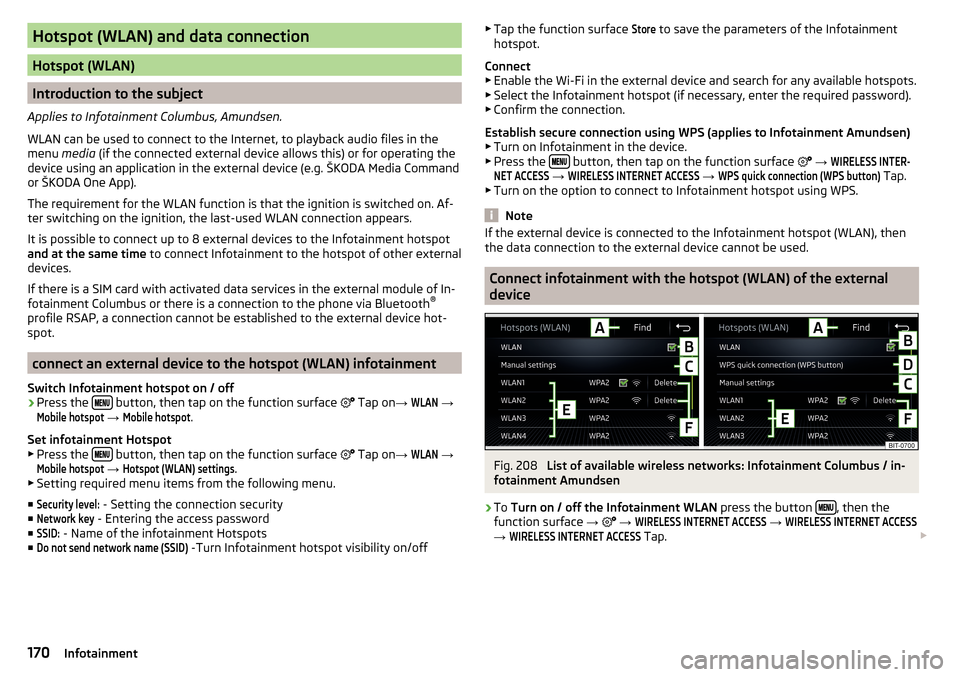
Fig. 208
List of available wireless networks: Infotainment Columbus / in-
fotainment Amundsen
›
To Turn on / off the Infotainment WLAN press the button , then the
function surface →
→
WIRELESS INTERNET ACCESS
→
WIRELESS INTERNET ACCESS
→
WIRELESS INTERNET ACCESS
Tap.
170Infotainment
Page 173 of 344
Show available hotspots
▶ Press the button, then tap on the function surface
→
WIRELESS INTER-NET ACCESS
→
WIRELESS INTERNET ACCESS
1)
Tap.
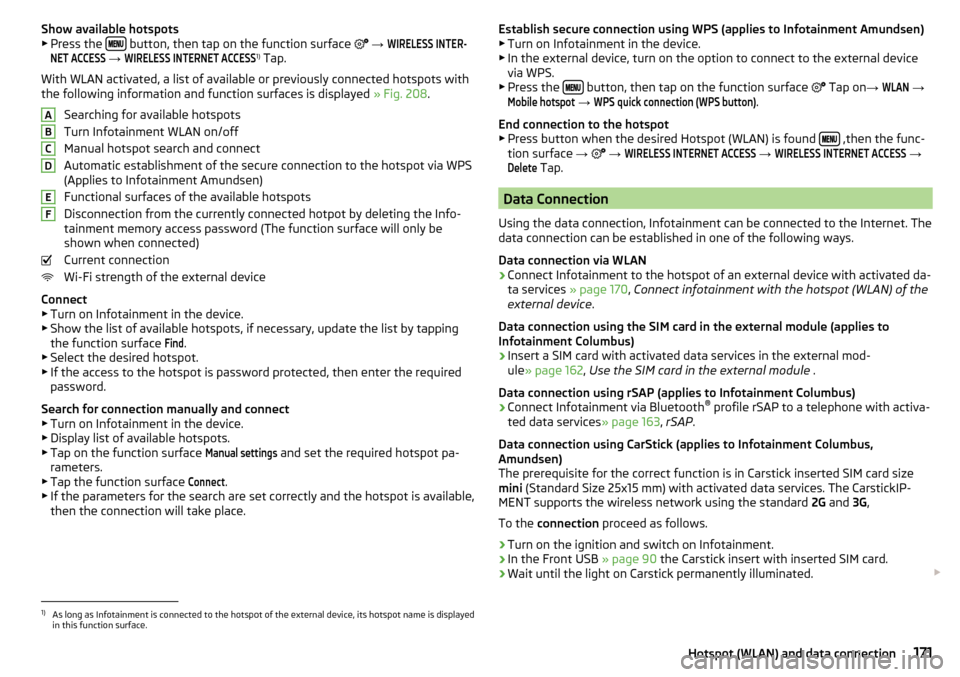
With WLAN activated, a list of available or previously connected hotspots with
the following information and function surfaces is displayed » Fig. 208.
Searching for available hotspots
Turn Infotainment WLAN on/off
Manual hotspot search and connect
Automatic establishment of the secure connection to the hotspot via WPS
(Applies to Infotainment Amundsen)
Functional surfaces of the available hotspots
Disconnection from the currently connected hotpot by deleting the Info-
tainment memory access password (The function surface will only be
shown when connected)
Current connection
Wi-Fi strength of the external device
Connect ▶ Turn on Infotainment in the device.
▶ Show the list of available hotspots, if necessary, update the list by tapping
the function surface
Find
.
▶ Select the desired hotspot.
▶ If the access to the hotspot is password protected, then enter the required
password.
Search for connection manually and connect ▶ Turn on Infotainment in the device.
▶ Display list of available hotspots.
▶ Tap on the function surface
Manual settings
and set the required hotspot pa-
rameters.
▶ Tap the function surface
Connect
.
▶ If the parameters for the search are set correctly and the hotspot is available,
then the connection will take place.
ABCDEFEstablish secure connection using WPS (applies to Infotainment Amundsen) ▶ Turn on Infotainment in the device.
▶ In the external device, turn on the option to connect to the external device
via WPS.
▶ Press the
button, then tap on the function surface
Tap on →
WLAN
→
Mobile hotspot
→
WPS quick connection (WPS button)
.
End connection to the hotspot ▶ Press button when the desired Hotspot (WLAN) is found
,then the func-
tion surface →
→
WIRELESS INTERNET ACCESS
→
WIRELESS INTERNET ACCESS
→
Delete
Tap.
Data Connection
Using the data connection, Infotainment can be connected to the Internet. The
data connection can be established in one of the following ways.
Data connection via WLAN
›
Connect Infotainment to the hotspot of an external device with activated da-
ta services » page 170, Connect infotainment with the hotspot (WLAN) of the
external device .
Data connection using the SIM card in the external module (applies to
Infotainment Columbus)
›
Insert a SIM card with activated data services in the external mod-
ule » page 162 , Use the SIM card in the external module .
Data connection using rSAP (applies to Infotainment Columbus)
›
Connect Infotainment via Bluetooth ®
profile rSAP to a telephone with activa-
ted data services » page 163, rSAP .
Data connection using CarStick (applies to Infotainment Columbus,
Amundsen)
The prerequisite for the correct function is in Carstick inserted SIM card size
mini (Standard Size 25x15 mm) with activated data services. The CarstickIP-
MENT supports the wireless network using the standard 2G and 3G,
To the connection proceed as follows.
›
Turn on the ignition and switch on Infotainment.
›
In the Front USB » page 90 the Carstick insert with inserted SIM card.
›
Wait until the light on Carstick permanently illuminated.
1)
As long as Infotainment is connected to the hotspot of the external device, its hotspot name is displayed
in this function surface.
171Hotspot (WLAN) and data connection
Page 209 of 344
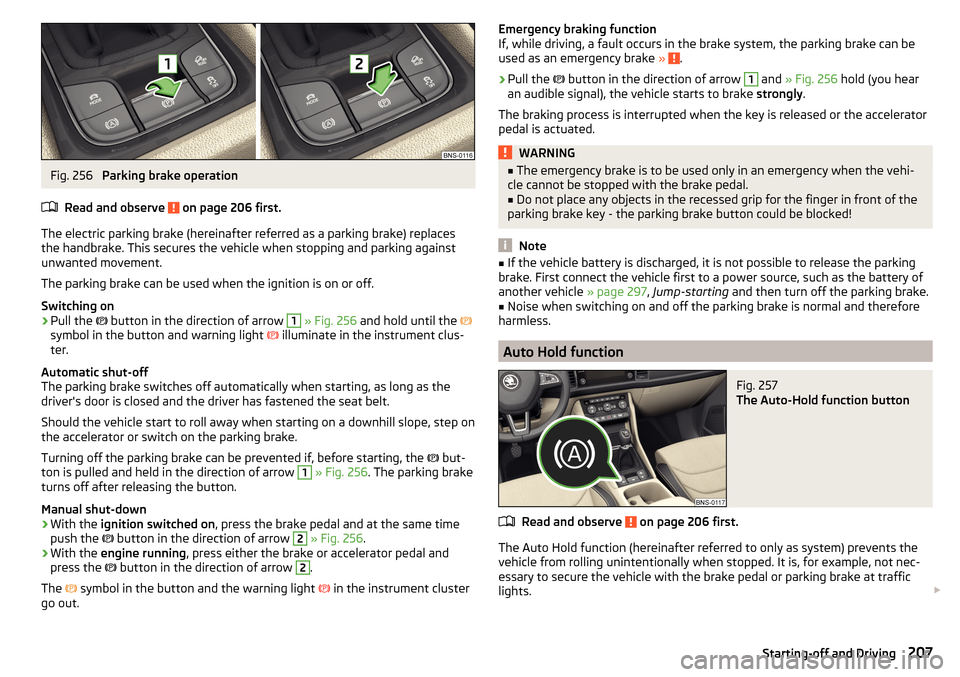
Fig. 256
Parking brake operation
Read and observe
on page 206 first.
The electric parking brake (hereinafter referred as a parking brake) replaces the handbrake. This secures the vehicle when stopping and parking against
unwanted movement.
The parking brake can be used when the ignition is on or off.
Switching on
›
Pull the button in the direction of arrow
1
» Fig. 256 and hold until the
symbol in the button and warning light illuminate in the instrument clus-
ter.
Automatic shut-off
The parking brake switches off automatically when starting, as long as the
driver's door is closed and the driver has fastened the seat belt.
Should the vehicle start to roll away when starting on a downhill slope, step on
the accelerator or switch on the parking brake.
Turning off the parking brake can be prevented if, before starting, the but-
ton is pulled and held in the direction of arrow
1
» Fig. 256 . The parking brake
turns off after releasing the button.
Manual shut-down
›
With the ignition switched on , press the brake pedal and at the same time
push the button in the direction of arrow
2
» Fig. 256 .
›
With the engine running , press either the brake or accelerator pedal and
press the button in the direction of arrow
2
.
The symbol in the button and the warning light
in the instrument cluster
go out.
Emergency braking function
If, while driving, a fault occurs in the brake system, the parking brake can be
used as an emergency brake »
.
›
Pull the
button in the direction of arrow
1
and » Fig. 256 hold (you hear
an audible signal), the vehicle starts to brake strongly.
The braking process is interrupted when the key is released or the accelerator
pedal is actuated.
WARNING■ The emergency brake is to be used only in an emergency when the vehi-
cle cannot be stopped with the brake pedal.■
Do not place any objects in the recessed grip for the finger in front of the
parking brake key - the parking brake button could be blocked!
Note
■ If the vehicle battery is discharged, it is not possible to release the parking
brake. First connect the vehicle first to a power source, such as the battery of
another vehicle » page 297, Jump-starting and then turn off the parking brake.■
Noise when switching on and off the parking brake is normal and therefore
harmless.
Auto Hold function
Fig. 257
The Auto-Hold function button
Read and observe on page 206 first.
The Auto Hold function (hereinafter referred to only as system) prevents the
vehicle from rolling unintentionally when stopped. It is, for example, not nec-
essary to secure the vehicle with the brake pedal or parking brake at traffic
lights.
207Starting-off and Driving
Page 210 of 344
For the activation, deactivation and correct functioning of the system, the
following basic conditions are required.
The driver's door is closed.
The engine is running (or has been switched off automatically by the
START-STOP system).
On vehicles with automatic transmission the selector lever is not in mode
N (in this mode, the system is not available).
Stopping and starting
When stopping the system prevents the vehicle from rolling away. The warn-
ing light
illuminates in the instrument cluster. The brake pedal can be re-
leased.
The vehicle's brakes are released at the moment of stating off. The warning
light in the instrument cluster goes out.
Should the vehicle start to roll away when starting on a downhill slope, step on
the accelerator or switch on the parking brake.
If the vehicle is secured by the system and the driver's door is opened or the ignition is turned off, the vehicle is secured by the parking brake to prevent
unwanted movement.
In this case, the indicator light turns off in the instrument cluster and the
warning light illuminates.
Activation/deactivation
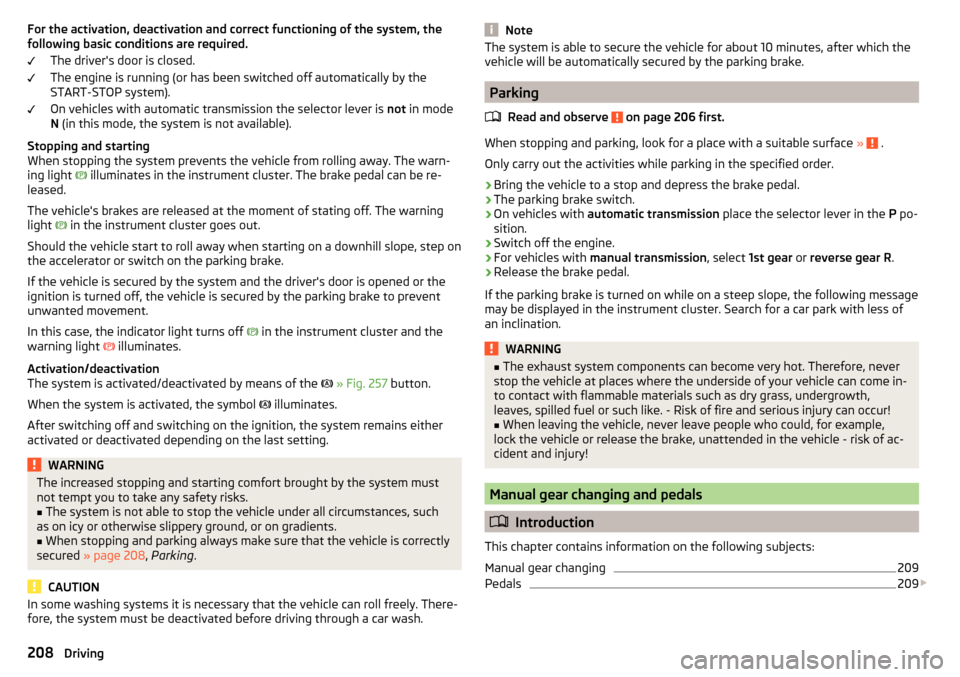
The system is activated/deactivated by means of the
» Fig. 257 button.
When the system is activated, the symbol illuminates.
After switching off and switching on the ignition, the system remains either
activated or deactivated depending on the last setting.WARNINGThe increased stopping and starting comfort brought by the system must
not tempt you to take any safety risks.■
The system is not able to stop the vehicle under all circumstances, such
as on icy or otherwise slippery ground, or on gradients.
■
When stopping and parking always make sure that the vehicle is correctly
secured » page 208 , Parking .
CAUTION
In some washing systems it is necessary that the vehicle can roll freely. There-
fore, the system must be deactivated before driving through a car wash.NoteThe system is able to secure the vehicle for about 10 minutes, after which the
vehicle will be automatically secured by the parking brake.
Parking
Read and observe
on page 206 first.
When stopping and parking, look for a place with a suitable surface » .
Only carry out the activities while parking in the specified order.
›
Bring the vehicle to a stop and depress the brake pedal.
›
The parking brake switch.
›
On vehicles with automatic transmission place the selector lever in the P po-
sition.
›
Switch off the engine.
›
For vehicles with manual transmission , select 1st gear or reverse gear R .
›
Release the brake pedal.
If the parking brake is turned on while on a steep slope, the following message
may be displayed in the instrument cluster. Search for a car park with less of
an inclination.
WARNING■ The exhaust system components can become very hot. Therefore, never
stop the vehicle at places where the underside of your vehicle can come in-
to contact with flammable materials such as dry grass, undergrowth,
leaves, spilled fuel or such like. - Risk of fire and serious injury can occur!■
When leaving the vehicle, never leave people who could, for example,
lock the vehicle or release the brake, unattended in the vehicle - risk of ac-
cident and injury!
Manual gear changing and pedals
Introduction
This chapter contains information on the following subjects:
Manual gear changing
209
Pedals
209
208Driving
Page 211 of 344
CAUTIONWhen stopping on a slope, never try to hold the vehicle using the clutch and
the accelerator pedal – There is risk of damage to the clutch.
Manual gear changing
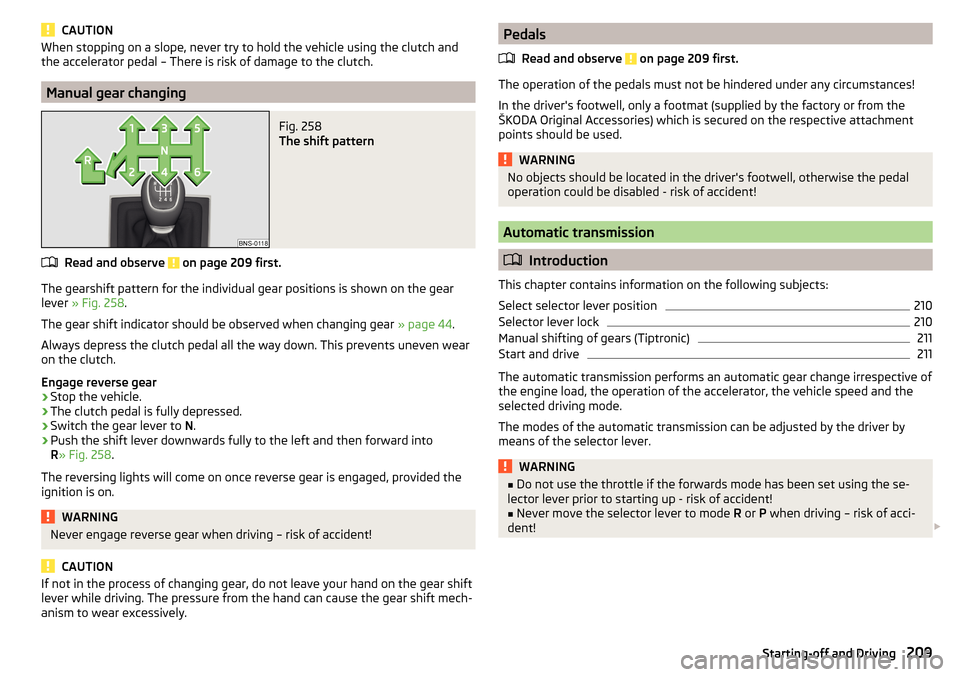
Fig. 258
The shift pattern
Read and observe on page 209 first.
The gearshift pattern for the individual gear positions is shown on the gear
lever » Fig. 258 .
The gear shift indicator should be observed when changing gear » page 44.
Always depress the clutch pedal all the way down. This prevents uneven wear
on the clutch.
Engage reverse gear
›
Stop the vehicle.
›
The clutch pedal is fully depressed.
›
Switch the gear lever to N.
›
Push the shift lever downwards fully to the left and then forward into
R » Fig. 258 .
The reversing lights will come on once reverse gear is engaged, provided the
ignition is on.
WARNINGNever engage reverse gear when driving – risk of accident!
CAUTION
If not in the process of changing gear, do not leave your hand on the gear shift
lever while driving. The pressure from the hand can cause the gear shift mech-
anism to wear excessively.Pedals
Read and observe
on page 209 first.
The operation of the pedals must not be hindered under any circumstances!
In the driver's footwell, only a footmat (supplied by the factory or from the
ŠKODA Original Accessories) which is secured on the respective attachment
points should be used.
WARNINGNo objects should be located in the driver's footwell, otherwise the pedal
operation could be disabled - risk of accident!
Automatic transmission
Introduction
This chapter contains information on the following subjects:
Select selector lever position
210
Selector lever lock
210
Manual shifting of gears (Tiptronic)
211
Start and drive
211
The automatic transmission performs an automatic gear change irrespective of
the engine load, the operation of the accelerator, the vehicle speed and the
selected driving mode.
The modes of the automatic transmission can be adjusted by the driver by
means of the selector lever.
WARNING■ Do not use the throttle if the forwards mode has been set using the se-
lector lever prior to starting up - risk of accident!■
Never move the selector lever to mode R or P when driving – risk of acci-
dent!
209Starting-off and Driving
Page 264 of 344
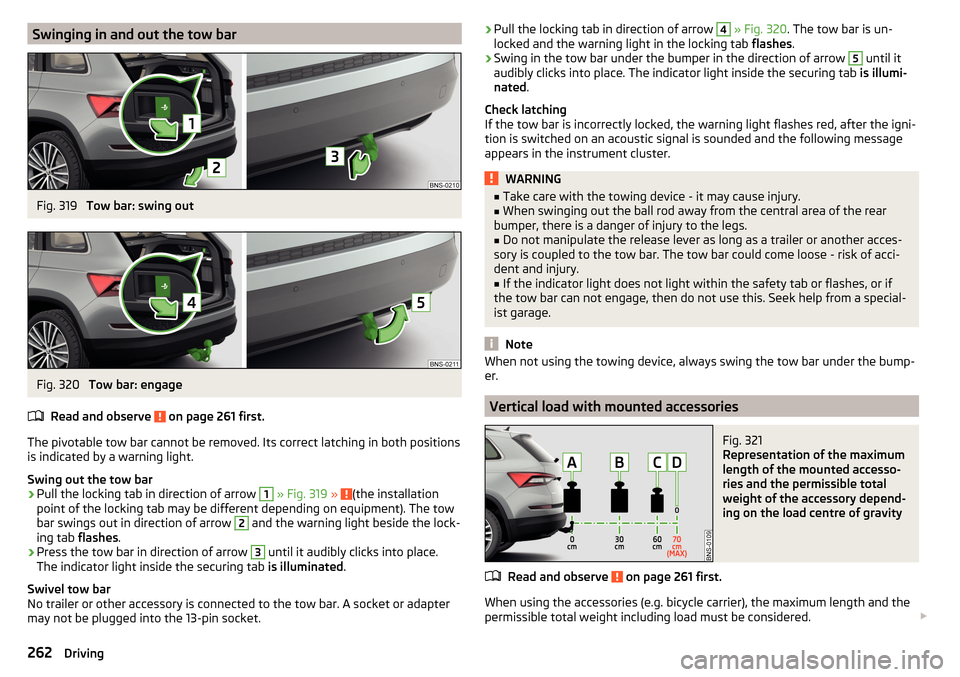
Swinging in and out the tow barFig. 319
Tow bar: swing out
Fig. 320
Tow bar: engage
Read and observe
on page 261 first.
The pivotable tow bar cannot be removed. Its correct latching in both positions is indicated by a warning light.
Swing out the tow bar
›
Pull the locking tab in direction of arrow
1
» Fig. 319 » (the installation
point of the locking tab may be different depending on equipment). The tow
bar swings out in direction of arrow
2
and the warning light beside the lock-
ing tab flashes.
›
Press the tow bar in direction of arrow
3
until it audibly clicks into place.
The indicator light inside the securing tab is illuminated.
Swivel tow bar
No trailer or other accessory is connected to the tow bar. A socket or adapter
may not be plugged into the 13-pin socket.
› Pull the locking tab in direction of arrow 4
» Fig. 320 . The tow bar is un-
locked and the warning light in the locking tab flashes.›
Swing in the tow bar under the bumper in the direction of arrow
5
until it
audibly clicks into place. The indicator light inside the securing tab is illumi-
nated .
Check latching
If the tow bar is incorrectly locked, the warning light flashes red, after the igni-
tion is switched on an acoustic signal is sounded and the following message
appears in the instrument cluster.
WARNING■ Take care with the towing device - it may cause injury.■When swinging out the ball rod away from the central area of the rear
bumper, there is a danger of injury to the legs.■
Do not manipulate the release lever as long as a trailer or another acces-
sory is coupled to the tow bar. The tow bar could come loose - risk of acci-
dent and injury.
■
If the indicator light does not light within the safety tab or flashes, or if
the tow bar can not engage, then do not use this. Seek help from a special-
ist garage.
Note
When not using the towing device, always swing the tow bar under the bump-
er.
Vertical load with mounted accessories
Fig. 321
Representation of the maximum
length of the mounted accesso-
ries and the permissible total
weight of the accessory depend-
ing on the load centre of gravity
Read and observe on page 261 first.
When using the accessories (e.g. bicycle carrier), the maximum length and the
permissible total weight including load must be considered.
262Driving
Page 265 of 344
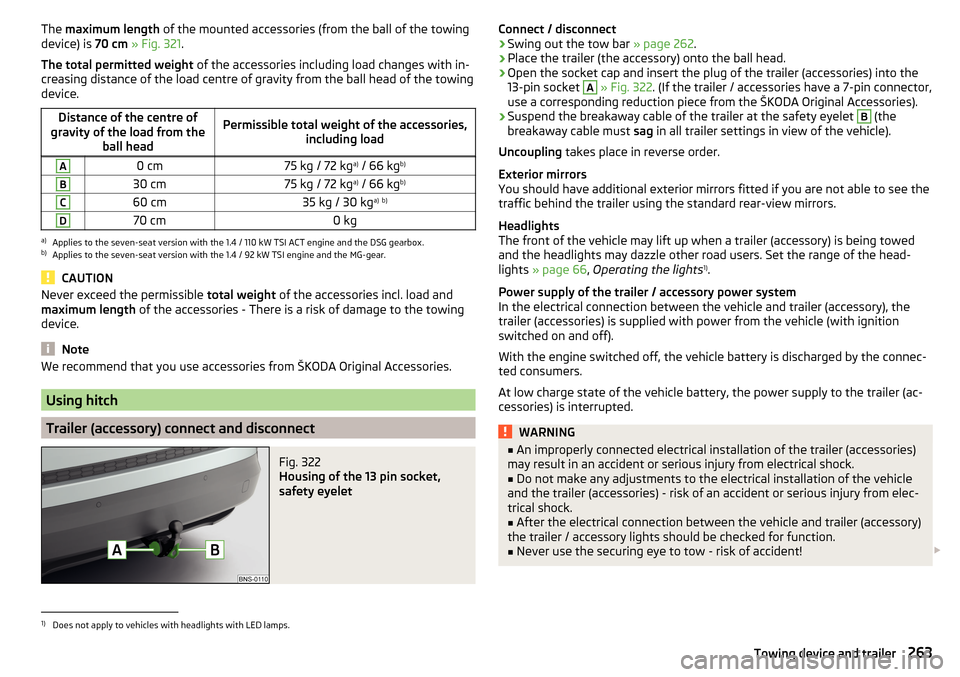
The maximum length of the mounted accessories (from the ball of the towing
device) is 70 cm » Fig. 321 .
The total permitted weight of the accessories including load changes with in-
creasing distance of the load centre of gravity from the ball head of the towing
device.Distance of the centre of
gravity of the load from the ball headPermissible total weight of the accessories, including loadA0 cm75 kg / 72 kga)
/ 66 kg b)B30 cm75 kg / 72 kg a)
/ 66 kg b)C60 cm35 kg / 30 kg a)
b)D70 cm0 kga)
Applies to the seven-seat version with the 1.4 / 110 kW TSI ACT engine and the DSG gearbox.
b)
Applies to the seven-seat version with the 1.4 / 92 kW TSI engine and the MG-gear.
CAUTION
Never exceed the permissible
total weight of the accessories incl. load and
maximum length of the accessories - There is a risk of damage to the towing
device.
Note
We recommend that you use accessories from ŠKODA Original Accessories.
Using hitch
Trailer (accessory) connect and disconnect
Fig. 322
Housing of the 13 pin socket,
safety eyelet
Connect / disconnect›Swing out the tow bar » page 262.›
Place the trailer (the accessory) onto the ball head.
›
Open the socket cap and insert the plug of the trailer (accessories) into the
13-pin socket
A
» Fig. 322 . (If the trailer / accessories have a 7-pin connector,
use a corresponding reduction piece from the ŠKODA Original Accessories).
›
Suspend the breakaway cable of the trailer at the safety eyelet
B
(the
breakaway cable must sag in all trailer settings in view of the vehicle).
Uncoupling takes place in reverse order.
Exterior mirrors
You should have additional exterior mirrors fitted if you are not able to see the
traffic behind the trailer using the standard rear-view mirrors.
Headlights
The front of the vehicle may lift up when a trailer (accessory) is being towed
and the headlights may dazzle other road users. Set the range of the head-
lights » page 66 , Operating the lights 1)
.
Power supply of the trailer / accessory power system
In the electrical connection between the vehicle and trailer (accessory), the
trailer (accessories) is supplied with power from the vehicle (with ignition
switched on and off).
With the engine switched off, the vehicle battery is discharged by the connec-
ted consumers.
At low charge state of the vehicle battery, the power supply to the trailer (ac-
cessories) is interrupted.
WARNING■ An improperly connected electrical installation of the trailer (accessories)
may result in an accident or serious injury from electrical shock.■
Do not make any adjustments to the electrical installation of the vehicle
and the trailer (accessories) - risk of an accident or serious injury from elec-
trical shock.
■
After the electrical connection between the vehicle and trailer (accessory)
the trailer / accessory lights should be checked for function.
■
Never use the securing eye to tow - risk of accident!
1)
Does not apply to vehicles with headlights with LED lamps.
263Towing device and trailer