key SKODA OCTAVIA 2013 3.G / (5E) Amundsen Navigation System Manual
[x] Cancel search | Manufacturer: SKODA, Model Year: 2013, Model line: OCTAVIA, Model: SKODA OCTAVIA 2013 3.G / (5E)Pages: 83, PDF Size: 4.7 MB
Page 42 of 83

Depending on the phone's Bluetooth ®
version, pairing is confirmed in one of the
following ways.›
In the device and the phone within 30 seconds, confirm the 6-digit PIN code on
the device screen and the phone display 1)
.
›
If necessary select in the phone the option of automatically connecting the
phone to the device.
or
›
Enter the 4- 16-digit PIN code into the device
›
Enter the PIN code shown on the unit display into the mobile phone within 30 seconds
›
If necessary. acknowledge the confirmation request in the phone.
If the device is not connected to another phone, after successful connection the message ... user is connected., appears on the device screen and then the main
Phone menu » Fig. 22 on page 36 is displayed.
If the device is connected to another phone the new phone is paired but the origi-
nal phone remains connected.
Connection with another paired mobile phone
First read and observe the introductory information and safety warn-
ings
on page 38.
If you want to connect the device to another paired mobile phone, the existing connection does not have to be terminated. The connection to the existing mo- bile phone is automatically terminated by connecting to another mobile phone.
›
In the Phone main menu, press the function key
B
» Fig. 22 on page 36.
A list of previously paired phones is displayed.
›
Select the paired mobile phone to be connected with the device.
The message ... Replace this connection with ...?, is displayed in the device
screen along with the following function keys.
› Cancel
- Quit the menu for telephone exchange
› Replace
- Connection to the selected phone
After successful connection, the device will display the message ... user is con-
nected., and then the main menu » Fig. 22 on page 36 is displayed.
If the desired phone is not found in the list of previously paired phones, pair the phone with the device » page 39.
Switch Bluetooth ®
profile on/off
First read and observe the introductory information and safety warn-
ings
on page 38.
›
Press → Bluetooth → Paired devices .
A list of paired devices is displayed.
Pressing the function key on the connected Bluetooth ®
device opens a menu
with possibly supported connection profiles on the selected device.
If you press the function key with the name and symbol of the connection profile
depending on the context, the message ... Do you really want to disconnect the
profile? appears in the device screen and a menu of function keys.
›
Disconnect - press the function key to switch off the selected profile.
or
›
Replace - If another phone is already connected to the device it is replaced by a
new profile by pressing the function key of the existing profile.
In the device screen the message ... Connecting to ... is displayed and the selec-
ted Bluetooth ®
profile is turned on.
In each menu, the profile change is cancelled by pressing the Cancel function key.
Possible profile symbols:
SymbolMeaningDevices that support the functionality of the hands-free sys-
tem (Bluetooth ®
profile HFP) a)Devices that are connected to the device via Bluetooth ®
pro-
file HFP a)
1)
For devices with Bluetooth ®
v2.1 and later the rapid device pairing procedure (SSP Secure Simple
Pairing) is used for pairing. This connection method requires no PIN entered by the user.
40Phone
Page 43 of 83
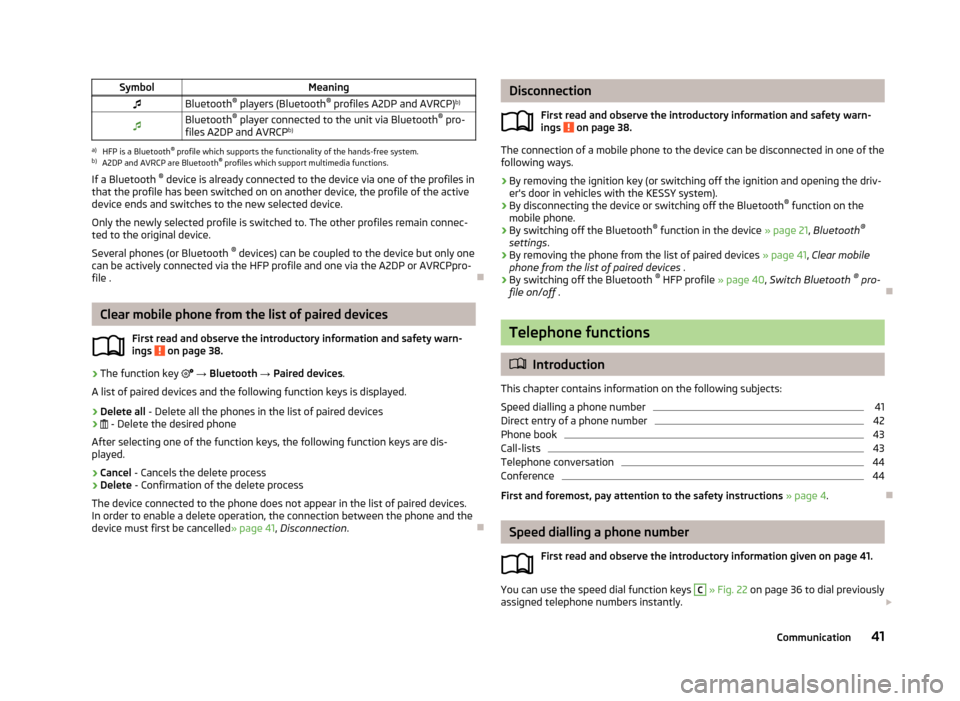
SymbolMeaningBluetooth®
players (Bluetooth ®
profiles A2DP and AVRCP) b)Bluetooth®
player connected to the unit via Bluetooth ®
pro-
files A2DP and AVRCP b)a)
HFP is a Bluetooth
®
profile which supports the functionality of the hands-free system.
b)
A2DP and AVRCP are Bluetooth ®
profiles which support multimedia functions.
If a Bluetooth ®
device is already connected to the device via one of the profiles in
that the profile has been switched on on another device, the profile of the active
device ends and switches to the new selected device.
Only the newly selected profile is switched to. The other profiles remain connec-
ted to the original device.
Several phones (or Bluetooth ®
devices) can be coupled to the device but only one
can be actively connected via the HFP profile and one via the A2DP or AVRCPpro-
file .
Clear mobile phone from the list of paired devices
First read and observe the introductory information and safety warn-
ings
on page 38.
›
The function key
→ Bluetooth → Paired devices .
A list of paired devices and the following function keys is displayed.
› Delete all
- Delete all the phones in the list of paired devices
›
- Delete the desired phone
After selecting one of the function keys, the following function keys are dis- played.
› Cancel
- Cancels the delete process
› Delete
- Confirmation of the delete process
The device connected to the phone does not appear in the list of paired devices. In order to enable a delete operation, the connection between the phone and the
device must first be cancelled » page 41, Disconnection .
Disconnection
First read and observe the introductory information and safety warn-
ings
on page 38.
The connection of a mobile phone to the device can be disconnected in one of the
following ways.
› By removing the ignition key (or switching off the ignition and opening the driv-
er's door in vehicles with the KESSY system).
› By disconnecting the device or switching off the Bluetooth ®
function on the
mobile phone.
› By switching off the Bluetooth ®
function in the device » page 21, Bluetooth ®
settings .
› By removing the phone from the list of paired devices
» page 41, Clear mobile
phone from the list of paired devices .
› By switching off the Bluetooth ®
HFP profile » page 40, Switch Bluetooth ®
pro-
file on/off .
Telephone functions
Introduction
This chapter contains information on the following subjects:
Speed dialling a phone number
41
Direct entry of a phone number
42
Phone book
43
Call-lists
43
Telephone conversation
44
Conference
44
First and foremost, pay attention to the safety instructions » page 4 .
Speed dialling a phone number
First read and observe the introductory information given on page 41.
You can use the speed dial function keys
C
» Fig. 22 on page 36 to dial previously
assigned telephone numbers instantly.
41Communication
Page 44 of 83
There are five function keys available.
Assign telephone number to a contact›
Press a speed dial function key
C
» Fig. 22 on page 36 that is not assigned.
The unit displays the phone book.
›
Tap one of the contact numbers for the desired telephone contact.
It is also possible to assign the telephone number of a contact to a function key
for speed dialing in the phone menu settings » page 37.
Select assigned telephone number for a contact
›
Press the desired function key to speed dial the phone number of a contact
C
» Fig. 22 on page 36.
Change assigned telephone number of a contact
›
Press and hold down the desired speed dial function key
C
» Fig. 22 on
page 36.
The unit displays the phone book.
›
Tap one of the contact numbers for the desired telephone contact.
The telephone number of a contact is assigned to the selected function key for
speed dialling.
You can also make the change in the phone menu » page 37.
Remove phone number of a contact
›
Press the symbol button
→ User profile → Manage favourites .
›
Press the function key for the speed dial. Confirm the Deletemenu item to re-
move the telephone number of a contact from the selected quick-dial function
key.
Direct entry of a phone numberFig. 24
Direct entry of a phone number
First read and observe the introductory information given on page 41.
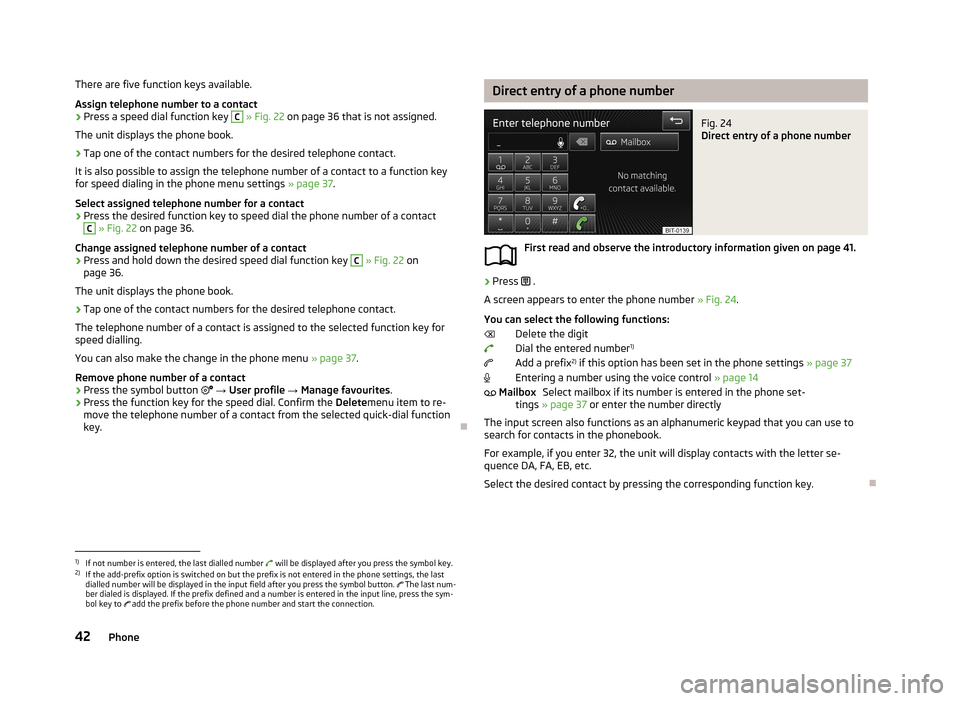
›
Press .
A screen appears to enter the phone number » Fig. 24.
You can select the following functions: Delete the digit
Dial the entered number 1)
Add a prefix 2)
if this option has been set in the phone settings » page 37
Entering a number using the voice control » page 14
Select mailbox if its number is entered in the phone set-
tings » page 37 or enter the number directly
The input screen also functions as an alphanumeric keypad that you can use to
search for contacts in the phonebook.
For example, if you enter 32, the unit will display contacts with the letter se-
quence DA, FA, EB, etc.
Select the desired contact by pressing the corresponding function key.
Mailbox1)
If not number is entered, the last dialled number will be displayed after you press the symbol key.
2)
If the add-prefix option is switched on but the prefix is not entered in the phone settings, the last
dialled number will be displayed in the input field after you press the symbol button. The last num-
ber dialed is displayed. If the prefix defined and a number is entered in the input line, press the sym-
bol key to add the prefix before the phone number and start the connection.
42Phone
Page 45 of 83
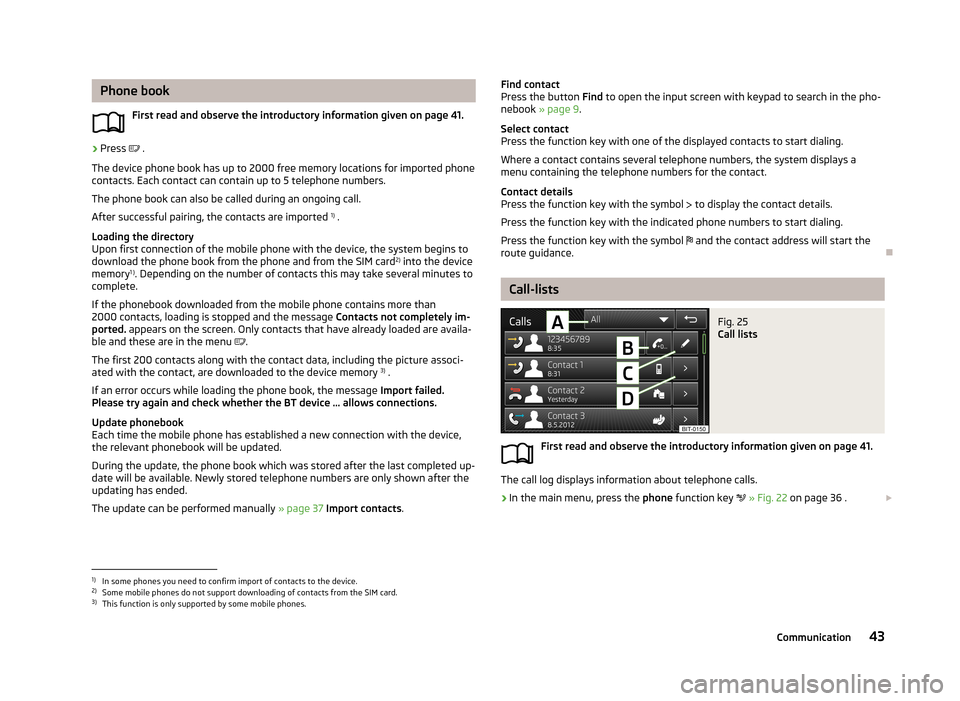
Phone bookFirst read and observe the introductory information given on page 41.›
Press .
The device phone book has up to 2000 free memory locations for imported phone contacts. Each contact can contain up to 5 telephone numbers.
The phone book can also be called during an ongoing call.
After successful pairing, the contacts are imported 1)
.
Loading the directory
Upon first connection of the mobile phone with the device, the system begins to
download the phone book from the phone and from the SIM card 2)
into the device
memory 1 )
. Depending on the number of contacts this may take several minutes to
complete.
If the phonebook downloaded from the mobile phone contains more than 2000 contacts, loading is stopped and the message Contacts not completely im-
ported. appears on the screen. Only contacts that have already loaded are availa-
ble and these are in the menu
.
The first 200 contacts along with the contact data, including the picture associ-
ated with the contact, are downloaded to the device memory 3)
.
If an error occurs while loading the phone book, the message Import failed.
Please try again and check whether the BT device … allows connections.
Update phonebook
Each time the mobile phone has established a new connection with the device,
the relevant phonebook will be updated.
During the update, the phone book which was stored after the last completed up- date will be available. Newly stored telephone numbers are only shown after the
updating has ended.
The update can be performed manually » page 37 Import contacts .
Find contact
Press the button Find to open the input screen with keypad to search in the pho-
nebook » page 9 .
Select contact
Press the function key with one of the displayed contacts to start dialing.
Where a contact contains several telephone numbers, the system displays a
menu containing the telephone numbers for the contact.
Contact details
Press the function key with the symbol to display the contact details.
Press the function key with the indicated phone numbers to start dialing.
Press the function key with the symbol and the contact address will start the
route guidance.
Call-lists
Fig. 25
Call lists
First read and observe the introductory information given on page 41.
The call log displays information about telephone calls.
›
In the main menu, press the phone function key
» Fig. 22 on page 36 .
1)
In some phones you need to confirm import of contacts to the device.
2)
Some mobile phones do not support downloading of contacts from the SIM card.
3)
This function is only supported by some mobile phones.
43Communication
Page 46 of 83
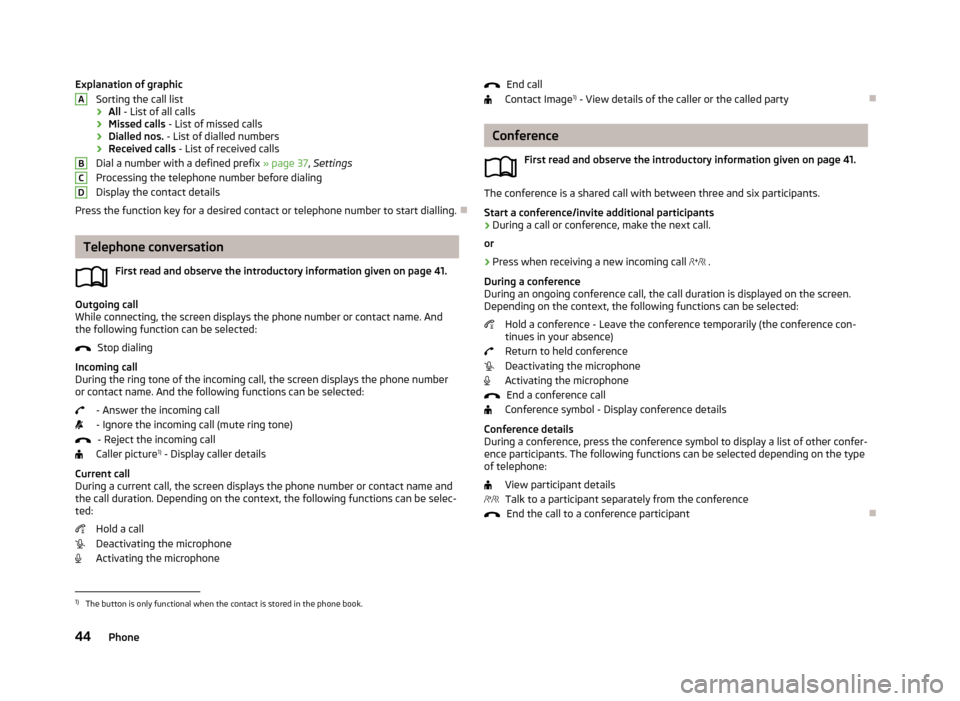
Explanation of graphicSorting the call list
› All
- List of all calls
› Missed calls
- List of missed calls
› Dialled nos.
- List of dialled numbers
› Received calls
- List of received calls
Dial a number with a defined prefix » page 37, Settings
Processing the telephone number before dialing
Display the contact details
Press the function key for a desired contact or telephone number to start dialling.
Telephone conversation
First read and observe the introductory information given on page 41.
Outgoing call
While connecting, the screen displays the phone number or contact name. And
the following function can be selected:
Stop dialing
Incoming call
During the ring tone of the incoming call, the screen displays the phone number or contact name. And the following functions can be selected:
- Answer the incoming call- Ignore the incoming call (mute ring tone) - Reject the incoming call
Caller picture 1)
- Display caller details
Current call
During a current call, the screen displays the phone number or contact name and
the call duration. Depending on the context, the following functions can be selec-
ted:
Hold a call
Deactivating the microphone
Activating the microphone
ABCDEnd call
Contact Image 1)
- View details of the caller or the called party
Conference
First read and observe the introductory information given on page 41.
The conference is a shared call with between three and six participants.Start a conference/invite additional participants
›
During a call or conference, make the next call.
or
›
Press when receiving a new incoming call
.
During a conference
During an ongoing conference call, the call duration is displayed on the screen.
Depending on the context, the following functions can be selected:
Hold a conference - Leave the conference temporarily (the conference con-tinues in your absence)
Return to held conference
Deactivating the microphone
Activating the microphone
End a conference call
Conference symbol - Display conference details
Conference details
During a conference, press the conference symbol to display a list of other confer- ence participants. The following functions can be selected depending on the type
of telephone:
View participant detailsTalk to a participant separately from the conference End the call to a conference participant
1)
The button is only functional when the contact is stored in the phone book.
44Phone
Page 47 of 83
Navigation
Description of the navigation system
Preface to navigation
Introduction
This chapter contains information on the following subjects:
Main menu
45
Navigation data
46
First and foremost, pay attention to the safety instructions » page 4 , Important
notes .
The unit uses the GPS (Global Positioning System) satellite system for navigation.
The satellite signal allows you to determine your current vehicle position.
If the unit is outside the range of the GPS satellite signal (e.g. in dense vegeta-
tion, in tunnels, parking garages, etc.), the unit navigates only with restrictions
using on-vehicle sensors.
Navigation is done:
› by graphical instructions in the device screen and Maxi DOT display;
› via voice guidance.
The navigation unit can be operated: › using the buttons on the unit
» page 45;
› using the function keys in the unit screen
» page 45;
› using voice control
» page 14.
› on the MAXI DOT display
» page 13 .
WARNING■
Information about traffic lights, stop and right of way signs, parking and
stopping restrictions as well as lane constrictions and speed restrictions is not
taken into account for navigation by the unit.■
Always adjust the driving speed to the road, traffic and weather conditions.
WARNING (Continued)■ The navigation announcement provided may vary from current situations,
e.g. due to road works or out-of-date navigation data.■
The volume should be adjusted to ensure that acoustic signals from outside,
e.g. sirens from vehicles which have the right of way, such as police, ambu-
lance and fire brigade vehicles, can be heard at all time.
CAUTION
In some countries, some unit features can no longer be selected when the vehicle
is running faster than a certain speed. This is not a malfunction, but complies with the national legal regulations.
Main menu
Fig. 26
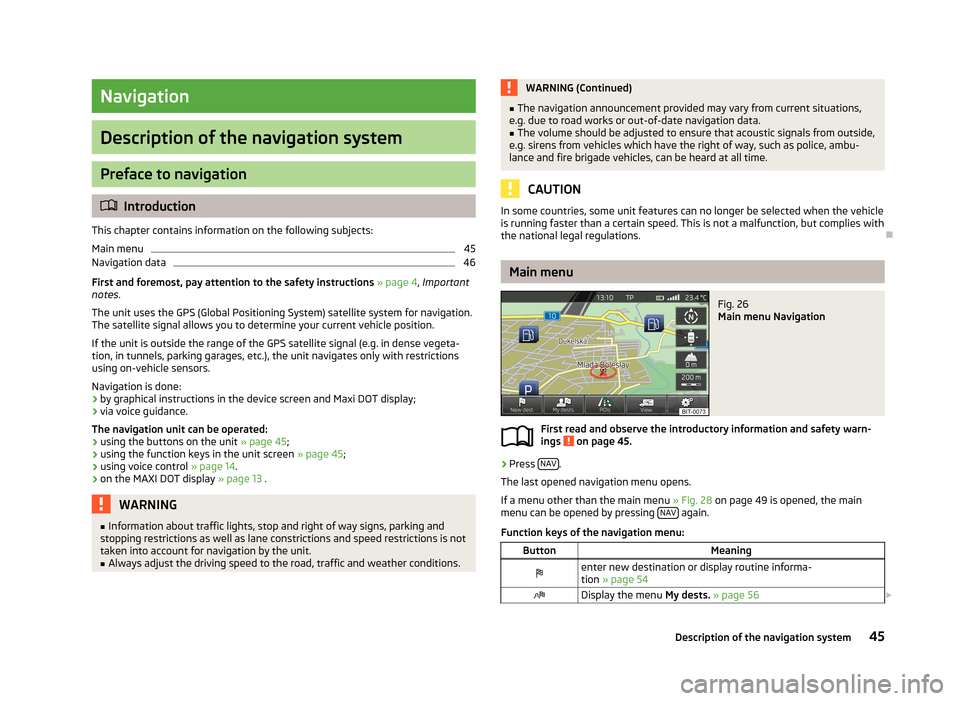
Main menu Navigation
First read and observe the introductory information and safety warn-
ings on page 45.
›
Press NAV.
The last opened navigation menu opens.
If a menu other than the main menu » Fig. 28 on page 49 is opened, the main
menu can be opened by pressing NAV
again.
Function keys of the navigation menu:
ButtonMeaningenter new destination or display routine informa- tion » page 54Display the menu My dests. » page 56 45Description of the navigation system
Page 51 of 83
Introductory informationFig. 28
Map display: Main menu
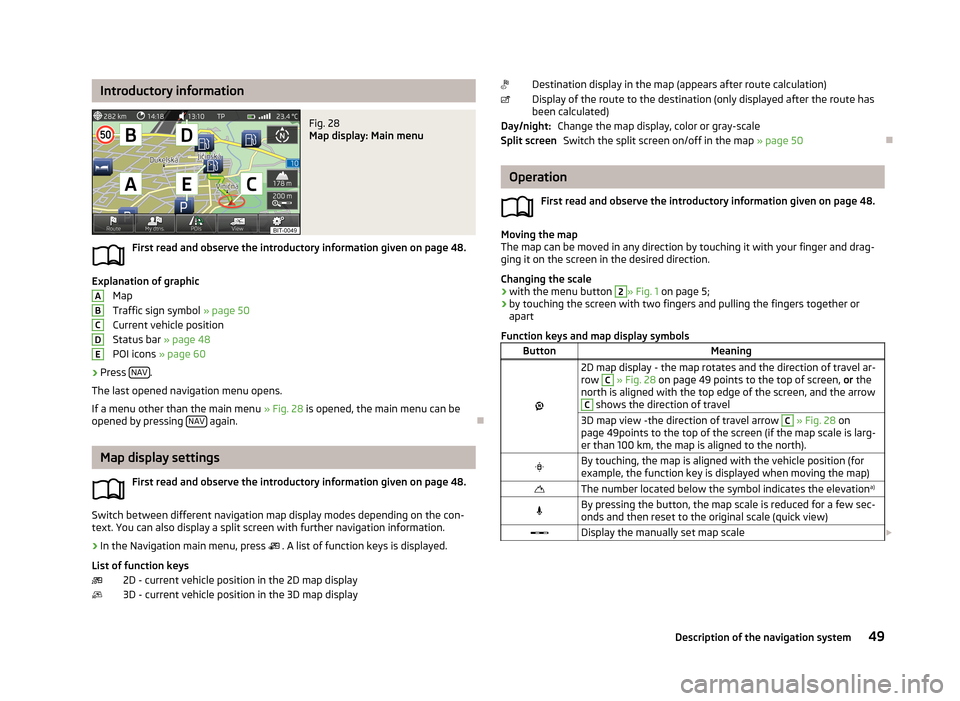
First read and observe the introductory information given on page 48.
Explanation of graphicMap
Traffic sign symbol » page 50
Current vehicle position
Status bar » page 48
POI icons » page 60
›
Press NAV.
The last opened navigation menu opens.
If a menu other than the main menu » Fig. 28 is opened, the main menu can be
opened by pressing NAV
again.
Map display settings
First read and observe the introductory information given on page 48.
Switch between different navigation map display modes depending on the con-
text. You can also display a split screen with further navigation information.
›
In the Navigation main menu, press . A list of function keys is displayed.
List of function keys 2D - current vehicle position in the 2D map display
3D - current vehicle position in the 3D map display
ABCDEDestination display in the map (appears after route calculation)
Display of the route to the destination (only displayed after the route has been calculated)
Change the map display, color or gray-scaleSwitch the split screen on/off in the map » page 50
Operation
First read and observe the introductory information given on page 48.
Moving the map
The map can be moved in any direction by touching it with your finger and drag-
ging it on the screen in the desired direction.
Changing the scale
› with the menu button
2
» Fig. 1
on page 5;
› by touching the screen with two fingers and pulling the fingers together or
apart
Function keys and map display symbols
ButtonMeaning
2D map display - the map rotates and the direction of travel ar-
row C
» Fig. 28 on page 49 points to the top of screen, or the
north is aligned with the top edge of the screen, and the arrow
C
shows the direction of travel
3D map view -the direction of travel arrow C » Fig. 28 on
page 49points to the top of the screen (if the map scale is larg-
er than 100 km, the map is aligned to the north).By touching, the map is aligned with the vehicle position (for example, the function key is displayed when moving the map)The number located below the symbol indicates the elevation a)By pressing the button, the map scale is reduced for a few sec-
onds and then reset to the original scale (quick view)Display the manually set map scale Day/night:Split screen49Description of the navigation system
Page 52 of 83
ButtonMeaningDisplay the automatic map scale
Switch auto-zoom on/off during route guidance. Active auto-
zoom is indicated by a green symbol. If Autozoom is active, the
map scale will change automatically, depending on the driven route (motorway trip: large map scale - city: small map scale)a)
To display the elevation, the signal of at least five satellites must be received. Also, the route guid-
ance must not be running in demo mode.
Switch off auto-zoom by touching → or by changing the map scale. Touch
again (function key highlighted in green) to switch on auto-zoom. Autozoom
can also be switched on/off in the navigation settings » page 47
Auto-zoom is only functional when the map is aligned with the vehicle position
(the function key with symbol
is not displayed).
Traffic signs
First read and observe the introductory information given on page 48.
The traffic sign display can be switched on in the unit screen » page 47.
The system provides the option of displaying the traffic signs
B
» Fig. 28 on
page 49on the screen which are stored in the navigation data of the maps.
If the Traffic signs split screen is not switched on, only one traffic sign is dis-
played on the unit screen.
Switching on the traffic sign display function » page 47.
Only one traffic sign is displayed without the additional signs in the screen out-
side the split screen » page 52.
Extra window
Introduction
This chapter contains information on the following subjects:
Menus in extra window
50
Audio
51Compass51Manoeuvre52
Traffic signs
52
GPS
53
First and foremost, pay attention to the safety instructions » page 4 , Important
notes .
Menus in extra window
First read and observe the introductory information given on page 50.
Depending on the context of the selected menus, additional information is dis-
played in the split screen.
Switching on
›
In the navigation main menu, press NAV
or
›
In the Navigation main menu, press .
→ Split screen .
The last opened split screen is displayed.
Switching off
›
In the navigation main menu, press NAV
or
›
in the split screen on
or
›
In the Navigation main menu, press .
→ Split screen .
Menus in the split screen
■ Audio - Playback operation of the currently selected audio source » page 51
■ Compass - Display the current vehicle location in relation to the compass direc-
tions » page 51
■ Manoeuv. - Display of the next or following navigation announcement (manoeu-
vre) » page 52
■ Traffic - Display of traffic signs which are stored in the navigation data of the
maps » page 52
■ GPS - Display of the geographical coordinates of the current vehicle loca-
tion » page 53
50Navigation
Page 53 of 83
AudioFig. 29
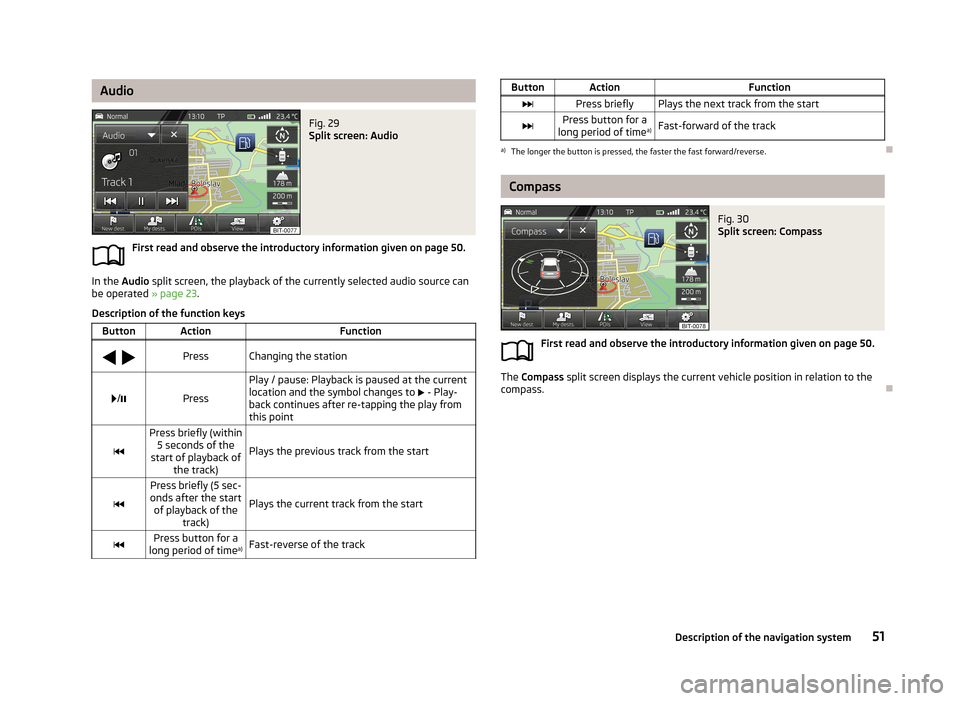
Split screen: Audio
First read and observe the introductory information given on page 50.
In the Audio split screen, the playback of the currently selected audio source can
be operated » page 23.
Description of the function keys
ButtonActionFunction
PressChanging the station/Press
Play / pause: Playback is paused at the current
location and the symbol changes to - Play-
back continues after re-tapping the play from this point
Press briefly (within 5 seconds of the
start of playback of the track)
Plays the previous track from the start
Press briefly (5 sec-
onds after the start of playback of the track)
Plays the current track from the startPress button for a
long period of time a)Fast-reverse of the trackButtonActionFunctionPress brieflyPlays the next track from the startPress button for a
long period of time a)Fast-forward of the tracka)
The longer the button is pressed, the faster the fast forward/reverse.
Compass
Fig. 30
Split screen: Compass
First read and observe the introductory information given on page 50.
The
Compass split screen displays the current vehicle position in relation to the
compass.
51Description of the navigation system
Page 56 of 83
Navigation
New destination entry
Introduction
This chapter contains information on the following subjects:
Destination entry options
54
Address
54
Map
55
First and foremost, pay attention to the safety instructions » page 4 , Important
notes .
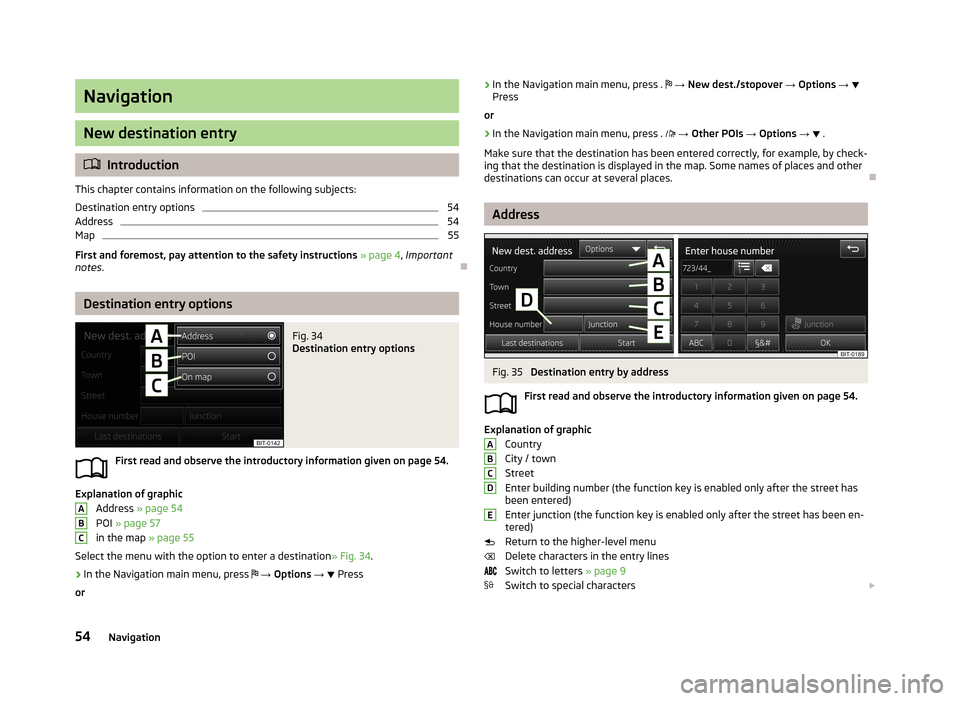
Destination entry options
Fig. 34
Destination entry options
First read and observe the introductory information given on page 54.
Explanation of graphic
Address » page 54
POI » page 57
in the map » page 55
Select the menu with the option to enter a destination » Fig. 34.
›
In the Navigation main menu, press
→ Options →
Press
or
ABC› In the Navigation main menu, press .
→ New dest./stopover → Options →
Press
or›
In the Navigation main menu, press .
→ Other POIs → Options → .
Make sure that the destination has been entered correctly, for example, by check-
ing that the destination is displayed in the map. Some names of places and other
destinations can occur at several places.
Address
Fig. 35
Destination entry by address
First read and observe the introductory information given on page 54.
Explanation of graphic Country
City / town
Street
Enter building number (the function key is enabled only after the street has
been entered)
Enter junction (the function key is enabled only after the street has been en-
tered)
Return to the higher-level menu
Delete characters in the entry lines
Switch to letters » page 9
Switch to special characters
ABCDE54Navigation