key SKODA OCTAVIA 2013 3.G / (5E) Amundsen Navigation System Manual
[x] Cancel search | Manufacturer: SKODA, Model Year: 2013, Model line: OCTAVIA, Model: SKODA OCTAVIA 2013 3.G / (5E)Pages: 83, PDF Size: 4.7 MB
Page 57 of 83
Input a junction (crossroads)
Confirmation of text entered into the entry line›
In the Navigation main menu, press
→ Options → Address
or
›
In the Navigation main menu, press .
→ New dest./stopover → Options →
Address
or
›
In the Navigation main menu, press .
→ Other POIs → Options → Address
button.
Some address positions are already pre-filled with the data of the last destina-
tion.
The pre-filled positions can be adjusted by touching the item and then adjusting
it in the input screen » page 9.
To start navigation, you need to enter country, city and street.
The information is entered step by step in individual input screens. When entering the street, instead of a street name, it is possible to select thecentre of the entered city by touching Centre. Then it is no longer necessary to
enter the house number or junction.
Both the house number and also a further address supplement in the form of a
number can be entered. The system displays a list of destinations found from
combinations of the two numbers.
If the entered house number was not found, a menu opens to clarify the destina-
tion:
■ No house number - Enter an address without a house number and display a
menu with destination details
■ Nearest house number: - Confirmation of the proposed house number
■ Enter junction - Open a menu with junctions with the selected street
If the address is entered correctly, destination details are displayed » page 66 .
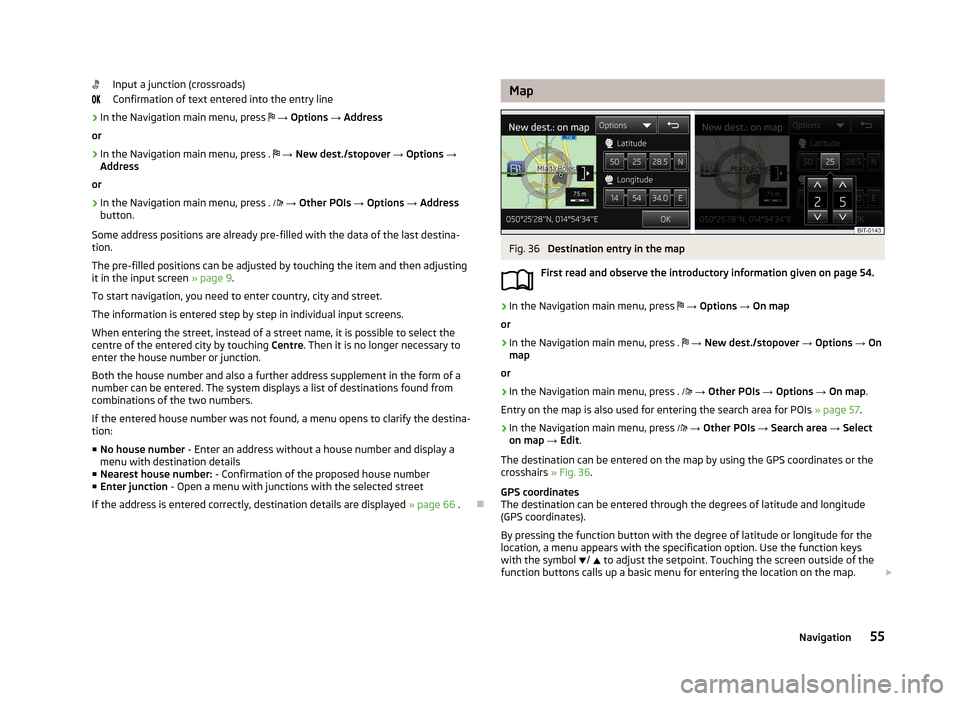
MapFig. 36
Destination entry in the map
First read and observe the introductory information given on page 54.
›
In the Navigation main menu, press
→ Options → On map
or
›
In the Navigation main menu, press .
→ New dest./stopover → Options → On
map
or
›
In the Navigation main menu, press .
→ Other POIs → Options → On map .
Entry on the map is also used for entering the search area for POIs » page 57.
›
In the Navigation main menu, press
→ Other POIs → Search area → Select
on map → Edit .
The destination can be entered on the map by using the GPS coordinates or the crosshairs » Fig. 36.
GPS coordinates
The destination can be entered through the degrees of latitude and longitude
(GPS coordinates).
By pressing the function button with the degree of latitude or longitude for the
location, a menu appears with the specification option. Use the function keys
with the symbol
/
to adjust the setpoint. Touching the screen outside of the
function buttons calls up a basic menu for entering the location on the map.
55Navigation
Page 58 of 83
The crosshairs move to the coordinates entered, which allows for checking of thedestination entered.
Crosshairs
The crosshairs show the position of the address which was previously entered.
The desired destination can be set by dragging your finger over the map to the
centre of the crosshairs.
The contact point is moved into the crosshairs through the finger movement and at the same time the degrees of latitude and longitude are adjusted to the point
entered.
The symbol displays the current map scale. This can be changed while the
entry is being made » page 49.
The bottom of the screen displays the address or the longitude and latitude of
the selected item.
Confirm destination
Confirm the destination by touching OK. Then the following items are displayed:
■ Store - Store the destination in the destination memory » page 9
■ Edit - Return to the main menu with the option to input a destination » page 54
■ Option. - Display a menu for setting the route parameters » page 47
■ Start - Route calculation starts with subsequent selection of route type and
route guidance or with guidance according to the preferred route type
Reduce/enlarge map
Press the function key with symbol
to switch map to full screen display.
Press the function key with symbol
to display the map on a split screen with the
menu for the entry using the GPS coordinates.
Entry of saved destinations
Introduction
This chapter contains information on the following subjects:
My destinations
56
Home address
57
Own destination (vCard)
57First and foremost, pay attention to the safety instructions » page 4 , Important
notes .
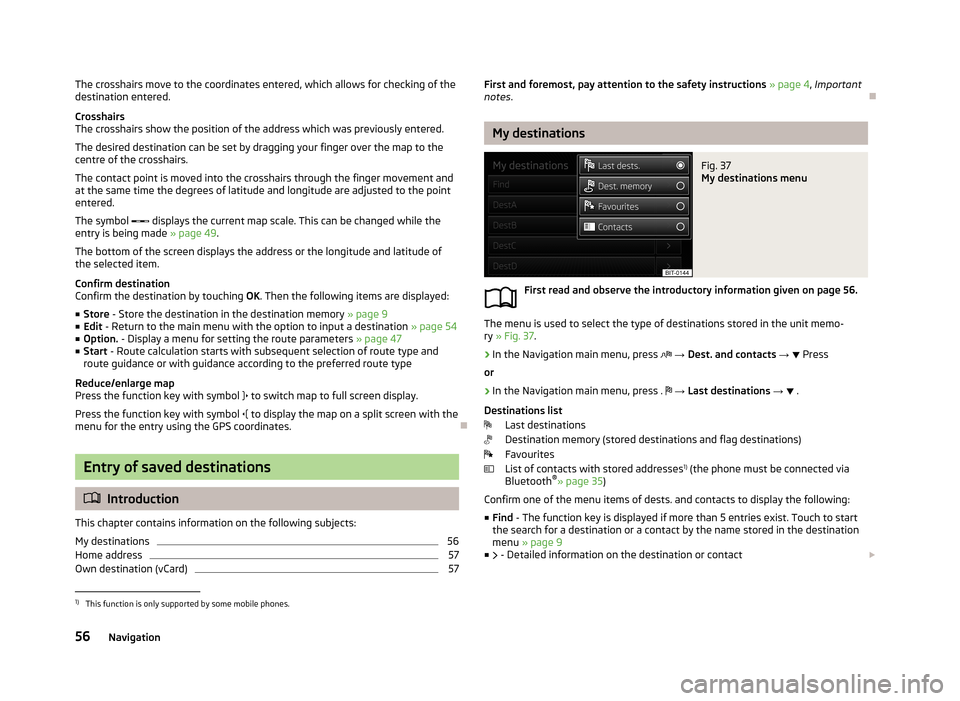
My destinations
Fig. 37
My destinations menu
First read and observe the introductory information given on page 56.
The menu is used to select the type of destinations stored in the unit memo-
ry » Fig. 37 .
›
In the Navigation main menu, press
→ Dest. and contacts →
Press
or
›
In the Navigation main menu, press .
→ Last destinations →
.
Destinations list Last destinations
Destination memory (stored destinations and flag destinations)
Favourites
List of contacts with stored addresses 1)
(the phone must be connected via
Bluetooth ®
» page 35 )
Confirm one of the menu items of dests. and contacts to display the following: ■ Find - The function key is displayed if more than 5 entries exist. Touch to start
the search for a destination or a contact by the name stored in the destination
menu » page 9
■ - Detailed information on the destination or contact
1)
This function is only supported by some mobile phones.
56Navigation
Page 59 of 83
Confirm a destination to start guidance depending on the context or to display
details of the destination » page 66.
Home address
First read and observe the introductory information given on page 56.
The menu provides a quick destination guide to a stored home address.
›
In the Navigation main menu, press
→ Home address .
If the preferred route type has been set, then touching the Home address will
start the calculation and route guidance, or after the calculation, you need to se-
lect the route type before the route guidance starts.
If the home address has not been entered, an input window is displayed with the following message:
Please select as your home address: your current position or a new address.
The following function keys are displayed:
› Position
- Entry of the home address by adoption of the current position of the
vehicle;
› Address
- Enter the home address in writing
Description of the adjustment or deletion process of the home address:
The home address can also be entered in the main navigation menu, by pressing
the symbol key
→ Manage memory → Define home address .
Own destination (vCard)
First read and observe the introductory information given on page 56.
You can import custom destinations in vCard format from an SD memory card, a
CD/DVD or a USB storage device into the device.
›
In the Navigation main menu, press
→ Import destinations .
A list of possible data import sources is displayed » page 28, Select signal source .
Select the source and confirm the menu item Import all vCards from this folder to
start importing the data stored in vCard format into the device memory.
POI
Introduction
This chapter contains information on the following subjects: Entry of a new POI
57
Search area for POIs
58
Find and select a POI
58
Quick select a POI
58
Search selection near the location, destination, stopover and along the
route
59
Search near the entered address or near the point entered on the map
59
First and foremost, pay attention to the safety instructions » page 4 , Important
notes .
Entry of a new POI
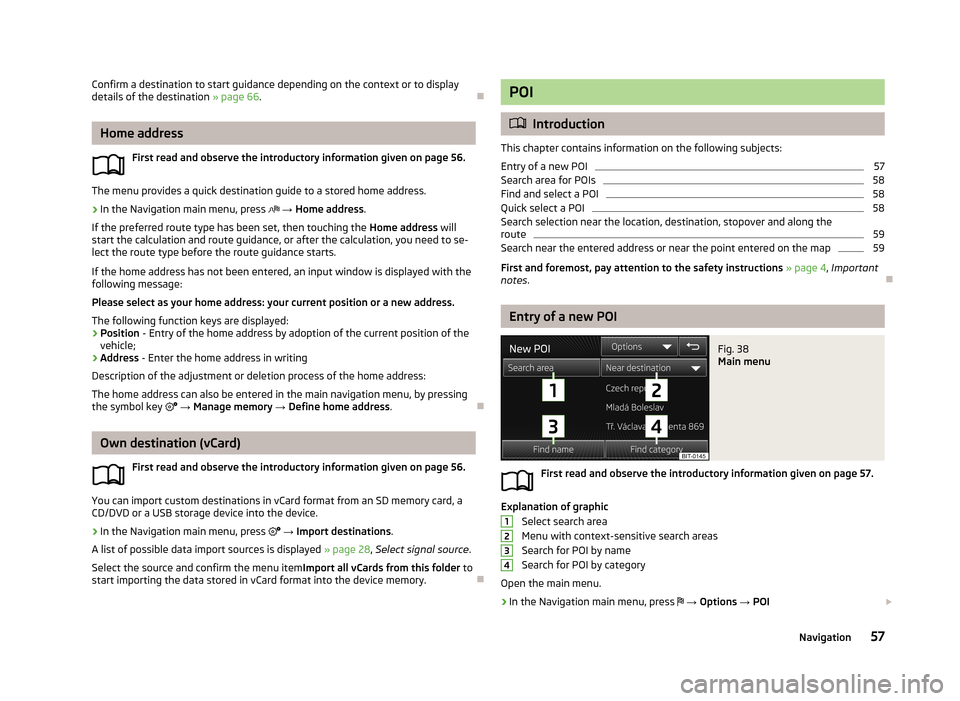
Fig. 38
Main menu
First read and observe the introductory information given on page 57.
Explanation of graphic
Select search area
Menu with context-sensitive search areas Search for POI by name
Search for POI by category
Open the main menu.
›
In the Navigation main menu, press
→ Options → POI
123457Navigation
Page 64 of 83
Route63Lane guidance63
First and foremost, pay attention to the safety instructions » page 4 , Important
notes .
Route calculation
First read and observe the introductory information given on page 61.
The route is calculated automatically according to the entered destination. The
calculation takes the settings of the route options » page 47 (route type, dynamic
route, etc.) into account.
The route is recalculated each time if you ignore driving recommendations or change the route. This process takes only a few seconds. Navigation announce-
ments can only then be re-transmitted.
If Demo mode is switched on » page 48, a prompt appears asking whether you
want the guidance to start in demo mode or normal mode.
The Demo mode displays a simulated drive to the destination entered. There is
the option of travelling the calculated route “as a simulation” just on the screen.
If an alternative route option is set, function keys are displayed, following the cal- culation, for the route types with information on the route length and the expec-ted travelling time.
Route type
economical
fast
short
Selecting the route type will start route guidance.
If the option for alternative routes is disabled, the route is calculated and route guidance is started according to the preferred route » page 47.
It is possible to select a pre-calculated route before the calculation of the remain-
ing routes is completed.
The unit tries to allow for continued guidance even if the navigation data is in- complete or there is no data at all for the given area (e.g., one-way streets, road
types, etc.).
Interrupt and continue route guidance
If the ignition is switched off and on again and the key was left in the ignition (in
vehicles with the KESSY system, when the ignition was switched off):
› Within 30 min - route guidance is continued taking into account the calculated
route
› Between 30 and 40 min - the screen switches to “standby” mode (energy-sav-
ing mode of the screen); the route guidance continues using the calculated route
› Between 40 min and 120 min - the unit screen displays the message
Continue
route guidance? ; after you confirm the message, the route guidance continues
using the calculated route;
› After 120 min - route guidance is cancelled.
If ignition is switched off and on again and the key removed temporarily (in vehi-
cles with the KESSY system, ignition switched off and the driver's door opened):
› Within 10 min - route guidance is continued taking into account the calculated
route
› Between 10 min and 120 min - the screen switches to “standby mode” (energy-
saving mode of the screen); the unit screen displays the message Continue
route guidance? ; after you confirm the message, the route guidance continues
using the calculated route
› After 120 min - route guidance is cancelled.
Graphic navigation instructions
First read and observe the introductory information given on page 61.
The graphical navigation instructions are displayed:› in the MAXI DOT display
» page 13.
› in the split screen in the unit screen
» page 52.
Navigation announcements
First read and observe the introductory information given on page 61.
The device makes navigation announcements. The navigation announcementsare started as soon as the route calculation is complete or a route type has been
selected.
Before turning, up to 3 recommendations are issued:
62Navigation
Page 67 of 83
■All function key - Display of all traffic reports
■ Function key Route - Display of only the traffic reports on the current route
■ Map showing the traffic obstruction
■ Window with a description of traffic report:
■ Location of event location, accuracy depends on how up-to-date the naviga-
tion data is
■ Description of up to three events related to the respective information
■ Description of the direction with respect to the event
■ Probable duration of the event
■ Additional information, such as probable delay time
■ Information line, which reports on the currency of the message and the pro-
vider;
■ Symbol specifying the type of information
■ - Zoom in window with described traffic obstruction
■ - Zoom out window with described traffic obstruction
■ - See previous traffic report
■ - Show the next traffic report
■ - Display list of all received traffic reports.
Destination management
Introduction
This chapter contains information on the following subjects:
Stopover
65
Destination details
66
First and foremost, pay attention to the safety instructions » page 4 , Important
notes .
Stopover
First read and observe the introductory information given on page 65.
It is possible to add a stopover to the route during route guidance. Route guid-
ance then occurs first to the stopover. After the stopover has been reached, route guidance is continued.
› In the Navigation main menu, press
→ New dest./stopover to open a menu
for entering a new destination » page 54.
If route guidance is available, after entering the stopover the system displays the
message Would you like to add a new stopover destination or start direct route
guidance? and the following items:
■ Cancel - Cancels the stopover destination input and the destination guidance to
the original destination is continued
■ Stopover - the destination entered is added to the route and guidance to this
destination is initially provided
■ Dir. r. guid. - The destination entered is added as the final destination and the
original final destination is replaced by this new destination
If destination guidance is already provided with the stopover, after a new desti- nation has been entered, the device displays the message Would you like to re-
place the current stopover destination or start direct route guidance? and the
following items:
■ Cancel - Cancels the stopover destination input and destination guidance to the
original destinations is continued
■ Replace - The original stopover is replaced with the destination entered and
destination guidance is initially undertaken to this destination while the final
destination remains unchanged
■ Dir. r. guid. - The destination entered is added as the final destination and the
original destinations are replaced by this new destination
If you would like to use the stopover as the final destination and the original final destination as a stopover, then select the Dir. r. guid. input and then input the
original final destination again as a stopover.
65Navigation
Page 68 of 83
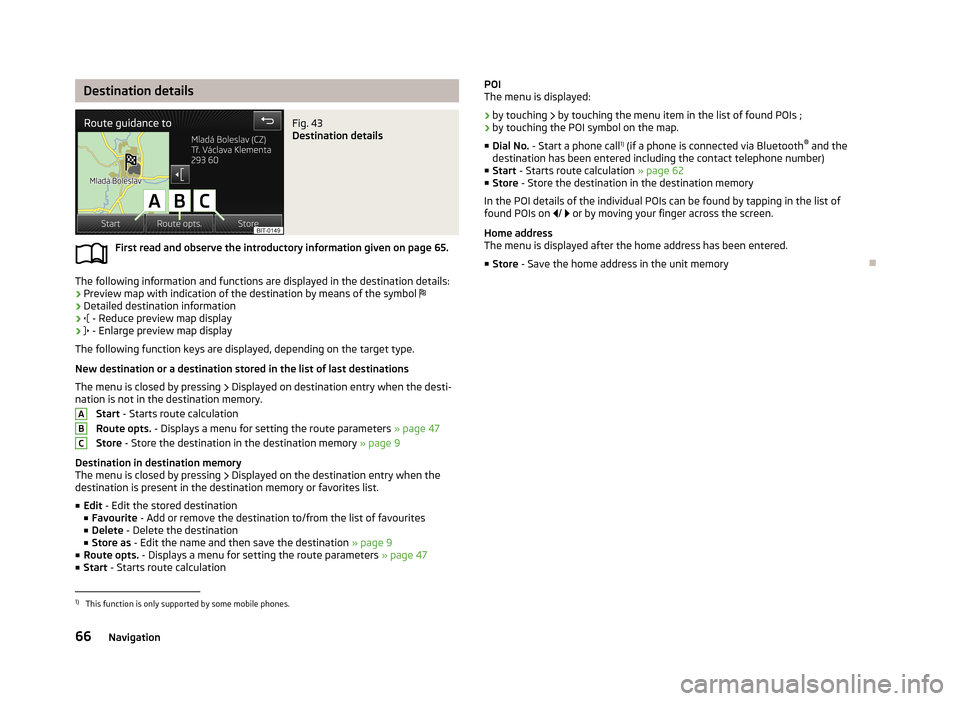
Destination detailsFig. 43
Destination details
First read and observe the introductory information given on page 65.
The following information and functions are displayed in the destination details:› Preview map with indication of the destination by means of the symbol
› Detailed destination information
›
- Reduce preview map display
›
- Enlarge preview map display
The following function keys are displayed, depending on the target type.
New destination or a destination stored in the list of last destinations The menu is closed by pressing
Displayed on destination entry when the desti-
nation is not in the destination memory.
Start - Starts route calculation
Route opts. - Displays a menu for setting the route parameters » page 47
Store - Store the destination in the destination memory » page 9
Destination in destination memory
The menu is closed by pressing
Displayed on the destination entry when the
destination is present in the destination memory or favorites list.
■ Edit - Edit the stored destination
■ Favourite - Add or remove the destination to/from the list of favourites
■ Delete - Delete the destination
■ Store as - Edit the name and then save the destination » page 9
■ Route opts. - Displays a menu for setting the route parameters » page 47
■ Start - Starts route calculation
ABCPOI
The menu is displayed:
› by touching
by touching the menu item in the list of found POIs ;
› by touching the POI symbol on the map.
■ Dial No. - Start a phone call 1)
(if a phone is connected via Bluetooth ®
and the
destination has been entered including the contact telephone number)
■ Start - Starts route calculation » page 62
■ Store - Store the destination in the destination memory
In the POI details of the individual POIs can be found by tapping in the list of
found POIs on / or by moving your finger across the screen.
Home address
The menu is displayed after the home address has been entered.
■ Store - Save the home address in the unit memory1)
This function is only supported by some mobile phones.
66Navigation
Page 74 of 83
■Coming/Leaving Home function - Set the COMING HOME/LEAVING HOME func-
tion
■ Coming Home function - Sets the period that the lights remain on after you
leave the vehicle (0 - 30 seconds; 0 = function deactivated)
■ Leaving Home function - Sets the period that the lights remain on after you
unlock the vehicle (0 - 30 seconds; 0 = function deactivated)
Mirrors and wiper
First read and observe the introductory information given on page 67.
›
Press the CAR button
→
→ Mirrors and wipers .
■ Mirrors - Adjust the mirrors
■ Synchronous adjustment - Activate/deactivate synchronous mirror adjust-
ment
■ Lower while reversing - Activate/deactivate the lowering of the front passen-
ger mirror
■ Fold in when parked - Activate/deactivate folding the mirror via the remote
control or by using the sensor in the handle (KESSY)
■ Wipers - Adjust the windscreen wipers
■ Automatic wiping in rain - Activate/deactivate automatic windscreen wiping
in rain
■ Automatic rear wiper - Activate/deactivate automatic rear window wiping
Opening and closing
First read and observe the introductory information given on page 67.
›
Press the CAR button
→
→ Open and close .
■ Window operation - Window operation settings
■ Conven. opening: - Set the intelligent opening feature
■ All windows - All windows
■ Driver window - Driver's window only
■ Off - Deactivate intelligent opening
■
Central locking - Settings for opening and closing of doors
■ Door unlocking: - Set the door unlocking feature
■ All doors - All doors
■ Single door - Driver's door or driver's or passenger door with KESSY system
■ Vehicle side - Doors on the driver's side or on the driver's or passenger's
side with KESSY system
■ Automatic locking - Activate/deactivate automatic locking when starting off
■ Acoustic confirmation - Activate/deactivate acoustic signals when locking/un-
locking the vehicle with an anti-theft alarm system
Seats
First read and observe the introductory information given on page 67.
›
Press the CAR button
→
→ Seats .
■ Store seat position - Save the driver's seat position and exterior mirror position
in the remote control key when locking the vehicle
■ Vehicle key activated - Activate/deactivate storing the driver's seat position
and exterior mirror position when locking the vehicle
Multifunction display
First read and observe the introductory information given on page 67.
›
Press the CAR button
→
→ Multifunction display .
■ Current consumption - Switch on/off the display of current fuel consumption in
the display of the instrument cluster
■ Average consumption - Switch on/off the display of average fuel consumption
in the display of the instrument cluster
■ Refuel quantity - Switch on/off the display of refuel quantity in the display of
the instrument cluster
■ Convenience consumers - Switch on/off the display of consumption by intelli-
gent consumers on/off in the display of the instrument cluster
■ Eco tips - Switch on/off the display of tips for economical driving in the display
of the instrument cluster
■ Travelling time - Switch on/off the display of travelling time in the display of
the instrument cluster
72Vehicle
Page 77 of 83
Index
A
ACC
70
Additional keyboard languages20
Address54
Adjusting Volume
7
Advanced settings48
AM23
Anti-theft protection4
Apple device34
ASR70
Audio23
Media28
Radio23
Automatic distance control70
Automatic front window wipers in rain72
Automatic headlight in rain71
Automatic locking72
Automatic rear window wipers72
Automatic station search24
AUX33
Auxiliary heater and ventilation Settings
69
B
Bluetooth Connect device to phone
38
Settings21
Switch on/off21
Visibility21
Bluetooth audio31
Bluetooth player31
C
CD
31
Climatronic automatic air recirculation
73
Automatic operation73
mode73
COMING HOME71
Communication35
Phonebox37
Component protection4
Convenience consumer68
D
DAB
23
Settings27
Station information,26
Data Convenience consumer
68
Travel68
Vehicle status68
Date20
Daytime running lights71
Declaration of conformity4
Description of the device5
Destination details66
Destination entry54
Address54
From the list56
Home address57
Map55
Options54
Own destination57
POI57
Destination import57
Destination management65
Destination details66
Stopover65
Device operation In MAXI DOT display10
Multifunction steering wheel10, 12, 13
Device pairing39
device screen important notes
6
keyboard9
numerical keyboard9
Digital radio reception Settings
27
display6
Display8
Door release72
Driving mode67
Dynamic route Switch on/off
64
E
Eco tips
72
Enter in map55
External input AUX
33
MEDIA IN34
USB33
Extra window50
Audio51
Compass51
Menus50
Switch on/off50
F
Factory settings
21 , 73
Fatigue detection70
File formats30
Requirements and restrictions31
FM23
Settings27
Folders List Media
29
75Index
Page 78 of 83
Folding down the exterior mirrors - folding inwhile parking72
Frequency rang See Main Menu
23
Front Assist70
Fuelling options47
Function key8
Function keys8
G
Graphical navigation instructions
52
Graphic navigation instructions62
H
Head Light Assist
71
Home address48, 57
I
important notes touch screen
6
Important notes4
In map55
Input screen Language characters
20
Input screen with keyboard9
Input screen with numeric keyboard9
Instrument lighting71
Intelligent window control72
Introductory information4
iPod34
K
keyboard
9
Keyboard20
L
Lane Assist
70
Lane change flash71
Lane guidance63
LEAVING HOME71
Light sensor - light switch-on time71
List of available stations Radio
24
M
Main menu Media
28
Navigation45
Telephone36
Unit settings18
Manage memory48
Manoeuvre Graphic navigation instructions
62
Navigation announcements62
Map47
Display49
Introductory information49
Lane guidance63
Main menu49
Operation49
Map operation48
MAXI DOT10
MAXI DOT display Media
10
Navigation13
Phone12
Radio10
MAXI DOT Display Operation
10
Media28
AUX33
Bluetooth audio31
CD31
File formats30
Folder List29
Main menu28
MEDIA IN34
Multifunction steering wheel10
Operation28
Playback29
Requirements and restrictions31
Scan29
SD memory card32
Select signal source28
Settings29
Signal source30
Supported media30
USB33
Voice control14
MEDIA IN34
Memory function of the remote control key72
menu Device settings
18
Menu Media
28
Radio23
Setup18
Telephone35
Multifunction display72
Multifunction steering wheel Media
10
Navigation13
Phone12
Radio10
Multimedia AUX
33
USB33
Mute7
My destinations Menu
56
N
navigation
61
76Index
Page 80 of 83
SD memory card32
Search area58
Select in map55
Seats Settings
72
Select frequency range See main menu
23
Selecting driving mode67
Select radio station See main menu
23
Select signal source Media
28
Semi-automatic station search24
Settings Additional keyboard languages
20
Bluetooth21
DAB27
Device18
Driving mode67
FM27
Keyboard20
Language18
Manage favourites41
Map display49
Media29
Navigation46
Radio26
Restore factory settings21
Screen19
Sound19
Telephone37
Time and date20
Units20
User profile41
Voice control21
Volume7
Setting vehicle systems Auxiliary heater and ventilation
69
Parking and manoeuvring71
Restore factory settings73
Setup18
Set vehicle systems ESC system70
Tires70
Signal source30
Sound19
Speed limit for snow tires70
Split screen Geographical coordinates
53
GPS53
Manoeuvre52
Navigation announcement52
Traffic52
Traffic signs52
START-STOP68
Station See main menu
23
Status line8
Stopover65
Switching off Volume
7
Switching the unit off6
Switching the unit on6
Switch voice control on/off
15
Synchronous adjustment of both mirrors72
T
Telephone
35
Bluetooth profile38
Conference44
Dial telephone40
Disconnection41
Fast connection40
Functions41
Main menu36
On screen messages36
Pairing39
Settings37
Telephone conference44
Telephone conversation44
Telephone functions41
Tilt the mirror surface - lower in reverse72
Time20
Tire pressure monitor68, 70
TMC Traffic information
63
touch screen6
TP (traffic report)25
Traffic63
Dynamic route64
Information64
Operation64
Traffic information TMC
63
Traffic information (TP)25
Traffic reports63
Information64
Operation64
Traffic signs50, 52
Travel light - travel mode71
U
Unit menus
6
Unit operation8
In the unit screen8
Operating lever10
Unit screen8
Units20
Unit screen Operation
8
USB33
V
vCard
57
Vehicle equipment Declaration of conformity
4
Vehicle identification number73
Vehicle settings67
78Index