key SKODA OCTAVIA 2013 3.G / (5E) Amundsen Navigation System Manual
[x] Cancel search | Manufacturer: SKODA, Model Year: 2013, Model line: OCTAVIA, Model: SKODA OCTAVIA 2013 3.G / (5E)Pages: 83, PDF Size: 4.7 MB
Page 22 of 83
■Switch off screen (in 10 seconds) - Activate/deactivate energy-saving mode for
the display 1)
■ Brightness: - Adjusts the brightness of the screen
■ Brightest - brightest level
■ Brighter - brighter level
■ Medium - medium level
■ Darker - darker level
■ Darkest - darkest level
■ Confirmation tone - Switch on/off confirmation tone when a function key is
pressed
■ Show clock in standby mode - Time and date displayed on the screen when the
ignition is switched on and the unit is switched off
Time and date settings
First read and observe the introductory information given on page 18.
›
Press the Menu button
→
→ Time and date .
■ Clock time source: - Type of time settings
■ Manual - Manual setting
■ GPS - Take the values from the GPS signal received
■ Time: - Time settings
■ Summer (DST) - Switches the summertime setting on/off
■ Time zone: - Select the time zone
■ Time format: - Set the time format
■ 12h
■ 24h
■ Date: - Date settings
■ Date format: - Set the date format
■ DD.MM.YYYY - Day - Month - Year
■ YYYY-MM-DD - Year - Month - Day
■ MM-DD-YYYY - Month - Day - Year
Keyboard settings
First read and observe the introductory information given on page 18.›
Press the Menu button
→ → Keypad: .
■ ABC - keys arranged alphabetically
■ QWERTY - Arrangement of the keys as per the QWERTY system (in accordance
with computer keyboard arrangement)
Additional keypad language settings
First read and observe the introductory information given on page 18.
›
Press the Menu button
→
→ More keypad languages .
In this menu, the keyboard character layout for the chosen language can be se-
lected, and with this the option for fast entry of the characters used in the selec-
ted language.
It is then possible to swap between the languages in the input screen showing a
keyboard by pressing
» page 9 .
Unit settings
First read and observe the introductory information given on page 18.
›
Press the Menu button
→
→ Units .
■ Distance: - Distance units
■ km - Kilometres
■ mi - Miles
■ Speed: - Speed units
■ km/h - Kilometres per hour
■ mph - Miles per hour
1)
If after 10 seconds, the screen is not activated by approaching, touching the screen or operating the
menu button
2
» Fig. 1 on page 5, the screen turns black. You can switch the screen back on again
by approaching it with your hand, touching it, or using menu knob
2
.
20Familiarization with the unit
Page 23 of 83
■Temperature: - Temperature units
■ ° - Degrees Celsius
■ ° - Degrees Fahrenheit
■ Volume: - Volume units
■ l - Litres
■ gal (US) - Gallons (US)
■ gal (UK) - Gallons (UK)
■ Consumption: - Consumption units
■ l/100km - Litres per 100 kilometres
■ km/l - Kilometres per litre
■ mpg (US) - Miles per gallon (US)
■ mpg (UK) - Miles per gallon (UK)
■ Gas consumption: - Gas consumption units
■ kg/100km - Kilograms per 100 km
■ km/kg - Kilometres per kilogram
■ m³/100 km - Cubic metres per 100 kilometres
■ km/m³ - Kilometres per cubic metre
■ Pressure: - Pressure units for tire pressure
■ kPa - Kilopascal
■ bar - bar
■ psi - Pounds per square inch
Voice control settings
First read and observe the introductory information given on page 18.
›
Press the Menu button
→
→ Voice control .
■ Dialogue style: - Setting the dialogue style
■ Long - Long dialogue (the system plays complete acoustic messages)
■ Short - Short dialogue (the system shortens some acoustic messages or sub-
stitutes them with an acoustic signal)
■ Display available commands - Switch on/off the menus containing basic voice
commands when voice control is activated
■ Voice control session start tone - Switch on/off the audible signal that is out-
put when voice control is activated
■ Voice control session end tone - Switch on/off the audible signal that is output
when voice control is ended
■ Input tone in voice dialogue - Switch on/off the audible signal that is output to
signal that voice control is waiting for a command
Restore factory settings
First read and observe the introductory information given on page 18.›
Press the Menu button
→ → Factory settings .
■ Restore factory settings - Reset all factory settings
■ Sound - Restore default settings for sound
■ Radio - Restore default settings for radio
■ Vehicle - Restore default settings for the vehicle systems
■ Telephone - Restore default settings for phone
■ Media - Restore default settings for media
■ Voice control - Restore default settings for voice control
■ Navigation - Restore default settings for navigation
■ Bluetooth - Restore default settings for the Bluetooth ®
function
■ System - Restore the system default settings
Bluetooth ®
settings
First read and observe the introductory information given on page 18.
›
Press the Menu button
→
→ Bluetooth .
■ Bluetooth - Switch on/off Bluetooth ®
function
■ Visibility: - Switch on/off the visibility of the Bluetooth ®
device for other devices
■ Visible - Visibility is always on
■ Hidden - Visibility is off
■ At start-up - Turns on visibility for 5 minutes after switching on the ignition or
until the driving speed has exceeded 5 km/h
■ Name: - Open the input screen with keyboard - Change the device name
■ Paired devices - Display the list of paired Bluetooth ®
devices; connect or delete
a paired device; delete the list of paired devices ■ Delete all - Delete all paired Bluetooth ®
devices
■ - Delete the paired Bluetooth ®
device
■ Find devices - Searches for available external devices with enabled Bluetooth ®
functions and activated visibility
■ Bluetooth audio (A2DP/AVRCP) - Switch on/off the connection option for Blue-
tooth ®
profiles A2DP and AVRCP 1)
21Device settings
Page 25 of 83
Audio
Radio
Operation
Introduction
This chapter contains information on the following subjects:
Main Menu
23
List of available stations
24
Search for radio stations and save
24
Search available stations (Scan)
25
Station logos
25
Traffic information
25
Station information (DAB)
26
First and foremost, pay attention to the safety instructions » page 4 , Important
notes .
The device allows analogue radio reception of FM and AM frequency ranges as
well as DAB digital radio reception.
DAB digital radio reception allows multiple stations to be transmitted in a single
frequency in the form of a so-called ensemble. It also allows for the transmission
of additional data and information (e.g. messages, sport, weather, warnings, etc.).
Note
■ Car parks, tunnels, tall buildings or mountains can disrupt the radio signal even
causing it to fail completely.■
For vehicles with disc antennas, if the discs are obscured with film or metal-
coated stickers, you may experience interference.
■
In countries where the RDS function is not supported sufficiently, we recom-
mend turning off the RDS and AF functions. Otherwise, these settings can affect the functionality of the radio.
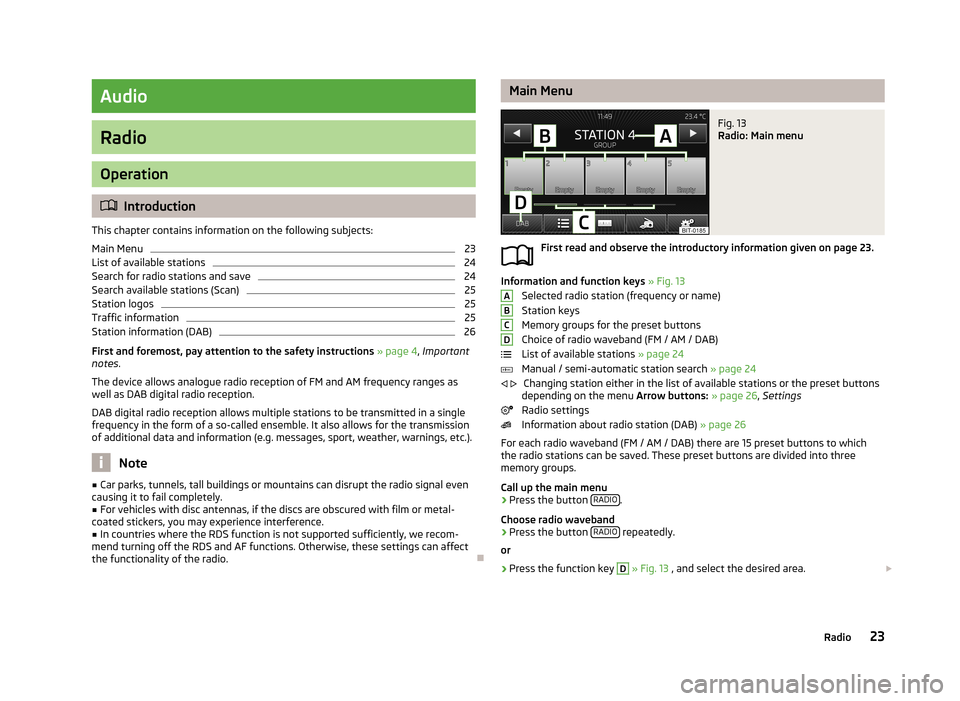
Main MenuFig. 13
Radio: Main menu
First read and observe the introductory information given on page 23.
Information and function keys » Fig. 13
Selected radio station (frequency or name)
Station keys
Memory groups for the preset buttons
Choice of radio waveband (FM / AM / DAB)
List of available stations » page 24
Manual / semi-automatic station search » page 24
Changing station either in the list of available stations or the preset buttons
depending on the menu Arrow buttons: » page 26 , Settings
Radio settings
Information about radio station (DAB) » page 26
For each radio waveband (FM / AM / DAB) there are 15 preset buttons to which
the radio stations can be saved. These preset buttons are divided into three
memory groups.
Call up the main menu
›
Press the button RADIO.
Choose radio waveband
›
Press the button RADIO repeatedly.
or
›
Press the function key
D
» Fig. 13 , and select the desired area.
ABCD
23Radio
Page 26 of 83
Information symbols in the displaySymbolMeaningTraffic information station Traffic signal is not available or the selected station is not a TP sta-
tion RDS function is switched off (FM) AF alternative frequency is off (FM)
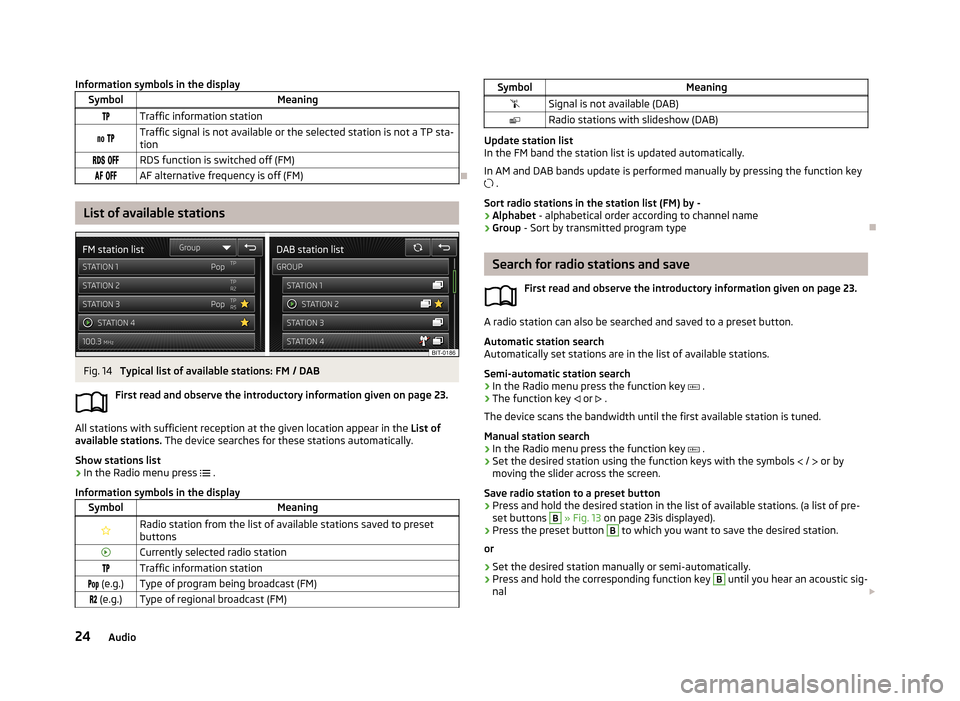
List of available stations
Fig. 14
Typical list of available stations: FM / DAB
First read and observe the introductory information given on page 23.
All stations with sufficient reception at the given location appear in the List of
available stations. The device searches for these stations automatically.
Show stations list
›
In the Radio menu press
.
Information symbols in the display
SymbolMeaningRadio station from the list of available stations saved to preset buttonsCurrently selected radio stationTraffic information station (e.g.)Type of program being broadcast (FM) (e.g.)Type of regional broadcast (FM)SymbolMeaningSignal is not available (DAB)Radio stations with slideshow (DAB)
Update station list
In the FM band the station list is updated automatically.
In AM and DAB bands update is performed manually by pressing the function key .
Sort radio stations in the station list (FM) by -
› Alphabet
- alphabetical order according to channel name
› Group
- Sort by transmitted program type
Search for radio stations and save
First read and observe the introductory information given on page 23.
A radio station can also be searched and saved to a preset button.Automatic station search
Automatically set stations are in the list of available stations.
Semi-automatic station search
›
In the Radio menu press the function key
.
›
The function key
or
.
The device scans the bandwidth until the first available station is tuned.
Manual station search
›
In the Radio menu press the function key
.
›
Set the desired station using the function keys with the symbols
/
or by
moving the slider across the screen.
Save radio station to a preset button
›
Press and hold the desired station in the list of available stations. (a list of pre- set buttons
B
» Fig. 13 on page 23is displayed).
›
Press the preset button
B
to which you want to save the desired station.
or
›
Set the desired station manually or semi-automatically.
›
Press and hold the corresponding function key
B
until you hear an acoustic sig-
nal
24Audio
Page 27 of 83
You can switch between the groups of individual preset buttons using the func-
tion keys C.
Search available stations (Scan)
First read and observe the introductory information given on page 23.
This function plays all the available stations in succession for a few seconds each.Switching on
›
Press the button
2
» Fig. 1 on page 5
or
›
Press
→ the Scan button.
Switching off
›
Press the
2
button.
or
›
Press any function key in the device screen.
After switching off the function, the device receives the station at the point at which the function was cancelled.
Station logos
First read and observe the introductory information given on page 23.
The preset buttons
(B
» Fig. 13 on page 23 ) can be associated with logos (im-
ages) of the radio station.
Automatically save station logo (FM / DAB)
›
Before you save the radio station to a preset button press the function key
→ Advanced setup .
›
Activate the menu item Auto-save station logos » page 27 , Advanced settings
(FM) and » page 27 , Advanced settings(DAB) .
When you save the station to a preset button, the station is also assigned a logo from the device memory if it has been saved.
Storing station logo manually
A logo can be assigned manually to the previously stored station.
›The function key
→ Station logos .
A menu with preset buttons for radio stations is displayed.›
Press the preset button for the station to which you wish to assign a logo.
A media menu (CD, SD card, USB) is displayed.
›
Select the image in the preferred storage medium.
Selecting the image assigns it to the respective preset button.
Note
■ The following image formats are supported: jpg, gif, png, bmp.■We recommend a resolution of up to 500x500 pixels.
Traffic information
First read and observe the introductory information given on page 23.
During playback in the Media menu the traffic report is received by the last selec-
ted radio station.
Should this radio station not support traffic reports or the signal is not available,
then the device automatically searches for a TP station.
Switching on/off
›
The function key
.
›
Enable or disable the menu item Traffic programme (TP).
Traffic reports
During a traffic announcement, the following menu is displayed:
›
Cancel - The current traffic report is cancelled. The TP function remains activa-
ted.
›
Deactivate - The current traffic report is cancelled and the TP function is
switched off.
Note
Some radio stations misleadingly identify themselves as TP stations. It is there-
fore not a device error that with such radio stations, no traffic news exists.
25Radio
Page 30 of 83
Media
Operation
Introduction
This chapter contains information on the following subjects:
Main menu
28
Title-/Folder list
29
Playback
29
Media settings
29
First and foremost, pay attention to the safety instructions » page 4 , Important
notes .
The device allows you to play audio files in various formats » page 30 and to
connect different source types.
When the source has been connected, the device starts to automatically play au- dio files in alphabetical order.
Types of device operation » page 8 .
› The device via the controls.
› Via the function keys in the device screen
› Via the Maxi DOT display.
Main menu
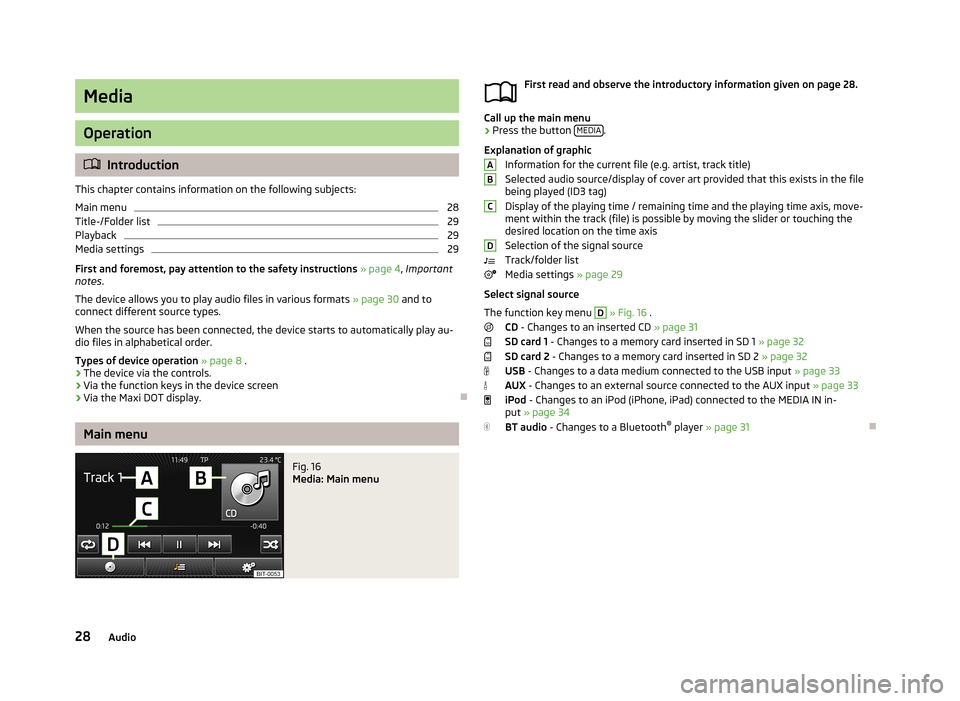
Fig. 16
Media: Main menu
First read and observe the introductory information given on page 28.
Call up the main menu
›
Press the button
MEDIA.
Explanation of graphic Information for the current file (e.g. artist, track title)Selected audio source/display of cover art provided that this exists in the file
being played (ID3 tag)
Display of the playing time / remaining time and the playing time axis, move-
ment within the track (file) is possible by moving the slider or touching the
desired location on the time axis
Selection of the signal source
Track/folder list
Media settings » page 29
Select signal source
The function key menu
D
» Fig. 16 .
CD - Changes to an inserted CD » page 31
SD card 1 - Changes to a memory card inserted in SD 1 » page 32
SD card 2 - Changes to a memory card inserted in SD 2 » page 32
USB - Changes to a data medium connected to the USB input » page 33
AUX - Changes to an external source connected to the AUX input » page 33
iPod - Changes to an iPod (iPhone, iPad) connected to the MEDIA IN in-
put » page 34
BT audio - Changes to a Bluetooth ®
player » page 31
ABCD28Audio
Page 31 of 83
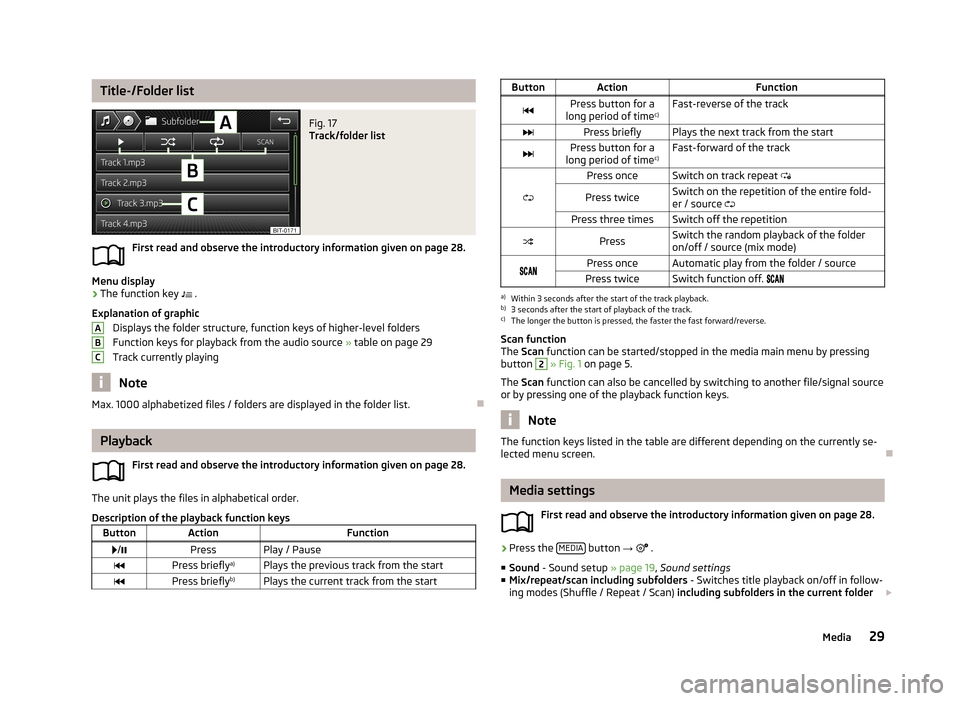
Title-/Folder listFig. 17
Track/folder list
First read and observe the introductory information given on page 28.
Menu display
›
The function key .
Explanation of graphic Displays the folder structure, function keys of higher-level folders
Function keys for playback from the audio source » table on page 29
Track currently playing
Note
Max. 1000 alphabetized files / folders are displayed in the folder list.
Playback
First read and observe the introductory information given on page 28.
The unit plays the files in alphabetical order.
Description of the playback function keys
ButtonActionFunction /PressPlay / PausePress briefly a)Plays the previous track from the startPress brieflyb)Plays the current track from the startABCButtonActionFunctionPress button for a
long period of time c)Fast-reverse of the trackPress brieflyPlays the next track from the startPress button for a
long period of time c)Fast-forward of the track
Press onceSwitch on track repeat
Press twiceSwitch on the repetition of the entire fold-
er / source Press three timesSwitch off the repetitionPressSwitch the random playback of the folder
on/off / source (mix mode)Press onceAutomatic play from the folder / sourcePress twiceSwitch function off. a)
Within 3 seconds after the start of the track playback.
b)
3 seconds after the start of playback of the track.
c)
The longer the button is pressed, the faster the fast forward/reverse.
Scan function
The Scan function can be started/stopped in the media main menu by pressing
button
2
» Fig. 1 on page 5.
The Scan function can also be cancelled by switching to another file/signal source
or by pressing one of the playback function keys.
Note
The function keys listed in the table are different depending on the currently se-
lected menu screen.
Media settings
First read and observe the introductory information given on page 28.
›
Press the MEDIA button
→
.
■ Sound - Sound setup » page 19, Sound settings
■ Mix/repeat/scan including subfolders - Switches title playback on/off in follow-
ing modes (Shuffle / Repeat / Scan) including subfolders in the current folder
29Media
Page 39 of 83
MessageDescriptionNetwork search...The mobile phone searches for availa-
ble GSM networks.No networkThe mobile phone is not connected to the GSM network.
Rejected by network.
The mobile phone network operator
has rejected the connection (e.g. not
enough mobile phone credit, SIM card
blocked, roaming not available).To use the Bluetooth function, please
switch the ignition on.Switch on the ignition.Please switch on Bluetooth.Switch on the Bluetooth ®
function.No Bluetooth devices paired.Connect the mobile phone with the de-
vice.
Phonebox
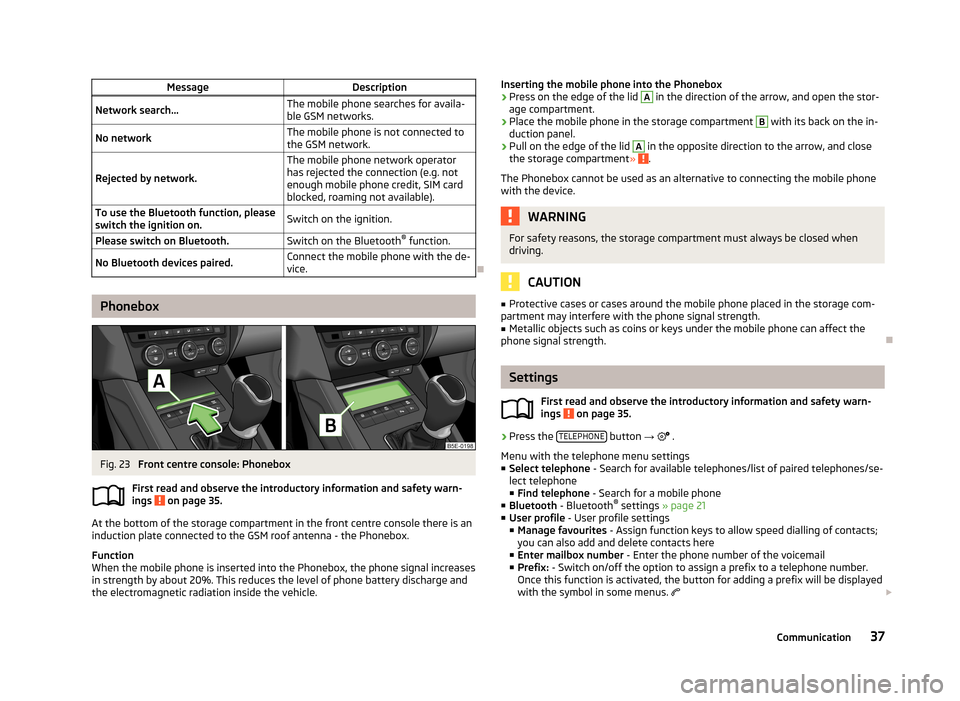
Fig. 23
Front centre console: Phonebox
First read and observe the introductory information and safety warn-
ings
on page 35.
At the bottom of the storage compartment in the front centre console there is an induction plate connected to the GSM roof antenna - the Phonebox.
Function
When the mobile phone is inserted into the Phonebox, the phone signal increases in strength by about 20%. This reduces the level of phone battery discharge and
the electromagnetic radiation inside the vehicle.
Inserting the mobile phone into the Phonebox›Press on the edge of the lid A in the direction of the arrow, and open the stor-
age compartment.›
Place the mobile phone in the storage compartment
B
with its back on the in-
duction panel.
›
Pull on the edge of the lid
A
in the opposite direction to the arrow, and close
the storage compartment » .
The Phonebox cannot be used as an alternative to connecting the mobile phone
with the device.
WARNINGFor safety reasons, the storage compartment must always be closed when
driving.
CAUTION
■ Protective cases or cases around the mobile phone placed in the storage com-
partment may interfere with the phone signal strength.■
Metallic objects such as coins or keys under the mobile phone can affect the
phone signal strength.
Settings
First read and observe the introductory information and safety warn-
ings
on page 35.
›
Press the TELEPHONE button
→
.
Menu with the telephone menu settings
■ Select telephone - Search for available telephones/list of paired telephones/se-
lect telephone ■ Find telephone - Search for a mobile phone
■ Bluetooth - Bluetooth ®
settings » page 21
■ User profile - User profile settings
■ Manage favourites - Assign function keys to allow speed dialling of contacts;
you can also add and delete contacts here
■ Enter mailbox number - Enter the phone number of the voicemail
■ Prefix: - Switch on/off the option to assign a prefix to a telephone number.
Once this function is activated, the button for adding a prefix will be displayed
with the symbol in some menus.
37Communication
Page 40 of 83
■Enter here - Enter the prefix of a phone number
■ Sort by: - Phonebook order
■ Name - Sort by contact name
■ Name - Sort by contact first name
■ Import contacts - Starts update of the phone book; the number of imported
contacts and number of contacts stored in the phone is displayed
■ Delete other user profiles - Delete up to three recently-connected user pro-
files (contacts, order of calls, call lists, speed dial buttons assigned to con- tacts)
■ Reminder: Remember your mobile - Switch on/off the reminder for a connected
telephone when the ignition is switched off and the ignition key is removed (or
the ignition is turned off and the driver's door opened in the case of vehicles
with the KESSY system)
■ Select ring tone - Select the ring tone if the connected mobile phone does not
support the in-band ringing function 1)
■ Show pictures for contacts - Switch on/off the display of the image assigned to
the contact in the mobile phone 2)
Connect to the mobile phone
Introduction
This chapter contains information on the following subjects:
Conditions for successful pairing
38
Connect device with your mobile phone
39
Pairing mobile phone with device
39
Connection with another paired mobile phone
40
Switch Bluetooth ®
profile on/off
40
Clear mobile phone from the list of paired devices
41
Disconnection
41
First and foremost, pay attention to the safety instructions » page 4 , Important
notes .
The device is displayed in the phone to be connected as SKODA_BT_. ... is replaced with the last four symbols of the VIN code of your vehicle.
You can change the name of the device » page 21
.WARNINGThe unit may require confirmation of certain features in the mobile phone
when pairing. The pairing process therefore does not take place while driving - danger of accident!
Note
■ The maximum number of phones paired is 20 When the maximum number is
reached and a new phone is paired, the least recently used paired phone will be automatically deleted.■
In some countries, the use of phones with the Bluetooth ®
function may be re-
stricted. Further information can be obtained from local authorities.
■
The range of the Bluetooth ®
connection to the hands-free system is restricted
to the vehicle interior. This depends on local conditions and on interference with other devices.
■
When pairing from the mobile phone, follow the instructions in the owner's
manual of the mobile phone.
Conditions for successful pairing
First read and observe the introductory information and safety warn-ings
on page 38.
To connect a mobile phone with the device, the two devices must be paired.
Prerequisites for successful pairing: The ignition is switched on.
The Bluetooth ®
function for the mobile phone » page 21 is switched on.
The visibility of the mobile phone is switched on » page 21.
The visibility of the mobile phone is switched on.
The mobile phone to which the connection is being made must have no ac-
tive connection to another mobile phone.
The pairing can be initiated from the device or from the mobile phone.
1)
The in-band ringing function makes it possible to use the ring tone of your phone as the ring tone.
2)
This function is only supported by some mobile phones.
38Phone
Page 41 of 83

Connect device with your mobile phoneFirst read and observe the introductory information and safety warn-
ings
on page 38.
A phone is paired with the device
After switching on the unit, the system automatically attempts to connect to the last connected mobile phone .
While the connection is being created, the message in the device screen may vary depending on the phone type ... Would you like to connect? And a menu will ap-
pear with the following function keys.
› Connect
- Pairing confirmation
› Cancel
- Cancel the pairing process
If the connection cannot be established the system will attempt to connect to other previously connected phones one by one.
If there is still no connection, start a phone search.
There is no phone paired with the device
After switching on the ignition, the message Please search for and connect a mo-
bile telephone. appears in the device screen. A menu is also displayed with the
following function keys.
›
Find telephone - Search for available phones with activated Bluetooth ®
Function and visibility
›
- Open the settings menu » page 37, Settings
Press Results function key after completion of the search. It will display a list of
discovered phones (the function key is also available during the search).
Select the phone you want from the list.
If the search fails, check that the conditions for successful pairing are
met » page 38 , Conditions for successful pairing and repeat the whole process.
Pairing confirmation
Depending on the phone's Bluetooth ®
version, pairing is confirmed in one of the
following ways.
› In the device and the phone within 30 seconds, confirm the 6-digit PIN code on
the device screen and the phone display 1)
.
› If necessary select in the phone the option of automatically connecting the
phone to the device.
or
› confirm the connection request in the telephone.
› Enter the 4-digit PIN code shown in the unit display into the mobile phone with-
in 30 seconds
› If necessary select in the phone the option of automatically connecting the
phone to the device.
Connection
After successful connection, the device will display the message ... user is con-
nected., And the main Phone menu » Fig. 22 on page 36is then displayed.
Note
If the mobile phone supports the Bluetooth ®
profile A2DP or AVRCP, your mobile
phone might prompt you to pair the phone as a Bluetooth ®
player.
Pairing mobile phone with device
First read and observe the introductory information and safety warn-
ings
on page 38.
When pairing from the phone, follow the instructions in the owner's manual of the phone.
›
Have the phone search for available Bluetooth ®
devices.
›
Select the device in the list of Bluetooth ®
devices 2)
.
While connecting, the message ... Would you like to connect?, and the following
function keys are displayed on the device screen.
Cancel - Cancel the pairing process
Connect - Confirm the coupling process
1)
For devices with Bluetooth ®
v2.1 and later, the phone's quick coupling procedure (SSP Secure Simple
Pairing) is used for pairing. This coupling method requires no PIN entered by the user.
2)
The name of the device will be found in the Bluetooth ®
settings » page 21 .
39Communication