display SKODA OCTAVIA 2016 3.G / (5E) Repair Manual
[x] Cancel search | Manufacturer: SKODA, Model Year: 2016, Model line: OCTAVIA, Model: SKODA OCTAVIA 2016 3.G / (5E)Pages: 324, PDF Size: 48.85 MB
Page 142 of 324
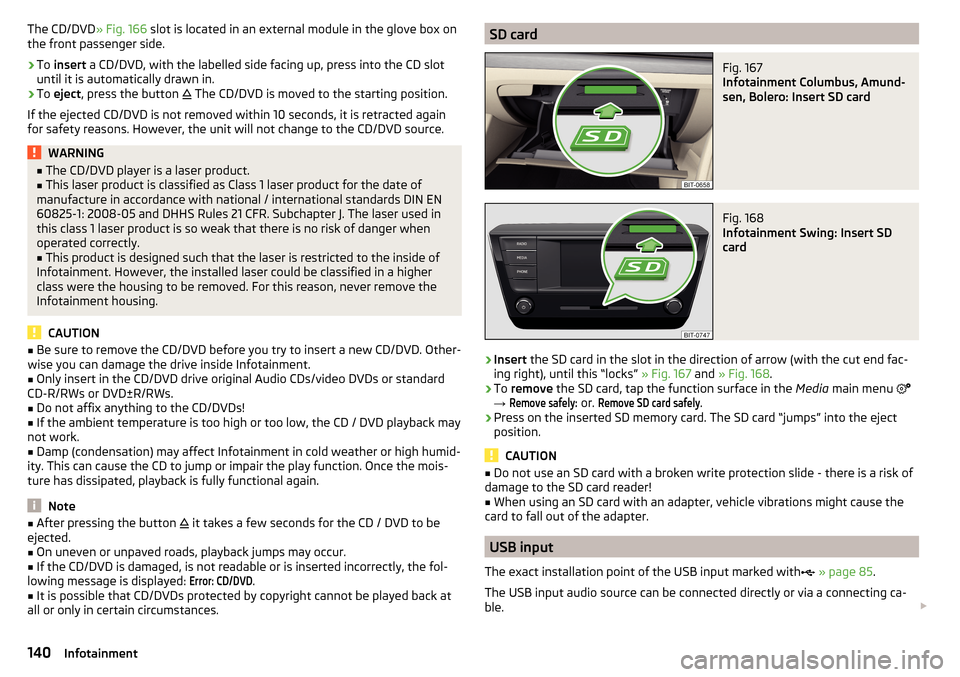
The CD/DVD» Fig. 166 slot is located in an external module in the glove box on
the front passenger side.›
To insert a CD/DVD, with the labelled side facing up, press into the CD slot
until it is automatically drawn in.
›
To eject , press the button
The CD/DVD is moved to the starting position.
If the ejected CD/DVD is not removed within 10 seconds, it is retracted again
for safety reasons. However, the unit will not change to the CD/DVD source.
WARNING■ The CD/DVD player is a laser product.■This laser product is classified as Class 1 laser product for the date of
manufacture in accordance with national / international standards DIN EN 60825-1: 2008-05 and DHHS Rules 21 CFR. Subchapter J. The laser used in
this class 1 laser product is so weak that there is no risk of danger when
operated correctly.■
This product is designed such that the laser is restricted to the inside of
Infotainment. However, the installed laser could be classified in a higher
class were the housing to be removed. For this reason, never remove the
Infotainment housing.
CAUTION
■ Be sure to remove the CD/DVD before you try to insert a new CD/DVD. Other-
wise you can damage the drive inside Infotainment.■
Only insert in the CD/DVD drive original Audio CDs/video DVDs or standard
CD-R/RWs or DVD±R/RWs.
■
Do not affix anything to the CD/DVDs!
■
If the ambient temperature is too high or too low, the CD / DVD playback may
not work.
■
Damp (condensation) may affect Infotainment in cold weather or high humid-
ity. This can cause the CD to jump or impair the play function. Once the mois-
ture has dissipated, playback is fully functional again.
Note
■ After pressing the button it takes a few seconds for the CD / DVD to be
ejected.■
On uneven or unpaved roads, playback jumps may occur.
■
If the CD/DVD is damaged, is not readable or is inserted incorrectly, the fol-
lowing message is displayed:
Error: CD/DVD
.
■
It is possible that CD/DVDs protected by copyright cannot be played back at
all or only in certain circumstances.
SD cardFig. 167
Infotainment Columbus, Amund-
sen, Bolero: Insert SD card
Fig. 168
Infotainment Swing: Insert SD
card
›
Insert the SD card in the slot in the direction of arrow (with the cut end fac-
ing right), until this “locks” » Fig. 167 and » Fig. 168 .
›
To remove the SD card, tap the function surface in the Media main menu
→
Remove safely:
or.
Remove SD card safely
.
›
Press on the inserted SD memory card. The SD card “jumps” into the eject
position.
CAUTION
■ Do not use an SD card with a broken write protection slide - there is a risk of
damage to the SD card reader!■
When using an SD card with an adapter, vehicle vibrations might cause the
card to fall out of the adapter.
USB input
The exact installation point of the USB input marked with
» page 85 .
The USB input audio source can be connected directly or via a connecting ca-
ble.
140Infotainment
Page 144 of 324
Show level of Infotainment memory›Tap the function surface in the Media main menu →
Manage jukebox
.
information about the occupied and free space of the Infotainment memory
and the number of files that cannot be imported is displayed.
Note
■ Files that have already been copied are recognised and cannot be copied
again (shown in grey).■
It is not possible to copy files while simultaneously playing back audio/video
files in the CD/DVD drive.
WLAN
Applies to Infotainment Columbus, Amundsen.
Infotainment allows you to play audio files from one of the external devices
connected to the Infotainment WLAN.
›
Connect an external device that supports the DLNA (Digital Living Network
Alliance), with Infotainment WLAN » page 163.
›
If necessary use the UPnP application (Universal Plug and Play) in the con-
nected device, which allows playback to start.
›
Select the audio source Select
WLAN
.
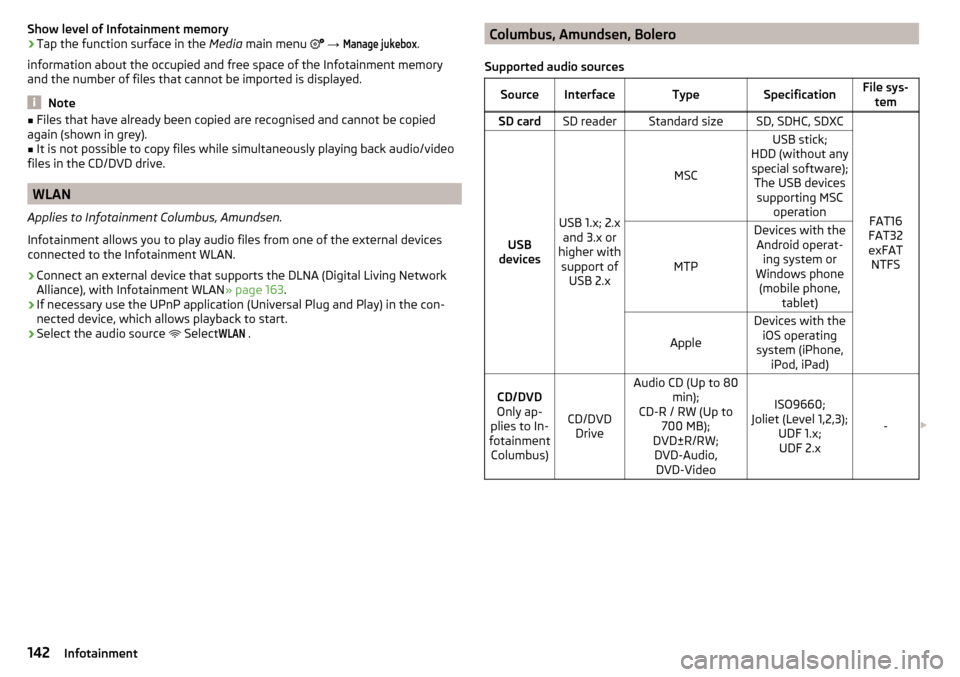
Columbus, Amundsen, Bolero
Supported audio sourcesSourceInterfaceTypeSpecificationFile sys- temSD cardSD readerStandard sizeSD, SDHC, SDXC
FAT16
FAT32
exFAT NTFSUSB
devices
USB 1.x; 2.x and 3.x or
higher with support of USB 2.x
MSC
USB stick;
HDD (without any special software); The USB devicessupporting MSC operation
MTP
Devices with theAndroid operat- ing system or
Windows phone (mobile phone, tablet)
Apple
Devices with theiOS operating
system (iPhone, iPod, iPad)CD/DVD
Only ap-
plies to In-
fotainment Columbus)
CD/DVD Drive
Audio CD (Up to 80 min);
CD-R / RW (Up to 700 MB);
DVD±R/RW; DVD-Audio, DVD-Video
ISO9660;
Joliet (Level 1,2,3); UDF 1.x;UDF 2.x
-
142Infotainment
Page 146 of 324
Images
Image viewer
main menu
Does not apply to Infotainment Swing.
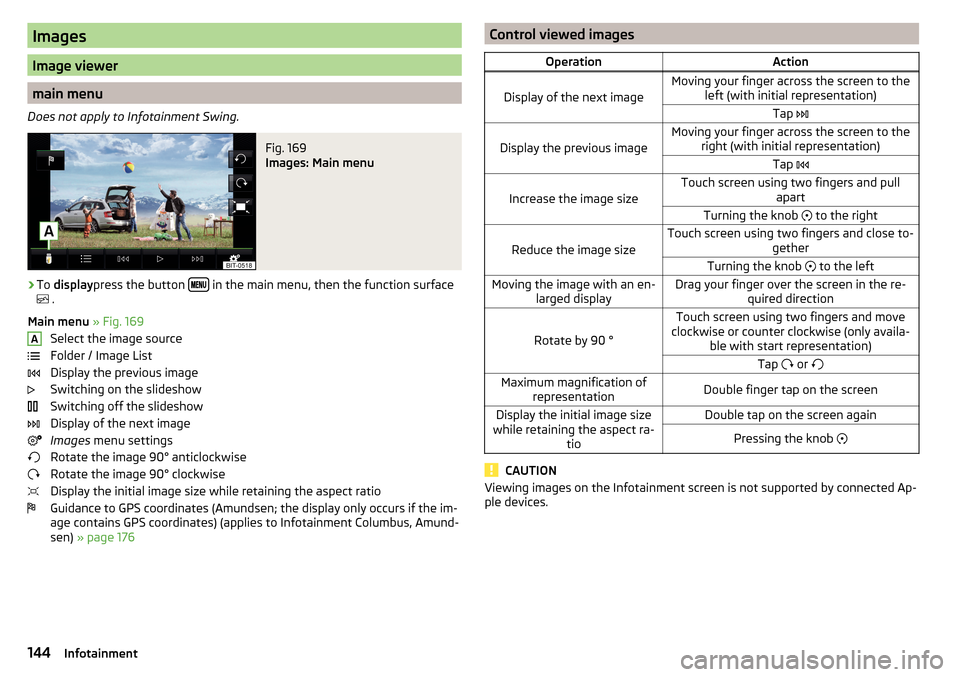
Fig. 169
Images: Main menu
›
To display press the button in the main menu, then the function surface
.
Main menu » Fig. 169
Select the image source
Folder / Image List
Display the previous image
Switching on the slideshow
Switching off the slideshow
Display of the next image
Images menu settings
Rotate the image 90° anticlockwise
Rotate the image 90° clockwise
Display the initial image size while retaining the aspect ratio
Guidance to GPS coordinates (Amundsen; the display only occurs if the im-
age contains GPS coordinates) (applies to Infotainment Columbus, Amund-
sen) » page 176
AControl viewed imagesOperationAction
Display of the next image
Moving your finger across the screen to the
left (with initial representation)Tap
Display the previous image
Moving your finger across the screen to the
right (with initial representation)Tap
Increase the image size
Touch screen using two fingers and pull
apartTurning the knob to the right
Reduce the image size
Touch screen using two fingers and close to-
getherTurning the knob to the leftMoving the image with an en-
larged displayDrag your finger over the screen in the re- quired direction
Rotate by 90 °
Touch screen using two fingers and move
clockwise or counter clockwise (only availa- ble with start representation)Tap or Maximum magnification of
representationDouble finger tap on the screenDisplay the initial image size
while retaining the aspect ra- tioDouble tap on the screen againPressing the knob
CAUTION
Viewing images on the Infotainment screen is not supported by connected Ap-
ple devices.144Infotainment
Page 147 of 324

Supported image file formats and sources
Supported image sourcesSourceTypeSpecificationFile systemSD cardStandard sizeSD, SDHC, SDXCFAT16 VFAT
FAT32
exFAT NTFS
USB devicesUSB stick;
HDD (without
special software)USB 1.x; 2.x and
3.x or higher with support of USB 2.xCD / DVD (Applies
to Infotainment Co- lumbus)CD-R / RW (Up to700 MB);
DVD±R/RWISO9660;
Joliet (Level 1,2,3); UDF 1.x;UDF 2.x
-
Supported file formats
Codec type
(File formats)File suffixMax. resolution (Megapixels)BMPbmp4JP (E) Gjpg; jpeg4; 64GIFgif4PNGpng4
Note
■ The max. supported image size is 20 MB.■The GPT standards (GUID partition table) method structured images sources
are not supported by Infotainment.Video DVD
Video player
Main menu
Only valid for Infotainment Columbus.
Fig. 170
DVD: Main menu
›
to display the main menu, insert a CD / DVD in the corresponding slot in the
external module.
›
or: In the main menu Media, select the video source, display the folder / track
list and start the video file.
Main menu » Fig. 170
Select a video source
Playback timeline
Information for the selected video file (e.g., video title, chapter)
Display the DVD menu
Video DVD menu settings
Note
For safety reasons, the image display is switched off at speeds over 5 km/h.
Only the sound continues. The respective message appears on the screen.
Control playback
OperationActionPlay / PauseTap /Play the previous videoTap within 3 s from the start of the
track playback ABC145Video DVD
Page 148 of 324
OperationActionPlay the current video from the startTap after 3 s after the start of the
playbackFast rewindPress and hold a)Play the next videoTap
Fast forwardPress and hold a)Forward / rewind the video at the de-
sired timeTapping the reproduction timelineB
» Fig. 170 on page 145
a)
The longer the function surface is held, the faster the fast forward/reverse.
DVD menu
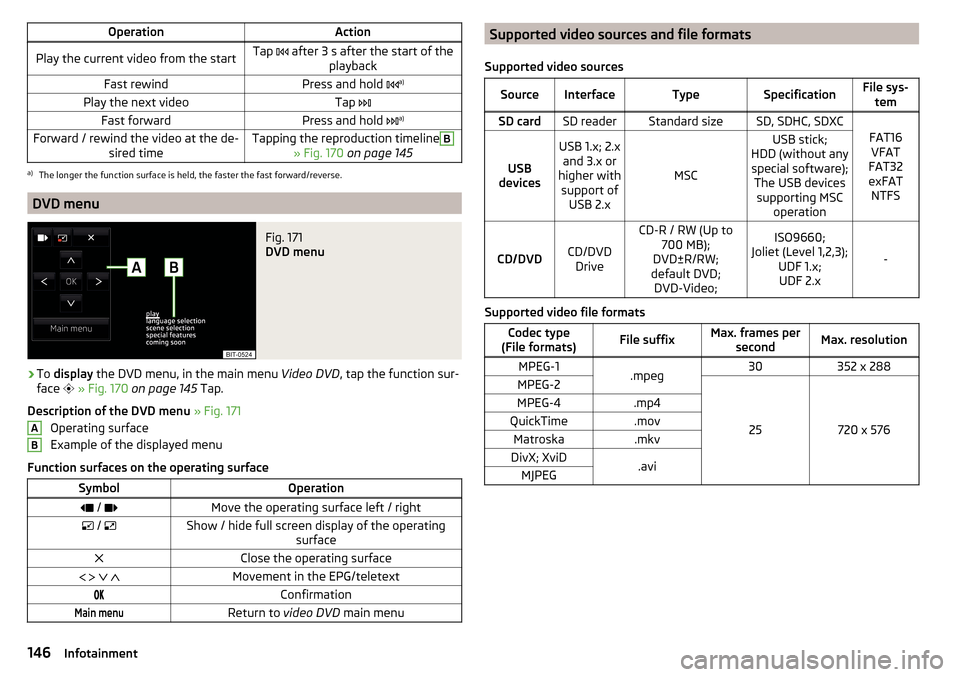
Fig. 171
DVD menu
›
To display the DVD menu, in the main menu Video DVD, tap the function sur-
face
» Fig. 170 on page 145 Tap.
Description of the DVD menu » Fig. 171
Operating surface
Example of the displayed menu
Function surfaces on the operating surface
SymbolOperation / Move the operating surface left / right / Show / hide full screen display of the operating
surfaceClose the operating surface Movement in the EPG/teletextConfirmationMain menuReturn to video DVD main menuABSupported video sources and file formats
Supported video sourcesSourceInterfaceTypeSpecificationFile sys- temSD cardSD readerStandard sizeSD, SDHC, SDXC
FAT16VFAT
FAT32
exFAT NTFSUSB
devices
USB 1.x; 2.x and 3.x or
higher with support of USB 2.x
MSC
USB stick;
HDD (without any special software); The USB devicessupporting MSC operation
CD/DVDCD/DVDDrive
CD-R / RW (Up to 700 MB);
DVD±R/RW;
default DVD; DVD-Video;ISO9660;
Joliet (Level 1,2,3); UDF 1.x;UDF 2.x
-
Supported video file formats
Codec type
(File formats)File suffixMax. frames per secondMax. resolutionMPEG-1.mpeg30352 x 288MPEG-2
25720 x 576
MPEG-4.mp4QuickTime.movMatroska.mkvDivX; XviD.aviMJPEG146Infotainment
Page 149 of 324
Media Command
Operation
Introduction to the subject
Applies to Infotainment Amundsen.
The Media Commandfunction allows playback of audio files or videos in up to
two Tablets That are connected to Infotainment via WLAN, to control Infotain-
ment .
The function Media Command enables operation of tablets with the Android
operating system or iOS.
Connect tablet with Infotainment
›
Turn on the Infotainment hotspot (WLAN) (press the button then the
function surface Tap on
→
WLAN
→
Mobile hotspot
→
Mobile hotspot
).
›
Switch on Wi-Fi in the tablet.
›
Establishing a Wi-Fi connection in the tablet » page 163, Hotspot (WLAN) .
›
In the tablet, start the application ŠKODA Media Command.
CAUTION
If several devices are connected to Infotainment via WLAN, there is a risk that
the quality of the WLAN connection, and therefore the function of Media
Command may be affected.
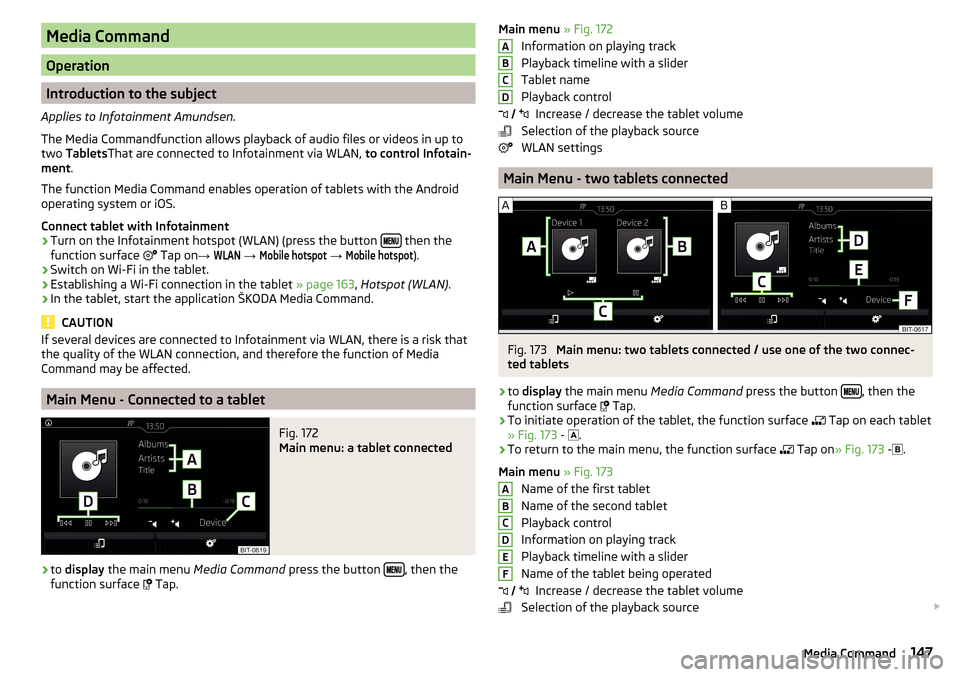
Main Menu - Connected to a tablet
Fig. 172
Main menu: a tablet connected
›
to display the main menu Media Command press the button , then the
function surface
Tap.
Main menu » Fig. 172
Information on playing track
Playback timeline with a slider
Tablet name
Playback control Increase / decrease the tablet volume
Selection of the playback source
WLAN settings
Main Menu - two tablets connected
Fig. 173
Main menu: two tablets connected / use one of the two connec-
ted tablets
›
to display the main menu Media Command press the button , then the
function surface Tap.
›
To initiate operation of the tablet, the function surface
Tap on each tablet
» Fig. 173 -
.
›
To return to the main menu, the function surface
Tap on
» Fig. 173 -
.
Main menu » Fig. 173
Name of the first tablet
Name of the second tablet
Playback control
Information on playing track
Playback timeline with a slider
Name of the tablet being operated Increase / decrease the tablet volume
Selection of the playback source
ABCD
ABCDEF 147Media Command
Page 153 of 324

Telephone
Applies to Infotainment Columbus, Amundsen, Bolero.Fig. 175
Telephone: Main menu
The Telephone main menu is displayed if a phone or a SIM card with activated
phone service on the external module is connected to Infotainment.
›
To display , press the button.
If another, menu id displayed which was open last, to display the Telephone
main menu, press the button again
.
Home page - information and function surfaces » Fig. 175
Name of the telephone service provider (with active roaming, the symbol
appears before the name )
Function surfaces of preferred contacts
Choice of storage group for the preferred contact
Emergency number dialling 1)
or function surface of the preferred contact
» page 159
Display the list of paired phones ( the name of the main phone / SIM card
inserted in the external module with activated telephone services ap-
pears in the function surface)
Change the main telephone with the auxiliary telephone (the name of
the auxiliary telephone appears in the function surface)
Display the list of paired phones that are available as a source of tele-
phone contacts - no phone for phone contacts is connected
Display the list of paired phones that are available as a source of tele- phone contacts - a phone for phone contacts is connected
ABC DEEnter the telephone number
Display the phone contact list, depending on the connection type
» page 158
Displays a menu with text messages (SMS) / option to use a SIM card or
a telephone for calling up the menu with text messages (SMS) (with new
text messages, the number of messages appears in the function sur-
face)
Display the call list (missed calls, in addition to the function surface, the
number of calls when absent is displayed)
Settings for the Telephone menu » page 126
Symbols in the status bar Signal strength of the phone service network with existing SIM card inthe external module or rSAP connection and connection type and data
transfer
Signal strength of the data service network (applies to infotainment Co-
lumbus)
Charge status of the telephone battery
Missed call
Current call
Incoming SMS
Ongoing data transfer
The PIN code of the SIM card inserted in the external module has not
been entered
Telephone
Applies to Infotainment Swing.
Fig. 176
Telephone: Main menu
FG1)
In some countries, the function may not be available.
151Telephone
Page 154 of 324
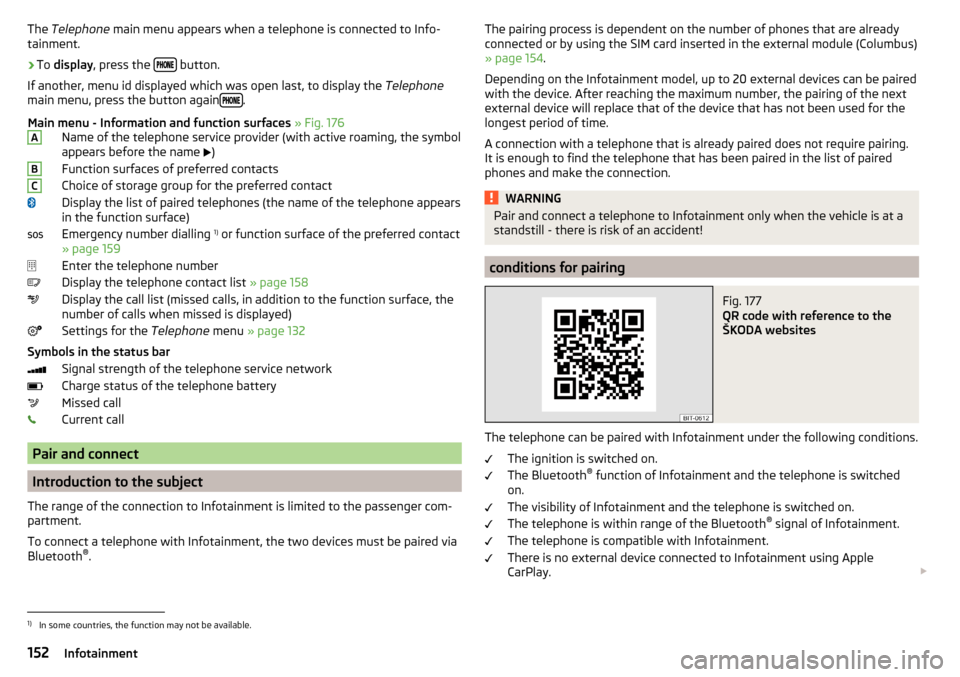
The Telephone main menu appears when a telephone is connected to Info-
tainment.›
To display , press the button.
If another, menu id displayed which was open last, to display the Telephone
main menu, press the button again
.
Main menu - Information and function surfaces » Fig. 176
Name of the telephone service provider (with active roaming, the symbol
appears before the name
)
Function surfaces of preferred contacts
Choice of storage group for the preferred contact
Display the list of paired telephones (the name of the telephone appears
in the function surface)
Emergency number dialling 1)
or function surface of the preferred contact
» page 159
Enter the telephone number
Display the telephone contact list » page 158
Display the call list (missed calls, in addition to the function surface, the
number of calls when missed is displayed)
Settings for the Telephone menu » page 132
Symbols in the status bar Signal strength of the telephone service network
Charge status of the telephone battery
Missed call
Current call
Pair and connect
Introduction to the subject
The range of the connection to Infotainment is limited to the passenger com-
partment.
To connect a telephone with Infotainment, the two devices must be paired via
Bluetooth ®
.
ABCThe pairing process is dependent on the number of phones that are already
connected or by using the SIM card inserted in the external module (Columbus)
» page 154 .
Depending on the Infotainment model, up to 20 external devices can be paired
with the device. After reaching the maximum number, the pairing of the next
external device will replace that of the device that has not been used for the
longest period of time.
A connection with a telephone that is already paired does not require pairing.
It is enough to find the telephone that has been paired in the list of paired
phones and make the connection.WARNINGPair and connect a telephone to Infotainment only when the vehicle is at a
standstill - there is risk of an accident!
conditions for pairing
Fig. 177
QR code with reference to the
ŠKODA websites
The telephone can be paired with Infotainment under the following conditions.
The ignition is switched on.
The Bluetooth ®
function of Infotainment and the telephone is switched
on.
The visibility of Infotainment and the telephone is switched on.
The telephone is within range of the Bluetooth ®
signal of Infotainment.
The telephone is compatible with Infotainment.
There is no external device connected to Infotainment using Apple
CarPlay.
1)
In some countries, the function may not be available.
152Infotainment
Page 155 of 324

The pairing can be initiated from Infotainment or from the telephone.
During the pairing and connection process, information messages are dis-
played on the Infotainment screen and the telephone screen. These messages
must be observed and if necessary confirmed (e.g. enabling the contact import,
connecting the Bluetooth ®
player among others).
Compatibility and update
By reading the QR code » Fig. 177 or after typing the following address into the
web browser, information about the compatibility of phones and updates are
available for Infotainment Bluetooth ®
can be displayed.
http://go.skoda.eu/compatibility
Pairing and connection process
Pair the telephone with Infotainment
›
Search available Bluetooth ®
devices in your telephone.
›
Select Infotainment (name of Infotainment
→
Bluetooth
→
Name:
).
›
Confirm or enter the PIN code to confirm the pairing.
The phone is connected to the infotainment or merely coupled, depending on
the number of already connected external devices and using the SIM card in-
serted in the external module (Columbus).
Pair Infotainment with the telephone
›
If there is no telephone connected to Infotainment, then press the but-
ton then tap the function surface
Find telephone
.
›
or If Infotainment is connected to a phone, then in the main menu Telephone
tap on the function surface
→
Search phone
.
›
or: If a SIM card with activated telephone services is inserted in the external
module of infotainment Columbus, then, in the main menu Telephone, tap on
the function surface
→
Find telephone
.
›
Select the desired telephone from the list of visited external Bluetooth ®
de-
vices.
›
Confirm the PIN code (enter and confirm if necessary to confirm the pairing.
If external Bluetooth ®
devices are already connected to Infotainment, then
during the Infotainment pairing and connection process, messages and op-
tions for the possible connection type (e.g. replacement of the connected ex-
ternal Bluetooth ®
device) are displayed.
Possible connection types for phones, if required, for the SIM card in the exter- nal module » page 149.
Managing paired external devicesFig. 178
Infotainment Columbus: list of paired external devices / list of
available Bluetooth® profiles
Fig. 179
Infotainment Swing: list of paired external devices / list of avail-
able Bluetooth® profiles
›
In the Telephone main menu, tap on the function surface,
Tap →
Bluetooth
→
Paired devices
.
In the list of paired external devices, the following symbols of the Bluetooth ®
profile may appear for the individual external devices » Fig. 178 and » Fig. 179
.
Applies to Infotainment Columbus, Amundsen, Bolero
SymbolSymbol colourOperationgreyExternal device can be connected as telephoneGreenExternal device is connected as telephone 153Telephone
Page 156 of 324
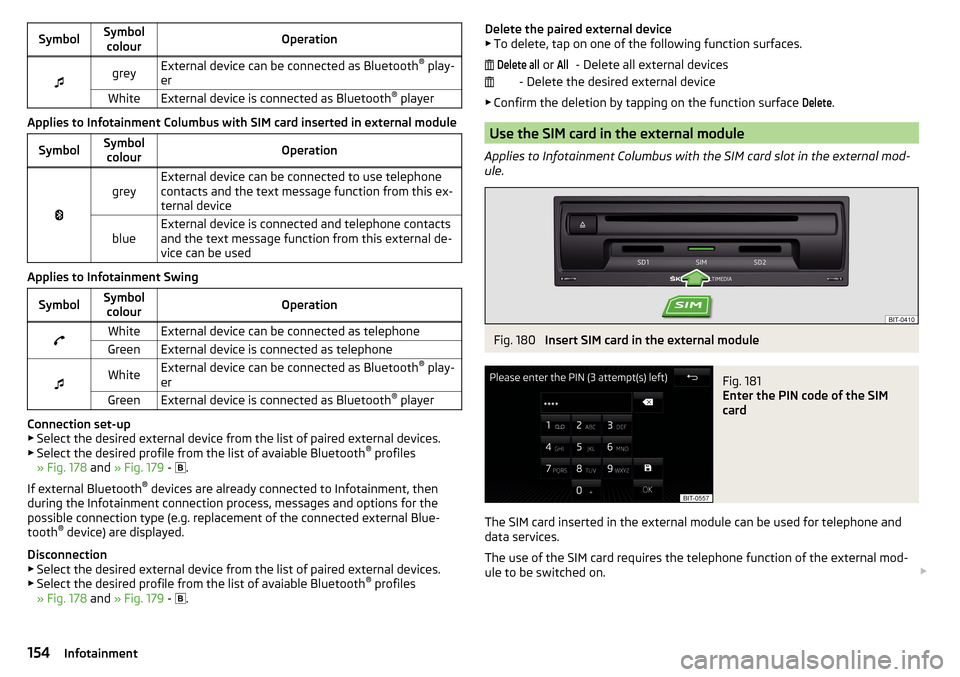
SymbolSymbolcolourOperationgreyExternal device can be connected as Bluetooth ®
play-
erWhiteExternal device is connected as Bluetooth ®
player
Applies to Infotainment Columbus with SIM card inserted in external module
SymbolSymbol
colourOperation
greyExternal device can be connected to use telephone
contacts and the text message function from this ex-
ternal deviceblueExternal device is connected and telephone contacts
and the text message function from this external de-
vice can be used
Applies to Infotainment Swing
SymbolSymbol colourOperationWhiteExternal device can be connected as telephoneGreenExternal device is connected as telephone
WhiteExternal device can be connected as Bluetooth ®
play-
erGreenExternal device is connected as Bluetooth ®
player
Connection set-up
▶ Select the desired external device from the list of paired external devices.
▶ Select the desired profile from the list of avaiable Bluetooth ®
profiles
» Fig. 178 and » Fig. 179 -
.
If external Bluetooth ®
devices are already connected to Infotainment, then
during the Infotainment connection process, messages and options for the
possible connection type (e.g. replacement of the connected external Blue-
tooth ®
device) are displayed.
Disconnection
▶ Select the desired external device from the list of paired external devices.
▶ Select the desired profile from the list of avaiable Bluetooth ®
profiles
» Fig. 178 and » Fig. 179 -
.
Delete the paired external device
▶ To delete, tap on one of the following function surfaces.
- Delete all external devices
- Delete the desired external device
▶ Confirm the deletion by tapping on the function surface Delete
.
Use the SIM card in the external module
Applies to Infotainment Columbus with the SIM card slot in the external mod-
ule.
Fig. 180
Insert SIM card in the external module
Fig. 181
Enter the PIN code of the SIM
card
The SIM card inserted in the external module can be used for telephone and
data services.
The use of the SIM card requires the telephone function of the external mod-
ule to be switched on.
Delete all or All154Infotainment