AUX SKODA YETI 2014 1.G / 5L Bolero Car Radio Manual
[x] Cancel search | Manufacturer: SKODA, Model Year: 2014, Model line: YETI, Model: SKODA YETI 2014 1.G / 5LPages: 64, PDF Size: 5.42 MB
Page 12 of 64
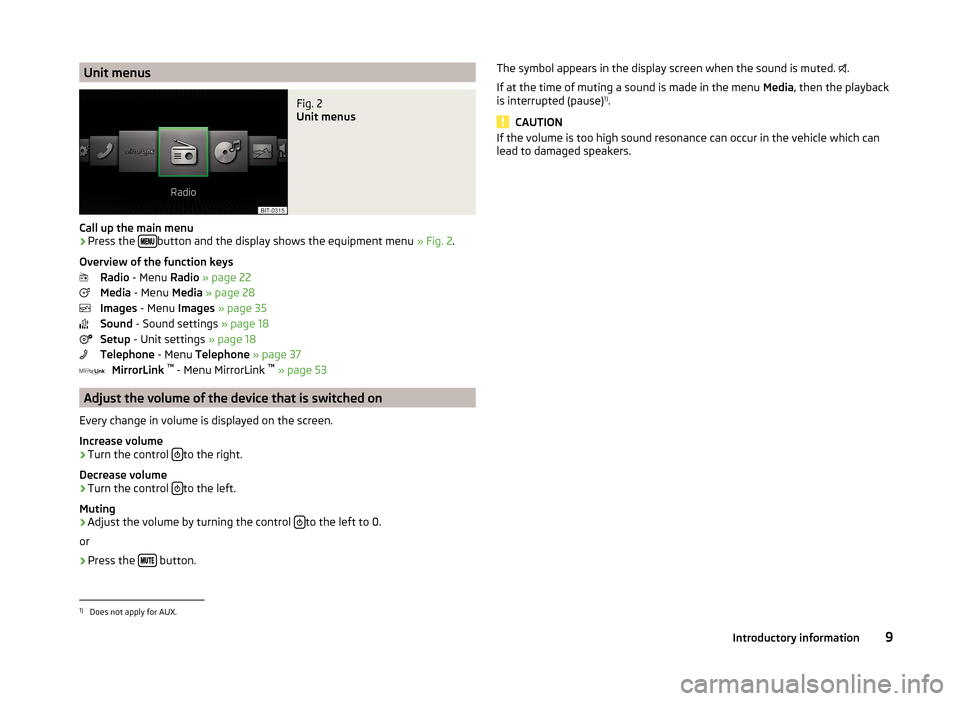
Unit menusFig. 2
Unit menus
Call up the main menu
›
Press the button and the display shows the equipment menu
» Fig. 2.
Overview of the function keys Radio - Menu Radio » page 22
Media - Menu Media » page 28
Images - Menu Images » page 35
Sound - Sound settings » page 18
Setup - Unit settings » page 18
Telephone - Menu Telephone » page 37
MirrorLink ™
- Menu MirrorLink ™
» page 53
Adjust the volume of the device that is switched on
Every change in volume is displayed on the screen.
Increase volume
›
Turn the control to the right.
Decrease volume
›
Turn the control to the left.
Muting
›
Adjust the volume by turning the control to the left to 0.
or
›
Press the button.
The symbol appears in the display screen when the sound is muted.
.
If at the time of muting a sound is made in the menu Media, then the playback
is interrupted (pause) 1)
.
CAUTION
If the volume is too high sound resonance can occur in the vehicle which can
lead to damaged speakers.1)
Does not apply for AUX.
9Introductory information
Page 16 of 64
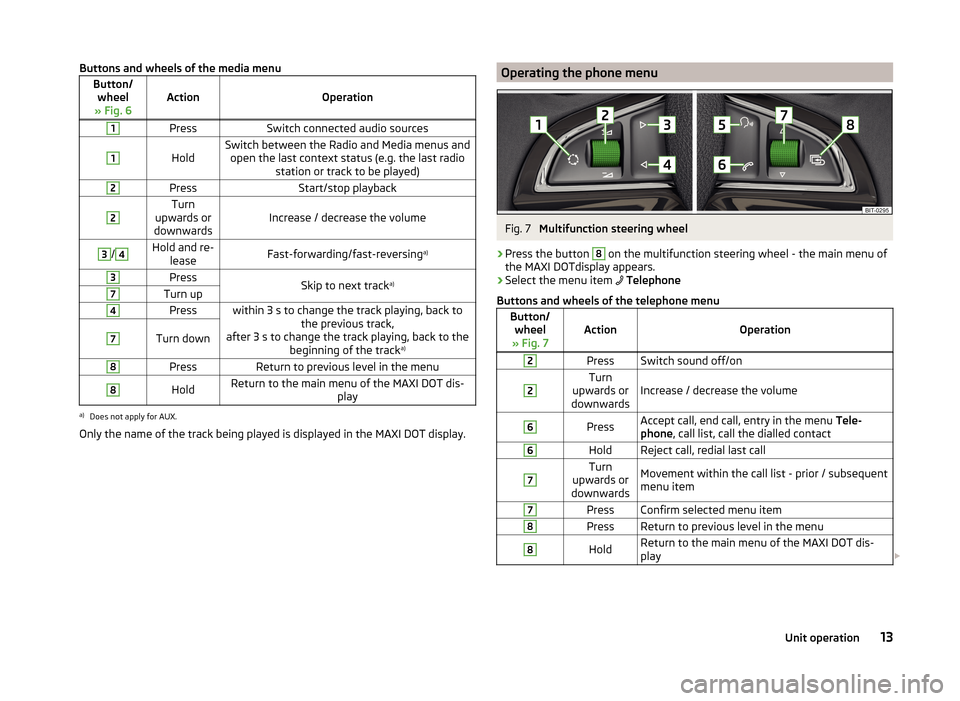
Buttons and wheels of the media menuButton/wheel
» Fig. 6ActionOperation
1PressSwitch connected audio sources1
HoldSwitch between the Radio and Media menus and open the last context status (e.g. the last radio station or track to be played)2PressStart/stop playback2Turn
upwards or
downwardsIncrease / decrease the volume
3/4Hold and re- leaseFast-forwarding/fast-reversing a)3PressSkip to next tracka)7Turn up4Presswithin 3 s to change the track playing, back to
the previous track,
after 3 s to change the track playing, back to the beginning of the track a)7Turn down8PressReturn to previous level in the menu8HoldReturn to the main menu of the MAXI DOT dis-
playa)
Does not apply for AUX.
Only the name of the track being played is displayed in the MAXI DOT display.
Operating the phone menuFig. 7
Multifunction steering wheel
›
Press the button
8
on the multifunction steering wheel - the main menu of
the MAXI DOTdisplay appears.
›
Select the menu item
Telephone
Buttons and wheels of the telephone menu
Button/ wheel
» Fig. 7ActionOperation
2PressSwitch sound off/on2Turn
upwards or
downwardsIncrease / decrease the volume
6PressAccept call, end call, entry in the menu Tele-
phone , call list, call the dialled contact6HoldReject call, redial last call7Turn
upwards or
downwardsMovement within the call list - prior / subsequent
menu item7PressConfirm selected menu item8PressReturn to previous level in the menu8HoldReturn to the main menu of the MAXI DOT dis-
play 13Unit operation
Page 21 of 64
Device Settings
Menu Sound
Introduction
This chapter contains information on the following subjects:
Sound settings
18
First and foremost, pay attention to the safety instructions » page 7 , Impor-
tant notes .
This chapter covers the sound setting of the device and the volume setting of
the connected equipment.
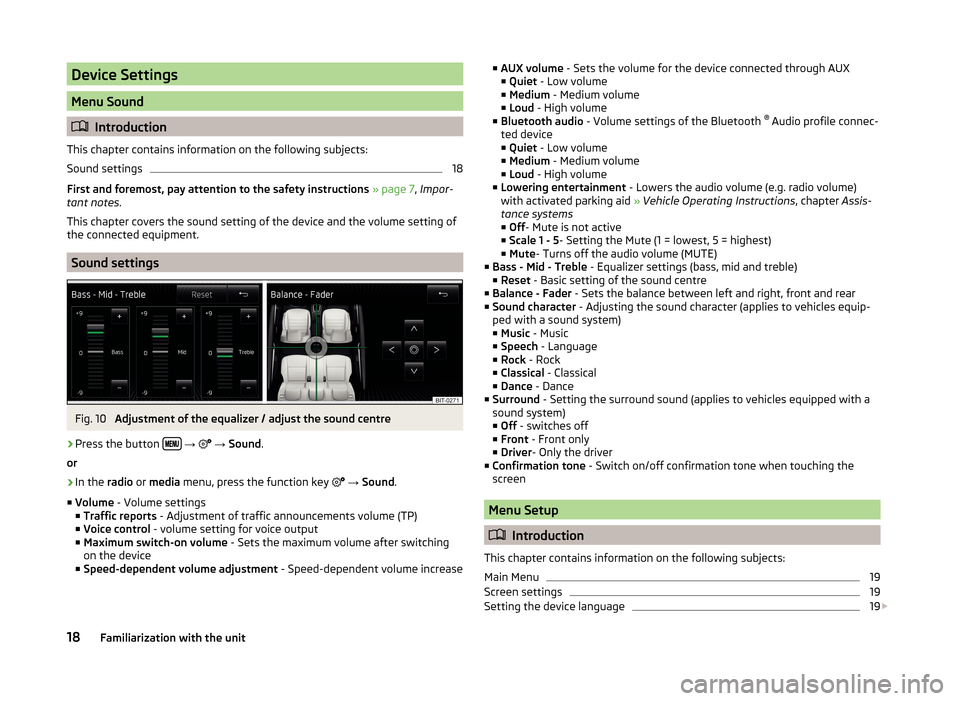
Sound settings
Fig. 10
Adjustment of the equalizer / adjust the sound centre
›
Press the button
→
→ Sound .
or
›
In the radio or media menu, press the function key
→ Sound .
■ Volume - Volume settings
■ Traffic reports - Adjustment of traffic announcements volume (TP)
■ Voice control - volume setting for voice output
■ Maximum switch-on volume - Sets the maximum volume after switching
on the device
■ Speed-dependent volume adjustment - Speed-dependent volume increase
■
AUX volume - Sets the volume for the device connected through AUX
■ Quiet - Low volume
■ Medium - Medium volume
■ Loud - High volume
■ Bluetooth audio - Volume settings of the Bluetooth ®
Audio profile connec-
ted device ■ Quiet - Low volume
■ Medium - Medium volume
■ Loud - High volume
■ Lowering entertainment - Lowers the audio volume (e.g. radio volume)
with activated parking aid » Vehicle Operating Instructions , chapter Assis-
tance systems ■ Off - Mute is not active
■ Scale 1 - 5 - Setting the Mute (1 = lowest, 5 = highest)
■ Mute - Turns off the audio volume (MUTE)
■ Bass - Mid - Treble - Equalizer settings (bass, mid and treble)
■ Reset - Basic setting of the sound centre
■ Balance - Fader - Sets the balance between left and right, front and rear
■ Sound character - Adjusting the sound character (applies to vehicles equip-
ped with a sound system)
■ Music - Music
■ Speech - Language
■ Rock - Rock
■ Classical - Classical
■ Dance - Dance
■ Surround - Setting the surround sound (applies to vehicles equipped with a
sound system)
■ Off - switches off
■ Front - Front only
■ Driver - Only the driver
■ Confirmation tone - Switch on/off confirmation tone when touching the
screen
Menu Setup
Introduction
This chapter contains information on the following subjects:
Main Menu
19
Screen settings
19
Setting the device language
19
18Familiarization with the unit
Page 33 of 64
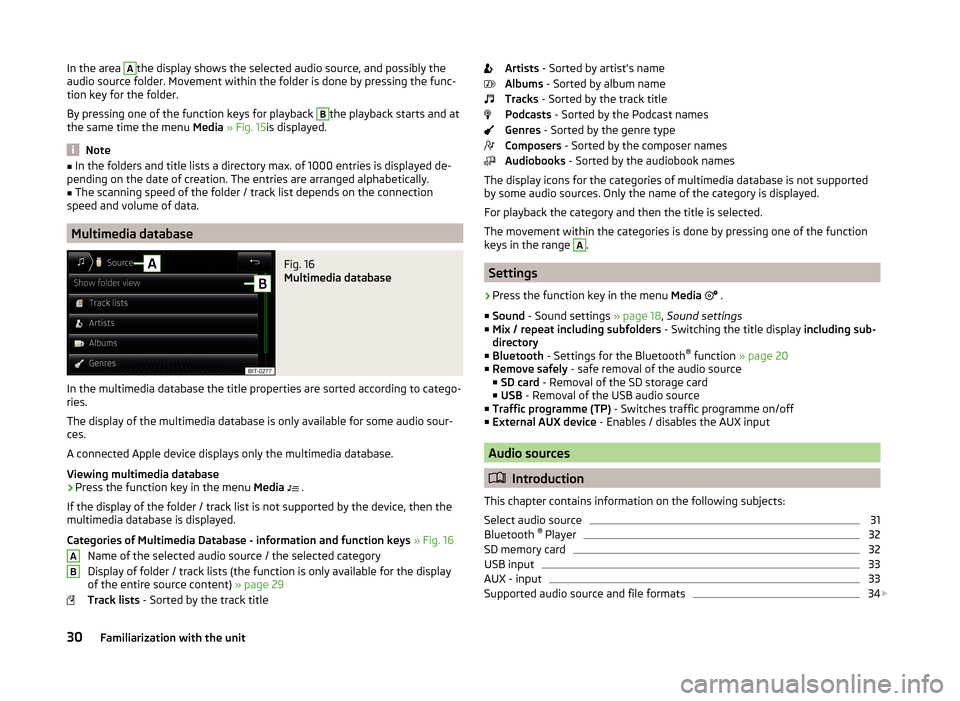
In the area Athe display shows the selected audio source, and possibly the
audio source folder. Movement within the folder is done by pressing the func-
tion key for the folder.
By pressing one of the function keys for playback B
the playback starts and at
the same time the menu Media » Fig. 15 is displayed.
Note
■
In the folders and title lists a directory max. of 1000 entries is displayed de-
pending on the date of creation. The entries are arranged alphabetically.■
The scanning speed of the folder / track list depends on the connection
speed and volume of data.
Multimedia database
Fig. 16
Multimedia database
In the multimedia database the title properties are sorted according to catego-
ries.
The display of the multimedia database is only available for some audio sour-
ces.
A connected Apple device displays only the multimedia database.
Viewing multimedia database
›
Press the function key in the menu Media
.
If the display of the folder / track list is not supported by the device, then the
multimedia database is displayed.
Categories of Multimedia Database - information and function keys » Fig. 16
Name of the selected audio source / the selected category
Display of folder / track lists (the function is only available for the display
of the entire source content) » page 29
Track lists - Sorted by the track title
ABArtists - Sorted by artist's name
Albums - Sorted by album name
Tracks - Sorted by the track title
Podcasts - Sorted by the Podcast names
Genres - Sorted by the genre type
Composers - Sorted by the composer names
Audiobooks - Sorted by the audiobook names
The display icons for the categories of multimedia database is not supported by some audio sources. Only the name of the category is displayed.
For playback the category and then the title is selected.
The movement within the categories is done by pressing one of the function
keys in the range A
.
Settings
›
Press the function key in the menu Media
.
■ Sound - Sound settings » page 18, Sound settings
■ Mix / repeat including subfolders - Switching the title display including sub-
directory
■ Bluetooth - Settings for the Bluetooth ®
function » page 20
■ Remove safely - safe removal of the audio source
■ SD card - Removal of the SD storage card
■ USB - Removal of the USB audio source
■ Traffic programme (TP) - Switches traffic programme on/off
■ External AUX device - Enables / disables the AUX input
Audio sources
Introduction
This chapter contains information on the following subjects:
Select audio source
31
Bluetooth ®
Player
32
SD memory card
32
USB input
33
AUX - input
33
Supported audio source and file formats
34
30Familiarization with the unit
Page 34 of 64
First and foremost, pay attention to the safety instructions » page 7 , Impor-
tant notes .
The device allows you to play audio files in various formats and to connect dif-
ferent source types » page 34.
For an audio source with a memory split into several areas, only the memory
areas of the supported formats can be read » tab. Supported audio sources on
page 34 .WARNING■
Never place audio sources close to the airbags. They could be thrown into
the passenger compartment when the airbags are deployed, injuring the
occupants.■
Never place audio sources on the dash panel, in your hand or on your
knees. They could be thrown into the passenger compartment during sud-
den driving manoeuvres, thereby injuring the occupants.
■
Always route the connection cable of the audio source such that is does
not restrict you when driving.
CAUTION
Do not store any important data on the connected external sources. ŠKODA
assumes no responsibility for lost or damaged files or connected audio sour-
ces.
Note
See the owner's manual of the specific manufacturer for operating the exter-
nal audio source.Select audio sourceFig. 17
Select audio source
Read and observe
and on page 31 first.
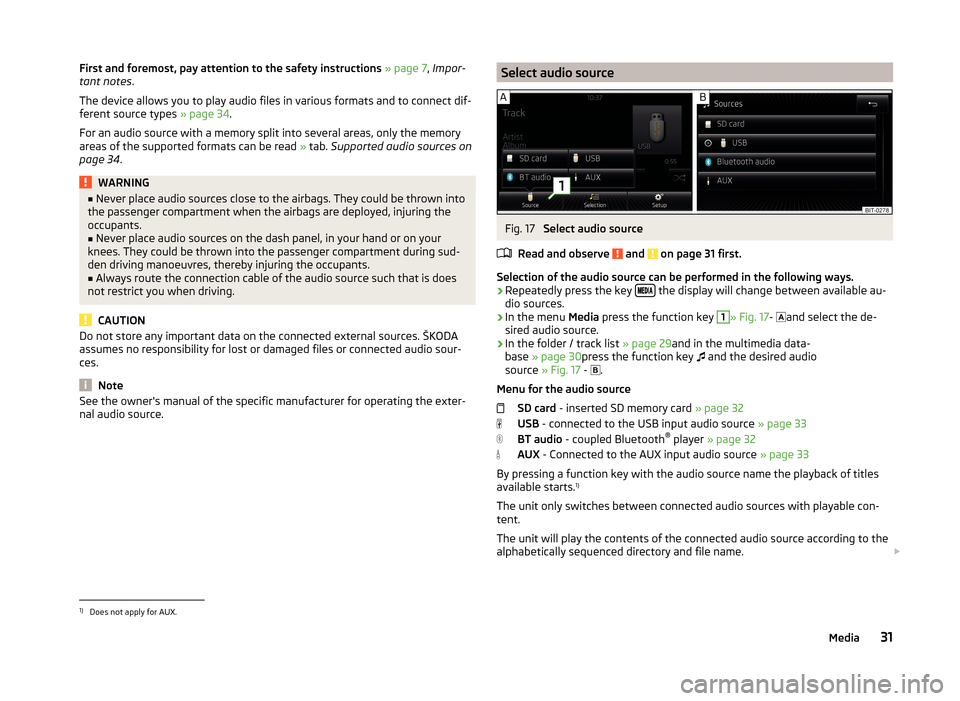
Selection of the audio source can be performed in the following ways.
› Repeatedly press the key
the display will change between available au-
dio sources.
› In the menu
Media press the function key
1
» Fig. 17 -
and select the de-
sired audio source.
› In the folder / track list
» page 29and in the multimedia data-
base » page 30 press the function key
and the desired audio
source » Fig. 17 -
.
Menu for the audio source SD card - inserted SD memory card » page 32
USB - connected to the USB input audio source » page 33
BT audio - coupled Bluetooth ®
player » page 32
AUX - Connected to the AUX input audio source » page 33
By pressing a function key with the audio source name the playback of titles
available starts. 1)
The unit only switches between connected audio sources with playable con-
tent.
The unit will play the contents of the connected audio source according to the
alphabetically sequenced directory and file name.
1)
Does not apply for AUX.
31Media
Page 36 of 64
USB inputFig. 19
USB and AUX inputs
Read and observe and on page 31 first.
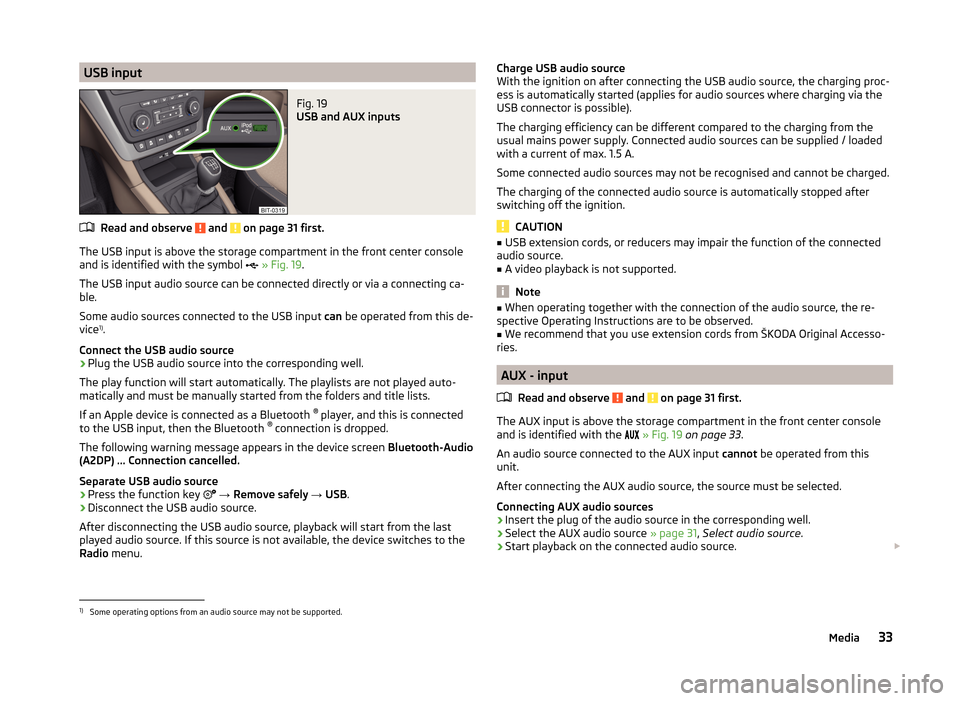
The USB input is above the storage compartment in the front center console
and is identified with the symbol
» Fig. 19 .
The USB input audio source can be connected directly or via a connecting ca-
ble.
Some audio sources connected to the USB input can be operated from this de-
vice 1)
.
Connect the USB audio source
›
Plug the USB audio source into the corresponding well.
The play function will start automatically. The playlists are not played auto-
matically and must be manually started from the folders and title lists.
If an Apple device is connected as a Bluetooth ®
player, and this is connected
to the USB input, then the Bluetooth ®
connection is dropped.
The following warning message appears in the device screen Bluetooth-Audio
(A2DP) ... Connection cancelled.
Separate USB audio source
›
Press the function key
→ Remove safely → USB .
›
Disconnect the USB audio source.
After disconnecting the USB audio source, playback will start from the last
played audio source. If this source is not available, the device switches to the
Radio menu.
Charge USB audio source
With the ignition on after connecting the USB audio source, the charging proc-
ess is automatically started (applies for audio sources where charging via the
USB connector is possible).
The charging efficiency can be different compared to the charging from the
usual mains power supply. Connected audio sources can be supplied / loaded
with a current of max. 1.5 A.
Some connected audio sources may not be recognised and cannot be charged.
The charging of the connected audio source is automatically stopped after
switching off the ignition.
CAUTION
■ USB extension cords, or reducers may impair the function of the connected
audio source.■
A video playback is not supported.
Note
■ When operating together with the connection of the audio source, the re-
spective Operating Instructions are to be observed.■
We recommend that you use extension cords from ŠKODA Original Accesso-
ries.
AUX - input
Read and observe
and on page 31 first.
The AUX input is above the storage compartment in the front center console
and is identified with the
» Fig. 19 on page 33 .
An audio source connected to the AUX input cannot be operated from this
unit.
After connecting the AUX audio source, the source must be selected.
Connecting AUX audio sources
›
Insert the plug of the audio source in the corresponding well.
›
Select the AUX audio source » page 31, Select audio source .
›
Start playback on the connected audio source.
1)
Some operating options from an audio source may not be supported.
33Media
Page 37 of 64
Disconnect AUX audio source›Disconnect the connector of the audio source.
After disconnecting the AUX audio source is no automatic change to another
audio source takes place.
CAUTION
■ The AUX input must only be used for audio devices!■If an external audio source is connected to the AUX input, which is equipped
with an adapter for external power supply, the sound will be impaired. This de-
pends on the quality of the adapter which is used.
Note
■ The standard 3.5 mm stereo jack plug is used for the AUX input. If the exter-
nal devices do not have this jack plug, you must use an adapter.■
The AUX input can be activated / deactivated » page 30, Settings .
■
The volume can be adjusted by setting the input sensitivity of the connected
AUX audio source » page 18, Sound settings .
■
We recommend that you use extension cords from ŠKODA Original Accesso-
ries.
Supported audio source and file formats
Read and observe
and on page 31 first.
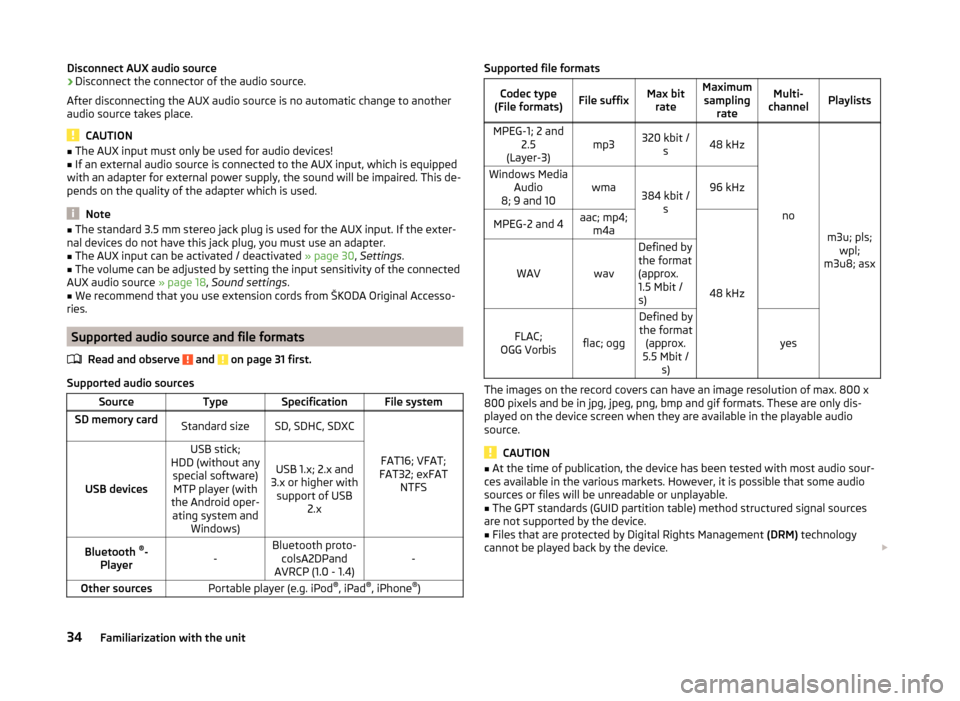
Supported audio sources
SourceTypeSpecificationFile systemSD memory cardStandard sizeSD, SDHC, SDXC
FAT16; VFAT;
FAT32; exFAT NTFSUSB devices
USB stick;
HDD (without any special software)MTP player (with
the Android oper- ating system and Windows)
USB 1.x; 2.x and
3.x or higher with support of USB 2.xBluetooth ®
-
Player-Bluetooth proto- colsA2DPand
AVRCP (1.0 - 1.4)-Other sourcesPortable player (e.g. iPod ®
, iPad ®
, iPhone ®
)Supported file formatsCodec type
(File formats)File suffixMax bit rateMaximumsampling rateMulti-
channelPlaylistsMPEG-1; 2 and 2.5
(Layer-3)mp3320 kbit / s48 kHz
no
m3u; pls;wpl;
m3u8; asx
Windows Media Audio
8; 9 and 10wma384 kbit / s96 kHzMPEG-2 and 4aac; mp4;m4a
48 kHz
WAVwav
Defined by
the format
(approx.
1.5 Mbit /
s)
FLAC;
OGG Vorbisflac; ogg
Defined by the format (approx.
5.5 Mbit / s)
yes
The images on the record covers can have an image resolution of max. 800 x
800 pixels and be in jpg, jpeg, png, bmp and gif formats. These are only dis-
played on the device screen when they are available in the playable audio
source.
CAUTION
■ At the time of publication, the device has been tested with most audio sour-
ces available in the various markets. However, it is possible that some audio
sources or files will be unreadable or unplayable.■
The GPT standards (GUID partition table) method structured signal sources
are not supported by the device.
■
Files that are protected by Digital Rights Management (DRM) technology
cannot be played back by the device.
34Familiarization with the unit
Page 59 of 64
Index
A
Additional keyboard languages
20
Additional telephone39
Alphanumeric with keyboard11
AM22
Anti-theft protection7
Audio Media
28
Radio22
Audio source30
AUX33
B
Bluetooth Settings
20
Switch on/off20
Update21
Visibility20
Bluetooth - profile39
Bluetooth Player32
Breakdown service46
C
Call list Call list
49
Communication37
Component protection7
Conditions for coupling42
Conference call50
Connect device connected to a telephone
45
connected to two telephones45
more options of the telephone search45
no telephone connected45
Control lever14
Coupled device connected to a telephone42
connected to two telephones43
more options of the telephone search43
Couple device no telephone connected
42
Couple telephone Telephone to the device
43
D
DAB
22
Additional information23
Radio text and pictures presentation23
Settings26
Data transmission of mobile devices20
Delete the telephone from the list of paired de- vices
44
Description of the device7
Device connect to the telephone
44
Disconnection46
Pair with your telephone41
Device language19
Device menu Radio
22
Device menus Device Settings
18, 19
Media28
MirrorLink53
Pictures35
Sound18
Telephone37
Device operation Control lever
14
Device screen10
MAXI DOT display11
Multi-function steering wheel12
Multifunction steering wheel13
device screen keyboard
11
Device screen19
Area10
important information8
Maintenance8
Operation10
Dial telephone number46
Digital radio reception26
DTMF49
F
Factory settings
20
File formats Media
34
File Formats Pictures
36
FM22
Settings26
Frequency range23
See main menu22
Function keys10
Function problems MirrorLink
54
Telephone40
I
Images Display
36
Select source36
Settings36
Supported file formats36
Image viewer35
Important notes7
Info service46
Input screen with keyboard11
Introductory information7
K
keyboard
11
Keyboard19
56Index
Page 60 of 64
L
Language characters
20
List of available stations
23
of telephone contacts47
With folder / track list29
M
Main menu Media
28
MirrorLink54
Radio22
SMS51
Telephone38
Main telephone39
MAXI DOT display Media
12
Operation11
Phone13
Radio12
media voice control
14
Media28
Audio source30
AUX33
Bluetooth Audio32
Browser29
File formats34
Foreword28
List29
Main menu28
Multi-function steering wheel12
Multimedia database30
Operation28
Playback28
Requirements and limitations34
safe removal of the signal source20
SD memory card32
Select audio source31
Settings30
supported file formats34
supported sources34
USB33
MirrorLink53
Connection conditions53
Data transmission20
Function problems54
Operation54
Settings54
Start function53
Multi-function steering wheel Media
12
Radio12
Multi-media AUX
33
Multifunction steering wheel Phone
13
Multimedia USB
33
Multimedia database30
Mute9
O
Operation Media
28
MirrorLink54
Pictures35
Radio22
Telephone38
P
Pair device Pairing confirmation
44
Pair the telephone with your device
41
Phone Multifunction steering wheel
13
Pictures35
Operation35
safe removal of the signal source20
Playback Media28
R
radio voice control
14
Radio22
DAB settings26
FM - settings26
Frequency range23
List of available stations23
Main menu22
Multi-function steering wheel12
Operation22
Preface22
Save station24
Search for station24
Select station24
Settings26
Station Logo25
Traffic programme (TP)25
Radio station Logo
25
Save station24
Search for station24
Select station24
Radio station logo25
S
Safe removal of the signal source
20
Save radio station24
Screen see device screen
8
Screen display10
SD memory card32
Select frequency range See main menu
22
Select radio station See main menu
22
57Index