change time SUBARU SOLTERRA 2023 User Guide
[x] Cancel search | Manufacturer: SUBARU, Model Year: 2023, Model line: SOLTERRA, Model: SUBARU SOLTERRA 2023Pages: 628, PDF Size: 11.91 MB
Page 118 of 628
1182-2. Charging
Owners Manual_USA_M42C01_en
■If the DC charging connector
cannot be unlocked
P. 9 5
■After DC charging
Even if the traction battery is
charged to the upper limit value that
is set, the level of charge displayed
on the DC charger may be lower
than the actual one.
■Calendar settings
Charging schedule is performed
according to the date and time
shown on the multi-information dis-
play. Refer to the “Settings display”
( P.158)
If the calendar settings check
screen is displayed when an
attempt was made to register a
charge schedule, check that the cor-
rect date is set. If it is incorrect, be
sure to correct it.
If the calendar information is wrong,
the charging schedule function will
not operate normally.
When registering the charging
schedule, the following settings
can be changed.
■Select the charging mode
One of the two following
charging modes can be
selected.
“Start”
Starts charging at the set time
*
and finishes charging when fully
charged.
“Start-Stop”
AC charging is performed
NOTICE
■Caution after DC charging
●Be sure to attach the DC
charging inlet cap to the DC
charging inlet and then close
the charging port lid after
removing the DC charging con-
nector from the inlet. If the DC
charging inlet cap is not closed,
foreign materials may get into
the inlet and the EV system may
be malfunctioning.
Using the charging
schedule function
AC charging can be carried
out at the desired time by
registering the charging
schedule.
Settings of the charging
schedule function
Page 120 of 628
1202-2. Charging
Owners Manual_USA_M42C01_enschedule, connect the AC
charging connector
The charging start time is deter-
mined based on the charging
schedule at the t ime that the AC
charging connector was connected.
●Connect the AC charging connec-
tor before the start time
When the charging mode is set to
“Start”, if you connect the AC
charging connector after the set
start time, the next charging sched-
ule will be referenced.
When the charging mode is “Start-
Stop”, if you connect the AC
charging connector after the start
time, charging will start immediately
and charging will be performed until
the stop time.
●After connecting the AC charging
connector, check that the charging
indicator of the charging port
flashes ( P. 8 6 )
●Do not use an ou tlet that has a
power cut off function (including a
timer function)
Use an outlet that constantly sup-
plies electricity. For outlets where
the power is cut off due to a timer
function, etc., charging may not be
carried out accord ing to plan if the
power is cut off during the set time.
■When the AC charging connec-
tor remains connected to the
vehicle
●When the charging mode is set to
“Start”, even if multiple consecu-
tive charging schedules are regis-
tered, the next charge will not be
carried out according to the
charging schedule until the AC
charging connector is removed
and reconnected after charging
completes. Also, when the traction
battery is fully charged, charging
according to the charging sched- ule will not be carried out.
●If the charging stop time is
reached before t
he traction bat-
tery is fully cha rged and the
charging mode is set to “Start-
Stop”, the nearest charging
schedule after the stop time is
updated as the next charging
schedule, and charging is
repeated until the battery is fully
charged.
■Smartphone-linked operation
After applying to Toyota App, it is
possible to use the smartphone
application to change charging
schedule settings.
For details about Toyota Apps, refer
to http://www.toyota.com/
connected-services in the United
States and http://www.toy-
ota.ca/connected in Canada.
■When charging schedules are
ignored
When the following operations are
performed while the charging
schedule is on standby, charging
schedule is temporarily canceled
and charging is started.
●When the Remote Air Condition-
ing System ( P.409) is operated
●When turning “My Room Mode”
on ( P.129)
●When turning “Charge Now” on
( P.124, 128)
●When an operation that temporar-
ily cancel charging using the
charging schedule ( P.107)
■Battery heater ( P.99)/“Battery
Cooler” ( P. 9 9 )
Depending on the temperature of
the traction battery , the traction bat-
tery heater or traction battery cooler
may be activated and the charging
indicator may light up while the timer
is waiting for charging.
Page 122 of 628
1222-2. Charging
Owners Manual_USA_M42C01_en
7Press or of the meter
control switches to select the
item to change with the cur-
sor, and then press or
to change the setting.
When the charging mode is
“Start”, set the charging start
time.
When the charging mode is
“Start-Stop”, set the charging
start time and stop time.
After changing the settings to
the desired settings, press
.
8 Press or of the meter
control switches to select the
desired day to activate for the
repeated setting, and then
press .
Each time is pressed, the
repeated setting switches
between on and off.
When set to on, the charging
schedule is repeated on that
day. It is possible to set more
than one day to on.
After changing the settings to
the desired settings, select
“Done”, and then press .
A screen where the settings
can be saved will be dis-
played. 9
Select “Save” and press
to save the settings.
The settings will be saved.
If you wish to change the set-
tings, press and perform
the setting procedure again.
After setting operations are
complete, when the AC
charging connector is con-
nected to the vehicle,
charging will be carried out
according to the charging
schedule settings.
■Switching charging sched-
ules between on and off
The registered charging sched-
ules can be turned on and off.
1 Perform step 1 to 5 of the
“Registering the charging
schedule” procedure
( P.121) and display
“Scheduled Events” screen.
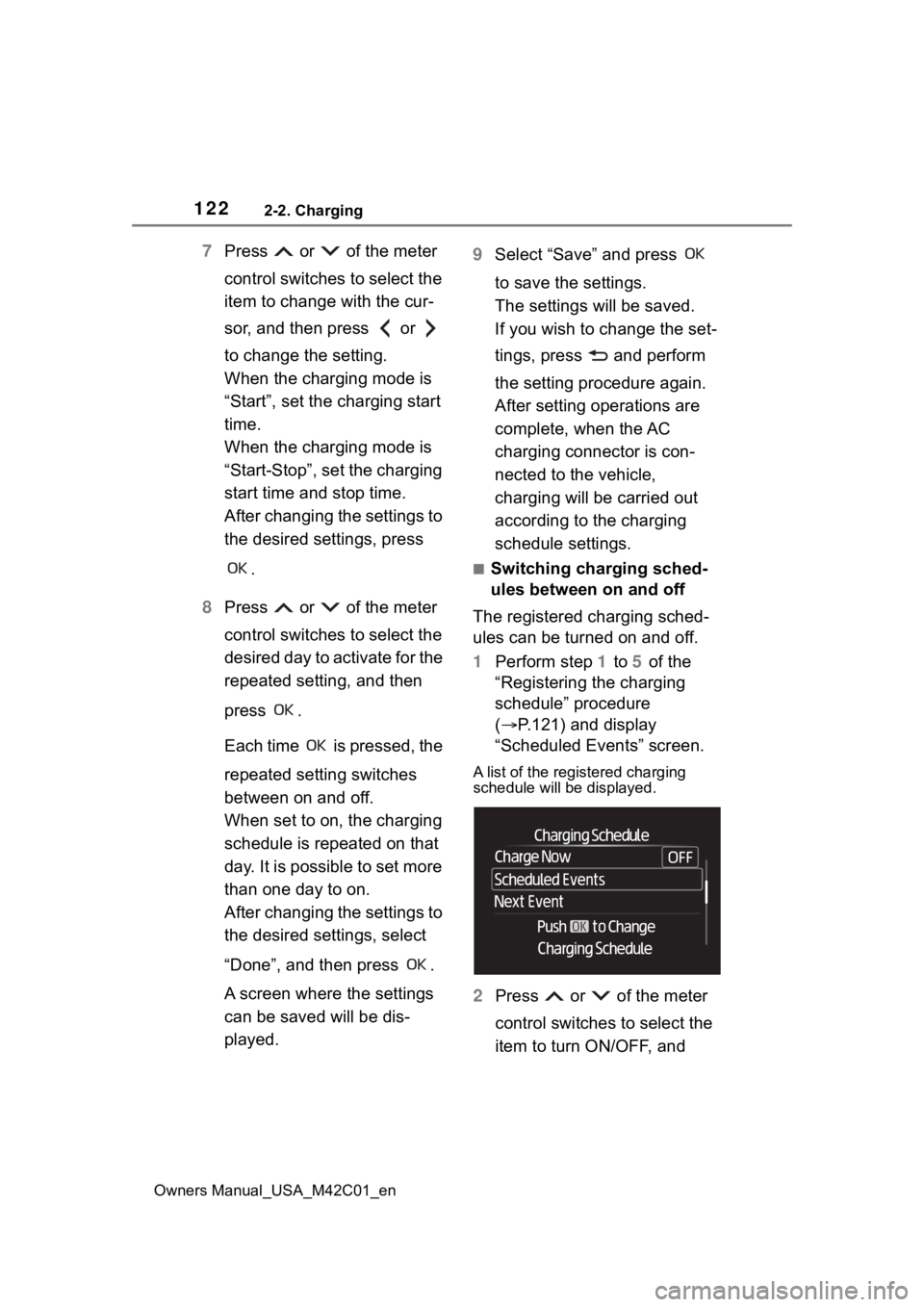
A list of the registered charging
schedule will be displayed.
2 Press or of the meter
control switches to select the
item to turn ON/OFF, and
Page 123 of 628
1232-2. Charging
Owners Manual_USA_M42C01_en
2
Electric Vehicle system
then press .
Each time is pressed, the
selected charging schedule
switches between on and off.
When set to off, a charging
schedule is ignored and
charging according to the
charging schedule is not car-
ried out.
■Changing the registered
charging schedules
The registered charging sched-
ules can be modified or deleted.
1 Perform step 1 to 5 of the
“Registering the charging
schedule” ( P.121) proce-
dure and display “Scheduled
Events” screen.
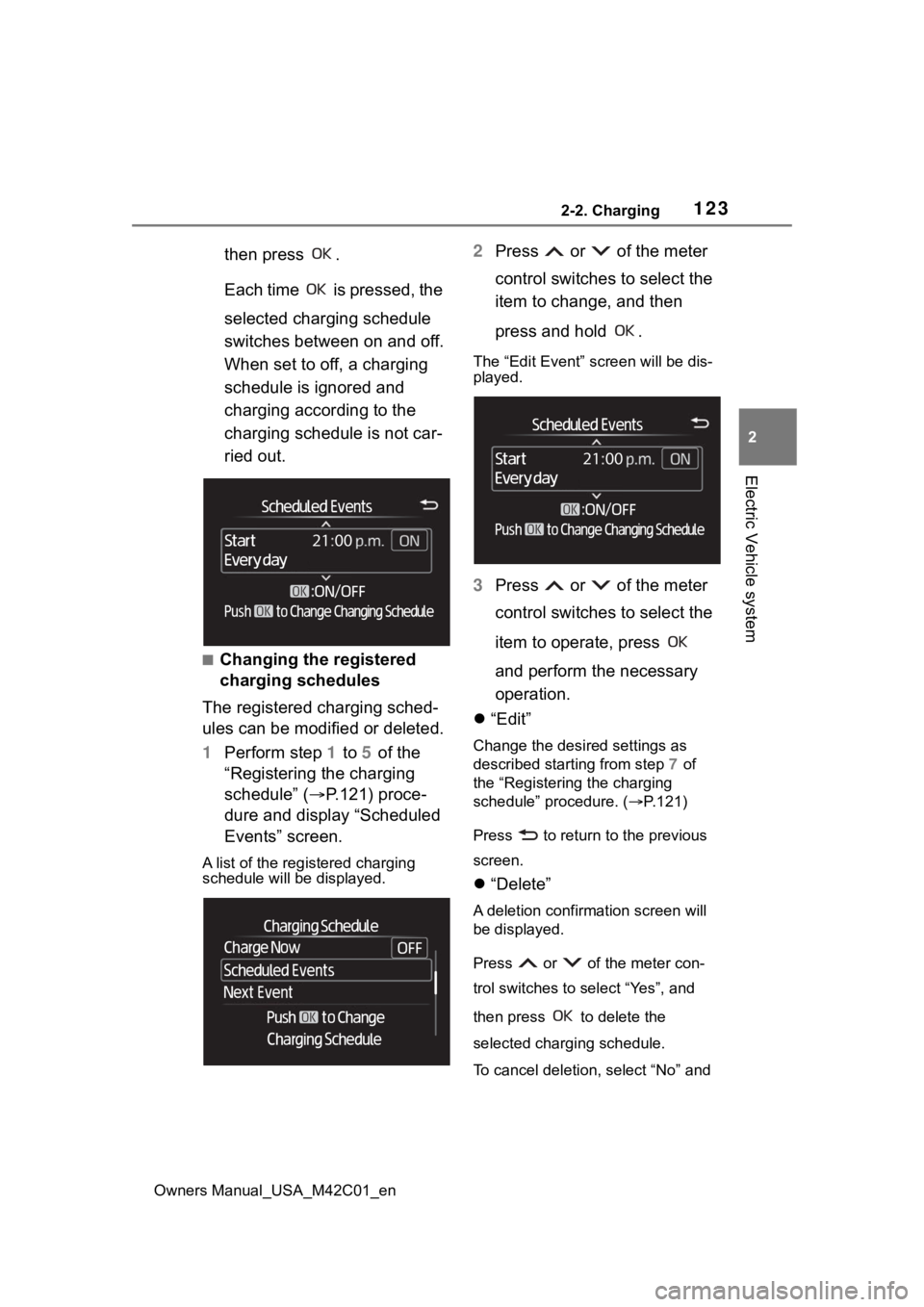
A list of the registered charging
schedule will be displayed.
2Press or of the meter
control switches to select the
item to change, and then
press and hold .
The “Edit Event” screen will be dis-
played.
3Press or of the meter
control switches to select the
item to operate, press
and perform the necessary
operation.
“Edit”
Change the desired settings as
described starting from step 7 of
the “Registering the charging
schedule” procedure. ( P.121)
Press to return to the previous
screen.
“Delete”
A deletion confirmation screen will
be displayed.
Press or of the meter con-
trol switches to select “Yes”, and
then press to delete the
selected charging schedule.
To cancel deletion, select “No” and
Page 124 of 628
1242-2. Charging
Owners Manual_USA_M42C01_enthen press .
Press to return
to the previous
screen.
■Setting “Charge Now” to on
The “Charge Now” setting can
be changed by performing one
of the two following procedures.
Operation on “Charging
Schedule” screen
1 Perform step 1 to 4 of the
“Registering the charging
schedule” procedure
( P.121) and display
“Charging Schedule” screen.
2 Press or of the meter
control switches to select
“Charge Now”, and then
press .
Each time is pressed,
“Charge Now” switches between
on and off.
Operation on “Closing Dis-
play” screen
*
*: If “Closing Display” is not set to “Charging Schedule” on the
screen of the mu lti-information
display, the “Closing Display” is
not displayed. In this case, check
the settings on the multi-informa-
tion display.
1 Turn the power switch off.
The “Closing Display” screen
is displayed on the multi- information display.
(If the door is opened while
waiting for charging sched-
ule, the same screen will be
displayed.)
2 Press to set “Charge
Now” to on.
After setting operations are
complete, charging starts when
the AC charging connector is
connected.
■Displaying “Next Event”
1 Perform step 1 to 4 of the
“Registering the charging
schedule” procedure
( P.121) and display
“Charging Schedule” screen.
2 Press or of the meter
control switches to select
“Next Event”, and then press
.
The “Next Event” screen will be dis-
played.
■When charging schedule set-
ting operations are canceled
When the vehicle i s in the following
conditions, charging schedule set-
ting operations are canceled.
●The power switch is operated
before the settings are confirmed
●The vehicle starts off
●A display with a higher priority
than that of the charging schedule
setting is shown
Page 126 of 628
1262-2. Charging
Owners Manual_USA_M42C01_en
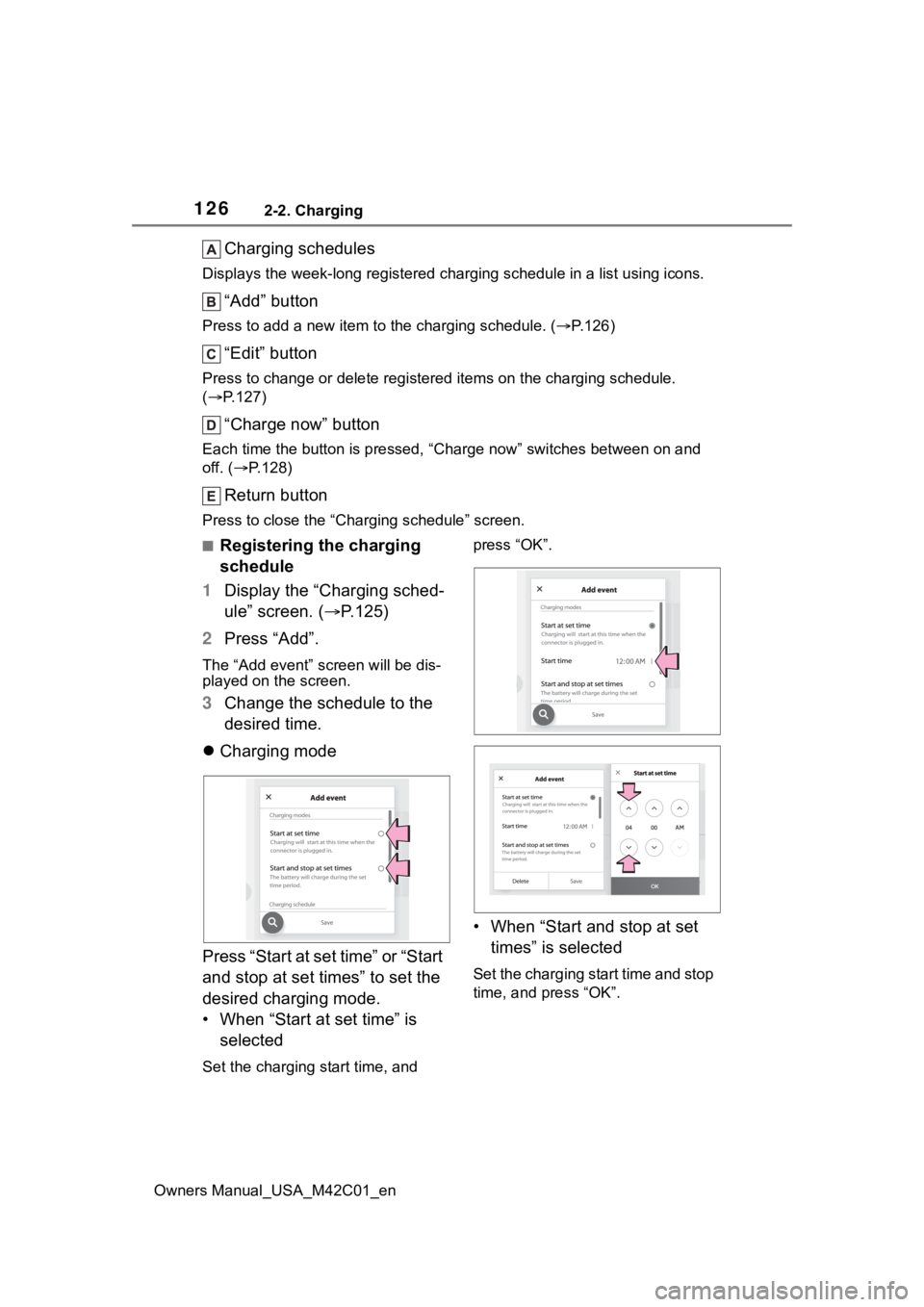
Charging schedules
Displays the week-long registered charging schedule in a list using icons.
“Add” button
Press to add a new item to the charging schedule. ( P.126)
“Edit” button
Press to change or delete regist ered items on the charging sche dule.
( P.127)
“Charge now” button
Each time the button i s pressed, “Charge now” switches between on and
off. ( P.128)
Return button
Press to close the “Charging schedule” screen.
■Registering the charging
schedule
1 Display the “Charging sched-
ule” screen. ( P.125)
2 Press “Add”.
The “Add event” screen will be dis-
played on the screen.
3Change the schedule to the
desired time.
Charging mode
Press “Start at set time” or “Start
and stop at set times” to set the
desired charging mode.
• When “Start at set time” is selected
Set the charging start time, and press “OK”.
• When “Start and stop at set
times” is selected
Set the charging start time and stop
time, and press “OK”.
Page 127 of 628
1272-2. Charging
Owners Manual_USA_M42C01_en
2
Electric Vehicle system
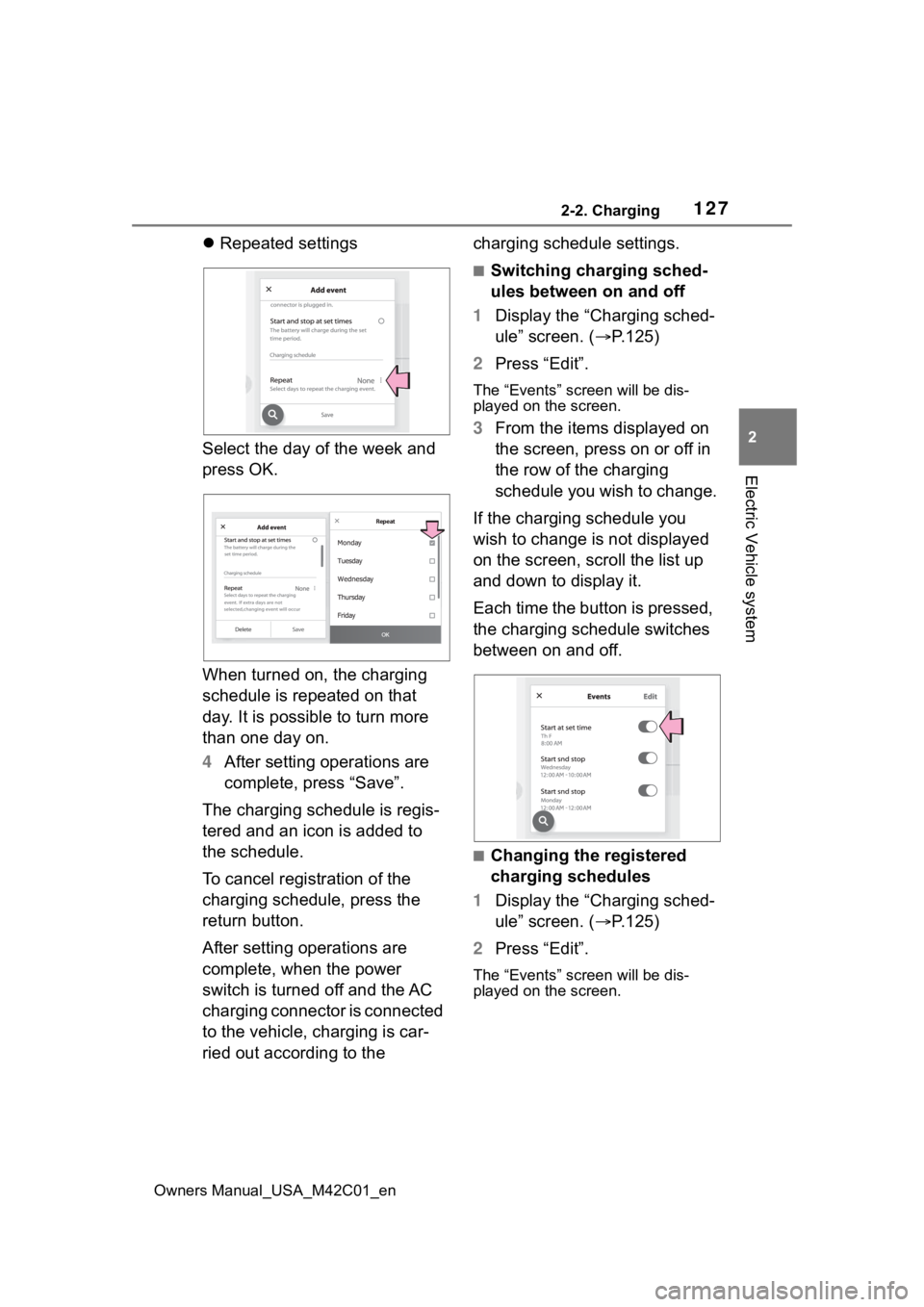
Repeated settings
Select the day of the week and
press OK.
When turned on, the charging
schedule is repeated on that
day. It is possible to turn more
than one day on.
4 After setting operations are
complete, press “Save”.
The charging schedule is regis-
tered and an icon is added to
the schedule.
To cancel registration of the
charging schedule, press the
return button.
After setting operations are
complete, when the power
switch is turned off and the AC
charging connector is connected
to the vehicle, charging is car-
ried out according to the charging schedule settings.
■Switching charging sched-
ules between on and off
1 Display the “Charging sched-
ule” screen. ( P.125)
2 Press “Edit”.
The “Events” screen will be dis-
played on the screen.
3From the items displayed on
the screen, press on or off in
the row of the charging
schedule you wish to change.
If the charging schedule you
wish to change is not displayed
on the screen, scroll the list up
and down to display it.
Each time the button is pressed,
the charging schedule switches
between on and off.
■Changing the registered
charging schedules
1 Display the “Charging sched-
ule” screen. ( P.125)
2 Press “Edit”.
The “Events” screen will be dis-
played on the screen.
Repeat
Page 128 of 628
1282-2. Charging
Owners Manual_USA_M42C01_en
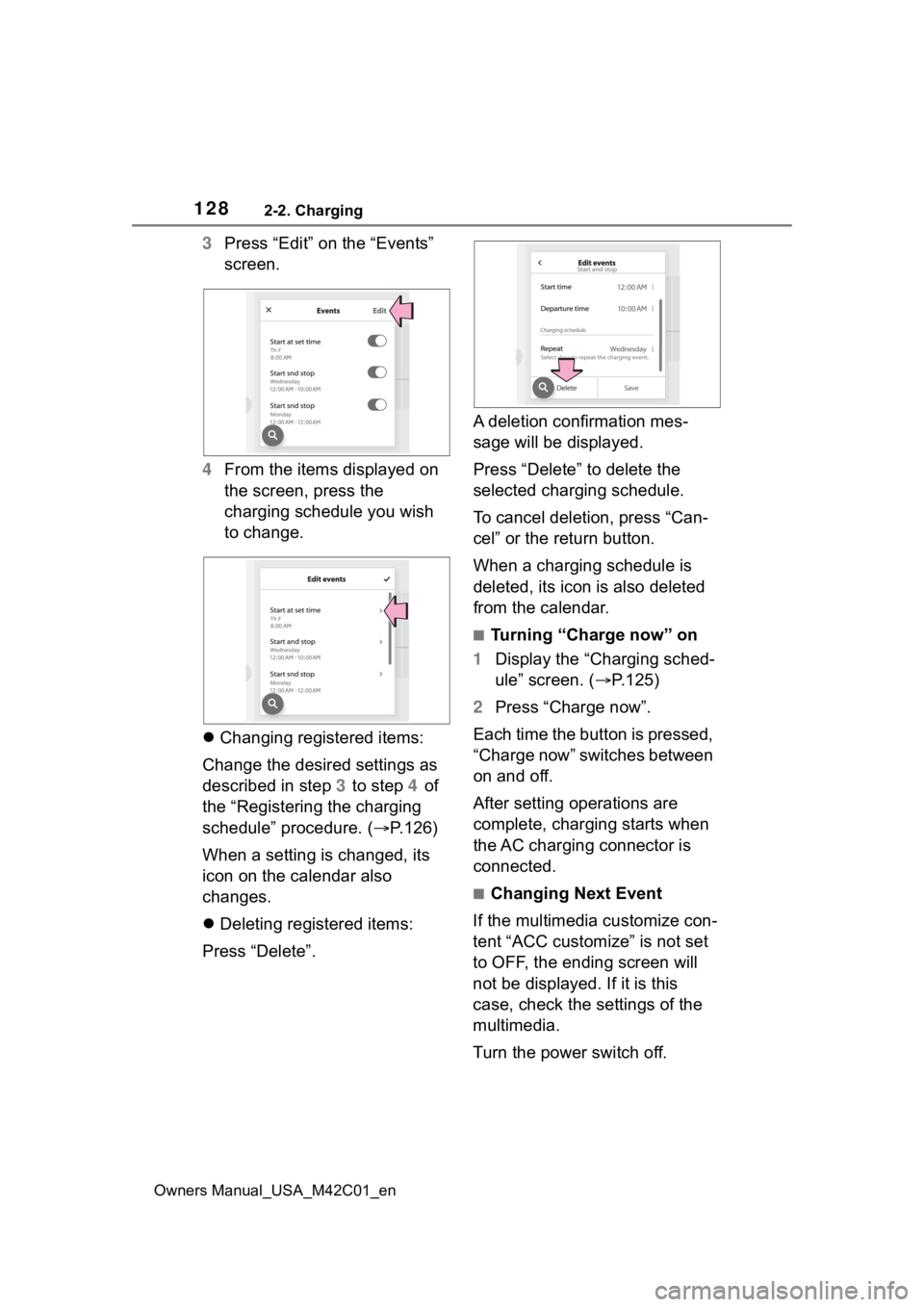
3Press “Edit” on the “Events”
screen.
4 From the items displayed on
the screen, press the
charging schedule you wish
to change.
Changing registered items:
Change the desired settings as
described in step 3 to step 4 of
the “Registering the charging
schedule” procedure. ( P.126)
When a setting is changed, its
icon on the calendar also
changes.
Deleting registered items:
Press “Delete”. A deletion confirmation mes-
sage will be displayed.
Press “Delete” to delete the
selected charging schedule.
To cancel deletion, press “Can-
cel” or the return button.
When a charging schedule is
deleted, its icon is also deleted
from the calendar.
■Turning “Charge now” on
1 Display the “Charging sched-
ule” screen. ( P.125)
2 Press “Charge now”.
Each time the button is pressed,
“Charge now” switches between
on and off.
After setting operations are
complete, charging starts when
the AC charging connector is
connected.
■Changing Next Event
If the multimedia customize con-
tent “ACC customize” is not set
to OFF, the ending screen will
not be displayed. If it is this
case, check the settings of the
multimedia.
Turn the power switch off.
Page 130 of 628
1302-2. Charging
Owners Manual_USA_M42C01_en
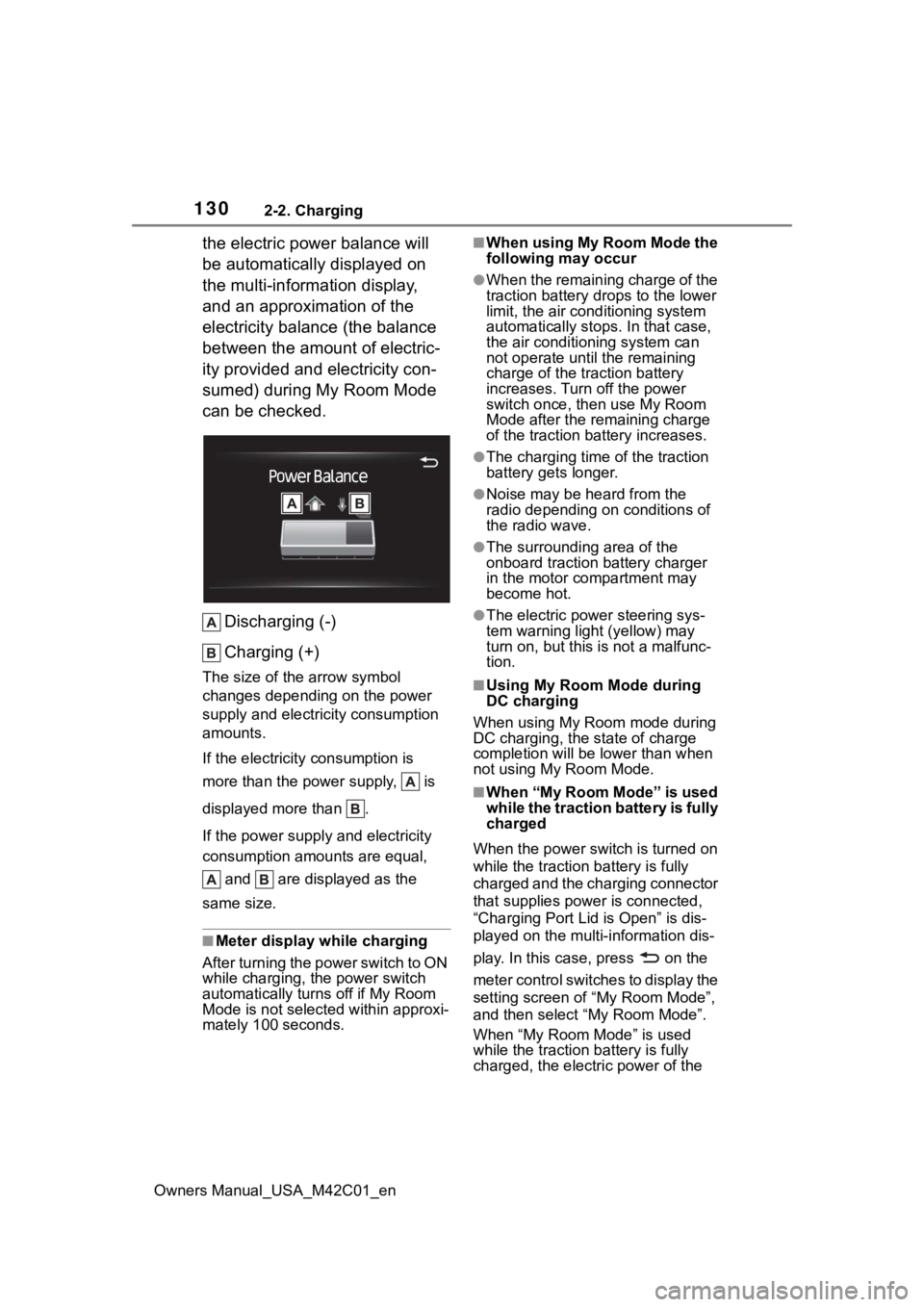
the electric power balance will
be automatically displayed on
the multi-information display,
and an approximation of the
electricity balance (the balance
between the amount of electric-
ity provided and electricity con-
sumed) during My Room Mode
can be checked.Discharging (-)
Charging (+)
The size of the arrow symbol
changes depending on the power
supply and electric ity consumption
amounts.
If the electricity consumption is
more than the power supply, is
displayed more than .
If the power supply and electricity
consumption amounts are equal,
and are displayed as the
same size.
■Meter display while charging
After turning the power switch to ON
while charging, the power switch
automatically turns off if My Room
Mode is not selected within approxi-
mately 100 seconds.
■When using My Room Mode the
following may occur
●When the remaining charge of the
traction battery d rops to the lower
limit, the air conditioning system
automatically stops. In that case,
the air conditioning system can
not operate until the remaining
charge of the traction battery
increases. Turn off the power
switch once, then use My Room
Mode after the remaining charge
of the traction battery increases.
●The charging time of the traction
battery gets longer.
●Noise may be heard from the
radio depending on conditions of
the radio wave.
●The surrounding area of the
onboard traction battery charger
in the motor compartment may
become hot.
●The electric power steering sys-
tem warning light (yellow) may
turn on, but this is not a malfunc-
tion.
■Using My Room Mode during
DC charging
When using My Room mode during
DC charging, the state of charge
completion will be lo wer than when
not using My Room Mode.
■When “My Room Mode” is used
while the traction battery is fully
charged
When the power switch is turned on
while the traction b attery is fully
charged and the charging connector
that supplies power is connected,
“Charging Port Lid is Open” is dis-
played on the multi-information dis-
play. In this cas e, press on the
meter control switches to display the
setting screen of “My Room Mode”,
and then select “My Room Mode”.
When “My Room Mode” is used
while the traction b attery is fully
charged, the electric power of the
Page 154 of 628
1543-1. Instrument cluster
Owners Manual_USA_M42C01_envehicle to your Toyota dealer.
●When the outside
temperature is
approximately 37°F (3°C) or
lower, the indicator will flash
for approximately 10 seconds,
then stay on.
■Liquid crystal display
P. 1 5 6
■Customization
The gauges and meters can be cus-
tomized in of th e multi-informa-
tion display. ( P.566)
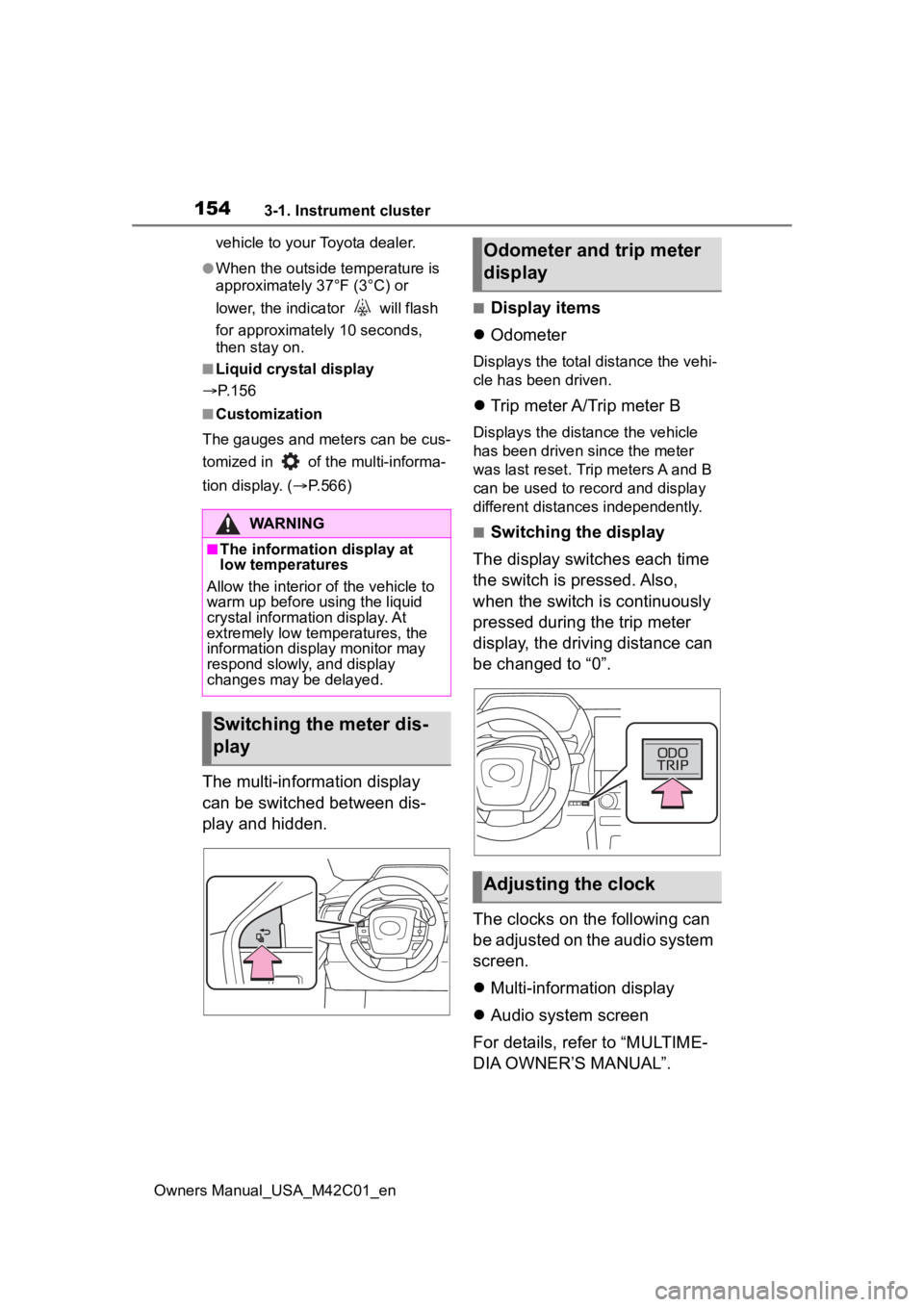
The multi-information display
can be switched between dis-
play and hidden.
■Display items
Odometer
Displays the total distance the vehi-
cle has been driven.
Trip meter A/Trip meter B
Displays the distance the vehicle
has been driven since the meter
was last reset. Trip meters A and B
can be used to record and display
different distances independently.
■Switching the display
The display switches each time
the switch is pressed. Also,
when the switch is continuously
pressed during the trip meter
display, the driving distance can
be changed to “0”.
The clocks on the following can
be adjusted on the audio system
screen.
Multi-information display
Audio system screen
For details, refer to “MULTIME-
DIA OWNER’S MANUAL”.WARNING
■The information display at
low temperatures
Allow the interior of the vehicle to
warm up before u sing the liquid
crystal informat ion display. At
extremely low temperatures, the
information display monitor may
respond slowly, and display
changes may be delayed.
Switching the meter dis-
play
Odometer and trip meter
display
Adjusting the clock