change time SUBARU SOLTERRA 2023 Owner's Manual
[x] Cancel search | Manufacturer: SUBARU, Model Year: 2023, Model line: SOLTERRA, Model: SUBARU SOLTERRA 2023Pages: 628, PDF Size: 11.91 MB
Page 155 of 628
1553-1. Instrument cluster
Owners Manual_USA_M42C01_en
3
Vehicle status information and indicators
If is displayed when is
selected on the mu lti-information
display, the system may be malfunc-
tioning.
Have the vehicle inspected by your
Toyota dealer.
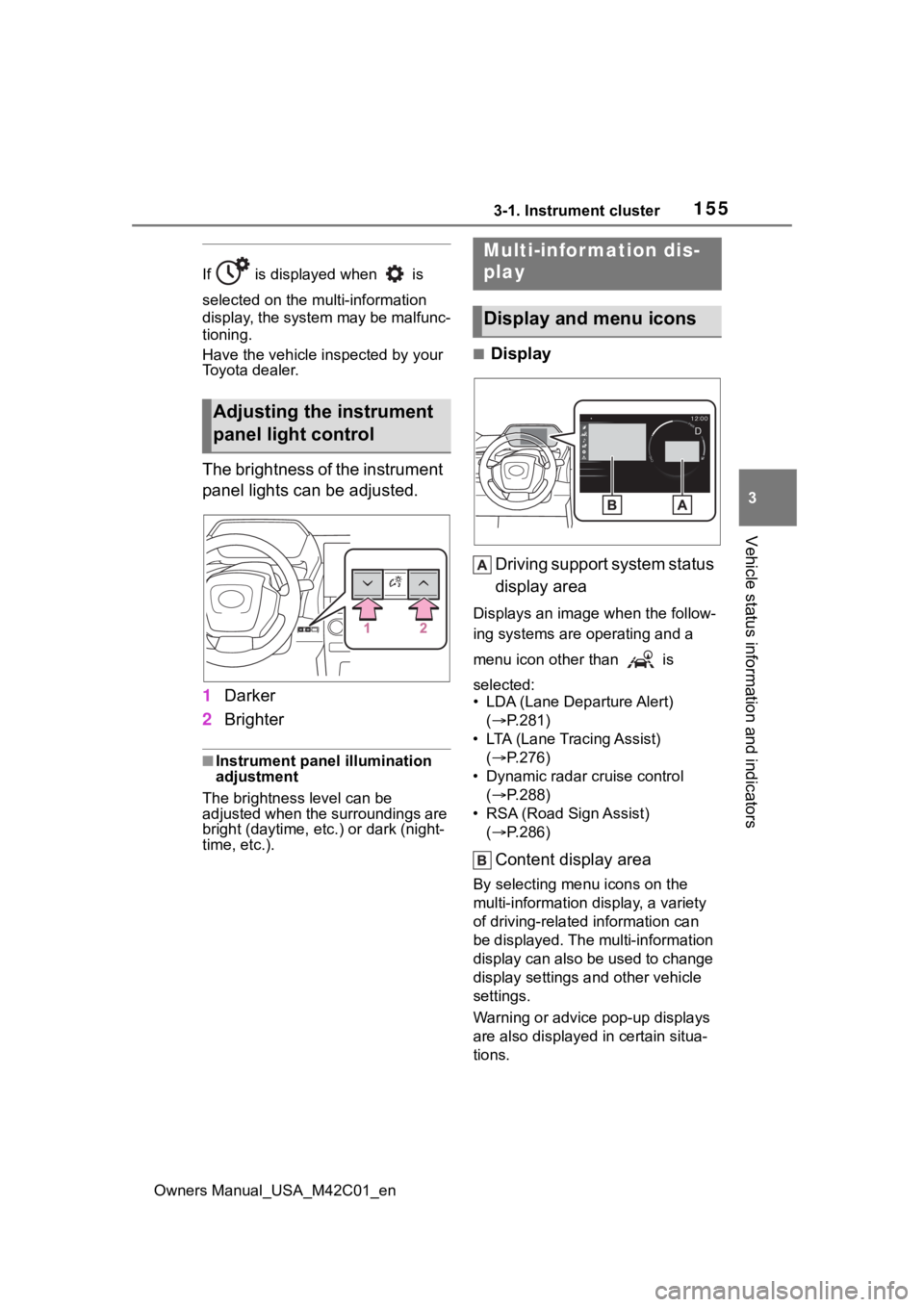
The brightness of the instrument
panel lights can be adjusted.
1 Darker
2 Brighter
■Instrument panel illumination
adjustment
The brightness level can be
adjusted when the surroundings are
bright (daytime, etc.) or dark (night-
time, etc.).
■Display
Driving support system status
display area
Displays an image when the follow-
ing systems are operating and a
menu icon other than is
selected:
• LDA (Lane Departure Alert) ( P.281)
• LTA (Lane Tracing Assist) ( P.276)
• Dynamic radar cruise control ( P.288)
• RSA (Road Sign Assist) ( P.286)
Content display area
By selecting menu icons on the
multi-information di splay, a variety
of driving-related information can
be displayed. The multi-information
display can also be used to change
display settings and other vehicle
settings.
Warning or advice pop-up displays
are also displayed in certain situa-
tions.
Adjusting the instrument
panel light control
Multi-infor mation dis-
play
Display and menu icons
Page 156 of 628
1563-1. Instrument cluster
Owners Manual_USA_M42C01_en
■Menu icons
The menu icons will be dis-
played by pressing the or
meter control switch.
■Liquid crystal display
Small spots or light spots may
appear on the display. This phenom-
enon is characteristi c of liquid crys-
tal displays, and there is no problem
continuing to use the display.
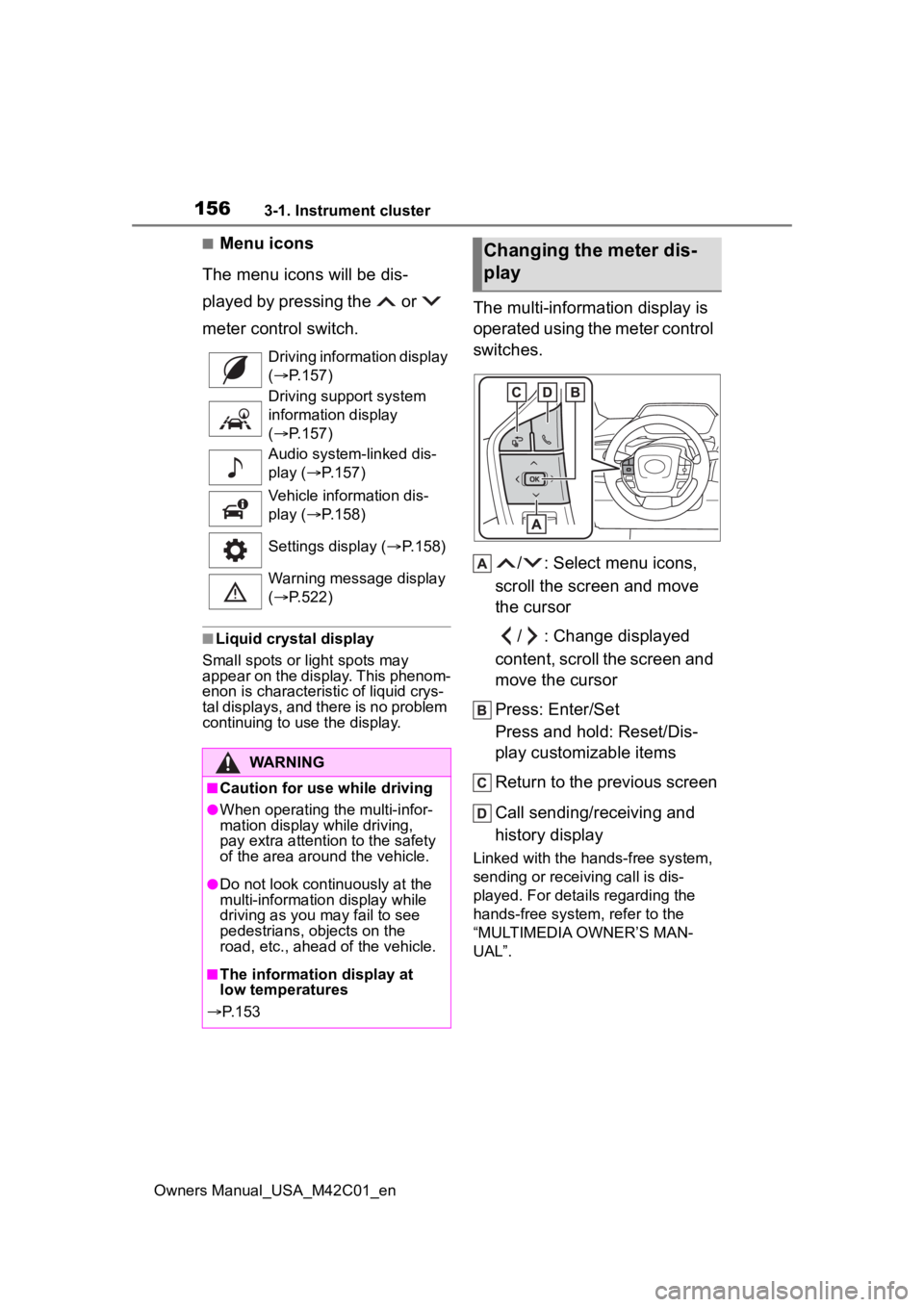
The multi-information display is
operated using the meter control
switches.
/ : Select menu icons,
scroll the screen and move
the cursor
/ : Change displayed
content, scroll the screen and
move the cursor
Press: Enter/Set
Press and hold: Reset/Dis-
play customizable items
Return to the previous screen
Call sending/receiving and
history display
Linked with the hands-free system,
sending or receiving call is dis-
played. For details regarding the
hands-free system, refer to the
“MULTIMEDIA OWNER’S MAN-
UAL”.
Driving information display
(
P.157)
Driving support system
information display
( P.157)
Audio system-linked dis-
play ( P.157)
Vehicle information dis-
play ( P.158)
Settings display ( P.158)
Warning message display
( P.522)
WARNING
■Caution for use while driving
●When operating the multi-infor-
mation display while driving,
pay extra attention to the safety
of the area aroun d the vehicle.
●Do not look continuously at the
multi-information display while
driving as you may fail to see
pedestrians, objects on the
road, etc., ahead of the vehicle.
■The information display at
low temperatures
P. 1 5 3
Changing the meter dis-
play
Page 158 of 628
1583-1. Instrument cluster
Owners Manual_USA_M42C01_en
meter using the meter control
switches.
This menu icon can be set to be
displayed/not displayed in .
■Display items
Drive information
Torque distribution (if
equipped)
Tire inflation pressure
■Drive information
2 items that are selected using
the “Drive Info. Items” setting
(average speed, distance and
total time) can be displayed ver-
tically.
The displayed information
changes according to the “Drive
Info. Type” setting (since the
system was started or between
resets). ( P.158)
Use the displayed information
as a reference only.
Following items will be dis-
played.
“Trip”
• “Average Speed”: Displays the
average vehicle speed since EV
system start
*
• “Distance”: Displ ays the distance
driven since EV system start
*
• “Total Time”: Displays the elapsed time since EV system start
* *
: These items are r
eset each time
the EV system stops.
“Total”
• “Average Speed”: Displays the
average vehicle speed since the
display was reset
*
• “Distance”: Displ ays the distance
driven since the display was
reset
*
• “Total Time”: Displays the elapsed
time since the display was reset
*
*
: To reset, display the desired item and press and hold the meter
control switch.
■Torque distribution (if
equipped)
Displays the drive status of each
wheel in 6 steps from 0 to 5.
■Tire inflation pressure
Displays inflation pressure of
each tire.
■Meter display settings that
can be changed
Clock setting
P.154
Language
Select to change the language dis-
played.
Units
Select to change the units of mea-
sure displayed.
Vehicle information dis-
play
Settings display
Page 159 of 628
1593-1. Instrument cluster
Owners Manual_USA_M42C01_en
3
Vehicle status information and indicators
• Power consumption display
Select to change the average
power consumption display Trip
Average/Total Average. ( P.157)
Select to display/not display the
audio system linked display.
Select to change the displayed con-
tent of the following:
• Display contents (AWD models
only)
Select to display/not display the
torque distribution display.
• Drive information type
Select to change the drive informa-
tion type display between after
start/after reset.
• Drive information items
Select to set the first and second
items of the drive information dis-
play to any of the following: aver-
age vehicle
speed/distance/elapsed time.
Closing Display
Select to set the i tems displayed
when the power switch is turned off.
Pop-up display
Select to enable/disable pop-up
displays for each relevant system.
Calendar
The year, month, and day can be
set.
Default setting
Select to reset the meter display settings to the default setting.
■Vehicle functions and set-
tings that can be changed
P.566
■Suspension of the settings dis-
play
●Some settings cannot be changed
while driving. When changing set-
tings, park the vehicle in a safe
place.
●If a warning message is displayed,
operation of the settings display
will be suspended.
Displays suggestions to the
driver in the following situations.
To select a response to a dis-
played suggestion, use the
meter control switches.
■Suggestion to turn on the
headlights
If the headlight switch is in other
than or , and the vehicle
speed is 3 mph (5 km/h) or
higher for a certain amount of
time when the surroundings are
dark, a suggestion message will
be displayed.
NOTICE
■During setting up the display
To prevent 12-volt battery dis-
charge, ensure that the EV sys-
tem is operating while setting up
the display features.
Suggestion function
Page 168 of 628
1684-2. Opening, closing and locking the doors
Owners Manual_USA_M42C01_en2
When the indicator light on the
key surface is not on, press and
hold , or for
approximately 5 seconds while
pressing and holding .
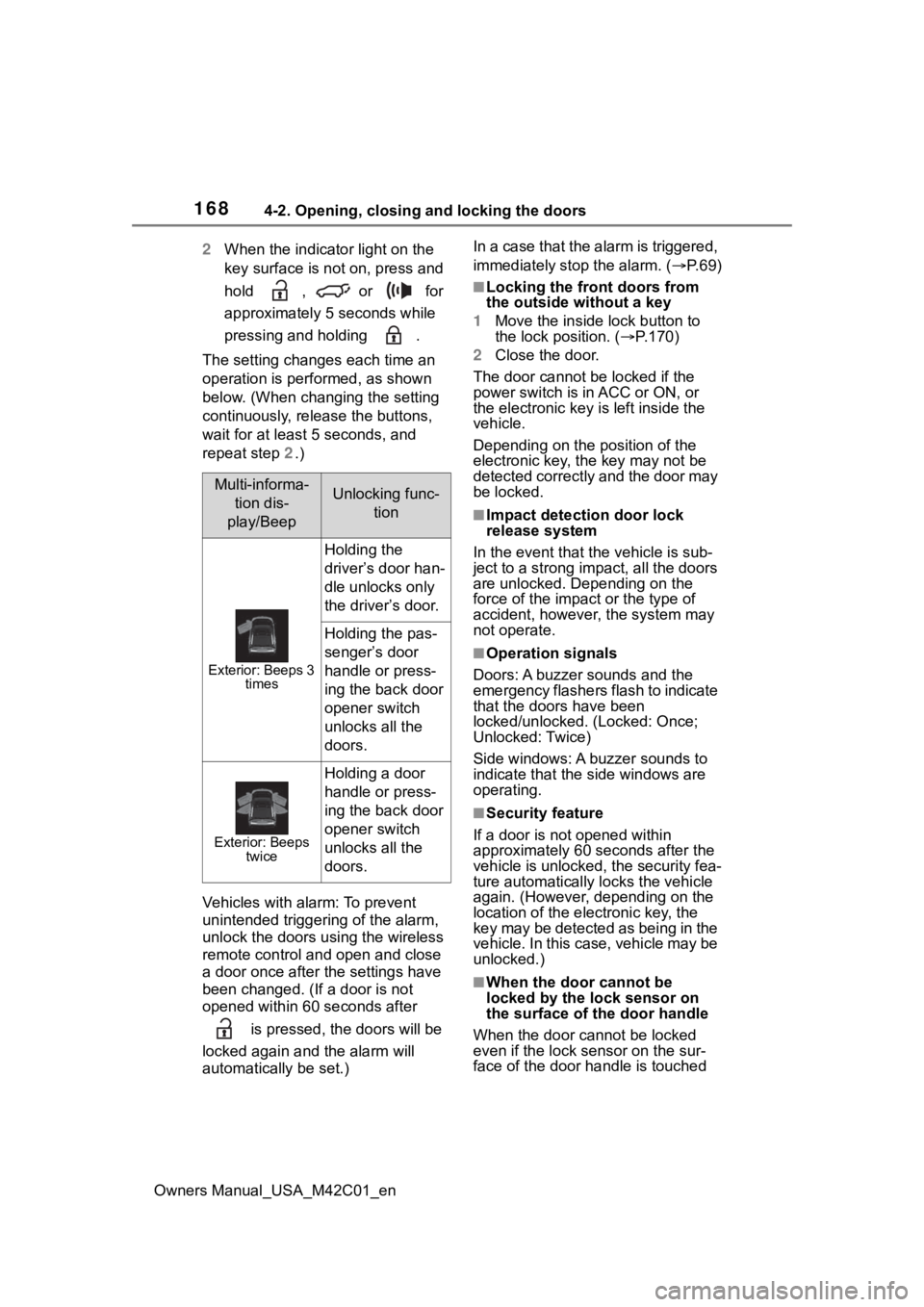
The setting changes each time an
operation is performed, as shown
below. (When changing the setting
continuously, release the buttons,
wait for at least 5 seconds, and
repeat step 2.)
Vehicles with alarm: To prevent
unintended triggering of the alarm,
unlock the doors us ing the wireless
remote control and open and close
a door once after t he settings have
been changed. (If a door is not
opened within 60 seconds after
is pressed, the doors will be
locked again a nd the alarm will
automatically be set.) In a case that the alarm is triggered,
immediately stop the alarm. (
P. 6 9 )
■Locking the front doors from
the outside without a key
1 Move the inside l ock button to
the lock position. ( P.170)
2 Close the door.
The door cannot be locked if the
power switch is in ACC or ON, or
the electronic key is left inside the
vehicle.
Depending on the position of the
electronic key, the key may not be
detected correctly and the door may
be locked.
■Impact detection door lock
release system
In the event that t he vehicle is sub-
ject to a strong impact, all the doors
are unlocked. Depending on the
force of the impact or the type of
accident, however, the system may
not operate.
■Operation signals
Doors: A buzzer sounds and the
emergency flashers flash to indicate
that the doors have been
locked/unlocked. (Locked: Once;
Unlocked: Twice)
Side windows: A buzzer sounds to
indicate that the side windows are
operating.
■Security feature
If a door is not opened within
approximately 60 s econds after the
vehicle is unlocked, the security fea-
ture automatically locks the vehicle
again. (However, depending on the
location of the electronic key, the
key may be detected as being in the
vehicle. In this case, vehicle may be
unlocked.)
■When the door cannot be
locked by the lock sensor on
the surface of the door handle
When the door cannot be locked
even if the lock se nsor on the sur-
face of the door handle is touched
Multi-informa-
tion dis-
play/BeepUnlocking func- tion
Exterior: Beeps 3 times
Holding the
driver’s door han-
dle unlocks only
the driver’s door.
Holding the pas-
senger’s door
handle or press-
ing the back door
opener switch
unlocks all the
doors.
Exterior: Beeps twice
Holding a door
handle or press-
ing the back door
opener switch
unlocks all the
doors.
Page 185 of 628
1854-2. Opening, closing and locking the doors
Owners Manual_USA_M42C01_en
4
Before driving
The settings of the power back
door system can be changed by
displaying the “Vehicle Set-
tings” screen from the
setting screen of the multi-infor-
mation display. ( P.158)
The changed power back door set-
tings are not reset by turning the
power switch to OFF. In order to
NOTICE
■Hands Free Power Back Door
precautions (if equipped)
The kick sensor is located behind
lower center part of the rear
bumper. Observe the following to
ensure that the Hands Free
Power Back Door function oper-
ates properly:
●Keep the lower center part of
the rear bumper clean at all
times.
If the lower center part of the
rear bumper is dirty or covered
with snow, the kick sensor may
not operate. In this situation,
clean off the dirt or snow, move
the vehicle from the current
position and then check if the
kick sensor operates.
If it does not operate, have the
vehicle inspected by your Toy-
ota dealer.
●Do not apply coatings that have
a rain cleari ng (hydrophilic)
effect, or other coatings, to the
lower center par t of the rear
bumper.
●Do not park the vehicle near
objects that may move and con-
tact the lower center part of the
rear bumper, such as grass or
trees.
If the vehicle has been parked
for a while near objects that
may move and contact the
lower center par t of the rear
bumper, such as grass or trees,
the kick sensor may not oper-
ate. In this situation, move the
vehicle from the current position
and then check if the kick sen-
sor operates. If it does not oper-
ate, have the vehicle inspected
by your Toyota dealer.
●Do not subject the kick sensor
or its surroundi ng area to a
strong impact.
If the kick sensor or its sur-
rounding area has been sub-
jected to a strong impact, the
kick sensor may not operate
properly. If the kick sensor does
not operate in the following situ-
ations, have the vehicle
inspected by your Toyota
dealer.
• The kick sensor or its surround- ing area has been subjected to
a strong impact.
• The lower center part of the rear bumper is scratched or dam-
aged.
●Do not disassemble the rear
bumper.
●Do not attach stickers to the
rear bumper.
●Do not paint the rear bumper.
●If a bicycle carrier or similar
heavy object is attached to the
power back doo r, disable the
Hands Free Power Back Door.
Changing settings of the
power back door system
(vehicles with power back
door)
Page 189 of 628
1894-2. Opening, closing and locking the doors
Owners Manual_USA_M42C01_en
4
Before driving
tact with, or is covered by the fol-
lowing metallic objects
• Cards to which al uminum foil is
attached
• Cigarette boxes that have alumi- num foil inside
• Metallic wallets or bags
• Coins
• Hand warmers made of metal
• Media such as CDs and DVDs
●When another wireless key (that
emits radio waves) is being used
nearby
●When carrying the electronic key
together with the following devices
that emit radio waves
• Portable radio, cellular phone, cordless phone or other wireless
communication devices
• Another electronic key or a wire- less key that emits radio waves
• Personal computers or personal
digital assistants (PDAs)
• Digital audio players
• Portable game systems
●If window tint with a metallic con-
tent or metallic objects are
attached to the rear window
●When the electronic key is placed
near a battery charger or elec-
tronic devices
●When the vehicle is parked in a
pay parking spot where radio
waves are emitted.
■Note for the entry function
●Even when the electronic key is
within the effective range (detec-
tion areas), the system may not
operate properly in the following
cases:
• The electronic key is too close to the window or outside door han-
dle, near the ground, or in a high
place when the doors are locked
or unlocked.
• The electronic key is on the instru- ment panel, luggage cover or
floor, or in the door pockets or
glove box when the EV system is
started or power switch modes are
changed.
●Do not leave the electronic key on
top of the instrument panel or near
the door pockets when exiting the
vehicle. Depending on the radio
wave reception conditions, it may
be detected by the antenna out-
side the cabin and the door will
become lockable from the outside,
possibly trapping the electronic
key inside the vehicle.
●As long as the electronic key is
within the effective range, the
doors may be locked or unlocked
by anyone. However, only the
doors detecting the electronic key
can be used to lo ck or unlock the
vehicle.
●Even if the electro nic key is not
inside the vehicle, it may be possi-
ble to start the EV system if the
electronic key is near the window.
●The doors may unlock if a large
amount of water splashes on the
door handle, such as in the rain or
in a car wash when the electronic
key is within the effective range.
(The doors will au tomatically be
locked after approximately 60 sec-
onds if the doors are not opened
and closed.)
●If the wireless remote control is
used to lock the doors when the
electronic key is near the vehicle,
there is a possib ility that the door
may not be unlocked by the entry
function. (Use the wireless remote
control to unlock the doors.)
●Touching the door lock sensor
while wearing gloves may delay or
prevent lock operation. Remove
the gloves and touch the lock sen-
sor again.
●When the lock operation is per-
formed using the lock sensor, rec-
ognition signals will be shown up
to two consecutive times. After
this, no recognition signals will be
given.
●If the door handle becomes wet
while the electronic key is within
the effective range, the door may
Page 204 of 628
2044-4. Adjusting the steering wheel and mirrors
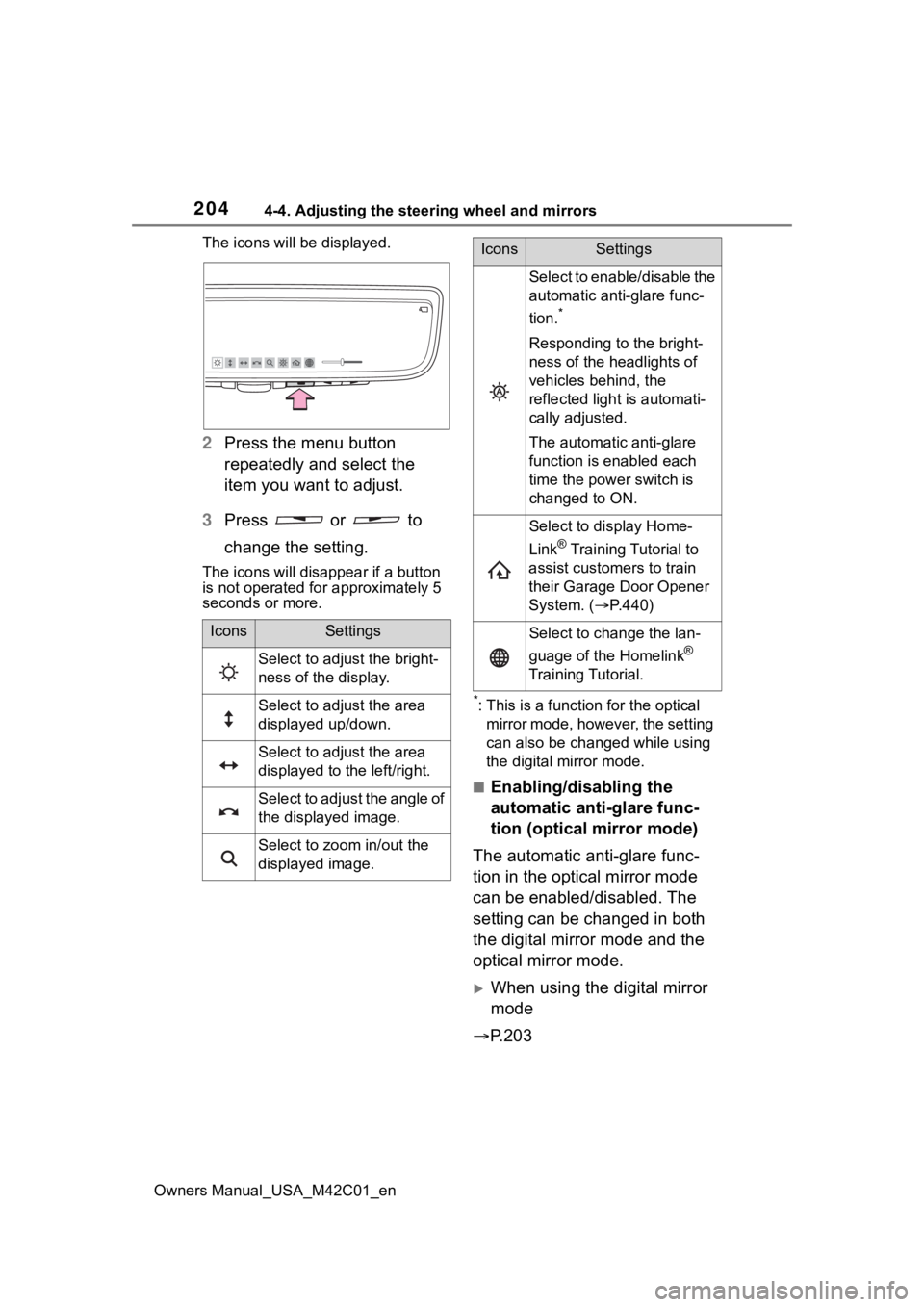
Owners Manual_USA_M42C01_enThe icons will be displayed.
2
Press the menu button
repeatedly and select the
item you want to adjust.
3 Press or to
change the setting.
The icons will disapp ear if a button
is not operated fo r approximately 5
seconds or more.
*: This is a functi on for the optical
mirror mode, however, the setting
can also be changed while using
the digital mirror mode.
■Enabling/disabling the
automatic anti-glare func-
tion (optical mirror mode)
The automatic anti-glare func-
tion in the optical mirror mode
can be enabled/disabled. The
setting can be changed in both
the digital mirror mode and the
optical mirror mode.
When using the digital mirror
mode
P.203
IconsSettings
Select to adjust the bright-
ness of the display.
Select to adjust the area
displayed up/down.
Select to adjust the area
displayed to the left/right.
Select to adjust the angle of
the displayed image.
Select to zoom in/out the
displayed image.
Select to enable/disable the
automatic anti-glare func-
tion.
*
Responding to the bright-
ness of the headlights of
vehicles behind, the
reflected light is automati-
cally adjusted.
The automatic anti-glare
function is enabled each
time the power switch is
changed to ON.
Select to display Home-
Link
® Training Tutorial to
assist customers to train
their Garage Door Opener
System. ( P.440)
Select to change the lan-
guage of the Homelink
®
Training Tutorial.
IconsSettings
Page 215 of 628
2154-6. Favorite settings
Owners Manual_USA_M42C01_en
4
Before driving
4-6.Favorite settings
*: If equipped
An individual can be identified
using the following authentica-
tion devices.
Electronic key
An individual is identified when the
Smart key system detects their
electronic key.
Bluetooth devices
An individual can be detected if the
same Bluetooth d evice that was
used as a handsfree phone the last time the vehicle was entered is con-
nected to the audio system.
When an individual is identified
from an authentication device,
settings for the following func-
tions are recalled.
Meter displays and multime-
dia information
*
When an individual is identified, the
vehicle settings used when the
p o w e r s w i t c h w a s l a s t t u r n e d o ff a r e
recalled.
Vehicle settings that can be
set using the multimedia dis-
play
*
When an individual is identified, the
vehicle settings used when the
p o w e r s w i t c h w a s l a s t t u r n e d o ff a r e
recalled.
Safe driving support function*
When an individual is identified, the
vehicle settings used when the
p o w e r s w i t c h w a s l a s t t u r n e d o ff a r e
recalled.
*: Some settings are excluded
My Settings*
By recognizing an individ-
ual through a device, such
as an electronic key, and
vehicle settings recorded
for that driver can be
recalled when the vehicle is
entered. By assigning an
authentication device to a
driver in advance, the driver
can enter the vehicle with
their preferred settings. Set-
tings for up to 3 drivers can
be recorded by My Set-
tings. For details on how to
assign/delete electronic
keys, set driver names, per-
form initialization, change
drivers manually, or delete a
driver, refer to the “MULTI-
MEDIA OWNER’S MAN-
UAL”.
Types of assigned
authentication devices
Recalled functions
Page 224 of 628
2245-1. Before driving
Owners Manual_USA_M42C01_en
When the following unusual
NOTICE
■When driving the vehicle
●Do not depress t he accelerator
and brake pedals at the same
time during drivin g, as this may
restrain the EV system output.
●Do not use the accelerator
pedal or depress the accelera-
tor and brake pedals at the
same time to hold the vehicle on
a hill.
■Avoiding damage to vehicle
parts
●Do not turn the steering wheel
fully in either direction and hold
it there for an extended period
of time.
Doing so may damage the
power steering motor.
●When driving over bumps in the
road, drive as slowly as possible
to avoid damagi ng the wheels,
underside of the vehicle, etc.
■If you get a flat tire while driv-
ing
A flat or damaged tire may cause
the following situations. Hold the
steering wheel firmly and gradu-
ally depress the brake pedal to
slow down the vehicle.
●It may be difficult to control your
vehicle.
●The vehicle will make abnormal
sounds or vibrations.
●The vehicle will lean abnor-
mally.
Information on what to do in case
of a flat tire ( P.527)
■When encountering flooded
roads
Do not drive on a road that has
flooded after heavy rain, etc.
Doing so may cause the following
serious damage to the vehicle:
●Short in electrical components
●Traction battery caused by
water immersion
In the event that you drive on a
flooded road and the vehicle is
flooded, be sure to have your Toy-
ota dealer check the following:
●Brake function
●Changes in quantity and quality
of transmission fluid, etc.
●Lubricant condition for the bear-
ings and suspension joints
(where possible), and the func-
tion of all joints, bearings, etc.
●Components connected to the
traction battery.
If the shift control system is dam-
aged by flooding, it may not be
possible to shift the shift position
to P, or from P to other positions.
In this case, contact your Toyota
dealer.
■When parking the vehicle
Always set the parking brake, and
shift the shift position to P. Failure
to do so may cause the vehicle to
move or the vehicle may acceler-
ate suddenly if t he accelerator
pedal is accidentally depressed.
■When involved in a minor
accident
Damage to the traction battery or
battery peripheral components
could cause malfunctions. Even if
it is a minor accident, have the
vehicle inspected by your Toyota
dealer.
Sudden start restraint
control (Drive-Start Con-
trol [DSC])