ECO mode SUBARU WRX 2018 Owners Manual
[x] Cancel search | Manufacturer: SUBARU, Model Year: 2018, Model line: WRX, Model: SUBARU WRX 2018Pages: 578, PDF Size: 33.21 MB
Page 252 of 578
(261,1)
北米Model "A1700BE-B" EDITED: 2017/ 10/ 11
first two connected devices will be
recognized.&Basic operationThis section describes some of the basic
features of the audio/visual system. Some
information may not pertain to your sys-
tem.
Your audio/visual system works when the
ignition switch is turned to the“ACC”or
“ON”position.
CAUTION
To prevent the battery from being
discharged, do not leave the audio/
visual system on longer than neces-
sary when the engine is not running.NOTESome functions can also be operated
by using the voice command system.
For details, refer to“Voice command
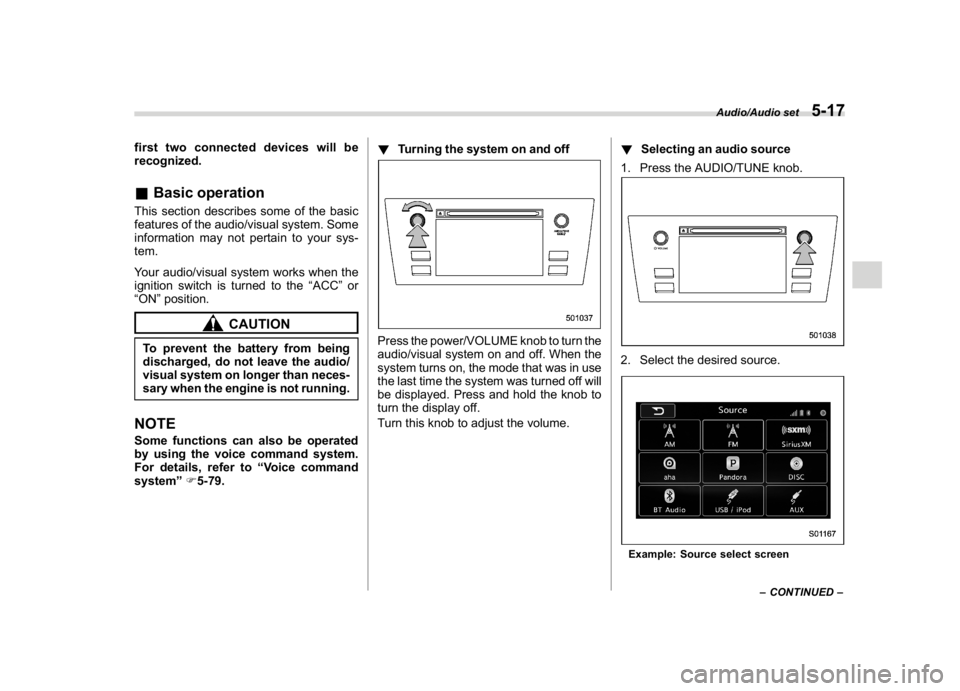
system”F5-79.!Turning the system on and off
Press the power/VOLUME knob to turn the
audio/visual system on and off. When the
system turns on, the mode that was in use
the last time the system was turned off will
be displayed. Press and hold the knob to
turn the display off.
Turn this knob to adjust the volume.!Selecting an audio source
1. Press the AUDIO/TUNE knob.
2. Select the desired source.Example: Source select screen
–CONTINUED–
Audio/Audio set
5-17
5
Page 256 of 578
(265,1)
北米Model "A1700BE-B" EDITED: 2017/ 10/ 11
!“Balance/Fader”
A good balance of the left and right stereo
channels and of the front and rear sound
levels is important for good quality audio
program listening.
Keep in mind that when listening to a
stereo recording or broadcast, changing
the right/left balance will increase the
volume of 1 group of sounds while
decreasing the volume of another.
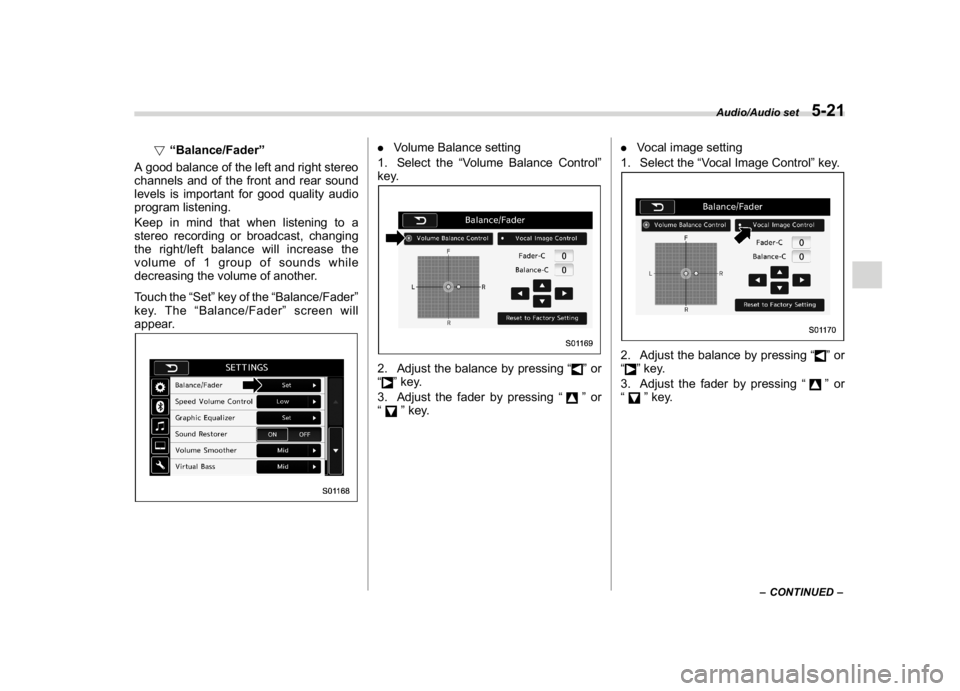
Touch the“Set”key of the“Balance/Fader”
key. The“Balance/Fader”screen will
appear.
.Volume Balance setting
1. Select the“Volume Balance Control”
key.2. Adjust the balance by pressing“
”or
“
”key.
3. Adjust the fader by pressing“
”or
“
”key..Vocal image setting
1. Select the“Vocal Image Control”key.
2. Adjust the balance by pressing“
”or
“
”key.
3. Adjust the fader by pressing“
”or
“
”key.
–CONTINUED–
Audio/Audio set
5-21
5
Page 262 of 578
(271,1)
北米Model "A1700BE-B" EDITED: 2017/ 10/ 11
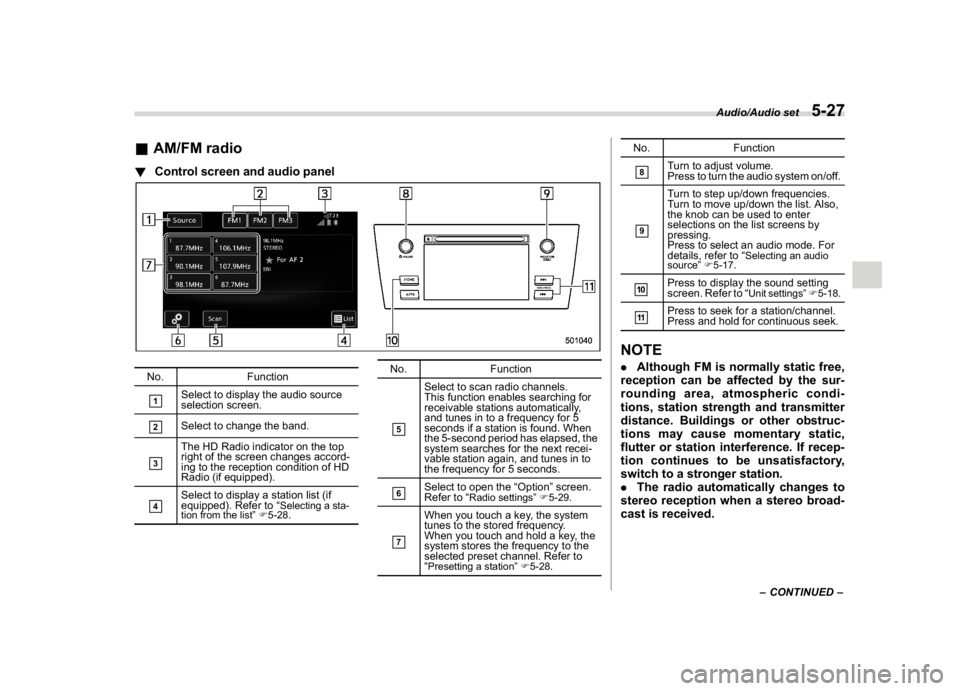
&AM/FM radio!Control screen and audio panelNo. Function&1
Select to display the audio source
selection screen.
&2
Select to change the band.
&3
The HD Radio indicator on the top
right of the screen changes accord-
ing to the reception condition of HD
Radio (if equipped).
&4
Select to display a station list (if
equipped). Refer to“
Selecting a sta-
tion from the list”F5-28.
No. Function&5
Select to scan radio channels.
This function enables searching for
receivable stations automatically,
and tunes in to a frequency for 5
seconds if a station is found. When
the 5-second period has elapsed, the
system searches for the next recei-
vable station again, and tunes in to
the frequency for 5 seconds.
&6
Select to open the“Option”screen.
Refer to“
Radio settings”F5-29.
&7
When you touch a key, the system
tunes to the stored frequency.
When you touch and hold a key, the
system stores the frequency to the
selected preset channel. Refer to
“Presetting a station”F5-28.
No. Function&8
Turn to adjust volume.
Press to turn the audio system on/off.
&9
Turn to step up/down frequencies.
Turn to move up/down the list. Also,
the knob can be used to enter
selections on the list screens by
pressing.
Press to select an audio mode. For
details, refer to“
Selecting an audio
source”F5-17.
&10
Press to display the sound setting
screen. Refer to“
Unit settings”F5-18.
&11
Press to seek for a station/channel.
Press and hold for continuous seek.
NOTE.Although FM is normally static free,
reception can be affected by the sur-
rounding area, atmospheric condi-
tions, station strength and transmitter
distance. Buildings or other obstruc-
tions may cause momentary static,
flutter or station interference. If recep-
tion continues to be unsatisfactory,
switch to a stronger station.
.The radio automatically changes to
stereo reception when a stereo broad-
cast is received.
–CONTINUED–
Audio/Audio set
5-27
5
Page 266 of 578
(275,1)
北米Model "A1700BE-B" EDITED: 2017/ 10/ 11
select the desired multicast channel.NOTE.HD Radio
TM
stations can be preset.
.An orangewill be displayed on the
screen when in digital. The
will first
appear in a gray color indicating the
station is indeed (an analog and) a
digital station. Once the digital signal
is acquired, the logo will change to a
bright orange color.
.The song title and artist name will
appear on the screen when available by
the radio station. The radio station can
send album pictures when available.
.As a user works through the analog
radio stations, (where applicable) the
radio receiver will automatically tune
from an analog signal to a digital signal
within 5 seconds.
!Preserving a music information
Tag information in the music broadcasting
is preserved in the system and transmits to
an iPod.
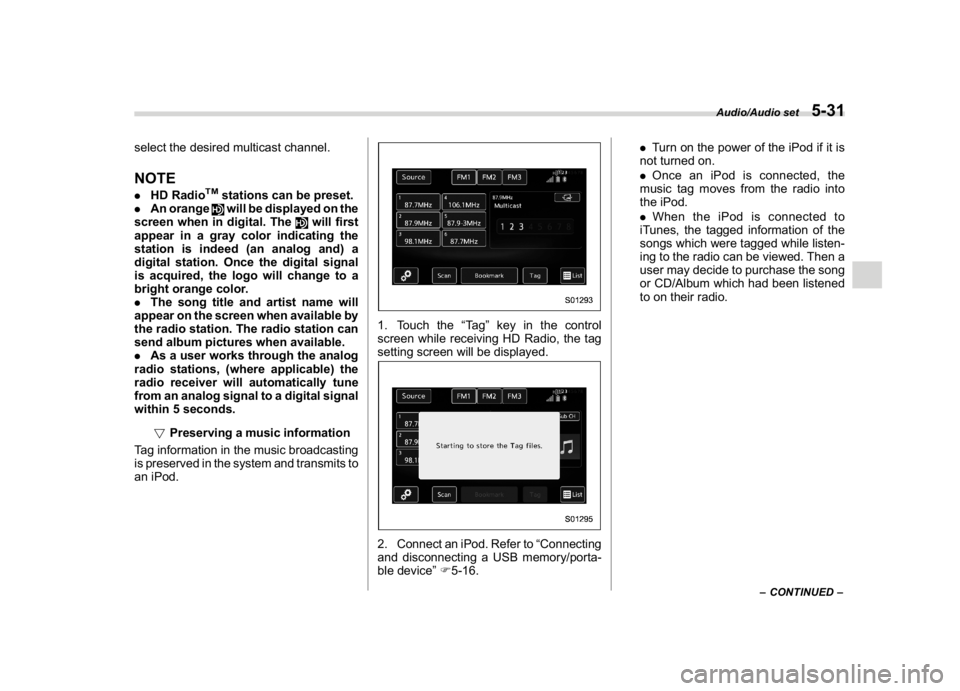
1. Touch the“Ta g”key in the control
screen while receiving HD Radio, the tag
setting screen will be displayed.2. Connect an iPod. Refer to“Connecting
and disconnecting a USB memory/porta-
ble device”F5-16..Turn on the power of the iPod if it is
not turned on.
.Once an iPod is connected, the
music tag moves from the radio into
the iPod.
.When the iPod is connected to
iTunes, the tagged information of the
songs which were tagged while listen-
ing to the radio can be viewed. Then a
user may decide to purchase the song
or CD/Album which had been listened
to on their radio.
–CONTINUED–
Audio/Audio set
5-31
5
Page 269 of 578

(278,1)
北米Model "A1700BE-B" EDITED: 2017/ 10/ 11
!Troubleshooting guide
Experience Cause Action
Mismatch of time alignment - a user may hear a
short period of programming replayed or an
echo, stutter or skip.The radio stations analog and digital volume is
not properly aligned or the station is in ballgame
mode.None, radio broadcast issue. A user can contact the
radio station.
Sound fades, blending in and out.Radio is shifting between analog and digital
audio.Reception issue. May clear-up as the vehicle
continues to be driven. Turning the indicator of the
HD Radio
TM
off will change the radio mode to
analog audio.
Audio mute condition when an HD2/HD3
multicast channel had been playing.The radio does not have access to digital signals
at the moment.This is normal behavior, wait until the digital signal
returns. If out of the coverage area, seek a new
station.
Audio mute delay when selecting an HD2/HD3
multicast channel preset.The digital multicast content is not available until
HD Radio
TM
broadcast can be decoded and
make the audio available. This takes up to 7
seconds.This is normal behavior, wait for the audio to
become available.
Text information does not match the present
song audio.Data service issue by the radio broadcaster.Broadcaster should be notified. Complete the form;
www.ibiquity.com/automotive/report_radio
_station_experiences.
No text information shown for the present
selected frequency.Data service issue by the radio broadcaster.Broadcaster should be notified. Complete the form;
www.ibiquity.com/automotive/report_radio
_station_experiences.
The“Acquiring”caution message appears
when the system attempts to acquire digital
transmission.When acquiring digital data while receiving a
digital broadcast and SPS station..When the reception in digital of the SPS station
is confirmed.
.When the system determined that the SPS
station could not be received.
.When the SPS broadcast is ended (stopped) by
the radio station while receiving SPS.
Audio/Audio set
5-34
Page 273 of 578
(282,1)
北米Model "A1700BE-B" EDITED: 2017/ 10/ 11
!How to subscribe to SiriusXM Sa-
tellite Radio
To listen to a satellite radio broadcast in the
vehicle, a subscription to the SiriusXM
Satellite Radio service is necessary.
A SiriusXM Satellite Radio is a tuner
designed exclusively to receive broad-
casts provided under a separate subscrip-
tion.
!How to subscribe
It is necessary to enter into a separate
service agreement with SiriusXM Satellite
Radio in order to receive satellite broad-
cast programming in the vehicle. Addi-
tional activation and service subscription
fees apply that are not included in the
purchase price of the vehicle and digital
satellite tuner.
For complete information on subscription
rates and terms, or to subscribe to
SiriusXM Satellite Radio:
.U.S. customers:
Refer to www.siriusxm.com or call
1-866-635-2349
.Canadian customers:
Refer to www.siriusxm.ca or call
1-877-209-0079
WARNING
.SiriusXM Satellite Radio Services
—Legal Disclaimers and Warn-
ings
–Fees and Taxes—Subscrip-
tion fee, taxes, one time acti-
vation fee, and other fees may
apply. Subscription fee is con-
sumer only. All fees and pro-
gramming subject to change.
Subscriptions subject to Cus-
tomer Agreement available at
www.siriusxm.com (U.S.) or
www.siriusxm.ca (Canada).
SiriusXM U.S. satellite and
data services are available
only in the contiguous USA
and DC. SiriusXM satellite
service is also available in
Canada: see
www.siriusxm.ca.
Explicit Language Notice—
Channels with frequent expli-
cit language are indicated with
an“XL”preceding the chan-
nel name. Channel blocking is
available for SiriusXM Satel-
lite Radio receivers by notify-
ing SiriusXM at:.U.S. customers:
Visit www.siriusxm.com or call
1-866-635-2349
.Canadian customers:
Visit www.siriusxm.ca or call
1-877-209-0079
CAUTION
.It is prohibited to copy, decom-
pile, disassemble, reverse engi-
neer, hack, manipulate or other-
wise make available any technol-
ogy or software incorporated in
receivers compatible with the
SiriusXM Satellite Radio System
or that support the XM website,
the Online Service or any of its
content. Furthermore, the
AMBE
®voice compression soft-
ware included in this product is
protected by intellectual property
rights including patent rights,
copyrights, and trade secrets of
Digital Voice Systems, Inc.
.Note: this applies to SiriusXM
Satellite Radio receivers only
and not XM Ready devices.
Audio/Audio set
5-38
Page 275 of 578
(284,1)
北米Model "A1700BE-B" EDITED: 2017/ 10/ 11
!Selecting a channel from the list
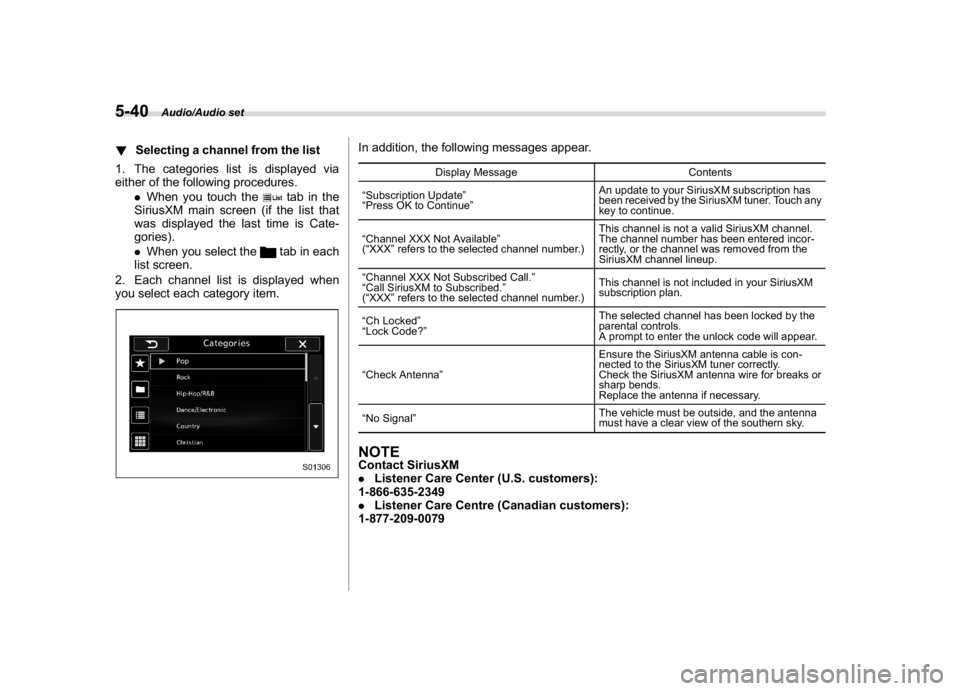
1. The categories list is displayed via
either of the following procedures.
.When you touch the
tab in the
SiriusXM main screen (if the list that
was displayed the last time is Cate-
gories).
.When you select thetab in each
list screen.
2. Each channel list is displayed when
you select each category item.
In addition, the following messages appear.
Display Message Contents
“Subscription Update”
“Press OK to Continue”An update to your SiriusXM subscription has
been received by the SiriusXM tuner. Touch any
key to continue.
“Channel XXX Not Available”
(“XXX”refers to the selected channel number.)This channel is not a valid SiriusXM channel.
The channel number has been entered incor-
rectly, or the channel was removed from the
SiriusXM channel lineup.
“Channel XXX Not Subscribed Call.”
“Call SiriusXM to Subscribed.”
(“XXX”refers to the selected channel number.)This channel is not included in your SiriusXM
subscription plan.
“Ch Locked”
“Lock Code?”The selected channel has been locked by the
parental controls.
A prompt to enter the unlock code will appear.
“Check Antenna”Ensure the SiriusXM antenna cable is con-
nected to the SiriusXM tuner correctly.
Check the SiriusXM antenna wire for breaks or
sharp bends.
Replace the antenna if necessary.
“No Signal”The vehicle must be outside, and the antenna
must have a clear view of the southern sky.
NOTEContact SiriusXM
.Listener Care Center (U.S. customers):
1-866-635-2349
.Listener Care Centre (Canadian customers):
1-877-209-0079
Audio/Audio set
5-40
Page 278 of 578
(287,1)
北米Model "A1700BE-B" EDITED: 2017/ 10/ 11
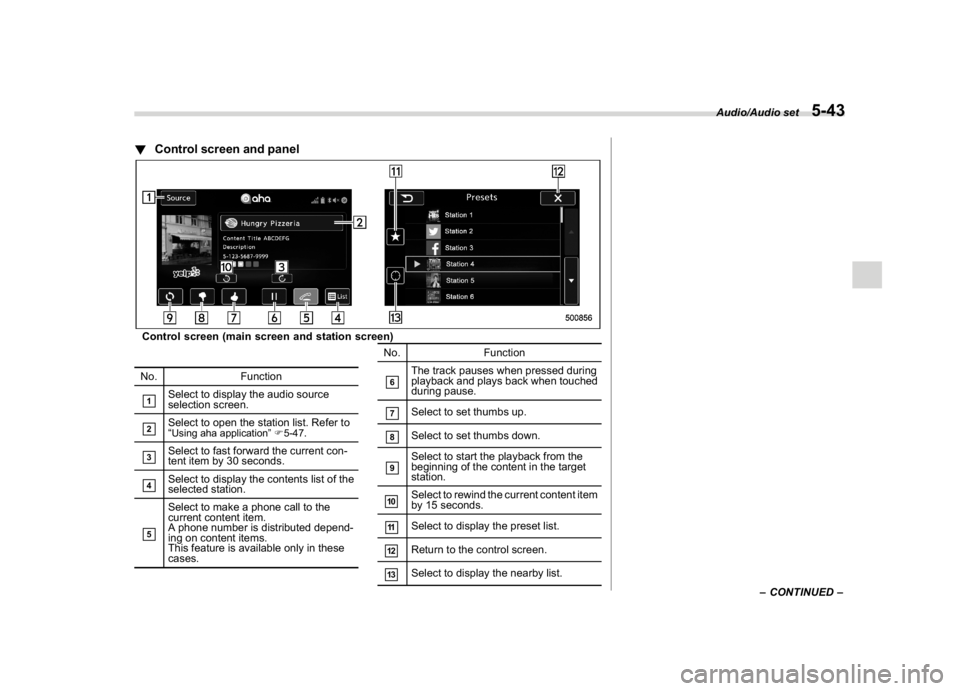
!Control screen and panelControl screen (main screen and station screen)
No. Function&1
Select to display the audio source
selection screen.
&2
Select to open the station list. Refer to
“Using aha application”F5-47.
&3
Select to fast forward the current con-
tent item by 30 seconds.
&4
Select to display the contents list of the
selected station.
&5
Select to make a phone call to the
current content item.
A phone number is distributed depend-
ing on content items.
This feature is available only in these
cases.No. Function
&6
The track pauses when pressed during
playback and plays back when touched
during pause.
&7
Select to set thumbs up.
&8
Select to set thumbs down.
&9
Select to start the playback from the
beginning of the content in the target
station.
&10
Select to rewind the current content item
by 15 seconds.
&11
Select to display the preset list.
&12
Return to the control screen.
&13
Select to display the nearby list.
–CONTINUED–
Audio/Audio set
5-43
5
Page 279 of 578

(288,1)
北米Model "A1700BE-B" EDITED: 2017/ 10/ 11
Audio panel
No. Function&1
Turn to adjust volume.
Press to turn the audio system on/off.
&2
Press to display the sound setting
screen. Refer to“
Unit settings”F5-18.
&3
Press to display the station operation
screen.
Press to select an audio mode.
&4
Turn to display the next/previous con-
tent item.
Press to select an audio source. Refer
to“
Selecting an audio source”F5-17.
&5
Press to display the next/previous con-
tent item.
NOTE.For safety reasons, certain func-
tions are not available while your
vehicle is in motion.
.In order to maximize signal recep-
tion, performance and precision of the
smartphone, please ensure the smart-
phone is placed as close to the system
as possible, while ensuring it is stowed
and secure while driving.
.When the ignition switch is in the
“ACC”or“ON”position, the battery of
the connected iPhone/iPod touch is
charged.
.iPhone/iPod touch may not be re-
cognized when the ignition switch is in
the“ACC”or“ON”position. In this
case, remove the iPhone/iPod touch
and reconnect it.
.The accuracy of the displayed in-
formation or the signal reception per-
formance depends on the smartphone
or the connected device, and it’s wire-
less connection.
.Since the aha application uses sig-
nals from GPS satellites and wireless
communication lines, it may not work
properly in the following locations.
–In a tunnel
–In underground parking lots
Audio/Audio set
5-44
Page 280 of 578

(289,1)
北米Model "A1700BE-B" EDITED: 2017/ 10/ 11
–Outside wireless communication
range, such as some countryside
areas
–Where the wireless communica-
tion network is congested, or where
communications are restricted
.Depending on the circumstances
and environment, the signal may be
weak or not be received. In such cases,
an error may occur.
.Top 35 entries in the preset station
list on the smartphone are displayed.
When there are more than 35 entries in
the preset station list, change the order
of the entries in the list on the smart-
phone. You can change the priority of
your preset stations within the aha
application (after disconnected from
this system) to modify the station list
shown on the screen. Please see your
smartphone aha application“Edit Pre-
sets (in Main menu)”to modify this list.
.For operating the smartphone, see
the instruction manual that comes with
it.
.If there are multiple music files
stored on your iPhone or iPod touch,
it may take some time until playback
starts.
.Playback may be intermittent when
you switch to streaming Bluetooth
audio from aha on your smartphonedevice.
.When connecting the device via
Bluetooth, the communication speed
may become slower than via USB.
!Before using aha application
In order to use the aha application on this
system, the application must be installed
on the smartphone.
!Settings required to use aha
application
.Search and download the aha applica-
tion from your smartphone app store.
–iPhone and iPod touch: Apple App
Store via iTunes
–Android device: Google Play Store
.Create an account and login to the aha
application on the smartphone.
NOTEPlease use the latest version of the aha
application.
!About app-based connected con-
tent
Requirements for using the connected
content services of the aha application on
this system.
.Latest version of the system is compa-
tible with connected content application(s)
for the smartphone, available from aha,downloaded to your smartphone.
.A current account with a wireless
content service provider.
.A smartphone data plan: If the data plan
for your smartphone does not provide for
unlimited data usage, additional charges
from your carrier may apply for accessing
app-based connected content via 3G, 4G,
Wi-Fi or 4G LTE wireless networks.
.Connection to the internet via 3G, 4G,
Wi-Fi or 4G LTE networks.
NOTE.Changes to product specifications
may result in differences between the
content of the manual and features of
the product.
.Be careful not to exceed the data
usage limits for your smartphone.
Doing so will result in additional data
usage charges from your phone carrier.
.Access to app-based connected
content will depend on the availability
of wireless cell and/or Wi-Fi network
coverage for the purpose of allowing
your smartphone to connect to the
internet.
.Service availability may be geogra-
phically limited by region. Consult the
wireless connected content service
provider for additional information.
.Ability of this product to access
–CONTINUED–
Audio/Audio set
5-45
5