AC CON SUZUKI JIMNY 2020 Owners Manual
[x] Cancel search | Manufacturer: SUZUKI, Model Year: 2020, Model line: JIMNY, Model: SUZUKI JIMNY 2020Pages: 421, PDF Size: 6.35 MB
Page 284 of 421
![SUZUKI JIMNY 2020 Owners Manual OTHER CONTROLS AND EQUIPMENT
[Q]oI~!L DIGITAL AUDIO (A)
CDs or CD-ROMs without mark (A) cannot be used. Some discs recorded in CD-R/CD-RW format may sometimes be impossible to use.
A CD is to be](/img/20/43483/w960_43483-283.png "SUZUKI JIMNY 2020 Owners Manual OTHER CONTROLS AND EQUIPMENT
[Q]oI~!L DIGITAL AUDIO (A)
CDs or CD-ROMs without mark (A) cannot be used. Some discs recorded in CD-R/CD-RW format may sometimes be impossible to use.
A CD is to be")
OTHER CONTROLS AND EQUIPMENT
[Q]oI~!L DIGITAL AUDIO (A)
CDs or CD-ROMs without mark (A) cannot be used. Some discs recorded in CD-R/CD-RW format may sometimes be impossible to use.
A CD is to be inserted with its label side up. When there is a CD already in the unit, it is impossible to insert another CD without ejecting the CD in the unit. Do not use force to insert a CD into the CD insertion slot.
5-49
NOTICE
Never insert your finger or hand into the CD insertion slot. Never insert foreign objects. Never insert a CD with glue coming out from adhesive tape or a rental CD label or with a trace indicating that adhesive tape or a rental CD label has been removed. This may cause the CD not to eject or result in a malfunction.
Loading a CD Insert a CD in the insertion slot (1 ). When the CD is loaded, it starts to play.
Ejecting a CD Press EJECT button (2). When the ignition switch is in "LOCK" position, the CD remained ejected for around 15 seconds or longer will automatically be drawn inside the unit. (Auto reload function) The backup eject function: This function allows you to eject a CD by pressing EJECT button (2) even when the ignition switch is in "LOCK" position.
NOTICE
If you forcefully try to push an ejected CD inside the unit before auto reloading, the disc surface might be scratched. Before reloading a CD, remove it from the unit completely.
Listening to a CD When a CD is inserted, playback will automatically start. When a CD is already inside the unit, press "CD" button (3) to start playback.
Selecting a track Press UP button (4) to listen to the next track. Press DOWN button (5) twice to listen to the previous track. When DOWN button (5) is pressed once, the track currently being played will start from the beginning again.
Fast forwarding/rewinding a track Hold down UP button (4) to fast forward the track. Hold down DOWN button (5) to fast rewind the track.
Page 285 of 421

Random playback Press "ROM" button (7). Each time the button is pressed, the mode will change as follows:
OFF ➔ TRACK RANDOM
t I
TRACK RANDOM The random indicator "ROM" will light. The tracks in the loaded disc will be played in random order.
Repeat playback Press "RPT" button (6). Each time the button is pressed, the mode will change as follows:
OFF ➔ TRACK REPEAT
t I
• TRACK REPEAT The repeat indicator "RPT" will light. The track currently being played will be played repeatedly.
OTHER CONTROLS AND EQUIPMENT
Display change Press "DISP" button (8). Each time the button is pressed, display will change as follows:
Play time --------,!, Disc title .J, Track title --------~
NOTE: "NO TITLE" will be displayed when there is no text information in the disc currently being played. If text data contains more than 16 characters, ">" mark will appear at the right end. Holding down "DISP" button /8) for 1 second or longer can display the next
page.
5-50
Page 286 of 421

OTHER CONTROLS AND EQUIPMENT
Listening to an MP3/WMA/AAC disc
(6)(4 )(5)
Type B ,r,c-------""r",
(6)(4)(5)
5-51
(2) (3)
(1)
(2) (3)
(1)
~~~~~~UL(2)
C:::,:::=Hl----(3)
(1)
(6)(4)(5)
78RB05062
Display
(A) (B)
C[> F003-001 MP3 0:02
(D) (C)
(1) "TUNE/FLD PUSH SOUND" knob (2) UP button (3) DOWN button (4) "RPT" button (5) "RDM" button (6) "DISP" button
(A) Folder number (B) Track number (C) Play time (D) File type
Page 287 of 421

Selecting a folder Turn "TUNE/FLD PUSH SOUND" knob (1) to select a folder.
Selecting a track Press UP button (2) to listen to the next track. Press DOWN button (3) twice to listen to the previous track. When DOWN button (3) is pressed once, the track currently being played will start from the beginning again.
Fast forwarding/rewinding a track Hold down UP button (2) to fast forward the track. Hold down DOWN button (3) to fast rewind the track.
OTHER CONTROLS AND EQUIPMENT
Random playback Press "RDM" button (5). Each time the button is pressed, the mode will change as follows:
OFF ➔ FOLDER RANDOM ➔ ALL RANDOM
1'
FOLDER RANDOM The random indicator "F.RDM" will light. The tracks in the current folder will be played in random order. ALL RANDOM The random indicator "RDM" will light. The tracks in the loaded disc will be played in random order.
Repeat playback Press "RPT" button (4). Each time the button is pressed, the mode will change as follows:
OFF ➔ FILE REPEAT➔ FOLDER REPEAT
t I
• FILE REPEAT The repeat indicator "RPT" will light. The track currently being played will be played repeatedly. FOLDER REPEAT The repeat indicator "F.RPT" will light. All tracks in the currently selected folder will be played repeatedly.
5-52
Page 288 of 421
OTHER CONTROLS AND EQUIPMENT
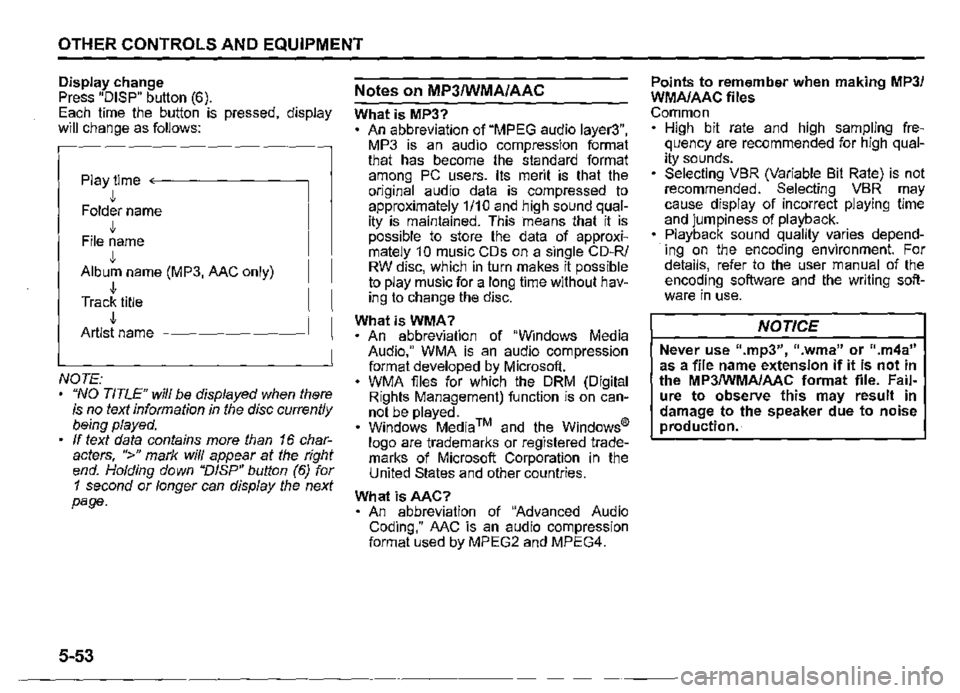
Display change Press "DISP" button (6). Each time the button is pressed, display will change as follows:
Play time <--------
• Folder name J, File name J, Album name (MP3, AAC only) J, Track title J, Artist name -------~
NOTE: "NO TITLE" will be displayed when there is no text information in the disc currently being played. If text data contains more than 16 characters, ">" mark will appear at the right end. Holding down "DISP" button (6) for 1 second or longer can display the next page.
5-53
Notes on MP3/WMA/AAC
What is MP3? An abbreviation of "MPEG audio layer3", MP3 is an audio compression format that has become the standard format among PC users. Its merit is that the original audio data is compressed to approximately 1/10 and high sound quality is maintained. This means that it is possible to store the data of approximately 1 0 music CDs on a single CD-R/ RW disc, which in turn makes it possible to play music for a long time without having to change the disc.
WhatisWMA? An abbreviation of "Windows Media Audio," WMA is an audio compression format developed by Microsoft. WMA files for which the ORM (Digital Rights Management) function is on cannot be played. Windows Media™ and the Windows® logo are trademarks or registered trademarks of Microsoft Corporation in the United States and other countries.
What isAAC? An abbreviation of "Advanced Audio Coding," AAC is an audio compression format used by MPEG2 and MPEG4.
Points to remember when making MP3/ WMA/AAC files Common High bit rate and high sampling frequency are recommended for high quality sounds. Selecting VBR (Variable Bit Rate) is not recommended. Selecting VBR may cause display of incorrect playing time and jumpiness of playback. Playback sound quality varies depending on the encoding environment. For details, refer to the user manual of the encoding software and the writing software in use.
NOTICE
Never use 11.mp3", 11 .wma" or ".m4a" as a file name extension if it is not in the MP3/WMA/AAC format file. Failure to observe this may result in damage to the speaker due to noise production.
Page 289 of 421
Recording MP3/WMA/AAC files on a CD media It is recommended not to write both CODA files and MP3/WMA/MC files on a
disc. If both CD-DA files and MP3/WMA/MC files are on the same disc, tracks may not be played in the correct order or some tracks may not be played at all. When storing both MP3 data and WMA data on the same disc, sort and place them in different folders. Do not write files other than MP3/WMA/ MC files and unnecessary folders on a
disc. MP3/WMA/MC files should be named to meet the standards and the file system specifications as shown below. The file extension ".mp3", ".wma" or ".m4a" should be assigned to files based on their format independently. You may encounter a trouble in playing MP3/WMA/MC files or displaying information of MP3/WMA/MC files depending on the writing software or CD recorder in use. This unit does not have a playlist function. It is recommended to write discs in Discat-Once mode even though Multi-session mode is supported. These modes are the methods for writing audio data in CD.
OTHER CONTROLS AND EQUIPMENT
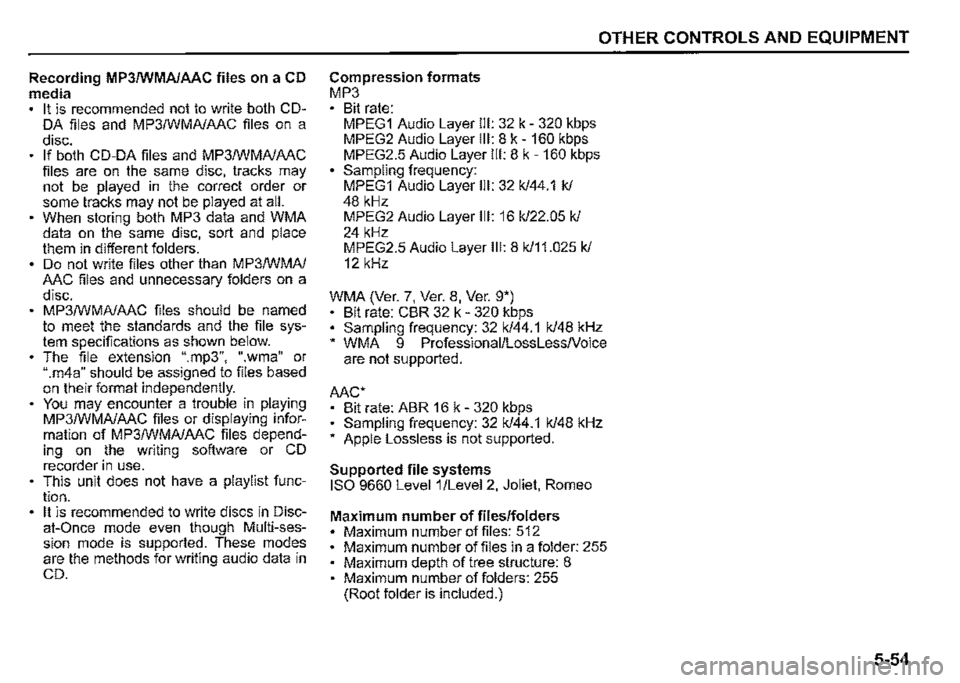
Compression formats MP3 Bit rate: MPEG1 Audio Layer Ill: 32 k -320 kbps MPEG2 Audio Layer Ill: 8 k -160 kbps MPEG2.5 Audio Layer Ill: 8 k -160 kbps Sampling frequency: MPEG1 Audio Layer Ill: 32 k/44.1 k/ 48 kHz MPEG2 Audio Layer Ill: 16 k/22.05 k/ 24 kHz MPEG2.5 Audio Layer Ill: 8 k/11.025 k/ 12 kHz
WMA (Ver. 7, Ver. 8, Ver. 9*) • Bit rate: CBR 32 k -320 kbps • Sampling frequency: 32 k/44.1 k/48 kHz * WMA 9 Professional/LossLessNoice are not supported.
MC* • Bit rate: ABR 16 k -320 kbps • Sampling frequency: 32 k/44.1 k/48 kHz * Apple Lossless is not supported.
Supported file systems ISO 9660 Level 1 /Level 2, Joliet, Romeo
Maximum number of files/folders Maximum number offiles: 512 Maximum number of files in a folder: 255 Maximum depth of tree structure: 8 Maximum number of folders: 255 (Root folder is included.)
5-54
Page 290 of 421
OTHER CONTROLS AND EQUIPMENT
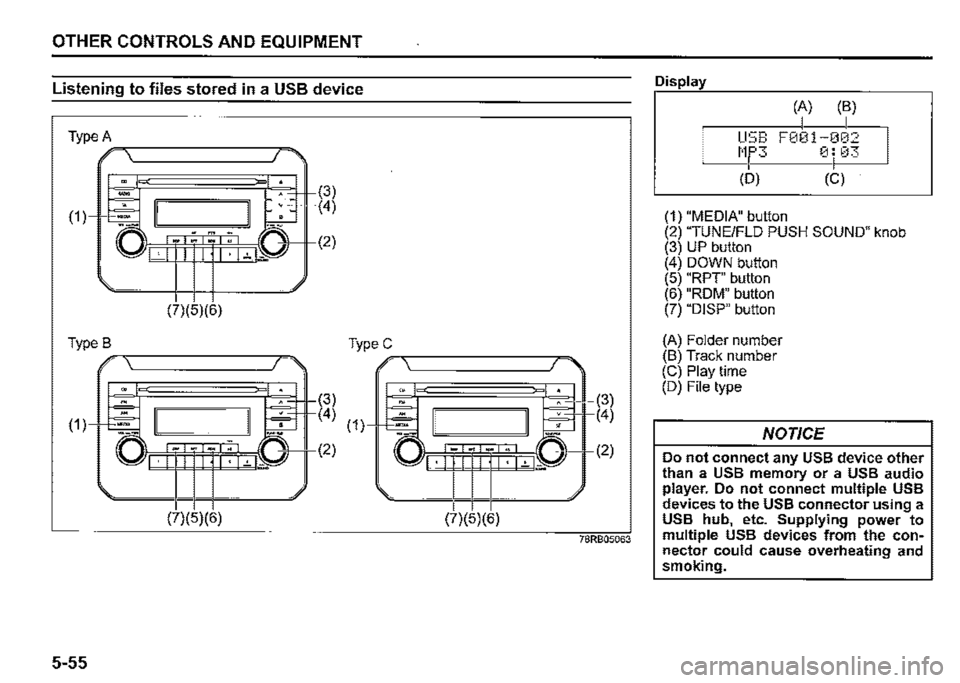
Listening to files stored in a USB device
Type A ---------r,
(1)
(7)(5)(6)
TypeB -._----------,..,,_
,,, lb 1_ --~'
(7)(5)(6)
5-55
(3) (4)
(2)
(3)
(4) (1),rc=-'
(2)
(7)(5)(6)
(3) (4)
(2)
78RB05063
Display
(A) (B) I I
I
USB F001-002
I Mf'3 0: ,13
<6) (c)
(1) "MEDIA" button (2) 'TUNE/FLO PUSH SOUND" knob (3) UP button (4) DOWN button (5) "RPT' button (6) "RDM" button (7) "DISP" button
{A) Folder number (B) Track number (C) Play time (D) File type
NOTICE
Do not connect any USB device other than a USB memory or a USB audio player. Do not connect multiple USB devices to the USB connector using a USB hub, etc. Supplying power to multiple USB devices from the connector could cause overheating and smoking.
Page 291 of 421
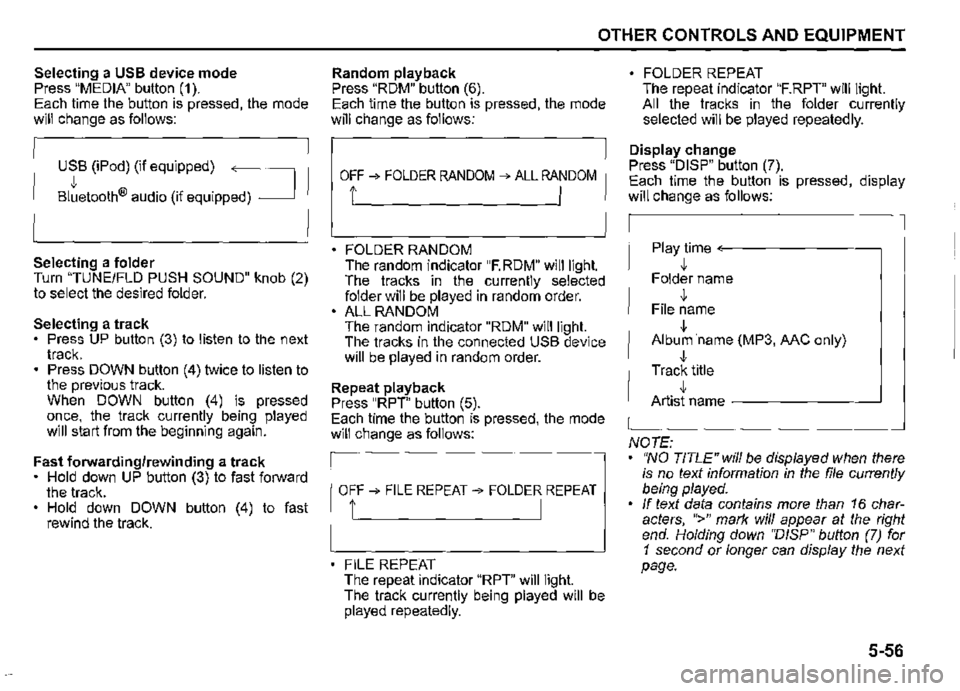
Selecting a USB device mode Press "MEDIA" button (1 ). Each time the button is pressed, the mode will change as follows:
USB (iPod) (if equipped) ~
Bltetooth® audio (if equipped) _J
Selecting a folder Turn "TUNEIFLD PUSH SOUND" knob (2) to select the desired folder.
Selecting a track Press UP button (3) to listen to the next track. Press DOWN button (4) twice to listen to the previous track. When DOWN button (4) is pressed once, the track currently being played will start from the beginning again.
Fast forwarding/rewinding a track • Hold down UP button (3) to fast forward the track. Hold down DOWN button (4) to fast rewind the track.
OTHER CONTROLS AND EQUIPMENT
Random playback Press "RDM" button (6). Each time the button is pressed, the mode will change as follows:
OFF ➔ FOLDER RANDOM ➔ ALL RANDOM
t I
FOLDER RANDOM The random indicator "F.RDM" will light. The tracks in the currently selected folder will be played in random order. ALL RANDOM The random indicator "RDM" will light. The tracks in the connected USB device will be played in random order.
Repeat playback Press "RPT" button (5). Each time the button is pressed, the mode will change as follows:
OFF➔ FILE REPEAT➔ FOLDER REPEAT
1' I
FILE REPEAT The repeat indicator "RPT" will light. The track currently being played will be played repeatedly.
FOLDER REPEAT The repeat indicator "F.RPT" will light. All the tracks in the folder currently selected will be played repeatedly.
Display change Press "DISP" button (7). Each time the button is pressed, display will change as follows:
Play time <---------~
,!, Folder name
,!, File name
,!, Album ·name (MP3, MC only)
,!, Track title ,!, Artist name -------~
NOTE: "NO TITLE" will be displayed when there is no text information in the file currently being played. If text data contains more than 16 characters, ">" mark will appear at the right end. Holding down ''D/SP" button (7) for 1 second or longer can display the next page.
5-56
Page 292 of 421
OTHER CONTROLS AND EQUIPMENT
Notes on USB device
Compatible USB devices USS mass storage class For details as to whether your USS memory/USS audio is compatible with USS mass storage class, please contact the USS memory/USS audio manufacturer. USS .standard compatibility 1.1/2.0 full speed File system FAT12/16/32, VFAT Maximum current less than 1.0 A If devices such as USS hub, extension cable are connected to the audio system, it may not be recognized. In such case, connect the USS device directly to the audio system. Devices such as MP3 player/mobile phone/digital camera may not be recognized by the audio system for playing music.
5-57
USB device connection When connecting a USS device, check that the connector is pushed all the way into the port. Do not leave the USS device for long periods of time inside the vehicle where the temperature can rise too high. Back up any important data beforehand. We cannot accept responsibility for any lost data. It is recommended not to connect a USS device that contains data files other than MP3/WMA/AAC format.
Recording MP3/WMA/AAC files on a USB device Playback or display may not be possible depending on the type of USS device in use or the condition of the recording. Depending on the connected USB memory, the files may be played in different order from the stored one.
Compression formats MP3 Bit rate: MPEG1 Audio Layer Ill: 32 k -320 kbps MPEG2 Audio Layer Ill: 8 k-160 kbps MPEG2.5 Audio Layer Ill: 8 k-160 kbps Sampling frequency: MPEG1 Audio Layer Ill: 32 k/44.1 k/48 kHz MPEG2 Audio Layer Ill: 16 k/22.05 k/24 kHz MPEG2.5 Audio Layer Ill: 8 k/11.025 k/12 kHz
WMA (Ver. 7, Ver. 8, Ver. g•) • Bit rate: CBR 32 k -320 kbps • Sampling frequency: 32 k/44.1 k/48 kHz • WMA 9 Professional/LossLessNoice are not supported.
Mc•
• Bit rate: ABR 16 k -320 kbps • Sampling frequency: 32 k/44.1 k/48 kHz • Apple Lossless is not supported.
Maximum number of files/folders Maximum number of files: 2500 Maximum number of files in a folder: 255 Maximum depth of tree structure: 8 Maximum number of folders: 255 (Root folder is included.)
Page 293 of 421
Listening to an iPod
(7)(5)(6) Type A ,,-,---+-t--t-------,=,,
'" ( □Sr~ , . ,.,.
(8)
(7)(5)(6) Type B -----+-+--+-------,=,.
(7)(5)(6) TypeC ,,-,-----+-t--t-------,-
(3)
~3+ ( 4) ( 1 )---l+=l
-....... -.,
l.iJ~I , I · I · I~ I ii.a
(8)
(2)
(8)
OTHER CONTROLS AND EQUIPMENT
(3)
r(4)
I (2)
78RB05064
Display
(A)
iPod THE BES Tt-· 0 0:01
(B) (C)
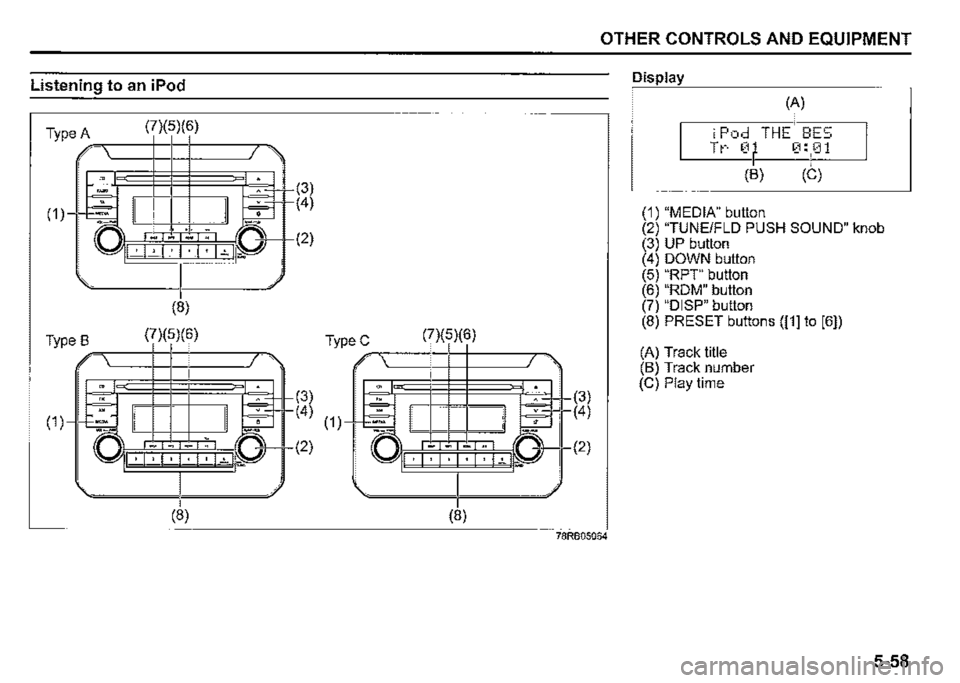
(1) "MEDIA" button (2) "TUNE/FLO PUSH SOUND" knob (3) UP button (4) DOWN button (5) "RPT" button (6) "ROM" button (7) "DISP" button (8) PRESET buttons ([1] to [6])
(A) Track title (B) Track number (C) Play time
5-58