bluetooth SUZUKI KIZASHI 2010 1.G Owner's Manual
[x] Cancel search | Manufacturer: SUZUKI, Model Year: 2010, Model line: KIZASHI, Model: SUZUKI KIZASHI 2010 1.GPages: 388, PDF Size: 4.94 MB
Page 236 of 388
5-57OTHER CONTROLS AND EQUIPMENT
57L20-03E
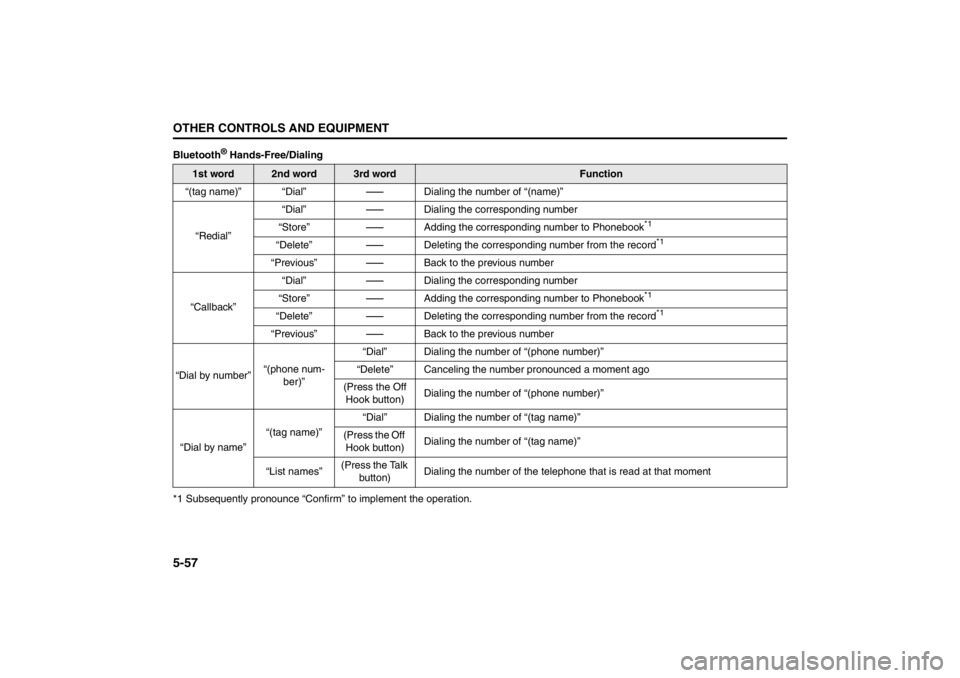
Bluetooth
® Hands-Free/Dialing
*1 Subsequently pronounce “Confirm” to implement the operation.
1st word
2nd word
3rd word
Function
“(tag name)” “Dial”
-
Dialing the number of “(name)”
“Redial”“Dial”
-
Dialing the corresponding number
“Store”
-
Adding the corresponding number to Phonebook
*1
“Delete”
-
Deleting the corresponding number from the record
*1
“Previous”
-
Back to the previous number
“Callback”“Dial”
-
Dialing the corresponding number
“Store”
-
Adding the corresponding number to Phonebook
*1
“Delete”
-
Deleting the corresponding number from the record
*1
“Previous”
-
Back to the previous number
“Dial by number”“(phone num-
ber)”“Dial” Dialing the number of “(phone number)”
“Delete” Canceling the number pronounced a moment ago
(Press the Off
Hook button)Dialing the number of “(phone number)”
“Dial by name”“(tag name)”“Dial” Dialing the number of “(tag name)”
(Press the Off
Hook button)Dialing the number of “(tag name)”
“List names”(Press the Talk
button)Dialing the number of the telephone that is read at that moment
Page 237 of 388
5-58
OTHER CONTROLS AND EQUIPMENT
57L20-03E
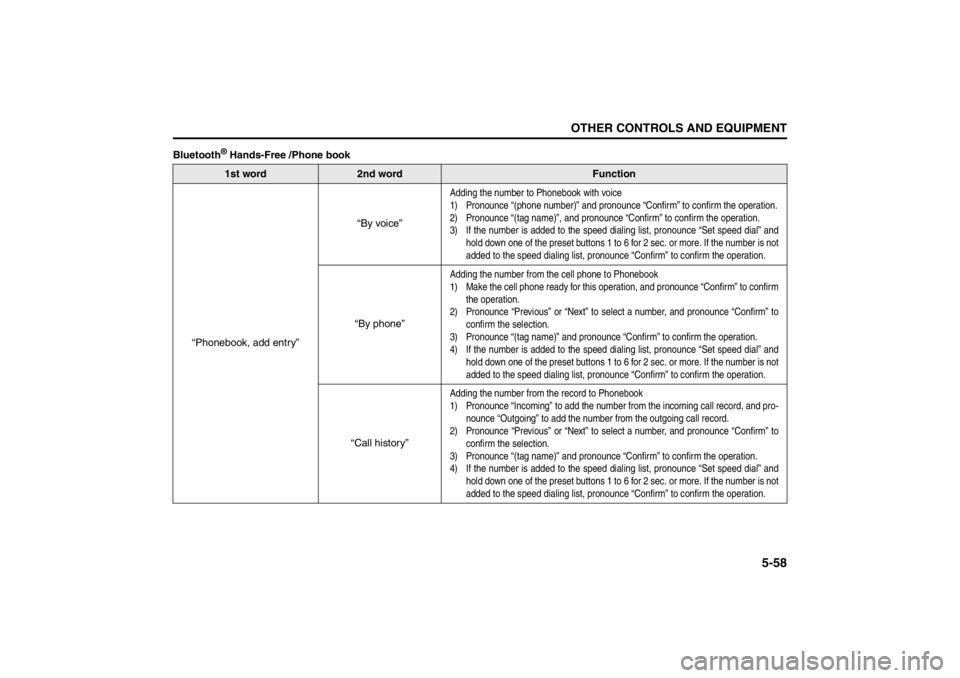
Bluetooth
® Hands-Free /Phone book1st word
2nd word
Function
“Phonebook, add entry”“By voice”
Adding the number to Phonebook with voice
1) Pronounce “(phone number)” and pronounce “Confirm” to confirm the operation.
2) Pronounce “(tag name)”, and pronounce “Confirm” to confirm the operation.
3) If the number is added to the speed dialing list, pronounce “Set speed dial” and
hold down one of the preset buttons 1 to 6 for 2 sec. or more. If the number is not
added to the speed dialing list, pronounce “Confirm” to confirm the operation.
“By phone”
Adding the number from the cell phone to Phonebook
1) Make the cell phone ready for this operation, and pronounce “Confirm” to confirm
the operation.
2) Pronounce “Previous” or “Next” to select a number, and pronounce “Confirm” to
confirm the selection.
3) Pronounce “(tag name)” and pronounce “Confirm” to confirm the operation.
4) If the number is added to the speed dialing list, pronounce “Set speed dial” and
hold down one of the preset buttons 1 to 6 for 2 sec. or more. If the number is not
added to the speed dialing list, pronounce “Confirm” to confirm the operation.
“Call history”
Adding the number from the record to Phonebook
1) Pronounce “Incoming” to add the number from the incoming call record, and pro-
nounce “Outgoing” to add the number from the outgoing call record.
2) Pronounce “Previous” or “Next” to select a number, and pronounce “Confirm” to
confirm the selection.
3) Pronounce “(tag name)” and pronounce “Confirm” to confirm the operation.
4) If the number is added to the speed dialing list, pronounce “Set speed dial” and
hold down one of the preset buttons 1 to 6 for 2 sec. or more. If the number is not
added to the speed dialing list, pronounce “Confirm” to confirm the operation.
Page 240 of 388
5-61OTHER CONTROLS AND EQUIPMENT
57L20-03E
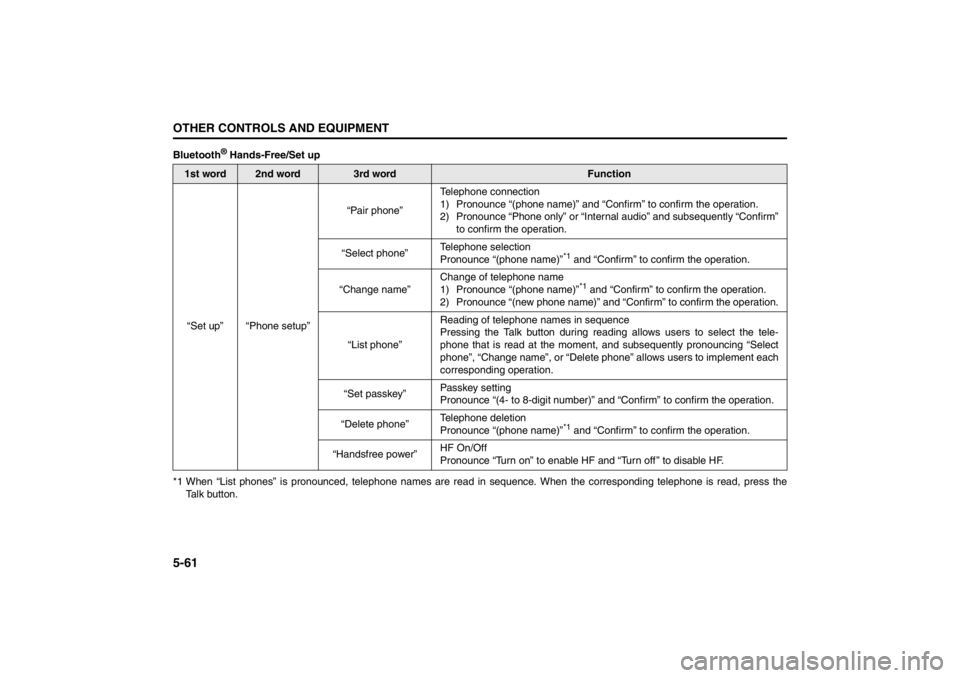
Bluetooth
® Hands-Free/Set up
*1 When “List phones” is pronounced, telephone names are read in sequence. When the corresponding telephone is read, press the
Talk button.
1st word
2nd word
3rd word
Function
“Set up” “Phone setup”“Pair phone”Telephone connection
1) Pronounce “(phone name)” and “Confirm” to confirm the operation.
2) Pronounce “Phone only” or “Internal audio” and subsequently “Confirm”
to confirm the operation.
“Select phone”Telephone selection
Pronounce “(phone name)”
*1 and “Confirm” to confirm the operation.
“Change name”Change of telephone name
1) Pronounce “(phone name)”*1 and “Confirm” to confirm the operation.
2) Pronounce “(new phone name)” and “Confirm” to confirm the operation.
“List phone”Reading of telephone names in sequence
Pressing the Talk button during reading allows users to select the tele-
phone that is read at the moment, and subsequently pronouncing “Select
phone”, “Change name”, or “Delete phone” allows users to implement each
corresponding operation.
“Set passkey”Passkey setting
Pronounce “(4- to 8-digit number)” and “Confirm” to confirm the operation.
“Delete phone”Telephone deletion
Pronounce “(phone name)”
*1 and “Confirm” to confirm the operation.
“Handsfree power”HF On/Off
Pronounce “Turn on” to enable HF and “Turn off ” to disable HF.
Page 241 of 388
5-62
OTHER CONTROLS AND EQUIPMENT
57L20-03E
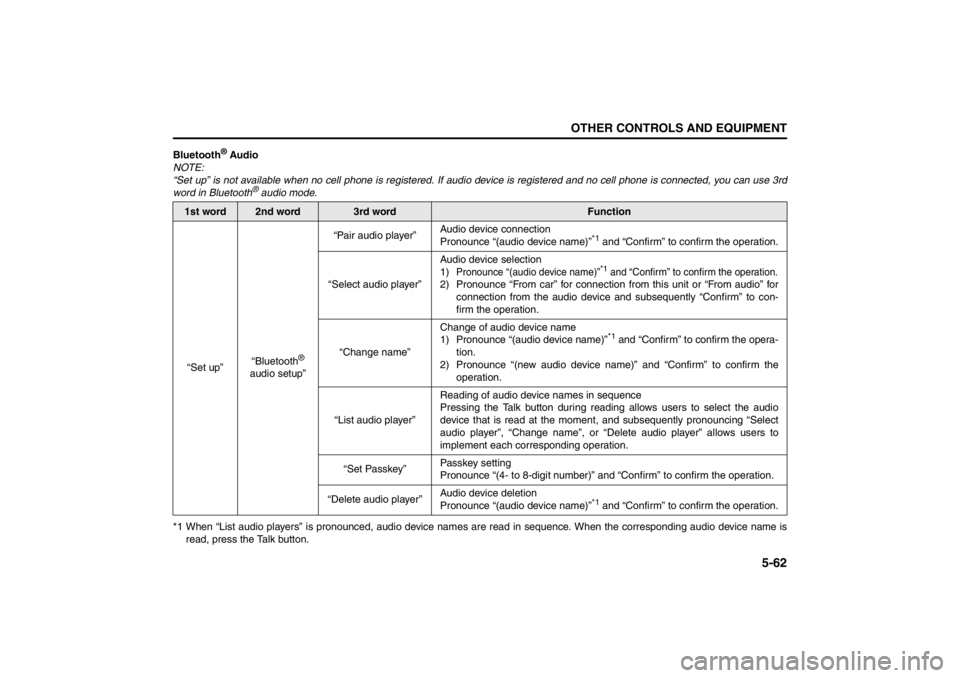
Bluetooth
® Audio
NOTE:
“Set up” is not available when no cell phone is registered. If audio device is registered and no cell phone is connected, you can use 3rd
word in Bluetooth
® audio mode.
*1 When “List audio players” is pronounced, audio device names are read in sequence. When the corresponding audio device name is
read, press the Talk button.
1st word
2nd word
3rd word
Function
“Set up”“Bluetooth
®
audio setup”“Pair audio player”Audio device connection
Pronounce “(audio device name)”
*1 and “Confirm” to confirm the operation.
“Select audio player”Audio device selection
1)
Pronounce “(audio device name)”
*1 and “Confirm” to confirm the operation.
2) Pronounce “From car” for connection from this unit or “From audio” for
connection from the audio device and subsequently “Confirm” to con-
firm the operation.
“Change name”Change of audio device name
1) Pronounce “(audio device name)”
*1 and “Confirm” to confirm the opera-
tion.
2) Pronounce “(new audio device name)” and “Confirm” to confirm the
operation.
“List audio player”Reading of audio device names in sequence
Pressing the Talk button during reading allows users to select the audio
device that is read at the moment, and subsequently pronouncing “Select
audio player”, “Change name”, or “Delete audio player” allows users to
implement each corresponding operation.
“Set Passkey”Passkey setting
Pronounce “(4- to 8-digit number)” and “Confirm” to confirm the operation.
“Delete audio player”Audio device deletion
Pronounce “(audio device name)”
*1 and “Confirm” to confirm the operation.
Page 243 of 388
5-64
OTHER CONTROLS AND EQUIPMENT
57L20-03E
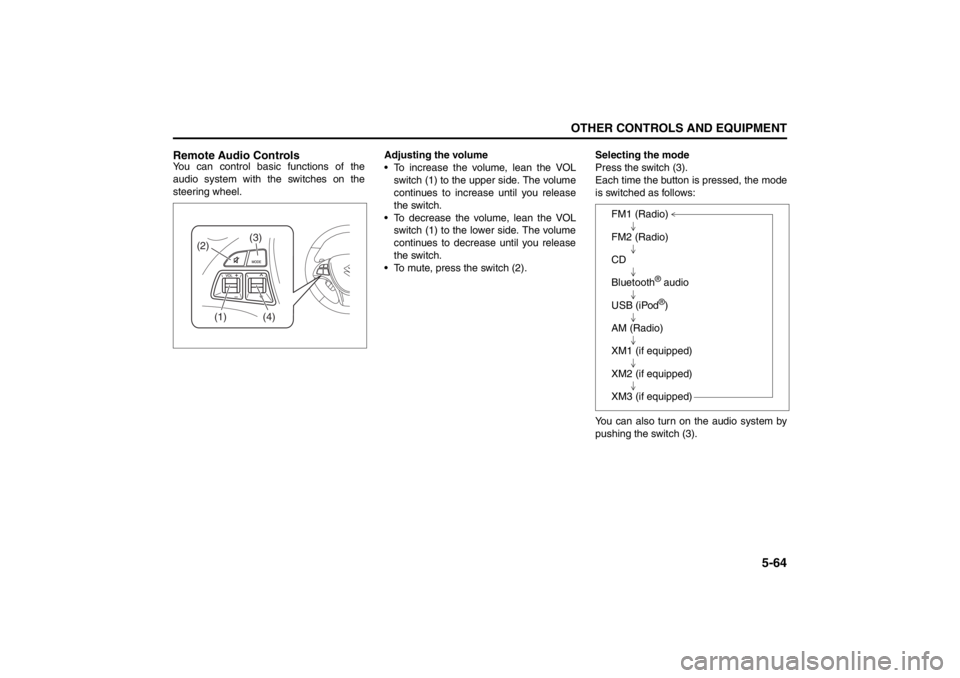
Remote Audio ControlsYou can control basic functions of the
audio system with the switches on the
steering wheel.Adjusting the volume
To increase the volume, lean the VOL
switch (1) to the upper side. The volume
continues to increase until you release
the switch.
To decrease the volume, lean the VOL
switch (1) to the lower side. The volume
continues to decrease until you release
the switch.
To mute, press the switch (2).Selecting the mode
Press the switch (3).
Each time the button is pressed, the mode
is switched as follows:
You can also turn on the audio system by
pushing the switch (3).
(2)
(1)
(4)
(3)
FM1 (Radio)
FM2 (Radio)
CD
Bluetooth
® audio
USB (iPod®)
AM (Radio)
XM1 (if equipped)
XM2 (if equipped)
XM3 (if equipped)
Page 244 of 388

5-65OTHER CONTROLS AND EQUIPMENT
57L20-03E
Selecting the radio station (FM1, FM2,
AM mode)
To select the next preset station, lean
the SEEK switch (4) to the upper side
briefly.
To select the previous preset station,
lean the SEEK switch (4) to the lower
side briefly.
To scan to a higher frequency radio sta-
tion, lean the SEEK switch (4) to the
upper side for 1 sec. or longer.
To scan to a lower frequency radio sta-
tion, lean the SEEK switch (4) to the
lower side for 1 sec. or longer.Selecting the channel (XM1, XM2, XM3
mode)
To select the next preset channel, lean
the SEEK switch (4) to the upper side
briefly.
To select the previous preset channel,
lean the SEEK switch (4) to the lower
side briefly.
To select the next channel in the same
category, lean the SEEK switch (4) to
the upper side for 1 sec. or longer.
To select the previous channel in the
same category, lean the SEEK switch
(4) to the lower side for 1 sec. or longer.Selecting the track (CD, USB (iPod
®),
Bluetooth
® audio mode)
To advance to the next track, lean the
SEEK switch (4) to the upper side
briefly.
To select the previous track, lean the
SEEK switch (4) to the lower side briefly.
Fast forwarding/Rewinding a track
To advance a track rapidly, lean the
SEEK switch (4) to the upper side for 1
sec. or longer
To rewind a track, lean the SEEK switch
(4) to the lower side for 1 sec. or longer.
Page 248 of 388

5-69OTHER CONTROLS AND EQUIPMENT
57L20-03E
MP3/WMA
No playback The disc has unplayable formatted data. Check the file format.
Sound skipping or noisePlaying VBR (Variable Bit Rate) files may
cause sound skipping.Play Non-VBR files.
USB
Music is not played back even if the USB
device is connectedThere is no music stored in a format that
is supported on this unit.Check the file format.
The current consumption of the USB
device exceeds 500 mA.Use a USB device with a current con-
sumption lower than 500 mA.
Bluetooth
®
Pairing failedThe distance between this unit and the
Bluetooth
®-ready device is too long, or
the Bluetooth
®-ready device is hidden
behind a metallic object from this unit.Change the location of the Bluetooth
®-
ready device.
The Bluetooth
® function of the Bluetooth
®-
ready device is deactivated.Refer to the Operating Instructions of the
Bluetooth
®-ready device. (With regard to
some devices, the power saving mode is
activated after a certain time.)
Cannot receive a call. Your mobile phone is out of service area.Drive your car to the service area of your
mobile phone.
The voice quality of hands-free is low
(Distortion, noise etc.).There is another wireless device near the
unit.Switch off the wireless device or keep it
away from the unit.
Problem
Possible cause
Possible solution
Page 251 of 388
5-72
OTHER CONTROLS AND EQUIPMENT
57L20-03E
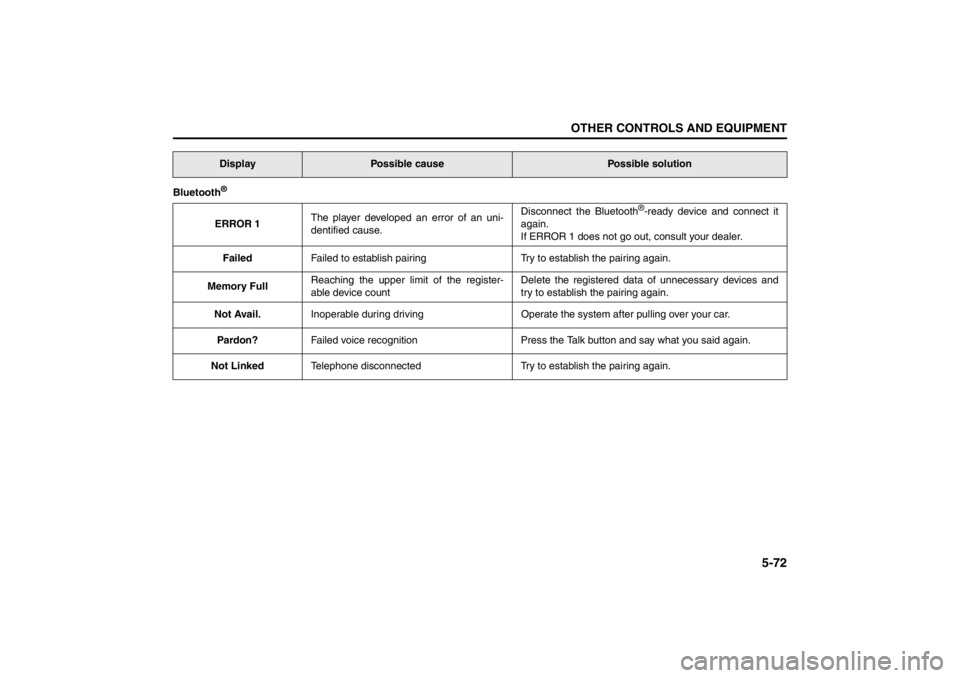
Bluetooth
®ERROR 1The player developed an error of an uni-
dentified cause.Disconnect the Bluetooth
®-ready device and connect it
again.
If ERROR 1 does not go out, consult your dealer.
FailedFailed to establish pairing Try to establish the pairing again.
Memory FullReaching the upper limit of the register-
able device countDelete the registered data of unnecessary devices and
try to establish the pairing again.
Not Avail.Inoperable during driving Operate the system after pulling over your car.
Pardon?Failed voice recognition Press the Talk button and say what you said again.
Not LinkedTelephone disconnected Try to establish the pairing again.
Display
Possible cause
Possible solution