wheel SUZUKI XL7 2007 2.G User Guide
[x] Cancel search | Manufacturer: SUZUKI, Model Year: 2007, Model line: XL7, Model: SUZUKI XL7 2007 2.GPages: 274, PDF Size: 6.12 MB
Page 85 of 274
3-3 INSTRUMENT PANEL
78J00-03E
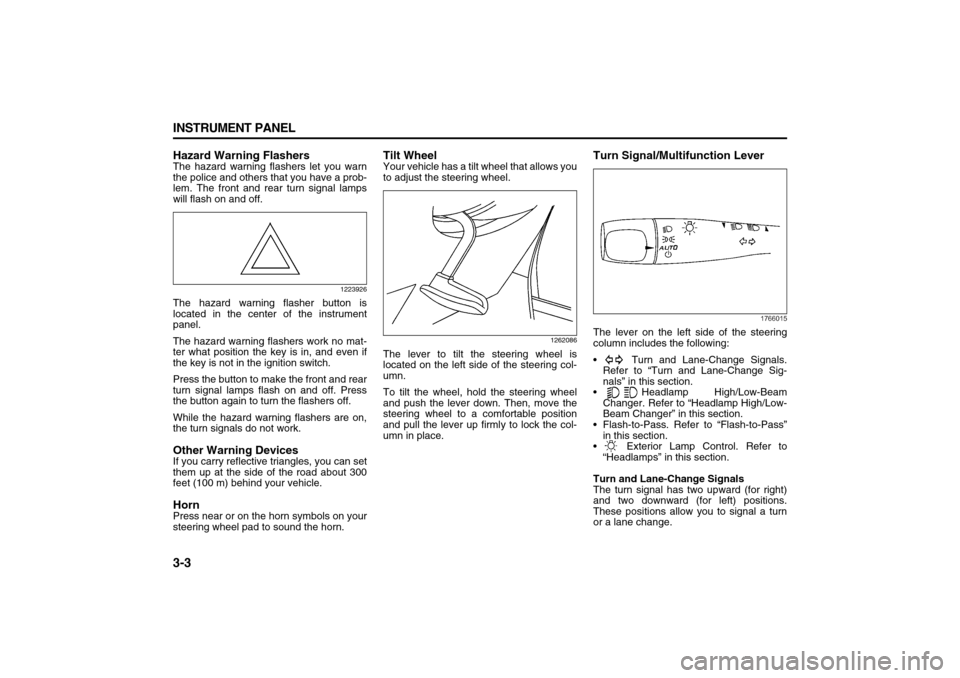
Hazard Warning FlashersThe hazard warning flashers let you warn
the police and others that you have a prob-
lem. The front and rear turn signal lamps
will flash on and off.
1223926
The hazard warning flasher button is
located in the center of the instrument
panel.
The hazard warning flashers work no mat-
ter what position the key is in, and even if
the key is not in the ignition switch.
Press the button to make the front and rear
turn signal lamps flash on and off. Press
the button again to turn the flashers off.
While the hazard warning flashers are on,
the turn signals do not work.Other Warning DevicesIf you carry reflective triangles, you can set
them up at the side of the road about 300
feet (100 m) behind your vehicle.HornPress near or on the horn symbols on your
steering wheel pad to sound the horn.
Tilt WheelYour vehicle has a tilt wheel that allows you
to adjust the steering wheel.
1262086
The lever to tilt the steering wheel is
located on the left side of the steering col-
umn.
To tilt the wheel, hold the steering wheel
and push the lever down. Then, move the
steering wheel to a comfortable position
and pull the lever up firmly to lock the col-
umn in place.
Turn Signal/Multifunction Lever
1766015
The lever on the left side of the steering
column includes the following:
Turn and Lane-Change Signals.
Refer to “Turn and Lane-Change Sig-
nals” in this section.
Headlamp High/Low-Beam
Changer. Refer to “Headlamp High/Low-
Beam Changer” in this section.
Flash-to-Pass. Refer to “Flash-to-Pass”
in this section.
Exterior Lamp Control. Refer to
“Headlamps” in this section.
Turn and Lane-Change Signals
The turn signal has two upward (for right)
and two downward (for left) positions.
These positions allow you to signal a turn
or a lane change.
Page 87 of 274
3-5 INSTRUMENT PANEL
78J00-03E
(Delay Adjustment):
Move the lever to the delay position to
choose a delayed wiping cycle. Turn the
intermittent adjust band down for a longer
delay or up for a shorter delay.
(Off):
Move the lever to this position to turn off
the windshield wipers.
(Mist):
Move the lever all the way down to mist
and release for a single wiping cycle. The
windshield wipers will stop after one wipe
and then return to the original position. If
more wipes are needed, hold the lever on
mist longer.
Windshield WasherThere is a button marked with the wind-
shield washer symbol at the end of the
windshield wiper lever. Press this button to
spray washer fluid on the windshield. The
wipers will run for a few cycles to clear the
window and then either stop or return to
your preset speed. For more wash cycles,
press and hold the button longer.
Rear Window Wiper/WasherThe rear wiper and rear wash buttons are
located in the switchbank above the shift
lever.
(Rear Wiper):
Press this button to turn the rear wiper on
and off. When the button is on, the rear
wiper will run continuously at a preset
speed.
(Wash):
Press this button to spray washer fluid on
the rear window. The window wiper will
also come on. Release the button when
enough fluid has been sprayed on the win-
dow. The rear wiper will run a few more
cycles after it is released. If the rear wiper
function was already on, prior to pressing
the wash button, it will continue to stay on
until you press the wiper button again.
The rear window washer uses the same
fluid that is in the windshield washer reser-
voir. Refer to “Windshield Washer Fluid” in
“Checking Things Under the Hood” in the
“Service and Appearance Care” section.
Cruise ControlWith cruise control, you can maintain a
speed of about 25 mph (40 km/h) or more
without keeping your foot on the accelera-
tor. This can really help on long trips.
Cruise control does not work at speeds
below 25 mph (40 km/h).
Setting Cruise Control
WARNING
In freezing weather, do not use your
washer until the windshield is
warmed. Otherwise the washer fluid
can form ice on the windshield,
blocking your vision.
WARNING
Cruise control can be dangerous
where you cannot drive safely at a
steady speed. So, do not use your
cruise control on winding roads or in
heavy traffic.
Cruise control can be dangerous on
slippery roads. On such roads, fast
changes in tire traction can cause
excessive wheel slip, and you could
lose control. Do not use cruise con-
trol on slippery roads.
WARNING
If you leave your cruise control on
when you are not using cruise, you
might hit a button and go into cruise
when you do not want to. You could
be startled and even lose control.
Keep the cruise control switch off
until you want to use cruise control.
Page 88 of 274
3-6 INSTRUMENT PANEL
78J00-03E
1541871
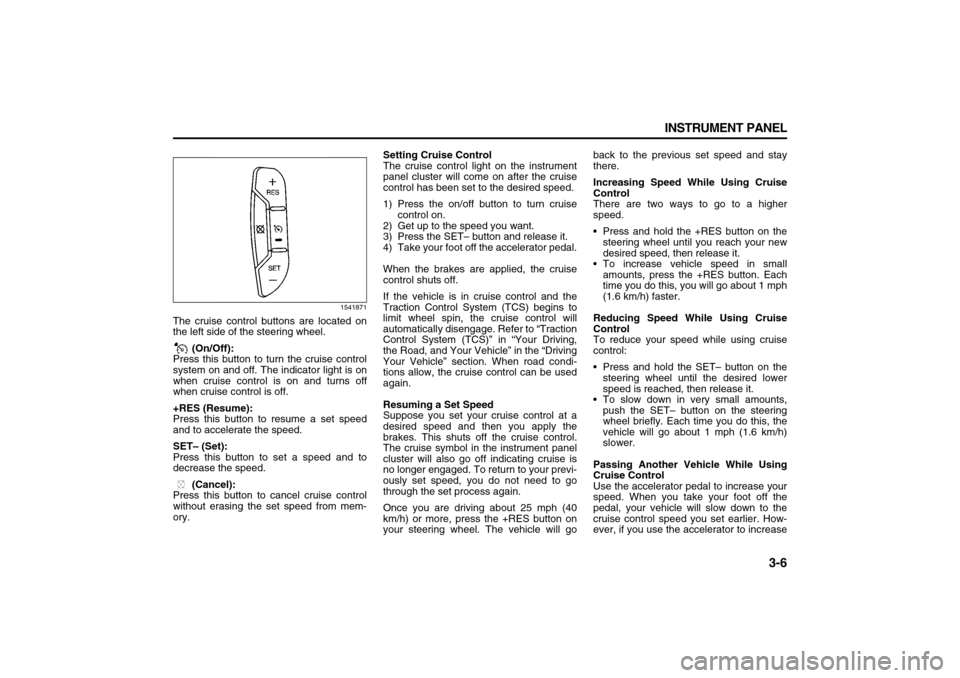
The cruise control buttons are located on
the left side of the steering wheel.
(On/Off):
Press this button to turn the cruise control
system on and off. The indicator light is on
when cruise control is on and turns off
when cruise control is off.
+RES (Resume):
Press this button to resume a set speed
and to accelerate the speed.
SET– (Set):
Press this button to set a speed and to
decrease the speed.
(Cancel):
Press this button to cancel cruise control
without erasing the set speed from mem-
ory.Setting Cruise Control
The cruise control light on the instrument
panel cluster will come on after the cruise
control has been set to the desired speed.
1) Press the on/off button to turn cruise
control on.
2) Get up to the speed you want.
3) Press the SET– button and release it.
4) Take your foot off the accelerator pedal.
When the brakes are applied, the cruise
control shuts off.
If the vehicle is in cruise control and the
Traction Control System (TCS) begins to
limit wheel spin, the cruise control will
automatically disengage. Refer to “Traction
Control System (TCS)” in “Your Driving,
the Road, and Your Vehicle” in the “Driving
Your Vehicle” section. When road condi-
tions allow, the cruise control can be used
again.
Resuming a Set Speed
Suppose you set your cruise control at a
desired speed and then you apply the
brakes. This shuts off the cruise control.
The cruise symbol in the instrument panel
cluster will also go off indicating cruise is
no longer engaged. To return to your previ-
ously set speed, you do not need to go
through the set process again.
Once you are driving about 25 mph (40
km/h) or more, press the +RES button on
your steering wheel. The vehicle will goback to the previous set speed and stay
there.
Increasing Speed While Using Cruise
Control
There are two ways to go to a higher
speed.
Press and hold the +RES button on the
steering wheel until you reach your new
desired speed, then release it.
To increase vehicle speed in small
amounts, press the +RES button. Each
time you do this, you will go about 1 mph
(1.6 km/h) faster.
Reducing Speed While Using Cruise
Control
To reduce your speed while using cruise
control:
Press and hold the SET– button on the
steering wheel until the desired lower
speed is reached, then release it.
To slow down in very small amounts,
push the SET– button on the steering
wheel briefly. Each time you do this, the
vehicle will go about 1 mph (1.6 km/h)
slower.
Passing Another Vehicle While Using
Cruise Control
Use the accelerator pedal to increase your
speed. When you take your foot off the
pedal, your vehicle will slow down to the
cruise control speed you set earlier. How-
ever, if you use the accelerator to increase
Page 89 of 274
3-7 INSTRUMENT PANEL
78J00-03E
the vehicle’s speed for approximately 60
seconds, cruise control will disengage.
Using Cruise Control on Hills
How well your cruise control will work on
hills depends upon your speed, load, and
the steepness of the hills. When going up
steep hills, you may have to step on the
accelerator pedal to maintain your vehi-
cle’s speed. When going downhill, you may
have to brake or shift to a lower gear to
limit the vehicle’s speed. Of course, apply-
ing the brakes ends cruise control. Many
drivers find this to be too much trouble and
do not use cruise control on steep hills.
Ending Cruise Control
There are three ways to end cruise control:
Step lightly on the brake pedal.
Press the cancel button on the steering
wheel.
Press the On/Off button on the steering
wheel.
Erasing Speed Memory
When the cruise control or the ignition is
turned off, the cruise control set speed
memory is erased.
HeadlampsThe exterior lamp control is located on the
turn signal/multifunction lever.
(Exterior Lamp Control):
Turn the control with this symbol on it to
operate the exterior lamps.
The exterior lamp control has the following
positions:
AUTO (Off/Automatic Headlamps):
Turn the control to this position to put the
headlamps in automatic mode. Automatic
mode will turn the exterior lamps on and off
depending upon how much light is avail-
able outside of the vehicle.
(Parking Lamps):
Turn the control to this position to turn on
the parking lamps together with the follow-
ing:
Sidemarker Lamps
Taillamps
License Plate Lamps
Instrument Panel Lights
(Headlamps):
Turning the control to this position turns on
the headlamps, together with the previ-
ously listed lamps and lights.
Headlamps on Reminder
If you open the driver’s door with the igni-
tion off and the lamps on, you will hear a
warning chime.Daytime Running Lamps (DRL)
Daytime Running Lamps (DRL) can make
it easier for others to see the front of your
vehicle during the day. DRL can be helpful
in many different driving conditions, but
they can be especially helpful in the short
periods after dawn and before sunset.
Fully functional daytime running lamps are
required on all vehicles first sold in Can-
ada.
A light sensor on top of the instrument
panel makes the DRL work, so be sure it is
not covered.
The DRL system’s automatic headlamp
control will make the low-beam headlamps
come on at a reduced brightness when the
following conditions are met:
The ignition is in RUN.
The exterior lamps control is in AUTO.
The engine is running.
When the DRL are on, only the low-beam
headlamps, at a reduced level of bright-
ness, will be on. The headlamps, taillamps,
sidemarker, and other lamps will not be on.
The instrument panel and cluster will also
not be lit.
When it is dark enough outside, the DRL
will turn off and the headlamps and parking
lamps will turn on. The other lamps that
come on with the headlamps will also
come on.
Page 102 of 274
3-20 INSTRUMENT PANEL
78J00-03E
Anti-Lock Brake System Warning
Light
807057
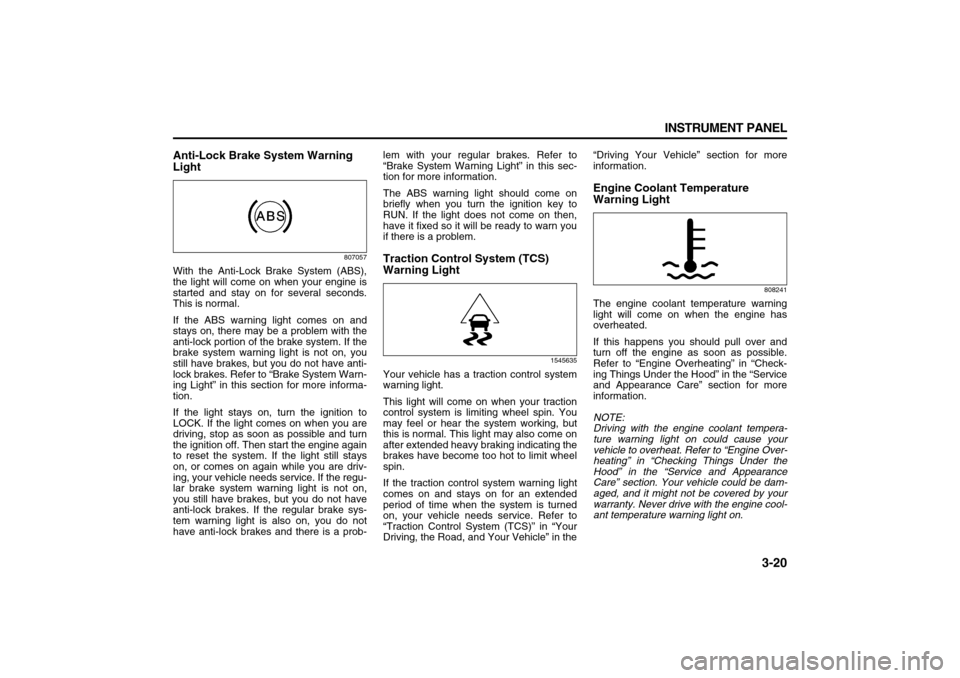
With the Anti-Lock Brake System (ABS),
the light will come on when your engine is
started and stay on for several seconds.
This is normal.
If the ABS warning light comes on and
stays on, there may be a problem with the
anti-lock portion of the brake system. If the
brake system warning light is not on, you
still have brakes, but you do not have anti-
lock brakes. Refer to “Brake System Warn-
ing Light” in this section for more informa-
tion.
If the light stays on, turn the ignition to
LOCK. If the light comes on when you are
driving, stop as soon as possible and turn
the ignition off. Then start the engine again
to reset the system. If the light still stays
on, or comes on again while you are driv-
ing, your vehicle needs service. If the regu-
lar brake system warning light is not on,
you still have brakes, but you do not have
anti-lock brakes. If the regular brake sys-
tem warning light is also on, you do not
have anti-lock brakes and there is a prob-lem with your regular brakes. Refer to
“Brake System Warning Light” in this sec-
tion for more information.
The ABS warning light should come on
briefly when you turn the ignition key to
RUN. If the light does not come on then,
have it fixed so it will be ready to warn you
if there is a problem.
Traction Control System (TCS)
Warning Light
1545635
Your vehicle has a traction control system
warning light.
This light will come on when your traction
control system is limiting wheel spin. You
may feel or hear the system working, but
this is normal. This light may also come on
after extended heavy braking indicating the
brakes have become too hot to limit wheel
spin.
If the traction control system warning light
comes on and stays on for an extended
period of time when the system is turned
on, your vehicle needs service. Refer to
“Traction Control System (TCS)” in “Your
Driving, the Road, and Your Vehicle” in the“Driving Your Vehicle” section for more
information.
Engine Coolant Temperature
Warning Light
808241
The engine coolant temperature warning
light will come on when the engine has
overheated.
If this happens you should pull over and
turn off the engine as soon as possible.
Refer to “Engine Overheating” in “Check-
ing Things Under the Hood” in the “Service
and Appearance Care” section for more
information.
NOTE:
Driving with the engine coolant tempera-
ture warning light on could cause your
vehicle to overheat. Refer to “Engine Over-
heating” in “Checking Things Under the
Hood” in the “Service and Appearance
Care” section. Your vehicle could be dam-
aged, and it might not be covered by your
warranty. Never drive with the engine cool-
ant temperature warning light on.
Page 107 of 274
3-25 INSTRUMENT PANEL
78J00-03E
Highbeam On Light
808597
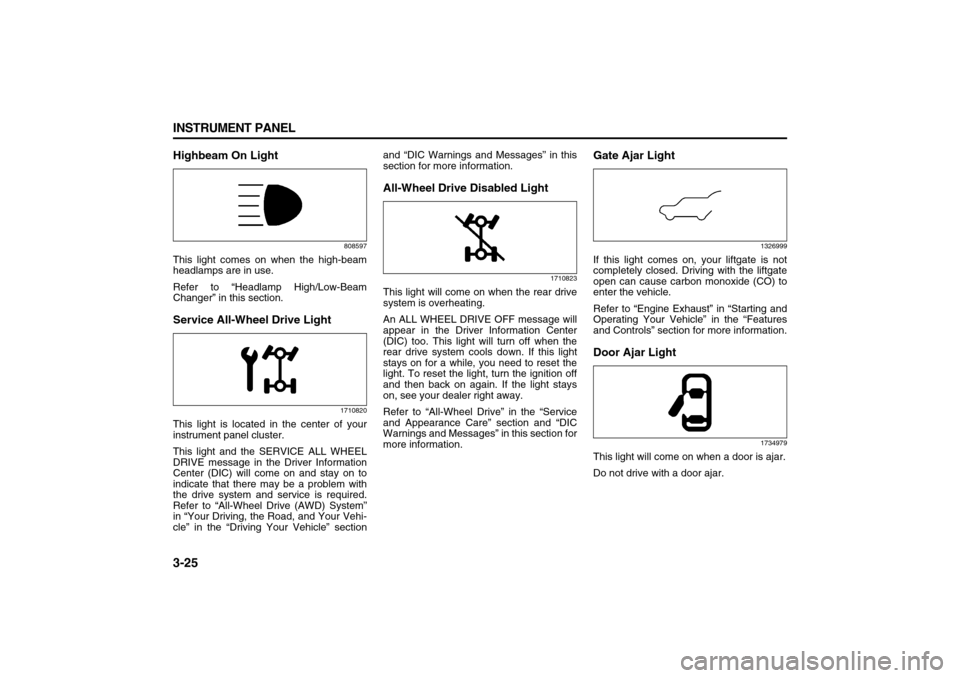
This light comes on when the high-beam
headlamps are in use.
Refer to “Headlamp High/Low-Beam
Changer” in this section.Service All-Wheel Drive Light
1710820
This light is located in the center of your
instrument panel cluster.
This light and the SERVICE ALL WHEEL
DRIVE message in the Driver Information
Center (DIC) will come on and stay on to
indicate that there may be a problem with
the drive system and service is required.
Refer to “All-Wheel Drive (AWD) System”
in “Your Driving, the Road, and Your Vehi-
cle” in the “Driving Your Vehicle” sectionand “DIC Warnings and Messages” in this
section for more information.
All-Wheel Drive Disabled Light
1710823
This light will come on when the rear drive
system is overheating.
An ALL WHEEL DRIVE OFF message will
appear in the Driver Information Center
(DIC) too. This light will turn off when the
rear drive system cools down. If this light
stays on for a while, you need to reset the
light. To reset the light, turn the ignition off
and then back on again. If the light stays
on, see your dealer right away.
Refer to “All-Wheel Drive” in the “Service
and Appearance Care” section and “DIC
Warnings and Messages” in this section for
more information.
Gate Ajar Light
1326999
If this light comes on, your liftgate is not
completely closed. Driving with the liftgate
open can cause carbon monoxide (CO) to
enter the vehicle.
Refer to “Engine Exhaust” in “Starting and
Operating Your Vehicle” in the “Features
and Controls” section for more information.Door Ajar Light
1734979
This light will come on when a door is ajar.
Do not drive with a door ajar.
Page 112 of 274

3-30 INSTRUMENT PANEL
78J00-03E
RELEARN REMOTE KEY
This display allows you to match the
Remote Keyless Entry (RKE) transmitter to
your vehicle. To match a RKE transmitter
to your vehicle, do the following:
1) Make sure the vehicle is in PARK (P).
2) Press the vehicle information button
until PRESS TO RELEARN
REMOTE KEY displays.
3) Press the set/reset button.
The message REMOTE KEY LEARN-
ING ACTIVE will display.
4) Press and hold the lock and unlock but-
tons on the first transmitter at the same
time for about 15 seconds.
A chime will sound indicating that the
transmitter is matched.
5) To match additional transmitters at this
time, repeat Step 3.
Each vehicle can have a maximum of
four transmitters matched to it.
6) To exit the programming mode, you
must cycle the key to LOCK.
Blank Display
This display shows no information.
PERSONALIZATION
This display allows you to personalize the
feature settings on your vehicle. Refer to
“DIC Vehicle Personalization” in this sec-
tion for more information.
DIC Warnings and MessagesMessages are displayed on the DIC to
notify the driver that the status of the vehi-
cle has changed and that some action may
be needed by the driver to correct the con-
dition. Multiple messages may appear one
after another. Some messages may not
require immediate action, but you can
press the set/reset button to acknowledge
that you received the messages and to
clear them from the display. Pressing any
of the DIC buttons also acknowledge and
clear any messages. Some messages
cannot be cleared from the DIC display
because they are more urgent. These
messages require action before they can
be cleared. You should take any messages
that appear on the display seriously and
remember that clearing the messages will
only make the messages disappear, not
correct the problem. The following are the
possible messages that can be displayed
and some information about them.
ALL WHEEL DRIVE OFF
If your vehicle has the All-Wheel Drive
(AWD) system, this message displays
along with the All-Wheel Drive Disabled
light when the rear drive system is over-
heating. This message turns off when the
rear drive system cools down. If the warn-
ing message stays on for a while, you need
to reset the warning message. To reset the
warning message, turn the ignition off and
then back on again. If the message stays
on, see your dealer right away. Refer to“All-Wheel Drive (AWD) System” in “Your
Driving, the Road, and Your Vehicle” in the
“Driving Your Vehicle” section and “All-
Wheel Drive Disabled Light” in this section
for more information.
BATTERY SAVER ACTIVE
This message displays when the charging
system detects that the battery is being
drained. You may notice that the vehicle
attempts to reduce the drain for you by
turning off accessories, such as interior
fans, rear defogger, and heated seats. Turn
off all accessories. If the vehicle is not run-
ning, start and run the engine for at least
10 minutes to allow the battery to
recharge. If the engine is running and the
condition persists, see your dealer immedi-
ately.
BUCKLE PASSENGER SEATBELT
This message reminds you to buckle the
passenger’s safety belt. Refer to “Passen-
ger Sensing System” in “Airbag System” in
the “Seats and Restraint Systems” section.
This message displays and a chime
sounds when the ignition is on, the driver’s
safety belt is buckled, the passenger’s
safety belt is unbuckled with the passenger
airbag enabled, and the vehicle is in
motion. You should have the passenger
buckle their safety belt.
This reminder will be repeated if the igni-
tion is on, the vehicle is in motion, the
driver is buckled and the passenger is still
unbuckled, and the passenger airbag is
Page 115 of 274

3-33 INSTRUMENT PANEL
78J00-03E
REMOTE KEY LEARNING ACTIVE
This message displays while you are
matching a Remote Keyless Entry (RKE)
transmitter to your vehicle. Refer to
“LEARN REMOTE KEY” under “DIC Oper-
ation and Displays” in this section for more
information.
SERVICE A/C (Air Conditioning) SYS-
TEM
This message displays when there is a
problem detected in the air conditioning
system. Have the vehicle serviced by your
dealer.
SERVICE AIR BAG
This message displays when there is a
problem with the airbag system. Have your
vehicle serviced by your dealer immedi-
ately. Refer to “Airbag Readiness Light” in
this section for more information.
SERVICE ALL WHEEL DRIVE
If your vehicle has the All-Wheel Drive
(AWD) system, this message displays
along with the service all-wheel drive light
if a problem occurs with this system. Refer
to “Service All-Wheel Drive Light” in this
section. If this message appears, stop as
soon as possible and turn off the vehicle.
Restart the vehicle and check for the mes-
sage on the DIC display. If the message is
still displayed or appears again when you
begin driving, the AWD system needs ser-
vice. See your dealer.SERVICE BATTERY CHARGING SYS-
TEM
This message displays when there is a
problem with the generator and battery
charging systems. Driving with this prob-
lem could drain the vehicle’s battery. Turn
off all unnecessary accessories. Stop and
turn off the vehicle as soon as it is safe to
do so. Have the electrical system checked
by your dealer immediately.
Connecting a battery charger to your vehi-
cle while the ignition is in any position
other than LOCK may cause this message
to appear. If you need to charge your vehi-
cle, make sure that the key is in LOCK or
out of the ignition during charging.
SERVICE BRAKE SYSTEM
This message displays and a chime
sounds when the brake fluid level is low.
The brake system warning light also
appears on the instrument panel cluster
when this message appears on the DIC.
Refer to “Brake System Warning Light” in
this section. Have the brake system ser-
viced by your dealer as soon as possible.
SERVICE STABILITY CTRL (Control)
This message displays if there has been a
problem detected with the Electronic Sta-
bility Control (ESC) system. A warning light
also appears on the instrument panel clus-
ter. Refer to “Traction Control System
(TCS) Warning Light” in this section. Refer
to “Electronic Stability Control” in “Your
Driving, the Road, and Your Vehicle” in the“Driving Your Vehicle” section for more
information.
If this message turns on while you are driv-
ing, pull off the road as soon as possible
and stop carefully. Try resetting the system
by turning the ignition off and then back on.
If this message still stays on or turns back
on again while you are driving, your vehicle
needs service. Have the ESC system
inspected by your dealer as soon as possi-
ble.
SERVICE THEFT DETERRENT SYSTEM
This message displays when there is a
problem with the theft-deterrent system. A
fault has been detected in the system
which means that the system is disabled
and it is not protecting the vehicle. The
vehicle usually restarts; however, you may
want to take the vehicle to your dealer
before turning off the engine. Refer to
“PASS-Key
® III+ Operation” in “Theft-
Deterrent Systems” in the “Features and
Controls” section for more information.
SERVICE TIRE MONITOR SYSTEM
This message displays if a part on the Tire
Pressure Monitor (TPM) system is not
working properly. If you drive your vehicle
while any of the four sensors are missing
or inoperable, the warning comes on in
about 20 minutes. A sensor would be miss-
ing, for example, if you put different wheels
on your vehicle without transferring the
sensors. If the warning comes on and
Page 121 of 274
3-39 INSTRUMENT PANEL
78J00-03E
DO NOT RESTORE:
The personalization features will not be
set to their factory default settings.
Choose one of the available settings and
press the set/reset button while it is dis-
played on the DIC to select it.
EXIT FEATURE SETTINGS
This feature allows you to exit the feature
settings menu.
Press the vehicle information button until
FEATURE SETTINGS PRESS TO
EXIT appears in the DIC display. Press the
set/reset button to exit the menu.
If you do not exit, pressing the vehicle
information button again will return you to
the beginning of the vehicle information
menu.
Exiting the Feature Settings Menu
The feature settings menu will be exited
when any of the following occurs:
The vehicle is shifted out of PARK (P).
The vehicle is no longer in RUN.
The trip/fuel DIC button is pressed.
The end of the feature settings menu is
reached and exited.
A 40 second time period has elapsed
with no selection made.
Audio System(s)Determine which radio your vehicle has
and then read the pages following to famil-
iarize yourself with its features.
Driving without distraction is a necessity
for a safer driving experience. Refer to
“Defensive Driving” in “Your Driving, the
Road, and Your Vehicle” in the “Driving
Your Vehicle” section. By taking a few
moments to read this manual and get
familiar with your vehicle’s audio system,
you can use it with less effort, as well as
take advantage of its features. While your
vehicle is parked, set up your audio system
by presetting your favorite radio stations,
setting the tone and adjusting the speak-
ers. Then, when driving conditions permit,
you can tune to your favorite stations using
the presets and steering wheel controls if
the vehicle has them.Keeping your mind on the drive is impor-
tant for safe driving. Here are some ways
in which you can help avoid distraction
while driving.
While your vehicle is parked:
Familiarize yourself with all of its con-
trols.
Familiarize yourself with its operation.
Set up your audio system by presetting
your favorite radio stations, setting the
tone, and adjusting the speakers. Then,
when driving conditions permit, you can
tune to your favorite radio stations using
the presets and steering wheel controls
if the vehicle has them.
WARNING
This system provides you with a far
greater access to audio stations and
song listings. Giving extended atten-
tion to entertainment tasks while
driving can cause a crash and you or
others can be injured or killed.
Always keep your eyes on the road
and your mind on the drive – avoid
engaging in extended searching
while driving.
CAUTION
Before adding any sound equipment
to your vehicle, such as an audio
system, CD player, CB radio, mobile
telephone, or two-way radio, make
sure that it can be added by checking
with your dealer. Also, check federal
rules covering mobile radio and tele-
phone units. If sound equipment can
be added, it is very important to do it
properly. Added sound equipment
can interfere with the operation of
your vehicle’s engine, radio, or other
systems, and even damage them.
Your vehicle’s systems can interfere
with the operation of sound equip-
ment that has been added.
Page 127 of 274

3-45 INSTRUMENT PANEL
78J00-03E
2) Press the MENU button to display the
radio setup menu.
3) Press the pushbutton under the AUTO
VOLUM label on the radio display.
4) Press the pushbutton under the desired
Speed Compensated Volume setting
(OFF, Low, Med, or High) to select the
level of radio volume compensation.
The display times out after approxi-
mately 10 seconds. Each higher setting
allows for more radio volume compen-
sation at faster vehicle speeds.
Finding a Station
BAND:
Press this button to switch between AM,
FM, or XM
TM (if equipped). The display
shows the selection.
(Tune):
Turn this knob to select radio stations.
SEEK :
Press the right or left SEEK arrow to go to
the next or to the previous station and stay
there.
To scan stations, press and hold either
SEEK arrow for a few seconds until a beep
sounds. The radio goes to a station, plays
for a few seconds, then goes to the next
station. Press either SEEK arrow again to
stop scanning.
The radio only seeks and scans stations
with a strong signal that are in the selected
band. (Information) (XM
TM Satellite Radio
Service, MP3, and RDS Features):
Press the information button to display
additional text information related to the
current FM-RDS or XMTM station, or MP3
song. A choice of additional information
such as: Channel, Song, Artist, and CAT
may appear. Continue pressing the infor-
mation button to highlight the desired label,
or press the pushbutton positioned under
any one of the labels and the information
about that label is displayed.
When information is not available, No Info
displays.
Storing a Radio Station as a Favorite
Drivers are encouraged to set up their
radio station favorites while the vehicle is
parked. Tune to your favorite stations using
the presets, favorites button, and steering
wheel controls (if equipped). Refer to
“Defensive Driving” in “Your Driving, the
Road, and Your Vehicle” in the “Driving
Your Vehicle” section.
FAV (Favorites):
A maximum of 36 stations can be pro-
grammed as favorites using the six push-
buttons positioned below the radio station
frequency labels and by using the radio
favorites page button (FAV button). Press
the FAV button to go through up to six
pages of favorites, each having six favorite
stations available per page. Each page of
favorites can contain any combination of
AM, FM, or XM
TM (if equipped) stations. Tostore a station as a favorite, perform the
following steps:
1) Tune to the desired radio station.
2) Press the FAV button to display the
page where you want the station
stored.
3) Press and hold one of the six pushbut-
tons until a beep sounds. Whenever
that pushbutton is pressed and
released, the station that was set,
returns.
4) Repeat the steps for each pushbutton
radio station you want stored as a favor-
ite.
The number of favorites pages can be
setup using the MENU button. To setup the
number of favorites pages, perform the fol-
lowing steps:
1) Press the MENU button to display the
radio setup menu.
2) Press the pushbutton located below the
FAV 1-6 label.
3) Select the desired number of favorites
pages by pressing the pushbutton
located below the displayed page num-
bers.
4) Press the FAV button, or let the menu
time out, to return to the original main
radio screen showing the radio station
frequency labels and to begin the pro-
cess of programming your favorites for
the chosen amount of numbered
pages.