warning TESLA MODEL 3 2019 (Europe) Owner's Guide
[x] Cancel search | Manufacturer: TESLA, Model Year: 2019, Model line: MODEL 3, Model: TESLA MODEL 3 2019Pages: 179, PDF Size: 9.18 MB
Page 64 of 179
Park Assist
How Park Assist Works
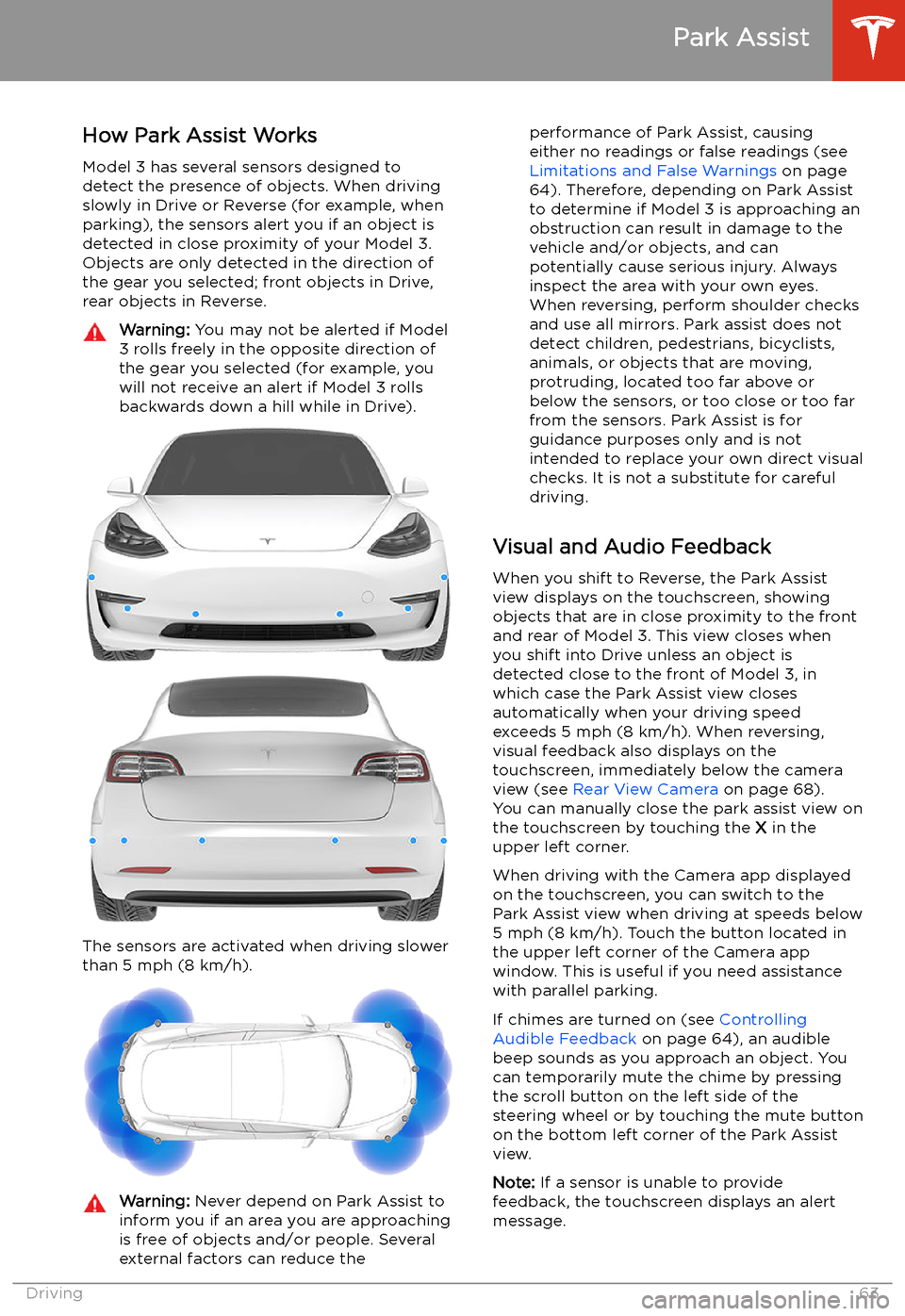
Model 3 has several sensors designed to
detect the presence of objects. When driving
slowly in Drive or Reverse (for example, when
parking), the sensors alert you if an object is
detected in close proximity of your Model 3.
Objects are only detected in the direction of
the gear you selected; front objects in Drive,
rear objects in Reverse.
Warning: You may not be alerted if Model
3 rolls freely in the opposite direction of
the gear you selected (for example, you
will not receive an alert if Model 3 rolls
backwards down a hill while in Drive).
The sensors are activated when driving slower
than 5 mph (8 km/h).
Warning: Never depend on Park Assist to
inform you if an area you are approaching is free of objects and/or people. Several
external factors can reduce theperformance of Park Assist, causing
either no readings or false readings (see
Limitations and False Warnings on page
64). Therefore, depending on Park Assist
to determine if Model 3 is approaching an
obstruction can result in damage to the vehicle and/or objects, and can
potentially cause serious injury. Always
inspect the area with your own eyes.
When reversing, perform shoulder checks and use all mirrors. Park assist does not
detect children, pedestrians, bicyclists,
animals, or objects that are moving, protruding, located too far above or
below the sensors, or too close or too far
from the sensors. Park Assist is for
guidance purposes only and is not intended to replace your own direct visual
checks. It is not a substitute for careful
driving.
Visual and Audio Feedback
When you shift to Reverse, the Park Assist
view displays on the touchscreen, showing objects that are in close proximity to the front
and rear of Model 3. This view closes when you shift into Drive unless an object is
detected close to the front of Model 3, in
which case the Park Assist view closes automatically when your driving speed
exceeds 5 mph (8 km/h). When reversing,
visual feedback also displays on the touchscreen, immediately below the camera
view (see Rear View Camera on page 68).
You can manually close the park assist view on
the touchscreen by touching the X in the
upper left corner.
When driving with the Camera app displayed
on the touchscreen, you can switch to the
Park Assist view when driving at speeds below
5 mph (8 km/h). Touch the button located in
the upper left corner of the Camera app
window. This is useful if you need assistance
with parallel parking.
If chimes are turned on (see Controlling
Audible Feedback on page 64), an audible
beep sounds as you approach an object. You
can temporarily mute the chime by pressing
the scroll button on the left side of the
steering wheel or by touching the mute button on the bottom left corner of the Park Assist
view.
Note: If a sensor is unable to provide
feedback, the touchscreen displays an alert
message.
Park Assist
Driving63
Page 65 of 179
Caution: Keep sensors clean from dirt,
debris, snow, and ice. Avoid using a high
pressure power washer on the sensors
and do not clean a sensor with a sharp or abrasive object that can scratch or
damage its surface.Caution: Do not install accessories or
stickers on or near the parking sensors.
Controlling Audible Feedback
You can use Park Assist with or without
audible feedback. To turn chimes on or off,
touch Controls > Safety & Security > Park
Assist Chimes .
To mute the chimes temporarily, press the
scroll button on the left side of the steering
wheel or touch the mute button in the corner
of the Park Assist view. The chimes are muted
until you shift into a different gear or drive
over 5 mph (8 km/h).
Limitations and False Warnings The parking sensors may not function
correctly in these situations:
Page 69 of 179
Rear View Camera
Camera Location
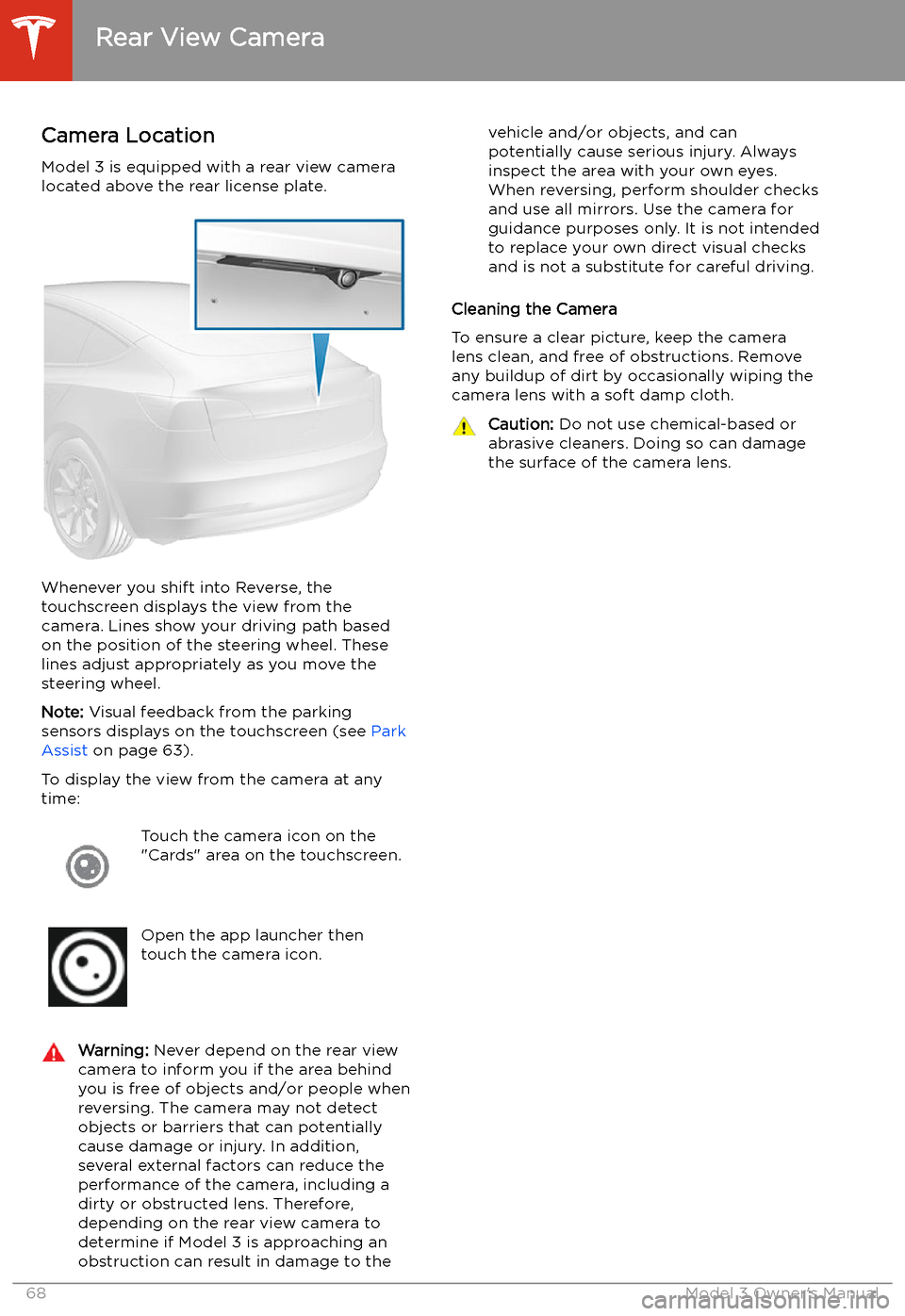
Model 3 is equipped with a rear view camera
located above the rear license plate.
Whenever you shift into Reverse, the
touchscreen displays the view from the
camera. Lines show your driving path based
on the position of the steering wheel. These
lines adjust appropriately as you move the
steering wheel.
Note: Visual feedback from the parking
sensors displays on the touchscreen (see Park
Assist on page 63).
To display the view from the camera at any
time:
Touch the camera icon on the
"Cards" area on the touchscreen.Open the app launcher then
touch the camera icon.Warning: Never depend on the rear view
camera to inform you if the area behind
you is free of objects and/or people when
reversing. The camera may not detect
objects or barriers that can potentially
cause damage or injury. In addition, several external factors can reduce the
performance of the camera, including a
dirty or obstructed lens. Therefore,
depending on the rear view camera to
determine if Model 3 is approaching an
obstruction can result in damage to thevehicle and/or objects, and can
potentially cause serious injury. Always
inspect the area with your own eyes.
When reversing, perform shoulder checks and use all mirrors. Use the camera forguidance purposes only. It is not intendedto replace your own direct visual checks
and is not a substitute for careful driving.
Cleaning the Camera
To ensure a clear picture, keep the camera
lens clean, and free of obstructions. Remove
any buildup of dirt by occasionally wiping the camera lens with a soft damp cloth.
Caution: Do not use chemical-based or
abrasive cleaners. Doing so can damage
the surface of the camera lens.
Rear View Camera
68Model 3 Owner
Page 76 of 179
Warning: Traffic-Aware Cruise Control
may be unable to provide adequate
speed control because of limited braking capability and hills. It can also misjudgethe distance from a vehicle ahead. Driving
downhill can increase driving speed, causing Model 3 to exceed your set speed
(and potentially the road
Page 78 of 179
addition to those listed above (for
example, lack of GPS data). Stay alert and
never depend on Overtake Acceleration
to increase your driving speed.Warning: Overtake Acceleration increases
your driving speed whenever the
appropriate turn signal is engaged, and
accelerates Model 3 closer to the vehicle
ahead. Although Traffic-Aware Cruise
Control continues to maintain distance
from the vehicle ahead, it is important to be aware that your selected following
distance is reduced when Overtake
Acceleration is active, particularly in cases
where it may not be your intention to overtake the vehicle you are following.
Canceling and Resuming
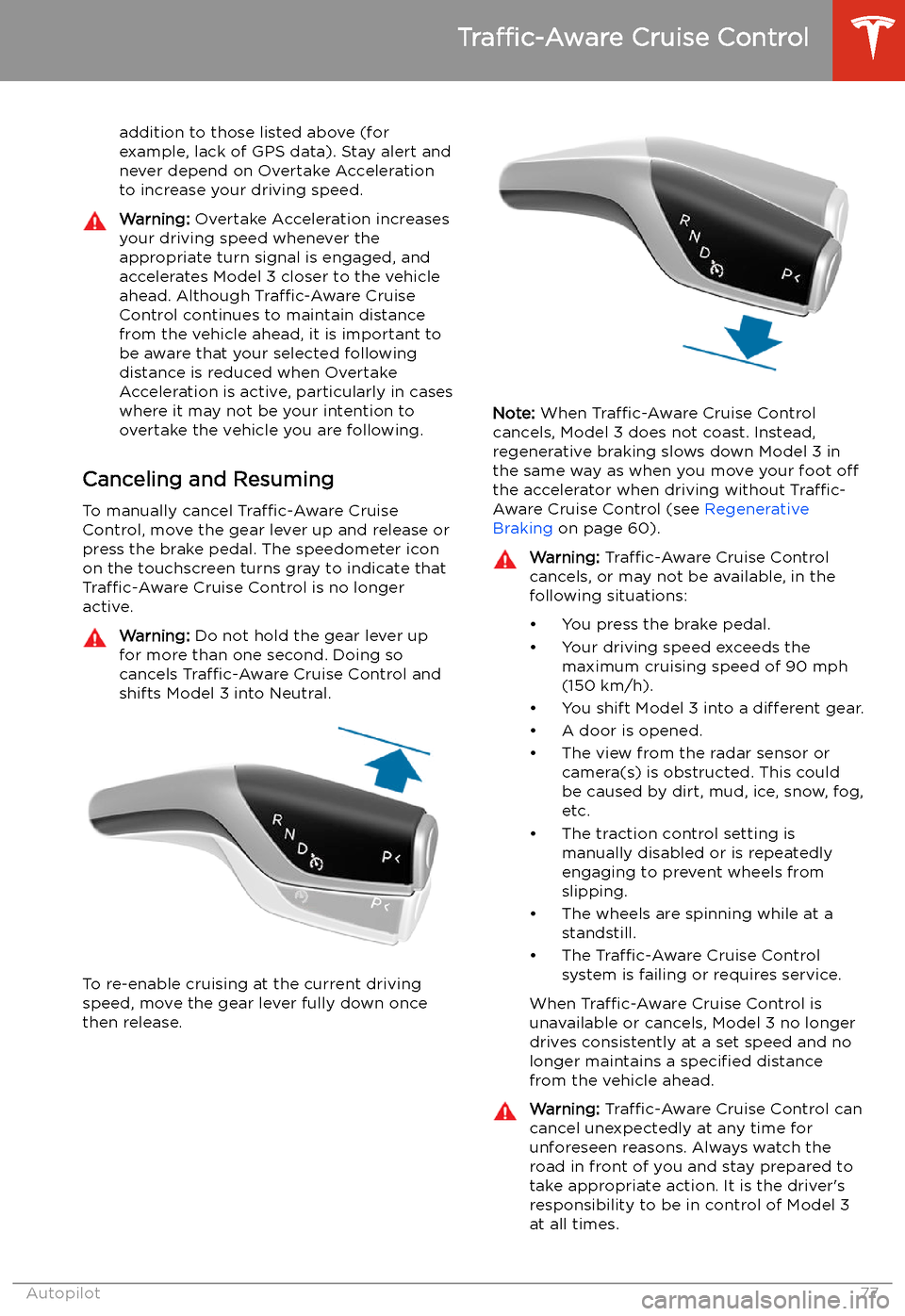
To manually cancel Traffic-Aware Cruise
Control, move the gear lever up and release or press the brake pedal. The speedometer icon
on the touchscreen turns gray to indicate that Traffic-Aware Cruise Control is no longer
active.
Warning: Do not hold the gear lever up
for more than one second. Doing so
cancels Traffic-Aware Cruise Control and
shifts Model 3 into Neutral.
To re-enable cruising at the current driving
speed, move the gear lever fully down once then release.
Note: When Traffic-Aware Cruise Control
cancels, Model 3 does not coast. Instead, regenerative braking slows down Model 3 in
the same way as when you move your foot off
the accelerator when driving without Traffic-
Aware Cruise Control (see Regenerative
Braking on page 60).
Warning: Traffic-Aware Cruise Control
cancels, or may not be available, in the
following situations:
Page 81 of 179
If Autosteer is unable to detect lane markings,the driving lane is determined based on the
vehicle you are following.
In most cases, Autosteer attempts to center Model 3 in the driving lane. However, if the
sensors detect the presence of an obstacle (such as a vehicle or guard rail), Autosteer
may steer Model 3 in a driving path that is
offset from the center of the lane.Warning: Autosteer is not designed to,
and will not, steer Model 3 around objects
partially or completely in the driving lane.
Always watch the road in front of you and
stay prepared to take appropriate action. It is the driver
Page 85 of 179
In situations where Autopark cannot operatedue to inadequate sensor data, the
touchscreen displays a message indicating that you must manually park Model 3.
Note: If you press the brake when Autopark is
actively parking Model 3, the parking process
pauses until you touch Resume on the
touchscreen.
Note: Autopark detects potential
perpendicular parking spaces that are at least
9.5 feet (2.9 meters) wide with a vehicle
parked on each side. Autopark detects parallel
parking spaces that are at least 20 feet (6
meters), but less than 30 feet (9 meters) long.
Autopark does not operate on angled parking spaces.Warning: Never depend on Autopark to
find a parking space that is legal, suitable,
and safe. Autopark may not always detect
objects in the parking space. Always
perform visual checks to confirm that a
parking space is appropriate and safe.Warning: When Autopark is actively
steering Model 3, the steering wheel moves in accordance with Autopark
Page 91 of 179
area being monitored by Forward
Collision Warning can be adversely
affected by road and weather conditions.
Use appropriate caution when driving.Warning: Forward Collision Warning is
designed only to provide visual and
audible alerts. It does not attempt to
apply the brakes or decelerate Model 3.
When seeing and/or hearing a warning, it
is the driver
Page 93 of 179
Speed Assist
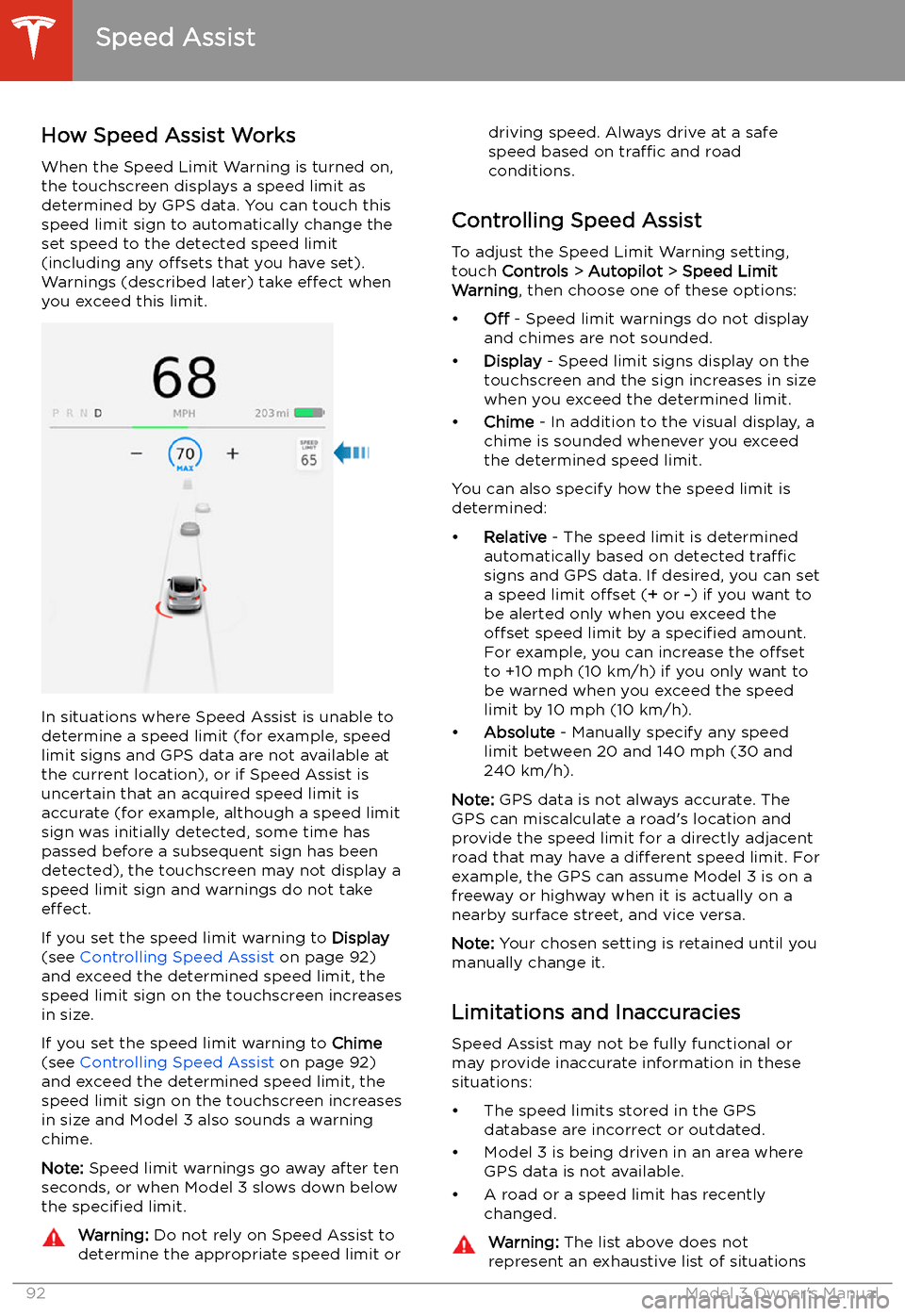
How Speed Assist Works
When the Speed Limit Warning is turned on,
the touchscreen displays a speed limit as determined by GPS data. You can touch this
speed limit sign to automatically change the
set speed to the detected speed limit
(including any offsets that you have set).
Warnings (described later) take effect when
you exceed this limit.
In situations where Speed Assist is unable to
determine a speed limit (for example, speed
limit signs and GPS data are not available at the current location), or if Speed Assist is
uncertain that an acquired speed limit is
accurate (for example, although a speed limit sign was initially detected, some time has
passed before a subsequent sign has been
detected), the touchscreen may not display a
speed limit sign and warnings do not take effect.
If you set the speed limit warning to Display
(see Controlling Speed Assist on page 92)
and exceed the determined speed limit, the
speed limit sign on the touchscreen increases
in size.
If you set the speed limit warning to Chime
(see Controlling Speed Assist on page 92)
and exceed the determined speed limit, the
speed limit sign on the touchscreen increases
in size and Model 3 also sounds a warning
chime.
Note: Speed limit warnings go away after ten
seconds, or when Model 3 slows down below
the specified limit.
Warning:
Do not rely on Speed Assist to
determine the appropriate speed limit ordriving speed. Always drive at a safe
speed based on traffic and road
conditions.
Controlling Speed Assist
To adjust the Speed Limit Warning setting,
touch Controls > Autopilot > Speed Limit
Warning , then choose one of these options:
Page 94 of 179

that may interfere with proper operation
of Speed Assist. Speed Assist may fail to provide warnings for many other reasons.
Speed Assist
Autopilot93