warning TESLA MODEL 3 2019 (Europe) Owner's Guide
[x] Cancel search | Manufacturer: TESLA, Model Year: 2019, Model line: MODEL 3, Model: TESLA MODEL 3 2019Pages: 179, PDF Size: 9.18 MB
Page 110 of 179
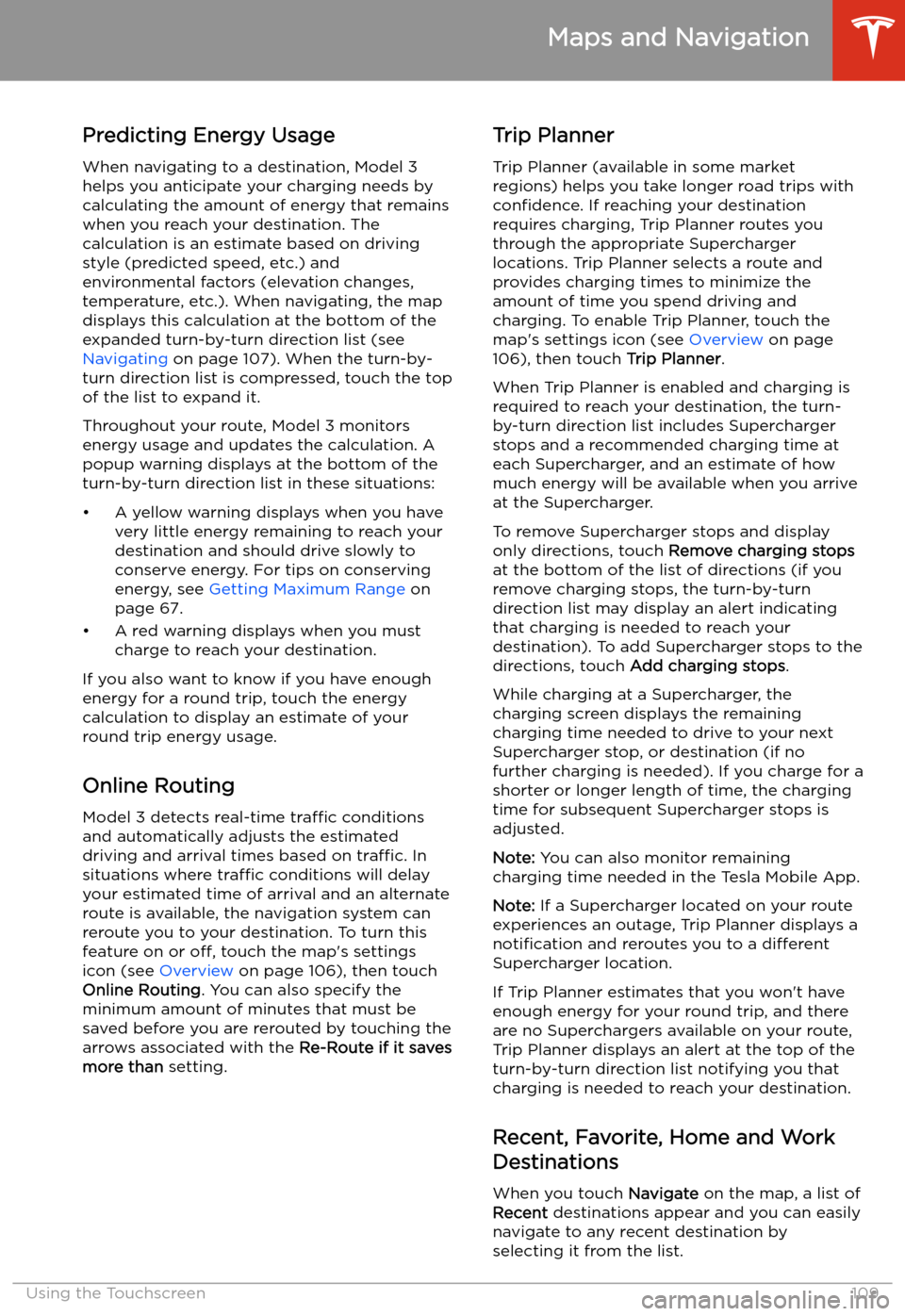
Predicting Energy UsageWhen navigating to a destination, Model 3
helps you anticipate your charging needs by
calculating the amount of energy that remains
when you reach your destination. The
calculation is an estimate based on driving
style (predicted speed, etc.) and
environmental factors (elevation changes,
temperature, etc.). When navigating, the map
displays this calculation at the bottom of the
expanded turn-by-turn direction list (see
Navigating on page 107). When the turn-by-
turn direction list is compressed, touch the top
of the list to expand it.
Throughout your route, Model 3 monitors
energy usage and updates the calculation. A
popup warning displays at the bottom of the turn-by-turn direction list in these situations:
Page 123 of 179
Software Updates
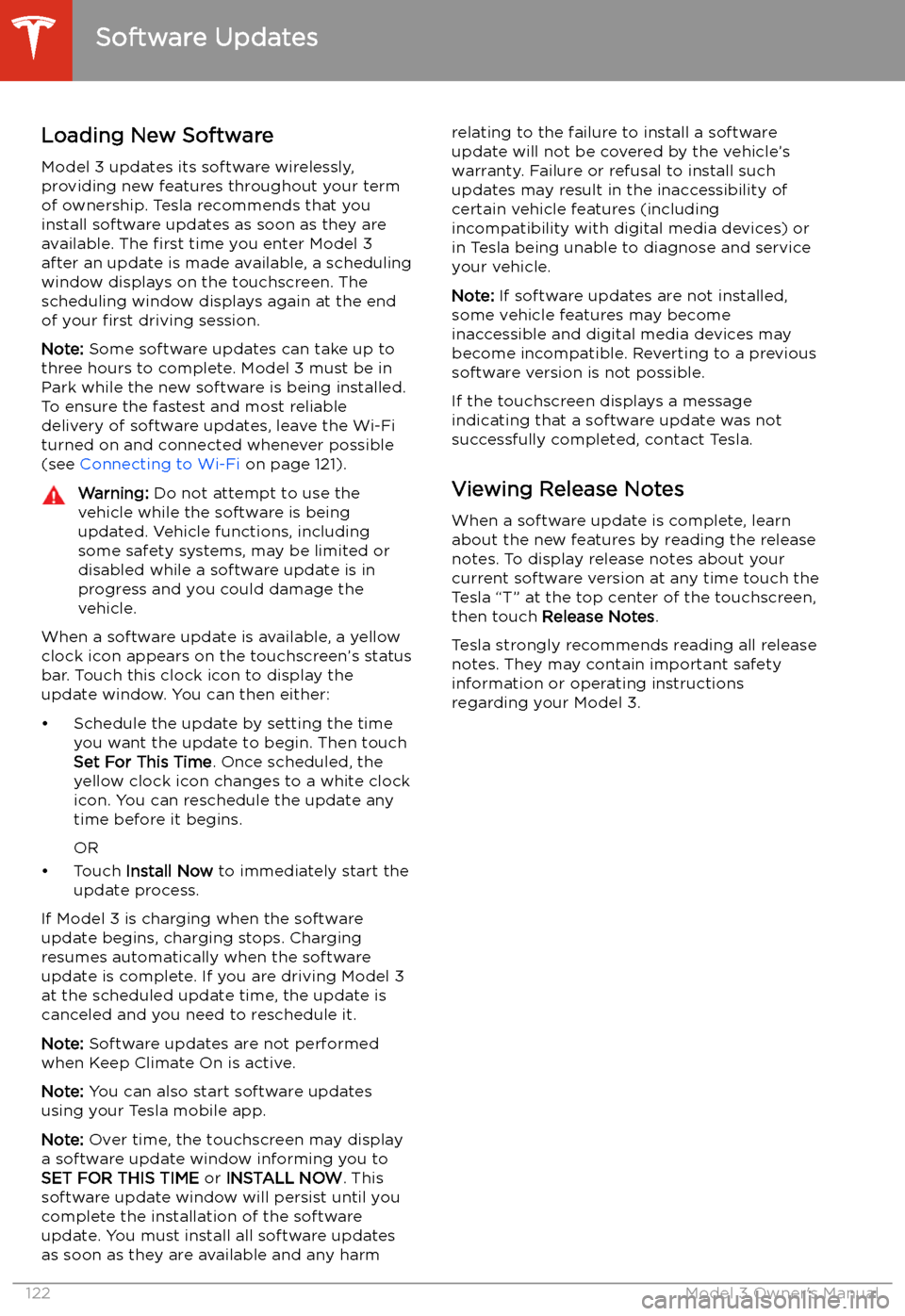
Loading New Software
Model 3 updates its software wirelessly,
providing new features throughout your term of ownership. Tesla recommends that you
install software updates as soon as they are
available. The first time you enter Model 3
after an update is made available, a scheduling
window displays on the touchscreen. The
scheduling window displays again at the end
of your first driving session.
Note: Some software updates can take up to
three hours to complete. Model 3 must be in
Park while the new software is being installed.
To ensure the fastest and most reliable
delivery of software updates, leave the Wi-Fi
turned on and connected whenever possible
(see Connecting to Wi-Fi on page 121).
Warning: Do not attempt to use the
vehicle while the software is being
updated. Vehicle functions, including
some safety systems, may be limited or disabled while a software update is inprogress and you could damage the
vehicle.
When a software update is available, a yellow
clock icon appears on the touchscreen’s status
bar. Touch this clock icon to display the
update window. You can then either:
Page 124 of 179
Charging
Electric Vehicle Components
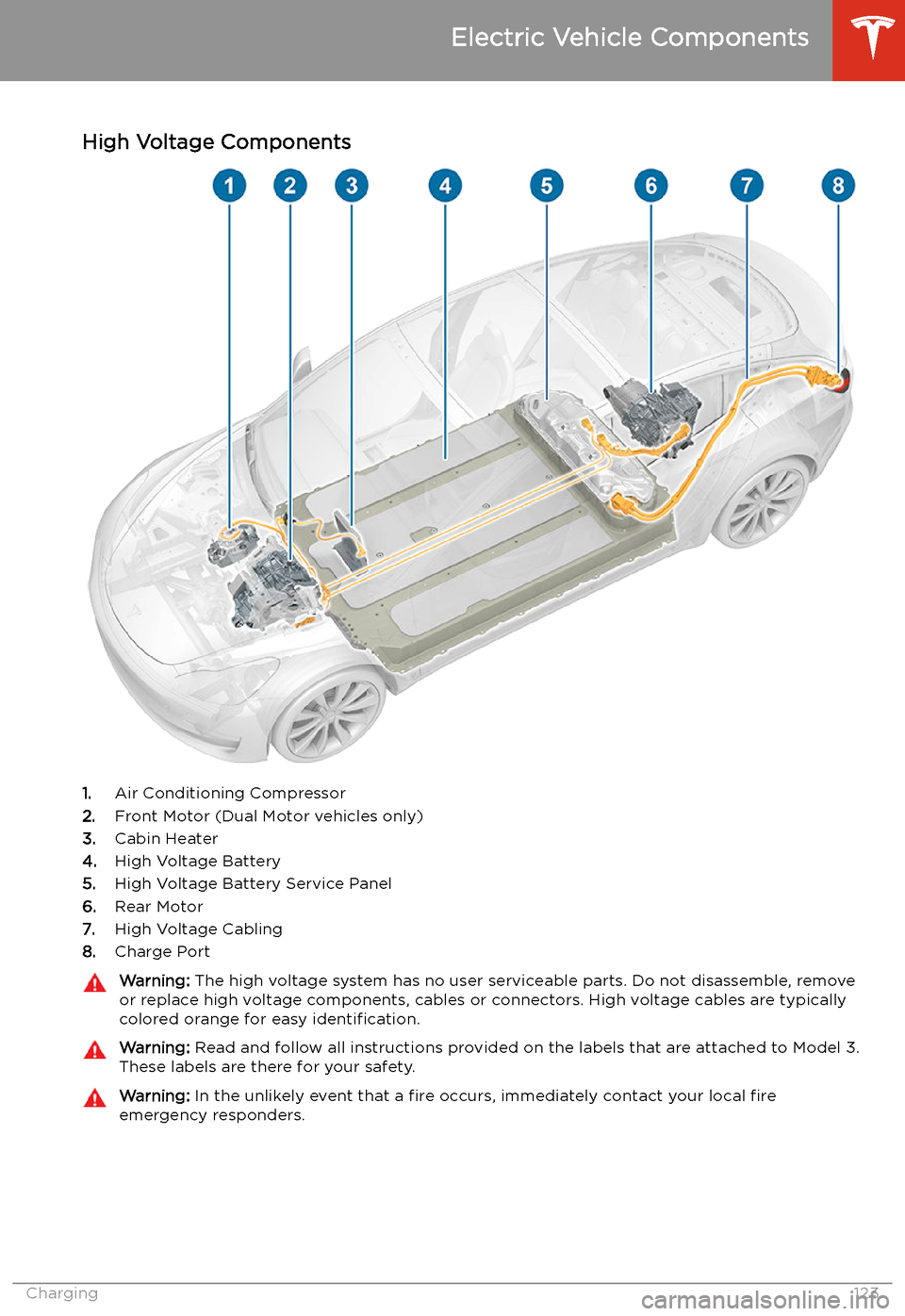
High Voltage Components
1. Air Conditioning Compressor
2. Front Motor (Dual Motor vehicles only)
3. Cabin Heater
4. High Voltage Battery
5. High Voltage Battery Service Panel
6. Rear Motor
7. High Voltage Cabling
8. Charge Port
Warning:
The high voltage system has no user serviceable parts. Do not disassemble, remove
or replace high voltage components, cables or connectors. High voltage cables are typically colored orange for easy identification.Warning: Read and follow all instructions provided on the labels that are attached to Model 3.
These labels are there for your safety.Warning: In the unlikely event that a fire occurs, immediately contact your local fire
emergency responders.
Electric Vehicle Components
Charging123
Page 128 of 179
Model 3 and using the touchscreen whileparked and plugged in, Model 3 draws energyfrom the wall outlet instead of the Battery.Caution: The connector end of the charge
cable can damage the paint if dropped
onto the vehicle.
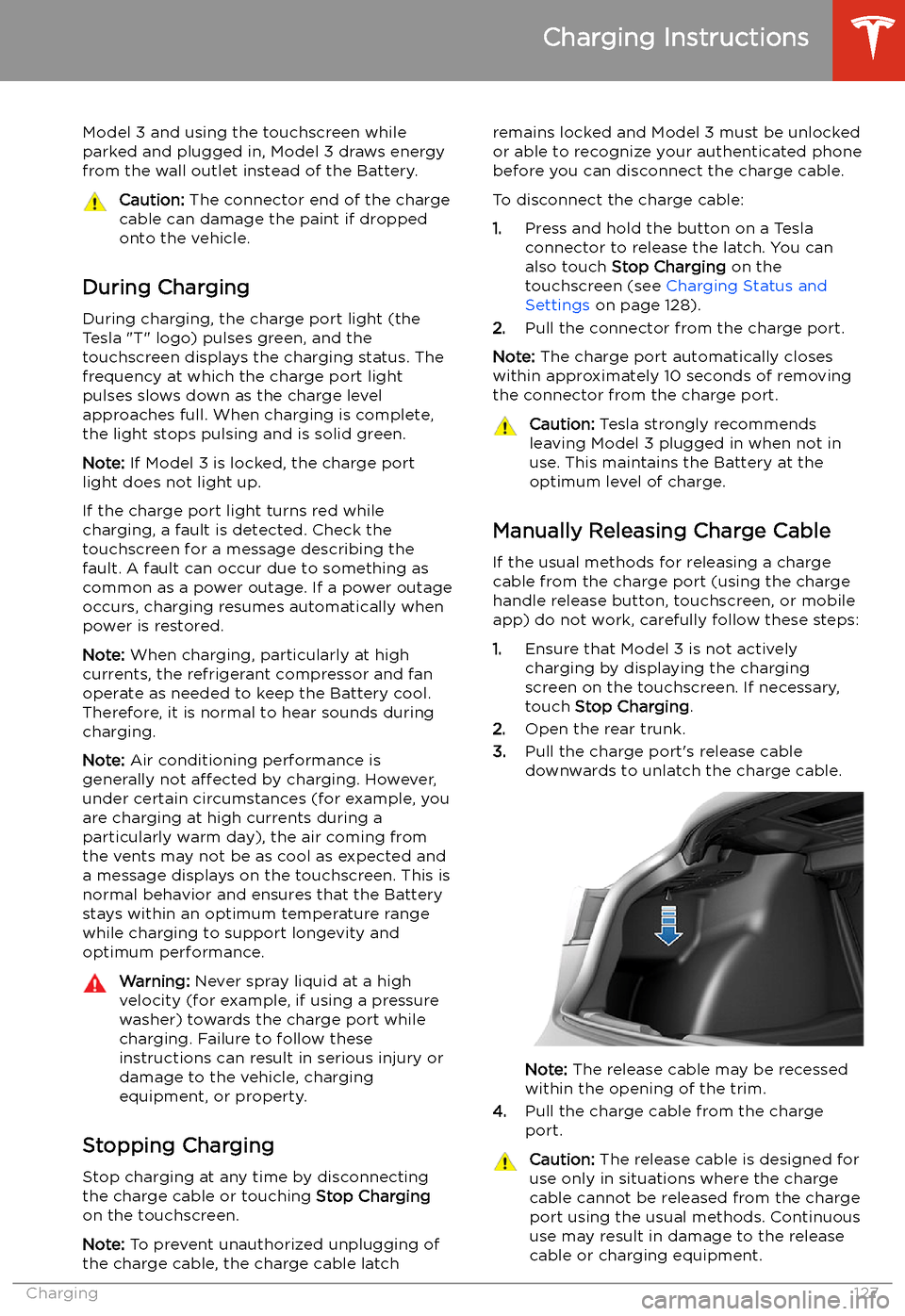
During Charging
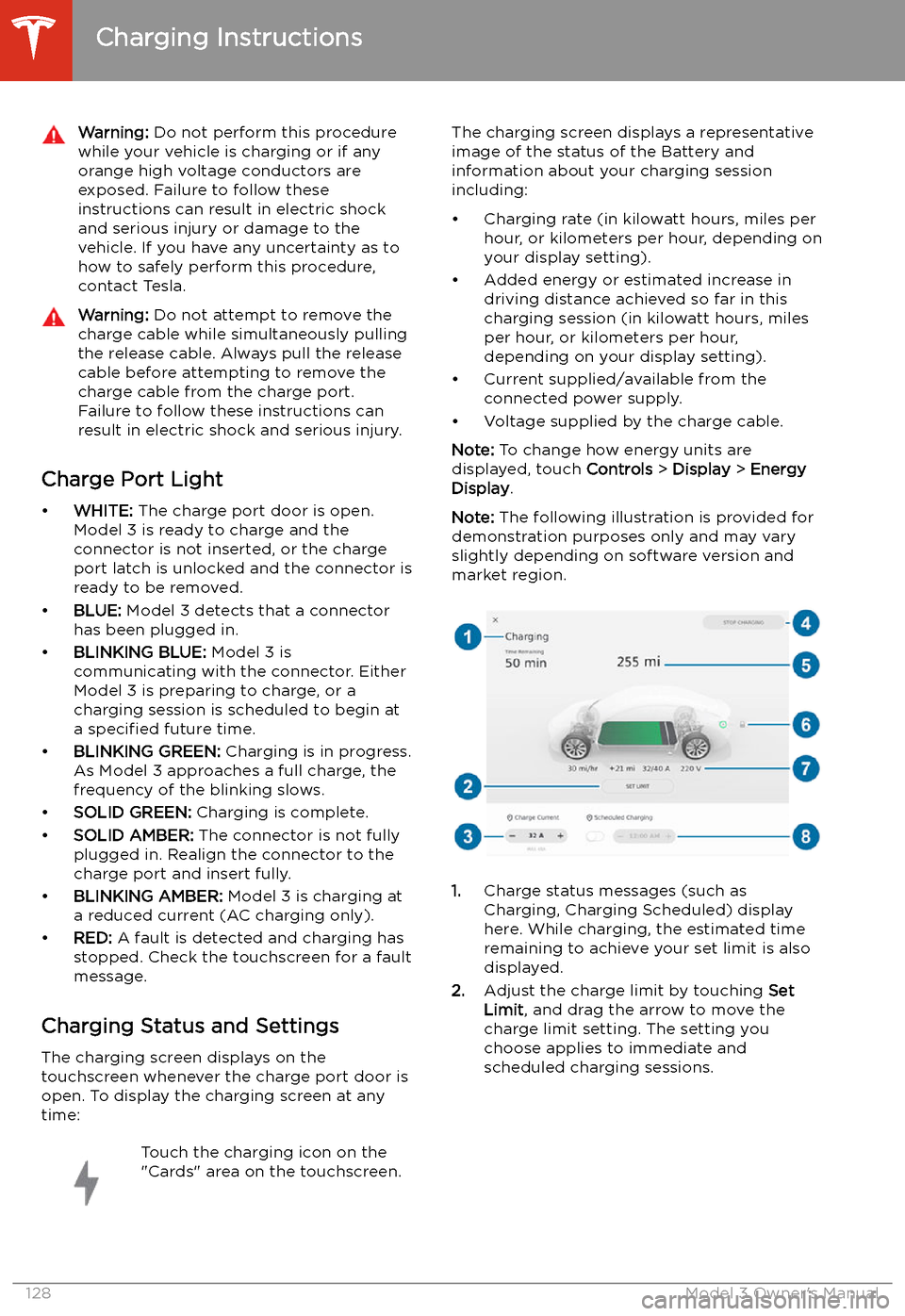
During charging, the charge port light (the Tesla "T" logo) pulses green, and thetouchscreen displays the charging status. The
frequency at which the charge port light
pulses slows down as the charge level
approaches full. When charging is complete,
the light stops pulsing and is solid green.
Note: If Model 3 is locked, the charge port
light does not light up.
If the charge port light turns red while
charging, a fault is detected. Check the
touchscreen for a message describing the
fault. A fault can occur due to something as
common as a power outage. If a power outage
occurs, charging resumes automatically when
power is restored.
Note: When charging, particularly at high
currents, the refrigerant compressor and fan
operate as needed to keep the Battery cool.
Therefore, it is normal to hear sounds during
charging.
Note: Air conditioning performance is
generally not affected by charging. However,
under certain circumstances (for example, you
are charging at high currents during a
particularly warm day), the air coming from
the vents may not be as cool as expected and
a message displays on the touchscreen. This is
normal behavior and ensures that the Battery stays within an optimum temperature range
while charging to support longevity and optimum performance.
Warning: Never spray liquid at a high
velocity (for example, if using a pressure
washer) towards the charge port while
charging. Failure to follow these
instructions can result in serious injury or
damage to the vehicle, charging
equipment, or property.
Stopping Charging
Stop charging at any time by disconnecting
the charge cable or touching Stop Charging
on the touchscreen.
Note: To prevent unauthorized unplugging of
the charge cable, the charge cable latch
remains locked and Model 3 must be unlocked or able to recognize your authenticated phone
before you can disconnect the charge cable.
To disconnect the charge cable:
1. Press and hold the button on a Tesla
connector to release the latch. You can
also touch Stop Charging on the
touchscreen (see Charging Status and
Settings on page 128).
2. Pull the connector from the charge port.
Note: The charge port automatically closes
within approximately 10 seconds of removing the connector from the charge port.Caution: Tesla strongly recommends
leaving Model 3 plugged in when not in use. This maintains the Battery at the
optimum level of charge.
Manually Releasing Charge Cable
If the usual methods for releasing a charge
cable from the charge port (using the charge
handle release button, touchscreen, or mobile
app) do not work, carefully follow these steps:
1. Ensure that Model 3 is not actively
charging by displaying the charging
screen on the touchscreen. If necessary,
touch Stop Charging .
2. Open the rear trunk.
3. Pull the charge port
Page 129 of 179
Warning: Do not perform this procedure
while your vehicle is charging or if any
orange high voltage conductors are
exposed. Failure to follow these
instructions can result in electric shock and serious injury or damage to the
vehicle. If you have any uncertainty as to
how to safely perform this procedure,
contact Tesla.Warning: Do not attempt to remove the
charge cable while simultaneously pulling the release cable. Always pull the release
cable before attempting to remove the
charge cable from the charge port.
Failure to follow these instructions can
result in electric shock and serious injury.
Charge Port Light
Page 133 of 179
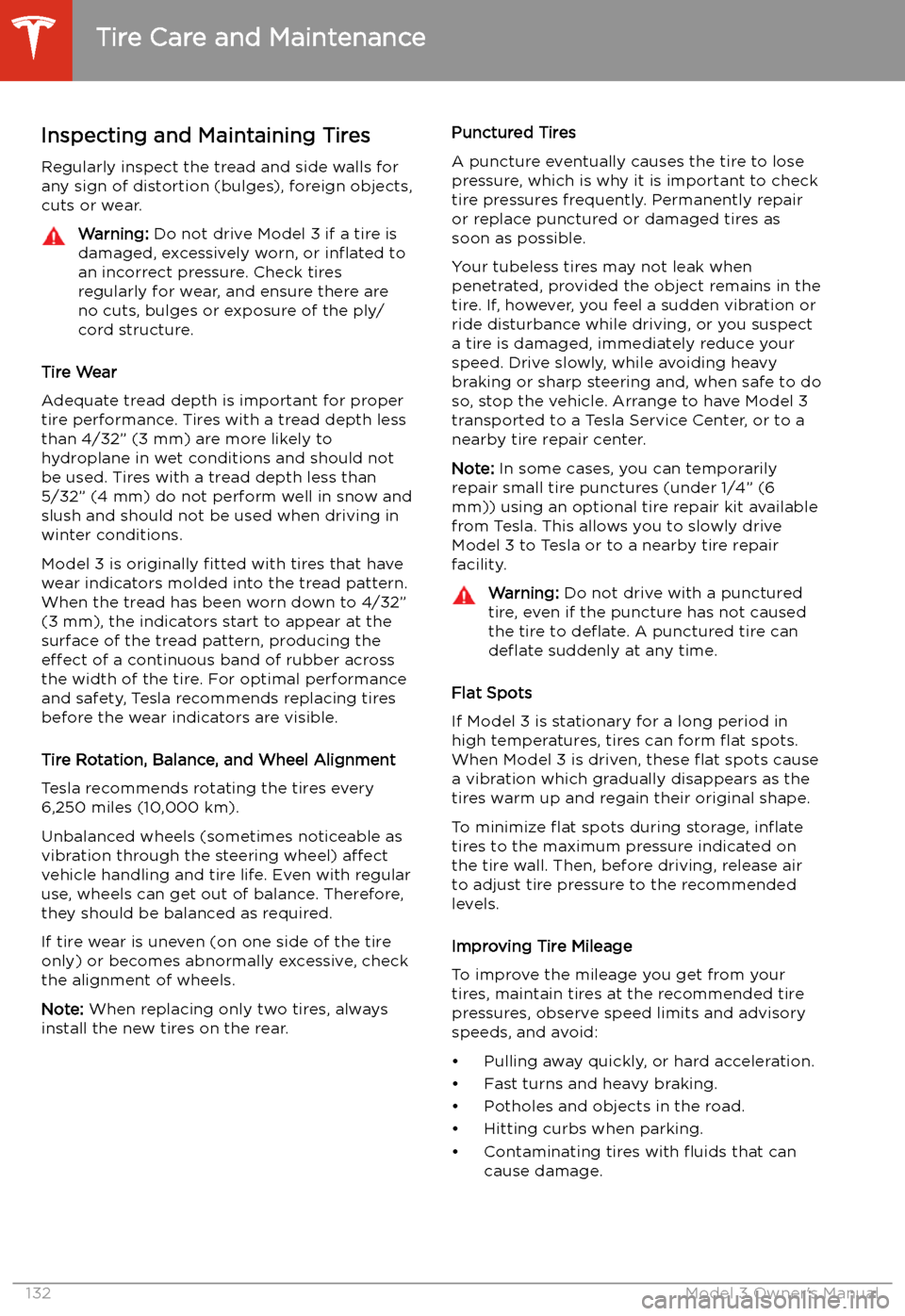
Inspecting and Maintaining TiresRegularly inspect the tread and side walls for
any sign of distortion (bulges), foreign objects,
cuts or wear.Warning: Do not drive Model 3 if a tire is
damaged, excessively worn, or in
Page 134 of 179
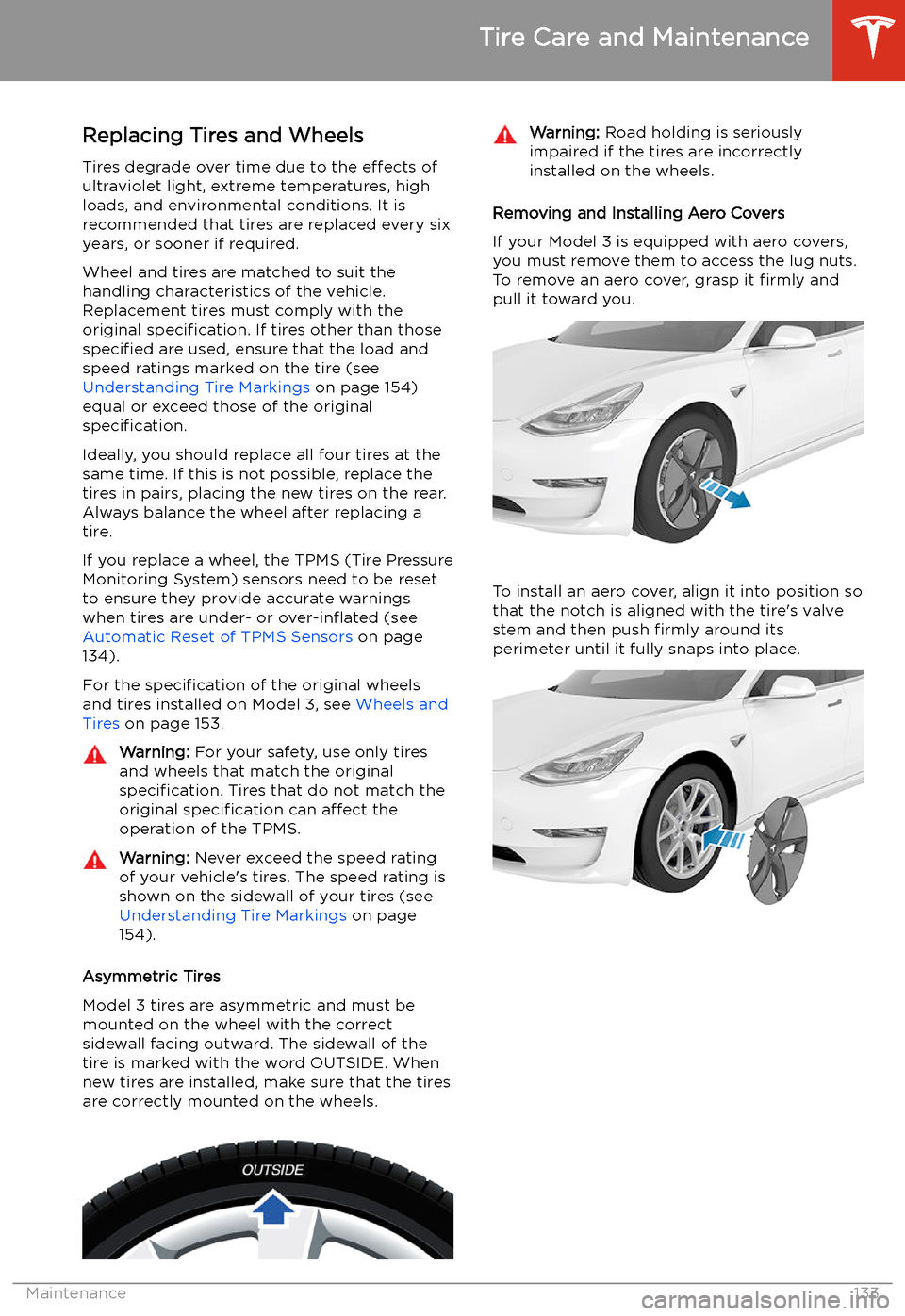
Replacing Tires and Wheels
Tires degrade over time due to the effects of
ultraviolet light, extreme temperatures, high
loads, and environmental conditions. It is
recommended that tires are replaced every six
years, or sooner if required.
Wheel and tires are matched to suit thehandling characteristics of the vehicle.
Replacement tires must comply with the
original specification. If tires other than those
specified are used, ensure that the load and
speed ratings marked on the tire (see Understanding Tire Markings on page 154)
equal or exceed those of the original
specification.
Ideally, you should replace all four tires at the same time. If this is not possible, replace the
tires in pairs, placing the new tires on the rear.
Always balance the wheel after replacing a
tire.
If you replace a wheel, the TPMS (Tire Pressure
Monitoring System) sensors need to be reset to ensure they provide accurate warnings
when tires are under- or over-in
Page 136 of 179
driven 15 mph (25 km/h) for longer than 10
minutes.
Replacing a Tire Sensor
If the Tire Pressure warning indicator displays frequently, contact Tesla to determine if a tire
sensor needs to be replaced. If a non-Tesla
Service Center repairs or replaces a tire, the
tire sensor may not work until Tesla performs
the setup procedure.
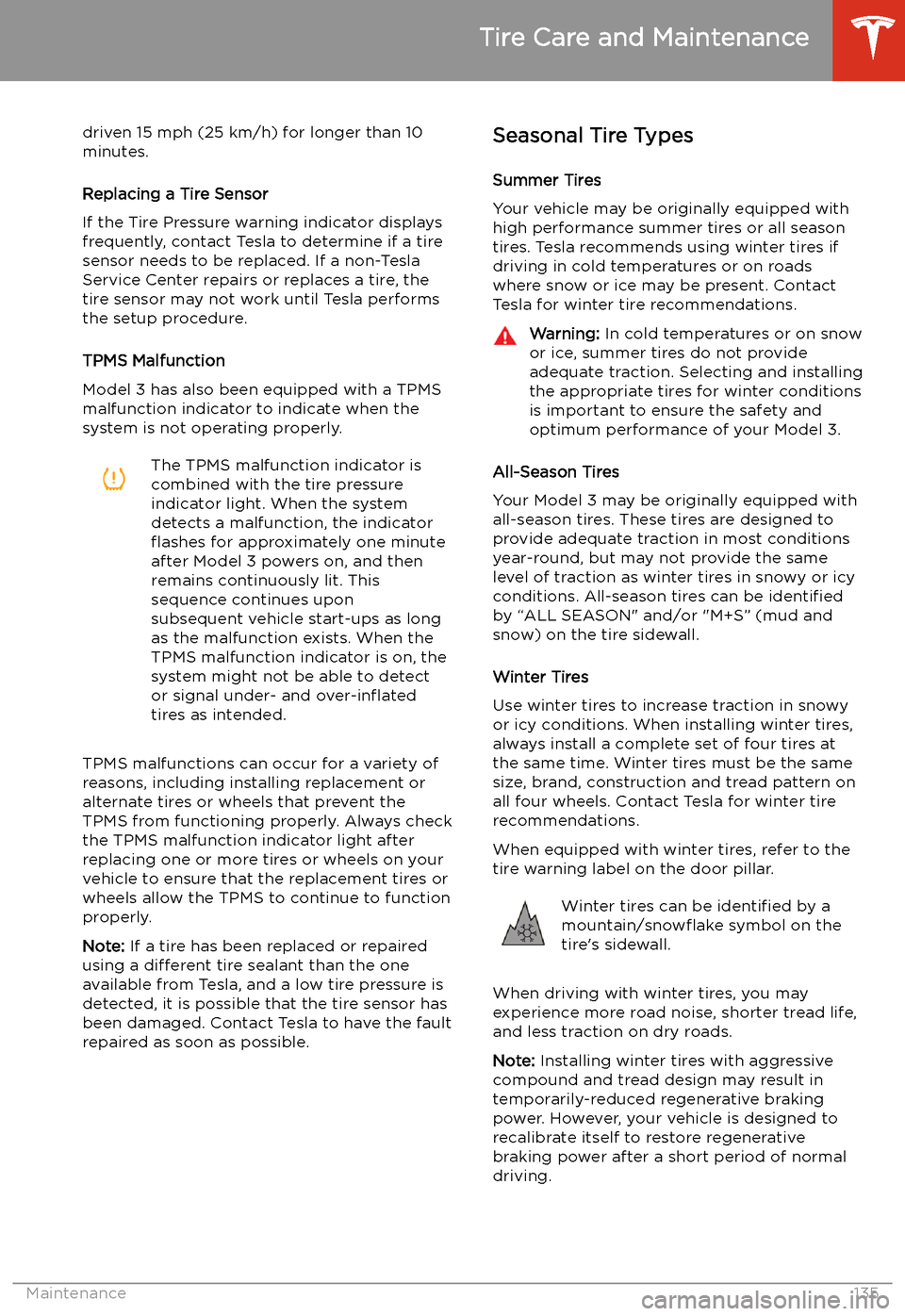
TPMS Malfunction
Model 3 has also been equipped with a TPMS
malfunction indicator to indicate when the
system is not operating properly.The TPMS malfunction indicator is
combined with the tire pressure
indicator light. When the system
detects a malfunction, the indicator
Page 142 of 179
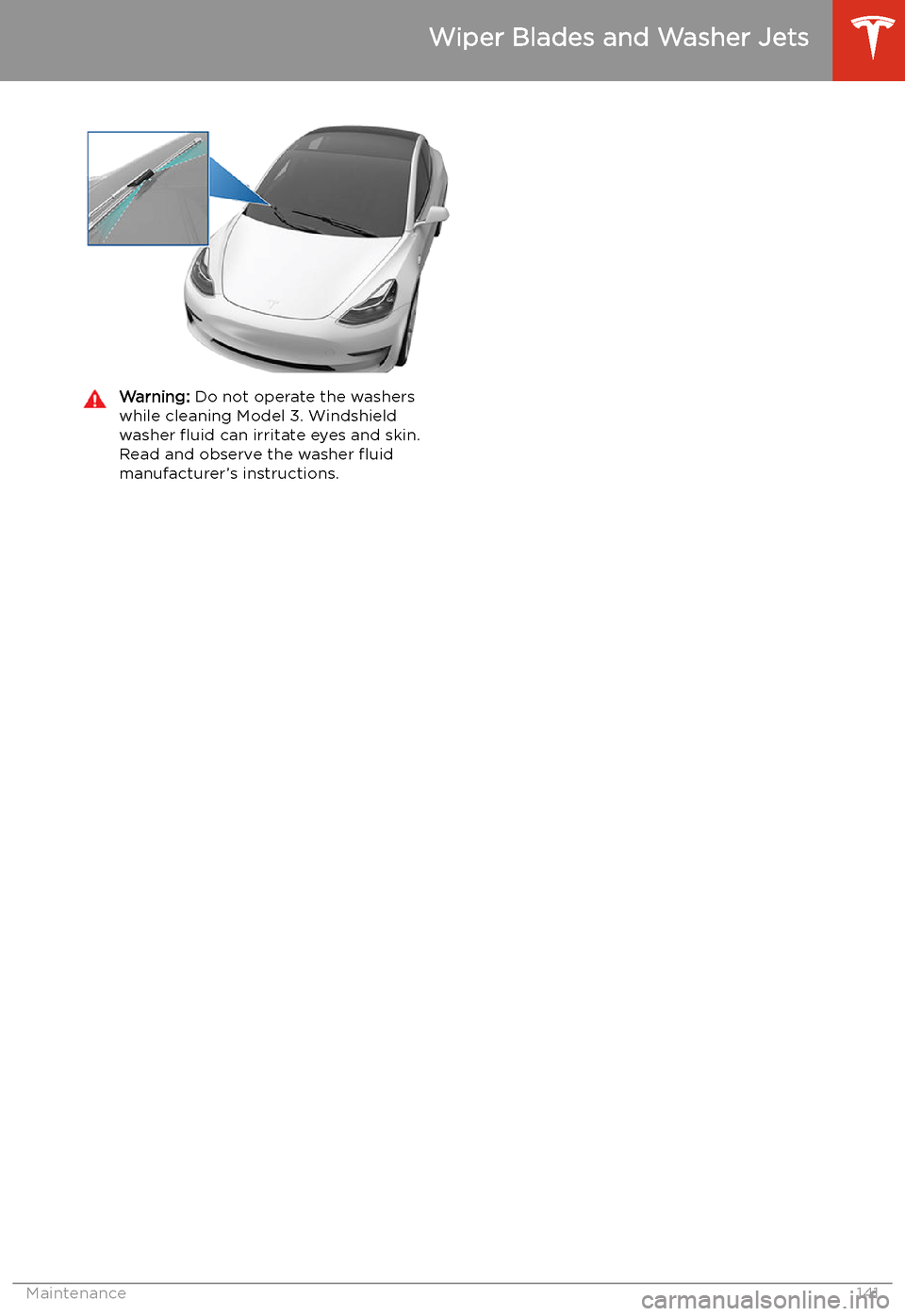
Warning: Do not operate the washers
while cleaning Model 3. Windshield
washer
Page 145 of 179
Jacking and Lifting
Jacking Procedure
Follow the steps below to lift Model 3. Ensure
that any non-Tesla repair facility is aware of
these lifting points.
1. Position Model 3 centrally between the lift
posts.
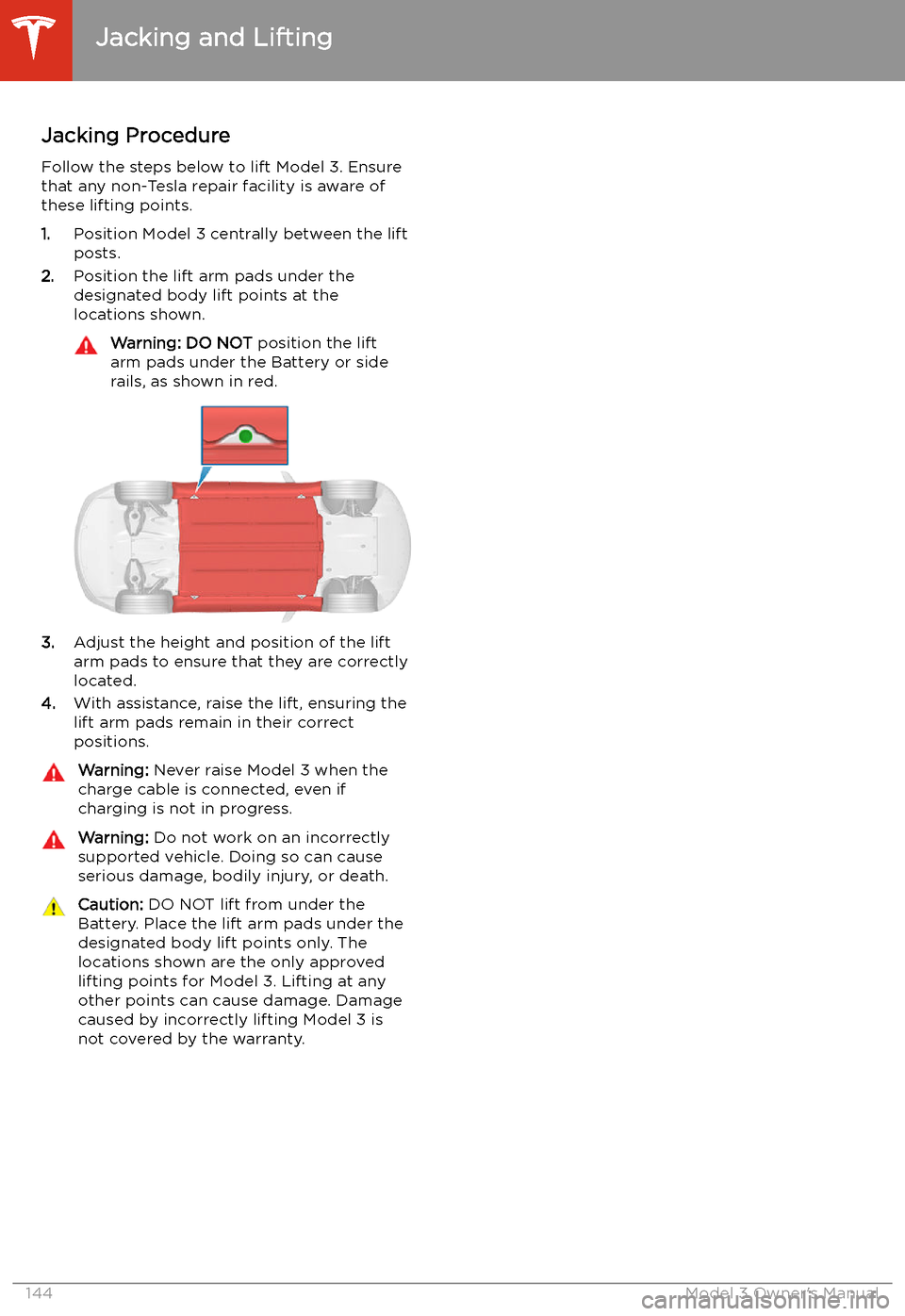
2. Position the lift arm pads under the
designated body lift points at the
locations shown.
Warning: DO NOT position the lift
arm pads under the Battery or side
rails, as shown in red.
3. Adjust the height and position of the lift
arm pads to ensure that they are correctly
located.
4. With assistance, raise the lift, ensuring the
lift arm pads remain in their correct
positions.
Warning: Never raise Model 3 when the
charge cable is connected, even if
charging is not in progress.Warning: Do not work on an incorrectly
supported vehicle. Doing so can cause
serious damage, bodily injury, or death.Caution: DO NOT lift from under the
Battery. Place the lift arm pads under the designated body lift points only. The
locations shown are the only approved lifting points for Model 3. Lifting at anyother points can cause damage. Damage
caused by incorrectly lifting Model 3 is
not covered by the warranty.
Jacking and Lifting
144Model 3 Owner