range TESLA MODEL S 2014 (Europe) User Guide
[x] Cancel search | Manufacturer: TESLA, Model Year: 2014, Model line: MODEL S, Model: TESLA MODEL S 2014Pages: 152, PDF Size: 17.5 MB
Page 61 of 152
Brakes
DRIVING4.21
Regenerative Braking
Whenever Model S is moving and your foot is
off the accelerator, regenerative braking slows
down Model S and feeds any surplus energy
back to the Battery.
By anticipating your stops and simply removing
your foot from the accelerator to slow down,
you can take advantage of regenerative
braking to increase driving range. Of course,
this is no substitute for regular braking when
needed for safety.
NOTE: If regenerative braking is aggressively
slowing Model S, such as on a steep descent,
brake lights turn on to alert other road users
that you are slowing down.
The power meter on the instrument panel
displays real-time feedback on the amount of
energy being gained by regenerative braking.
The amount of energy fed back to the Battery
using regenerative braking can depend on the
current state of the Battery and the charge
level setting that you are using. If regenerative
braking is limited, a dashed yellow line displays
on the power meter. For example, regenerative
braking may be limited if the Battery is
extremely hot or cold because the surplus
energy is used to cool or heat the Battery.
Regenerative braking is also limited if the
Battery is already fully charged.
To Set the Regenerative Braking Level
You can use the touchscreen to change the
level of regenerative braking:
1.Touch Controls.
2.Choose from two levels:
•Standard - provides the maximum
amount of regenerative braking. When
you release the accelerator, Model S slows
down faster, reducing the need to use the
brakes.
•Low - limits the amount of regenerative
braking. When you release the
accelerator, Model S takes longer to slow
down and coasts further.
NOTE: Regenerative braking resets to Standard
each time you start Model S.
Parking Brake
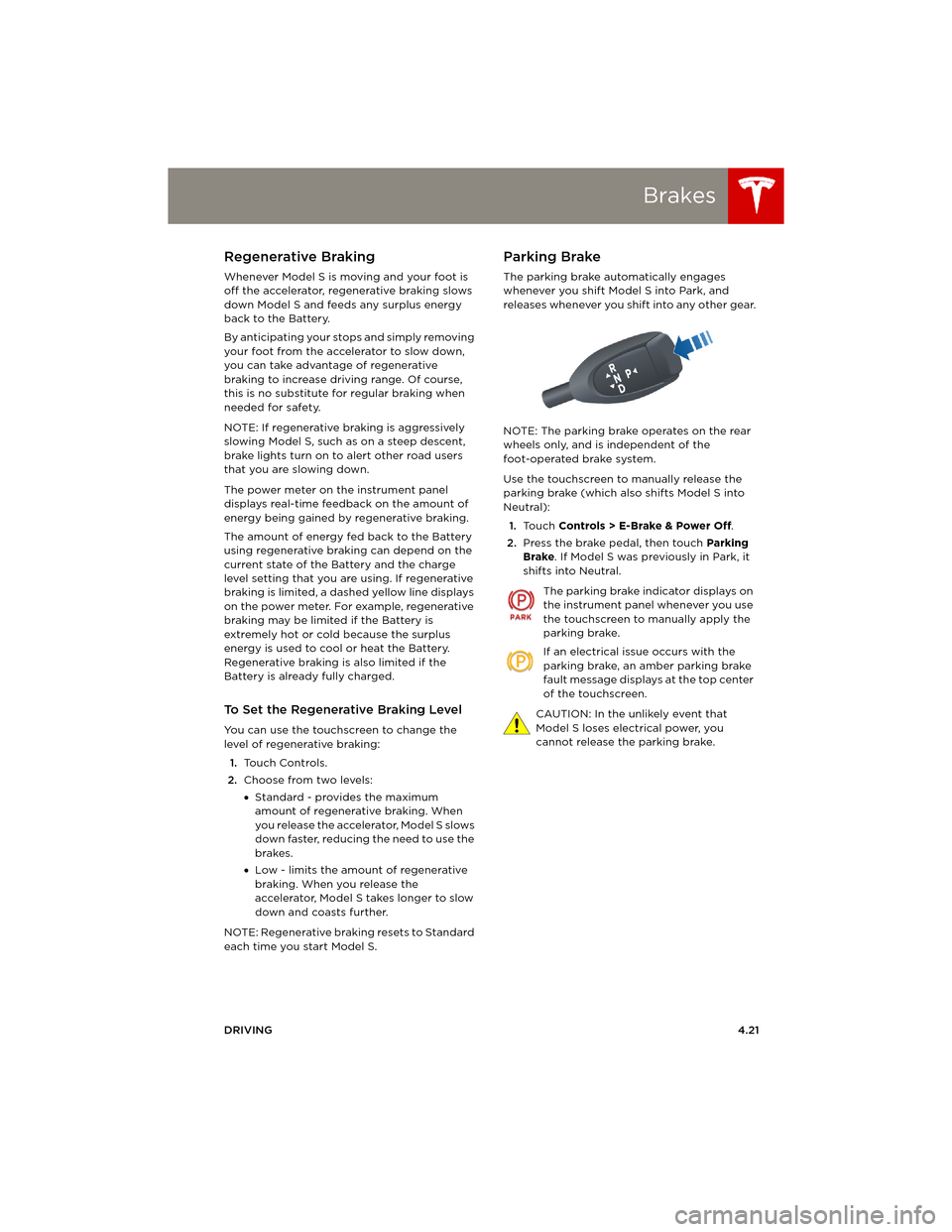
The parking brake automatically engages
whenever you shift Model S into Park, and
releases whenever you shift into any other gear.
NOTE: The parking brake operates on the rear
wheels only, and is independent of the
foot-operated brake system.
Use the touchscreen to manually release the
parking brake (which also shifts Model S into
Neutral):
1.Touch Controls > E-Brake & Power Off.
2.Press the brake pedal, then touch Parking
Brake. If Model S was previously in Park, it
shifts into Neutral.
The parking brake indicator displays on
the instrument panel whenever you use
the touchscreen to manually apply the
parking brake.
If an electrical issue occurs with the
parking brake, an amber parking brake
fault message displays at the top center
of the touchscreen.
CAUTION: In the unlikely event that
Model S loses electrical power, you
cannot release the parking brake.
book.book Page 21 Friday, July 19, 2013 12:53 PM
Page 69 of 152
Touchscreen - Controls
USING THE TOUCHSCREEN5.5 1.Close
Touch the circled X in the top left of a
window to close it. You can also touch
anywhere outside the window to close it.
2.Sunroof
If Model S is equipped with a sunroof, touch
to adjust its position (see page 2.12).
3.Driving
•Suspension
If Model S is equipped with Active Air
Suspension, touch to manually raise or
lower Model S (see page 5.11). You must
press the brake pedal before you can
change suspension settings. Active Air
Suspension causes Model S to self-level,
even when powered off. Therefore, when
lifting or towing, you must disable
self-leveling (see pages 7.23 and 9.3).
•Steering mode
Adjust the amount of effort required to
turn the steering wheel. Sport feels more
responsive whereas Comfort feels easier
to drive and park (see page 4.3).
•Regenerative braking
When you release the accelerator when
driving, regenerative braking slows
Model S and feeds any surplus energy
b a c k t o t h e B a t t e r y. I f s e t t o L o w, M o d e l S
does not slow down as quickly, but you
may experience less range (see
page 4.21).
NOTE: Regardless of the setting, the
energy gained by regenerative braking is
reduced if the Battery is full, or if it is
extremely cold or hot (the surplus energy
is used to heat or cool the Battery).
•Tr a c t i o n C o n t r o l
If you turn off Traction Control, a warning
message displays on the instrument
panel. The off setting stays in effect for
the current drive only (see page 4.22).
•Creep
When on, Model S slowly moves forward
when in Drive and backward in Reverse
when you release the brake (similar to a
conventional vehicle with an automatic
transmission). You can only adjust this
setting when Model S is in Park.4.Cold Weather
If Model S is equipped with the cold
weather option, you can control all seat
heaters and the heated wipers. Note that
you can also control the front driver and
passenger seats using the main climate
control panel located on the bottom of the
touchscreen (see page 5.8).
5.Tr i p s
View and reset the trip meters that
summarize how far you have driven (see
page 4.18).
6.Displays
Manually control the touchscreen’s
brightness and control its day (light
background) or night (dark background)
setting. When set to Auto, the touchscreen
automatically changes between Day and
Night brightness depending on the ambient
lighting conditions.
7.E-Brake & Power Off
You can manually:
•Apply and release the parking brake
(page 4.20).
•Power off (see page 4.6).
•Keep Model S in Neutral by activating
Tow Mode (see page 9.3).
8.Doors & locks (see page 2.4)
9.Control lights (see page 4.11)
WARNING: Do not read the touchscreen
while driving. Doing so increases the
likelihood of a collision. Everything you need to
know when driving is displayed on the
instrument panel.
book.book Page 5 Friday, July 19, 2013 12:53 PM
Page 71 of 152
Touchscreen - Settings
USING THE TOUCHSCREEN5.7 1.Adjust settings associated with installed
apps (applications). Apps that have no
settings that you can adjust at this time are
grayed out.
2.Create driver profiles (see page 4.2)
3.Language & Units
Adjust how Model S displays:
•Language: Set the language used when
Model S displays alerts, notification
messages, and navigation instructions (if
equipped).
NOTE: When you change the language,
you experience a brief delay as Model S
shuts down and restarts the touchscreen.
•Region: Choose a region to define the
formatting convention used to display
dates (mm dd yy/dd-mm-yy, etc) and
decimal separators (5.123, 5,123, etc).
•Distance: Miles or kms can be shown on
the range display, speedometer, energy
chart, trip meters, Google map searches
and navigation routes.
•Time: 12 or 24 hour format.
•Temperature:
oF or oC.
•Charging Units: Display energy (kWh) or
distance (miles/kms).
•Range: Rated range (based on ECE R101
testing), or Ideal range (based on the
assumption of driving in ideal conditions
at a steady speed of 89 km/h on a flat
road, and using no additional energy
(seat heaters, air conditioning, etc).
4.Ve h i c l e
•Drive-away Door Lock: If on, all doors
automatically lock whenever you drive
Model S over 8 km/h (see page 2.5).
•Walk-away Door Lock: If on, all doors
automatically lock when you walk away
from Model S, carrying the key with you
(see page 2.5). Available only if Model S is
equipped with the optional tech package.
•Child-Protection Locks: If on, safety locks
prevent the rear doors and the liftgate
from being opened from inside Model S.
•Auto-Present Handles: If on, door handles
extend automatically whenever you
approach Model S carrying a key,
whether locked or unlocked (see
page 2.4.•Mirror Auto-Tilt: If on, exterior mirrors tilt
downward when reversing (see
page 4.5). Available only if Model S is
equipped with the optional tech package.
•Headlights After Exit: If on, headlights
stay on for two minutes after you exit, or
until you lock Model S (see page 4.13).
•Range Mode: If on, Model S conserves
energy by limiting the power of the
climate control system. Cabin heating and
cooling may be less effective.
5.Safety & Security
Turn various safety and security features on
and off:
•Passenger Airbag (see page 3.17).
•Alarm, and security options Model S is
equipped with (see page 5.22).
•Remote access by Tesla’s mobile
applications (see page 5.25).
6.HomeLink
Use HomeLink to control RF-enabled
garage doors, lights, or security systems
(see page 5.23).
WARNING: Do not read the touchscreen
while driving. Doing so increases the
likelihood of a collision. Everything you need to
know when driving is displayed on the
instrument panel.
book.book Page 7 Friday, July 19, 2013 12:53 PM
Page 72 of 152
Climate ControlsClimate Controls
5.8MODEL S OWNERS MANUAL
Climate ControlsOverview of Climate Controls
The climate controls are always available at the bottom of the touchscreen. By default, climate
control is set to Auto On, which maintains optimum comfort in all but the most severe weather
conditions. When you adjust the temperature, the system automatically adjusts the heating, air
conditioning, air distribution, air circulation, and fan speed to maintain your selected temperature.
To override these settings, touch Auto On (see page 5.9).
The fan, heating, and air conditioning systems are powered by the Battery. Therefore, prolonged use
decreases driving range.
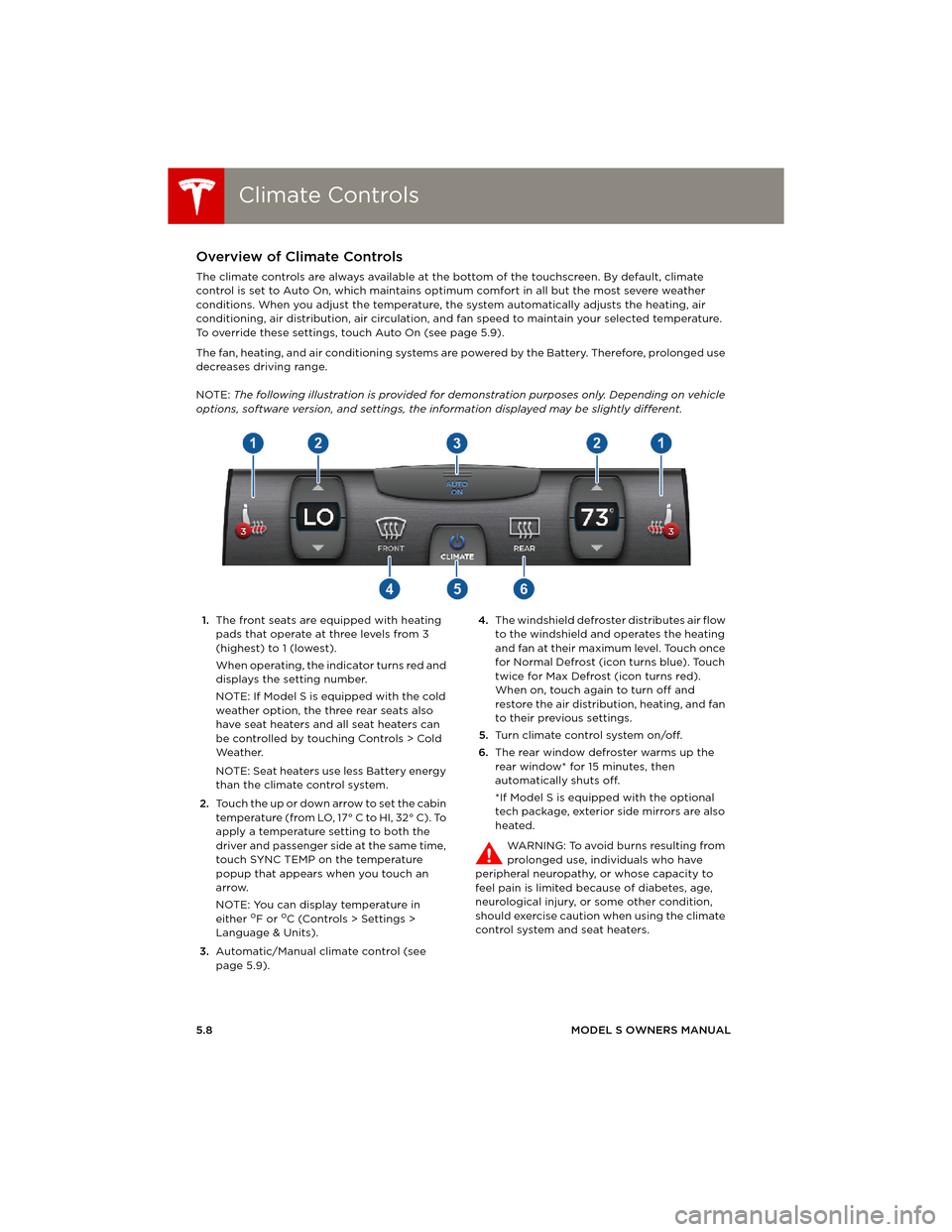
NOTE: The following illustration is provided for demonstration purposes only. Depending on vehicle
options, software version, and settings, the information displayed may be slightly different.
1.The front seats are equipped with heating
pads that operate at three levels from 3
(highest) to 1 (lowest).
When operating, the indicator turns red and
displays the setting number.
NOTE: If Model S is equipped with the cold
weather option, the three rear seats also
have seat heaters and all seat heaters can
be controlled by touching Controls > Cold
We a t h e r.
NOTE: Seat heaters use less Battery energy
than the climate control system.
2.Touch the up or down arrow to set the cabin
temperature (from LO, 17° C to HI, 32° C). To
apply a temperature setting to both the
driver and passenger side at the same time,
touch SYNC TEMP on the temperature
popup that appears when you touch an
arrow.
NOTE: You can display temperature in
either
oF or oC (Controls > Settings >
Language & Units).
3.Automatic/Manual climate control (see
page 5.9).4.The windshield defroster distributes air flow
to the windshield and operates the heating
and fan at their maximum level. Touch once
for Normal Defrost (icon turns blue). Touch
twice for Max Defrost (icon turns red).
When on, touch again to turn off and
restore the air distribution, heating, and fan
to their previous settings.
5.Turn climate control system on/off.
6.The rear window defroster warms up the
rear window* for 15 minutes, then
automatically shuts off.
*If Model S is equipped with the optional
tech package, exterior side mirrors are also
heated.
WARNING: To avoid burns resulting from
prolonged use, individuals who have
peripheral neuropathy, or whose capacity to
feel pain is limited because of diabetes, age,
neurological injury, or some other condition,
should exercise caution when using the climate
control system and seat heaters.
book.book Page 8 Friday, July 19, 2013 12:53 PM
Page 74 of 152
Climate ControlsClimate Controls
5.10MODEL S OWNERS MANUAL
Ventilation
Outside air is drawn into Model S through the
grill in front of the windshield. Keep the grill
clear of obstructions such as leaves and snow.
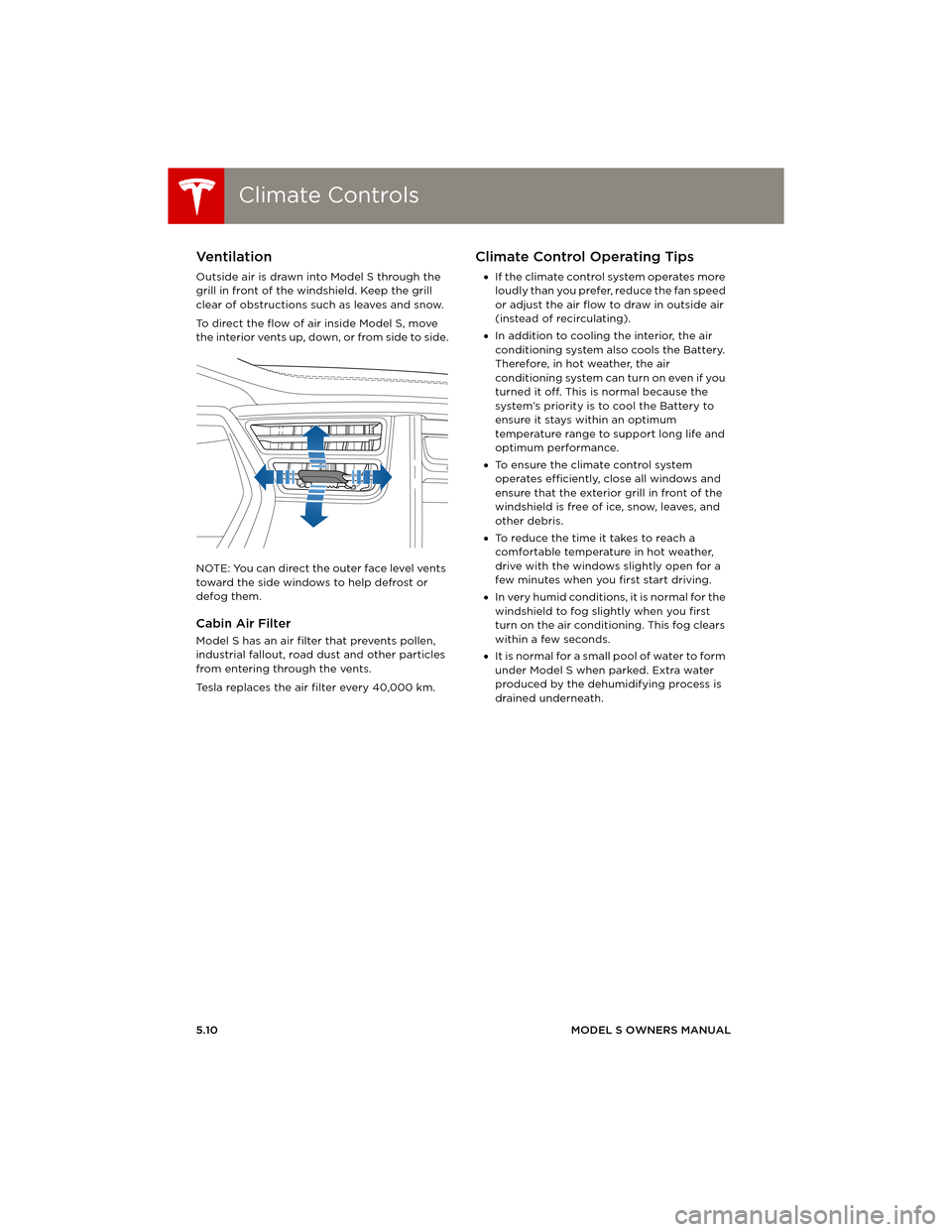
To direct the flow of air inside Model S, move
the interior vents up, down, or from side to side.
NOTE: You can direct the outer face level vents
toward the side windows to help defrost or
defog them.
Cabin Air Filter
Model S has an air filter that prevents pollen,
industrial fallout, road dust and other particles
from entering through the vents.
Tesla replaces the air filter every 40,000 km.
Climate Control Operating Tips
•If the climate control system operates more
loudly than you prefer, reduce the fan speed
or adjust the air flow to draw in outside air
(instead of recirculating).
•In addition to cooling the interior, the air
conditioning system also cools the Battery.
Therefore, in hot weather, the air
conditioning system can turn on even if you
turned it off. This is normal because the
system’s priority is to cool the Battery to
ensure it stays within an optimum
temperature range to support long life and
optimum performance.
•To ensure the climate control system
operates efficiently, close all windows and
ensure that the exterior grill in front of the
windshield is free of ice, snow, leaves, and
other debris.
•To reduce the time it takes to reach a
comfortable temperature in hot weather,
drive with the windows slightly open for a
few minutes when you first start driving.
•In very humid conditions, it is normal for the
windshield to fog slightly when you first
turn on the air conditioning. This fog clears
within a few seconds.
•It is normal for a small pool of water to form
under Model S when parked. Extra water
produced by the dehumidifying process is
drained underneath.
book.book Page 10 Friday, July 19, 2013 12:53 PM
Page 81 of 152
Phone
USING THE TOUCHSCREEN5.17
PhoneBluetooth® Compatibility
You can use your Bluetooth-capable phone
hands-free in Model S provided your phone is
within operating range. Although Bluetooth
typically supports wireless communication
over distances of up to approximately 9 metres,
performance can vary based on the phone’s
software and age.
Before using your phone with Model S, you
must pair it. Pairing sets up Model S to work
with your Bluetooth-capable phone.
You can pair up to ten Bluetooth phones.
Model S always automatically connects to the
last phone that was used (provided it is within
range). If you want to connect to a different
phone, see Connecting to a Paired Phone,
page 5.18.
NOTE: On many phones, Bluetooth turns off if
the phone’s battery is low.
In addition to phones, you can also pair
Bluetooth-enabled devices with Model S. For
example, you can pair an iPod Touch or an iPad
or Android tablet to stream music.
Pairing a Bluetooth Phone
Pairing sets up Model S to work with your
Bluetooth-capable phone. Once a phone is
paired, Model S can connect to it whenever the
phone is within range.
To pair a phone, follow these steps while sitting
inside Model S:
1.Ensure both the touchscreen and the phone
are powered on.
2.On the touchscreen’s status bar,
touch (the Bluetooth icon).
3.On your phone, enable Bluetooth and set it
to discoverable.
4.On the Model S touchscreen, touch Start
Search. The touchscreen searches then
displays the list of all available Bluetooth
devices within operating distance.
5.On the Model S touchscreen, touch the
phone with which you want to pair. Within a
few seconds, the touchscreen displays a
randomly generated number, and your
phone should display the same number.6.Check that the number displayed on your
phone matches the number displayed on
the touchscreen. Then, on your phone,
confirm that you want to pair.
When paired, Model S connects to the phone
and the touchscreen displays the Bluetooth
symbol next to the phone’s name to show that
the connection is active.
Importing Contacts
Once paired, you can use the Bluetooth
settings screen to specify whether you want to
allow access to your phone’s contacts and
recent calls.
If access is turned on, you can see your list of
contacts on the Model S touchscreen. Touch
Phone > Contacts. You can then touch a
contact to dial its phone number or navigate to
its address.
NOTE: Before contacts can be imported, you
may need to either set your phone to allow
syncing, or respond to a popup on your phone
to confirm that it is OK to sync contacts. This
varies depending on the type of phone you are
using. For details, refer to the owner
documentation provided with your phone.
If access is turned on, imported information is
displayed when you touch the contacts tab on
the Phone app.
Unpairing a Bluetooth Phone
If you want to disconnect your phone and use it
again later, simply touch Disconnect on the
Bluetooth settings screen. If you do not want to
use your phone with Model S again, touch
Forget This Device. Once you forget a device,
you need to pair it again if you want to use it
with Model S (see Pairing a Bluetooth phone).
NOTE: Your phone automatically disconnects
whenever you leave Model S.
book.book Page 17 Friday, July 19, 2013 12:53 PM
Page 82 of 152
PhonePhone
5.18MODEL S OWNERS MANUAL
Connecting to a Paired Phone
Model S automatically connects with the last
phone to which it was connected, provided it is
within operating range and has Bluetooth
turned on.
To connect to a different phone:
1.On the Model S touchscreen’s status bar,
touch (the Bluetooth icon).
2.The Model S touchscreen displays the list of
paired phones. If the phone is not on the list,
follow the instructions on page 5.17 to pair
it.
3.Choose the phone you want to connect to
from the list of paired phones, then touch
Connect.
When connected, the Model S touchscreen
displays the Bluetooth symbol next to the
phone name to show that the connection is
active.
Making a Phone Call
You can make a phone call by using the Model S
on-screen dialer, or by choosing a contact from
your contact list, and then touching the
contact’s number you want to call.
To make a phone call using the on-screen dialer:
1.To u c h t h e Phone app on the touchscreen,
then touch Dialer.
NOTE: If a phone is not currently
connected, the touchscreen displays the
Connect Phone message.
2. Enter the phone number on the dialer.
3.To u c h Call. The touchscreen displays the
call screen and the number you are calling.
To make a phone call by choosing a contact:
1.To u c h t h e Phone app on the touchscreen,
then touch Contacts.
NOTE: Ensure that access to the phone’s
contacts is turned on. See page 5.17.
2.Touch the name of the contact you want to
call to display details about the contact.
3.Touch the number you want to dial (there
may be more than one). The touchscreen
displays the call screen and the name of the
contact you are calling.
NOTE: If it is safe and legal to do so, you can
also initiate a call by dialing the number or
selecting the contact directly from your phone.
Receiving a Phone Call
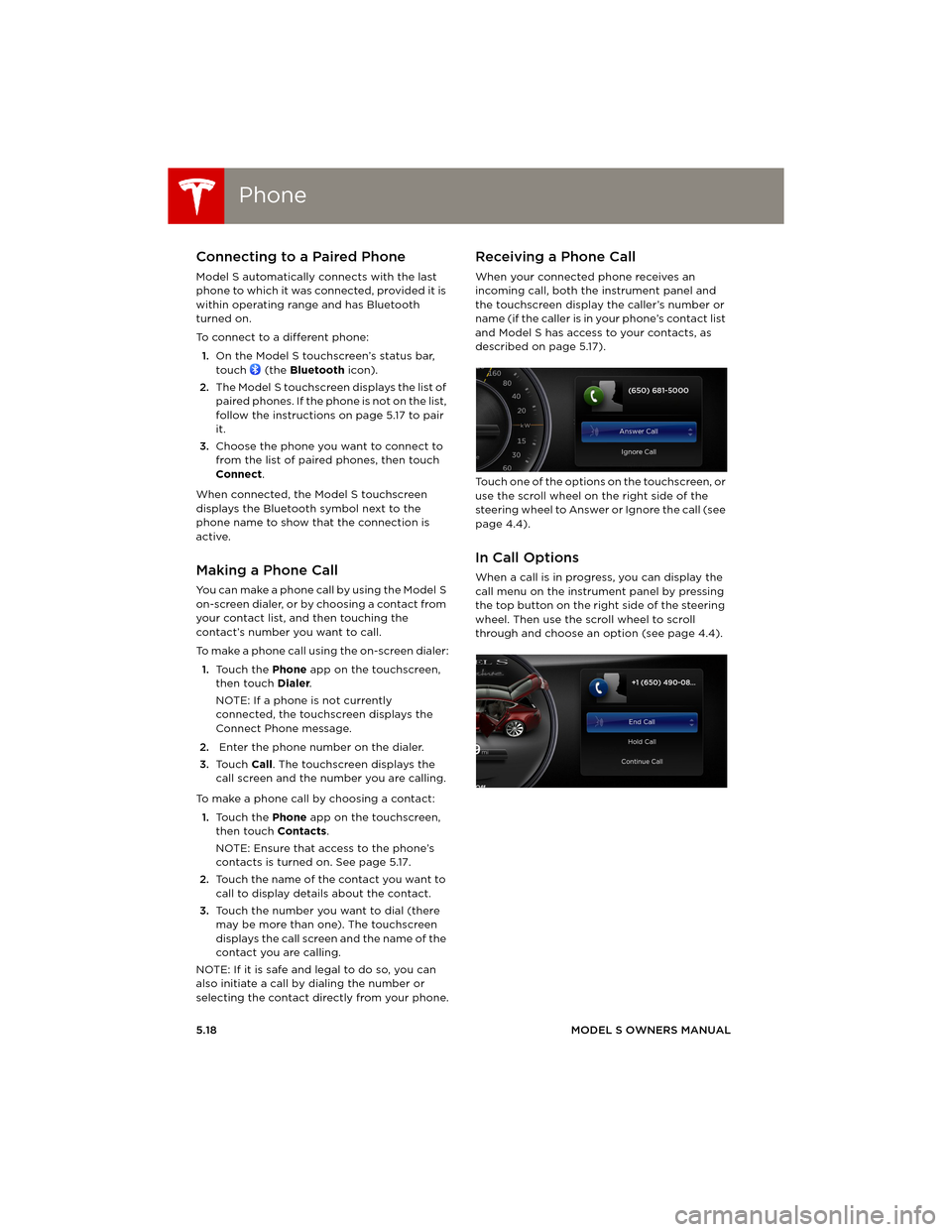
When your connected phone receives an
incoming call, both the instrument panel and
the touchscreen display the caller’s number or
name (if the caller is in your phone’s contact list
and Model S has access to your contacts, as
described on page 5.17).
Touch one of the options on the touchscreen, or
use the scroll wheel on the right side of the
steering wheel to Answer or Ignore the call (see
page 4.4).
In Call Options
When a call is in progress, you can display the
call menu on the instrument panel by pressing
the top button on the right side of the steering
wheel. Then use the scroll wheel to scroll
through and choose an option (see page 4.4).
book.book Page 18 Friday, July 19, 2013 12:53 PM
Page 92 of 152
Electric Vehicle ComponentsElectric Vehicle Components
6.2MODEL S OWNERS MANUAL
CHARGING
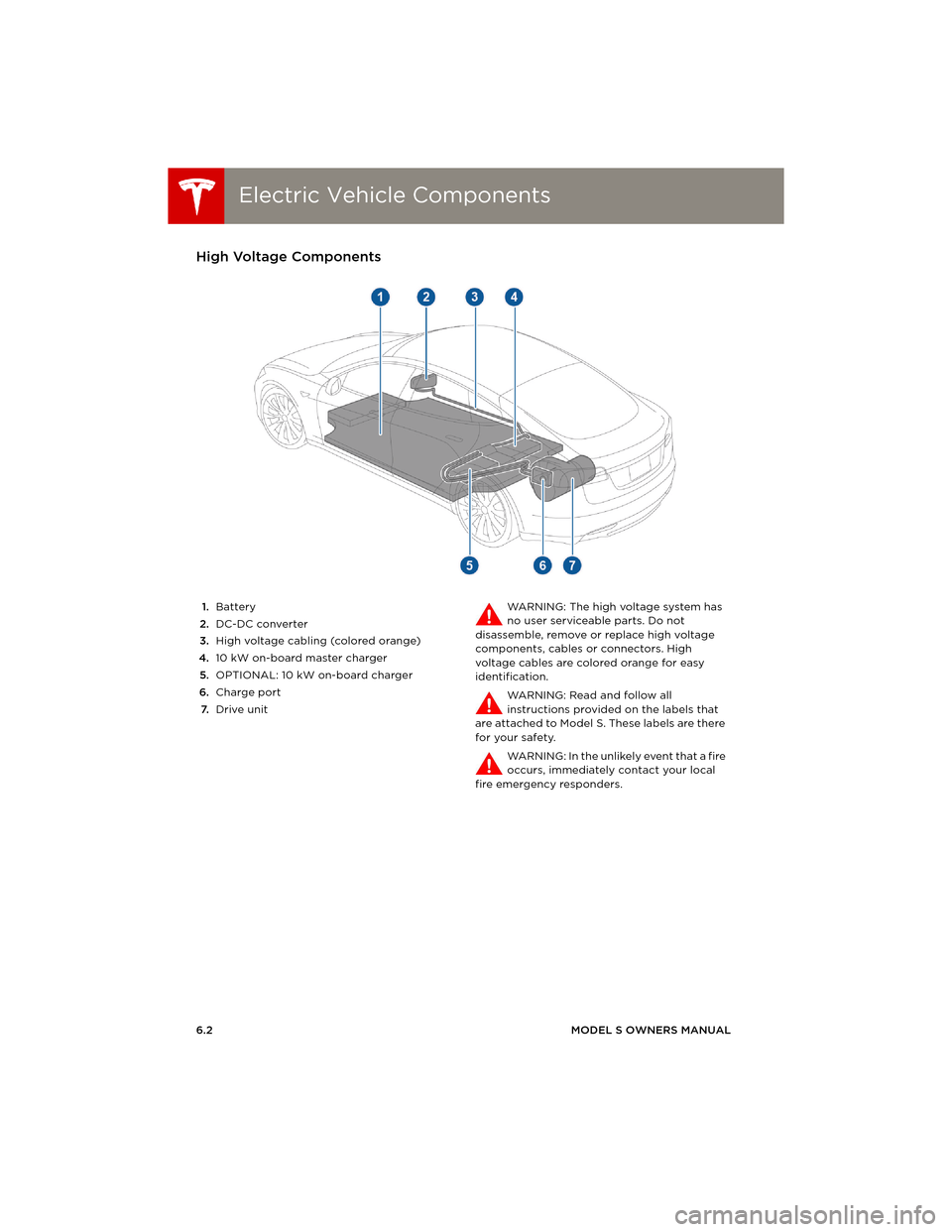
Electric Vehicle ComponentsHigh Voltage Components
1.Battery
2.DC-DC converter
3.High voltage cabling (colored orange)
4.10 kW on-board master charger
5.OPTIONAL: 10 kW on-board charger
6.Charge port
7.Drive unitWARNING: The high voltage system has
no user serviceable parts. Do not
disassemble, remove or replace high voltage
components, cables or connectors. High
voltage cables are colored orange for easy
identification.
WARNING: Read and follow all
instructions provided on the labels that
are attached to Model S. These labels are there
for your safety.
WARNING: In the unlikely event that a fire
occurs, immediately contact your local
fire emergency responders.
book.book Page 2 Friday, July 19, 2013 12:53 PM
Page 94 of 152
Battery InformationBattery Information
6.4MODEL S OWNERS MANUAL
Battery InformationAbout the Battery
Model S has one of the most sophisticated
battery systems in the world. The most
important way to preserve the Battery is to
LEAVE YOUR MODEL S PLUGGED IN when you
are not using it. This is particularly important if
you are not planning to drive Model S for
several weeks. When plugged in, Model S wakes
up when needed to automatically maintain a
charge level that maximizes the lifetime of the
Battery.
There is no advantage to waiting until the
Battery’s level is low before charging. In fact,
the Battery performs best when charged
regularly.
Battery Care
Never allow the Battery to fully discharge. Even
when Model S is not being driven, its Battery
discharges very slowly to power the onboard
electronics. On average, the Battery discharges
at a rate of 1% per day. Situations can arise in
which you must leave Model S unplugged for an
extended period of time (for example, at an
airport when traveling). In these situations,
keep the 1% in mind to ensure that you leave the
Battery with a sufficient charge level. For
example, over a two week period (14 days), the
Battery discharges by approximately 14%.
Discharging the Battery to 0% may
permanently damage the Battery. To protect
against a complete discharge, Model S enters a
low-power consumption mode when the
charge level drops to 5%. In this mode, the
Battery stops supporting the onboard
electronics to slow the discharge rate to
approximately 4% per month. Once this
low-power consumption mode is active, it is
important to plug in Model S within two months
to avoid Battery damage.
NOTE: When the low-power consumption
mode is active, the auxiliary 12V battery is no
longer being charged and can completely
discharge within 12 hours. In the unlikely event
that this occurs, you may need to jump start or
replace the 12V battery before you can charge.
In this situation, contact Tesla.
Temperature Limits
Do not expose Model S to ambient
temperatures above 60° C or below -30° C for
more than 24 hours at a time.
Battery Warnings and Cautions
WARNING: The Battery has no parts that
an owner or a non-Tesla authorized
service technician can service. Under no
circumstances should you open or tamper with
the Battery. Always contact Tesla to arrange for
Battery servicing.
CAUTION: If the Battery’s charge level
falls to 0%, you must plug it in. If you leave
it unplugged for an extended period, it may not
be possible to charge Model S or use the
vehicle without jump starting or replacing the
12V battery. Leaving Model S unplugged for an
extended period can also result in permanent
Battery damage. If you are unable to charge
Model S, contact Tesla immediately.
CAUTION: The Battery requires no owner
maintenance. Do not remove the filler cap
and do not add fluid. If the instrument panel
warns you that the fluid level is low, contact
Tesla immediately.
At the end of its service life, the Battery
should be recycled. Contact Tesla for
recycling arrangements.
charging.fm Page 4 Monday, July 22, 2013 11:52 AM
Page 97 of 152
Charging Model S
CHARGING6.7
Changing Charge Settings
The charge settings screen displays on the
touchscreen whenever the charge port door is
open.
To display charge settings at any time,
touch the Battery icon on the top of the
touchscreen, or touch Controls > Charging
(located in the upper right portion of the
Controls screen).
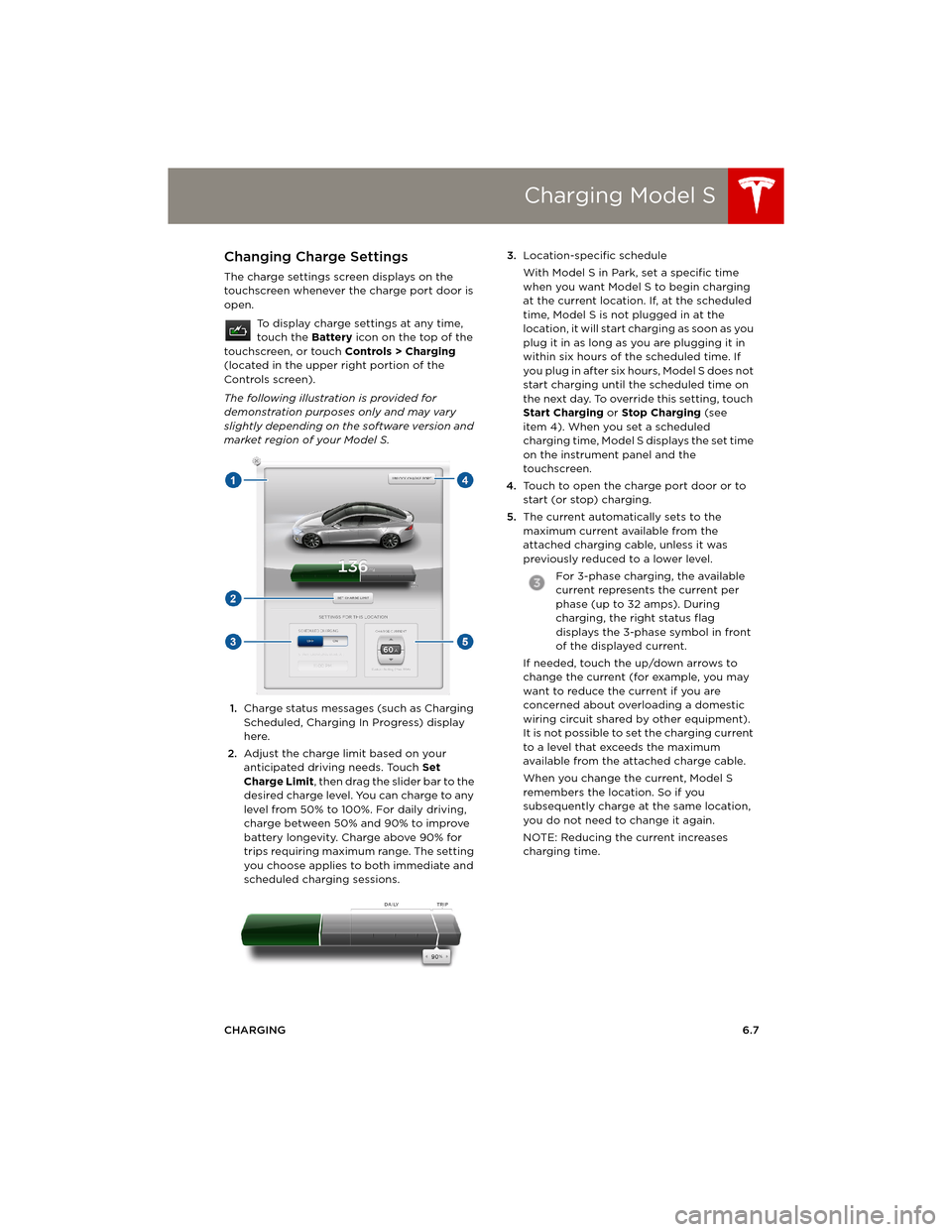
The following illustration is provided for
demonstration purposes only and may vary
slightly depending on the software version and
market region of your Model S.
1.Charge status messages (such as Charging
Scheduled, Charging In Progress) display
here.
2.Adjust the charge limit based on your
anticipated driving needs. Touch Set
Charge Limit, then drag the slider bar to the
desired charge level. You can charge to any
level from 50% to 100%. For daily driving,
charge between 50% and 90% to improve
battery longevity. Charge above 90% for
trips requiring maximum range. The setting
you choose applies to both immediate and
scheduled charging sessions.3.Location-specific schedule
With Model S in Park, set a specific time
when you want Model S to begin charging
at the current location. If, at the scheduled
time, Model S is not plugged in at the
location, it will start charging as soon as you
plug it in as long as you are plugging it in
within six hours of the scheduled time. If
you plug in after six hours, Model S does not
start charging until the scheduled time on
the next day. To override this setting, touch
Start Charging or Stop Charging (see
item 4). When you set a scheduled
charging time, Model S displays the set time
on the instrument panel and the
touchscreen.
4.Touch to open the charge port door or to
start (or stop) charging.
5.The current automatically sets to the
maximum current available from the
attached charging cable, unless it was
previously reduced to a lower level.
For 3-phase charging, the available
current represents the current per
phase (up to 32 amps). During
charging, the right status flag
displays the 3-phase symbol in front
of the displayed current.
If needed, touch the up/down arrows to
change the current (for example, you may
want to reduce the current if you are
concerned about overloading a domestic
wiring circuit shared by other equipment).
It is not possible to set the charging current
to a level that exceeds the maximum
available from the attached charge cable.
When you change the current, Model S
remembers the location. So if you
subsequently charge at the same location,
you do not need to change it again.
NOTE: Reducing the current increases
charging time.
book.book Page 7 Friday, July 19, 2013 12:53 PM