display TESLA MODEL S 2014 (North America) Owner's Guide
[x] Cancel search | Manufacturer: TESLA, Model Year: 2014, Model line: MODEL S, Model: TESLA MODEL S 2014Pages: 159, PDF Size: 6.14 MB
Page 59 of 159
Driving Tips to Maximize RangeYou can maximize your driving range usingthe same driving habits that you use to
conserve fuel in a gasoline-powered vehicle. In
addition to driving habits, energy
consumption depends on environmental conditions (such as cold weather and hillyroads). To get the maximum mileage from a
charge:
• Avoid frequent and rapid acceleration. • Instead of using the brake to slow down, move your foot off the accelerator.
Whenever Model S is moving and your
foot is off the accelerator, regenerative
braking slows down Model S and feeds
surplus energy back to the Battery (see
Regenerative Braking on page 59).
• Keep tires at the recommended inflation pressures (see Tire Care and Maintenance
on page 100).
• Lighten your load by removing any unnecessary cargo.
• Limit the use of resources such as heating and air conditioning. Using seat heaters to
keep warm is more efficient than heating the cabin. You can turn on Range mode toautomatically limit the power of theclimate control system (see Settings on
page 69).
The power meter on the instrument panel and
the Energy app provide feedback on energy
usage. With this feedback, you will soon become familiar with how driving habits andenvironmental conditions impact how muchenergy Model S is using.
Saving Energy
Model S has an energy-saving feature that
reduces the amount of energy being consumed when Model S is not in use. TouchControls > Displays > Energy Saving and
choose from the following options:
• OFF . All display systems remain powered
when Model S is not in use, providing the
most responsive experience. More energy
is consumed.
• NIGHTLY . Model S shifts to the energy-
saving mode at night (10 pm to 5 am).
• ON. Significantly less energy is consumed
whenever Model S is not in use. The start-
up time of the instrument panel and
Bluetooth could be slower.
• Always Connected . Preserves cell
connectivity when energy saving is active.
This allows the mobile app to connect toModel S more quickly, and provides
immediate 3G internet access when entering the car. Slightly more energy isconsumed.
Getting Maximum Range
Driving57
Page 60 of 159
Braking SystemsModel S has an anti-lock braking system
(ABS) that prevents the wheels from locking
when you apply maximum brake pressure. This improves steering control during heavy
braking in most road conditions.
During emergency braking conditions, the
ABS constantly monitors the speed of each
wheel and varies the brake pressure according
to the grip available.
The alteration of brake pressure can be felt as
a pulsing sensation through the brake pedal.
This demonstrates that the ABS is operating
and is not a cause for concern. Keep firm and
steady pressure on the brake pedal while
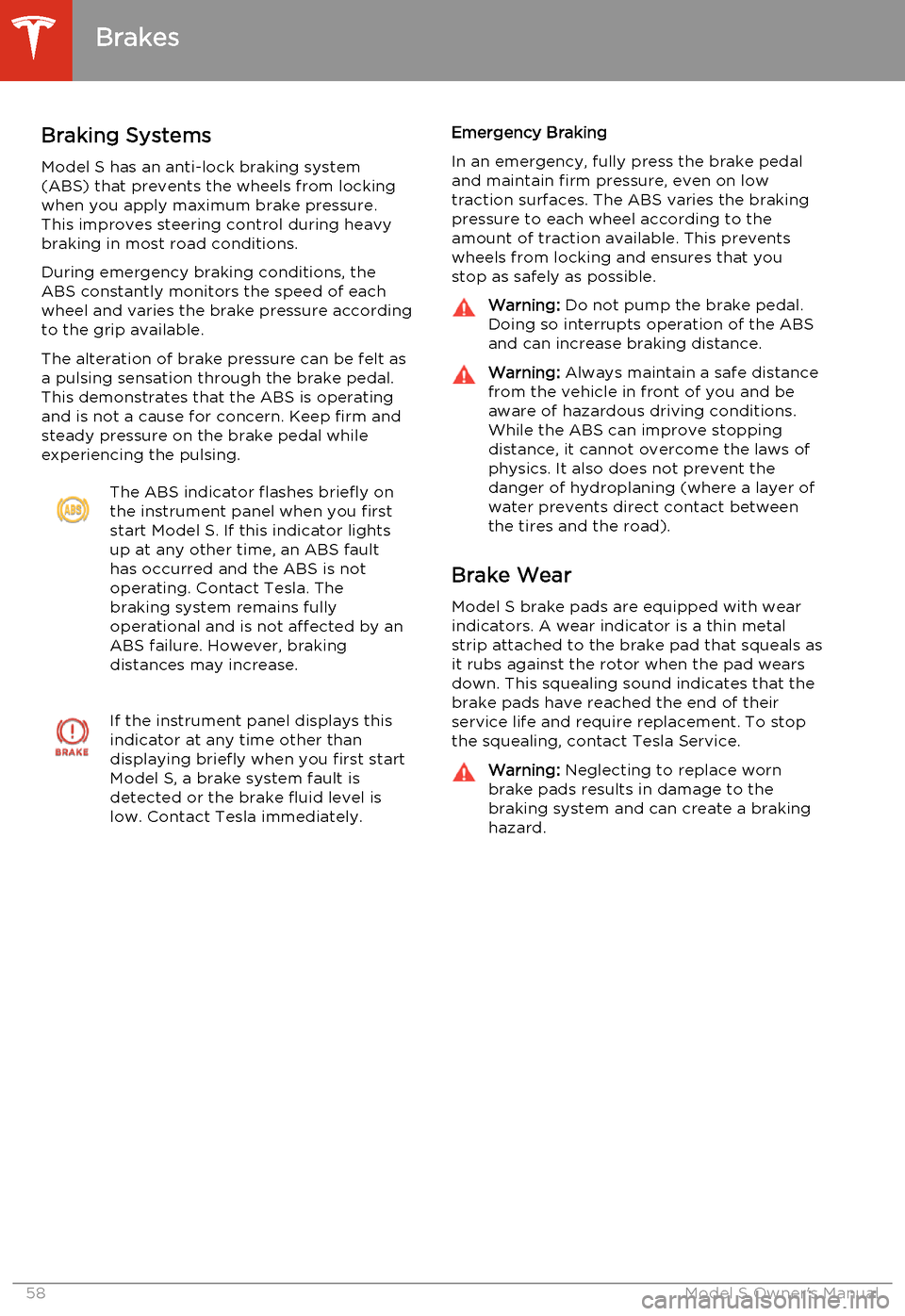
experiencing the pulsing.The ABS indicator flashes briefly on
the instrument panel when you first
start Model S. If this indicator lights
up at any other time, an ABS fault
has occurred and the ABS is not
operating. Contact Tesla. The
braking system remains fully
operational and is not affected by an
ABS failure. However, braking
distances may increase.If the instrument panel displays this
indicator at any time other than
displaying briefly when you first start
Model S, a brake system fault is
detected or the brake fluid level is
low. Contact Tesla immediately.Emergency Braking
In an emergency, fully press the brake pedal
and maintain firm pressure, even on low
traction surfaces. The ABS varies the braking pressure to each wheel according to the
amount of traction available. This prevents wheels from locking and ensures that you
stop as safely as possible.Warning: Do not pump the brake pedal.
Doing so interrupts operation of the ABS
and can increase braking distance.Warning: Always maintain a safe distance
from the vehicle in front of you and be aware of hazardous driving conditions.
While the ABS can improve stopping
distance, it cannot overcome the laws of physics. It also does not prevent the
danger of hydroplaning (where a layer of
water prevents direct contact between
the tires and the road).
Brake Wear
Model S brake pads are equipped with wearindicators. A wear indicator is a thin metalstrip attached to the brake pad that squeals as
it rubs against the rotor when the pad wears
down. This squealing sound indicates that the
brake pads have reached the end of their
service life and require replacement. To stop
the squealing, contact Tesla Service.
Warning: Neglecting to replace worn
brake pads results in damage to the
braking system and can create a braking
hazard.
Brakes
58Model S Owner's Manual
Page 61 of 159
Regenerative Braking
Whenever Model S is moving and your foot is off the accelerator, regenerative braking slows
down Model S and feeds any surplus energy
back to the Battery.
By anticipating your stops and simply removing your foot from the accelerator to
slow down, you can take advantage of
regenerative braking to increase driving range. Of course, this is no substitute for
regular braking when needed for safety.
Note: If regenerative braking is aggressively
slowing Model S, such as on a steep descent,
brake lights turn on to alert other road users
that you are slowing down.
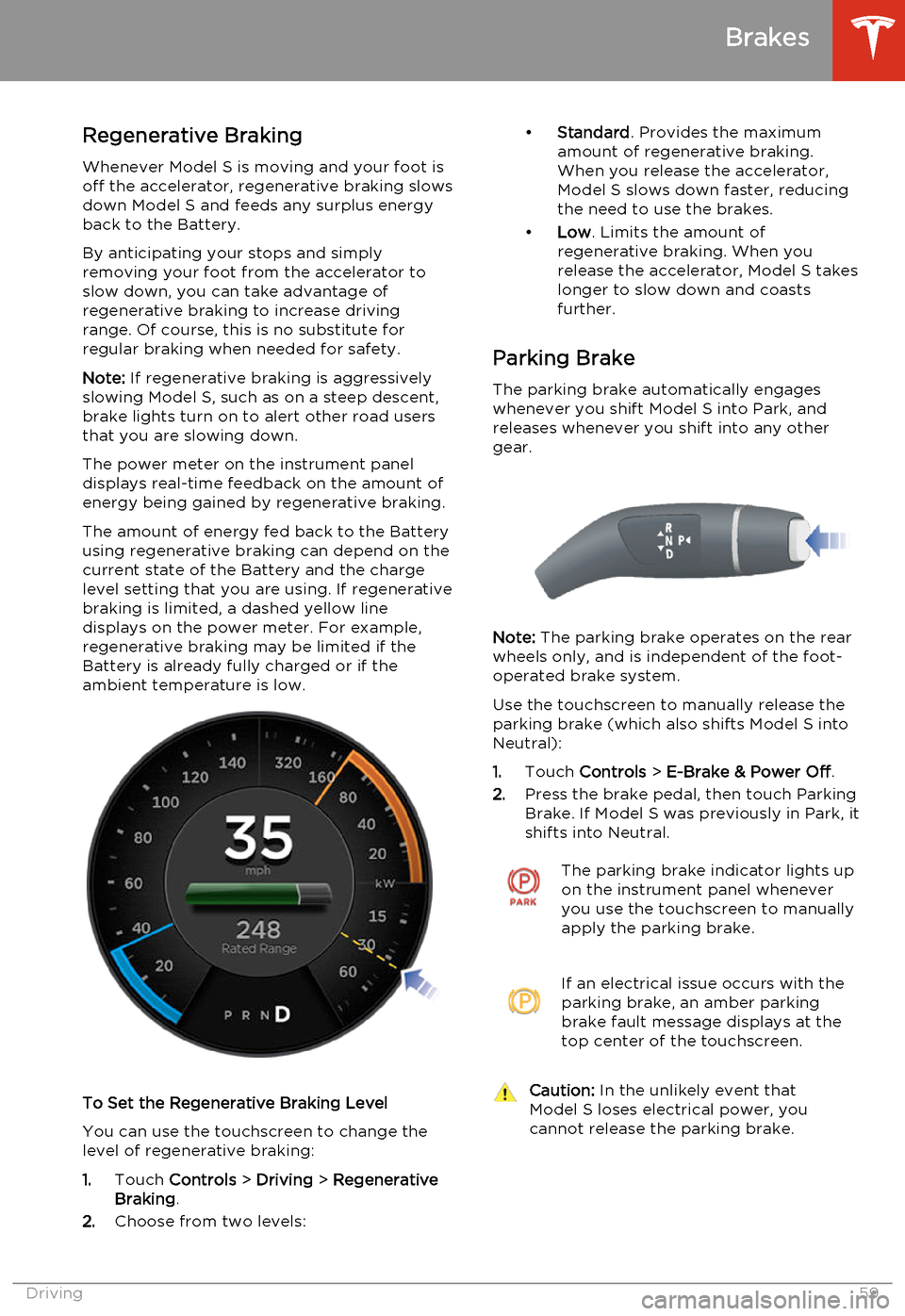
The power meter on the instrument panel displays real-time feedback on the amount of
energy being gained by regenerative braking.
The amount of energy fed back to the Battery
using regenerative braking can depend on the current state of the Battery and the charge
level setting that you are using. If regenerative braking is limited, a dashed yellow line
displays on the power meter. For example,
regenerative braking may be limited if the
Battery is already fully charged or if the
ambient temperature is low.
To Set the Regenerative Braking Level
You can use the touchscreen to change thelevel of regenerative braking:
1. Touch Controls > Driving > Regenerative
Braking .
2. Choose from two levels:
•
Standard . Provides the maximum
amount of regenerative braking. When you release the accelerator,
Model S slows down faster, reducing
the need to use the brakes.
• Low . Limits the amount of
regenerative braking. When you
release the accelerator, Model S takes longer to slow down and coastsfurther.
Parking Brake The parking brake automatically engages
whenever you shift Model S into Park, and
releases whenever you shift into any other
gear.
Note: The parking brake operates on the rear
wheels only, and is independent of the foot-
operated brake system.
Use the touchscreen to manually release the parking brake (which also shifts Model S intoNeutral):
1. Touch Controls > E-Brake & Power Off .
2. Press the brake pedal, then touch Parking
Brake. If Model S was previously in Park, it
shifts into Neutral.
The parking brake indicator lights up on the instrument panel whenever
you use the touchscreen to manually
apply the parking brake.If an electrical issue occurs with the
parking brake, an amber parking
brake fault message displays at the
top center of the touchscreen.Caution: In the unlikely event that
Model S loses electrical power, you
cannot release the parking brake.
Brakes
Driving59
Page 62 of 159
How It WorksThe traction control system constantly
monitors the difference in speed between the
front and rear wheels. If Model S experiences a
loss of traction, the traction control system
minimizes wheel spin by controlling brake
pressure and motor power.The electronic stability control
indicator displays on the instrument
panel whenever the traction control
system is actively controlling brake
pressure and motor power.Warning: Traction control does not
prevent accidents caused by driving
dangerously or turning too sharply at
high speeds.
Turning Off
Under normal conditions, you should leave
traction control on. Turn it off only in
circumstances where you deliberately want the wheels to spin, such as:
• Starting on a loose surface, such as gravel or snow.
• Driving in deep snow, sand or mud. • Rocking out of a hole or deep rut.
To turn traction control off, touch Controls >
Driving > Traction Control > Off .
The Traction Control Off indicator
displays at the top center of the
touchscreen whenever the traction
control system is turned off.
Although traction control turns on again
automatically the next time you start Model S,
turn it on using the touchscreen as soon as
the circumstances that required you to turn it off have passed.
Traction Control
60Model S Owner's Manual
Page 63 of 159
Operating Cruise Control
Cruise control makes it easy for you to
maintain a consistent speed without holding your foot on the accelerator. This is usefulwhen driving at the same speed over a longdistance.
You must be driving over 17 mph (27 km/h) to operate cruise control.Warning: Do not use cruise control on
winding or slippery road surfaces, or
when traffic conditions make it unsafe to drive at a consistent speed.
To operate cruise control:
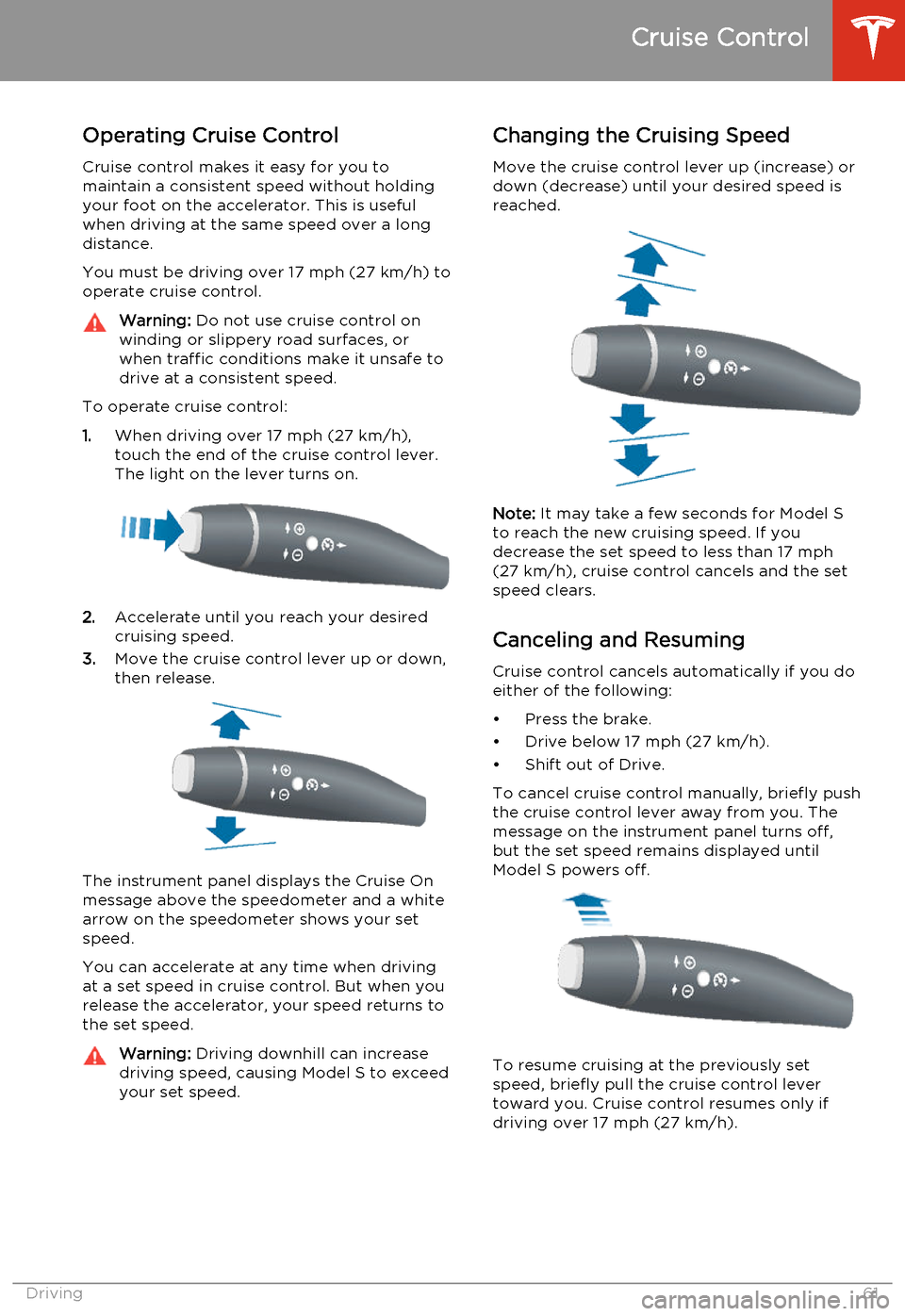
1. When driving over 17 mph (27 km/h),
touch the end of the cruise control lever.
The light on the lever turns on.
2. Accelerate until you reach your desired
cruising speed.
3. Move the cruise control lever up or down,
then release.
The instrument panel displays the Cruise On
message above the speedometer and a white
arrow on the speedometer shows your set speed.
You can accelerate at any time when driving at a set speed in cruise control. But when yourelease the accelerator, your speed returns tothe set speed.
Warning: Driving downhill can increase
driving speed, causing Model S to exceed
your set speed.Changing the Cruising Speed
Move the cruise control lever up (increase) ordown (decrease) until your desired speed is
reached.
Note: It may take a few seconds for Model S
to reach the new cruising speed. If you decrease the set speed to less than 17 mph
(27 km/h), cruise control cancels and the set speed clears.
Canceling and Resuming Cruise control cancels automatically if you doeither of the following:
• Press the brake.
• Drive below 17 mph (27 km/h).
• Shift out of Drive.
To cancel cruise control manually, briefly push the cruise control lever away from you. The
message on the instrument panel turns off, but the set speed remains displayed untilModel S powers off.
To resume cruising at the previously set
speed, briefly pull the cruise control lever
toward you. Cruise control resumes only if driving over 17 mph (27 km/h).
Cruise Control
Driving61
Page 66 of 159
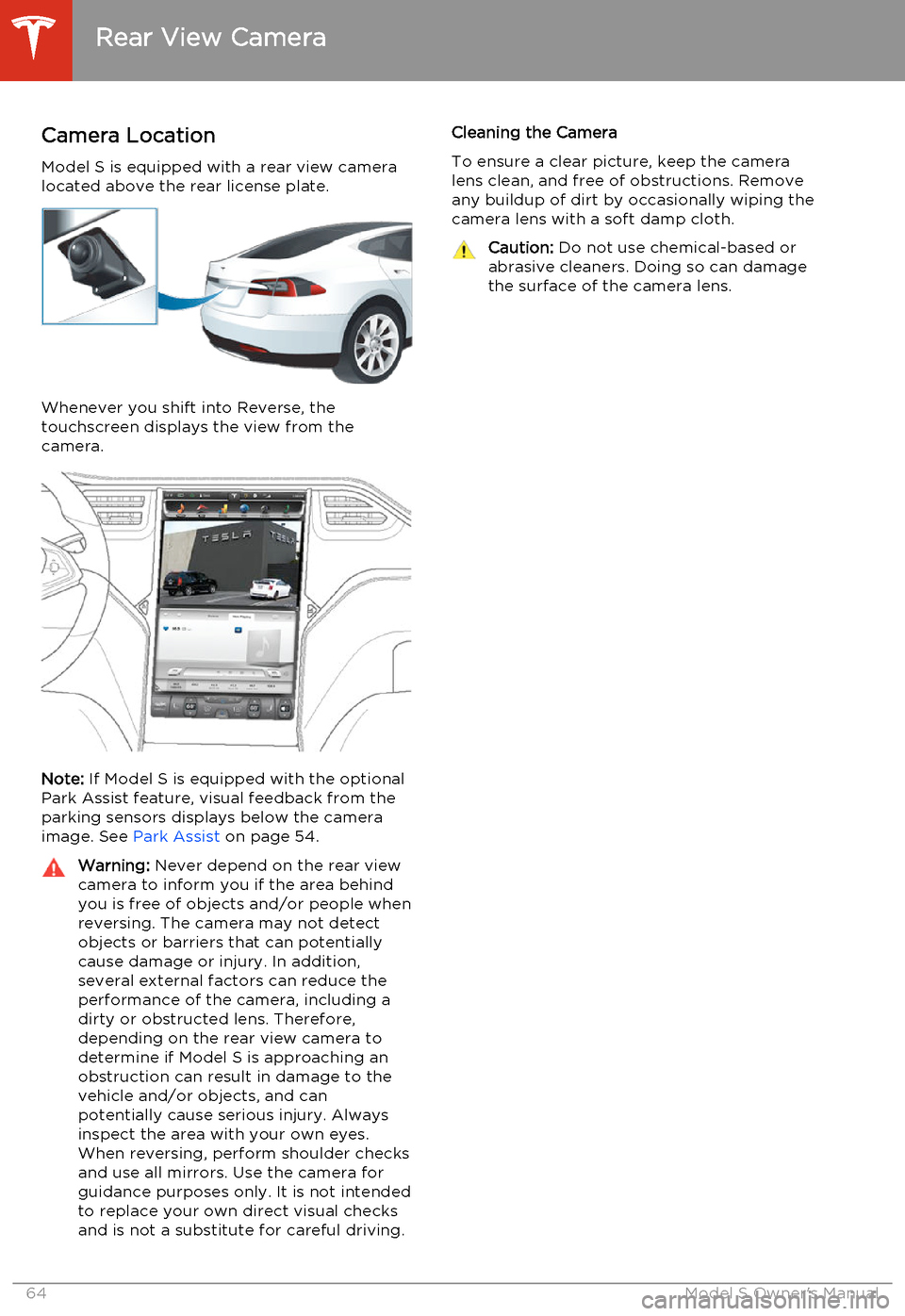
Camera LocationModel S is equipped with a rear view camera
located above the rear license plate.
Whenever you shift into Reverse, the
touchscreen displays the view from the
camera.
Note: If Model S is equipped with the optional
Park Assist feature, visual feedback from the
parking sensors displays below the camera image. See Park Assist on page 54.
Warning:
Never depend on the rear view
camera to inform you if the area behind
you is free of objects and/or people when
reversing. The camera may not detect
objects or barriers that can potentially cause damage or injury. In addition,several external factors can reduce the
performance of the camera, including a dirty or obstructed lens. Therefore,
depending on the rear view camera to determine if Model S is approaching anobstruction can result in damage to the
vehicle and/or objects, and can
potentially cause serious injury. Always
inspect the area with your own eyes.
When reversing, perform shoulder checks
and use all mirrors. Use the camera for
guidance purposes only. It is not intended to replace your own direct visual checks
and is not a substitute for careful driving.Cleaning the Camera
To ensure a clear picture, keep the camera
lens clean, and free of obstructions. Remove any buildup of dirt by occasionally wiping the
camera lens with a soft damp cloth.Caution: Do not use chemical-based or
abrasive cleaners. Doing so can damage
the surface of the camera lens.
Rear View Camera
64Model S Owner's Manual
Page 67 of 159
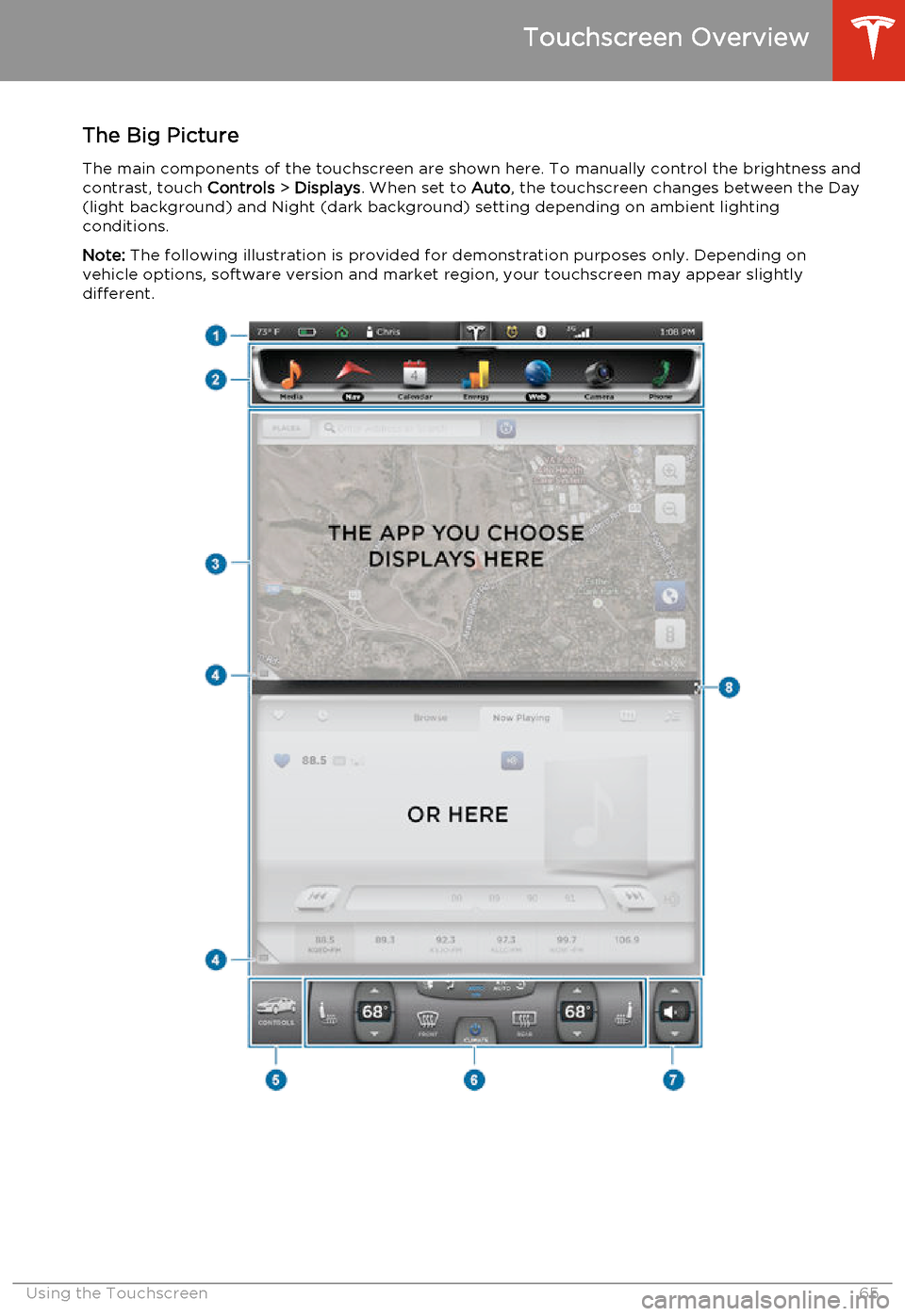
The Big PictureThe main components of the touchscreen are shown here. To manually control the brightness and
contrast, touch Controls > Displays . When set to Auto, the touchscreen changes between the Day
(light background) and Night (dark background) setting depending on ambient lighting
conditions.
Note: The following illustration is provided for demonstration purposes only. Depending on
vehicle options, software version and market region, your touchscreen may appear slightly
different.
Touchscreen Overview
Using the Touchscreen65
Page 68 of 159
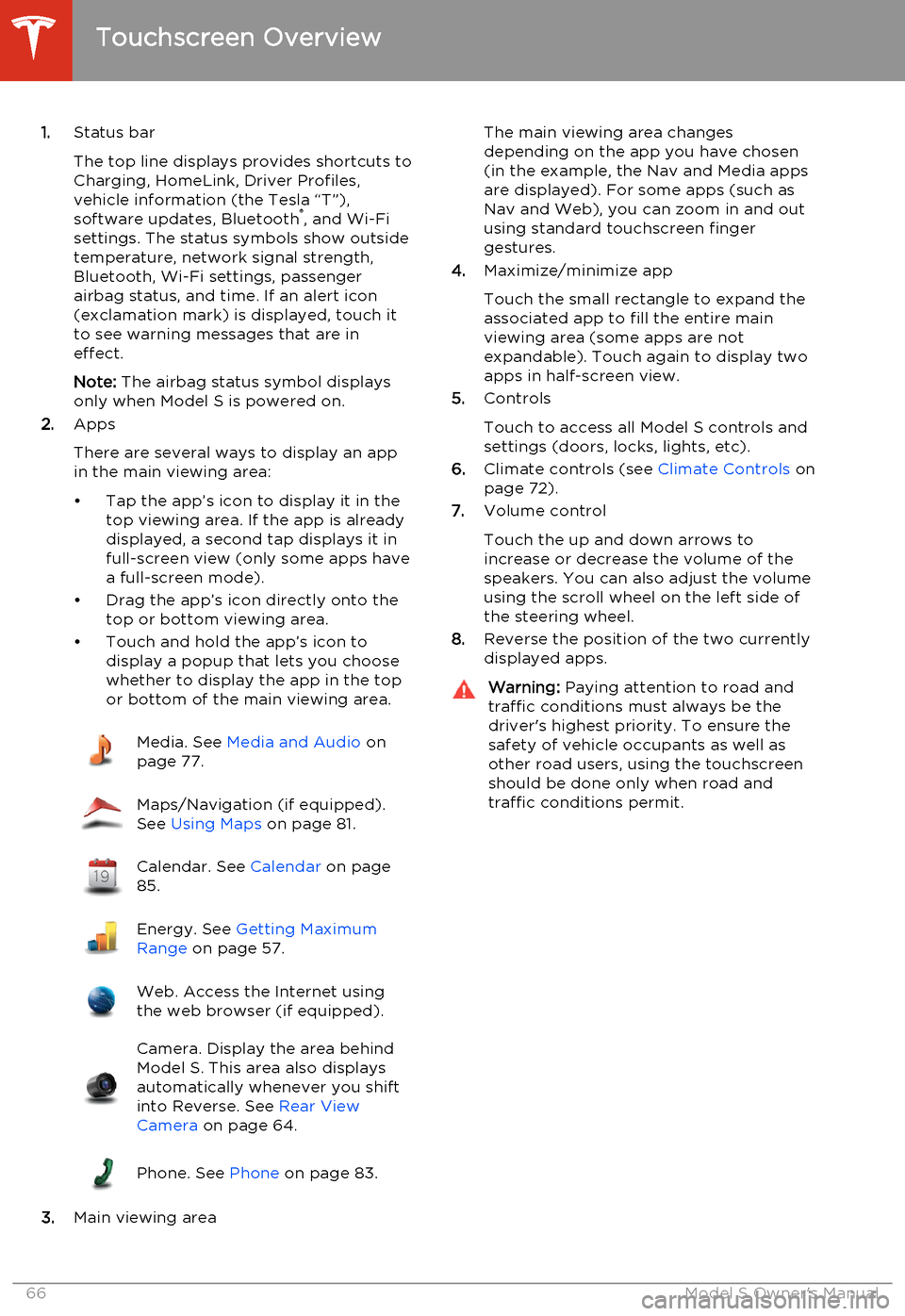
1.Status bar
The top line displays provides shortcuts to
Charging, HomeLink, Driver Profiles,
vehicle information (the Tesla “T”),
software updates, Bluetooth ®
, and Wi-Fi
settings. The status symbols show outside
temperature, network signal strength,
Bluetooth, Wi-Fi settings, passenger
airbag status, and time. If an alert icon
(exclamation mark) is displayed, touch it
to see warning messages that are in
effect.
Note: The airbag status symbol displays
only when Model S is powered on.
2. Apps
There are several ways to display an app
in the main viewing area:
• Tap the app’s icon to display it in the top viewing area. If the app is alreadydisplayed, a second tap displays it infull-screen view (only some apps have a full-screen mode).
• Drag the app’s icon directly onto the top or bottom viewing area.
• Touch and hold the app’s icon to display a popup that lets you choose
whether to display the app in the top or bottom of the main viewing area.Media. See Media and Audio on
page 77.Maps/Navigation (if equipped).
See Using Maps on page 81.Calendar. See Calendar on page
85.Energy. See Getting Maximum
Range on page 57.Web. Access the Internet using
the web browser (if equipped).Camera. Display the area behind
Model S. This area also displays
automatically whenever you shift
into Reverse. See Rear View
Camera on page 64.Phone. See Phone on page 83.
3.Main viewing area
The main viewing area changes
depending on the app you have chosen
(in the example, the Nav and Media apps
are displayed). For some apps (such as
Nav and Web), you can zoom in and out
using standard touchscreen finger
gestures.
4. Maximize/minimize app
Touch the small rectangle to expand the
associated app to fill the entire main
viewing area (some apps are not
expandable). Touch again to display two
apps in half-screen view.
5. Controls
Touch to access all Model S controls and settings (doors, locks, lights, etc).
6. Climate controls (see Climate Controls on
page 72).
7. Volume control
Touch the up and down arrows to
increase or decrease the volume of the
speakers. You can also adjust the volume
using the scroll wheel on the left side of
the steering wheel.
8. Reverse the position of the two currently
displayed apps.Warning: Paying attention to road and
traffic conditions must always be the
driver's highest priority. To ensure the
safety of vehicle occupants as well as other road users, using the touchscreenshould be done only when road andtraffic conditions permit.
Touchscreen Overview
66Model S Owner's Manual
Page 70 of 159
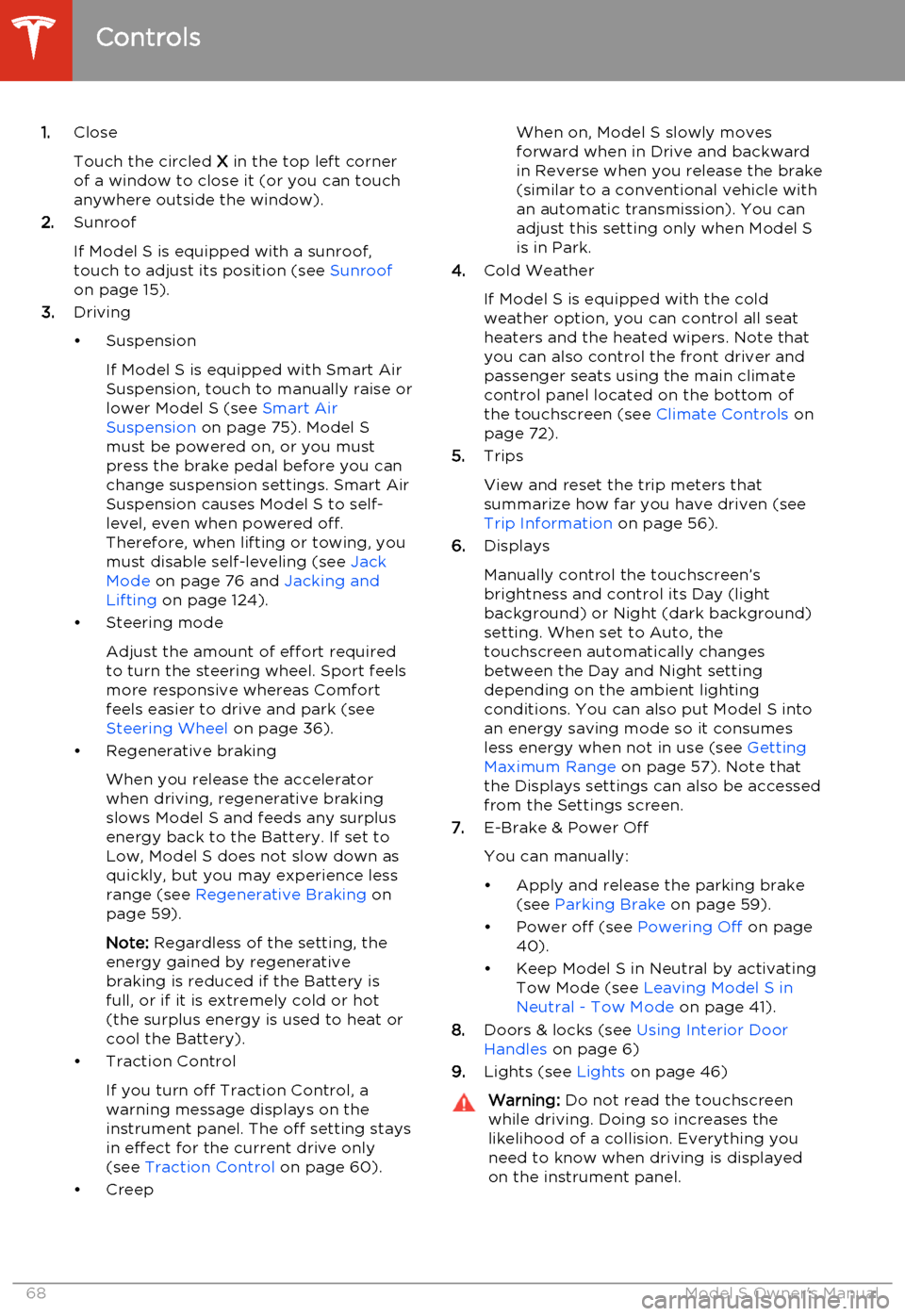
1.Close
Touch the circled X in the top left corner
of a window to close it (or you can touch anywhere outside the window).
2. Sunroof
If Model S is equipped with a sunroof,
touch to adjust its position (see Sunroof
on page 15).
3. Driving
• Suspension If Model S is equipped with Smart AirSuspension, touch to manually raise orlower Model S (see Smart Air
Suspension on page 75). Model S
must be powered on, or you must
press the brake pedal before you can change suspension settings. Smart Air
Suspension causes Model S to self- level, even when powered off.
Therefore, when lifting or towing, you
must disable self-leveling (see Jack
Mode on page 76 and Jacking and
Lifting on page 124).
• Steering mode
Adjust the amount of effort requiredto turn the steering wheel. Sport feels
more responsive whereas Comfort
feels easier to drive and park (see
Steering Wheel on page 36).
• Regenerative braking
When you release the accelerator
when driving, regenerative braking slows Model S and feeds any surplusenergy back to the Battery. If set to
Low, Model S does not slow down as
quickly, but you may experience less
range (see Regenerative Braking on
page 59).
Note: Regardless of the setting, the
energy gained by regenerative
braking is reduced if the Battery is full, or if it is extremely cold or hot(the surplus energy is used to heat orcool the Battery).
• Traction Control
If you turn off Traction Control, a
warning message displays on the
instrument panel. The off setting stays
in effect for the current drive only (see Traction Control on page 60).
• CreepWhen on, Model S slowly moves
forward when in Drive and backward in Reverse when you release the brake
(similar to a conventional vehicle with an automatic transmission). You can
adjust this setting only when Model S is in Park.
4. Cold Weather
If Model S is equipped with the cold weather option, you can control all seatheaters and the heated wipers. Note that
you can also control the front driver and
passenger seats using the main climate
control panel located on the bottom of
the touchscreen (see Climate Controls on
page 72).
5. Trips
View and reset the trip meters that
summarize how far you have driven (see
Trip Information on page 56).
6. Displays
Manually control the touchscreen’s
brightness and control its Day (light
background) or Night (dark background)
setting. When set to Auto, the
touchscreen automatically changes
between the Day and Night setting
depending on the ambient lighting
conditions. You can also put Model S into
an energy saving mode so it consumes
less energy when not in use (see Getting
Maximum Range on page 57). Note that
the Displays settings can also be accessed
from the Settings screen.
7. E-Brake & Power Off
You can manually:
• Apply and release the parking brake (see Parking Brake on page 59).
• Power off (see Powering Off on page
40).
• Keep Model S in Neutral by activating Tow Mode (see Leaving Model S in
Neutral - Tow Mode on page 41).
8. Doors & locks (see Using Interior Door
Handles on page 6)
9. Lights (see Lights on page 46)Warning:
Do not read the touchscreen
while driving. Doing so increases the
likelihood of a collision. Everything you need to know when driving is displayed
on the instrument panel.
Controls
68Model S Owner's Manual
Page 72 of 159
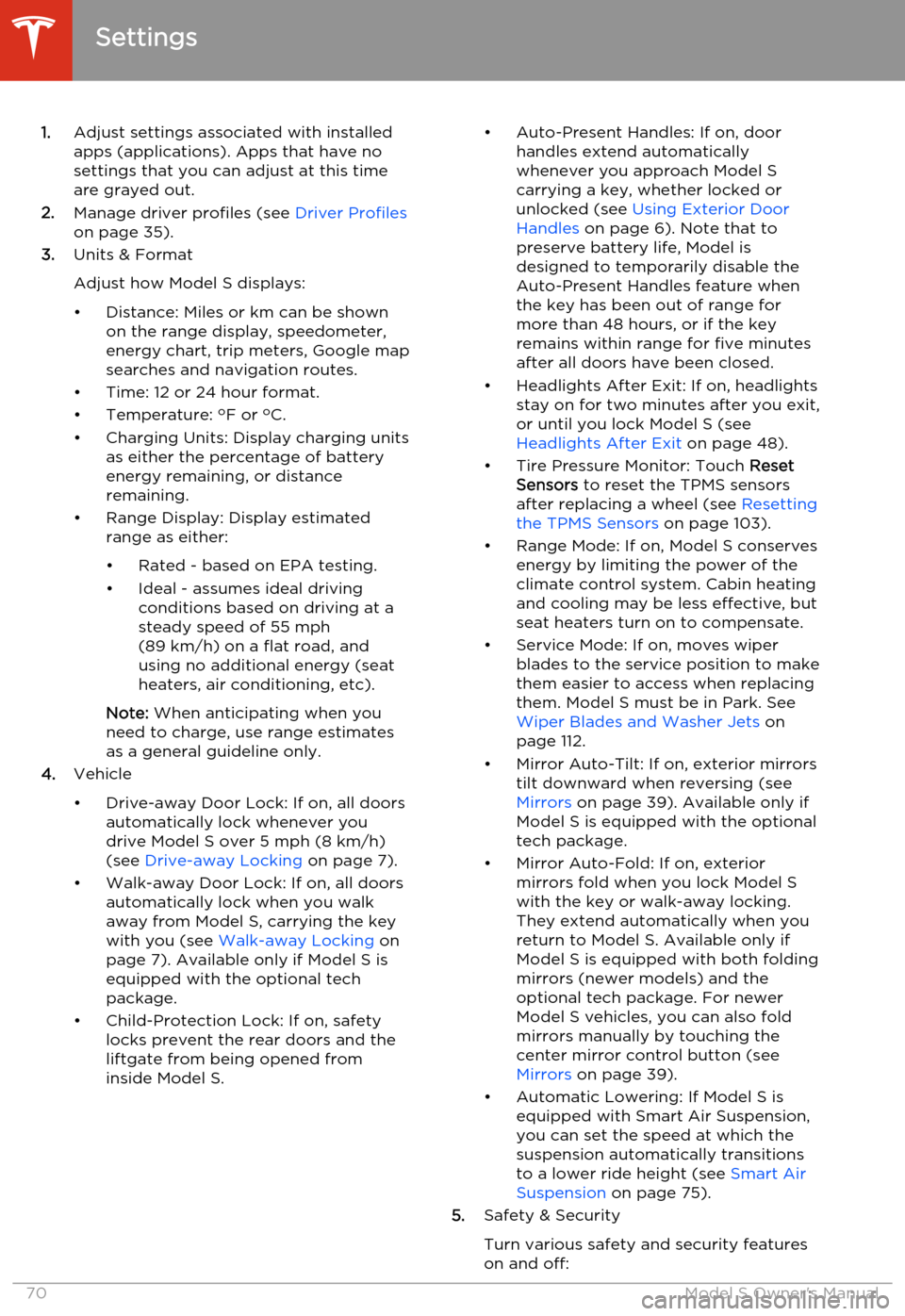
1.Adjust settings associated with installed
apps (applications). Apps that have no settings that you can adjust at this time
are grayed out.
2. Manage driver profiles (see Driver Profiles
on page 35).
3. Units & Format
Adjust how Model S displays:
• Distance: Miles or km can be shown on the range display, speedometer,
energy chart, trip meters, Google map searches and navigation routes.
• Time: 12 or 24 hour format.
• Temperature: o
F or o
C.
• Charging Units: Display charging units as either the percentage of battery
energy remaining, or distance
remaining.
• Range Display: Display estimated range as either:
• Rated - based on EPA testing. • Ideal - assumes ideal driving conditions based on driving at a
steady speed of 55 mph
(89 km/h) on a flat road, and using no additional energy (seat heaters, air conditioning, etc).
Note: When anticipating when you
need to charge, use range estimates as a general guideline only.
4. Vehicle
• Drive-away Door Lock: If on, all doors automatically lock whenever you
drive Model S over 5 mph (8 km/h)
(see Drive-away Locking on page 7).
• Walk-away Door Lock: If on, all doors automatically lock when you walk
away from Model S, carrying the key
with you (see Walk-away Locking on
page 7). Available only if Model S is
equipped with the optional tech
package.
• Child-Protection Lock: If on, safety locks prevent the rear doors and theliftgate from being opened from
inside Model S.• Auto-Present Handles: If on, door handles extend automatically
whenever you approach Model S carrying a key, whether locked orunlocked (see Using Exterior Door
Handles on page 6). Note that to
preserve battery life, Model is
designed to temporarily disable the
Auto-Present Handles feature when
the key has been out of range for
more than 48 hours, or if the key
remains within range for five minutes
after all doors have been closed.
• Headlights After Exit: If on, headlights stay on for two minutes after you exit,
or until you lock Model S (see
Headlights After Exit on page 48).
• Tire Pressure Monitor: Touch Reset
Sensors to reset the TPMS sensors
after replacing a wheel (see Resetting
the TPMS Sensors on page 103).
• Range Mode: If on, Model S conserves energy by limiting the power of theclimate control system. Cabin heatingand cooling may be less effective, butseat heaters turn on to compensate.
• Service Mode: If on, moves wiper blades to the service position to make
them easier to access when replacing
them. Model S must be in Park. See
Wiper Blades and Washer Jets on
page 112.
• Mirror Auto-Tilt: If on, exterior mirrors tilt downward when reversing (see Mirrors on page 39). Available only if
Model S is equipped with the optional tech package.
• Mirror Auto-Fold: If on, exterior mirrors fold when you lock Model S
with the key or walk-away locking. They extend automatically when you return to Model S. Available only ifModel S is equipped with both folding
mirrors (newer models) and the
optional tech package. For newer
Model S vehicles, you can also fold
mirrors manually by touching the
center mirror control button (see
Mirrors on page 39).
• Automatic Lowering: If Model S is equipped with Smart Air Suspension,you can set the speed at which the
suspension automatically transitions to a lower ride height (see Smart Air
Suspension on page 75).
5. Safety & Security
Turn various safety and security features
on and off:
Settings
70Model S Owner's Manual