display TESLA MODEL S 2014 (North America) Service Manual
[x] Cancel search | Manufacturer: TESLA, Model Year: 2014, Model line: MODEL S, Model: TESLA MODEL S 2014Pages: 159, PDF Size: 6.14 MB
Page 86 of 159
Connecting to a Paired Phone
Model S automatically connects with the last
phone to which it was connected, provided it is within operating range and has Bluetooth
turned on. If the last phone is not within range,
it attempts to connect with the next phone
that it has been paired with.
To connect to a different phone, touch the
Bluetooth icon on the touchscreen's status
bar. The Bluetooth window displays a list of paired phones. Choose the phone you want to
connect to, then touch Connect. If the phone
you want to connect to is not listed, follow the instructions on Pairing a Bluetooth Phone on
page 83.
When connected, the Model S touchscreendisplays the Bluetooth symbol next to the
phone name to show that the connection is
active.
Making a Phone Call You can make a phone call by:
• Speaking a voice command. For details, see Using Voice Commands on page 37.
• Choosing a contact from your contact list (described above).
• Using the Model S on-screen dialer.
To make a phone call using the on-screen dialer:
1. Touch the Phone app on the touchscreen,
then touch Dialer.
2. Enter the phone number on the dialer.
3. Touch Call. The touchscreen displays the
call screen and the number you are
calling.
To make a phone call by choosing a contact: 1. Touch the Phone app on the touchscreen,
then touch Contacts.
Note: Ensure that access to the phone’s
contacts is turned on.
2. Touch the name of the contact you want
to call to display details about the
contact.
3. Touch the number you want to dial (there
may be more than one). The touchscreendisplays the call screen and the name ofthe contact you are calling.
Note: If it is safe and legal to do so, you can
also initiate a call by dialing the number or
selecting the contact directly from your
phone.Receiving a Phone Call
When your phone receives an incoming call,
both the instrument panel and the
touchscreen display the caller’s number or
name (if the caller is in your phone’s contact list and Model S has access to your contacts).
Touch one of the options on the touchscreen,or use the scroll wheel on the right side of thesteering wheel to Answer or Ignore the call
(see Using Right Steering Wheel Buttons on
page 37).
In Call OptionsWhen a call is in progress, you can display the
call menu on the instrument panel by pressing
the top button on the right side of the
steering wheel. Then use the scroll wheel to
scroll through and choose an option (see
Using Right Steering Wheel Buttons on page
37).
Phone
84Model S Owner's Manual
Page 87 of 159
OverviewNote: Calendar is a BETA feature in Release
6.0.
The Calendar app allows you to view your
phone’s (iPhone or Android) calendar for the current and next day. The Calendar app
requires that:
• The Tesla Model S mobile app is running and you are logged in. When prompted on
your phone, you must grant calendar access to the mobile app. The mobile app
can then periodically (and automatically)
send calendar data from your phone to
Model S. Also, whenever you display themobile app on your phone, updated
calendar data is sent to Model S.
• Your phone is connected to Model S via Bluetooth.
• Remote access to Model S is enabled (touch Controls > Settings > Safety &
Security > Remote Access > On ).
• Both Model S and the phone have good connectivity.
Note: For privacy reasons, calendar data
displays only from the phone that Model S is connected to via Bluetooth.
You can customize when you want Model S to
display a reminder of the day's events by
touching Controls > Settings > Apps >
Calendar > Show Calendar Upon Entry .
Calendar and Navigation If Model S is equipped with the navigationfeature, and a calendar event has a locationspecified, you will be given the option to
navigate to that location. Also, when an event
on your Calendar takes place within the next
hour and has a uniquely specified location, the Model S navigation system notifies you if
there is a better route due to traffic, even if
you’re not using navigation.
Calendar
Using the Touchscreen85
Page 90 of 159

• Most devices stay in learning mode foronly three to five minutes. Immediately
after pressing the device's LEARN button, follow the instructions displayed on the
touchscreen.
HomeLink ®
Universal Transceiver
88Model S Owner's Manual
Page 91 of 159
Wi-Fi is available as a data connectionmethod and is often faster than cellular data
networks. Connecting to Wi-Fi is especially
useful in areas with limited or no cellular connectivity. To ensure fast, reliable deliveryof Model S updates (see Software Updates on
page 90), Tesla recommends leaving Wi-Fi
turned on and connected to a Wi-Fi network.
To connect to a Wi-Fi network:
1. Touch the 3G icon in the touchscreen
status bar. Model S will start scanning and
display the Wi-Fi networks that are within range.
2. Select the Wi-Fi network you want to use,
enter the password (if necessary), then
touch Connect .
You can also connect to a hidden network
that isn't shown on the list of scanned
networks. Just touch Wi-Fi Settings and enter
the name of the network in the resulting
dialog box.
Once you have connected to a network,
Model S auto-connects whenever the network
is within range. If more than one previously connected network is within range, Model S
connects to the one most recently used.
Note: You can also use a mobile hotspot or
your phone's Internet connection via Wi-Fi tethering.
Note: At Tesla service centers, Model S
automatically connects to a Tesla Service Wi-
Fi access point.
Connecting to Wi-Fi
Using the Touchscreen89
Page 92 of 159
Loading New Software
Model S updates its software wirelessly,
providing new features throughout your term
of ownership. The first time you enter Model S after an update is made available, a
scheduling window displays on the
touchscreen.
Note: Some software updates can take from
two to three hours to complete. Model S must
be in P (Park) when the new software is being
installed. To ensure the fastest and most
reliable delivery of software updates, leave
the Wi-Fi turned on and connected whenever
possible (see Connecting to Wi-Fi on page
89).
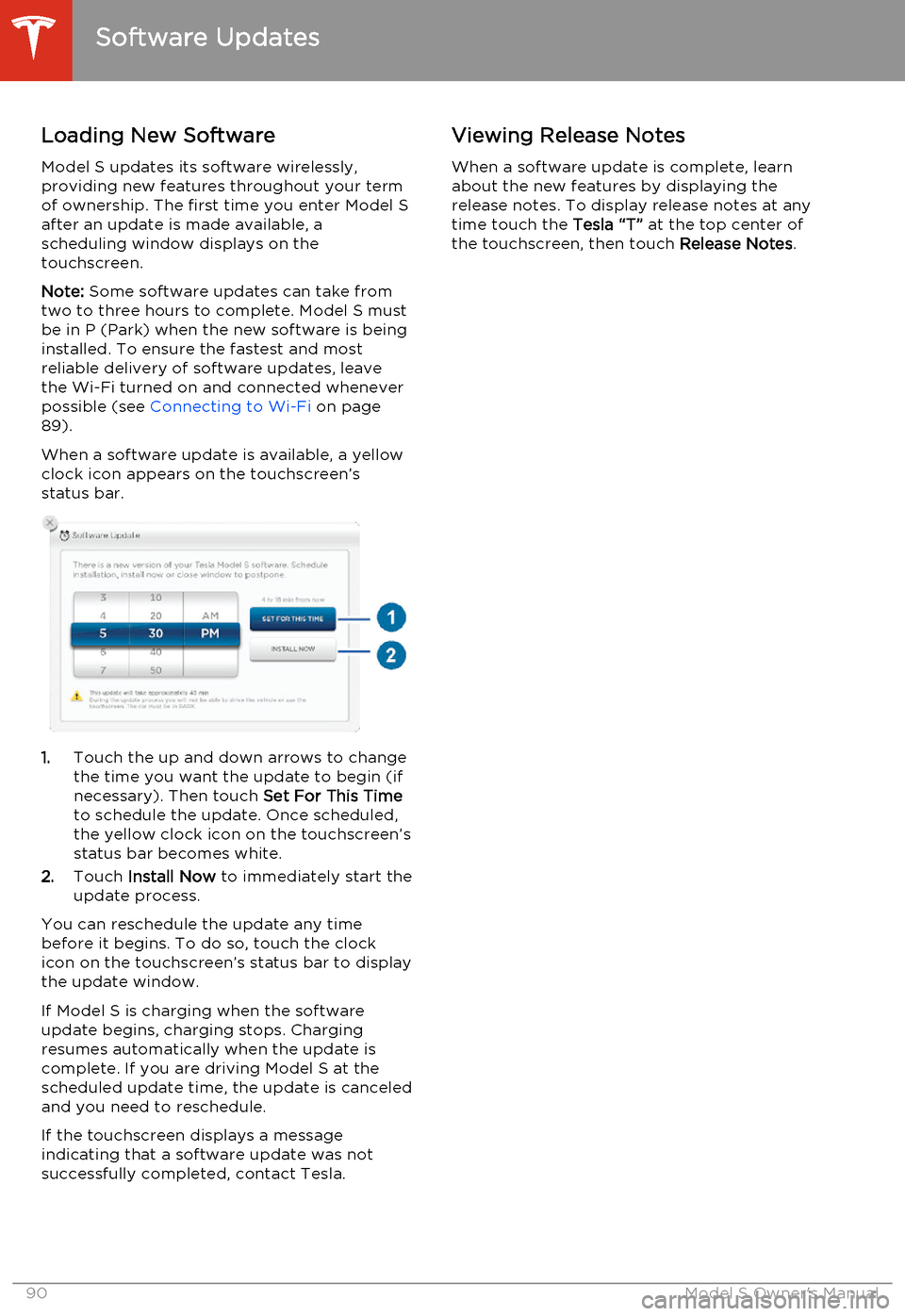
When a software update is available, a yellow clock icon appears on the touchscreen’sstatus bar.
1. Touch the up and down arrows to change
the time you want the update to begin (if
necessary). Then touch Set For This Time
to schedule the update. Once scheduled,
the yellow clock icon on the touchscreen’s
status bar becomes white.
2. Touch Install Now to immediately start the
update process.
You can reschedule the update any time
before it begins. To do so, touch the clock icon on the touchscreen’s status bar to displaythe update window.
If Model S is charging when the software
update begins, charging stops. Charging resumes automatically when the update is
complete. If you are driving Model S at the scheduled update time, the update is canceled
and you need to reschedule.
If the touchscreen displays a message
indicating that a software update was not successfully completed, contact Tesla.
Viewing Release Notes
When a software update is complete, learn
about the new features by displaying the
release notes. To display release notes at any time touch the Tesla “T” at the top center of
the touchscreen, then touch Release Notes.
Software Updates
90Model S Owner's Manual
Page 96 of 159
About the Battery
Model S has one of the most sophisticated
battery systems in the world. The most important way to preserve the Battery is to
LEAVE YOUR MODEL S PLUGGED IN when
you are not using it. This is particularly
important if you are not planning to drive
Model S for several weeks. When plugged in,
Model S wakes up when needed to
automatically maintain a charge level that
maximizes the lifetime of the Battery.
There is no advantage to waiting until the
Battery’s level is low before charging. In fact,
the Battery performs best when charged
regularly.
Note: If the Model S Battery becomes
completely discharged in a situation in which
towing is required, the owner is responsible for towing expenses. Discharge-related
towing expenses are not covered under the
Roadside Assistance policy.
Battery Care
Never allow the Battery to fully discharge.
Even when Model S is not being driven, its
Battery discharges very slowly to power the
onboard electronics. On average, the Battery discharges at a rate of 1% per day. Situations
can arise in which you must leave Model S
unplugged for an extended period of time (for
example, at an airport when traveling). In these situations, keep the 1% in mind to ensure
that you leave the Battery with a sufficient
charge level. For example, over a two week
period (14 days), the Battery discharges by
approximately 14%.
Discharging the Battery to 0% may
permanently damage the Battery. To protect against a complete discharge, Model S enters
a low-power consumption mode when the
charge level drops to 5%. In this mode, the
Battery stops supporting the onboard electronics to slow the discharge rate to
approximately 4% per month. Once this low-
power consumption mode is active, it is
important to plug in Model S within two
months to avoid Battery damage.
Note: When the low-power consumption
mode is active, the auxiliary 12V battery is no
longer being charged and can completely
discharge within 12 hours. In the unlikely event
that this occurs, you may need to jump start
or replace the 12V battery before you can
charge. In this situation, contact Tesla.Temperature Limits
For better long-term performance, avoid
exposing Model S to ambient temperatures above 140° F (60° C) or below -22° F (-30° C)
for more than 24 hours at a time.
Energy Saving Feature
Model S has an energy-saving feature that
reduces the amount of energy being consumed when Model S is not in use. Touch
Controls > Displays > Energy Saving . For more
information on maximizing range and saving
energy, see Getting Maximum Range on page
57.
Battery Warnings and CautionsWarning: The Battery has no parts that an
owner or a non-Tesla authorized service technician can service. Under no
circumstances should you open or
tamper with the Battery. Always contact Tesla to arrange for Battery servicing.Caution: If the Battery’s charge level falls
to 0%, you must plug it in. If you leave it
unplugged for an extended period, it may
not be possible to charge Model S or use
the vehicle without jump starting or
replacing the 12V battery. Leaving Model S unplugged for an extendedperiod can also result in permanent
Battery damage. If you are unable to
charge Model S, contact Tesla
immediately.Caution: The Battery requires no owner
maintenance. Do not remove the filler cap
and do not add fluid. If the instrument
panel warns you that the fluid level is low, contact Tesla immediately.
Battery Information
94Model S Owner's Manual
Page 98 of 159
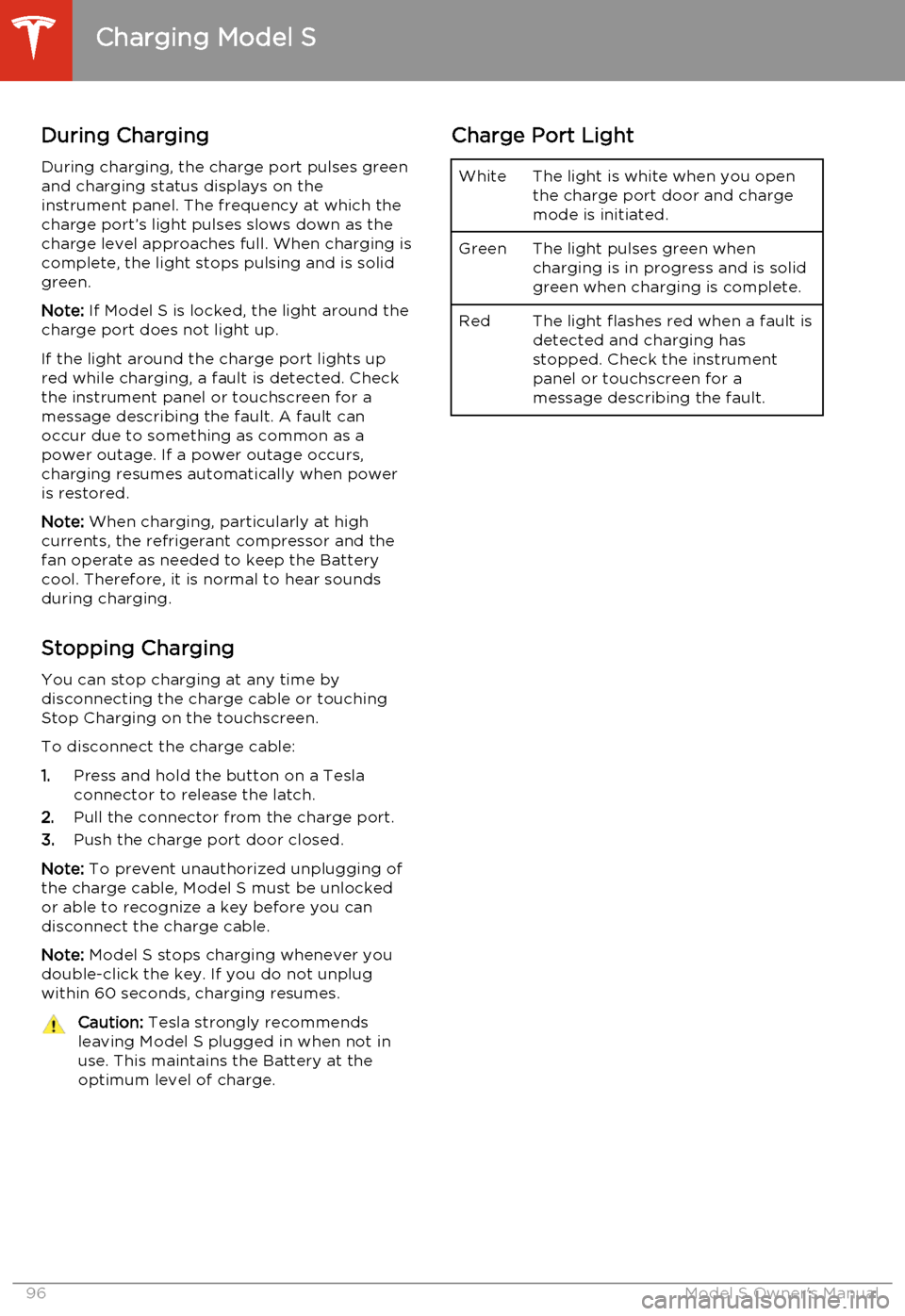
During ChargingDuring charging, the charge port pulses green
and charging status displays on the instrument panel. The frequency at which thecharge port’s light pulses slows down as thecharge level approaches full. When charging iscomplete, the light stops pulsing and is solid
green.
Note: If Model S is locked, the light around the
charge port does not light up.
If the light around the charge port lights up
red while charging, a fault is detected. Check
the instrument panel or touchscreen for a
message describing the fault. A fault can
occur due to something as common as a
power outage. If a power outage occurs,
charging resumes automatically when power
is restored.
Note: When charging, particularly at high
currents, the refrigerant compressor and the
fan operate as needed to keep the Battery cool. Therefore, it is normal to hear sounds
during charging.
Stopping Charging You can stop charging at any time by
disconnecting the charge cable or touching
Stop Charging on the touchscreen.
To disconnect the charge cable:
1. Press and hold the button on a Tesla
connector to release the latch.
2. Pull the connector from the charge port.
3. Push the charge port door closed.
Note: To prevent unauthorized unplugging of
the charge cable, Model S must be unlocked
or able to recognize a key before you can
disconnect the charge cable.
Note: Model S stops charging whenever you
double-click the key. If you do not unplug
within 60 seconds, charging resumes.Caution: Tesla strongly recommends
leaving Model S plugged in when not in
use. This maintains the Battery at the optimum level of charge.Charge Port LightWhiteThe light is white when you open
the charge port door and charge
mode is initiated.GreenThe light pulses green when
charging is in progress and is solid
green when charging is complete.RedThe light flashes red when a fault is detected and charging has
stopped. Check the instrument
panel or touchscreen for a
message describing the fault.
Charging Model S
96Model S Owner's Manual
Page 99 of 159
Changing Charge SettingsThe charge settings screen displays on the
touchscreen whenever the charge port door is
open.
To display charge settings at any time, touch
the Battery icon on the top of the
touchscreen, or touch Controls > Charging
(located in the upper right portion of the
Controls screen).
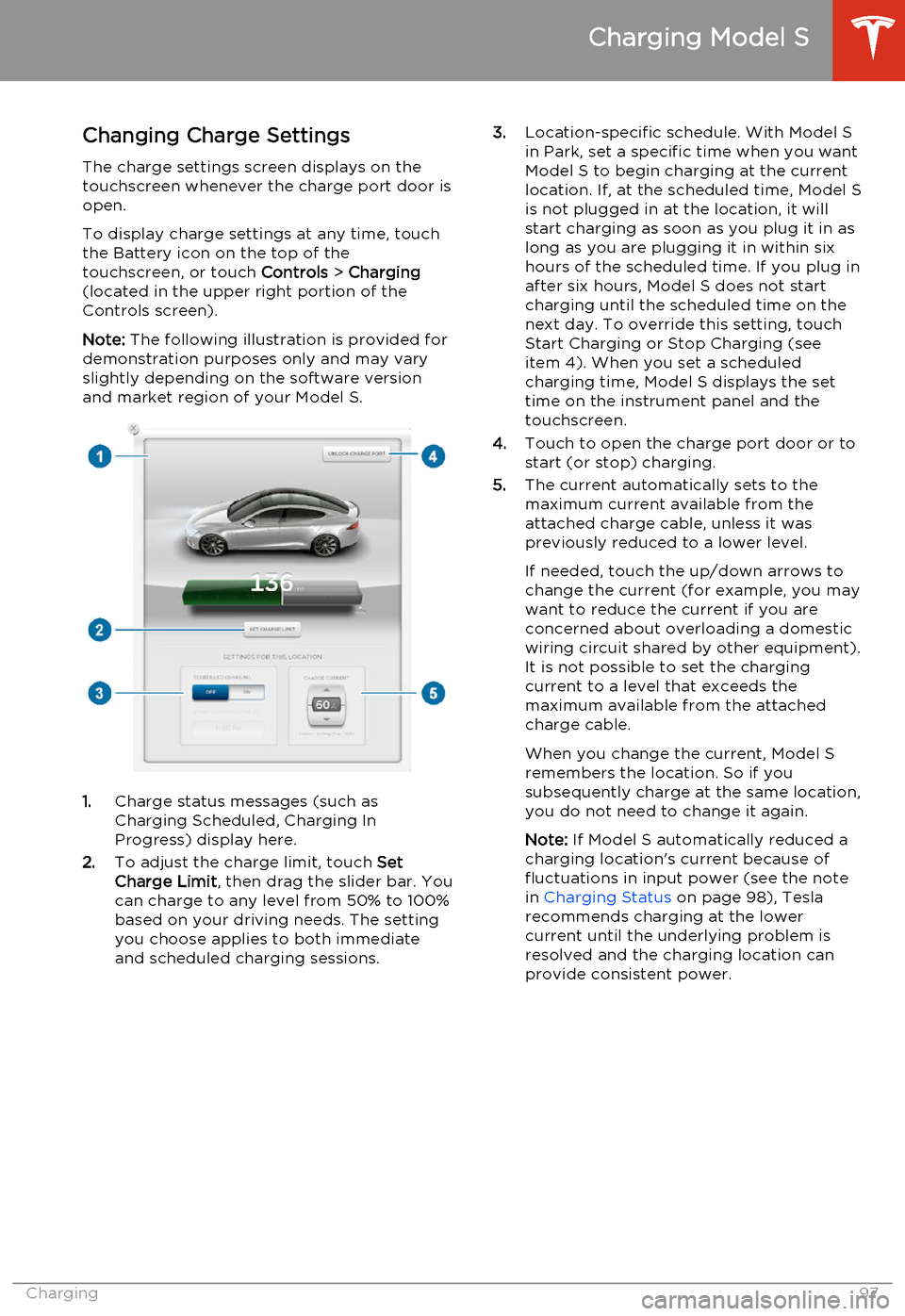
Note: The following illustration is provided for
demonstration purposes only and may vary
slightly depending on the software version
and market region of your Model S.
1. Charge status messages (such as
Charging Scheduled, Charging In
Progress) display here.
2. To adjust the charge limit, touch Set
Charge Limit , then drag the slider bar. You
can charge to any level from 50% to 100%
based on your driving needs. The setting
you choose applies to both immediate
and scheduled charging sessions.
3. Location-specific schedule. With Model S
in Park, set a specific time when you want
Model S to begin charging at the current
location. If, at the scheduled time, Model S
is not plugged in at the location, it will
start charging as soon as you plug it in as
long as you are plugging it in within six hours of the scheduled time. If you plug in
after six hours, Model S does not start
charging until the scheduled time on the next day. To override this setting, touch
Start Charging or Stop Charging (see
item 4). When you set a scheduled
charging time, Model S displays the set time on the instrument panel and the
touchscreen.
4. Touch to open the charge port door or to
start (or stop) charging.
5. The current automatically sets to the
maximum current available from the
attached charge cable, unless it was
previously reduced to a lower level.
If needed, touch the up/down arrows to change the current (for example, you may
want to reduce the current if you are
concerned about overloading a domestic
wiring circuit shared by other equipment).
It is not possible to set the charging
current to a level that exceeds the maximum available from the attached
charge cable.
When you change the current, Model S
remembers the location. So if you
subsequently charge at the same location, you do not need to change it again.
Note: If Model S automatically reduced a
charging location's current because of
fluctuations in input power (see the note
in Charging Status on page 98), Tesla
recommends charging at the lower
current until the underlying problem is
resolved and the charging location can provide consistent power.
Charging Model S
Charging97
Page 100 of 159
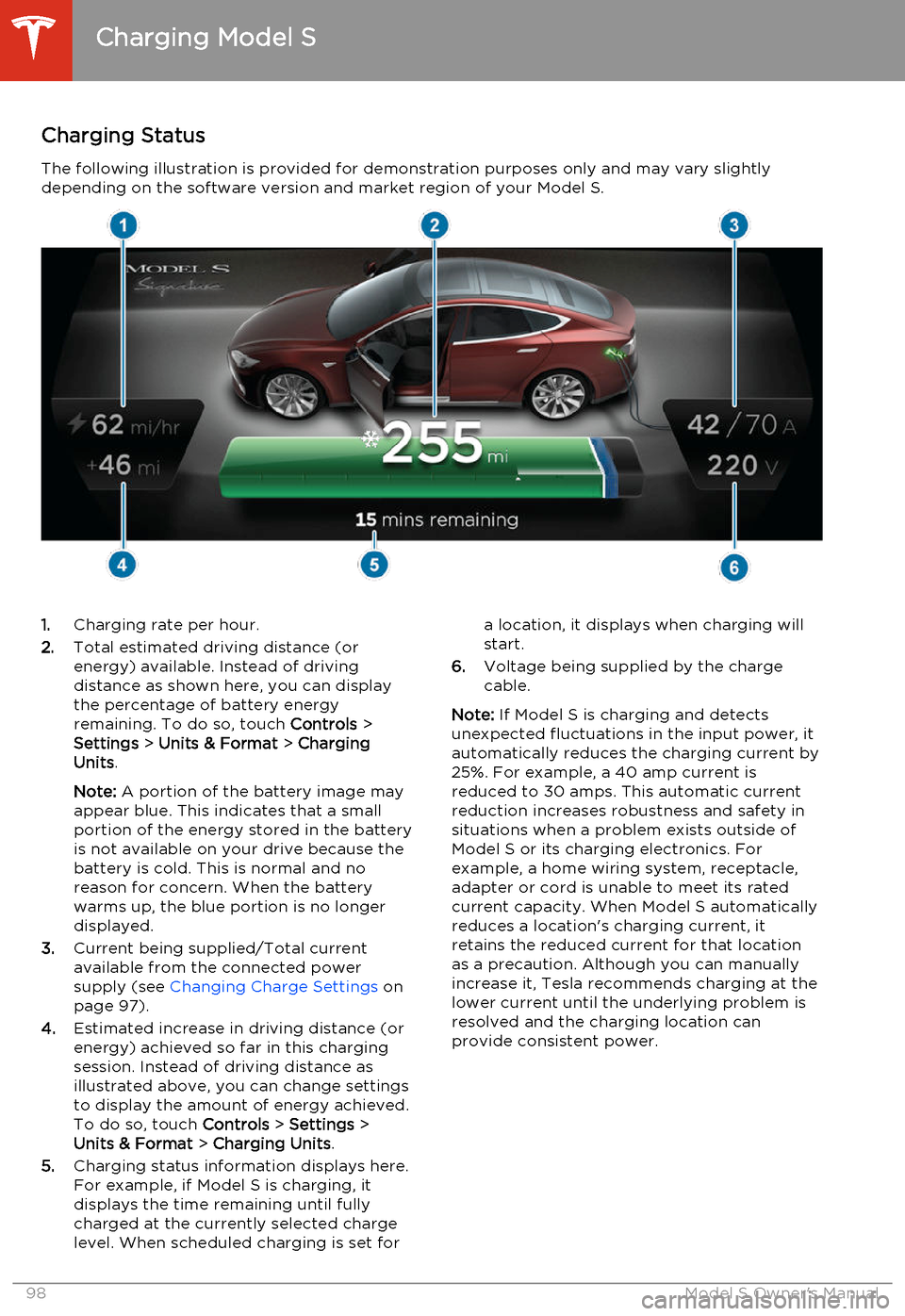
Charging StatusThe following illustration is provided for demonstration purposes only and may vary slightlydepending on the software version and market region of your Model S.1. Charging rate per hour.
2. Total estimated driving distance (or
energy) available. Instead of driving distance as shown here, you can display
the percentage of battery energy
remaining. To do so, touch Controls >
Settings > Units & Format > Charging
Units .
Note: A portion of the battery image may
appear blue. This indicates that a small
portion of the energy stored in the battery
is not available on your drive because the battery is cold. This is normal and no
reason for concern. When the battery warms up, the blue portion is no longer
displayed.
3. Current being supplied/Total current
available from the connected power
supply (see Changing Charge Settings on
page 97).
4. Estimated increase in driving distance (or
energy) achieved so far in this charging session. Instead of driving distance as
illustrated above, you can change settings
to display the amount of energy achieved.
To do so, touch Controls > Settings >
Units & Format > Charging Units .
5. Charging status information displays here.
For example, if Model S is charging, it displays the time remaining until fully
charged at the currently selected charge
level. When scheduled charging is set fora location, it displays when charging will
start.
6. Voltage being supplied by the charge
cable.
Note: If Model S is charging and detects
unexpected fluctuations in the input power, it automatically reduces the charging current by25%. For example, a 40 amp current isreduced to 30 amps. This automatic currentreduction increases robustness and safety in
situations when a problem exists outside of
Model S or its charging electronics. For
example, a home wiring system, receptacle,
adapter or cord is unable to meet its rated
current capacity. When Model S automatically
reduces a location's charging current, it
retains the reduced current for that location
as a precaution. Although you can manually
increase it, Tesla recommends charging at the
lower current until the underlying problem is
resolved and the charging location can
provide consistent power.
Charging Model S
98Model S Owner's Manual
Page 101 of 159
Service Intervals
Regular maintenance is the key to ensuring
the continued reliability and efficiency of your
Model S.
Rotate the tires every 5000 miles (8000 km),
maintain the correct tire pressures, and take Model S to Tesla at the regularly scheduledmaintenance intervals of every 12 months, orevery 12,500 miles (20,000 km), whichever
comes first. It is also important to perform the
daily and monthly checks described below.
Model S must be serviced by Tesla-certified
technicians. Damages or failures caused by
maintenance or repairs performed by non-
Tesla certified technicians are not covered by
the warranty.
Daily Checks • Check the Battery’s charge level, displayed on the instrument panel.
• Check that all exterior lights, horn, turn signals, and wipers and washers are
working.
• Check the operation of the brakes, including the parking brake.
• Check the operation of the seat belts (see Seat Belts on page 19).
• Look for fluid deposits underneath Model S that might indicate a leak. It is
normal for a small pool of water to form
(caused by the air conditioning system’s dehumidifying process).
Monthly Checks • Check the mileage to determine if the tires need to be rotated (every
5000 miles/8000 km), and check the
condition and pressure of each tire (see
Tire Care and Maintenance on page 100).
• Check washer fluid level and top up if necessary (see Topping Up Washer Fluid
on page 116).
• Check that the air conditioning system is operating (see Climate Controls on page
72).Warning: Contact Tesla immediately if
you notice any significant or sudden drop in fluid levels or uneven tire wear.Fluid Replacement Intervals
Do not change or top up Battery coolant and
brake fluid yourself. Tesla service technicians replace fluids at the regularly scheduled
service intervals:
• Brake fluid. Every 2 years or 25,000 miles (40,000 km), whichever comes first.
• Battery coolant. Every 5 years or 62,500 miles (100,000 km), whichever
comes first.
Note: Any damage from opening the Battery
coolant reservoir is excluded from the warranty.
High Voltage Safety Your Model S has been designed and built
with safety as a priority. However, be aware of these precautions to protect yourself from the
risk of injury inherent in all high-voltage
systems:
• Read and follow all instructions provided on the labels that are attached to Model S.These labels are there for your safety.
• The high voltage system has no user- serviceable parts. Do not disassemble,
remove or replace high voltage components, cables or connectors. High
voltage cables are colored orange for
easy identification.
• If an accident occurs, do not touch any high voltage wiring, connectors, or
components connected to the wiring.
• In the unlikely event that a fire occurs, immediately contact your local fire
emergency responders.Warning: Always disconnect the charge
cable before working underneath Model S, even if charging is not in
progress.Warning: Keep your hands and clothing
away from cooling fans. Some fans
operate even when Model S is powered
off.Caution: Some fluids (battery acid,
Battery coolant, brake fluid, windshield
washer additives, etc.) used in motor
vehicles are poisonous and should not be
inhaled, swallowed, or brought into contact with open wounds. For your
safety, always read and follow
instructions printed on fluid containers.
Maintenance Schedule
Maintenance99