set TESLA MODEL X 2021 Owner´s Manual
[x] Cancel search | Manufacturer: TESLA, Model Year: 2021, Model line: MODEL X, Model: TESLA MODEL X 2021Pages: 212, PDF Size: 5.07 MB
Page 1 of 212

Contents
Overview............................................................. 2
Interior Overview.........................................................................2
Exterior Overview....................................................................... 3
Opening and Closing..................................... 4 Doors............................................................................................... 4Windows....................................................................................... 12Rear Trunk.................................................................................... 13 Front Trunk...................................................................................15Glove Box......................................................................................17Cup Holders................................................................................. 18Sun Visors.....................................................................................19
Seating and Safety Restraints................. 20 Front and Rear Seats.............................................................. 20Seat Belts.....................................................................................26Child Safety Seats.................................................................... 29
Airbags......................................................................................... 39
Driving.............................................................. 44 Driver Profiles ............................................................................ 44
Steering Wheel..........................................................................46 Mirrors...........................................................................................49 Starting and Powering Off....................................................50
Gears............................................................................................. 52 Instrument Panel....................................................................... 53Lights............................................................................................ 59 Wipers and Washers............................................................... 64Brakes........................................................................................... 65Traction Control........................................................................ 67Park Assist...................................................................................68 Vehicle Hold............................................................................... 70Acceleration Modes.................................................................. 71Trip Information.........................................................................73
Getting Maximum Range.......................................................74 Rear View Camera.................................................................... 76
Active Spoiler............................................................................. 77 Towing and Accessories.........................................................78
Driver Assistance.......................................... 86
About Driver Assistance........................................................ 86 Traffic-Aware Cruise Control................................................89
Autosteer..................................................................................... 95 Auto Lane Change................................................................... 98Autopark.................................................................................... 100 Lane Assist................................................................................ 104Collision Avoidance Assist.................................................. 106 Speed Assist.............................................................................. 110
Using the Touchscreen............................... 112 Touchscreen Overview........................................................... 112Controls........................................................................................117Settings........................................................................................ 121 Climate Controls...................................................................... 126Smart Air Suspension............................................................ 133Media and Audio..................................................................... 135 Phone.......................................................................................... 140Maps and Navigation............................................................. 142Calendar..................................................................................... 147Security Settings..................................................................... 148HomeLink
Page 9 of 212
Note: You can configure Model X to open the
falcon wing doors to a lower height setting by
using the touchscreen ( Controls > Settings >
Doors & Locks > FALCON DOOR HEIGHT ).
Note: If a falcon wing door detects an obstacle
while closing, it reverses a few inches before it
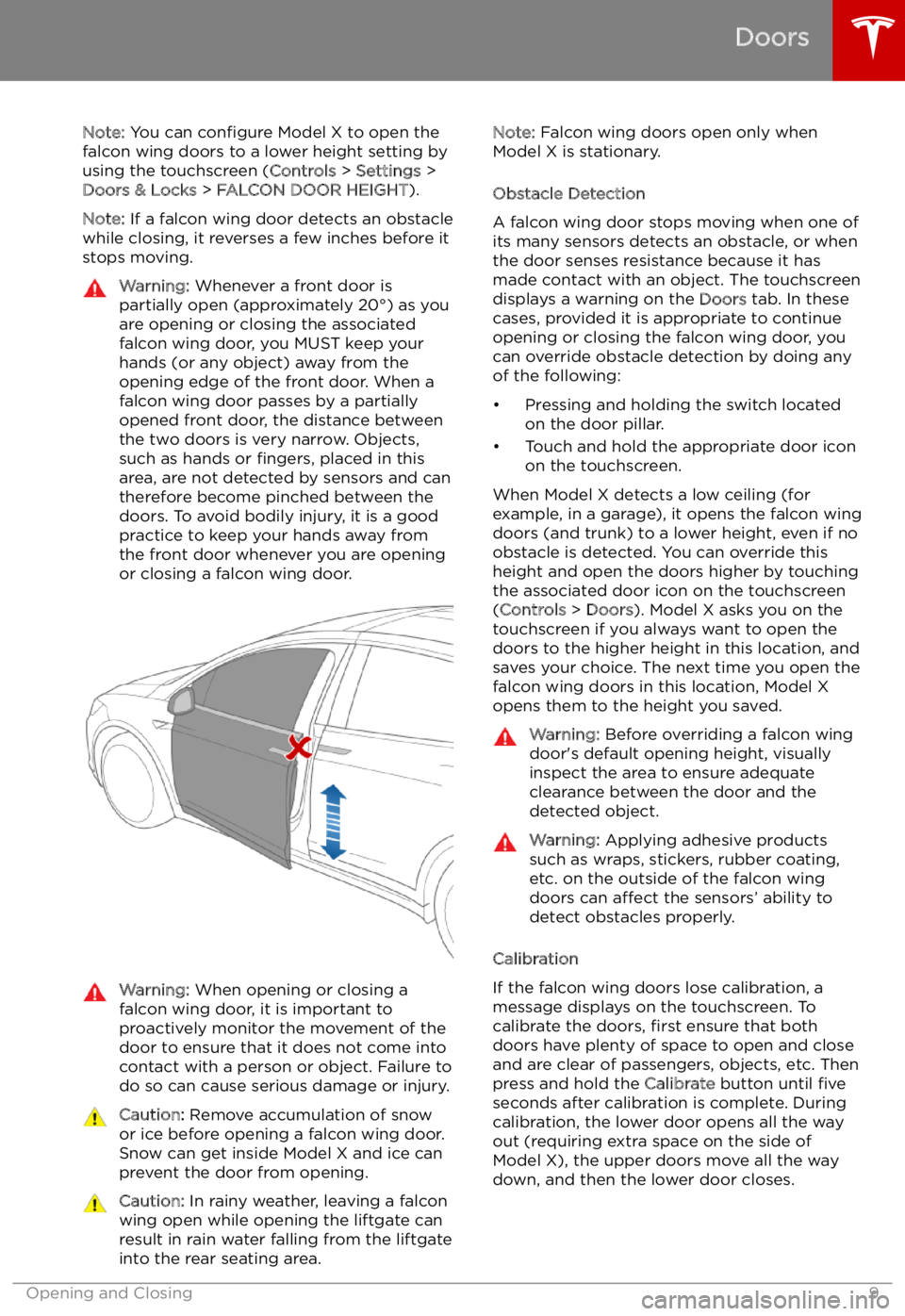
stops moving.Warning: Whenever a front door is
partially open (approximately 20
Page 14 of 212
Adjusting the Opening Height
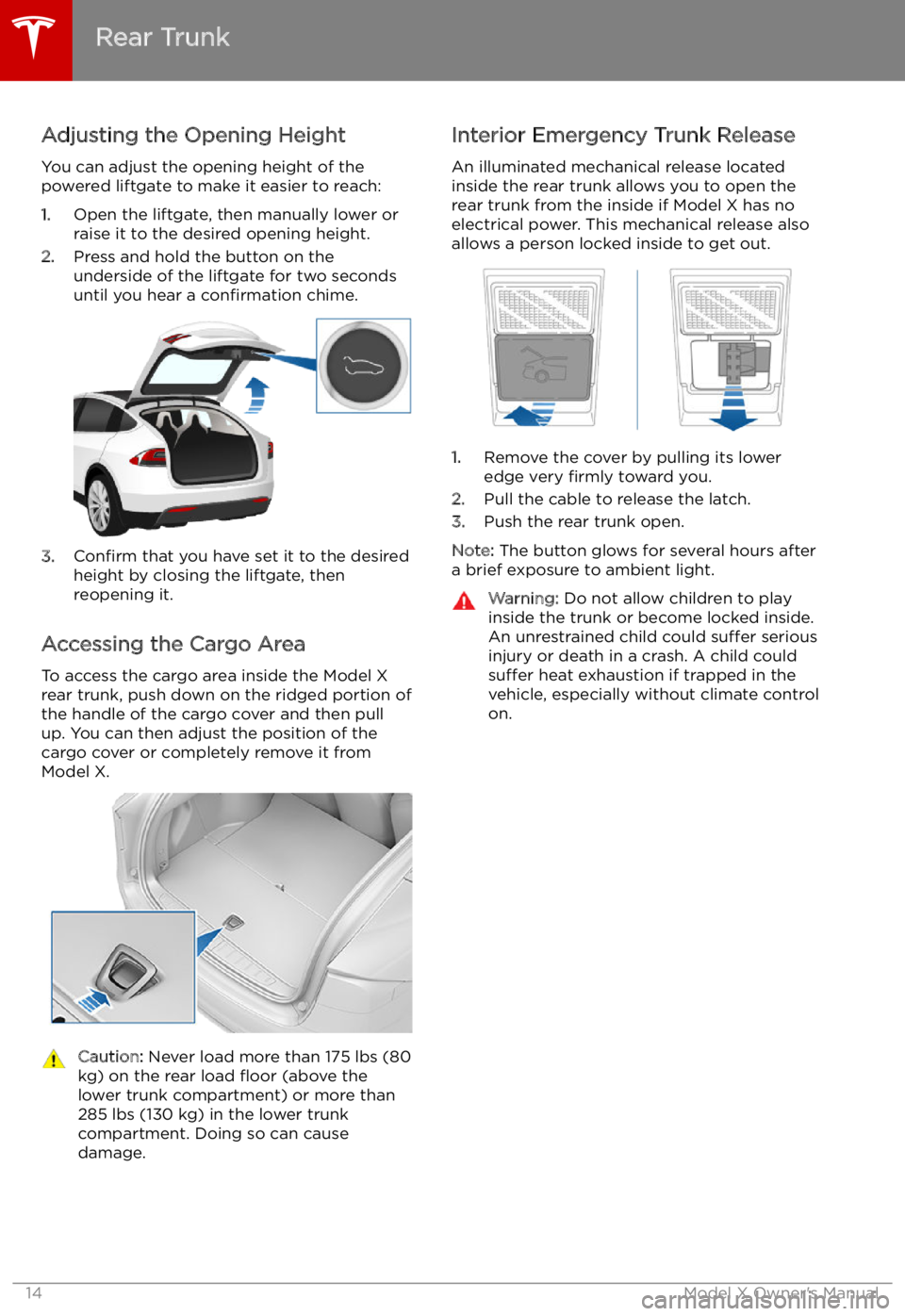
You can adjust the opening height of the
powered liftgate to make it easier to reach:
1. Open the liftgate, then manually lower or
raise it to the desired opening height.
2. Press and hold the button on the
underside of the liftgate for two seconds
until you hear a confirmation chime.
3.Confirm that you have set it to the desired
height by closing the liftgate, then
reopening it.
Accessing the Cargo Area To access the cargo area inside the Model X
rear trunk, push down on the ridged portion of the handle of the cargo cover and then pull
up. You can then adjust the position of the
cargo cover or completely remove it from
Model X.
Caution: Never load more than 175 lbs (80
kg) on the rear load
Page 41 of 212
Disabling the Passenger Front
Airbags
When a child is seated in the front passenger
seat (even when the child is seated in a child safety seat or booster seat), you must ensure
the passenger front airbags are disabled to
prevent them from injuring the child if a
collision occurs.
Note: Rear seats are the preferred location for
seating children in child safety seats.
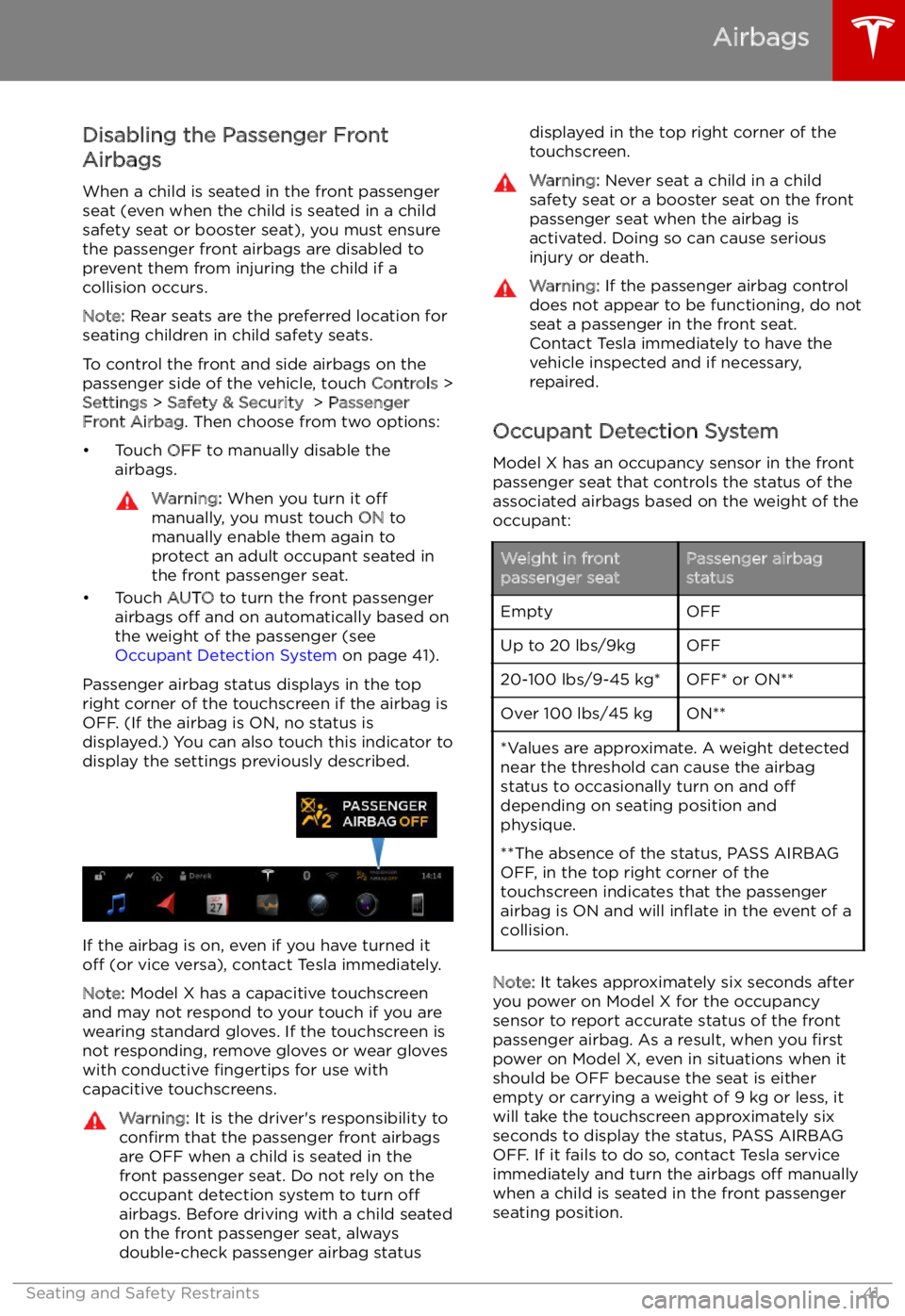
To control the front and side airbags on the
passenger side of the vehicle, touch Controls >
Settings > Safety & Security > Passenger
Front Airbag . Then choose from two options:
Page 60 of 212

1.Touch to control front driver side map light.
2. If you touch DOME, a popup appears that allow you to control cabin lights. If cabin lights are
set to ON, all interior cabin lights, including the light in the rear trunk, turn on when you
unlock Model X, open a door upon exiting, or shift into P (Park). They turn off after 60
seconds, when you lock Model X, or when you shift into a driving gear. If set to AUTO, cabin
lights turn on only when little or no light is detected.
You can also turn on an individual dome light by touching its lens. If you manually turn a domelight on, it turns off when Model X powers off. If Model X was already powered off when you
manually turned the light on, it turns off after 60 minutes.
3. If you turn on AMBIENT lights, the lights on the door arm rests turn on whenever the
headlights are on.
4. Touch to control front passenger side map light.
5. Touch to turn the fog lights on or off. Fog lights operate only when low beam headlights are
on. When headlights are turned off, fog lights also turn off.
The Rear Fog indicator displays on the instrument panel whenever rear fog
lights are on.The Front Fog indicator displays on the instrument panel whenever the
optional front fog lights are on.
6. If Model X is equipped with a coil suspension system, you can adjust the angle of the
headlights to accommodate the load you are carrying. You may need to lower the angle of theheadlights to avoid blinding oncoming drivers in situations when you are carrying a significant
amount of weight in the rear trunk. After touching LEVEL, drag the slider to the desired
position:
0Headlights are not lowered. No change is needed when all front and rear seats are
occupied and only the front trunk is laden.1Headlights are lowered one level. Suitable when the front and rear seats are occupied and the rear trunk is laden.2Headlights are lowered two levels. Suitable when carrying heavy loads.
Note: Headlight adjustments are not available if Model X is equipped with Smart Air
Suspension because Model X levels automatically.
Lights
60Model X Owner
Page 61 of 212
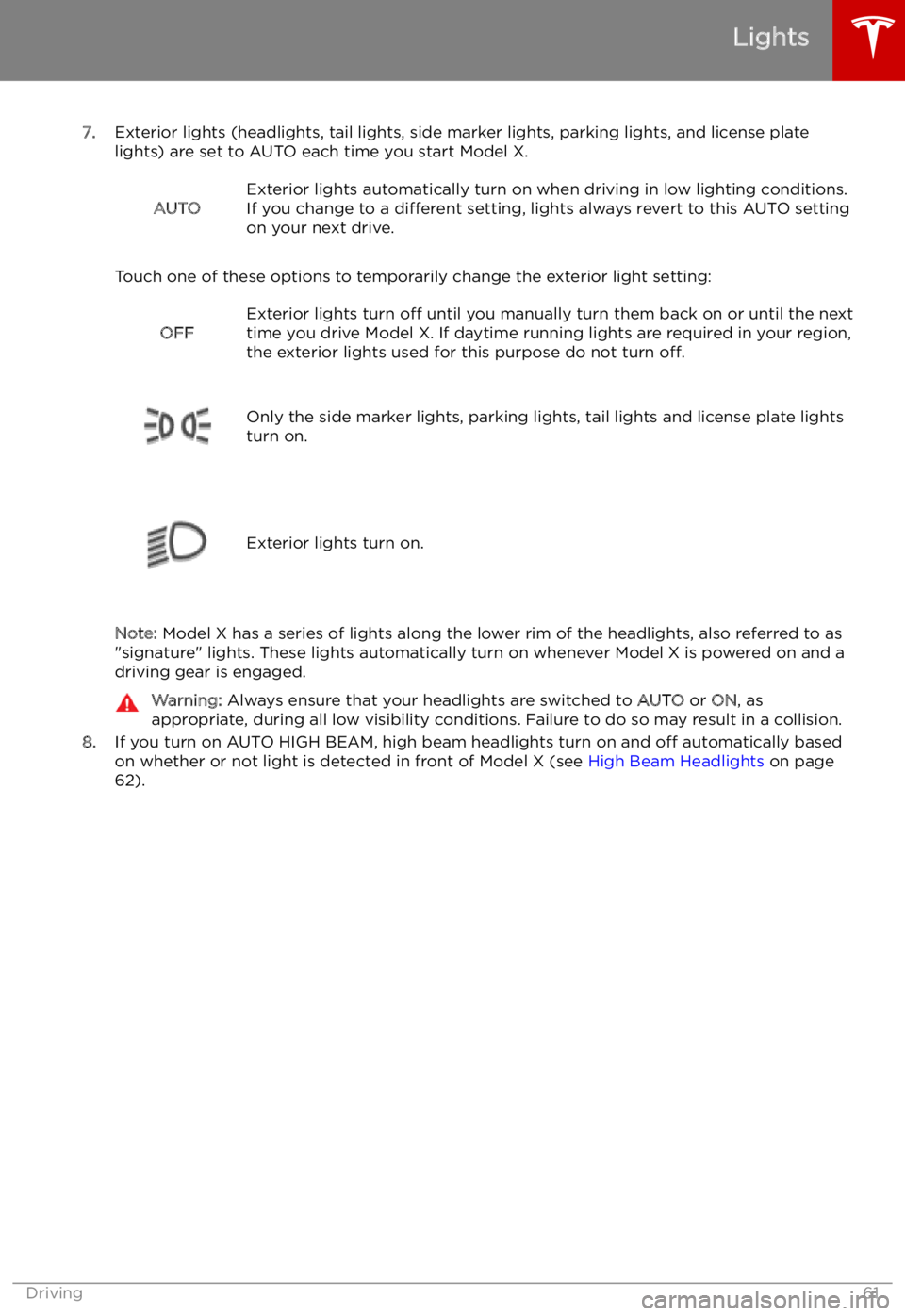
7.Exterior lights (headlights, tail lights, side marker lights, parking lights, and license plate
lights) are set to AUTO each time you start Model X.
AUTOExterior lights automatically turn on when driving in low lighting conditions.
If you change to a different setting, lights always revert to this AUTO setting
on your next drive.
Touch one of these options to temporarily change the exterior light setting:
OFFExterior lights turn off until you manually turn them back on or until the next
time you drive Model X. If daytime running lights are required in your region,
the exterior lights used for this purpose do not turn off.
Only the side marker lights, parking lights, tail lights and license plate lights
turn on.Exterior lights turn on.
Note: Model X has a series of lights along the lower rim of the headlights, also referred to as
"signature" lights. These lights automatically turn on whenever Model X is powered on and a driving gear is engaged.
Warning: Always ensure that your headlights are switched to AUTO or ON, as
appropriate, during all low visibility conditions. Failure to do so may result in a collision.
8. If you turn on AUTO HIGH BEAM, high beam headlights turn on and off automatically based
on whether or not light is detected in front of Model X (see High Beam Headlights on page
62).
Lights
Driving61
Page 62 of 212
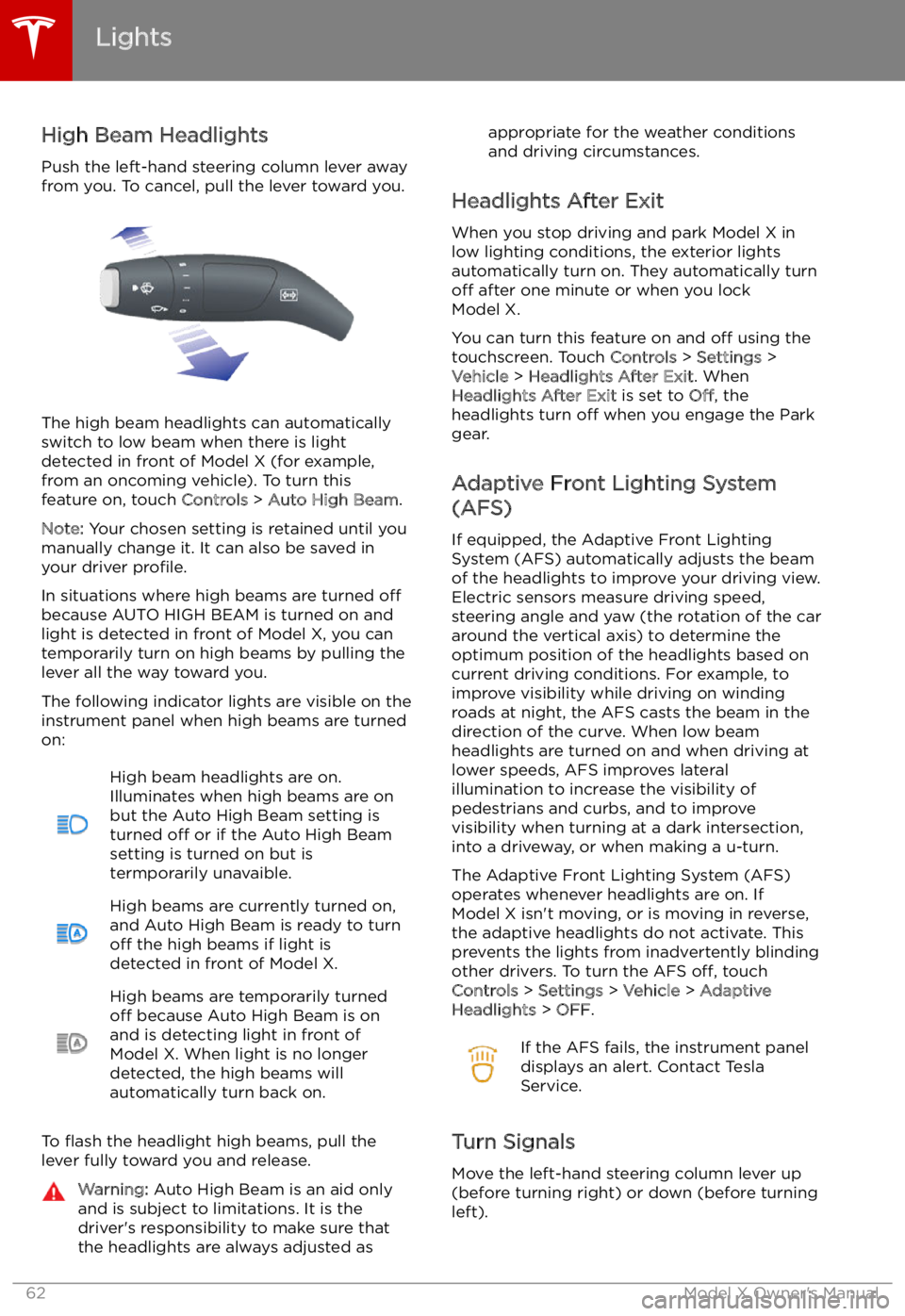
High Beam HeadlightsPush the left-hand steering column lever away
from you. To cancel, pull the lever toward you.
The high beam headlights can automatically
switch to low beam when there is light
detected in front of Model X (for example,
from an oncoming vehicle). To turn this
feature on, touch Controls > Auto High Beam .
Note: Your chosen setting is retained until you
manually change it. It can also be saved in
your driver profile.
In situations where high beams are turned off
because AUTO HIGH BEAM is turned on and light is detected in front of Model X, you cantemporarily turn on high beams by pulling the
lever all the way toward you.
The following indicator lights are visible on the
instrument panel when high beams are turned
on:
High beam headlights are on.
Illuminates when high beams are on but the Auto High Beam setting is
turned off or if the Auto High Beam
setting is turned on but is
termporarily unavaible.High beams are currently turned on,
and Auto High Beam is ready to turn
off the high beams if light is
detected in front of Model X.High beams are temporarily turned
off because Auto High Beam is on
and is detecting light in front of
Model X. When light is no longer
detected, the high beams will
automatically turn back on.
To
Page 66 of 212
Warning: In snowy or icy conditions
Model X may experience traction loss
during regenerative braking, particularly
when in the Standard setting and/or not
using winter tires. Tesla recommends
using the Low setting (see To Set the
Regenerative Braking Level on page 66)
in snowy or icy conditions to help maintain vehicle stability.
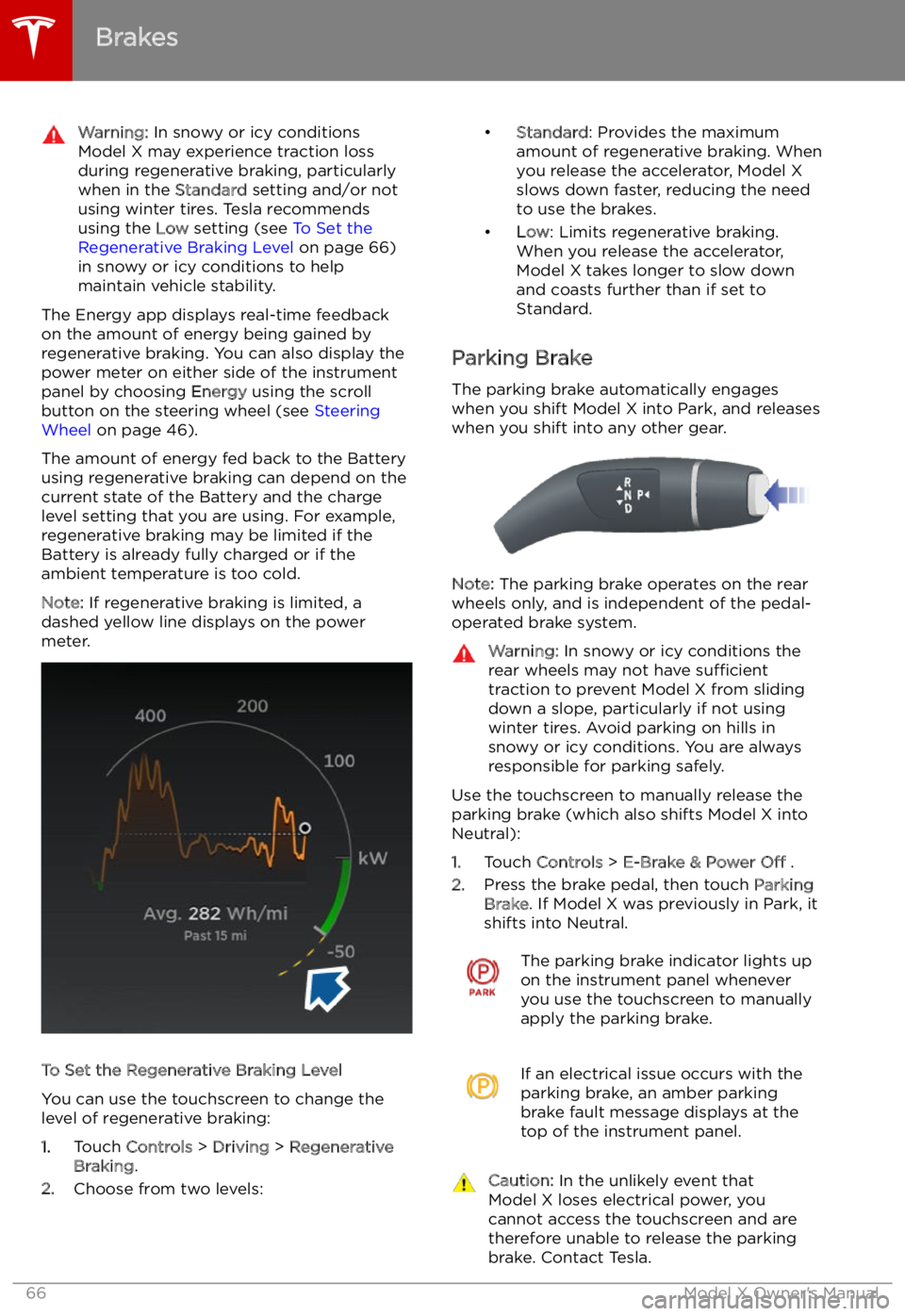
The Energy app displays real-time feedbackon the amount of energy being gained by
regenerative braking. You can also display the
power meter on either side of the instrument
panel by choosing Energy using the scroll
button on the steering wheel (see Steering
Wheel on page 46).
The amount of energy fed back to the Battery using regenerative braking can depend on the
current state of the Battery and the charge
level setting that you are using. For example,
regenerative braking may be limited if the Battery is already fully charged or if the
ambient temperature is too cold.
Note: If regenerative braking is limited, a
dashed yellow line displays on the power
meter.
To Set the Regenerative Braking Level
You can use the touchscreen to change the
level of regenerative braking:
1. Touch Controls > Driving > Regenerative
Braking .
2. Choose from two levels:
Page 69 of 212
Caution: Keep sensors clean from dirt,
debris, snow, and ice. Avoid using a high
pressure power washer on the sensors
and do not clean a sensor with a sharp or abrasive object that can scratch or
damage its surface.Caution: Do not install accessories or
stickers on or near the parking sensors.
Controlling Audible Feedback
You can use Park Assist with or without
audible feedback. To turn chimes on or off,
touch Controls > Settings > Safety &
Security > Park Assist Chimes .
To mute the chimes temporarily, press the
scroll wheel on the left side of the steering wheel or touch the mute button in the bottom
left corner of the Park Assist view. The chimes
are muted until you shift into a different gear
or drive over 8 km/h.
Limitations and False Warnings
The parking sensors may not function
correctly in these situations:
Page 71 of 212

Acceleration Modes
The acceleration settings available on your Model X vary depending on options chosen at
time of purchase: