button TOYOTA AURIS HYBRID 2016 Owner's Guide
[x] Cancel search | Manufacturer: TOYOTA, Model Year: 2016, Model line: AURIS HYBRID, Model: TOYOTA AURIS HYBRID 2016Pages: 592, PDF Size: 16.67 MB
Page 321 of 592
321
UK AURIS_HV_HB_EE (OM12K47E)
5
Audio system
5-2. Using the audio system
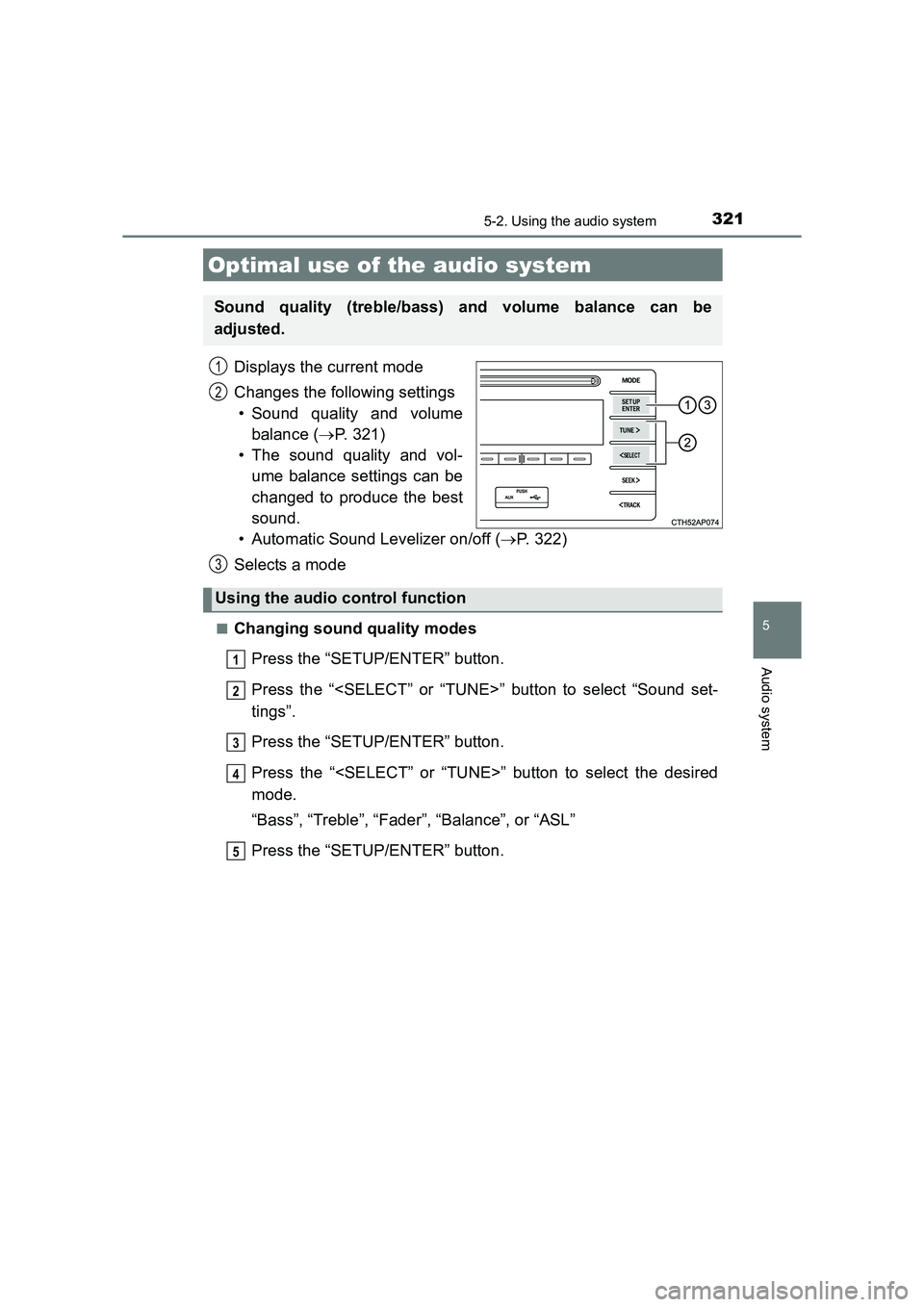
Displays the current mode
Changes the following settings• Sound quality and volume balance ( →P. 321)
• The sound quality and vol- ume balance settings can be
changed to produce the best
sound.
• Automatic Sound Levelizer on/off ( →P. 322)
Selects a mode
■Changing sound quality modes
Press the “SETUP/ENTER” button.
Press the “
tings”.
Press the “SETUP/ENTER” button.
Press the “
mode.
“Bass”, “Treble”, “Fader”, “Balance”, or “ASL”
Press the “SETUP/ENTER” button.
Optimal use of the audio system
Sound quality (treble/bass) and volume balance can be
adjusted.
1
2
3
Using the audio control function
1
2
3
4
5
Page 322 of 592
3225-2. Using the audio system
UK AURIS_HV_HB_EE (OM12K47E)■
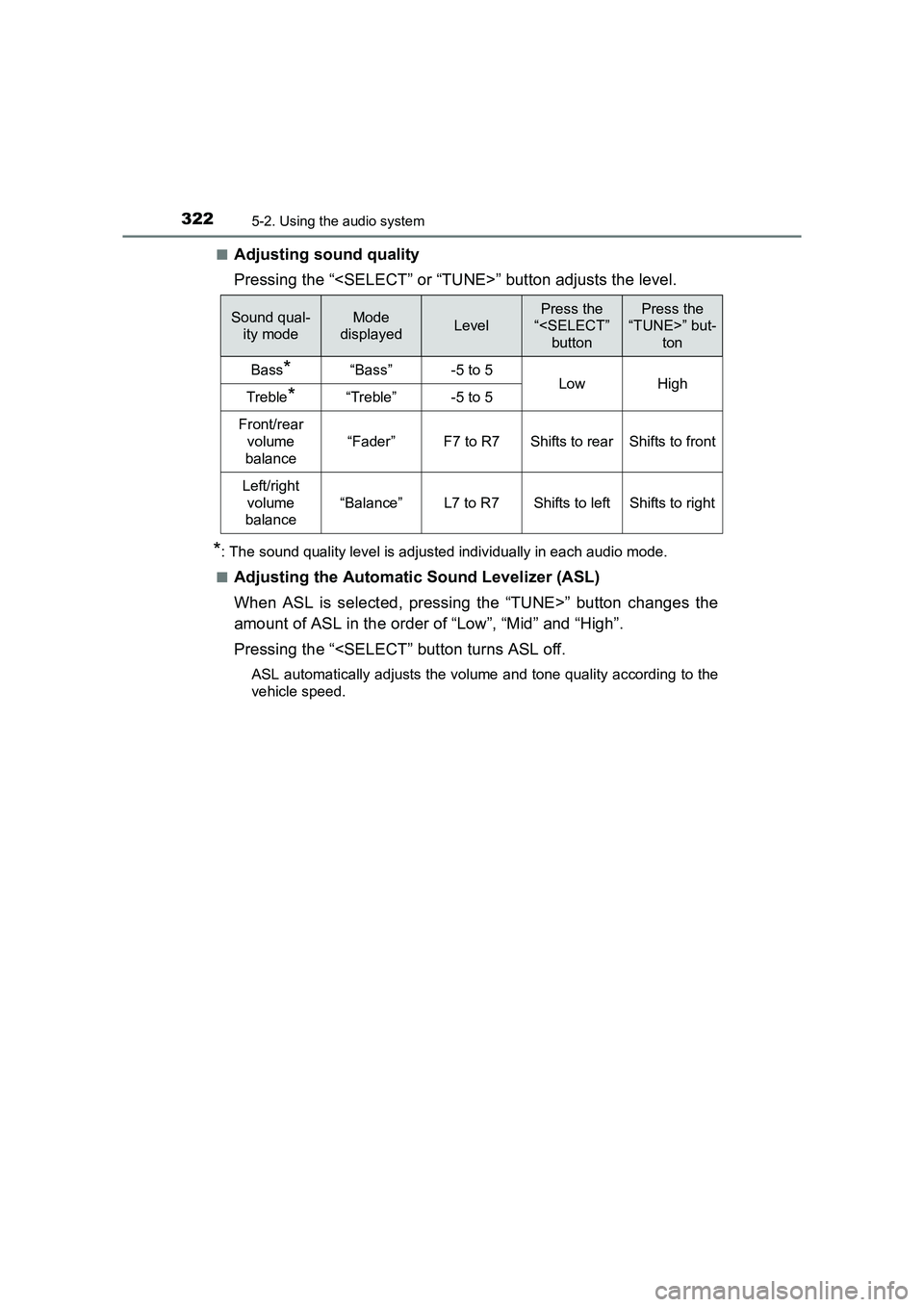
Adjusting sound quality
Pressing the “
*: The sound quality level is adjusted individually in each audio mode.
■
Adjusting the Automatic Sound Levelizer (ASL)
When ASL is selected, pressing the “TUNE>” button changes the
amount of ASL in the order of “Low”, “Mid” and “High”.
Pressing the “
vehicle speed.
Sound qual- ity modeMode
displayedLevel
Press the
“
“TUNE>” but-
ton
Bass*“Bass”-5 to 5LowHighTreble*“Treble”-5 to 5
Front/rear volume
balance
“Fader”F7 to R7Shifts to rearShifts to front
Left/right volume
balance
“Balance”L7 to R7Shifts to leftShifts to right
Page 323 of 592
323
UK AURIS_HV_HB_EE (OM12K47E)
5
Audio system
5-3. Using the radio
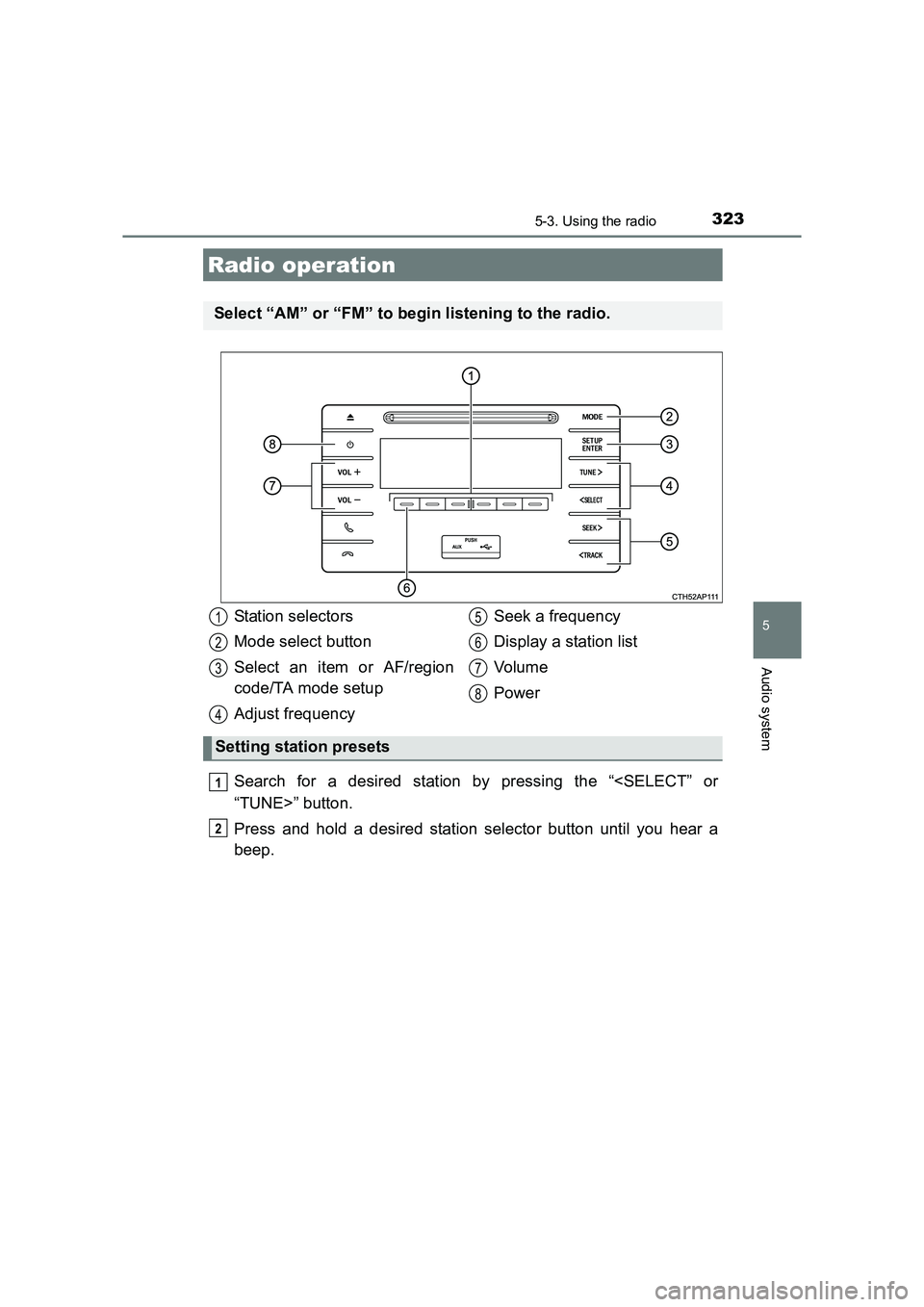
Search for a desired station by pressing the “
Press and hold a desired station selector button until you hear a
beep.
Radio operation
Select “AM” or “FM” to begin listening to the radio.
Station selectors
Mode select button
Select an item or AF/region
code/TA mode setup
Adjust frequencySeek a frequency
Display a station list
Vol um e
Power
Setting station presets
1
2
3
4
5
6
7
8
1
2
Page 324 of 592
3245-3. Using the radio
UK AURIS_HV_HB_EE (OM12K47E)■
Updating the station list
Press “List”.
The station list will be displayed.
Press “Update” to update the list.
“Updating” is displayed while the searching is in process, and then avail-
able stations will be listed on the display.
To cancel the updating process, press “Back”.
■
Selecting a station from the station list Press “List”.
The station list will be displayed.
Press the “
Press the “SETUP/ENTER” button to tune in the station.
To return to the previous display, press “Back”.
This feature allows your radio to receive RDS data.
■Listening to stations of the same networkPress the “SETUP/ENTER” button.
Press the “
press the “SETUP/ENTER” button.
Press the “
mode: “FM AF” or “Region code”.
Press the “SETUP/ENTER” button to select “On” or “Off”.
FM AF ON mode: The station among those of the same net- work with strong reception is selected.
Region code ON mode: The station among those of the same net- work with strong reception and broadcast-
ing the same program is selected.
Using the station list
RDS (Radio Data System)
1
2
1
2
3
1
2
3
4
Page 325 of 592
3255-3. Using the radio
UK AURIS_HV_HB_EE (OM12K47E)
5
Audio system
■Traffic informationPress the “SETUP/ENTER” button.
Press the “
press the “SETUP/ENTER” button.
Press the “
mode.
Press the “SETUP/ENTER” button to select “On” or “Off”.
TA mode: The system automatically switches to traffic information when a broadcast with a traffic information signal is
received.
The station returns to the previous one when the traffic infor-
mation ends.
■EON (Enhanced Other Network) system (for traffic announcement func-
tion)
If the RDS station (with EON data) you are listening to is not broadcasting a
traffic information program and the audio system is in the TA (traffic
announcement) mode, the radio will be switched automatically to a station
broadcasting a traffic information program in the EON AF list when traffic
information begins.
■ When the 12-volt battery is disconnected
Station presets are erased.
■ Reception sensitivity
●Maintaining perfect radio reception at a ll times is difficult due to the continu-
ally changing position of the antenna, differences in signal strength and sur-
rounding objects, such as trains, transmitters, etc.
● The radio antenna is mounted on the rear side of the roof.
1
2
3
4
Page 326 of 592
326
UK AURIS_HV_HB_EE (OM12K47E)
5-4. Playing audio CDs and MP3/WMA discs
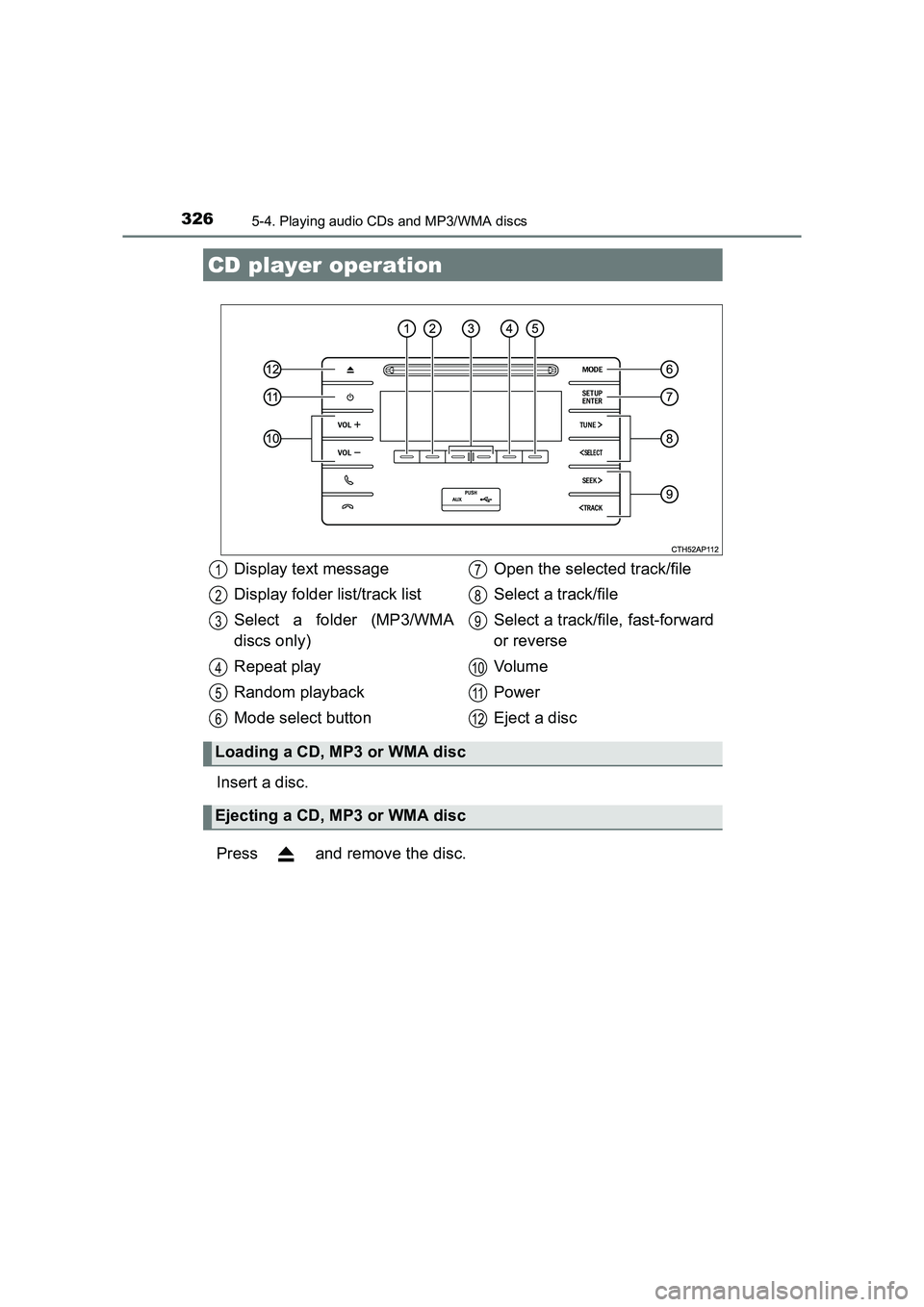
Insert a disc.
Press and remove the disc.
CD player operation
Display text message
Display folder list/track list
Select a folder (MP3/WMA
discs only)
Repeat play
Random playback
Mode select buttonOpen the selected track/file
Select a track/file
Select a track/file, fast-forward
or reverse
Vol um e
Power
Eject a disc
Loading a CD, MP3 or WMA disc
Ejecting a CD, MP3 or WMA disc
1
2
3
4
5
6
7
8
9
10
11
12
Page 327 of 592
3275-4. Playing audio CDs and MP3/WMA discs
UK AURIS_HV_HB_EE (OM12K47E)
5
Audio system
■Selecting a track
Press the “TUNE>” or “SEEK>” button to move up or the
“
■Selecting a track from a track listPress “List”.
The track list will be displayed.
Press the “
Press the “SETUP/ENTER” button to open the selected track.
To return to the previous display, press “Back”.
■
Fast-forwarding and reversing a track
To fast-forward or reverse, press and hold the “SEEK>” or
“
Press “RPT”.
The current track is played repeat edly until “RPT” is pressed
again.
■
Random playback
Press “RDM”.
Tracks are played in a random order until “RDM” is pressed
again.
■
Switching the display
Press “Text”.
Track name, Artist name and CD title are shown on the display.
To return to the previous display, press “Text” or “Back”.
Using the CD player
1
2
3
Page 328 of 592
3285-4. Playing audio CDs and MP3/WMA discs
UK AURIS_HV_HB_EE (OM12K47E)■
Selecting a folder
To select the desired folder, press “ ” or “ ”.
■Selecting a folder and file from a folder list
Press “List”.
The folder list will be displayed.
Press the “
Press the “SETUP/ENTER” button to open the selected file/
folder.
To return to the previous display, press “Back”.
■
Returning to the first folder
Press and hold “ ” until you hear a beep.
■Selecting a file
Press the “
select the desired file.
■Fast-forwarding and reversing a file
To fast-forward or reverse, press and hold the “SEEK>” or
“
Pressing “RPT” changes the repeat play mode in the follow-
ing order:
File repeat → Folder repeat
* → Off.
*: Not available when RDM (random playback) is selected
■
Random playback
Pressing “RDM” changes the random playback mode in the
following order:
Folder random → Disc random → Off.
Playing back an MP3 or WMA disc
1
2
3
Page 334 of 592
334
UK AURIS_HV_HB_EE (OM12K47E)
5-5. Using an external device
→P. 3 2 0
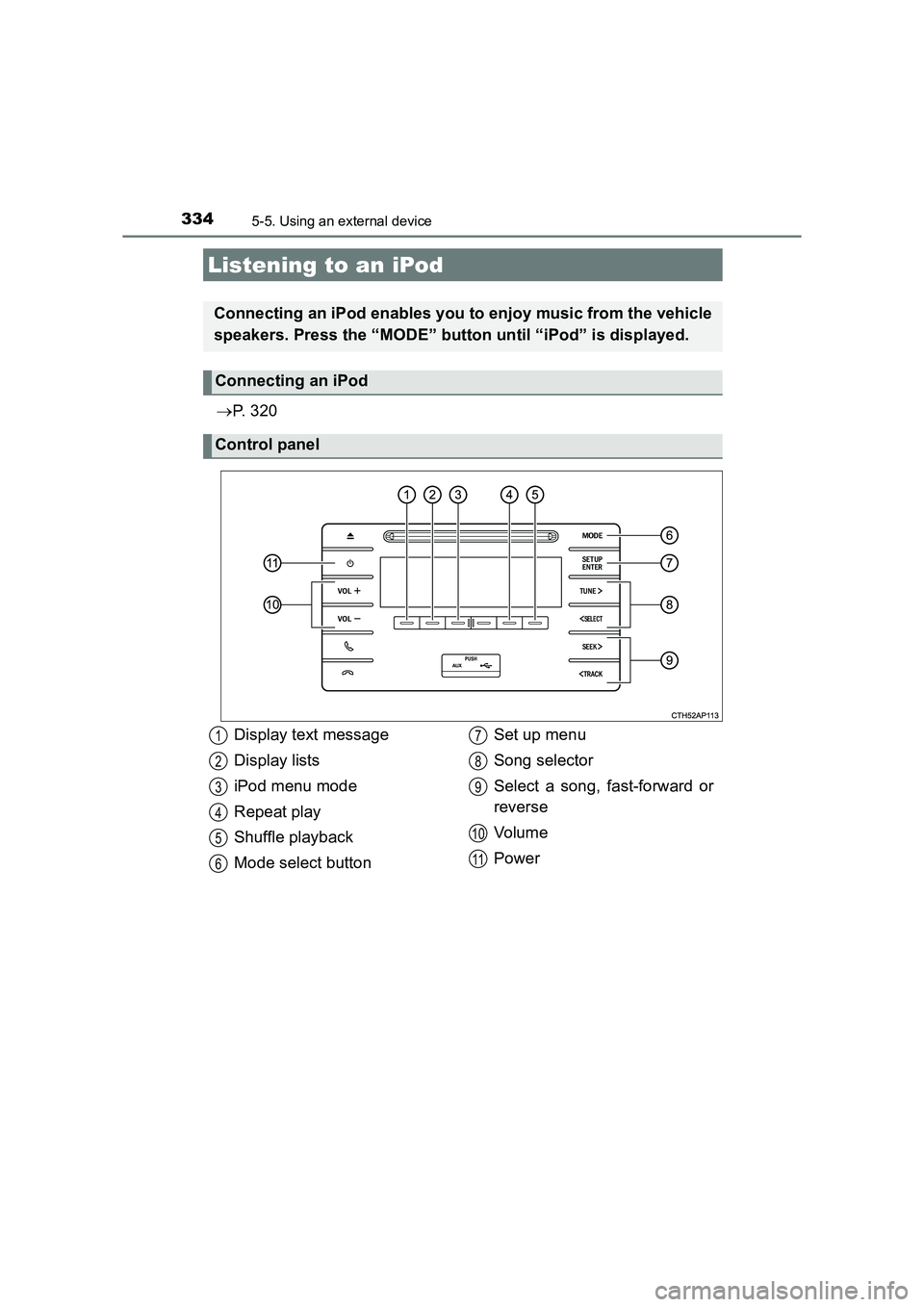
Listening to an iPod
Connecting an iPod enables you to enjoy music from the vehicle
speakers. Press the “MODE” button until “iPod” is displayed.
Connecting an iPod
Control panel
Display text message
Display lists
iPod menu mode
Repeat play
Shuffle playback
Mode select button Set up menu
Song selector
Select a song, fast-forward or
reverse
Vol um e
Power1
2
3
4
5
6
7
8
9
10
11
Page 335 of 592
3355-5. Using an external device
UK AURIS_HV_HB_EE (OM12K47E)
5
Audio system
Press “Menu” to select iPod menu mode.
Pressing the “TUNE>” button changes the play mode in the follow-
ing order:
“Playlists”→“Artists” →“Albums” →“Songs” →
“Podcasts” →“Genres” →“Composers” →“Audiobooks”
Press the “SETUP/ENTER” button to select the desired play mode.
Selecting a play mode
1
2
3