maintenance TOYOTA C-HR 2019 Accessories, Audio & Navigation (in English)
[x] Cancel search | Manufacturer: TOYOTA, Model Year: 2019, Model line: C-HR, Model: TOYOTA C-HR 2019Pages: 292, PDF Size: 5.26 MB
Page 27 of 292
27
4. FUNCTION INDEX
QUICK GUIDE
1
C-HR_Navi_USA_OM10581U_17CY
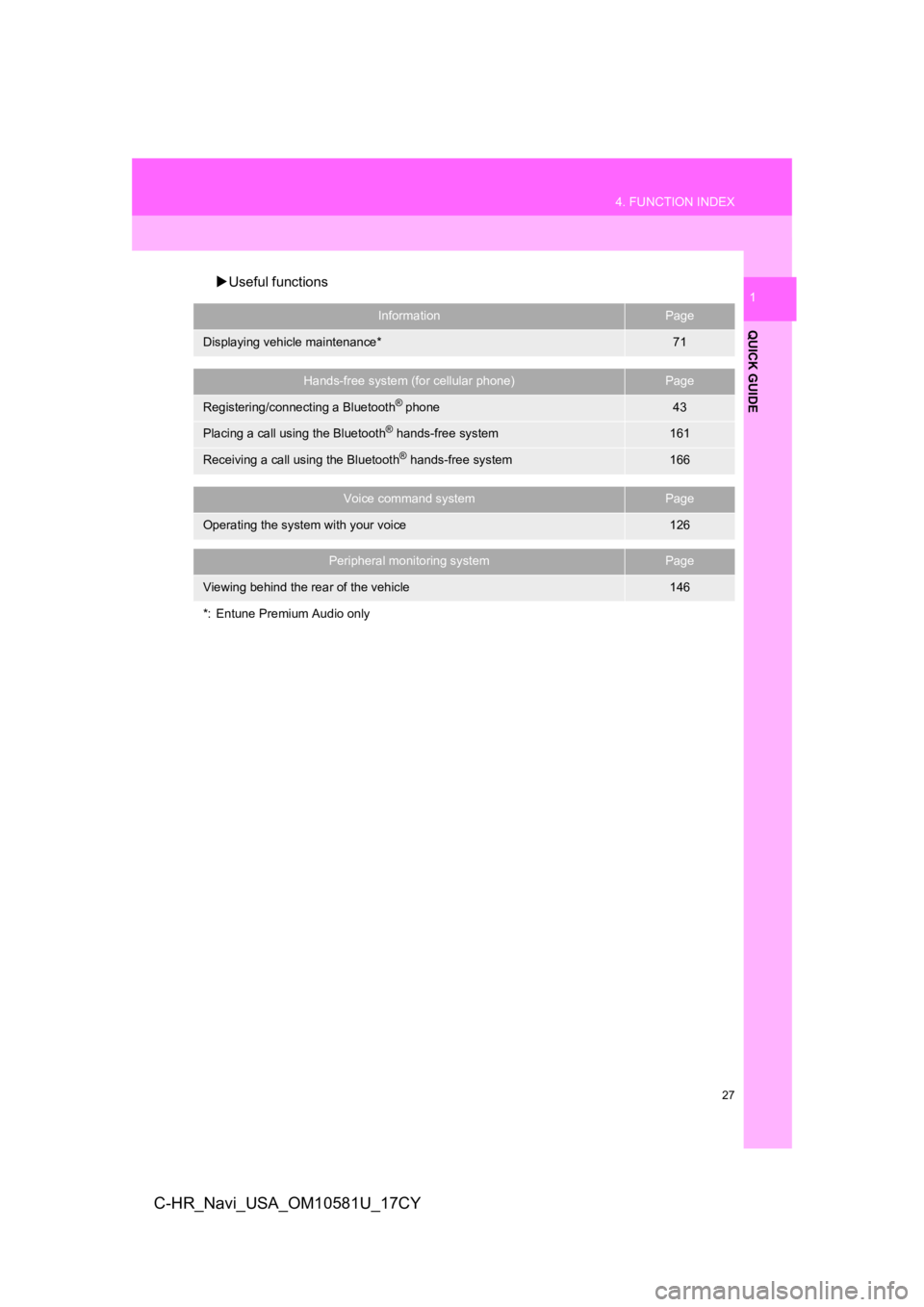
Useful functions
InformationPage
Displaying vehicle maintenance*71
Hands-free system (for cellular phone)Page
Registering/connecting a Bluetooth® phone43
Placing a call using the Bluetooth® hands-free system161
Receiving a call using the Bluetooth® hands-free system166
Voice command systemPage
Operating the system with your voice126
Peripheral monitoring systemPage
Viewing behind the rear of the vehicle146
*: Entune Premium Audio only
Page 29 of 292
2
29
1
2
3
4
5
6
7
8
9
C-HR_Navi_USA_OM10581U_17CY
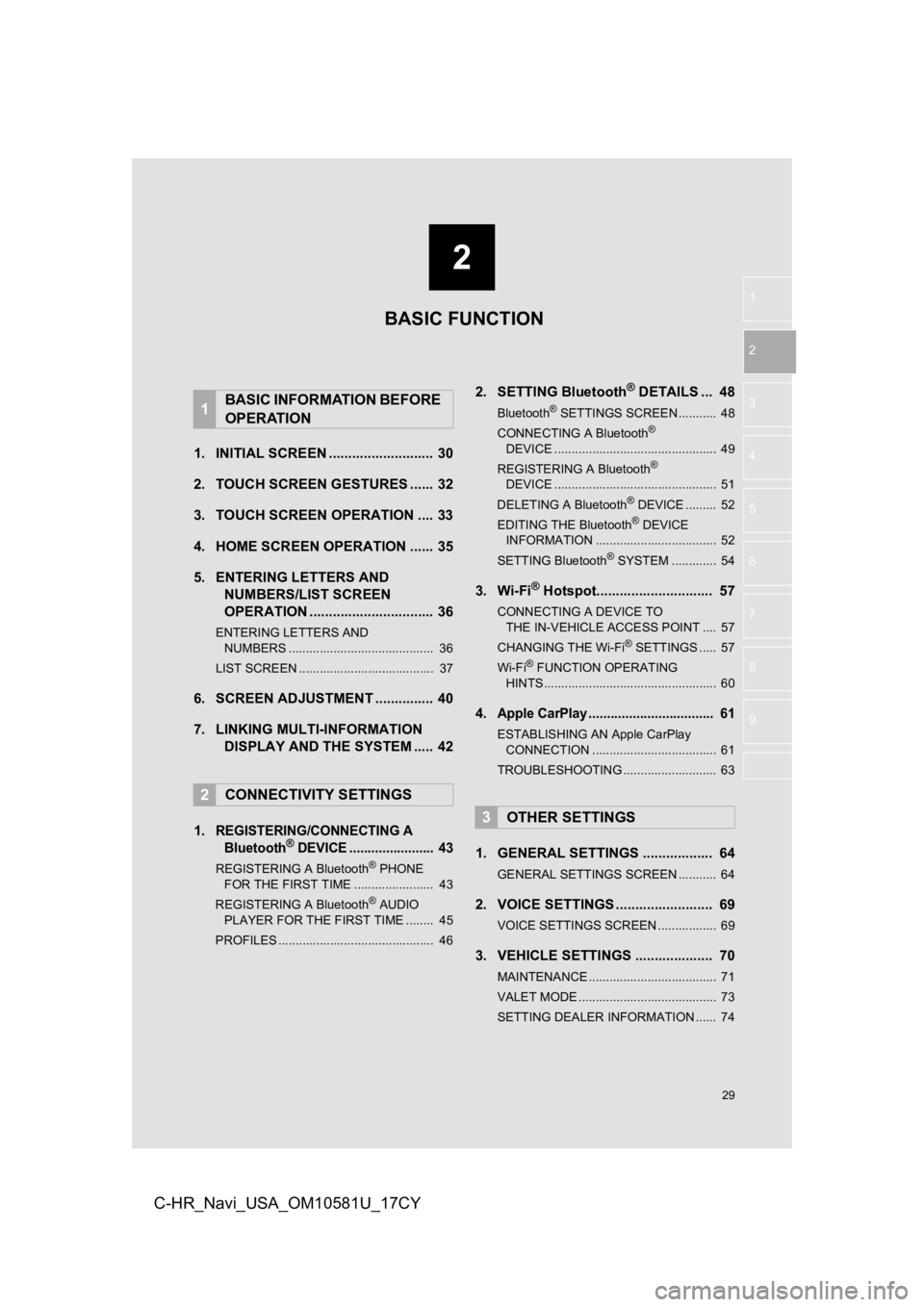
1. INITIAL SCREEN ........................... 30
2. TOUCH SCREEN G ESTURES ...... 32
3. TOUCH SCREEN OPERATION .... 33
4. HOME SCREEN OPERATION ...... 35
5. ENTERING LETTERS AND NUMBERS/LIST SCREEN
OPERATION ................................ 36
ENTERING LETTERS AND
NUMBERS .......................................... 36
LIST SCREEN ....................................... 37
6. SCREEN ADJUSTMENT ............... 40
7. LINKING MULTI-INFORMATION DISPLAY AND THE SYSTEM ..... 42
1.
REGISTERING/CONNECTING A Bluetooth® DEVICE ....................... 43
REGISTERING A Bluetooth® PHONE
FOR THE FIRST TIME ....................... 43
REGISTERING A Bluetooth
® AUDIO
PLAYER FOR THE FIRST TIME ........ 45
PROFILES ............................................. 46
2. SETTING Bluetooth® DETAILS ... 48
Bluetooth® SETTINGS SCREEN ........... 48
CONNECTING A Bluetooth®
D E
VICE ............................................... 49
REGISTERING A Bluetooth
®
D E
VICE ............................................... 51
DELETING A Bluetooth
® DEVICE ......... 52
EDITING THE Bluetooth® DEVICE
INFORMATION ................................... 52
SETTING Bluetooth
® SYSTEM ............. 54
3. Wi-Fi® Hotspot.............................. 57
CONNECTING A DEVICE TO THE IN-VEHICLE ACCESS POINT .... 57
CHANGING THE Wi-Fi
® SETTINGS ..... 57
Wi-Fi® FUNCTION OPERATING
HINTS .................................................. 60
4.Apple CarPlay .................................. 61
ESTABLISHING AN Apple CarPlay
CONNECTION .................................... 61
TROUBLESHOOTING ........................... 63
1. GENERAL SETTINGS .................. 64
GENERAL SETTINGS SCREEN ........... 64
2. VOICE SETTINGS ......................... 69
VOICE SETTINGS SCREEN ................. 69
3. VEHICLE SETTINGS .................... 70
MAINTENANCE ..................................... 71
VALET MODE ........................................ 73
SETTING DEALER INFORMATION ...... 74
1BASIC INFORMATION BEFORE
OPERATION
2CONNECTIVITY SETTINGS
3OTHER SETTINGS
BASIC FUNCTION
Page 30 of 292
30
C-HR_Navi_USA_OM10581U_17CY
1. BASIC INFORMATION BEFORE OPERATION
1. INITIAL SCREEN
Vehicles without a smart key system
When the engine switch is turned to the
“ACC” or “ON” position, the initial screen
will be displayed and the system will begin
operating.
Vehicles with a smart key system
When the engine switch is turned to AC-
CESSORY or IGNITION ON mode, the ini-
tial screen will be displayed and the
system will begin operating.
After a few seconds, the caution screen
will be displayed.
After about 5 seconds or selecting “Con-
tinue” , the caution screen automatically
switches to the next screen.
WA R N I N G
● When the vehicle is stopped with the
engine running, always apply the park-
ing brake for safety.
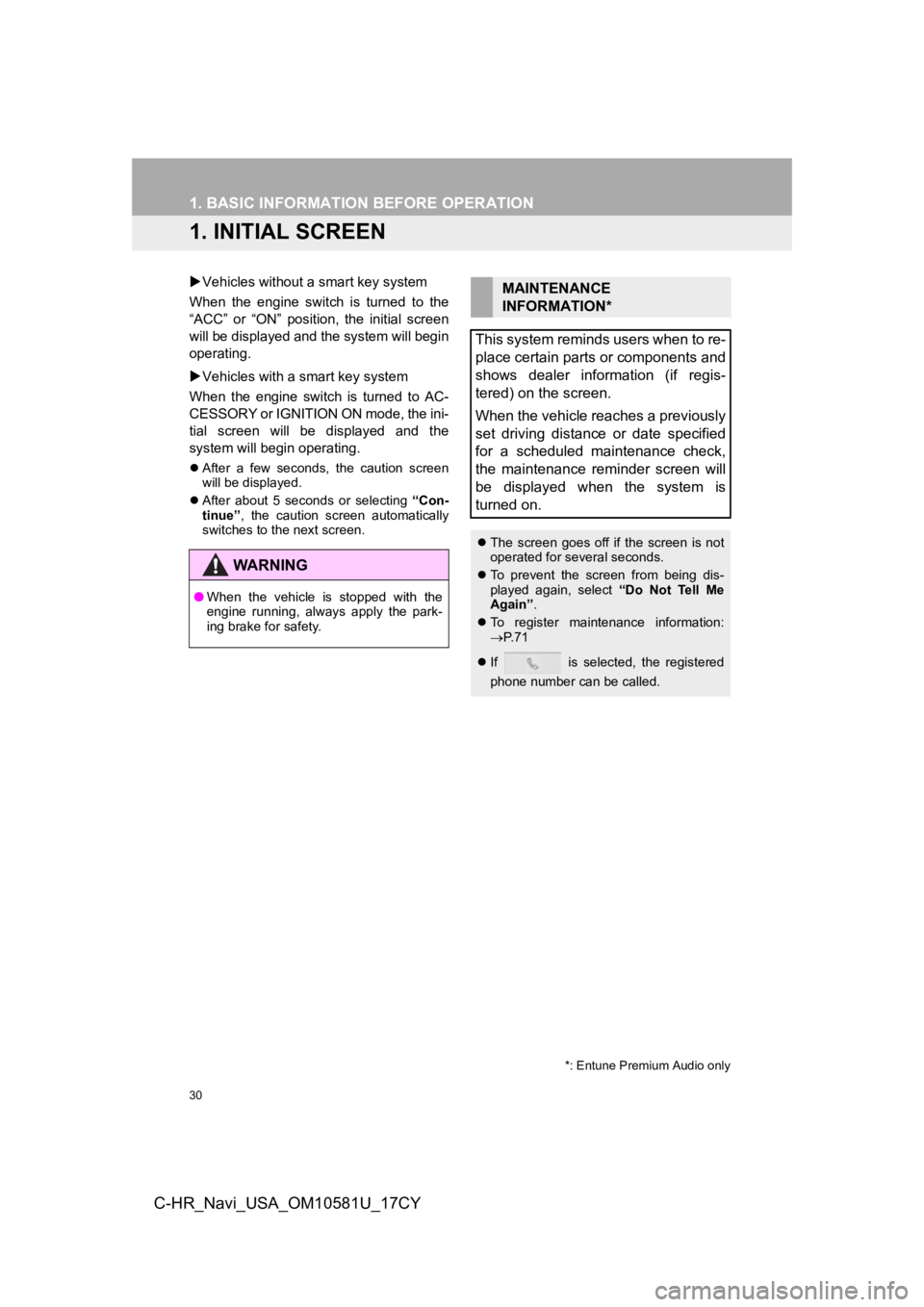
MAINTENANCE
INFORMATION*
This system reminds users when to re-
place certain parts or components and
shows dealer information (if regis-
tered) on the screen.
When the vehicle reaches a previously
set driving distance or date specified
for a scheduled maintenance check,
the maintenance reminder screen will
be displayed when the system is
turned on.
The screen goes off if the screen is not
operated for several seconds.
To prevent the screen from being dis-
played again, select “Do Not Tell Me
Again” .
To register maintenance information:
P. 7 1
If is selected, the registered
phone number can be called.
*: Entune Premium Audio only
Page 71 of 292
71
3. OTHER SETTINGS
BASIC FUNCTION
2
C-HR_Navi_USA_OM10581U_17CY
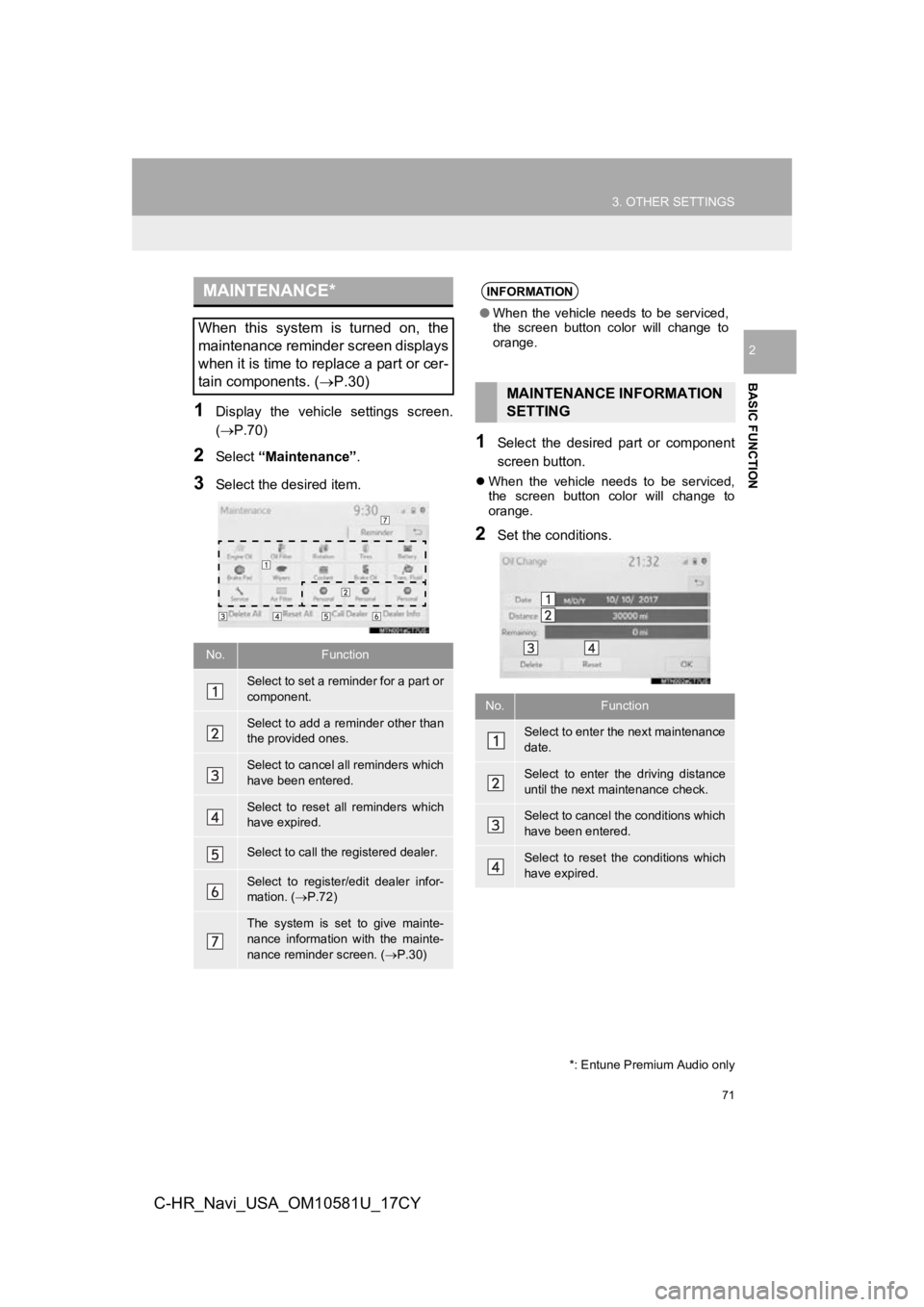
1Display the vehicle settings screen.
(P.70)
2Select “Maintenance” .
3Select the desired item.
1Select the desired part or component
screen button.
When the vehicle needs to be serviced,
the screen button color will change to
orange.
2Set the conditions.
MAINTENANCE*
When this system is turned on, the
maintenance reminder screen displays
when it is time to replace a part or cer-
tain components. ( P.30)
No.Function
Select to set a reminder for a part or
component.
Select to add a reminder other than
the provided ones.
Select to cancel all reminders which
have been entered.
Select to reset all reminders which
have expired.
Select to call the registered dealer.
Select to register/edit dealer infor-
mation. (P.72)
The system is set to give mainte-
nance information with the mainte-
nance reminder screen. ( P.30)
*: Entune Premium Audio only
INFORMATION
● When the vehicle needs to be serviced,
the screen button color will change to
orange.
MAINTENANCE INFORMATION
SETTING
No.Function
Select to enter the next maintenance
date.
Select to enter the driving distance
until the next maintenance check.
Select to cancel the conditions which
have been entered.
Select to reset the conditions which
have expired.
Page 72 of 292
72
3. OTHER SETTINGS
C-HR_Navi_USA_OM10581U_17CY
3Select “OK” after entering the condi-
tions.
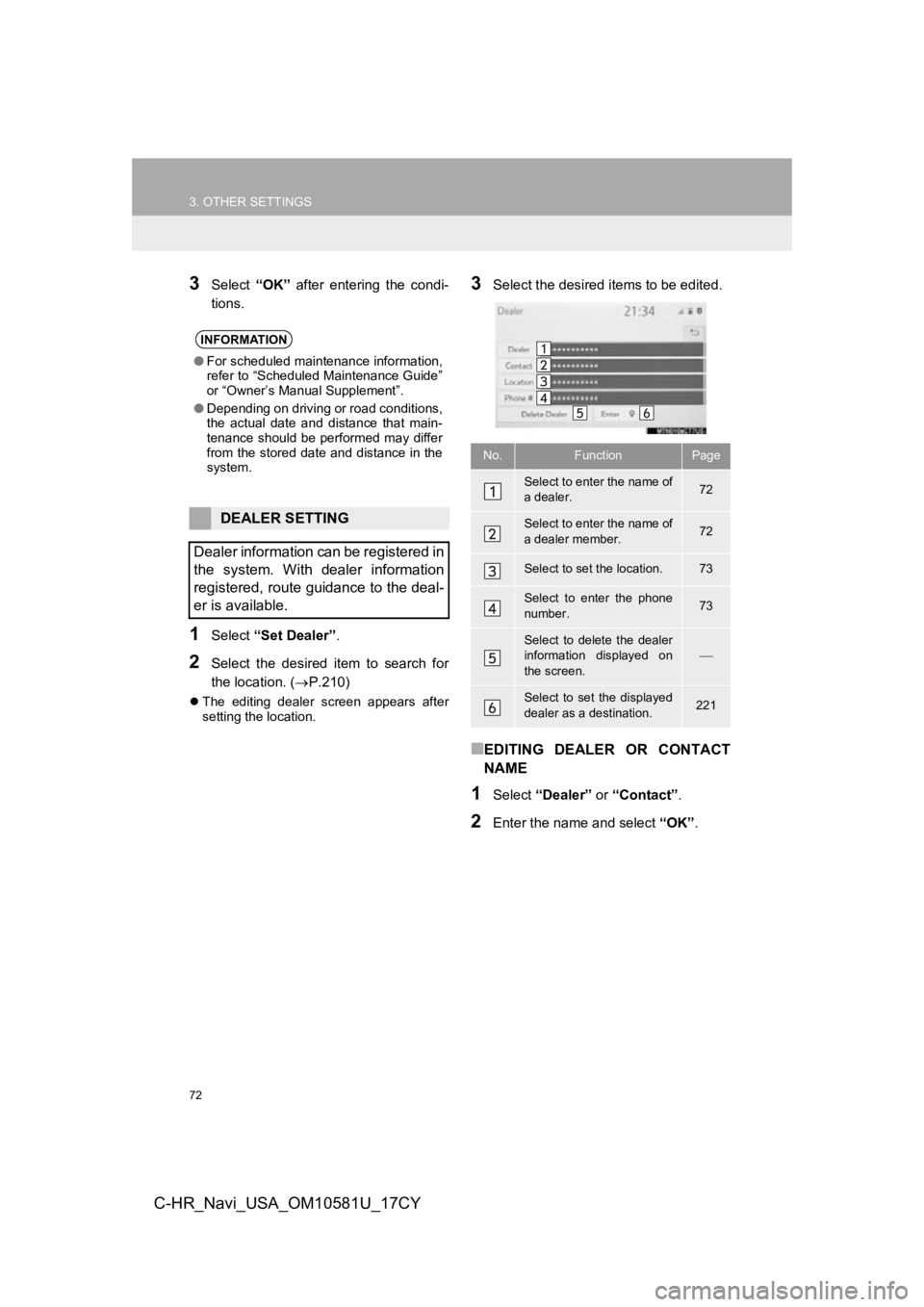
1Select “Set Dealer” .
2Select the desired item to search for
the location. ( P.210)
The editing dealer screen appears after
setting the location.
3Select the desired items to be edited.
■EDITING DEALER OR CONTACT
NAME
1Select “Dealer” or “Contact” .
2Enter the name and select “OK”.
INFORMATION
●For scheduled maintenance information,
refer to “Scheduled Maintenance Guide”
or “Owner’s Manual Supplement”.
● Depending on driving or road conditions,
the actual date and distance that main-
tenance should be performed may differ
from the stored date and distance in the
system.
DEALER SETTING
Dealer information can be registered in
the system. With dealer information
registered, route guidance to the deal-
er is available.
No.FunctionPage
Select to enter the name of
a dealer.72
Select to enter the name of
a dealer member.72
Select to set the location.73
Select to enter the phone
number.73
Select to delete the dealer
information displayed on
the screen.
Select to set the displayed
dealer as a destination.221
Page 291 of 292

291
C-HR_Navi_USA_OM10581U_17CY
U
USB memory ............................................ 98Overview ............................................... 98
Use of information accumulated by navigation system (Vehicles with
DCM) ................................................... 252
Useful information ................................... 140
V
Vehicle settings......................................... 70 Maintenance.......................................... 71
Setting dealer information ..................... 74
Valet mode ............................................ 73
Voice command system.................. 125, 126
Using the voice command system ...... 126
Voice command system operation ...... 127
Voice command system operation.......... 126
Voice settings ........................................... 69
Voice settings screen ............................ 69
W
What to do if............................................ 187
Wi-Fi® Hotspot .......................................... 57
Changing the Wi-Fi® settings ................ 57
Connecting a device to the in-vehicle access point....................................... 57
Wi-Fi
® function operating hints ............. 60