radio TOYOTA CAMRY 2021 Accessories, Audio & Navigation (in English)
[x] Cancel search | Manufacturer: TOYOTA, Model Year: 2021, Model line: CAMRY, Model: TOYOTA CAMRY 2021Pages: 324, PDF Size: 10.46 MB
Page 252 of 324
2528-1. Phone operation (Hands-free system for cellular phones)
CAMRY_CAMRY HV(TMMK)_Navi_(U)
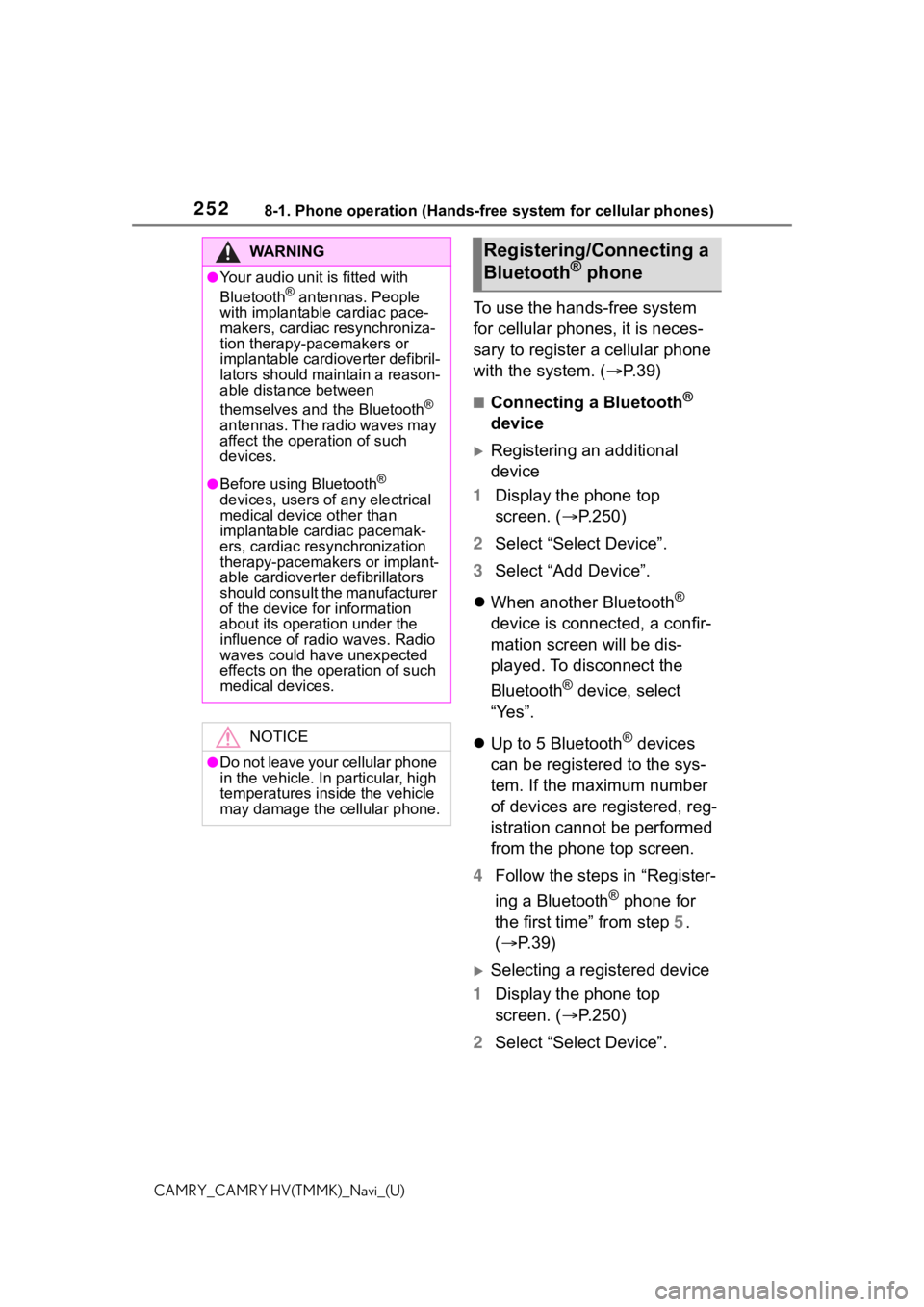
To use the hands-free system
for cellular phones, it is neces-
sary to register a cellular phone
with the system. (P.39)
■Connecting a Bluetooth®
device
Registering an additional
device
1 Display the phone top
screen. ( P.250)
2 Select “Select Device”.
3 Select “Add Device”.
When another Bluetooth
®
device is connected, a confir-
mation screen will be dis-
played. To disconnect the
Bluetooth
® device, select
“Yes”.
Up to 5 Bluetooth
® devices
can be registered to the sys-
tem. If the maximum number
of devices are registered, reg-
istration cannot be performed
from the phone top screen.
4 Follow the steps in “Register-
ing a Bluetooth
® phone for
the first time” from step 5.
( P.39)
Selecting a registered device
1 Display the phone top
screen. ( P.250)
2 Select “Select Device”.
WA R N I N G
●Your audio unit is fitted with
Bluetooth® antennas. People
with implantable cardiac pace-
makers, cardiac resynchroniza-
tion therapy-pacemakers or
implantable cardioverter defibril-
lators should maintain a reason-
able distance between
themselves and the Bluetooth
®
antennas. The radio waves may
affect the operation of such
devices.
●Before using Bluetooth®
devices, users of any electrical
medical device other than
implantable cardiac pacemak-
ers, cardiac resynchronization
therapy-pacemakers or implant-
able cardioverter defibrillators
should consult the manufacturer
of the device for information
about its operation under the
influence of radio waves. Radio
waves could have unexpected
effects on the operation of such
medical devices.
NOTICE
●Do not leave your cellular phone
in the vehicle. In particular, high
temperatures inside the vehicle
may damage the cellular phone.
Registering/Connecting a
Bluetooth® phone
Page 281 of 324

2818-3. What to do if...
8
Phone
CAMRY_CAMRY HV(TMMK)_Navi_(U)
■The cellular phone is not
close enough to this sys-
tem.
Bring the cellular phone closer
to this system.
■Radio interference has
occurred.
Turn off Wi-Fi
® devices or other
devices that may emit radio
waves.
■The cellular phone is the
most likely cause of the
symptom.
Turn the cellular phone off,
remove and reinstall the battery
pack, and then restart the cellu-
lar phone.
Enable the cellular phone’s
Bluetooth
® connection.
Disable the Wi-Fi
® connection of
the cellular phone.
Stop the cellular phone’s secu-
rity software and close all appli-
cations.
Before using an application
installed on the cellular phone,
carefully check its source and
how its operation might affect
this system.
●For details, refer to the owner’s
manual that came with the cellular
phone.
Even though all conceivable
measures have been taken,
the symptom status does not
change.
Page 287 of 324
2879-1. Connected Services overview
9
Connected Services
CAMRY_CAMRY HV(TMMK)_Navi_(U)
The required operations to acti-
vate applications and connect a
smartphone to the system, and
the registration steps for the
connected services are
explained in this section.
■Subscription
Toyota apps do not require an
activation fee or monthly
recurring fees.
Services requiring a separate
contract can also be used.
*
*: For details, refer to
https://www.toyota.com/
connected-services
or call 1-800-331-4331 in the
United States,
https://www.toyota.ca/connected
or call 1-888-869-6828 in Can-
ada, and
http://www.toyotapr.com/
connected-services
or call 1-877-855-8377 in Puerto
Rico.
■Availability of function
Toyota apps is available in the
contiguous United States,
Washington D.C., Alaska,
Hawaii, the United States Vir-
gin Islands, Puerto Rico, Can-
ada and Mexico.
●Data usage fees may apply while
using Toyota apps. Confirm data
usage fees before using this func-
tion.
●For details regarding operation of
the Toyota apps, refer to
https://www.toyota.com/
connected-services
in the United States,
https://www.toyota.ca/connected
in Canada, and
http://www.toyotapr.com/
connected-services
in Puerto Rico.
●These functions are not available
in some countries or areas. Avail-
ability of functions of the Toyota
apps is dependent on network
reception level.
■Initializing personal data
The personal data used in appli-
cations can be reset. ( P. 6 8 )
The following personal data
can be deleted and returned
to their default settings:
• Downloaded contents
• Radio stations that were listened
to
●Once initialized, the data and set-
tings will be eras ed. Pay much
attention when init ializing the data.
Before using the function
Page 290 of 324
2909-1. Connected Services overview
CAMRY_CAMRY HV(TMMK)_Navi_(U)
*: Vehicles with DCM
●Free/Open Source Software Infor-
mation
This product contains Free/Open
Source Software (FOSS).
The license information and/or the
source code of such FOSS can be
found at the following URL.
http://opensource.lge.com
●Exposure to radio frequency sig-
nals:
The Toyota audio multimedia sys-
tem installed in your vehicle
includes a low power radio trans-
mitter and receiver. The system
receives and also sends out radio
frequency (RF) signals.
●In August 1996, the Federal Com-
munications Commission (FCC)
adopted RF exposure guidelines
with safety levels for mobile wire-
less phones. Those guidelines are
consistent with the safety stan-
dards previously set by both U.S.
and international standards bod-
ies.
• ANSI (American National Stan- dards Institute) C95.1 [1992]
• NCRP (National Council on Radi- ation Protection and Measure-
ment) Report 86 [1986]
• ICNIRP (Intern ational Commis-
sion on Non-Ionizing Radiation
Protection) [1996]
●These standards are based on
comprehensive and periodic eval-
uations of the relevant scientific lit-
erature. Over 120 scientists,
engineers, and physicians from
universities, government health
agencies, and industry reviewed
the available body of research to
develop the ANSI Standard
(C95.1).
●The design of Toyota audio multi-
media system co mplies with the
FCC guidelines in addition to
those standards.
●Contact with the Toyota response
center is dependent upon the
telematics device being in opera-
tive condition, cellular connection
availability, navigation map data,
and GPS satellite signal recep-
tion, which can lim it the ability to
reach the Toyota response center
or receive support. Enrollment and
Telematics Subscription Service
Agreement required. A variety of
subscription terms are available;
charges vary by subscription term
selected.
●The Toyota response center offers
support in multiple languages.
●Select Safety Connect-sub-
scribed vehicles are capable of
communicating vehicle informa-
tion. Please see the terms and
conditions for additional details.
Owners who do not wish to have
their vehicle transmit this informa-
tion can opt out at the time of
enrollment or by calling
1-800-331-4331 in the United
States, 1-888-869-6828 in Can-
ada, and 1-877-855-8377 in
Puerto Rico, and following the
prompts for Safety Connect.
●For further details about the ser-
vice, contact your Toyota dealer.
●Toyota audio mu ltimedia func-
tions are not subject to section
255 of the Telecommunications
Act and the system is not TTY
compatible.
Type C: Function
achieved by using
DCM
*
The functionality of Safety
Connect is made possible
by the use of a DCM.
For details, refer to
“OWNER’S MANUAL”.
Safety Connect
Page 302 of 324

302Alphabetical Index
CAMRY_CAMRY HV(TMMK)_Navi_(U)
Alphabetical Index
A
A route from the Cloud ............ 99
AM ............................................ 135
Android Auto .......................... 149
Android Auto button (Menu screen) .................................... 15
Apple CarPlay button (Menu screen) .................................... 15
Apple CarPlay/Android Auto ... 57
APPS button ........... .................. 12
Apps button (Menu screen) ..... 15
Apps button (Setup screen) .... 19
Audio ....................................... 128 Audio source ........................ 130
Operating information........... 158
Reordering the audio source 131
Screen adjustment ............... 133
Some basics......................... 130
Sound settings ..................... 132
Turning the system on and off........................................... 130
USB port............................... 131
Voice command system ....... 134
AUDIO button............................ 12
Audio button (Menu screen).... 15
Audio button (Setup screen) ... 19
Audio settings ........................ 156 Common settings ................. 156
Radio settings ...................... 157
Audio source .......................... 130
B
Basic operation ........................ 76
Bluetooth® audio .................... 150
Registering/Conn ecting a Blue-
tooth
® device...................... 153
Bluetooth® button (Setup
screen) .................................... 19
Bluetooth
® details settings ..... 43
Bluetooth® setup screen ........ 44 Connecting a Bluetooth
® device
.............................................44
Deleting a Bluetooth
® device..47
Detailed settings screen .........49
Displaying the Bluetooth
® setup
screen...................................43
Editing the Bluetooth
® device
information............................47
Registering a Bluetooth
® device
.............................................46
Bluetooth
® hands-free system
...............................................250
Bluetooth
® phone message func-
tion .........................................262 Calling the message sender .265
Checking received messages ...........................................263
Displaying the message screen ...........................................262
Receiving a mess age ...........262
Replying to a message (dicta- tion reply)............................264
Replying to a message (quick reply) ..................................264
Buttons overview......................12
C
Clock settings ...........................66
Command list ..........................174
D
Data service button (Setup screen) .....................................19
Data services settings............184
DCM .........................288, 290, 292
Destination Assist ..................298
Destination button (Menu screen) .....................................15
Destination search ...................88
Destination search operation Address ..................................91
Page 304 of 324
304Alphabetical Index
CAMRY_CAMRY HV(TMMK)_Navi_(U)Microphone ..................... 170, 253
Mobile Assistant ..................... 179
Connectable devices and avail-able functions ..................... 179
Mobile Assistant operation ... 179
N
Natural language understanding ............................................... 173
Navigation ................................. 76
Navigation button (Setup screen) ................................................. 19
P
Panoramic view monitor ........ 210 Camera ................................ 238
Camera switch ..................... 212
Checking around the vehicle 216
Checking the front and around the vehicle .......................... 218
Checking the rear and around the vehicle .......................... 224
Checking the sides of the vehicle ........................................... 221
Customize ............................ 234
Difference between the screen and the actual road ............ 239
Display ................................. 212
Display switching.................. 214
Distortion of three-dimensional objects on the screen ......... 242
Driving precautions .............. 210
Magnifying function .............. 233
Parking ................................. 231
Precautions .......................... 235
Things you should know....... 246
When approaching three-dimen- sional objects ..................... 243
Phone ...................................... 250 About the contacts in the contact list ....................................... 254 Phone screen operation .......250
Registering/Connecting a Blue-
tooth
® phone ......................252
Some basics .........................251
Troubleshooting ....................277
Voice command system .......254
When selling or disposing of the vehicle ................................254
PHONE button...................12, 250
Phone button (Menu screen) ...15
Phone button (Setup screen) ..19
Phone settings ...... ..................267
Contacts/Call history settings269
Message settings .................275
Notifications/display settings 268
Sounds settings ....................267
Placing a call using the Blue- tooth
® hands-free system....255
By call history .......................255
By contacts list .....................256
By favorites list .....................256
By home screen ...................258
By keypad.............................258
POWER VOLUME knob ....12, 130
Projection button (Menu screen) .................................................15
R
Radio........................................135 Available HD Radio™ technol-ogy......................................140
Displaying the radi o ID .........142
How to Subscribe to SiriusXM Satellite Radio/HOW TO SUB-
SCRIBE TO SiriusXM Radio
Services..............................141
Presetting a station ...............136
Radio broadcast data system139
Refer to the tabl e below to iden-
tify the problem and take the
suggested corrective action 143
Troubleshooting guide ..........140