display TOYOTA COROLLA 2014 11.G Workshop Manual
[x] Cancel search | Manufacturer: TOYOTA, Model Year: 2014, Model line: COROLLA, Model: TOYOTA COROLLA 2014 11.GPages: 612, PDF Size: 12.58 MB
Page 229 of 612
2295-2. Using the audio system
5
Interior features
COROLLA_TMMMS_TMMC_U (OM12F00U)■
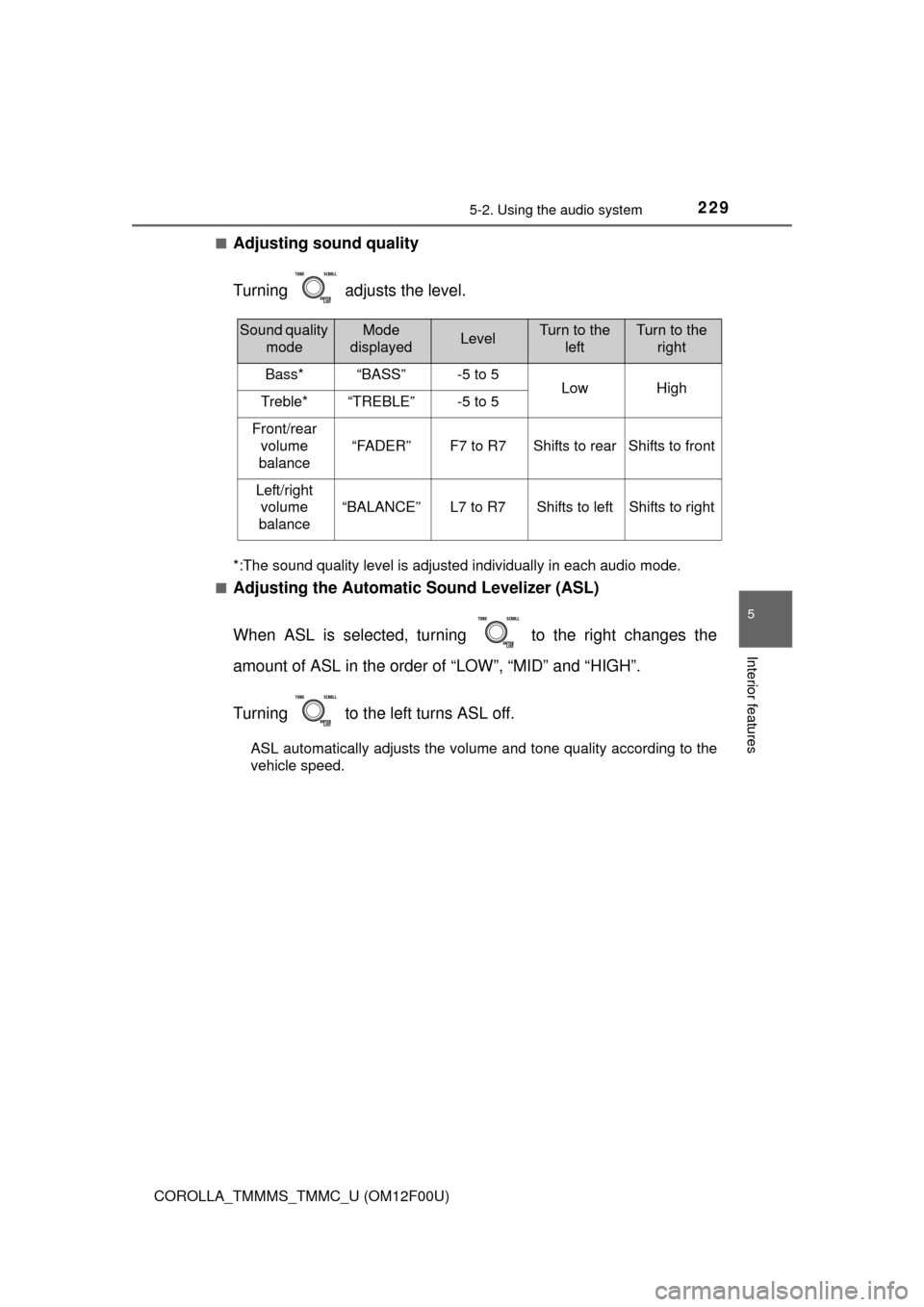
Adjusting sound quality
Turning adjusts the level.
*:The sound quality level is adjusted individually in each audio mode.
■
Adjusting the Automatic Sound Levelizer (ASL)
When ASL is selected, turning to the right changes the
amount of ASL in the order of “LOW”, “MID” and “HIGH”.
Turning to the left turns ASL off.
ASL automatically adjusts the volume and tone quality according to the
vehicle speed.
Sound quality
modeMode
displayedLevelTurn to the
leftTurn to the
right
Bass*“BASS”-5 to 5LowHighTreble*“TREBLE”-5 to 5
Front/rear
volume
balance
“FADER”F7 to R7Shifts to rearShifts to front
Left/right
volume
balance
“BALANCE”L7 to R7Shifts to leftShifts to right
Page 232 of 612
232
COROLLA_TMMMS_TMMC_U (OM12F00U)
5-4. Playing audio CDs and MP3/WMA discs
Insert a disc.
Press and remove the disc.
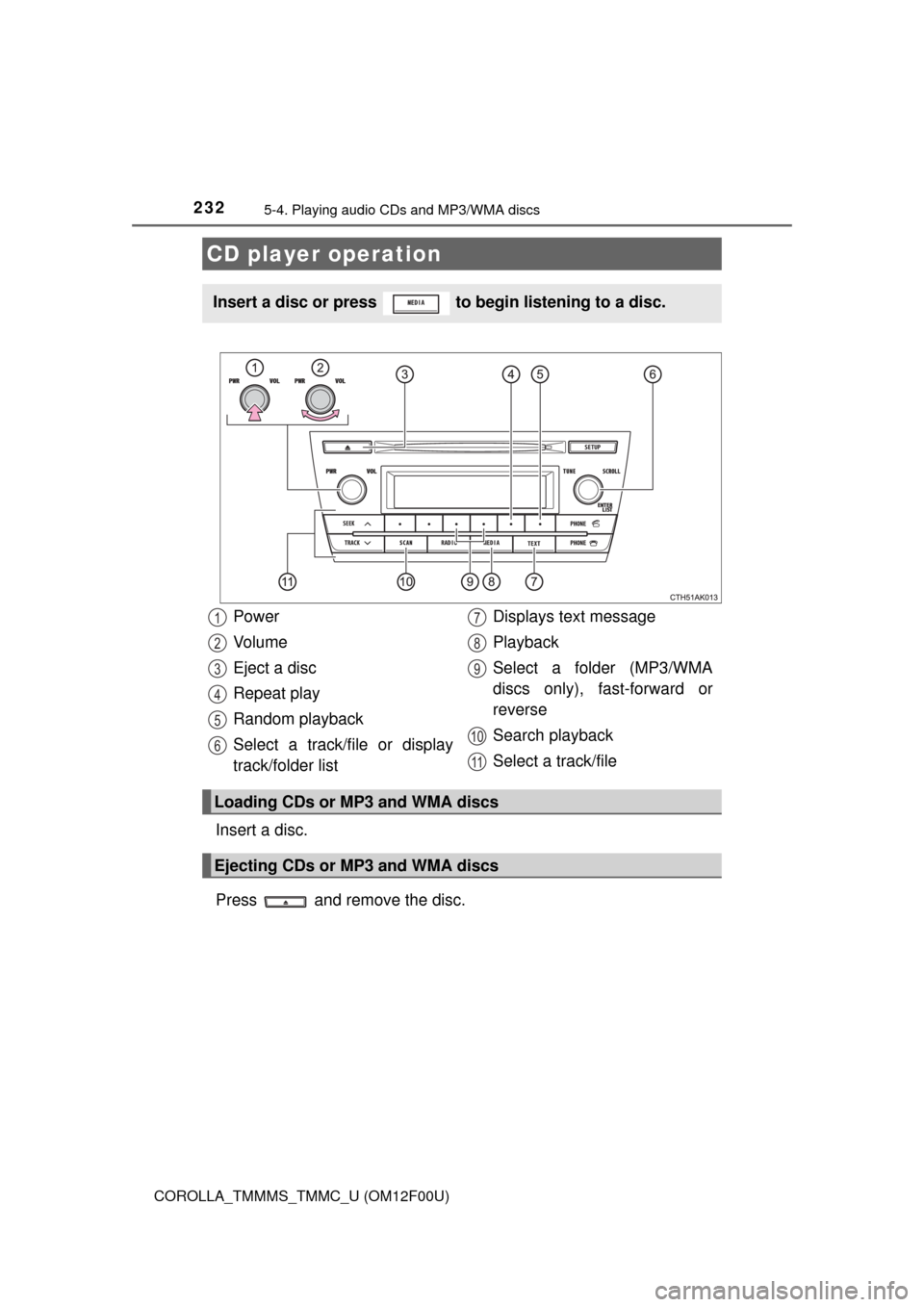
CD player operation
Insert a disc or press to begin listening to a disc.
Power
Vo l u m e
Eject a disc
Repeat play
Random playback
Select a track/file or display
track/folder listDisplays text message
Playback
Select a folder (MP3/WMA
discs only), fast-forward or
reverse
Search playback
Select a track/file
Loading CDs or MP3 and WMA discs
Ejecting CDs or MP3 and WMA discs
1
2
3
4
5
6
7
8
9
10
11
Page 233 of 612
2335-4. Playing audio CDs and MP3/WMA discs
5
Interior features
COROLLA_TMMMS_TMMC_U (OM12F00U)■
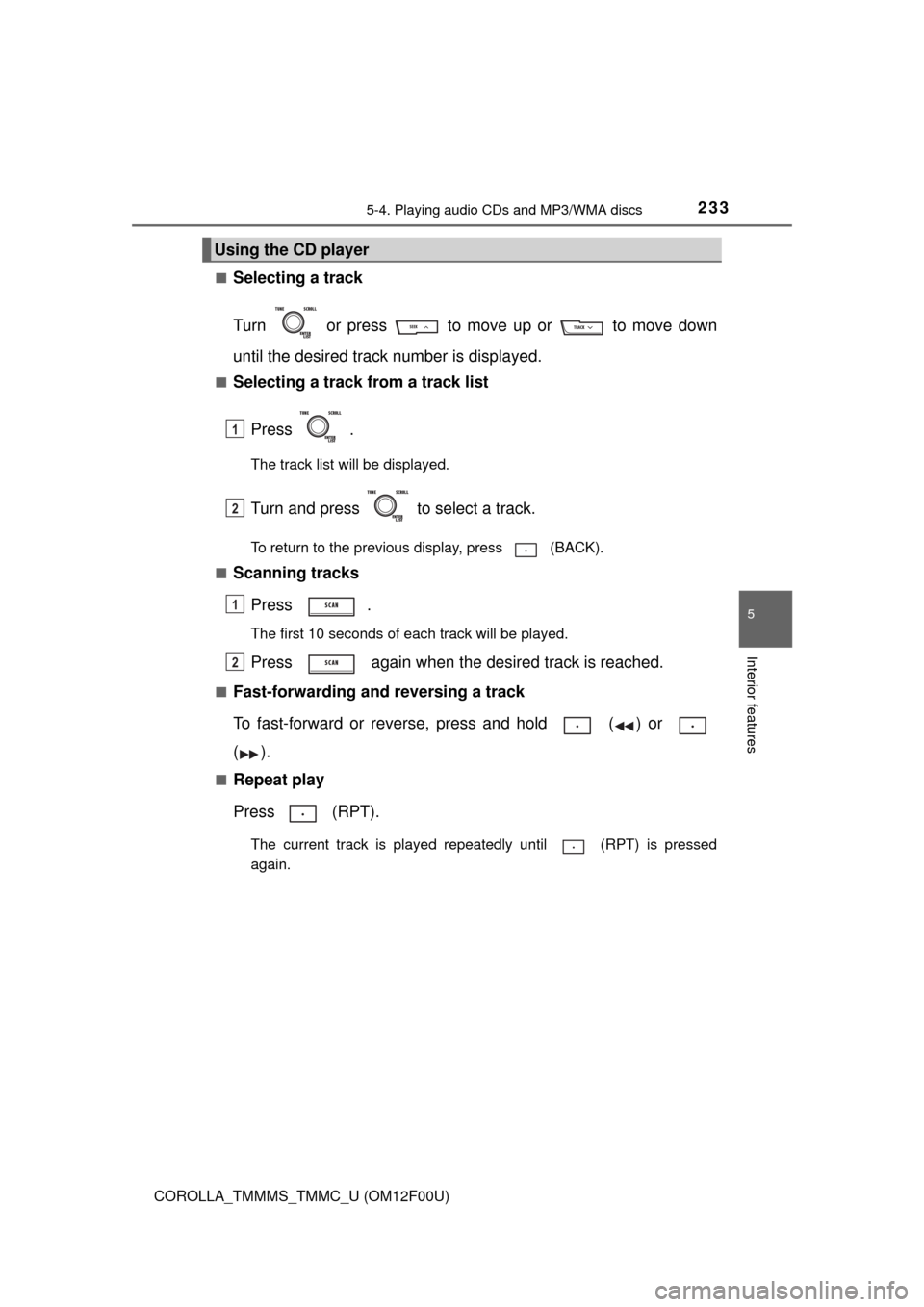
Selecting a track
Turn or press to move up or to move down
until the desired track number is displayed.
■Selecting a track from a track list
Press .
The track list will be displayed.
Turn and press to select a track.
To return to the previous display, press (BACK).
■
Scanning tracks
Press .
The first 10 seconds of each track will be played.
Press again when the desired track is reached.
■Fast-forwarding and reversing a track
To fast-forward or reverse, press and hold ( ) or
().
■Repeat play
Press (RPT).
The current track is played repeatedly until (RPT) is pressed
again.
Using the CD player
1
2
1
2
Page 234 of 612
2345-4. Playing audio CDs and MP3/WMA discs
COROLLA_TMMMS_TMMC_U (OM12F00U)■
Random playback
Press (RDM).
Tracks are played in a random order until (RDM) is pressed
again.
■
Switching the display
Press to display or hide the CD title.
If there is additional text, is displayed.
Press and hold to display the remaining text.
■
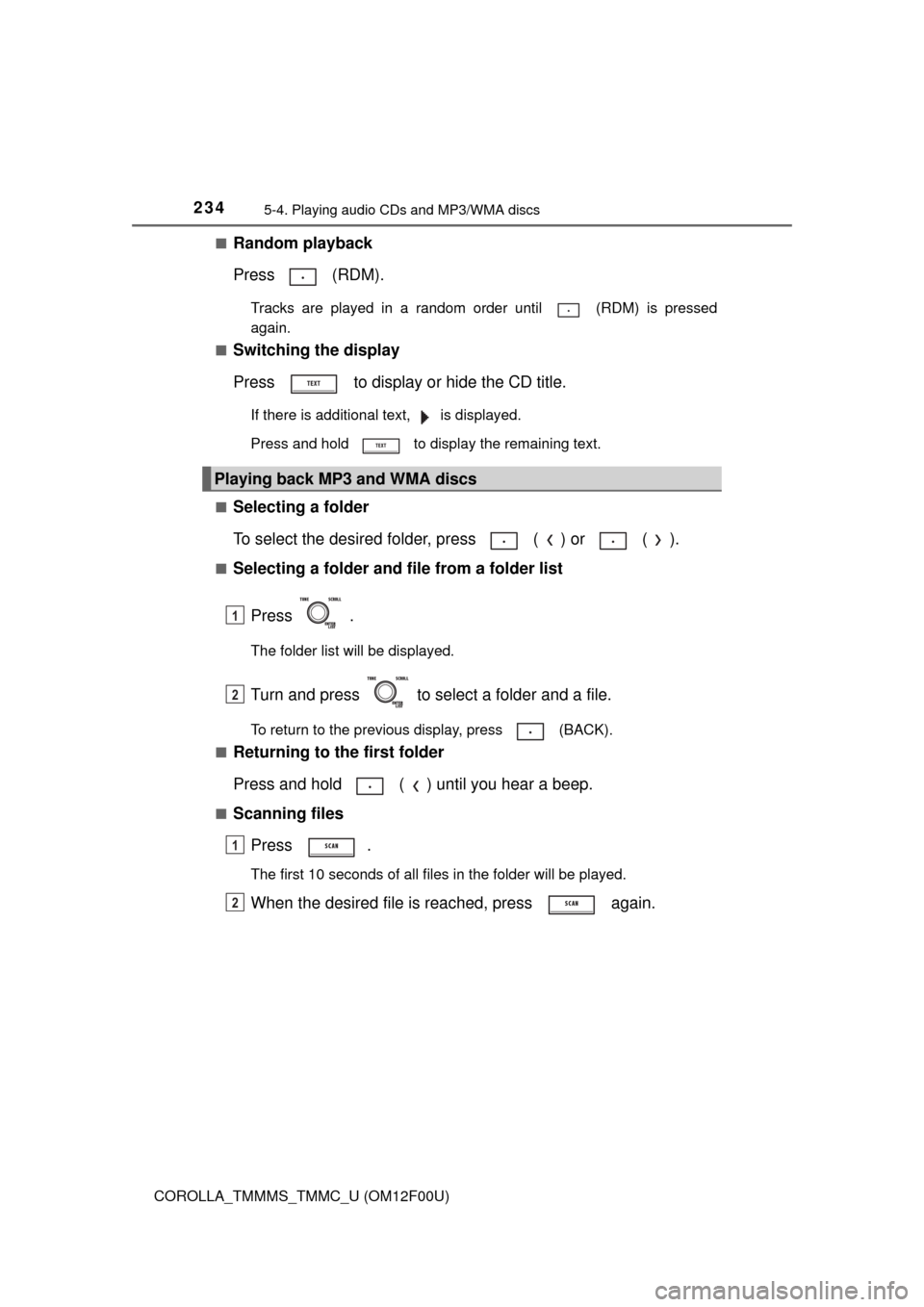
Selecting a folder
To select the desired folder, press ( ) or ( ).
■Selecting a folder and file from a folder list
Press .
The folder list will be displayed.
Turn and press to select a folder and a file.
To return to the previous display, press (BACK).
■
Returning to the first folder
Press and hold ( ) until you hear a beep.
■Scanning files
Press .
The first 10 seconds of all files in the folder will be played.
When the desired file is reached, press again.
Playing back MP3 and WMA discs
1
2
1
2
Page 235 of 612
2355-4. Playing audio CDs and MP3/WMA discs
5
Interior features
COROLLA_TMMMS_TMMC_U (OM12F00U)■
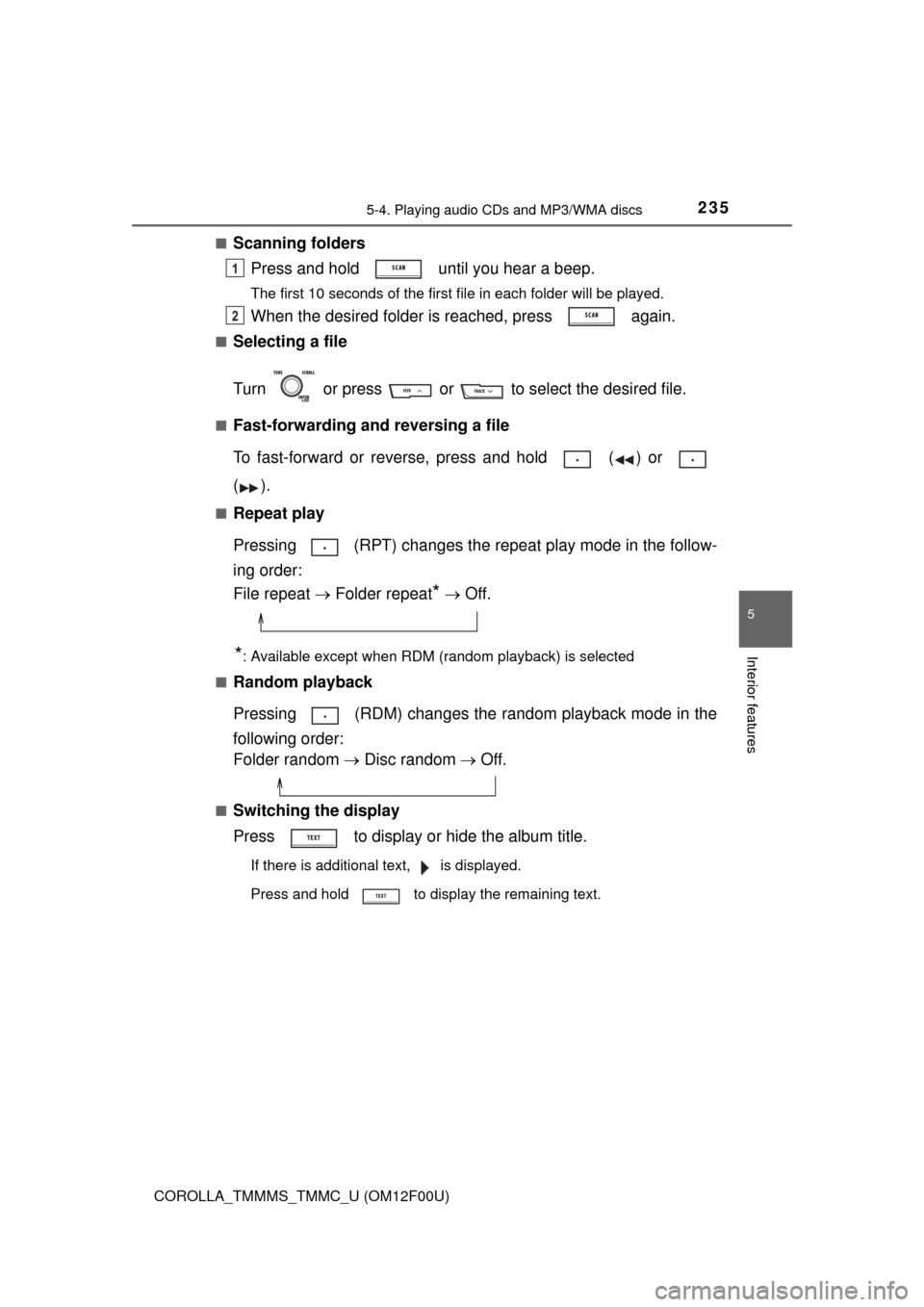
Scanning folders
Press and hold until you hear a beep.
The first 10 seconds of the first file in each folder will be played.
When the desired folder is reached, press again.
■Selecting a file
Turn or press or to select the desired file.
■Fast-forwarding and reversing a file
To fast-forward or reverse, press and hold ( ) or
().
■Repeat play
Pressing (RPT) changes the repeat play mode in the follow-
ing order:
File repeat Folder repeat
* Off.
*: Available except when RDM (random playback) is selected
■
Random playback
Pressing (RDM) changes the random playback mode in the
following order:
Folder random Disc random Off.
■Switching the display
Press to display or hide the album title.
If there is additional text, is displayed.
Press and hold to display the remaining text.
1
2
Page 236 of 612
2365-4. Playing audio CDs and MP3/WMA discs
COROLLA_TMMMS_TMMC_U (OM12F00U)
■Display
Depending on the contents recorded, the characters may not be displayed
properly or may not be displayed at all.
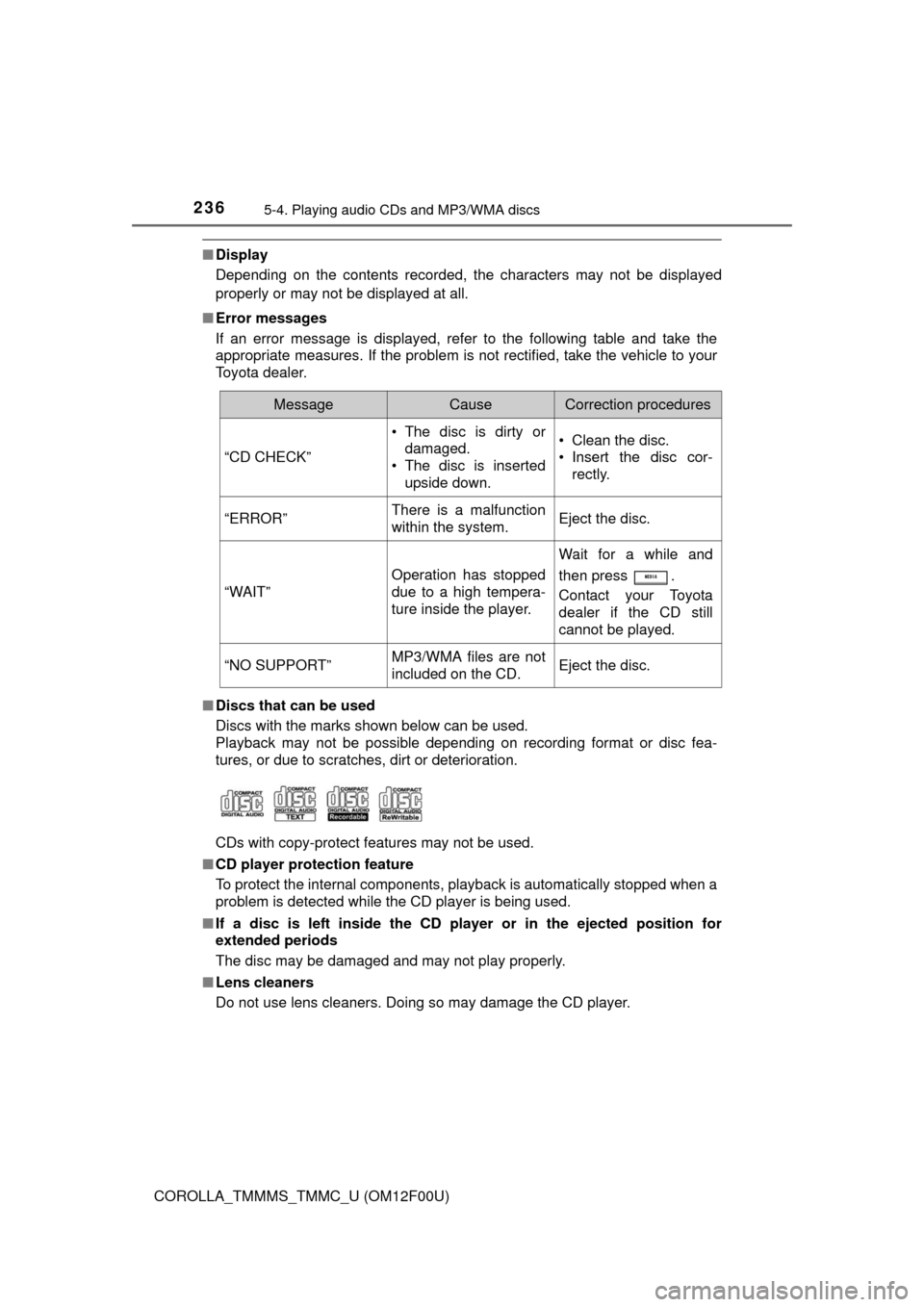
■Error messages
If an error message is displayed, refer to the following table and take the
appropriate measures. If the problem is not rectified, take the vehicle to your
Toyota dealer.
■Discs that can be used
Discs with the marks shown below can be used.
Playback may not be possible depending on recording format or disc fea-
tures, or due to scratches, dirt or deterioration.
CDs with copy-protect features may not be used.
■CD player protection feature
To protect the internal components, playback is automatically stopped when a
problem is detected while the CD player is being used.
■If a disc is left inside the CD player or in the ejected position for
extended periods
The disc may be damaged and may not play properly.
■Lens cleaners
Do not use lens cleaners. Doing so may damage the CD player.
MessageCauseCorrection procedures
“CD CHECK”
• The disc is dirty or
damaged.
• The disc is inserted
upside down.• Clean the disc.
• Insert the disc cor-
rectly.
“ERROR”There is a malfunction
within the system.Eject the disc.
“WAIT”
Operation has stopped
due to a high tempera-
ture inside the player.
Wait for a while and
then press .
Contact your Toyota
dealer if the CD still
cannot be played.
“NO SUPPORT”MP3/WMA files are not
included on the CD.Eject the disc.
Page 238 of 612

2385-4. Playing audio CDs and MP3/WMA discs
COROLLA_TMMMS_TMMC_U (OM12F00U)●Compatible disc formats
The following disc formats can be used.
• Disc formats: CD-ROM Mode 1 and Mode 2
CD-ROM XA Mode 2, Form 1 and Form 2
• File formats: ISO9660 Level 1, Level 2, (Romeo, Joliet)
MP3 and WMA files written in any format other than those listed above
may not play correctly, and their file names and folder names may not be
displayed correctly.
Items related to standards and limitations are as follows.
• Maximum directory hierarchy: 8 levels
• Maximum length of folder names/file names: 32 characters
• Maximum number of folders: 192 (including the root)
• Maximum number of files per disc: 255
●File names
The only files that can be recognized as MP3/WMA and played are those
with the extension .mp3 or .wma.
●Multi-sessions
As the audio system is compatible with multi-sessions, it is possible to play
discs that contain MP3 and WMA files. However, only the first session can
be played.
●ID3 and WMA tags
ID3 tags can be added to MP3 files, making it possible to record the track
title, artist name, etc.
The system is compatible with ID3 Ver. 1.0, 1.1, and Ver. 2.2, 2.3 ID3 tags.
(The number of characters is based on ID3 Ver. 1.0 and 1.1.)
WMA tags can be added to WMA files, making it possible to record the
track title and artist name in the same way as with ID3 tags.
●MP3 and WMA playback
When a disc containing MP3 or WMA files is inserted, all files on the disc
are first checked. Once the file check is finished, the first MP3 or WMA file
is played. To make the file check finish more quickly, we recommend you do
not write in any files other than MP3 or WMA files or create any unneces-
sary folders.
If the discs contain a mixture of music data and MP3 or WMA format data,
only music data can be played.
Page 241 of 612
241
5
Interior features
COROLLA_TMMMS_TMMC_U (OM12F00U)
5-5. Using an external device
P. 2 2 7
Listening to an iPod
Connecting an iPod enables you to enjoy music from the vehicle
speakers. Press until “iPod” is displayed.
Connecting an iPod
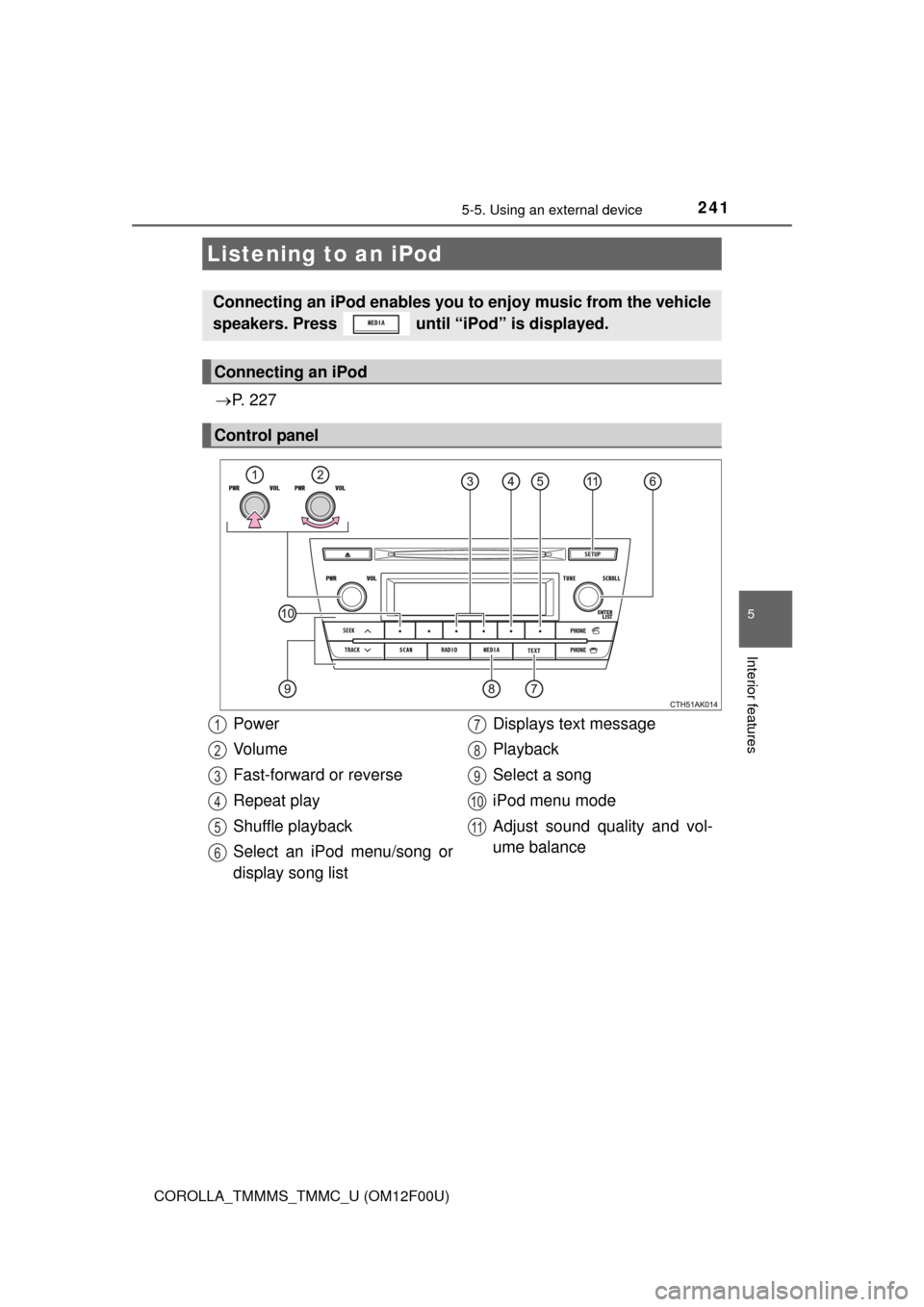
Control panel
Power
Vo l u m e
Fast-forward or reverse
Repeat play
Shuffle playback
Select an iPod menu/song or
display song listDisplays text message
Playback
Select a song
iPod menu mode
Adjust sound quality and vol-
ume balance1
2
3
4
5
6
7
8
9
10
11
Page 243 of 612

2435-5. Using an external device
5
Interior features
COROLLA_TMMMS_TMMC_U (OM12F00U)■
Selecting a list
Turn to display the first selection list.
Press to select the desired item.
Pressing the knob changes to the second selection list.
Repeat the same procedure to select the desired item.
To return to the previous selection list, press (BACK).
Turn or press or to select the desired song.
Press .
The song list will be displayed.
Turn to select a song.
Press to play the song.
To return to the previous display, press (BACK).
To fast-forward or reverse, press and hold ( ) or
().
Press
(RPT).
To cancel, press (RPT) again.
Selecting a song
Selecting a song from the song list
Fast-forwarding and reversing a song
Repeat play
1
2
3
1
2
3
Page 244 of 612
2445-5. Using an external device
COROLLA_TMMMS_TMMC_U (OM12F00U)
Pressing (RDM) changes the shuffle playback mode in the fol-
lowing order:
Track shuffle Album shuffle Off.
Press to display or hide the album title.
If there is additional text, is displayed.
Press and hold to display the remaining text.
Press to enter iPod menu mode.
Press to change sound modes. (P. 228)
■About iPod
●“Made for iPod” and “Made for iPhone” mean that an electronic accessory
has been designed to connect specifically to iPod, or iPhone, respectively,
and has been certified by the developer to meet Apple performance stan-
dards.
●Apple is not responsible for the operation of this device or its compliance
with safety and regulatory standards. Please note that the use of this acces-
sory with iPod or iPhone may affect wireless performance.
●iPhone, iPod, iPod classic, iPod nano and iPod touch are trademarks of
Apple Inc., registered in the U.S. and other countries.
Shuffle playback
Switching the display
Adjusting sound quality and volume balance
1
2