settings TOYOTA COROLLA 2023 Owners Manual
[x] Cancel search | Manufacturer: TOYOTA, Model Year: 2023, Model line: COROLLA, Model: TOYOTA COROLLA 2023Pages: 468, PDF Size: 14.4 MB
Page 2 of 468
2TABLE OF CONTENTS
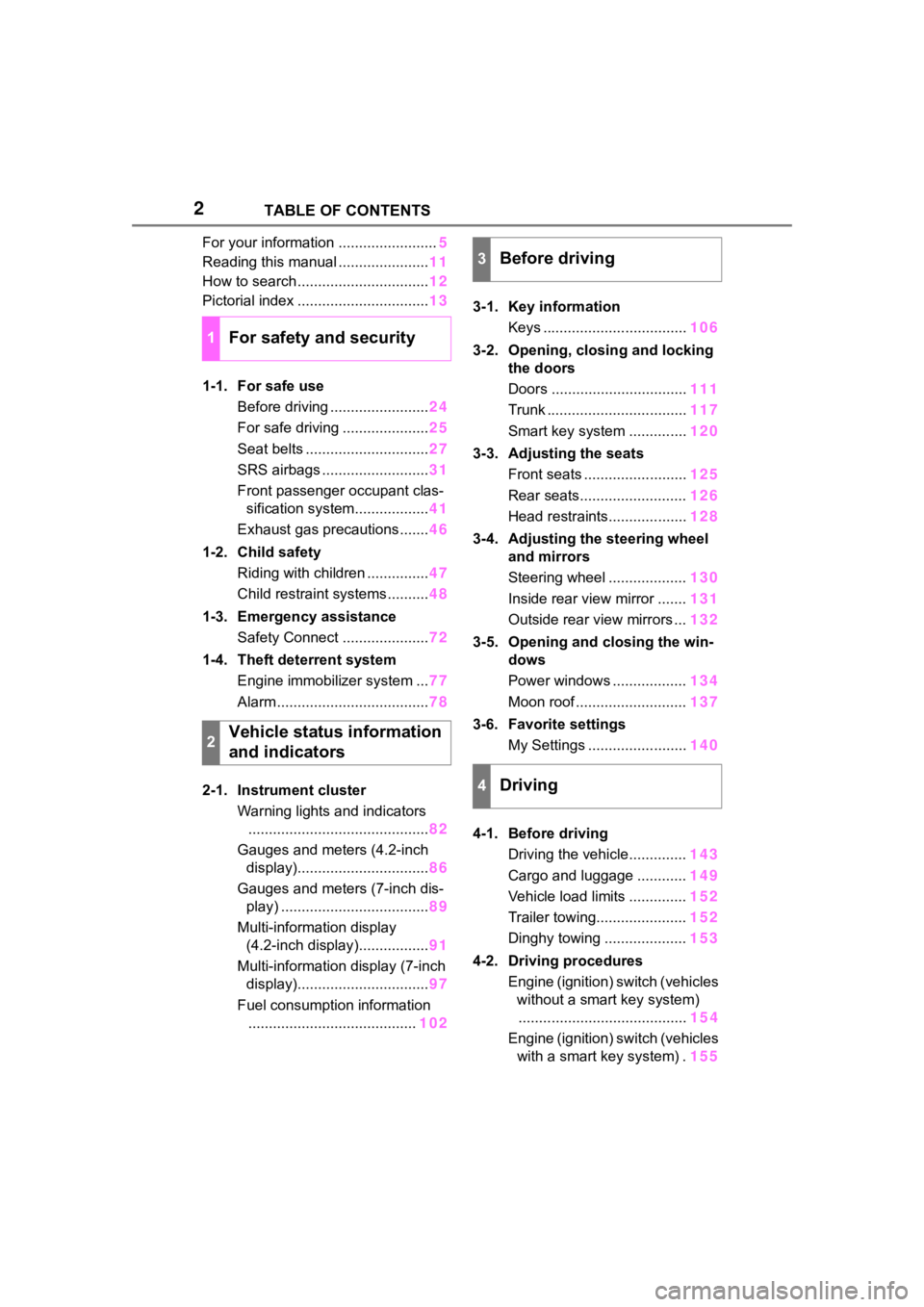
For your information ........................5
Reading this manual ...................... 11
How to search ................................ 12
Pictorial index ................................ 13
1-1. For safe use Before driving ........................ 24
For safe driving ..................... 25
Seat belts .............................. 27
SRS airbags .......................... 31
Front passenger occupant clas- sification system.................. 41
Exhaust gas precautions....... 46
1-2. Child safety Riding with children ............... 47
Child restraint systems .......... 48
1-3. Emergency assistance Safety Connect ..................... 72
1-4. Theft deterrent system Engine immobilizer system ... 77
Alarm ..................................... 78
2-1. Instrument cluster Warning lights and indicators............................................ 82
Gauges and meters (4.2-inch display)................................ 86
Gauges and meters (7-inch dis- play) .................................... 89
Multi-information display (4.2-inch display)................. 91
Multi-information display (7-inch display)................................ 97
Fuel consumption information ......................................... 1023-1. Key information
Keys ................................... 106
3-2. Opening, closing and locking the doors
Doors ................................. 111
Trunk .................................. 117
Smart key system .............. 120
3-3. Adjusting the seats Front seats ......................... 125
Rear seats.......................... 126
Head restraints................... 128
3-4. Adjusting the steering wheel and mirrors
Steering wheel ................... 130
Inside rear view mirror ....... 131
Outside rear view mirrors ... 132
3-5. Opening and closing the win- dows
Power windows .................. 134
Moon roof ........................... 137
3-6. Favorite settings My Settings ........................ 140
4-1. Before driving Driving the vehicle.............. 143
Cargo and luggage ............ 149
Vehicle load limits .............. 152
Trailer towing...................... 152
Dinghy towing .................... 153
4-2. Driving procedures Engine (ignition) switch (vehicles without a smart key system)........ ................................. 154
Eng
ine (ignition) switch (vehicles
with a smart key system) . 155
1For safety and security
2Vehicle status information
and indicators
3Before driving
4Driving
Page 91 of 468
912-1. Instrument cluster
2
Vehicle status information and indicators
can be used to record and display
different distances independently.
To reset, display the desired trip
meter and press and hold the dis-
play change button.
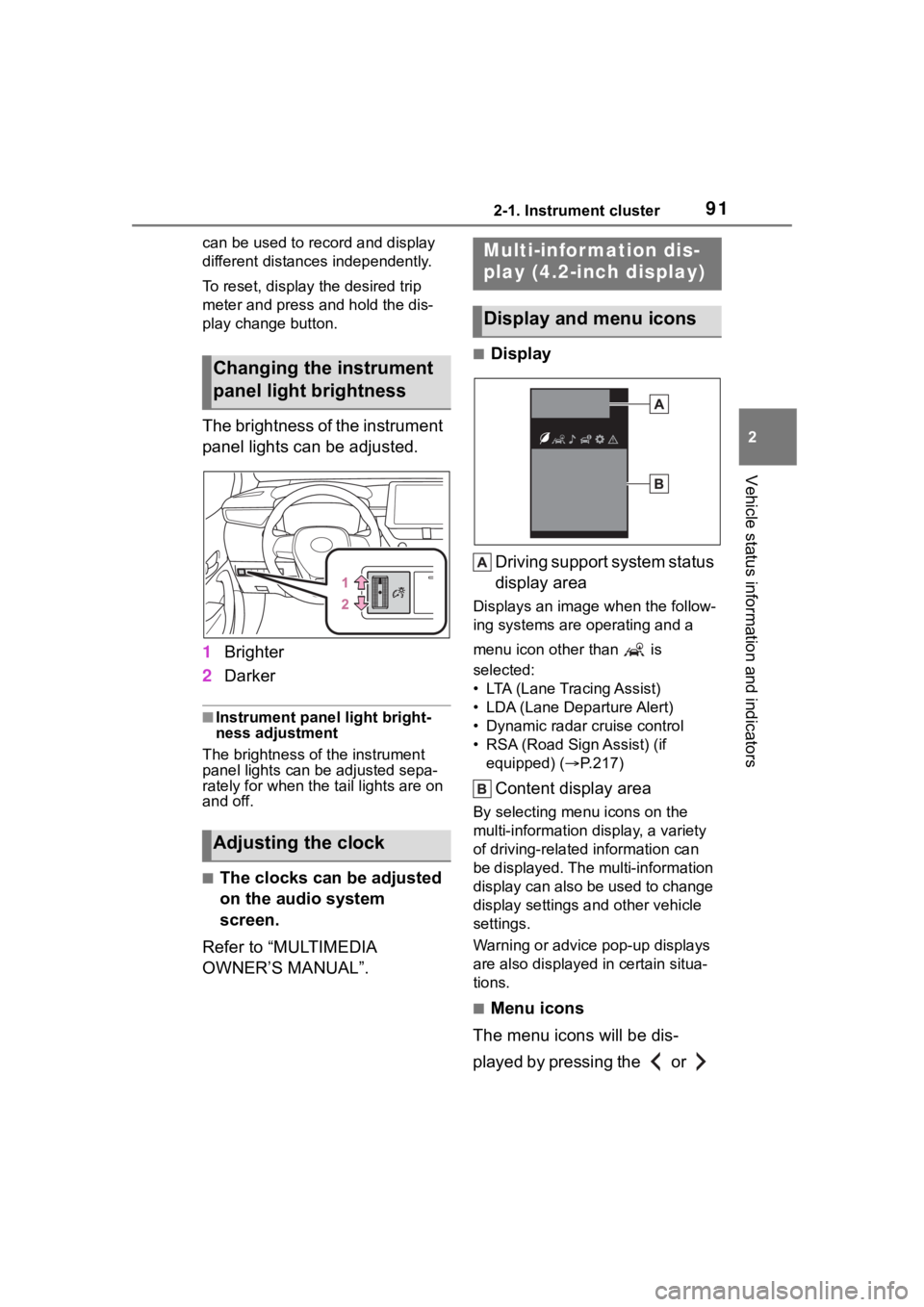
The brightness of the instrument
panel lights can be adjusted.
1Brighter
2 Darker
■Instrument panel light bright-
ness adjustment
The brightness of the instrument
panel lights can be adjusted sepa-
rately for when the tail lights are on
and off.
■The clocks can be adjusted
on the audio system
screen.
Refer to “MULTIMEDIA
OWNER’S MANUAL”.
■Display
Driving support system status
display area
Displays an image when the follow-
ing systems are operating and a
menu icon other than is
selected:
• LTA (Lane Tracing Assist)
• LDA (Lane Departure Alert)
• Dynamic radar cruise control
• RSA (Road Sign Assist) (if equipped) ( P.217)
Content display area
By selecting menu icons on the
multi-information di splay, a variety
of driving-related information can
be displayed. The multi-information
display can also be used to change
display settings and other vehicle
settings.
Warning or advice pop-up displays
are also displayed in certain situa-
tions.
■Menu icons
The menu icons will be dis-
played by pressing the or
Changing the instrument
panel light brightness
Adjusting the clock
Multi-infor mation dis-
play (4.2-inch display)
Display and menu icons
Page 92 of 468
922-1. Instrument cluster
meter control switch.
■Liquid crystal display
Small spots or light spots may
appear on the display. This phenom-
enon is characteristi c of liquid crys-
tal displays, and there is no problem
continuing to use the display.
The multi-information display is
operated using the meter control switches.
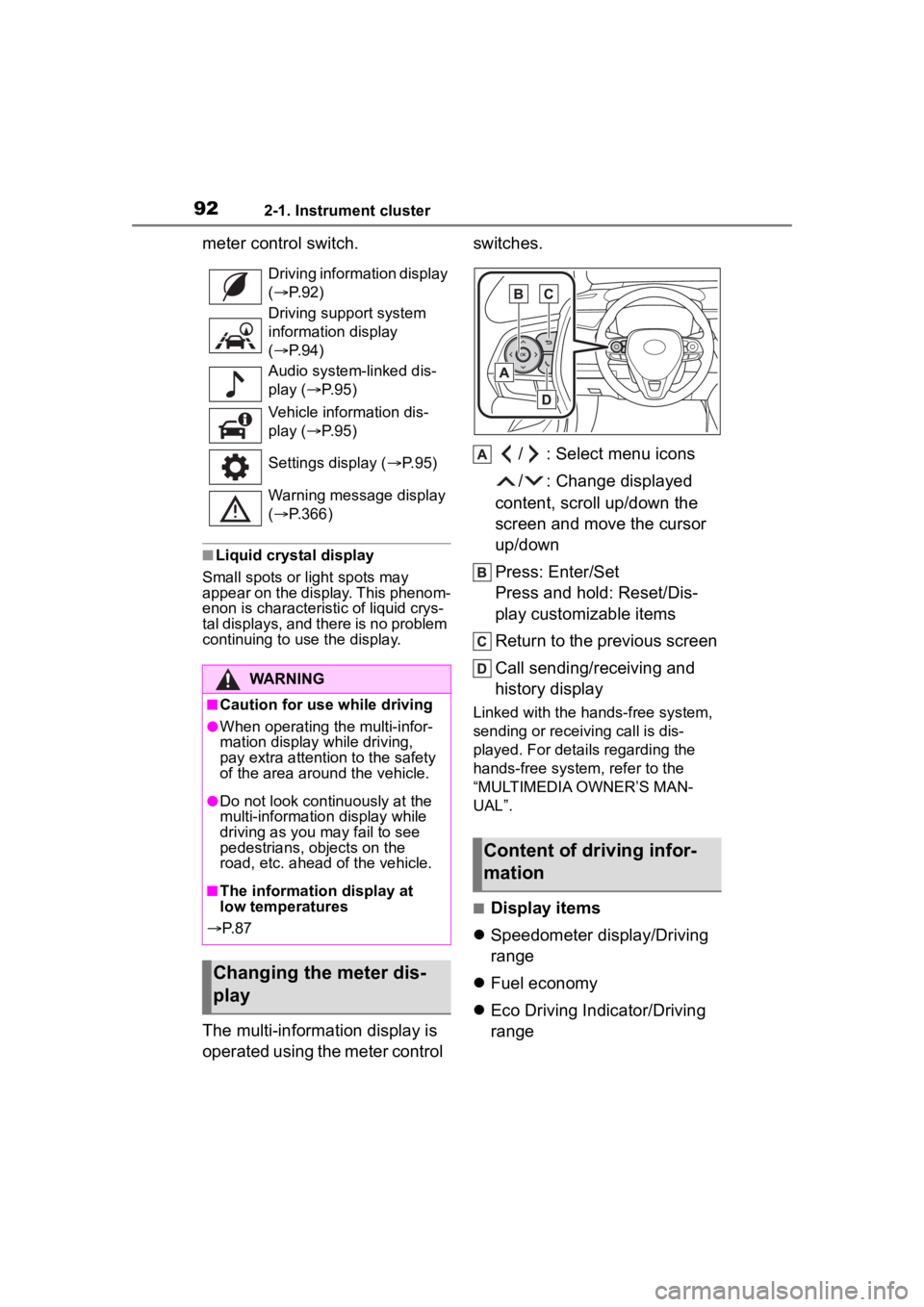
/ : Select menu icons
/ : Change displayed
content, scroll up/down the
screen and move the cursor
up/down
Press: Enter/Set
Press and hold: Reset/Dis-
play customizable items
Return to the previous screen
Call sending/receiving and
history display
Linked with the hands-free system,
sending or receiving call is dis-
played. For details regarding the
hands-free system, refer to the
“MULTIMEDIA OWNER’S MAN-
UAL”.
■Display items
Speedometer display/Driving
range
Fuel economy
Eco Driving Indicator/Driving
range
Driving information display
( P. 9 2 )
Driving support system
information display
( P. 9 4 )
Audio system-linked dis-
play ( P. 9 5 )
Vehicle information dis-
play ( P. 9 5 )
Settings display ( P. 9 5 )
Warning message display
( P.366)
WARNING
■Caution for use while driving
●When operating the multi-infor-
mation display while driving,
pay extra attention to the safety
of the area aroun d the vehicle.
●Do not look continuously at the
multi-information display while
driving as you may fail to see
pedestrians, objects on the
road, etc. ahead o f the vehicle.
■The information display at
low temperatures
P. 8 7
Changing the meter dis-
play
Content of driving infor-
mation
Page 95 of 468
952-1. Instrument cluster
2
Vehicle status information and indicators
■Navigation system-linked
display (if equipped)
Select to display the following
navigation system-linked infor-
mation:
Route guidance to destination
Compass display (head-
ing-up display)
Select to enable selection of an
audio source or track on the
meter using the meter control
switches.
This menu icon can be set to be
displayed/not displayed in .
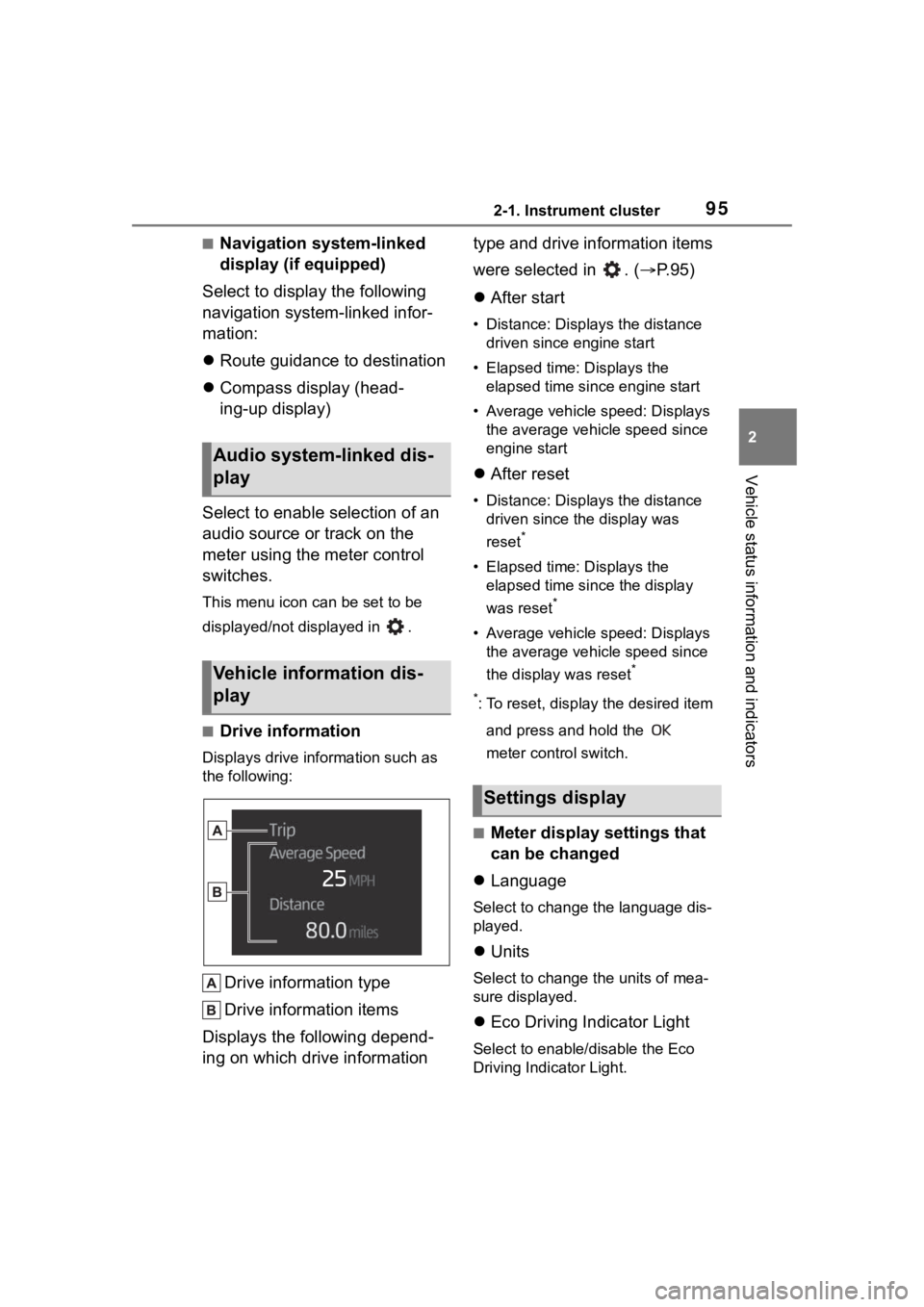
■Drive information
Displays drive information such as
the following:
Drive information type
Drive information items
Displays the following depend-
ing on which drive information type and drive information items
were selected in . (
P.95)
After start
• Distance: Displays the distance
driven since engine start
• Elapsed time: Displays the elapsed time since engine start
• Average vehicle speed: Displays the average vehicle speed since
engine start
After reset
• Distance: Displays the distance
driven since the display was
reset
*
• Elapsed time: Displays the elapsed time since the display
was reset
*
• Average vehicle speed: Displays the average vehicle speed since
the display was reset
*
*
: To reset, display the desired item and press and hold the
meter control switch.
■Meter display settings that
can be changed
Language
Select to change the language dis-
played.
Units
Select to change the units of mea-
sure displayed.
Eco Driving Indicator Light
Select to enable/disable the Eco
Driving Indi cator Light.
Audio system-linked dis-
play
Vehicle information dis-
play
Settings display
Page 96 of 468
962-1. Instrument cluster
• Fuel economy display
Select to change the average fuel
consumption display between after
start/after reset. (P. 9 3 )
Select to display/not display the
audio system linked display.
Select to change the displayed con-
tent of the following:
• Drive information type
Select to change the drive informa-
tion type display between after
start/after reset.
• Drive information items
Select to set the first and second
items of the drive information dis-
play to any of the following: aver-
age vehicle
speed/distance/elapsed time.
Pop-up display
Select to enable/disable pop-up
displays for each relevant system.
Multi-information display off
Select to turn the m ulti-information
display off.
To turn the multi-in formation display
on again, press any of the following
meter control switches
//// /.
Default setting
Select to reset the meter display
settings to the default setting.
■Vehicle functions and set-
tings that can be changed
P.412
■Suspension of the settings dis-
play
●Some settings cannot be changed
while driving. When changing set-
tings, park the vehicle in a safe
place.
●If a warning message is displayed,
operation of the settings display
will be suspended.
WARNING
■Cautions during setting up
the display
If the engine is running when
changing the dis play settings,
ensure that the vehicle is parked
in a place with adequate ventila-
tion. In a closed area such as a
garage, exhaust gases including
harmful carbon monoxide (CO)
may collect and enter the vehicle.
This may lead to death or a seri-
ous health hazard.
NOTICE
■During setting up the display
To prevent batte ry discharge,
ensure that the engine is running
while setting up the display fea-
tures.
Page 97 of 468
972-1. Instrument cluster
2
Vehicle status information and indicators
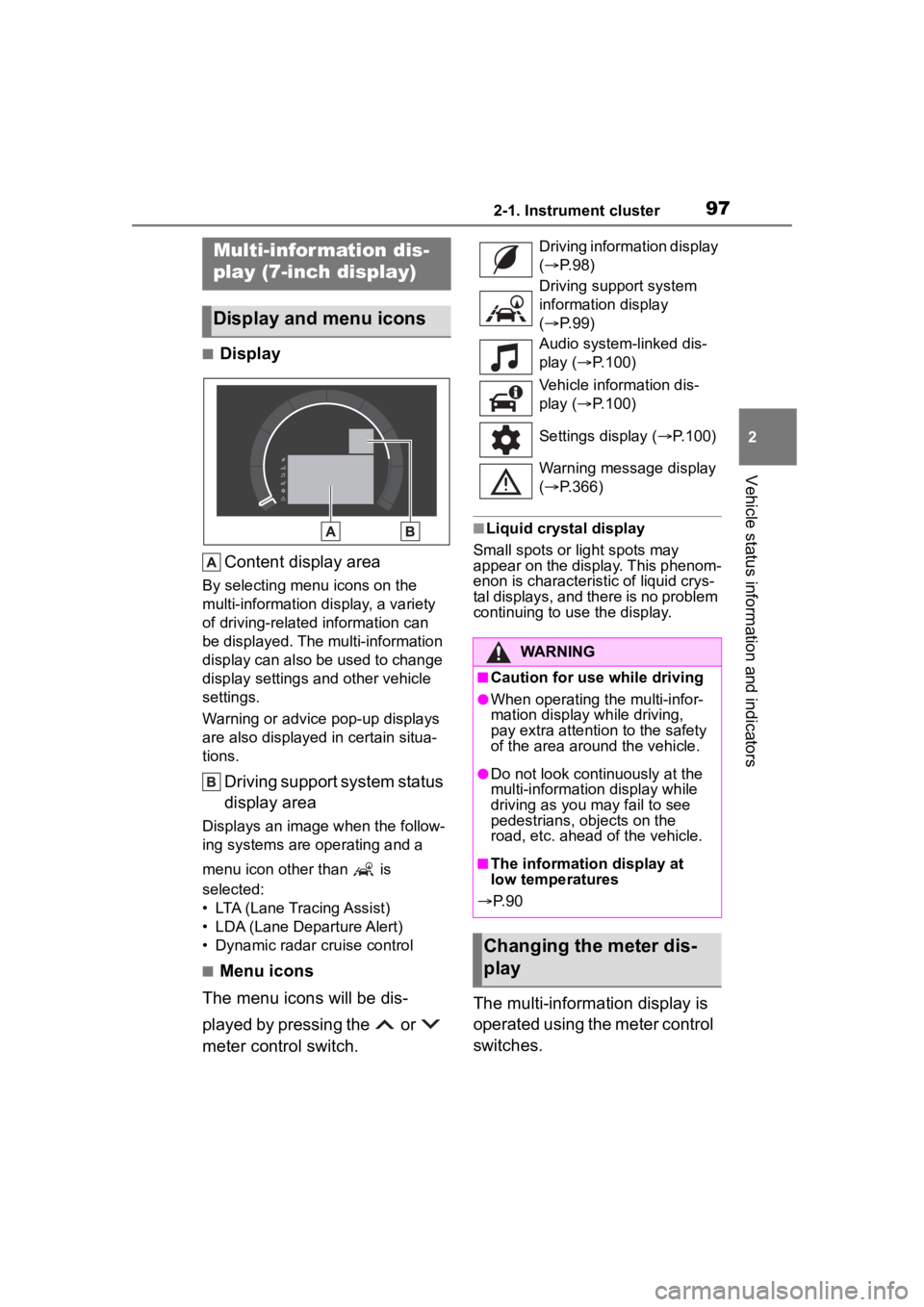
■DisplayContent display area
By selecting menu icons on the
multi-information display, a variety
of driving-related information can
be displayed. The multi-information
display can also be used to change
display settings and other vehicle
settings.
Warning or advice pop-up displays
are also displayed in certain situa-
tions.
Driving support system status
display area
Displays an image when the follow-
ing systems are operating and a
menu icon other than is
selected:
• LTA (Lane Tracing Assist)
• LDA (Lane Departure Alert)
• Dynamic radar cruise control
■Menu icons
The menu icons will be dis-
played by pressing the or
meter control switch.
■Liquid crystal display
Small spots or light spots may
appear on the display. This phenom-
enon is characteristic of liquid crys-
tal displays, and there is no problem
continuing to use the display.
The multi-information display is
operated using the meter control
switches.
Multi-infor mation dis-
play (7-inch display)
Display and menu icons
Driving information display
( P. 9 8 )
Driving support system
information display
( P. 9 9 )
Audio system-linked dis-
play ( P.100)
Vehicle information dis-
play ( P.100)
Settings display ( P.100)
Warning message display
( P.366)
WARNING
■Caution for use while driving
●When operating the multi-infor-
mation display while driving,
pay extra attention to the safety
of the area around the vehicle.
●Do not look continuously at the
multi-informatio n display while
driving as you may fail to see
pedestrians, objects on the
road, etc. ahead of the vehicle.
■The information display at
low temperatures
P. 9 0
Changing the meter dis-
play
Page 100 of 468
1002-1. Instrument cluster
mation:
Route guidance to destination
Compass display (head-
ing-up display)
Select to enable selection of an
audio source or track on the
meter using the meter control
switches.
This menu icon can be set to be
displayed/not displayed in .
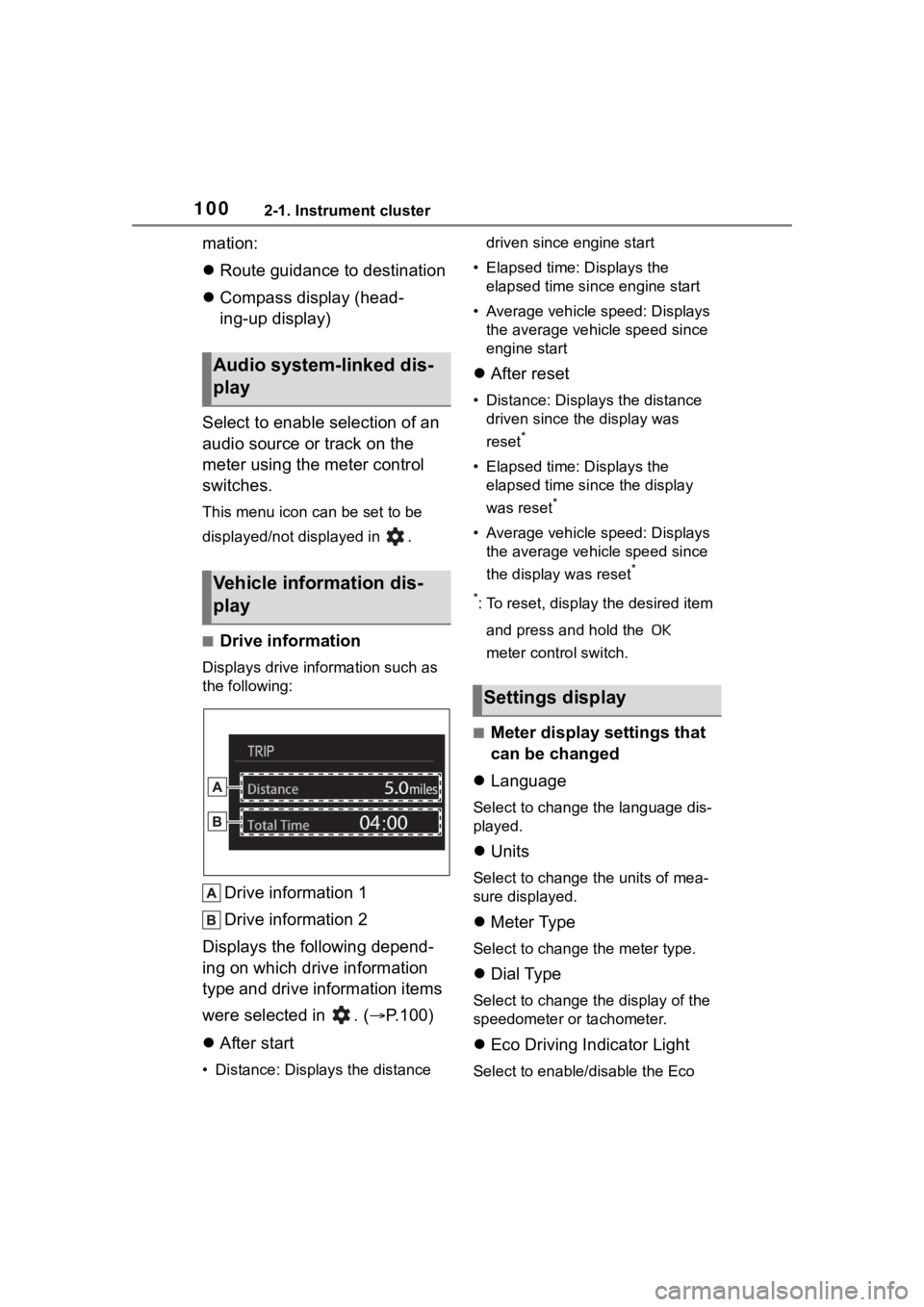
■Drive information
Displays drive information such as
the following:
Drive information 1
Drive information 2
Displays the following depend-
ing on which drive information
type and drive information items
were selected in . ( P.100)
After start
• Distance: Displays the distance driven since engine start
• Elapsed time: Displays the elapsed time since engine start
• Average vehicle speed: Displays the average vehicle speed since
engine start
After reset
• Distance: Displays the distance
driven since the display was
reset
*
• Elapsed time: Displays the elapsed time since the display
was reset
*
• Average vehicle speed: Displays the average vehicle speed since
the display was reset
*
*
: To reset, display the desired item and press and hold the
meter control switch.
■Meter display settings that
can be changed
Language
Select to change the language dis-
played.
Units
Select to change the units of mea-
sure displayed.
Meter Type
Select to change the meter type.
Dial Type
Select to change the display of the
speedometer or tachometer.
Eco Driving Indicator Light
Select to enable/disable the Eco
Audio system-linked dis-
play
Vehicle information dis-
play
Settings display
Page 101 of 468
1012-1. Instrument cluster
2
Vehicle status information and indicators
Driving Indicator Light.
Fuel economy display
Select to change the average fuel
consumption display to any of the
following: trip average/total aver-
age/tank average. ( P. 9 8 )
Select to display/not display the
audio system linked display.
Select to change the displayed con-
tent of the following:
• Drive information type
Select to change the drive informa-
tion type display between trip infor-
mation/total information.
• Drive information items
Select to set the first and second
items of the drive information dis-
play to any of the following: aver-
age vehicle
speed/distance/elapsed time.
Pop-up display
Select to enable/disable pop-up
displays for each relevant system.
Multi-information display off
Select to turn the m ulti-information
display off.
To turn the multi-in formation display
on again, press any of the following
meter control switches
//// /.
Default setting
Select to reset the meter display
settings to the default setting.
■Vehicle functions and set-
tings that can be changed
P.412
■Suspension of the settings dis-
play
●Some settings cannot be changed
while driving. When changing set-
tings, park the vehicle in a safe
place.
●If a warning message is displayed,
operation of the settings display
will be suspended.
WARNING
■Cautions during setting up
the display
If the engine is running when
changing the dis play settings,
ensure that the vehicle is parked
in a place with adequate ventila-
tion. In a closed area such as a
garage, exhaust gases including
harmful carbon monoxide (CO)
may collect and enter the vehicle.
This may lead to death or a seri-
ous health hazard.
NOTICE
■During setting up the display
To prevent batte ry discharge,
ensure that the engine is running
while setting up the display fea-
tures.
Page 105 of 468
105
3
3
Before driving
Before driving
.3-1. Key informationKeys ............................ 106
3-2. Opening, closing and locking the doors
Doors .......................... 111
Trunk ........................... 117
Smart key system ....... 120
3-3. Adjusting the seats Front seats .................. 125
Rear seats................... 126
Head restraints............ 128
3-4. Adjusting the steering wheel and mirrors
Steering wheel ............ 130
Inside rear view mirror .................................. 131
Outside rear view mirrors .................................. 132
3-5. Opening and closing the windows
Power windows ........... 134
Moon roof .................... 137
3-6. Favorite settings My Settings ................. 140
Page 111 of 468
1113-2. Opening, closing and locking the doors
3
Before driving
3-2.Opening, closing and locking the doors
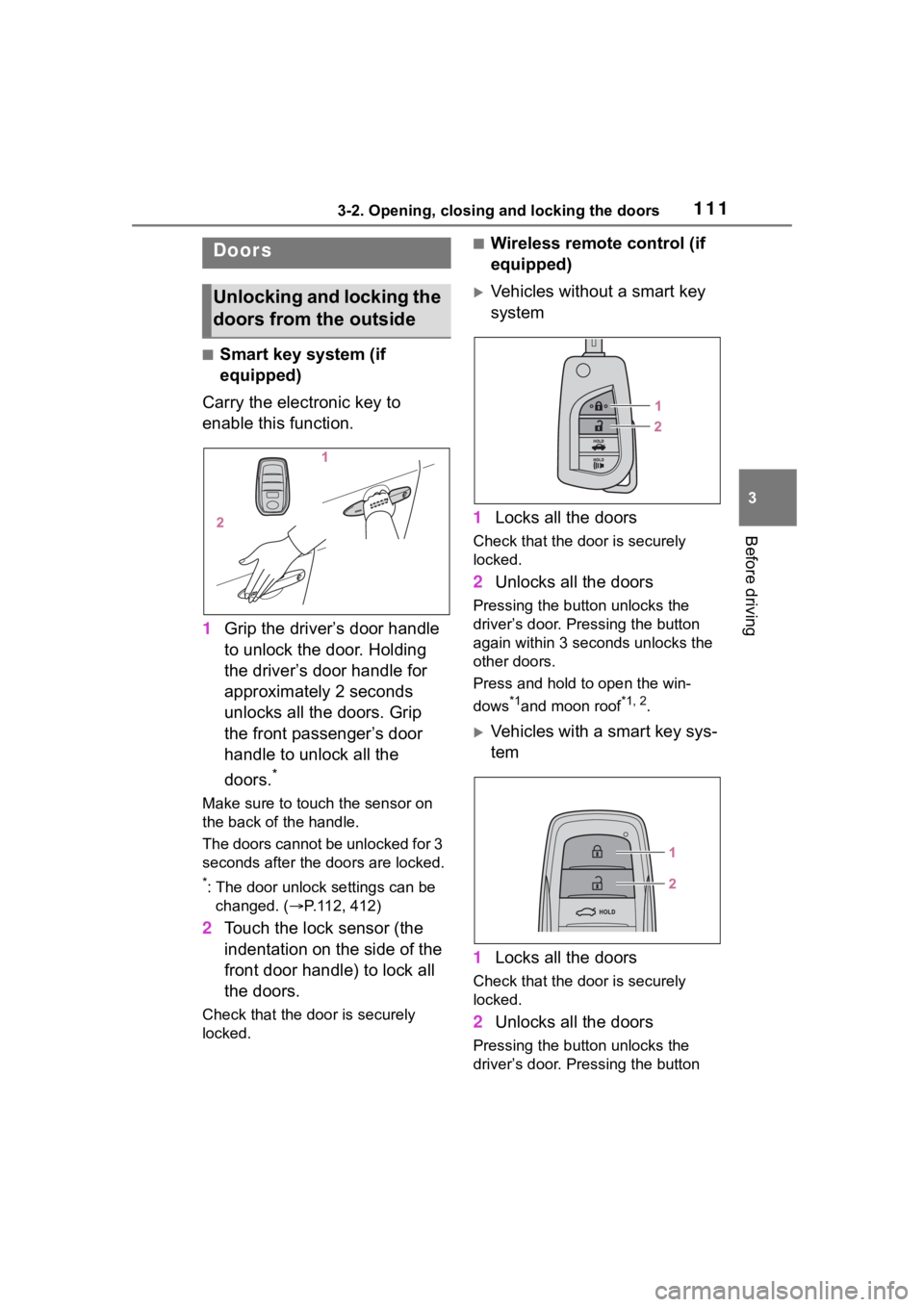
■Smart key system (if
equipped)
Carry the electronic key to
enable this function.
1 Grip the driver’s door handle
to unlock the door. Holding
the driver’s door handle for
approximately 2 seconds
unlocks all the doors. Grip
the front passenger’s door
handle to unlock all the
doors.
*
Make sure to touch the sensor on
the back of the handle.
The doors cannot be unlocked for 3
seconds after the doors are locked.
*: The door unlock settings can be
changed. ( P.112, 412)
2 Touch the lock sensor (the
indentation on the side of the
front door handle) to lock all
the doors.
Check that the door is securely
locked.
■Wireless remote control (if
equipped)
Vehicles without a smart key
system
1 Locks all the doors
Check that the d oor is securely
locked.
2 Unlocks all the doors
Pressing the button unlocks the
driver’s door. Pressing the button
again within 3 seconds unlocks the
other doors.
Press and hold to open the win-
dows
*1and moon roof*1, 2.
Vehicles with a smart key sys-
tem
1 Locks all the doors
Check that the d oor is securely
locked.
2 Unlocks all the doors
Pressing the button unlocks the
driver’s door. Pressing the button
Doors
Unlocking and locking the
doors from the outside