audio video TOYOTA COROLLA HYBRID 2021 Owners Manual (in English)
[x] Cancel search | Manufacturer: TOYOTA, Model Year: 2021, Model line: COROLLA HYBRID, Model: TOYOTA COROLLA HYBRID 2021Pages: 584, PDF Size: 19.59 MB
Page 272 of 584
2725-3. Connectivity settings
COROLLA HV_U
1.2)
This is a profile to transfer contacts
data.
PBAP (Phone Book Access
Profile) Ver. 1.0 (Recom-
mended: Ver. 1.2)
This is a profile to transfer phone-
book data.
MAP (Message Access Pro-
file) Ver. 1.0 (Recommended:
Ver. 1.2)
This is a profile to use phone mes-
sage functions.
SPP (Serial Port Profile) Rec-
ommended: Ver. 1.2
This is a profile to use the Toyota
audio multimedia function.
A2DP (Advanced Audio Dis-
tribution Profile) Ver. 1.0 (Rec-
ommended: Ver. 1.3)
This is a profile to transmit stereo
audio or high quality sound to the
audio/visual system.
AVRCP (Audio/Video Remote
Control Profile) Ver. 1.0 (Rec-
ommended: Ver. 1.6)
This is a profile to allow remote
control the A/V equipment.
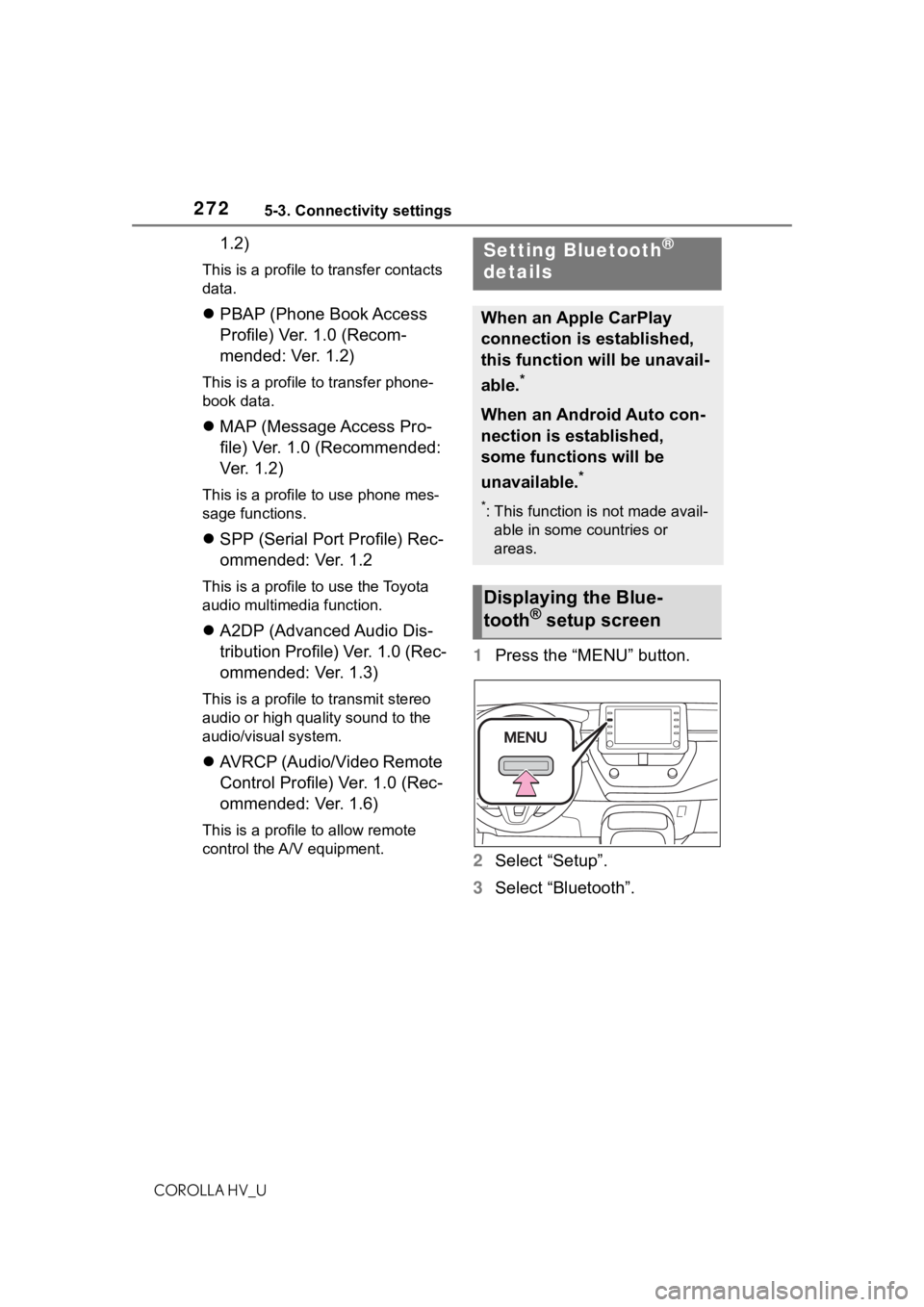
1 Press the “MENU” button.
2 Select “Setup”.
3 Select “Bluetooth”.
Setting Bluetooth®
details
When an Apple CarPlay
connection is established,
this function will be unavail-
able.
*
When an Android Auto con-
nection is established,
some functions will be
unavailable.
*
*: This function is not made avail-
able in some countries or
areas.
Displaying the Blue-
tooth® setup screen
Page 286 of 584
2865-3. Connectivity settings
COROLLA HV_U
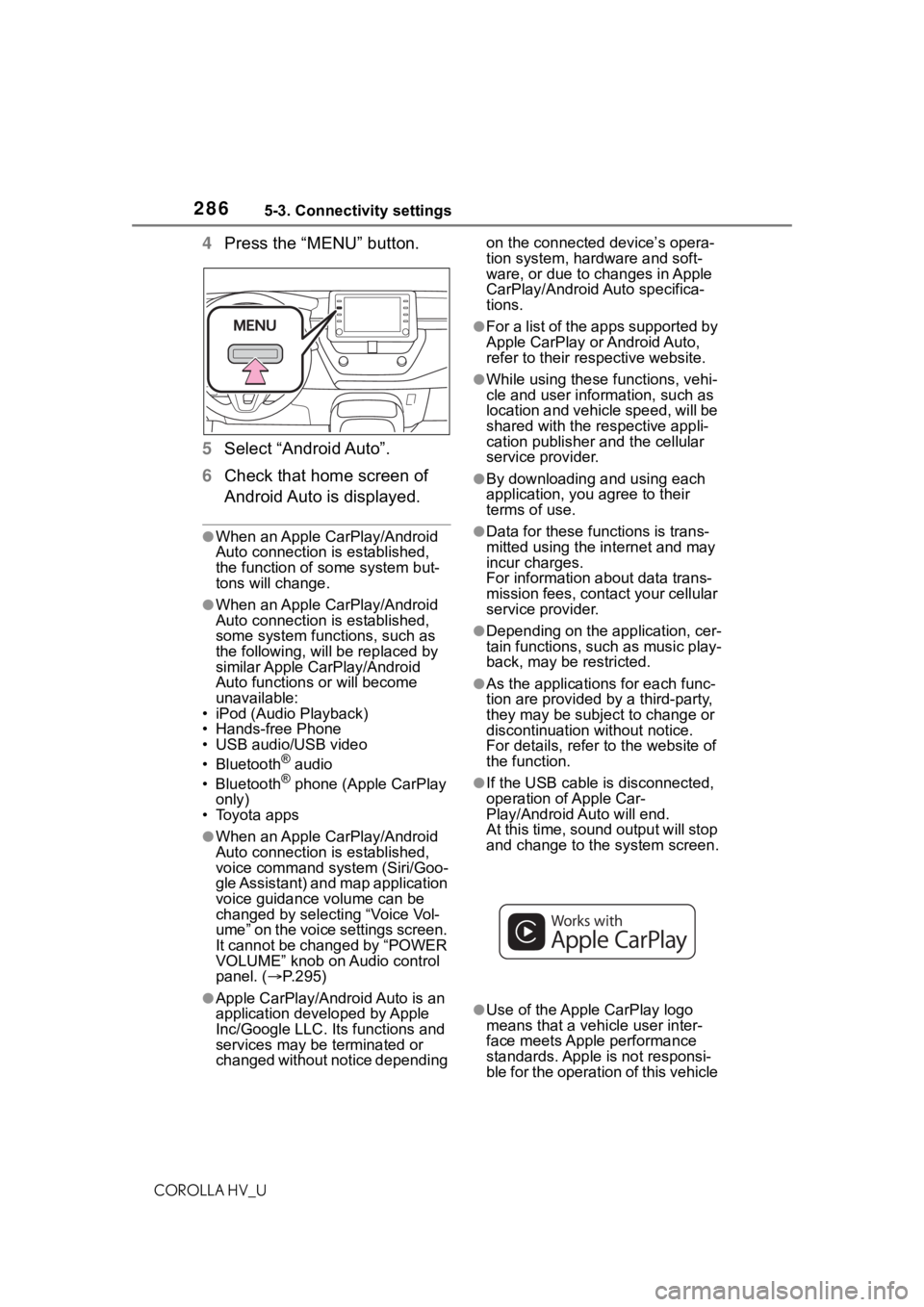
4Press the “MENU” button.
5 Select “Android Auto”.
6 Check that home screen of
Android Auto is displayed.
●When an Apple CarPlay/Android
Auto connection is established,
the function of some system but-
tons will change.
●When an Apple CarPlay/Android
Auto connection is established,
some system functions, such as
the following, will be replaced by
similar Apple CarPlay/Android
Auto functions or will become
unavailable:
• iPod (Audio Playback)
• Hands-free Phone
• USB audio/USB video
• Bluetooth
® audio
• Bluetooth® phone (Apple CarPlay
only)
• Toyota apps
●When an Apple CarPlay/Android
Auto connection is established,
voice command system (Siri/Goo-
gle Assistant) and map application
voice guidance volume can be
changed by selecting “Voice Vol-
ume” on the voice settings screen.
It cannot be changed by “POWER
VOLUME” knob on Audio control
panel. ( P.295)
●Apple CarPlay/Android Auto is an
application developed by Apple
Inc/Google LLC. Its functions and
services may be terminated or
changed without notice depending on the connected device’s opera-
tion system, hardware and soft-
ware, or due to changes in Apple
CarPlay/Android Auto specifica-
tions.
●For a list of the apps supported by
Apple CarPlay or Android Auto,
refer to their respective website.
●While using these functions, vehi-
cle and user information, such as
location and vehicle speed, will be
shared with the respective appli-
cation publisher
and the cellular
service provider.
●By downloading and using each
application, you agree to their
terms of use.
●Data for these functions is trans-
mitted using the in ternet and may
incur charges.
For information about data trans-
mission fees, contact your cellular
service provider.
●Depending on the application, cer-
tain functions, such as music play-
back, may be restricted.
●As the applications for each func-
tion are provided by a third-party,
they may be subject to change or
discontinuation without notice.
For details, refer to the website of
the function.
●If the USB cable is disconnected,
operation of Apple Car-
Play/Android Auto will end.
At this time, sound output will stop
and change to the system screen.
●Use of the Apple CarPlay logo
means that a vehicle user inter-
face meets Apple performance
standards. Apple is not responsi-
ble for the operation of this vehicle
Page 288 of 584
2885-3. Connectivity settings
COROLLA HV_U
SymptomSolution
An Apple Car-
Play/Android Auto con-
nection cannot be
established.
Check if the device supports Apple Car-
Play/Android Auto.
Check if Apple CarPlay/Android Auto is
enabled on the connected device.
Check if that the Androi d Auto application is
installed to the device to be connected.
For details, refer to
Apple CarPlay:
https://www.apple.com/ios/carplay/
.
Android Auto:
https://www.android.com/auto/
.
Check if “Apple CarPla y”/“Android Auto” of
“Projection Settings” on the general settings
screen is set to on. ( P.291)
Check if the USB cable be ing used is securely
connected to the device and USB port.
Check that the device is connected directly to
the USB port of the system and not connected
to a USB hub.
For Apple CarPlay: Check if the Lightning cable
being used is certified by Apple. Check if Siri is
enabled.
After checking all of the above, try to establish
an Apple CarPlay/Android Auto connection.
( P.284, 285)
When an Apple Car-
Play/Android Auto con-
nection is established and
a video is being played,
the video is not displayed,
but audio is output
through the system.
As the system is not designed to play video
through Apple CarPlay/Android Auto, this is not
a malfunction.
Although an Apple Car-
Play/Android Auto con-
nection is established,
audio is not output
through the system.
The system may muted or the volume may be
low. Increase the system volume.
Page 299 of 584
2995-5. Using the audio/visual system
COROLLA HV_U
5
Audio
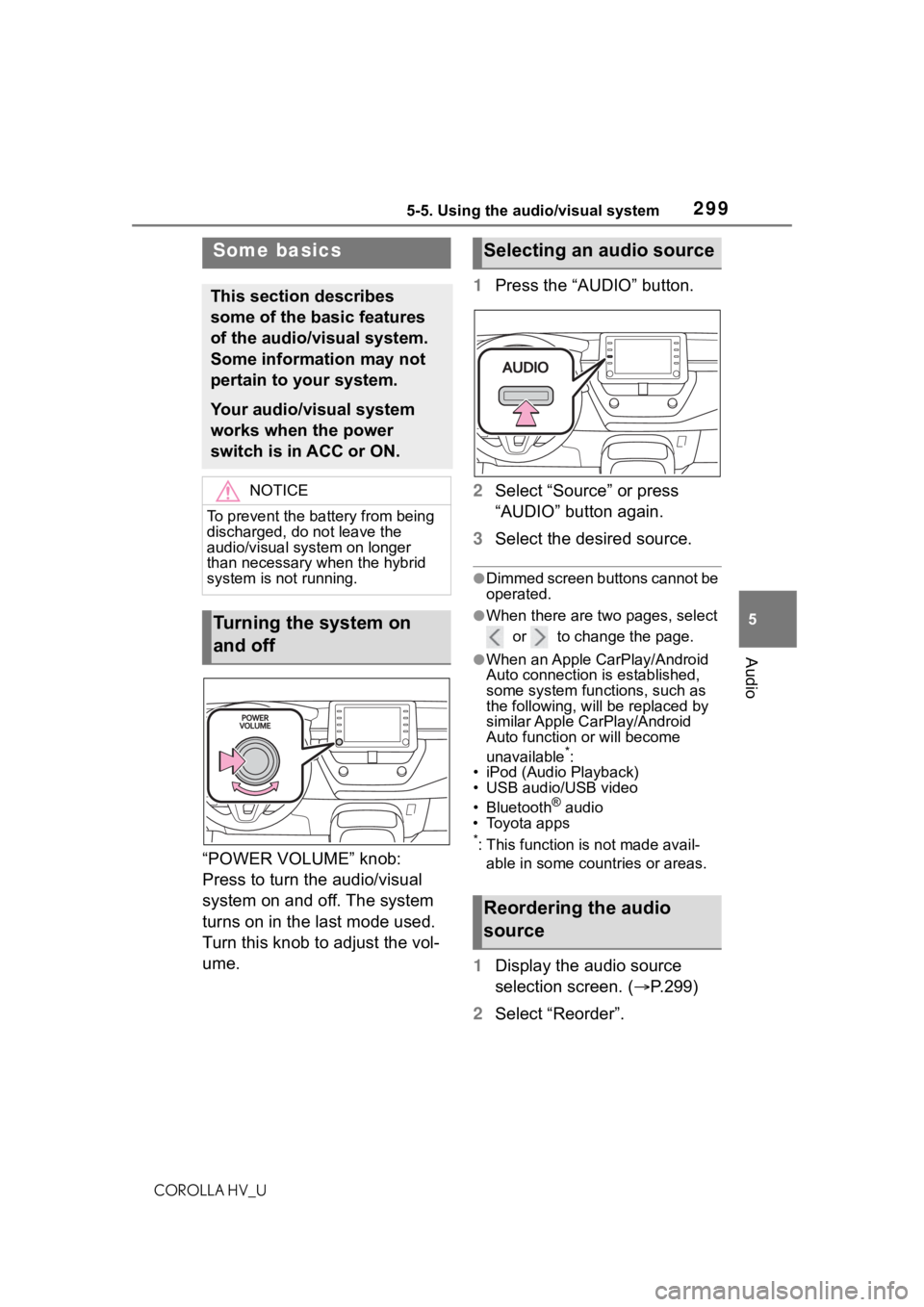
“POWER VOLUME” knob:
Press to turn the audio/visual
system on and off. The system
turns on in the last mode used.
Turn this knob to adjust the vol-
ume. 1
Press the “AUDIO” button.
2 Select “Source” or press
“AUDIO” button again.
3 Select the desired source.
●Dimmed screen buttons cannot be
operated.
●When there are tw o pages, select
or to change the page.
●When an Apple CarPlay/Android
Auto connection is established,
some system functions, such as
the following, will be replaced by
similar Apple CarPlay/Android
Auto function or will become
unavailable
*:
• iPod (Audio Playback)
• USB audio/USB video
• Bluetooth
® audio
• Toyota apps
*: This function is not made avail-
able in some countries or areas.
1 Display the audio source
selection screen. ( P.299)
2 Select “Reorder”.
Some basics
This section describes
some of the basic features
of the audio/visual system.
Some information may not
pertain to your system.
Your audio/visual system
works when the power
switch is in ACC or ON.
NOTICE
To prevent the battery from being
discharged, do not leave the
audio/visual system on longer
than necessary when the hybrid
system is not running.
Turning the system on
and off
Selecting an audio source
Reordering the audio
source
Page 301 of 584
3015-5. Using the audio/visual system
COROLLA HV_U
5
Audio
Select “+” or “-” to adjust
mid-pitched tones.
Select “+” or “-” to adjust
low-pitched tones.
■Fader/Balance
A good balance of the left and
right stereo channels and of the
front and rear sound levels is
also important.
Keep in mind that when listening
to a stereo recording or broad-
cast, changing the right/left bal-
ance will increase the volume of
1 group of sounds while
decreasing the volume of
another.
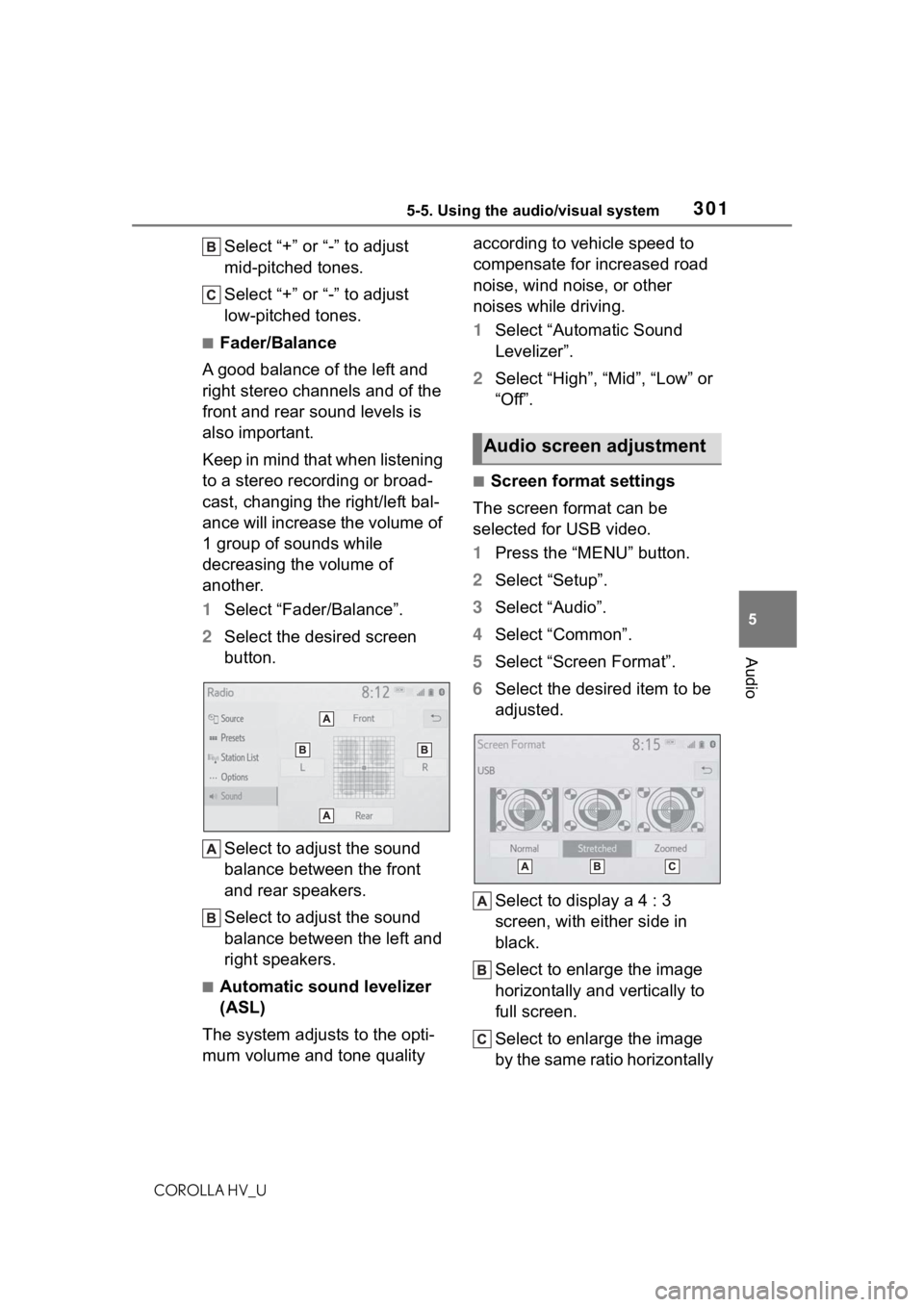
1 Select “Fader/Balance”.
2 Select the desired screen
button.
Select to adjust the sound
balance between the front
and rear speakers.
Select to adjust the sound
balance between the left and
right speakers.
■Automatic sound levelizer
(ASL)
The system adjusts to the opti-
mum volume and tone quality according to vehicle speed to
compensate for increased road
noise, wind noise, or other
noises while driving.
1
Select “Automatic Sound
Levelizer”.
2 Select “High”, “Mid”, “Low” or
“Off”.
■Screen format settings
The screen format can be
selected for USB video.
1 Press the “MENU” button.
2 Select “Setup”.
3 Select “Audio”.
4 Select “Common”.
5 Select “Screen Format”.
6 Select the desired item to be
adjusted.
Select to display a 4 : 3
screen, with either side in
black.
Select to enlarge the image
horizontally and vertically to
full screen.
Select to enlarge the image
by the same ratio horizontally
Audio screen adjustment
Page 310 of 584
3105-7. Media operation
COROLLA HV_U
Select to change the artist.
USB video
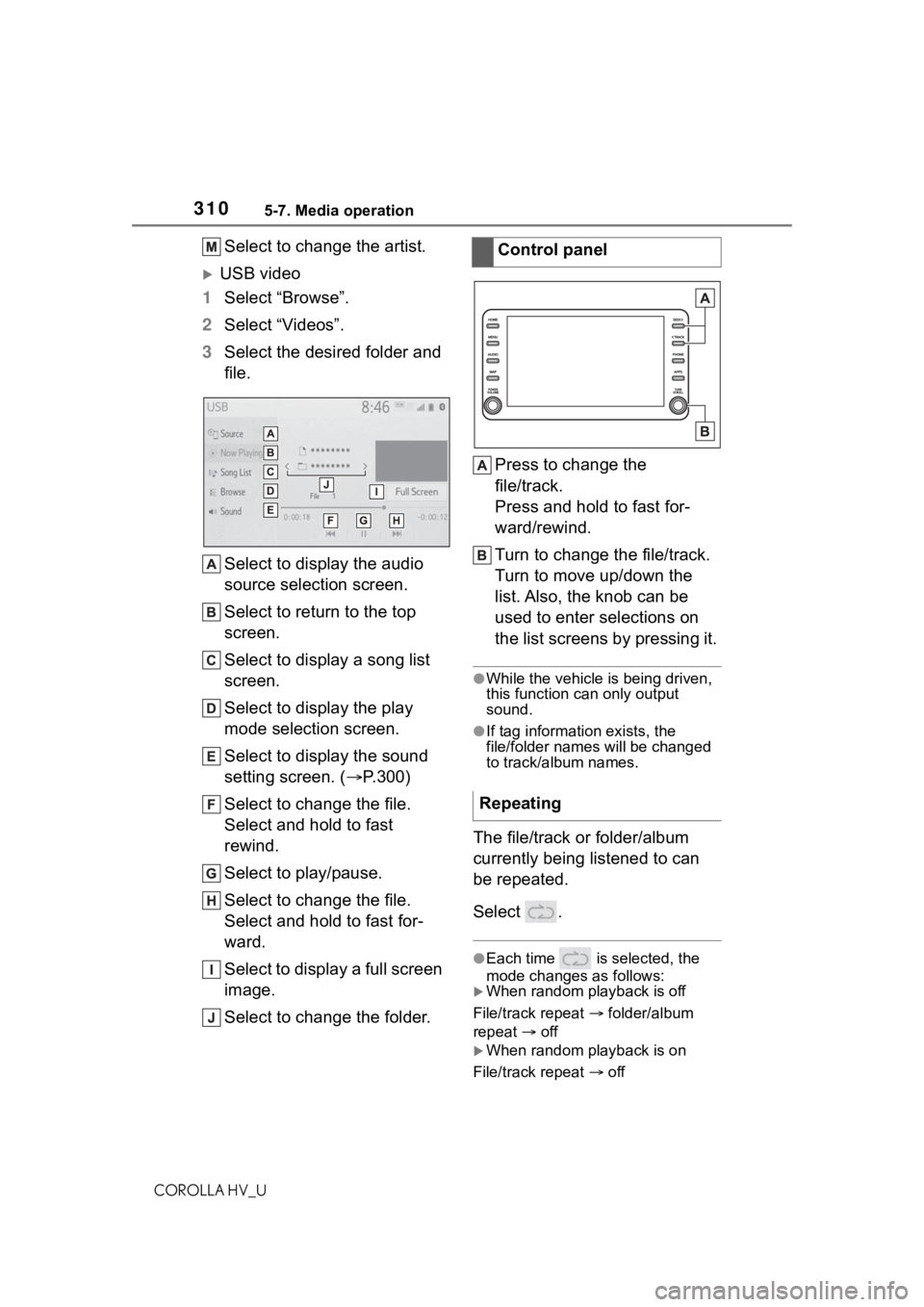
1 Select “Browse”.
2 Select “Videos”.
3 Select the desired folder and
file.
Select to display the audio
source selection screen.
Select to return to the top
screen.
Select to display a song list
screen.
Select to display the play
mode selection screen.
Select to display the sound
setting screen. ( P.300)
Select to change the file.
Select and hold to fast
rewind.
Select to play/pause.
Select to change the file.
Select and hold to fast for-
ward.
Select to display a full screen
image.
Select to change the folder. Press to change the
file/track.
Press and hold to fast for-
ward/rewind.
Turn to change the file/track.
Turn to move up/down the
list. Also, the knob can be
used to enter selections on
the list screens by pressing it.
●While the vehicle i
s being driven,
this function can only output
sound.
●If tag information exists, the
file/folder names will be changed
to track/album names.
The file/track or folder/album
currently being listened to can
be repeated.
Select .
●Each time is selected, the
mode changes as follows:
When random playback is off
File/track repeat folder/album
repeat off
When random playback is on
File/track repeat off
Control panel
Repeating
Page 312 of 584
3125-7. Media operation
COROLLA HV_U
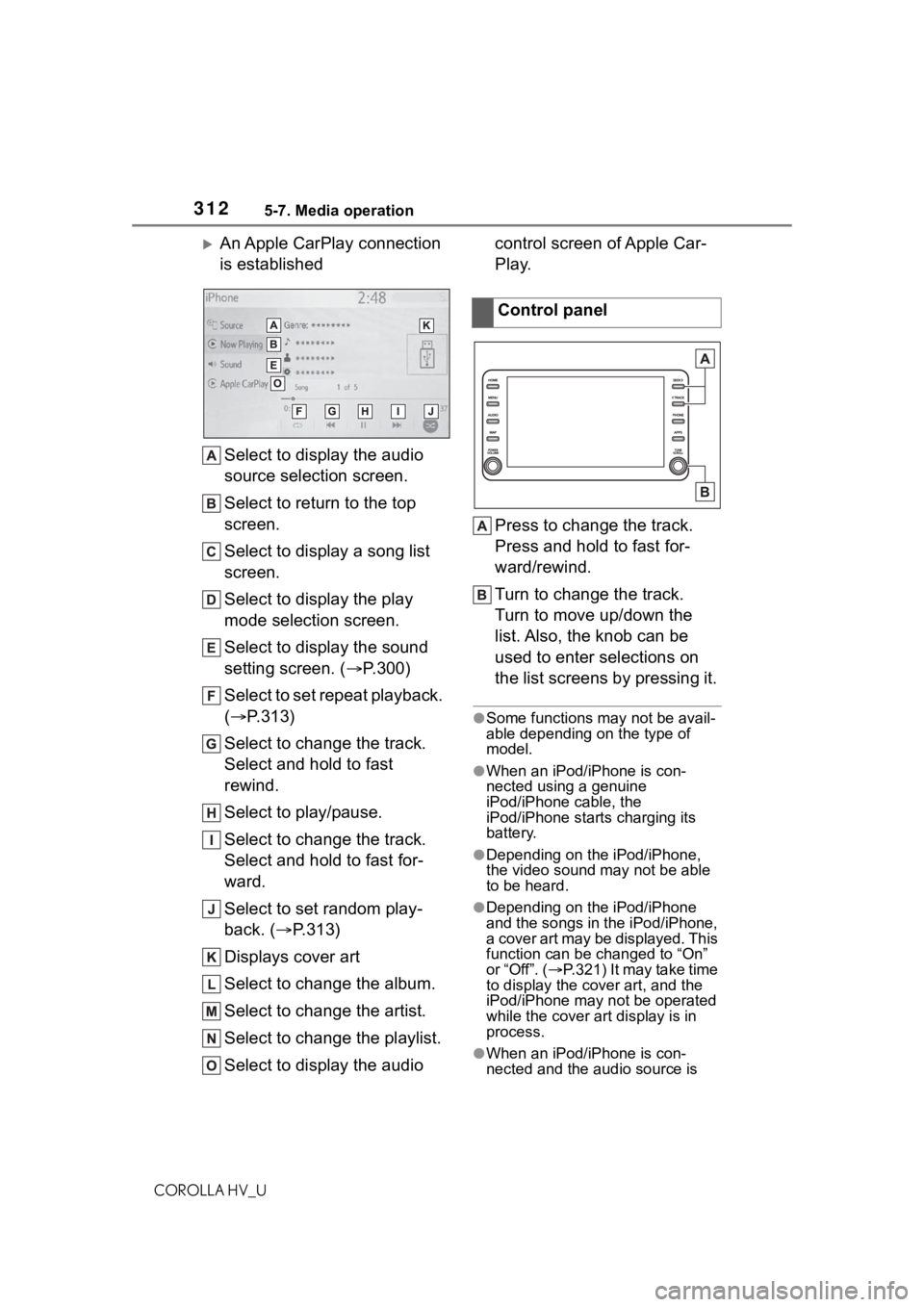
An Apple CarPlay connection
is establishedSelect to display the audio
source selection screen.
Select to return to the top
screen.
Select to display a song list
screen.
Select to display the play
mode selection screen.
Select to display the sound
setting screen. ( P.300)
Select to set repeat playback.
( P.313)
Select to change the track.
Select and hold to fast
rewind.
Select to play/pause.
Select to change the track.
Select and hold to fast for-
ward.
Select to set random play-
back. ( P.313)
Displays cover art
Select to change the album.
Select to change the artist.
Select to change the playlist.
Select to display the audio control screen of Apple Car-
Play.
Press to change the track.
Press and hold to fast for-
ward/rewind.
Turn to change the track.
Turn to move up/down the
list. Also, the knob can be
used to enter selections on
the list screens by pressing it.
●Some functions may not be avail-
able depending on the type of
model.
●When an iPod/iPhone is con-
nected using a genuine
iPod/iPhone cable, the
iPod/iPhone starts charging its
battery.
●Depending on the iPod/iPhone,
the video sound
may not be able
to be heard.
●Depending on the iPod/iPhone
and the songs in the iPod/iPhone,
a cover art may be displayed. This
function can be changed to “On”
or “Off”. ( P.321) It may take time
to display the cov er art, and the
iPod/iPhone may not be operated
while the cover art display is in
process.
●When an iPod/iPhone is con-
nected and the audio source is
Control panel
Page 321 of 584
3215-9. Audio settings
COROLLA HV_U
5
Audio
5-9.Audio settings
1 Press the “MENU” button.
2 Select “Setup”.
3 Select “Audio”.
4 Select the desired items to
be set.
Select to set the common
settings. ( P.321)
Select to set the radio set-
tings. ( P.321) 1
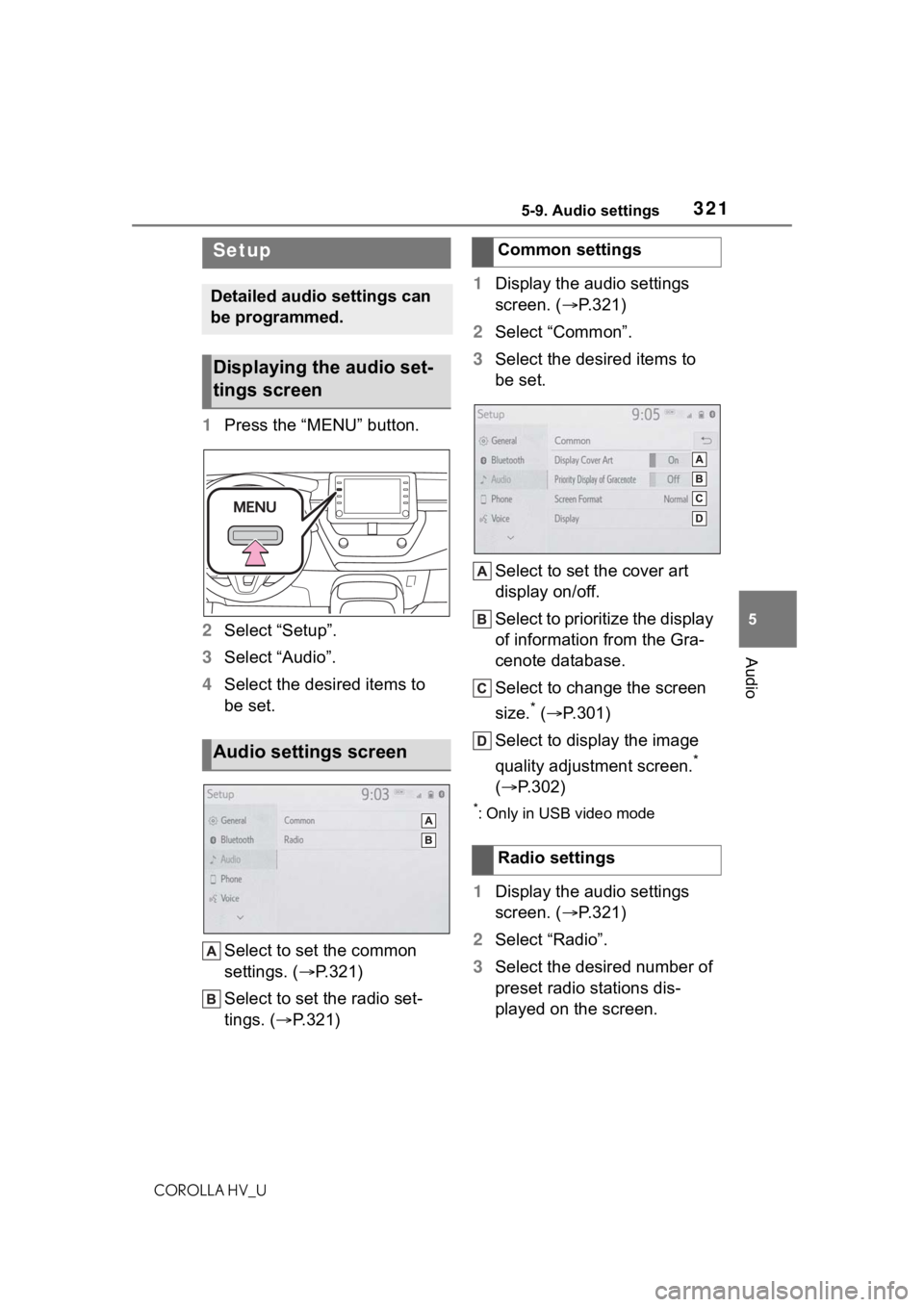
Display the audio settings
screen. ( P.321)
2 Select “Common”.
3 Select the desired items to
be set.
Select to set the cover art
display on/off.
Select to prioritize the display
of information from the Gra-
cenote database.
Select to change the screen
size.
* ( P.301)
Select to display the image
quality adjustment screen.
*
( P.302)
*: Only in USB video mode
1Display the audio settings
screen. ( P.321)
2 Select “Radio”.
3 Select the desired number of
preset radio stations dis-
played on the screen.
Setup
Detailed audio settings can
be programmed.
Displaying the audio set-
tings screen
Audio settings screen
Common settings
Radio settings
Page 324 of 584
3245-10. Tips for operating the audio/visual system
COROLLA HV_U
• iPhone 6
• iPhone 6 Plus
• iPhone 5s
• iPhone 5c
• iPhone 5
• iPod touch (6th generation)
• iPod touch (5th generation)
●This system only supports audio
playback.
●Depending on difference between
models or software versions etc.,
some models might be incompati-
ble with this system.
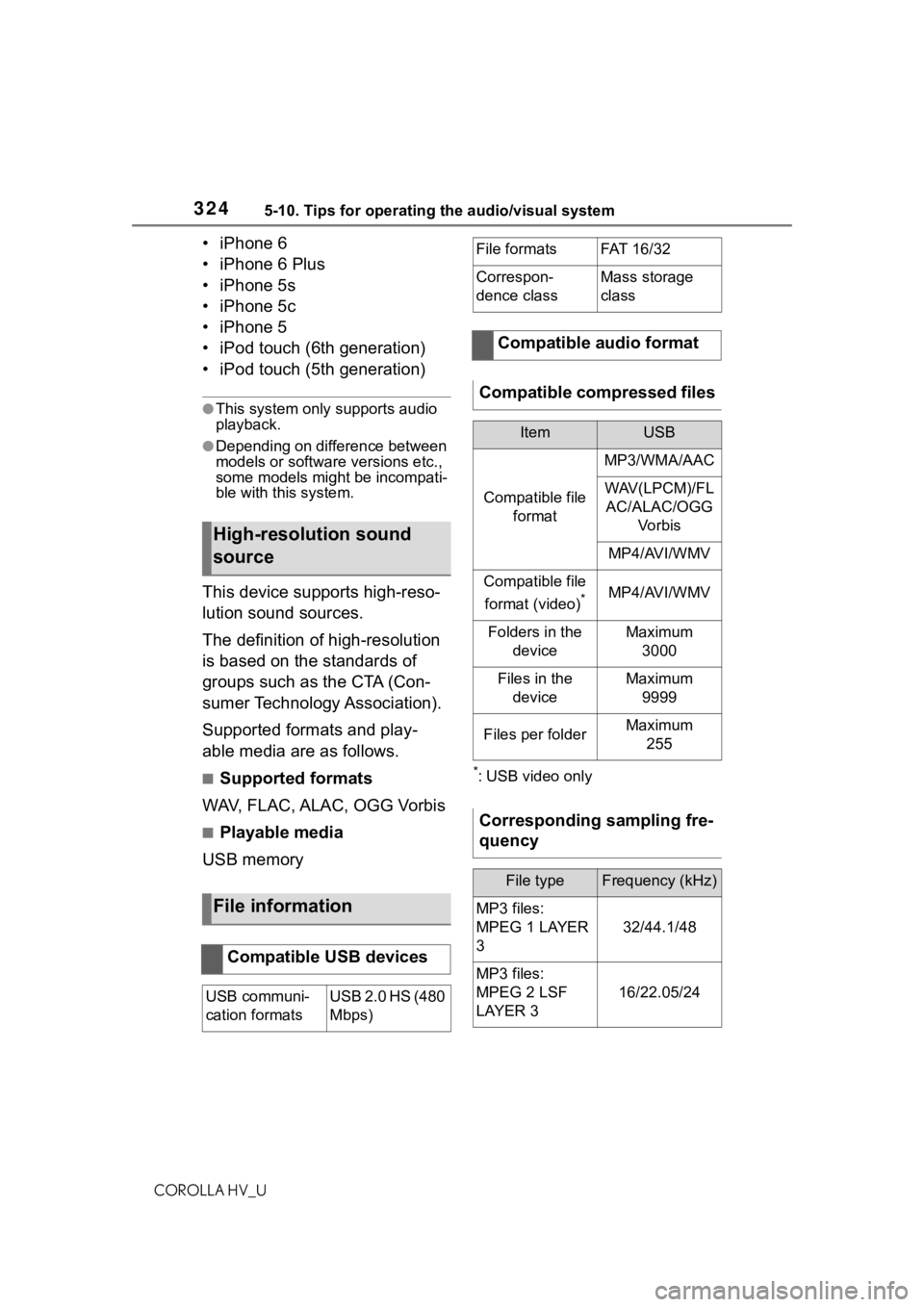
This device supports high-reso-
lution sound sources.
The definition of high-resolution
is based on the standards of
groups such as the CTA (Con-
sumer Technology Association).
Supported formats and play-
able media are as follows.
■Supported formats
WAV, FLAC, ALAC, OGG Vorbis
■Playable media
USB memory
*: USB video only
High-resolution sound
source
File information
Compatible USB devices
USB communi-
cation formatsUSB 2.0 HS (480
Mbps)
File formatsFAT 16 /3 2
Correspon-
dence classMass storage
class
Compatible audio format
Compatible compressed files
ItemUSB
Compatible file format
MP3/WMA/AAC
WAV(LPCM)/FLAC/ALAC/OGG Vo r b i s
MP4/AVI/WMV
Compatible file
format (video)
*MP4/AVI/WMV
Folders in the deviceMaximum3000
Files in the deviceMaximum 9999
Files per folderMaximum 255
Corresponding sampling fre-
quency
File typeFrequency (kHz)
MP3 files:
MPEG 1 LAYER
3
32/44.1/48
MP3 files:
MPEG 2 LSF
LAYER 3
16/22.05/24
Page 327 of 584
3275-10. Tips for operating the audio/visual system
COROLLA HV_U
5
Audio
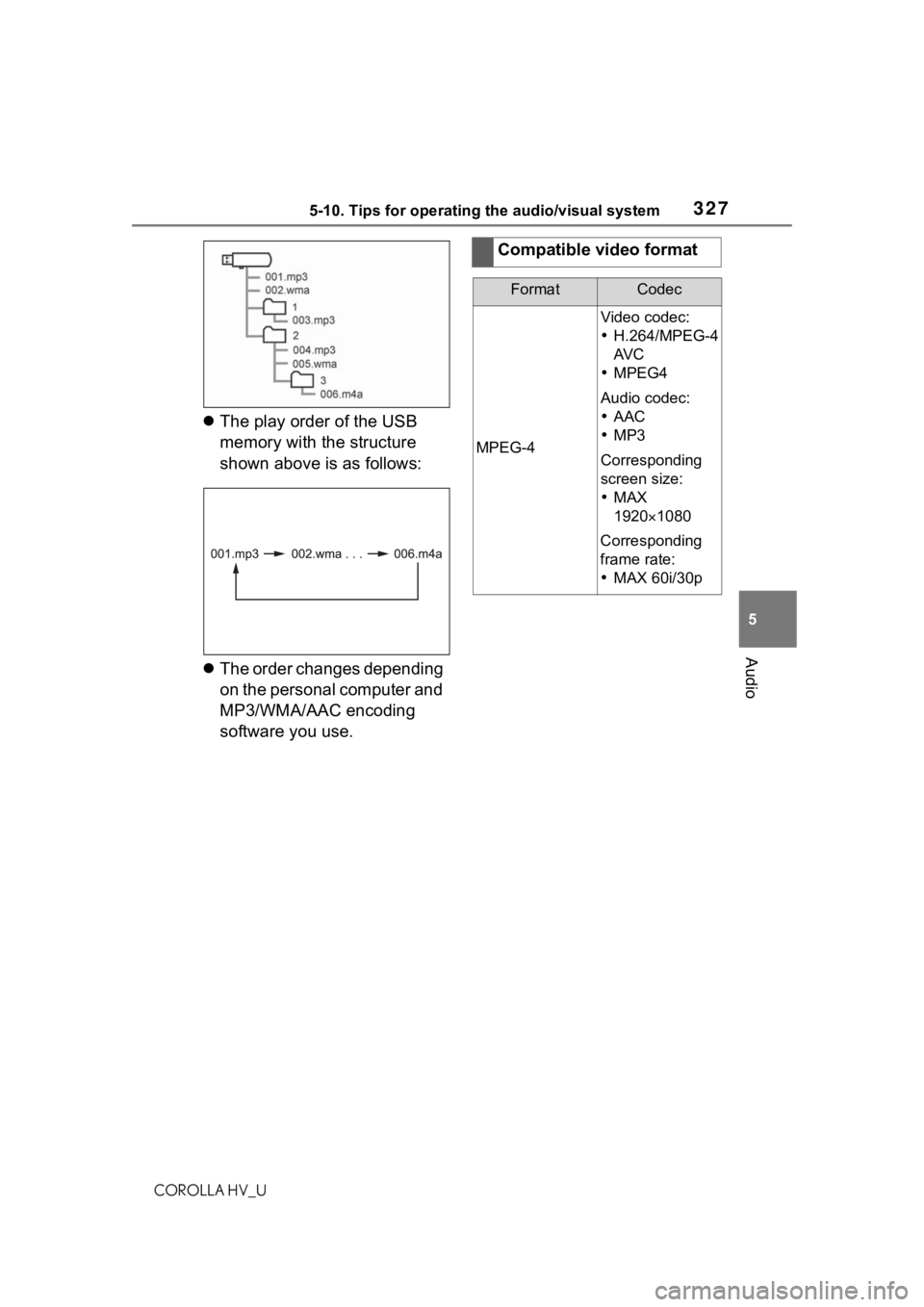
The play order of the USB
memory with the structure
shown above is as follows:
The order changes depending
on the personal computer and
MP3/WMA/AAC encoding
software you use.
Compatible video format
FormatCodec
MPEG-4
Video codec:
H.264/MPEG-4
AV C
MPEG4
Audio codec:
AAC
MP3
Corresponding
screen size:
MAX
1920 1080
Corresponding
frame rate:
MAX 60i/30p