navigation system TOYOTA COROLLA HYBRID 2021 Owners Manual (in English)
[x] Cancel search | Manufacturer: TOYOTA, Model Year: 2021, Model line: COROLLA HYBRID, Model: TOYOTA COROLLA HYBRID 2021Pages: 584, PDF Size: 19.59 MB
Page 16 of 584
16Pictorial index
COROLLA HV_U
When a warning message is displayed ............................ .... P.487
Turn signal lever.............................................. ................... P.166
Headlight switch ............................................... ................. P.173
Headlights/parking lights/tail lig hts/side marker lights/daytime run-
ning lights .................................................... ......................... P.173
Windshield wiper and washer switch............................... P.178
Usage................................................................................... P.178
Adding washer fluid .............................................................. P.440
Emergency flasher switch ....................................... .......... P.470
Hood lock release lever ........................................ ............. P.432
Tilt and telescopic steering lock release lever ................P. 1 3 8
Air conditioning system ............................. ....................... P.386
Usage................................................................................... P.386
Rear window defogger ........................................... .............. P.387
Audio .......................................................... ......................... P.253
Audio Plus
*
*
: Refer to “NAVIGATION AND MU LTIMEDIA SYSTEM OWNER’S MAN-
UAL”.
Page 104 of 584
1042-1. Instrument cluster
COROLLA HV_U
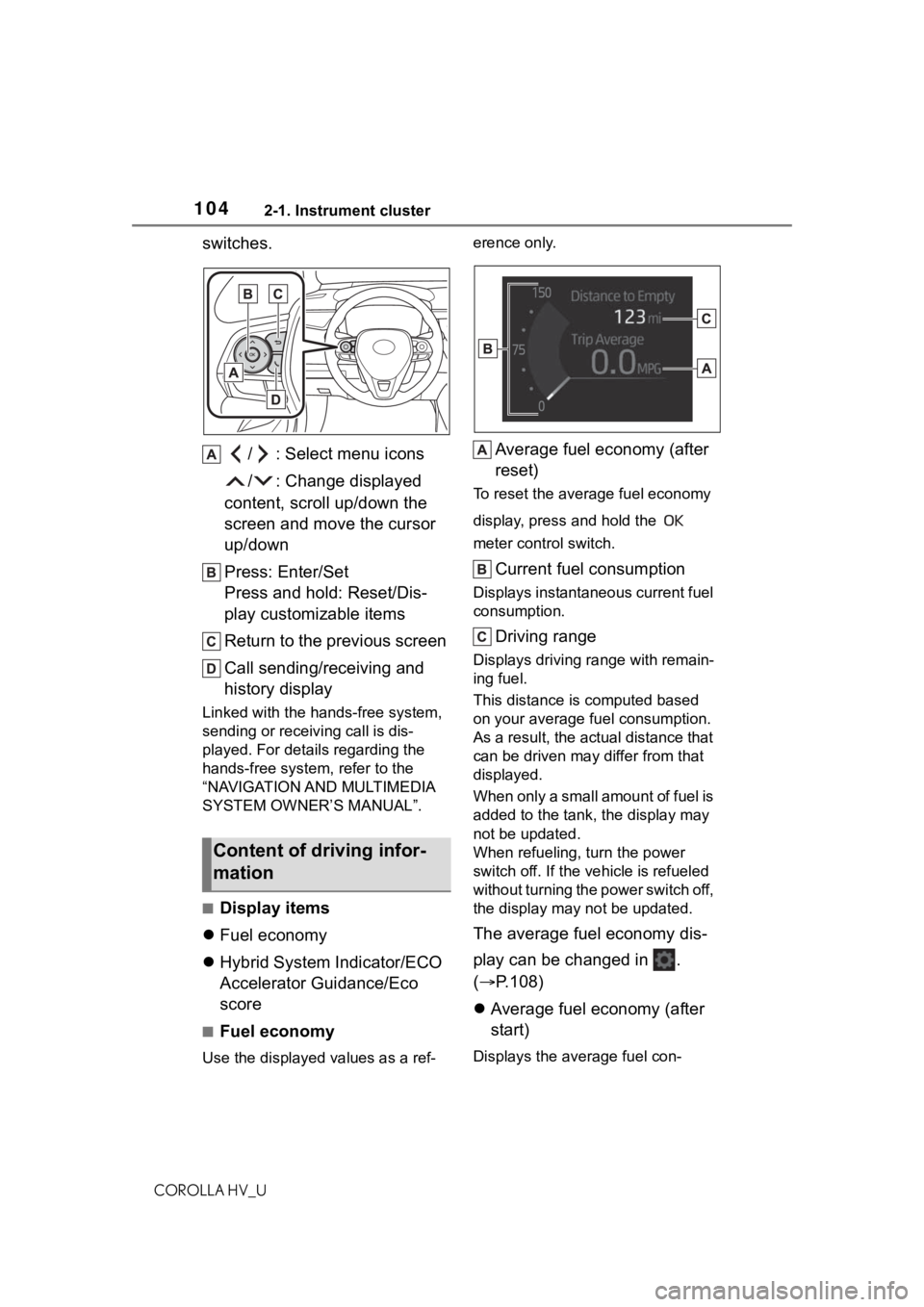
switches./ : Select menu icons
/ : Change displayed
content, scroll up/down the
screen and move the cursor
up/down
Press: Enter/Set
Press and hold: Reset/Dis-
play customizable items
Return to the previous screen
Call sending/receiving and
history display
Linked with the hands-free system,
sending or receiv ing call is dis-
played. For details regarding the
hands-free system, refer to the
“NAVIGATION AND MULTIMEDIA
SYSTEM OWNER’S MANUAL”.
■Display items
Fuel economy
Hybrid System Indicator/ECO
Accelerator Guidance/Eco
score
■Fuel economy
Use the displayed values as a ref- erence only.
Average fuel economy (after
reset)
To reset the average fuel economy
display, press and hold the
meter control switch.
Current fuel consumption
Displays instantaneous current fuel
consumption.
Driving range
Displays driving ra
nge with remain-
ing fuel.
This distance is computed based
on your average f uel consumption.
As a result, the actual distance that
can be driven may differ from that
displayed.
When only a small amount of fuel is
added to the tank, the display may
not be updated.
When refueling, turn the power
switch off. If the ve hicle is refueled
without turning the power switch off,
the display may not be updated.
The average fuel economy dis-
play can be changed in .
( P.108)
Average fuel economy (after
start)
Displays the average fuel con-
Content of driving infor-
mation
Page 218 of 584
2184-5. Using the driving support systems
COROLLA HV_U
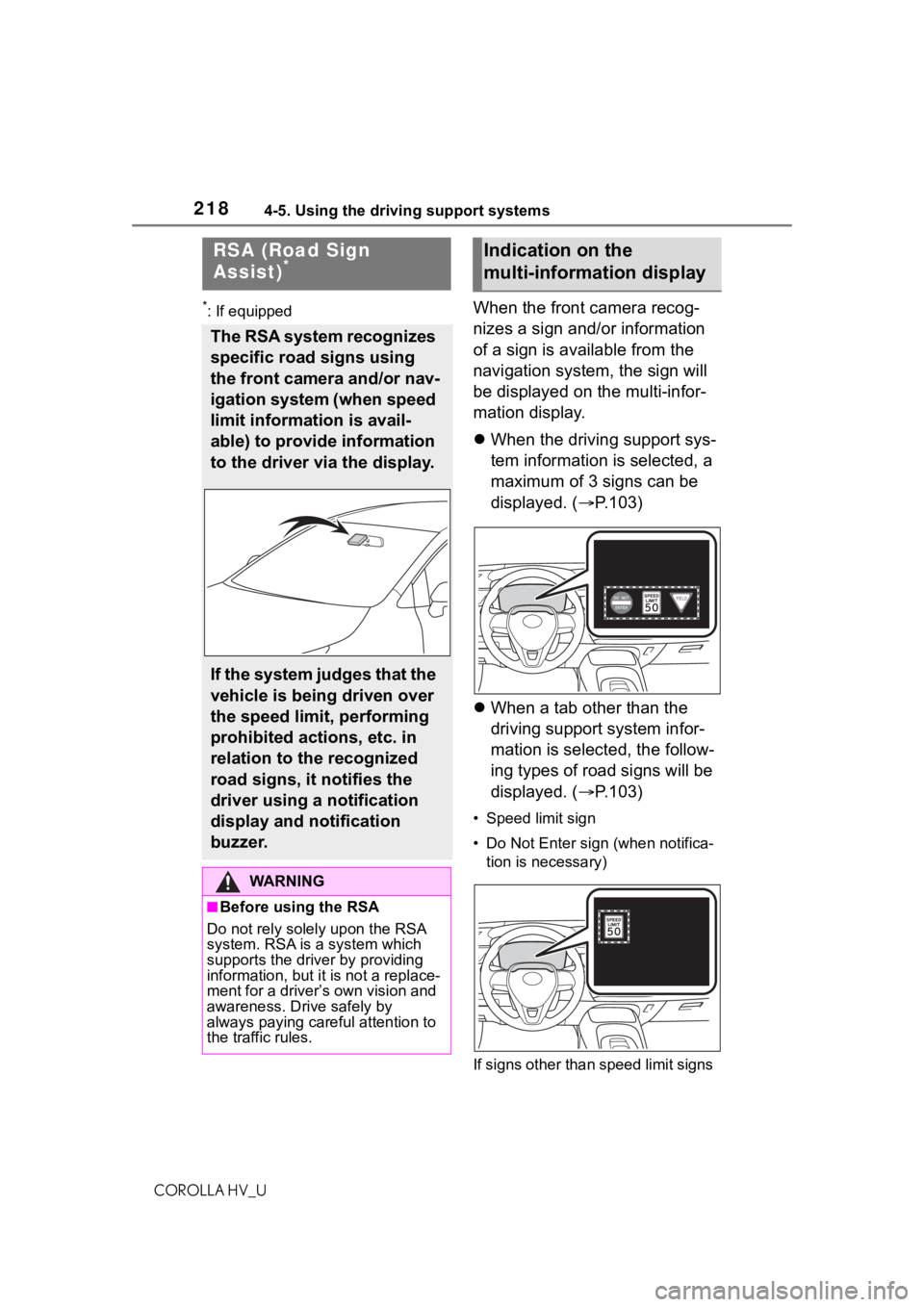
*: If equippedWhen the front camera recog-
nizes a sign and/or information
of a sign is available from the
navigation system, the sign will
be displayed on the multi-infor-
mation display.
When the driving support sys-
tem information is selected, a
maximum of 3 signs can be
displayed. ( P.103)
When a tab other than the
driving support system infor-
mation is selected, the follow-
ing types of road signs will be
displayed. ( P.103)
• Speed limit sign
• Do Not Enter sign (when notifica-
tion is necessary)
If signs other than speed limit signs
RSA (Road Sign
Assist)*
The RSA system recognizes
specific road signs using
the front camera and/or nav-
igation system (when speed
limit information is avail-
able) to provide information
to the driver via the display.
If the system judges that the
vehicle is being driven over
the speed limit, performing
prohibited actions, etc. in
relation to the recognized
road signs, it notifies the
driver using a notification
display and notification
buzzer.
WA R N I N G
■Before using the RSA
Do not rely solely upon the RSA
system. RSA is a system which
supports the driver by providing
information, but it is not a replace-
ment for a driver’s own vision and
awareness. Drive safely by
always paying careful attention to
the traffic rules.
Indication on the
multi-information display
Page 220 of 584
2204-5. Using the driving support systems
COROLLA HV_Uapplied to the sensor, etc.
●Dirt, snow, stickers, etc. are on the
windshield near the front camera.
●In inclement weather such as
heavy rain, fog, snow or sand
storms.
●Light from an oncoming vehicle,
the sun, etc. enters the front cam-
era.
●The sign is dirty, faded, tilted or
bent.
●The contrast of electronic sign is
low.
●All or part of the sign is hidden by
the leaves of a tree, a pole, etc.
●The sign is only visible to the front
camera for a short amount of time.
●The driving scene (turning, lane
change, etc.) is judged incorrectly.
●Even if it is a sign not appropriate
for the currently traveled lane,
such a sign exists
directly after a
freeway branches, or in an adja-
cent lane just before merging.
●Stickers are attached to the rear of
the preceding vehicle.
●A sign resembling a system com-
patible sign is recognized.
●Side road speed signs may be
detected and displayed (if posi-
tioned in sight of the front camera)
while the vehicle is traveling on
the main road.
●Roundabout exit road speed signs
may be detected and displayed (if
positioned in sight of the front
camera) while traveling on a
roundabout.
●The front of the vehicle is raised or
lowered due to the carried load.
●The surrounding brightness is not
sufficient or changes suddenly.
●When a sign intended for trucks,
etc. is recognized.
●The speed information displayed
on the meter and that displayed
on the navigation system may be different due to the navigation sys-
tem using map data.
■Speed limit sign display
If the power switch was last turned
off while a speed limit sign was dis-
played on the multi-information dis-
play, the same sig n displays again
when the power switch is turned to
ON.
■If “RSA Malfunction Visit Your
Dealer” is shown
The system may be malfunctioning.
Have the vehicle inspected by your
Toyota dealer.
■Customization
Some functions can be customized.
( P.544)
Page 231 of 584
2314-5. Using the driving support systems
COROLLA HV_U
4
Driving
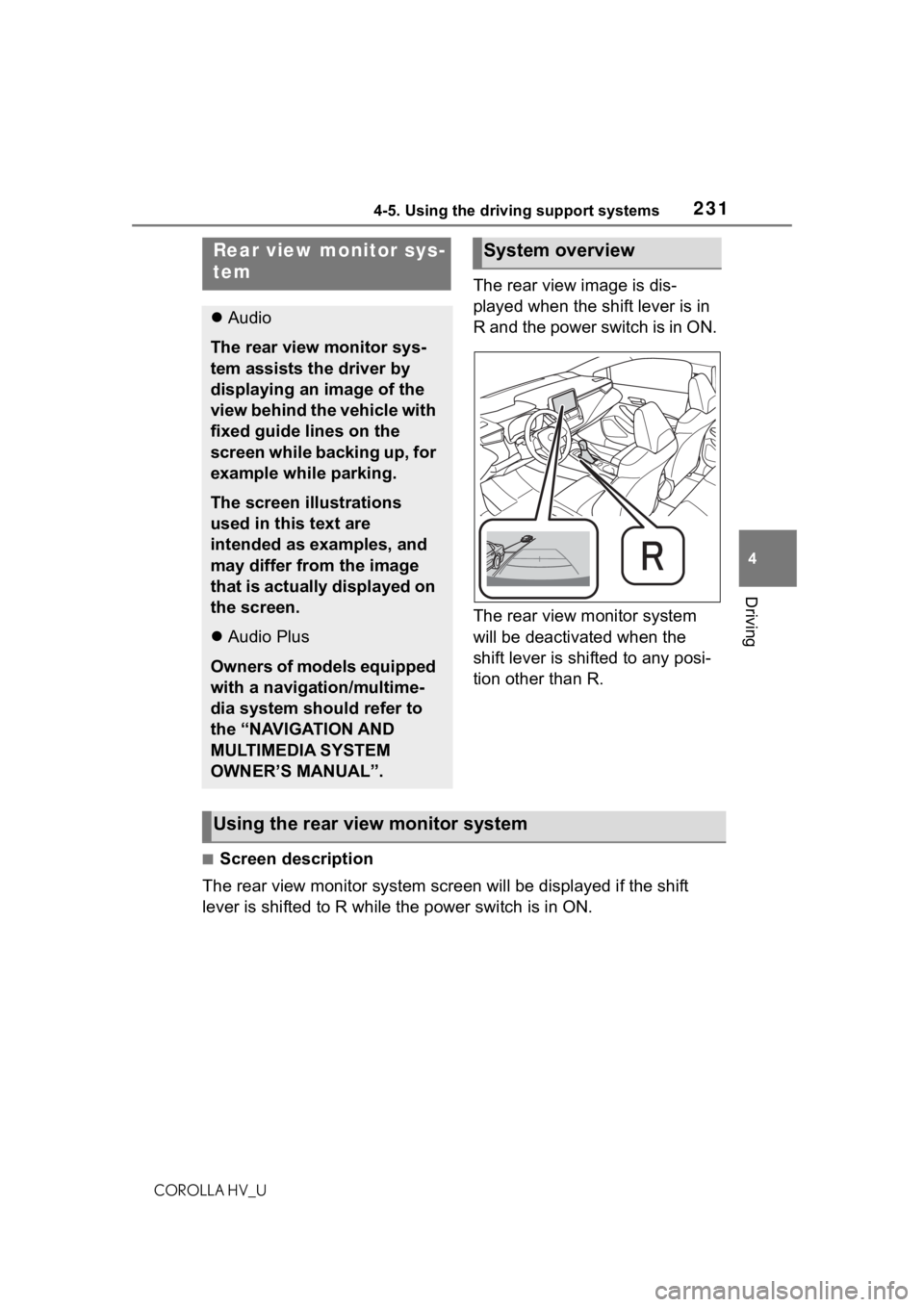
The rear view image is dis-
played when the shift lever is in
R and the power switch is in ON.
The rear view monitor system
will be deactivated when the
shift lever is shifted to any posi-
tion other than R.
■Screen description
The rear view monitor system scr een will be displayed if the shift
lever is shifted to R while the power switch is in ON.
Rear view monitor sys-
tem
Audio
The rear view monitor sys-
tem assists the driver by
displaying an image of the
view behind the vehicle with
fixed guide lines on the
screen while backing up, for
example while parking.
The screen illustrations
used in this text are
intended as examples, and
may differ from the image
that is actually displayed on
the screen.
Audio Plus
Owners of models equipped
with a navigation/multime-
dia system should refer to
the “NAVIGATION AND
MULTIMEDIA SYSTEM
OWNER’S MANUAL”.
System overview
Using the rear view monitor system
Page 253 of 584
2535-1. Basic function
COROLLA HV_U
5
Audio
5-1.Basic function
*: If equipped
Audio Plus
Owners of this system should refer to the “NAVIGATION AND MUL-
TIMEDIA SYSTEM OWNER’S MANUAL”.
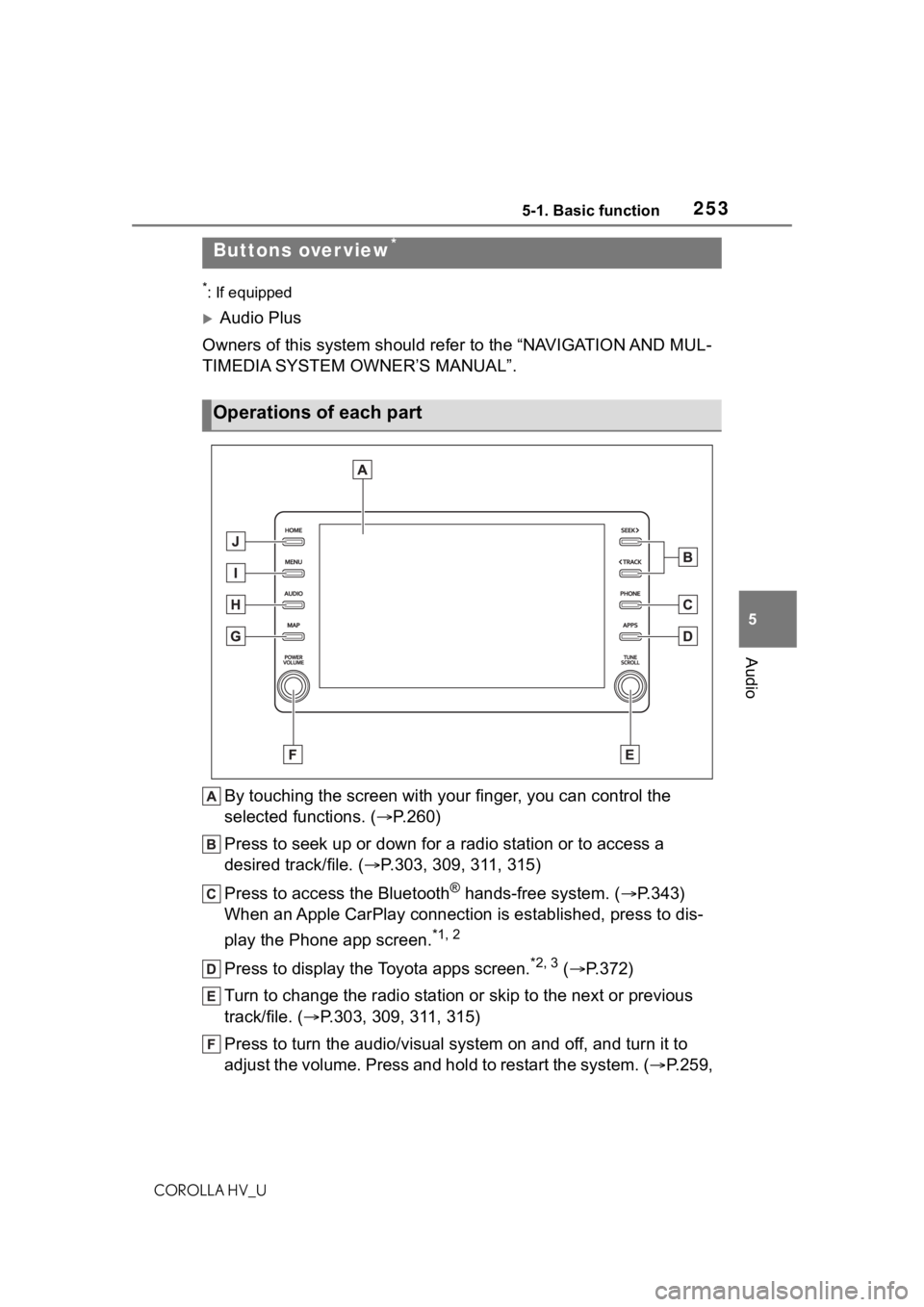
By touching the screen with y our finger, you can control the
selected functions. ( P.260)
Press to seek up or down for a radio station or to access a
desired track/file. ( P.303, 309, 311, 315)
Press to access the Bluetooth
® hands-free system. ( P.343)
When an Apple CarPlay connection is established, press to dis-
play the Phone app screen.
*1, 2
Press to display the Toyota apps screen.*2, 3 ( P.372)
Turn to change the radio station or skip to the next or previou s
track/file. ( P.303, 309, 311, 315)
Press to turn the audio/visual system on and off, and turn it t o
adjust the volume. Press and hold to restart the system. ( P.259,
Buttons over view*
Operations of each part
Page 289 of 584
2895-3. Connectivity settings
COROLLA HV_U
5
Audio
The Apple Car-
Play/Android Auto screen
has artifacts and/or audio
from Apple Car-
Play/Android Auto has
noise.
Check if the USB cable being used to connect
the device to the system is damaged.
To check if the USB cable is damaged inter-
nally, connect the devic e to another system,
such as a PC, and check i f the device is recog-
nized by the connect ed system. (The device
should begin charging when connected.)
After checking all of the above, try to establish
an Apple CarPlay/Android Auto connection.
( P.284, 285)
The map display of the
Apple CarPlay Maps app
cannot be enlarged or
contracted with pinch
multi-touch gestures.
As the Apple CarPlay Maps app is not compati-
ble with pinch multi-touch gestures, this is not a
malfunction.
During Apple CarPlay
music application (Apple
Music, Spotify, etc.) play-
back, if the iPhone is
operated to start and play
audio from an application
that is not compatible with
Apple CarPlay* and the
onboard device volume is
changed, the audio of the
incompatible application
stops and the system
resumes playback of the
original music application.
This operation is perfo rmed according to the
specification of the onboard device, this is not a
malfunction.
After interrupt audio (such
as navigation route guid-
ance) is played from an
application that is not
compatible with Apple
CarPlay while the onboard
device is playing audio,
the system does not
resume playback of the
original audio.This operation is perfo rmed according to the
specification of the onboard device, this is not a
malfunction.
Manually change the audi o source by yourself.
Or, do not use applications that are not compat-
ible with Apple CarPlay.
* Due to some naviga-
tion applications are compatible from iOS 12,
update to the latest iOS and application ver-
sions.
SymptomSolution
Page 290 of 584
2905-3. Connectivity settings
COROLLA HV_U
*: Applications not compatible with Apple CarPlay are applications installed
on the iPhone that are not disp layed on the Apple CarPlay scree n appli-
cation list. (such as visual voicemail)
When using Apple Car-
Play, route guidance
arrows and turn by turn
navigation are not dis-
played on the multi-infor-
mation display and
system display.
When using Android Auto,
turn by turn navigation is
not displayed on the
multi-information display
and system display.
This is not a malfunction as display of these
items is not possibl e with this function.
When using Android Auto,
hands-free call audio can-
not be heard from the
vehicle’s speakers.
Disconnect the phone fr om the USB cable and
check if hands-free call audio can be heard
using the hands-free system.
Connect the phone to the system using Android
Auto, turn up the volume on the system and
check if hands-free call audio can be heard.
Check if other sounds can be heard from the
vehicle’s speakers.
SymptomSolution
Page 372 of 584
3725-16. Connected Services Overview
COROLLA HV_U
5-16.Connected Services Overview
Audio Plus
Owners of this system should
refer to the “NAVIGATION AND
MULTIMEDIA SYSTEM
OWNER’S MANUAL”.
●Each function is available in the
following areas:
• Toyota apps is available in the
contiguous Unit ed States, Wash-
ington D.C., Alaska, Hawaii,
Puerto Rico and Canada.
• Toyota apps is not available in the United States Virgin Islands.
•Wi-Fi
® Hotspot is available in the
contiguous Unit ed States, Wash-
ington D.C.,Alas ka and Hawaii.
•Wi-Fi
® Hotspot is not available in
Puerto Rico, Canada, and in the
United States Virgin Islands.
• Safety Connect features include:
Automatic Collision Notification,
Emergency Assistance, S.O.S,
Stolen Vehicle Location (available
in the contiguous United States,
Washington D.C., Hawaii, Alaska,
Puerto Rico and Canada) and
Enhanced Roadside Assistance
(available in the contiguous
United States, Wa shington D.C.,
Alaska, Puerto Rico and Canada).
• Safety Connect is not available in the United States Virgin Islands.
• Service Connect is available in the contiguous Unit ed States, Wash-
ington D.C., Alaska, Hawaii, the
United States Virgin Islands,
Puerto Rico and Canada.
●Connected services functionality
is dependent upon network recep-
tion level and signal strength.
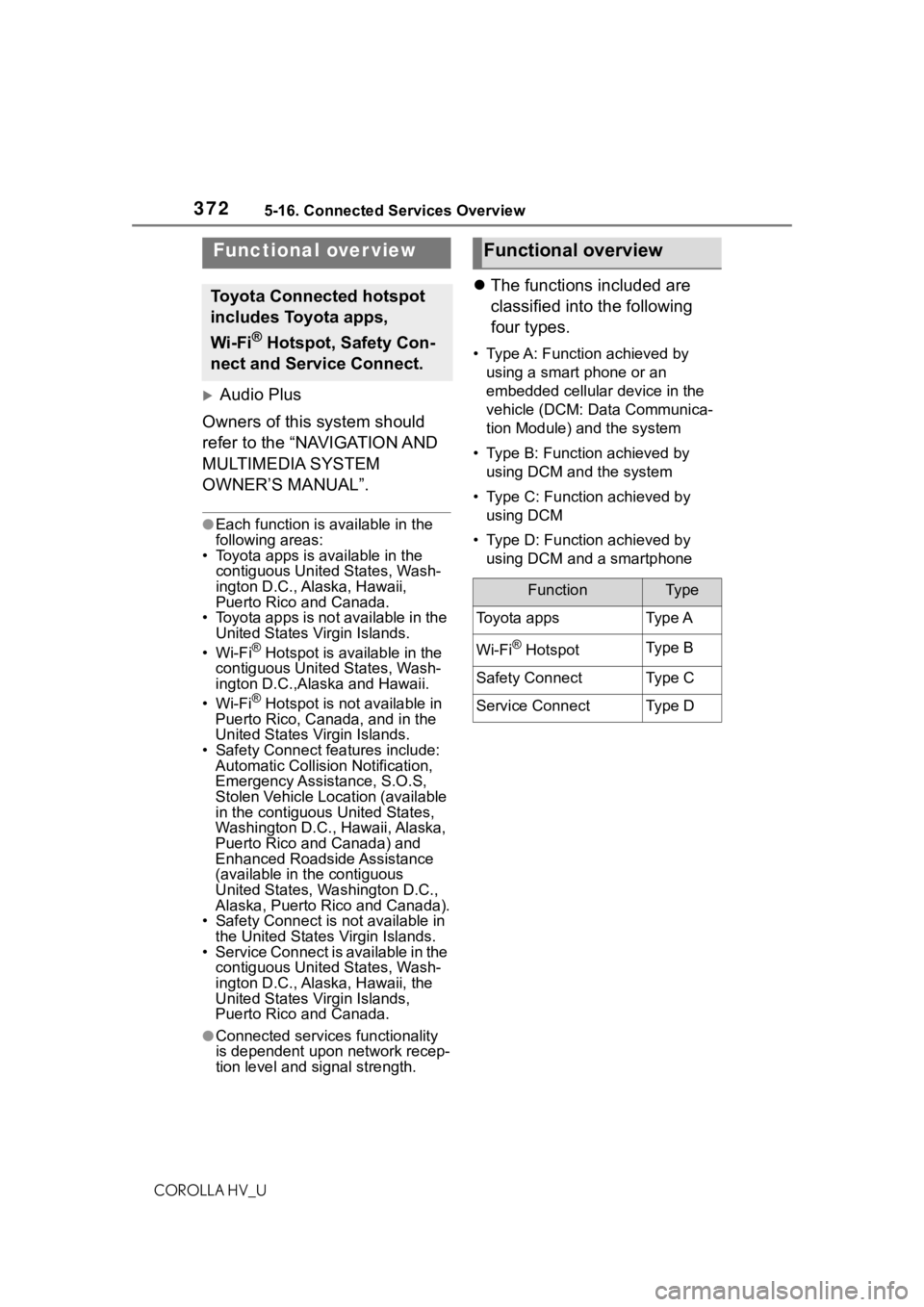
The functions included are
classified into the following
four types.
• Type A: Function achieved by
using a smart phone or an
embedded cellular device in the
vehicle (DCM: Data Communica-
tion Module) and the system
• Type B: Function achieved by using DCM and the system
• Type C: Function achieved by using DCM
• Type D: Function achieved by using DCM and a smartphone
Functional over view
Toyota Connected hotspot
includes Toyota apps,
Wi-Fi
® Hotspot, Safety Con-
nect and Service Connect.
Functional overview
FunctionTy p e
Toyota appsTy p e A
Wi-Fi® HotspotTy p e B
Safety ConnectTy p e C
Service ConnectTy p e D