audio TOYOTA COROLLA iM 2018 Owners Manual (in English)
[x] Cancel search | Manufacturer: TOYOTA, Model Year: 2018, Model line: COROLLA iM, Model: TOYOTA COROLLA iM 2018Pages: 36, PDF Size: 1.57 MB
Page 5 of 36
3
OVERVIEW
FEATURES & OPERATIONS
TOYOTA SAFETY SENSE
SAFETY & EMERGENCY FEATURES
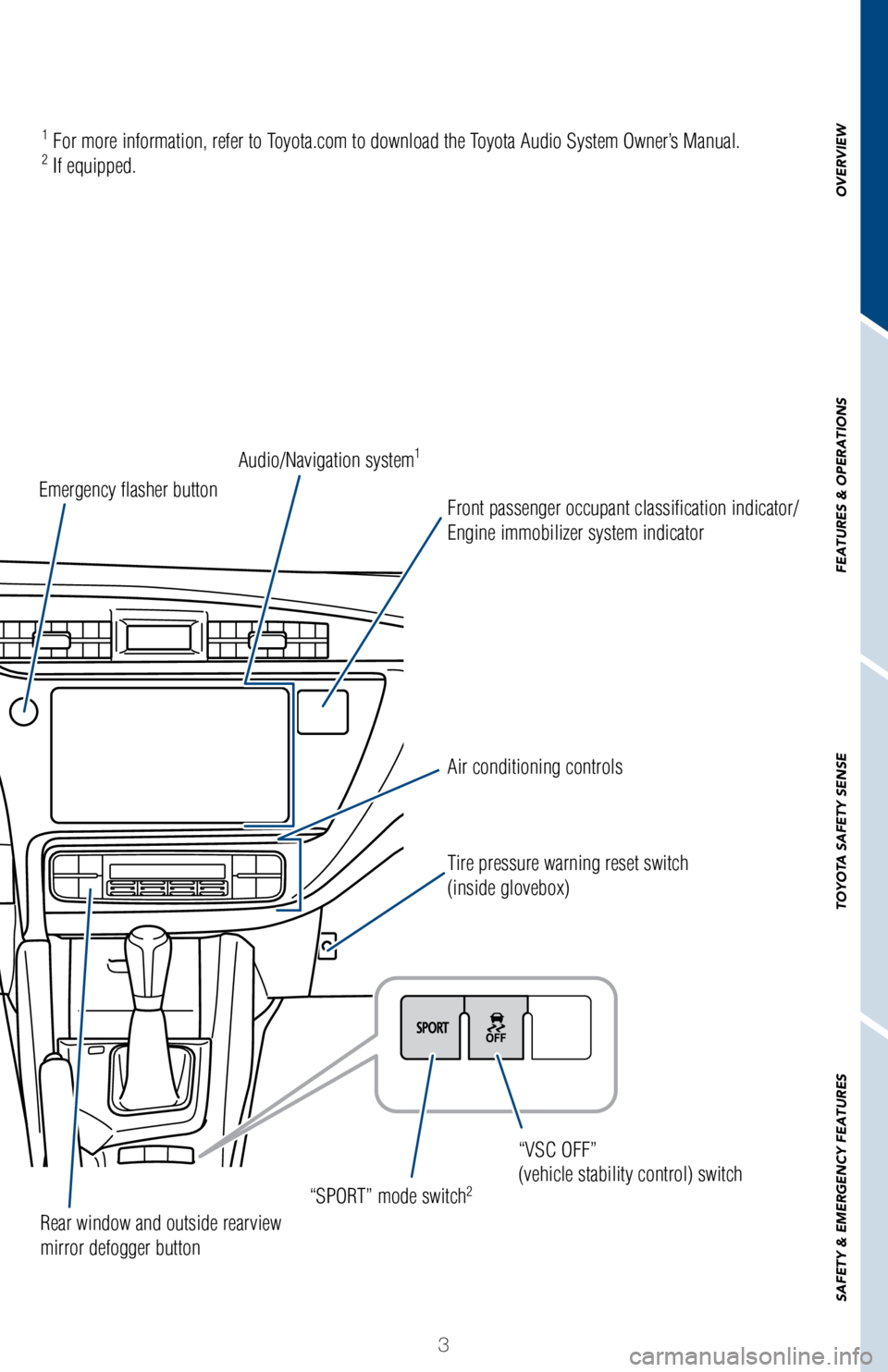
Air conditioning controls
“SPORT” mode switch
2
Tire pressure warning reset switch
(inside glovebox) “VSC OFF”
(vehicle stability control) switch
Rear window and outside rearview
mirror defogger button
Emergency flasher button
Audio/Navigation system
1
Front passenger occupant classification indicator/
Engine immobilizer system indicator
1 For more information, refer to Toyota.com to download the Toyota Audio System Owner’s Manual.2 If equipped.
Page 12 of 36
10
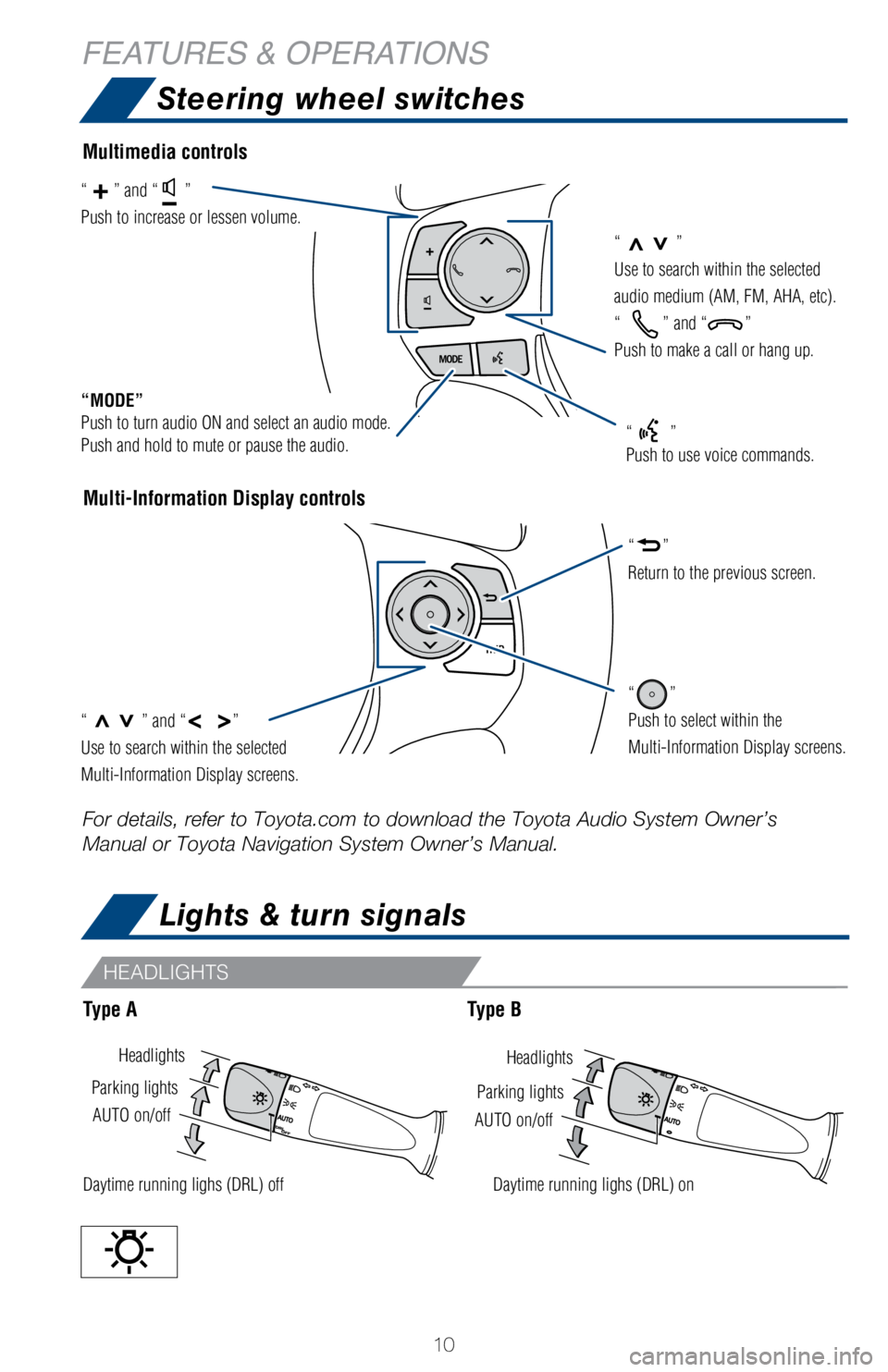
Lights & turn signals
HeadlightsHeadlights
AUTO on/off
AUTO on/off
Parking lights
Parking lights
Daytime running lighs (DRL) offDaytime running lighs (DRL) on
Steering wheel switches
Multi-Information Display controls
“>>”
Use to search within the selected
audio medium (AM, FM, AHA, etc).
“
” and “”
Push to make a call or hang up.
“MODE”
Push to turn audio ON and select an audio mode.
Push and hold to mute or pause the audio.
“>>” and “< >”
Use to search within the selected
Multi-Information Display screens.
“”
Push to select within the
Multi-Information Display screens.
“”
Return to the previous screen.
“” and “”
Push to increase or lessen volume.
“”
Push to use voice commands.
Multimedia controls
Type AType B
For details, refer to Toyota.com to download the Toyota Audio System Own\
er’s
Manual or Toyota Navigation System Owner’s Manual.
HEADLIGHTS
FEATURES & OPERATIONS
Page 15 of 36
13
OVERVIEW
FEATURES & OPERATIONS
TOYOTA SAFETY SENSE
SAFETY & EMERGENCY FEATURES
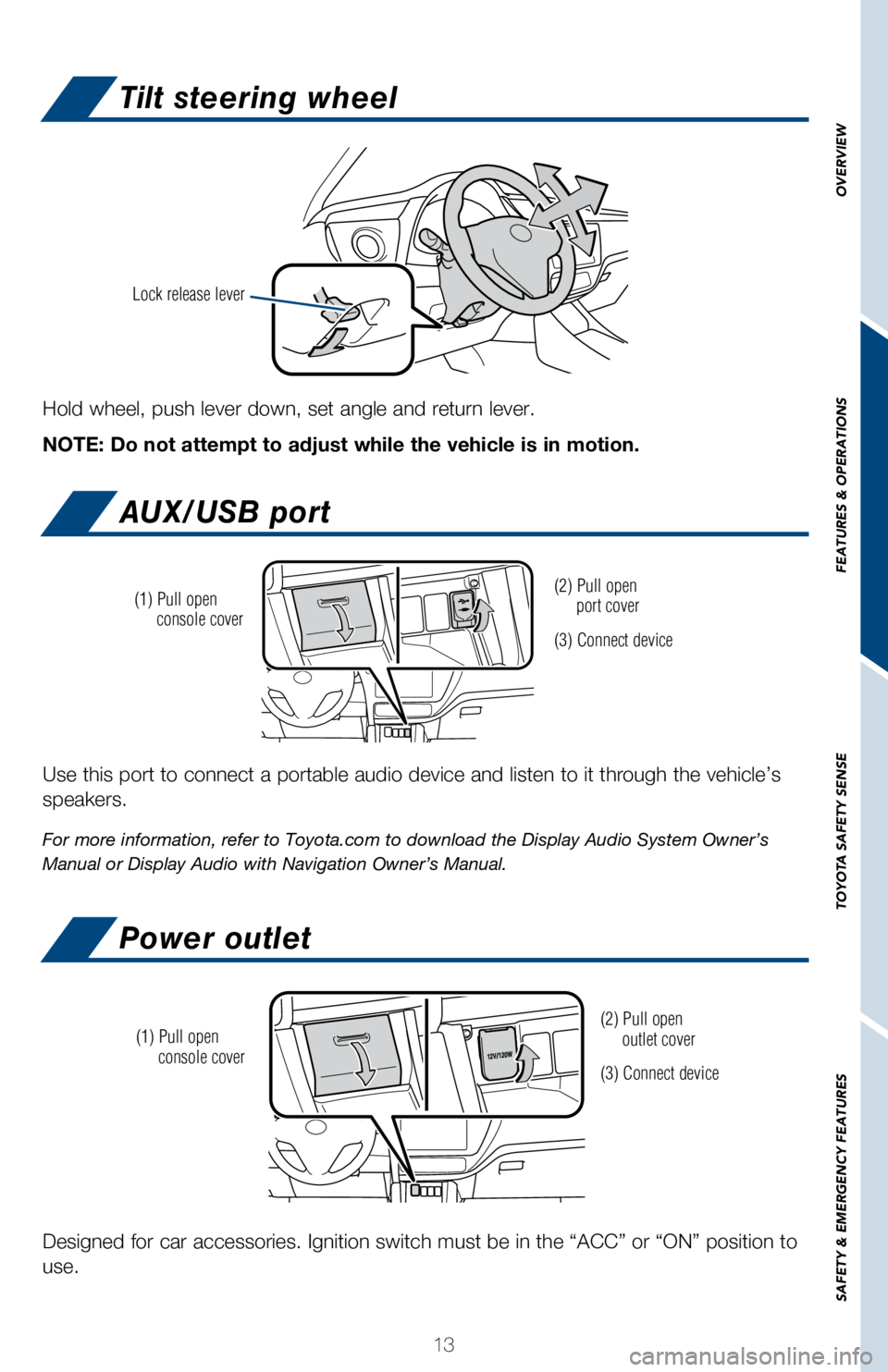
Tilt steering wheel
AUX/USB port
Power outlet
Hold wheel, push lever down, set angle and return lever.
NOTE: Do not attempt to adjust while the vehicle is in motion.
Lock release lever
Use this port to connect a portable audio device and listen to it throug\
h the vehicle’s
speakers.
For more information, refer to Toyota.com to download the Display Audio \
System Owner’s
Manual or Display Audio with Navigation Owner’s Manual.
(2) Pull open
port cover
(3) Connect device
(1) Pull open
console cover
Designed for car accessories. Ignition switch must be in the “ACC”\
or “ON” position to
use.
(2) Pull open
outlet cover
(3) Connect device
(1) Pull open
console cover
Page 20 of 36
 18
INFORMATION
REAR VIEW MONITOR SYSTEM CAMERA
FEATURES & OPERATIONS
The camera for the rear view monitor system is located near the license \
plate. To
adjust the image on the rear view monitor scre")
18
INFORMATION
REAR VIEW MONITOR SYSTEM CAMERA
FEATURES & OPERATIONS
The camera for the rear view monitor system is located near the license \
plate. To
adjust the image on the rear view monitor screen, press the setup button\
“
” on the left side of screen and select “Display” on the setup \
screen. Then
select “Camera” to adjust the screen brightness and contrast.
For more information, refer to Toyota.com to download the Display Audio \
System
Owner’s Manual or Display Audio with Navigation Owner’s Manual.
The rear view monitor system camera is located as shown in the illustrat\
ion.
The camera uses a special lens. The distance of the image that appears o\
n the
screen differs from the actual distance.
When the camera is used under fluorescent lights, sodium lights or mercu\
ry lights
etc., the lights and the illuminated areas may appear to flicker.
In the following cases, it may become difficult to see the images on the\
screen,
even when the system is functioning:
• In the dark (for example, at night)
• When the temperature near the lens is high or low
• When water droplets are adhering to the camera, or when humidity is\
high (for
example, when it rains)
• When foreign matter (for example, snow or mud) is adhering to the\
camera
• When the camera has scratches or dirt on it
• When the sun or the beam of headlights is shining directly into the\
camera lens
*Smear effect
A phenomenon that occurs when a bright light (for example, sunlight ref\
lected off the
vehicle body) is picked up by the camera; when transmitted by the camer\
a, the light
source appears to have a vertical streak above and below it.
INFORMATION
If a bright light (for example, sunlight
reflected off the vehicle body) is
picked up by the camera, a Smear
effect* may occur.
Page 25 of 36
 23
OVERVIEW
FEATURES & OPERATIONS
TOYOTA SAFETY SENSE
SAFETY & EMERGENCY FEATURES
Press the LDA switch to turn the LDA system on. Depress again to turn it\
off.
Note: Operation of the LDA system and")
23
OVERVIEW
FEATURES & OPERATIONS
TOYOTA SAFETY SENSE
SAFETY & EMERGENCY FEATURES
Press the LDA switch to turn the LDA system on. Depress again to turn it\
off.
Note: Operation of the LDA system and setting adjustments continues in t\
he
same condition regardless of Ignition cycle until changed by the driver \
or the
system is reset.
Refer to the Toyota Owner’s Manual for additional information on LDA \
operation,
settings adjustments, limitations, and precautions before attempting to \
use it.
Lane Departure Alert (LDA)
TURNING ON THE LDA SYSTEM
LDA in TSS-C uses an in-vehicle camera designed to detect visible white \
and yellow
lane markers in front of the vehicle and the vehicle’s position on th\
e road. If the system
determines that the vehicle is starting to unintentionally deviate from \
its lane, the system
alerts the driver with an audio and visual alert. When the alerts occur,\
the driver must
check the surrounding road situation and carefully operate the steering \
wheel to move
the vehicle back to the center part of their lane.
LDA is designed to function at speeds of approximately 32 MPH or higher \
on relatively
straight roadways.
Page 34 of 36
32
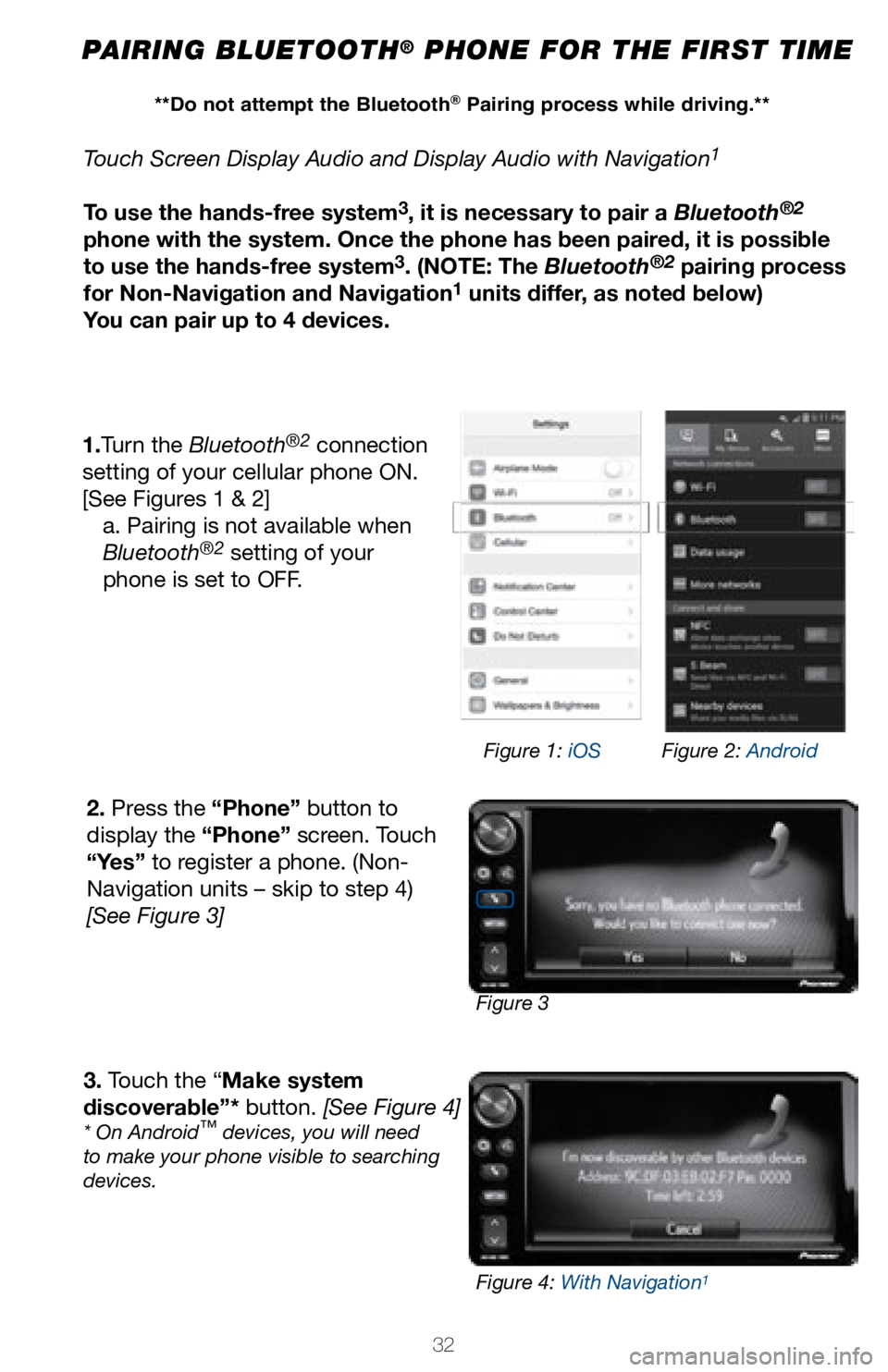
PAIRING BLUETOOTH® PHONE FOR THE FIRST TIME
Touch Screen Display Audio and Display Audio with Navigation1
To use the hands-free system3, it is necessary to pair a Bluetooth®2
phone with the system. Once the phone has been paired, it is possible
to use the hands-free system
3. (NOTE: The Bluetooth®2 pairing process
for Non-Navigation and Navigation1 units differ, as noted below)
You can pair up to 4 devices.
1.Turn the Bluetooth
®2 connection
setting of your cellular phone ON.
[See Figures 1 & 2] a. Pairing is not available when
Bluetooth
®2 setting of your
phone is set to OFF.
2. Press the “Phone” button to
display the “Phone” screen. Touch
“Yes” to register a phone. (Non-
Navigation units – skip to step 4)
[See Figure 3]
3. Touch the “Make system
discoverable”* button. [See Figure 4]
* On Android™ devices, you will need
to make your phone visible to searching
devices.
Figure 3 Figure 1: iOS
Figure 2: Android
Figure 4: With Navigation
1
**Do not attempt the Bluetooth® Pairing process while driving.**