display TOYOTA COROLLA iM 2018 Owners Manual (in English)
[x] Cancel search | Manufacturer: TOYOTA, Model Year: 2018, Model line: COROLLA iM, Model: TOYOTA COROLLA iM 2018Pages: 36, PDF Size: 1.57 MB
Page 2 of 36
COROLLA iM 2018
This Quick Reference Guide is a summary of basic vehicle
operations. It contains brief descriptions of fundamental
operations so you can locate and use the vehicle’s main
equipment quickly and easily.
The Quick Reference Guide is not intended as a substitute for
the Owner’s Manual located in your vehicle’s glove box. We
strongly encourage you to review the Owner’s Manual and
supplementary manuals so you will have a better understanding
of your vehicle’s capabilities and limitations.
Your dealership and the entire staff of Toyota Motor North
America, Inc. wish you many years of satisfi ed driving in your
new Corolla iM.
A word about safe vehicle operations
This Quick Reference Guide is not a full description of Corolla iM operations.
Every Corolla iM owner should review the Owner’s Manual that accompanies this
vehicle.
Pay special attention to the boxed information highlighted in color throughout the
Owner’s Manual. Each box contains safe operating instructions to help you avoi\
d
injury or equipment malfunction.
All information in this Quick Reference Guide is current at the time of printing.
Toyota reserves the right to make changes at any time without notice.
33
PAIRING BLUETOOTH® PHONE FOR THE FIRST TIME
5. A message will display on the
head unit requesting messaging
access.6. Touch “OK” when the connection status changes from “Connection
waiting...” to “Connected”.
7. For Navigation
1 Units Only: Confi rm that the passkey number displayed
on screen matches the passkey displayed on your Bluetooth®2 device and
press “Yes”. iPhone
®4: Using your smartphone,
you may need to allow head unit
access to your messaging and
contacts. [See Figure 6]
Only current iPhone®4 text messages
can be viewed on the head unit.
iPhone
®4 does not allow text message
reply.
Android™: Using your smartphone,
you may need to allow head unit
access to your messaging and
contacts. [See Figure 7]
It is recommended to check the “Don’t
ask again” box, so as not to have to
press OK every time the phone makes
a Bluetooth
®2 connection with your
Toyota.
4. Next, search for “My Toyota”
from your phone’s Bluetooth®2
screen and select “My Toyota” [See
Figure 5] • To cancel the registration, touch
“Cancel”.
• Navigation units - skip to step 7
1. Availability & accuracy of the information provided by the navigation sys\
tem is dependent upon many factors. Use common sense when
relying on information provided. Services & programming subject to change. Services not available in every city or roadway. Updates may
be available from your dealer at an additional cost. See Owner’s Manual for details. 2. The Bluetooth® word mark and logos are regis\
tered
trademarks owned by Bluetooth® SIG, Inc. and any use of such marks by\
Toyota is under license. A compatible Bluetooth® enabled phone
must first be paired. Phone performance depends on software, coverage & \
carrier. 3. Concentrating on the road should always be your
first priority while driving. Do not use the hands-free phone system if \
it will distract you. 4. iPhone® is not included. iPhone® is registered
trademarks of Apple, Inc.
Figure 6: iOS Figure 7: Android
Figure 5: Without Navigation
NOTE: A message will display on the head unit requesting messaging
access. Please refer to step 5
Page 3 of 36
1
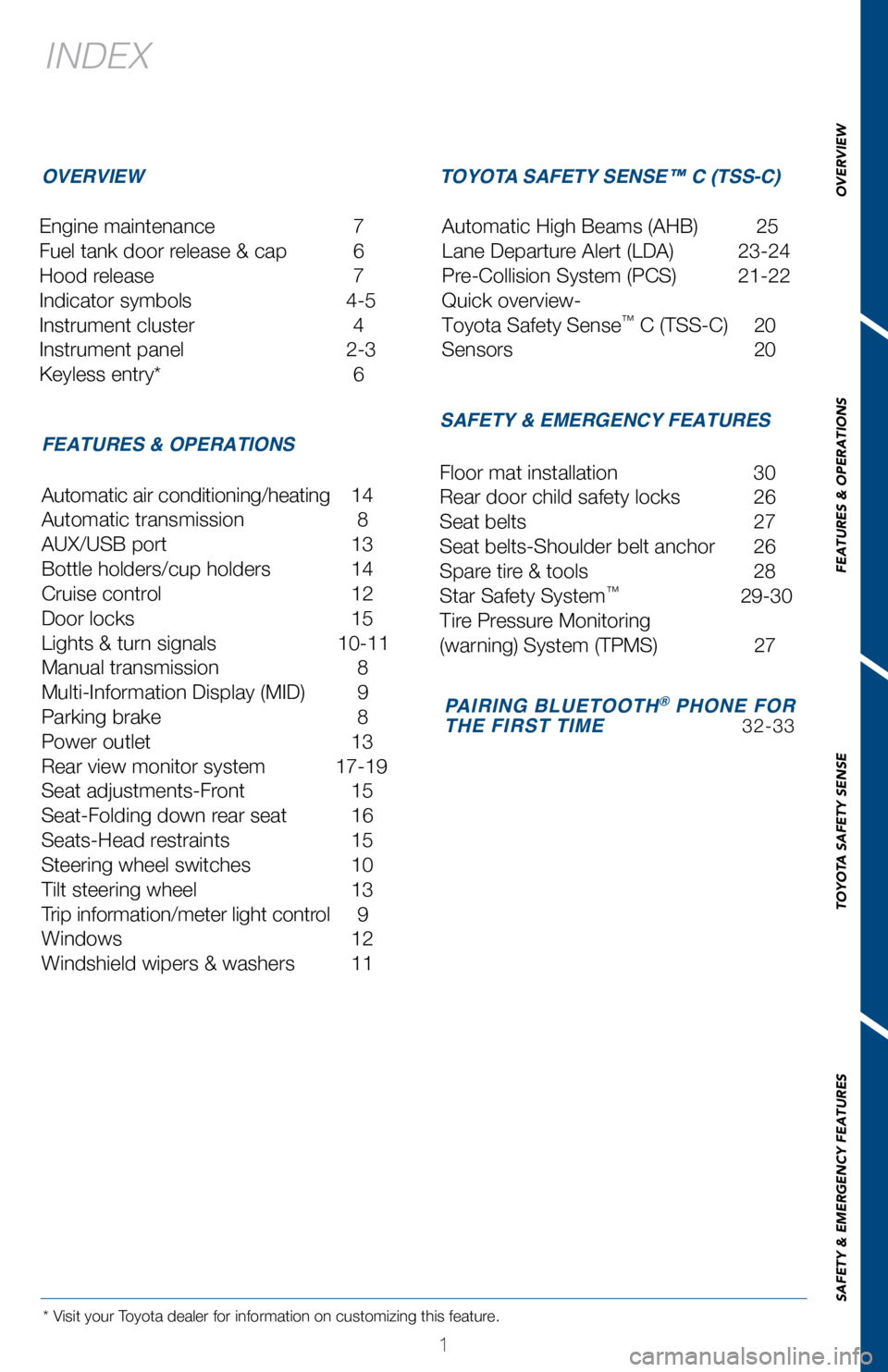
INDEX
Engine maintenance 7
Fuel tank door release & cap
6
Hood release
7
Indicator symbols
4-5
Instrument cluster
4
Instrument panel
2-3
Keyless entry*
6
* Visit your Toyota dealer for information on customizing this feature.
OVERVIEW
FEATURES & OPERATIONS TOYOTA SAFETY SENSE™ C (TSS-C)
SAFETY & EMERGENCY FEATURES
Automatic air conditioning/heating 14
Automatic transmission
8
AUX/USB port
13
Bottle holders/cup holders
14
Cruise control
12
Door locks
15
Lights & turn signals
10-11
Manual transmission
8
Multi-Information Display (MID)
9
Parking brake
8
Power outlet
13
Rear view monitor system
17-19
Seat adjustments-Front
15
Seat-Folding down rear seat
16
Seats-Head restraints
15
Steering wheel switches
10
Tilt steering wheel
13
Trip information/meter light contr
ol
9
Windows
12
W
indshield wipers & washers
11 Floor mat installation
30
Rear door child safety locks
26
Seat belts
27
Seat belts-Shoulder belt anchor
26
Spare tir
e & tools
28
Star Safety System™ 29-30
Tir
e Pressure Monitoring
(warning) System (TPMS)
27
Automatic High Beams (AHB)
25
Lane Departure Alert (LDA)
23-24
Pre-Collision System (PCS)
21-22
Quick overview-
Toyota Safety Sense
™ C (TSS-C) 20
Sensors
20
PAIRING BLUETOOTH® PHONE FOR
THE FIRST TIME 32-33
OVERVIEW
FEATURES & OPERATIONS
TOYOTA SAFETY SENSE
SAFETY & EMERGENCY FEATURES
Page 4 of 36
2
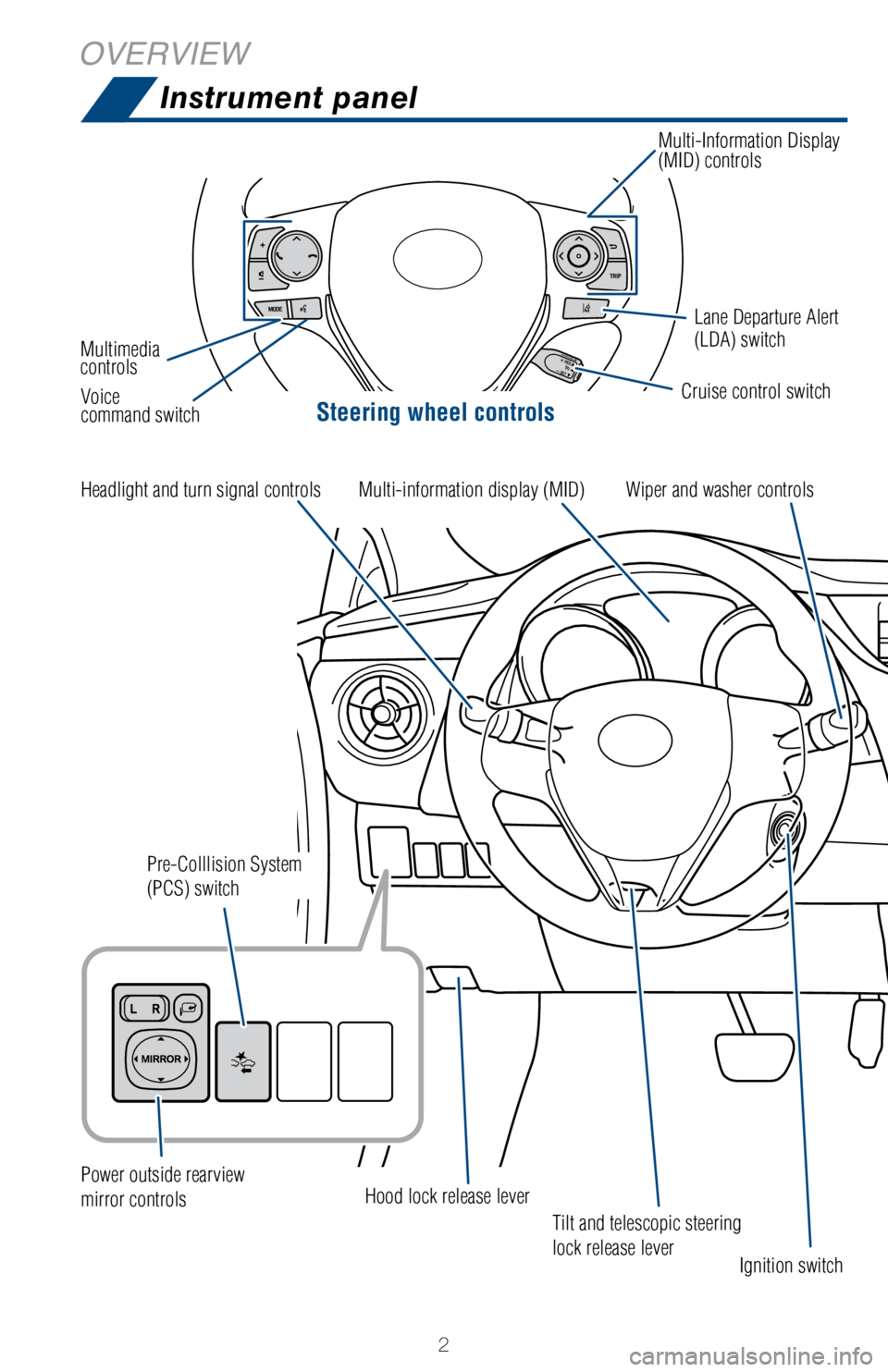
OVERVIEWInstrument panel
Steering wheel controls
Tilt and telescopic steering
lock release lever
Cruise control switchLane Departure Alert
(LDA) switch
Multi-Information Display
(MID) controls
Multimedia
controls Voice
command switch
Headlight and turn signal controls
Power outside rearview
mirror controls
Pre-Colllision System
(PCS) switch
Hood lock release lever Ignition switch
Wiper and washer controls
Multi-information display (MID)
Page 6 of 36
 4
OVERVIEWInstrument cluster
For details, refer to “Indicators and warning lights,” Section 2-2\
, 2018 Owner’s
Manual.
Cruise control indicator
Anti-lock Brake System (ABS)
warning
1
Brake s")
4
OVERVIEWInstrument cluster
For details, refer to “Indicators and warning lights,” Section 2-2\
, 2018 Owner’s
Manual.
Cruise control indicator
Anti-lock Brake System (ABS)
warning
1
Brake system warning1
Airbag SRS warning1
Automatic High Beam indicator1
Cruise control SET indicator Tachometer
Speedometer
Outside temperature
Engine coolant temperature gauge Shift and gear position indicator (if equipped)
Fuel gauge
Multi-Information Display (MID) Odometer and trip meter display
Indicator symbols
Service indicators and reminders
Page 11 of 36
9
OVERVIEW
FEATURES & OPERATIONS
TOYOTA SAFETY SENSE
SAFETY & EMERGENCY FEATURES
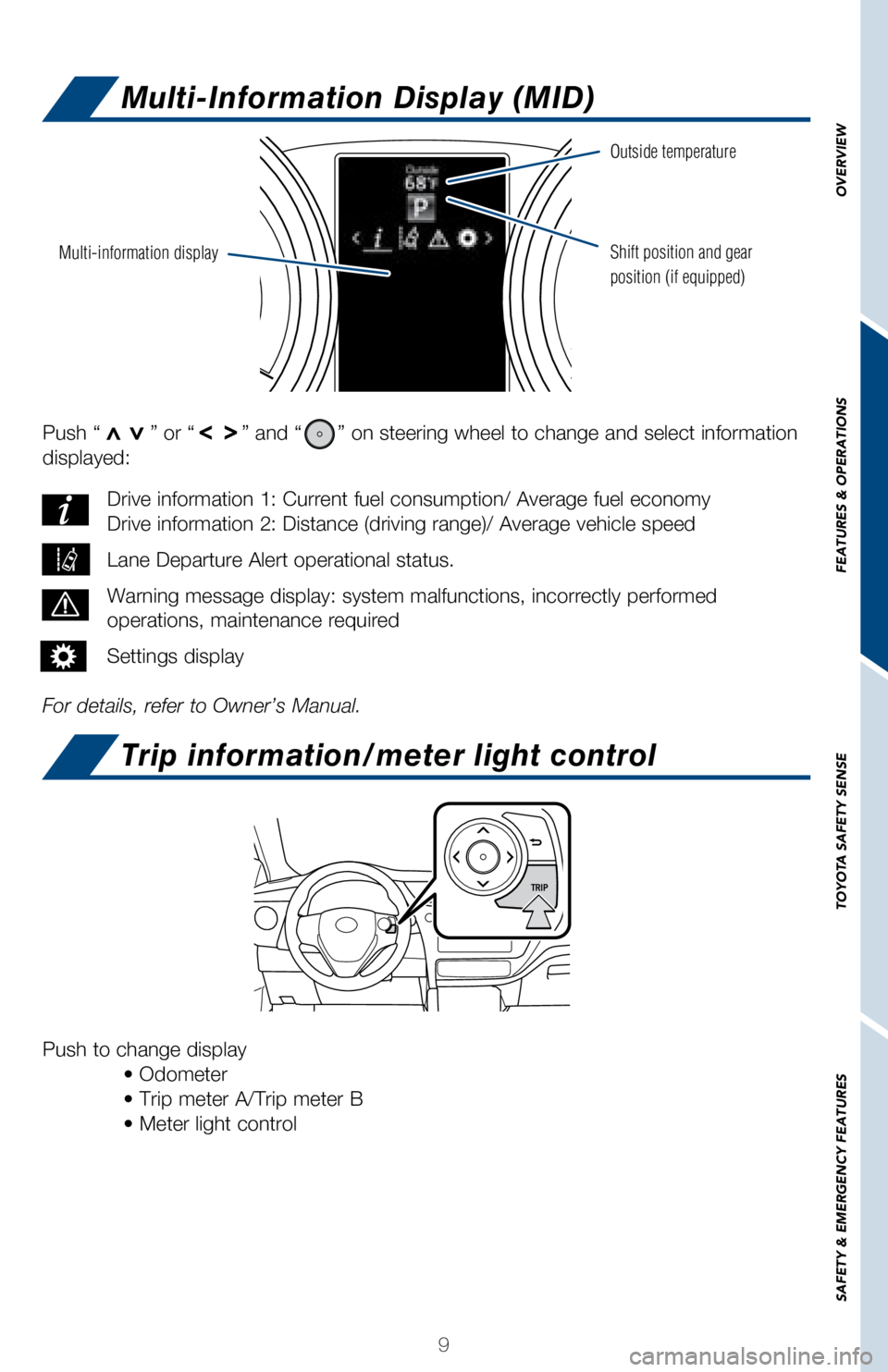
Push “>>” or “>>” and “” on steering wheel to change and select information
displayed:
For details, refer to Owner’s Manual. Drive information 1: Current fuel consumption/ Average fuel economy
Drive information 2: Distance (driving range)/ Average vehicle speed
Lane Departure Alert operational status.
Warning message display: system malfunctions, incorrectly performed
operations, maintenance required
Settings display
Push to change display
• Odometer
• Trip meter A/Trip meter B
• Meter light control
Multi-information display
Outside temperature
Shift position and gear
position (if equipped)
Multi-Information Display (MID)
Trip information/meter light control
Page 12 of 36
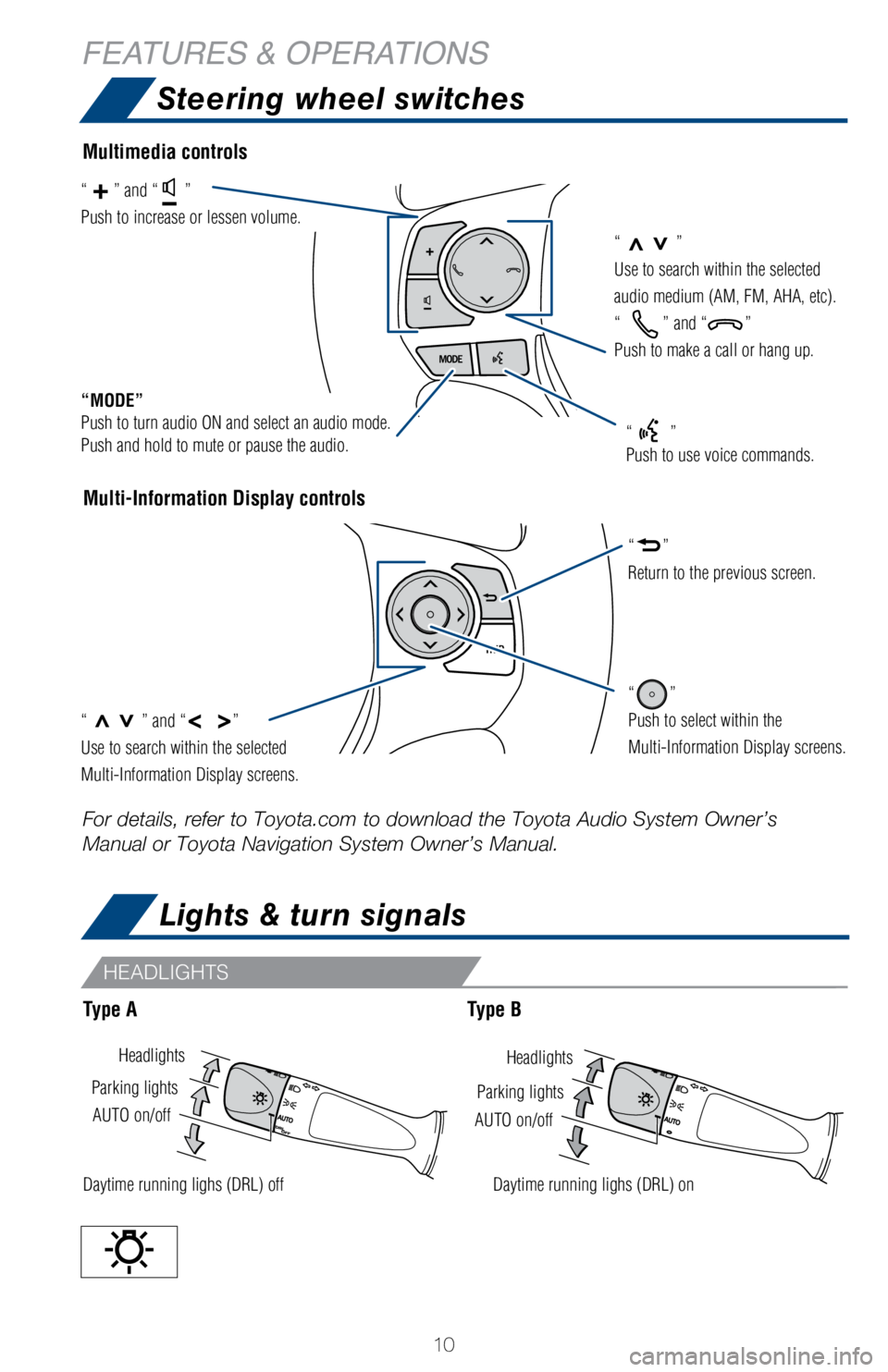
10
Lights & turn signals
HeadlightsHeadlights
AUTO on/off
AUTO on/off
Parking lights
Parking lights
Daytime running lighs (DRL) offDaytime running lighs (DRL) on
Steering wheel switches
Multi-Information Display controls
“>>”
Use to search within the selected
audio medium (AM, FM, AHA, etc).
“
” and “”
Push to make a call or hang up.
“MODE”
Push to turn audio ON and select an audio mode.
Push and hold to mute or pause the audio.
“>>” and “< >”
Use to search within the selected
Multi-Information Display screens.
“”
Push to select within the
Multi-Information Display screens.
“”
Return to the previous screen.
“” and “”
Push to increase or lessen volume.
“”
Push to use voice commands.
Multimedia controls
Type AType B
For details, refer to Toyota.com to download the Toyota Audio System Own\
er’s
Manual or Toyota Navigation System Owner’s Manual.
HEADLIGHTS
FEATURES & OPERATIONS
Page 15 of 36
13
OVERVIEW
FEATURES & OPERATIONS
TOYOTA SAFETY SENSE
SAFETY & EMERGENCY FEATURES
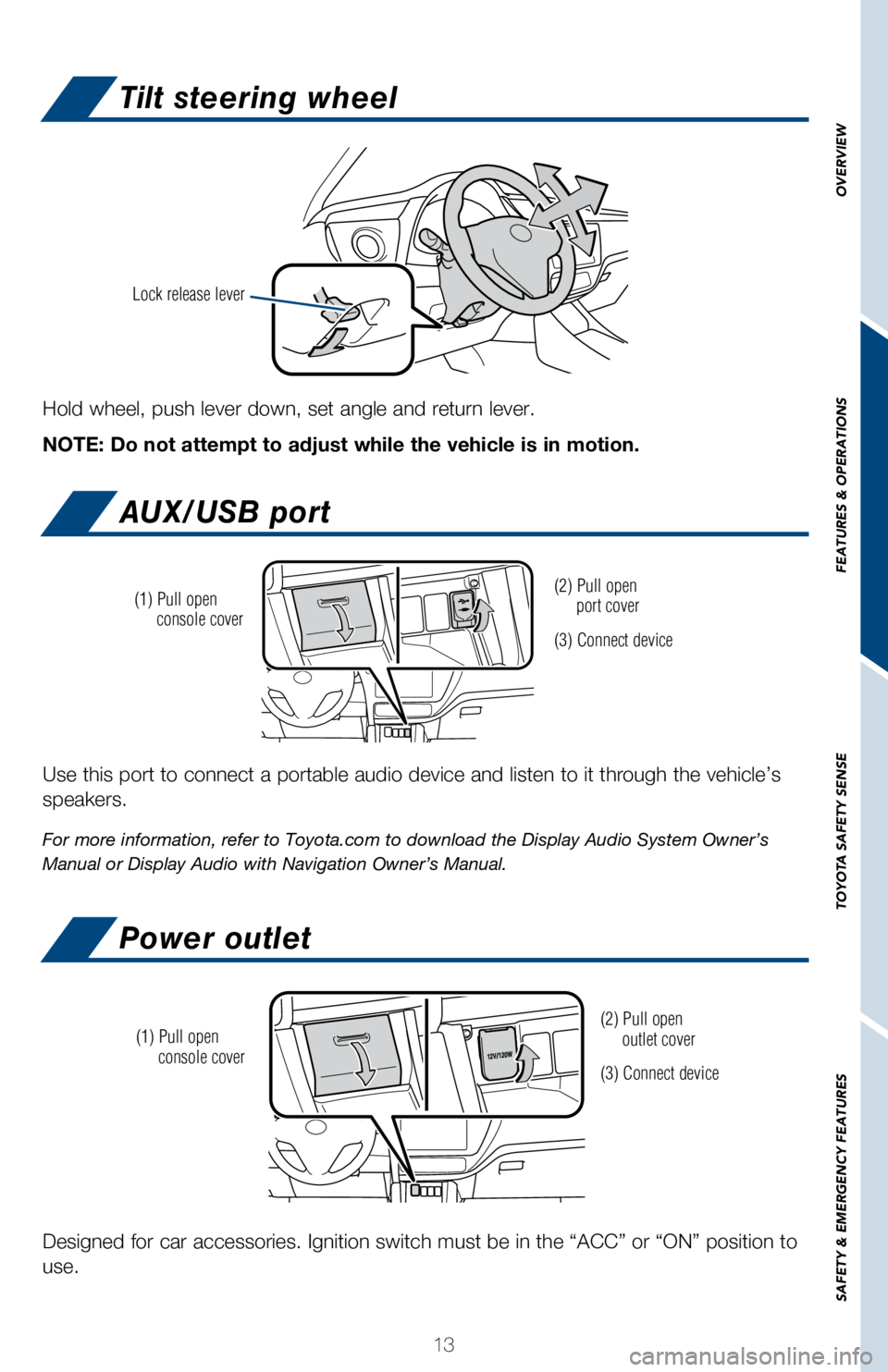
Tilt steering wheel
AUX/USB port
Power outlet
Hold wheel, push lever down, set angle and return lever.
NOTE: Do not attempt to adjust while the vehicle is in motion.
Lock release lever
Use this port to connect a portable audio device and listen to it throug\
h the vehicle’s
speakers.
For more information, refer to Toyota.com to download the Display Audio \
System Owner’s
Manual or Display Audio with Navigation Owner’s Manual.
(2) Pull open
port cover
(3) Connect device
(1) Pull open
console cover
Designed for car accessories. Ignition switch must be in the “ACC”\
or “ON” position to
use.
(2) Pull open
outlet cover
(3) Connect device
(1) Pull open
console cover
Page 16 of 36
14
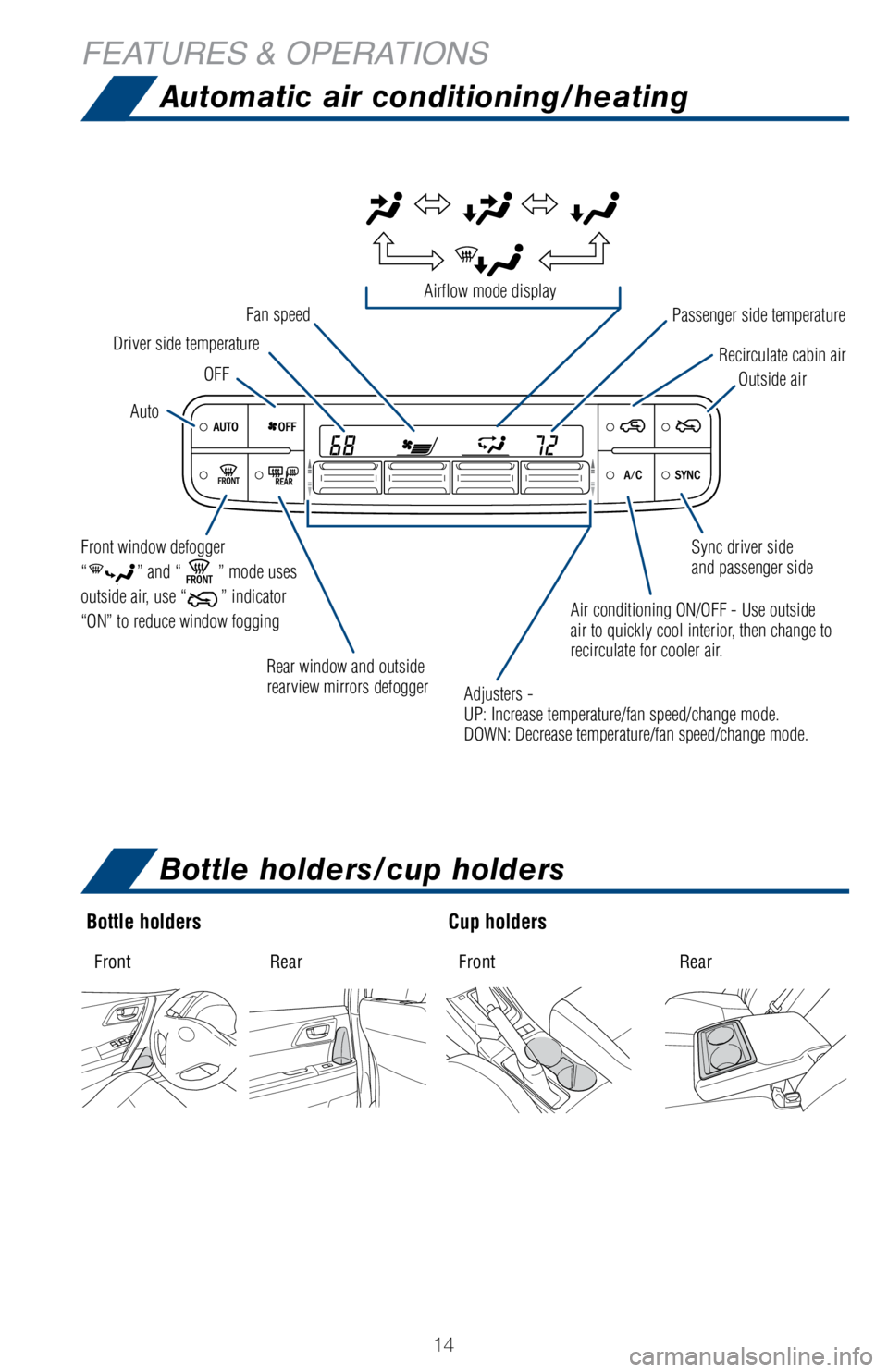
Air conditioning ON/OFF - Use outside
air to quickly cool interior, then change to
recirculate for cooler air.
Front window defogger
“
” and “” mode uses
outside air, use “
” indicator
“ON” to reduce window fogging
Automatic air conditioning/heating
Adjusters -
UP: Increase temperature/fan speed/change mode.
DOWN: Decrease temperature/fan speed/change mode. Sync driver side
and passenger side
Rear window and outside
rearview mirrors defogger
Driver side temperature
Passenger side temperature
Recirculate cabin air
Outside air
Fan speed
Auto
OFF
Airflow mode display
FEATURES & OPERATIONS
Bottle holders
Fr on tR earFront Rear
Cup holders
Front RearFron tR ear
Bottle holders/cup holders
Page 19 of 36
 17
OVERVIEW
FEATURES & OPERATIONS
TOYOTA SAFETY SENSE
SAFETY & EMERGENCY FEATURES
Rear view monitor system
The rear view monitor system assists the driver by displaying an image o\
f the camera’s
v")
17
OVERVIEW
FEATURES & OPERATIONS
TOYOTA SAFETY SENSE
SAFETY & EMERGENCY FEATURES
Rear view monitor system
The rear view monitor system assists the driver by displaying an image o\
f the camera’s
view behind the vehicle when in reverse.
To see the camera’s image of the view behind the vehicle on the monit\
or screen, the
vehicle ignition switch must be in the ON position and the gear selector\
must be in the
REVERSE position.
If you shift the vehicle out of the “R” position, the screen retur\
ns to the previous
image.
The rear view monitor system is a device intended to supplement the driv\
er when
motoring in reverse and should not be relied upon solely. Drivers should\
check
behind the vehicle before entering and are reminded to use the rear view\
and side
mirrors once seated to ensure the intended path is clear before moving t\
he vehicle.
The image displayed on the screen is an approximation only.
The area displayed on the screen may vary
according to vehicle orientation or road
conditions.
The area detected by the camera is limited.
The camera does not detect objects which
are close to either corner of the bumper or
under the bumper.
INFORMATION
AREA DISPLAYED ON SCREEN
INFORMATION
If the camera lens becomes dirty, it cannot transmit a clear image. If w\
ater droplets,
snow or mud adhere to the lens, rinse with water and wipe with a soft cl\
ean cloth. If the
lens is extremely dirty, wash it with a mild cleaner and rinse immediate\
ly.
Page 20 of 36
 18
INFORMATION
REAR VIEW MONITOR SYSTEM CAMERA
FEATURES & OPERATIONS
The camera for the rear view monitor system is located near the license \
plate. To
adjust the image on the rear view monitor scre")
18
INFORMATION
REAR VIEW MONITOR SYSTEM CAMERA
FEATURES & OPERATIONS
The camera for the rear view monitor system is located near the license \
plate. To
adjust the image on the rear view monitor screen, press the setup button\
“
” on the left side of screen and select “Display” on the setup \
screen. Then
select “Camera” to adjust the screen brightness and contrast.
For more information, refer to Toyota.com to download the Display Audio \
System
Owner’s Manual or Display Audio with Navigation Owner’s Manual.
The rear view monitor system camera is located as shown in the illustrat\
ion.
The camera uses a special lens. The distance of the image that appears o\
n the
screen differs from the actual distance.
When the camera is used under fluorescent lights, sodium lights or mercu\
ry lights
etc., the lights and the illuminated areas may appear to flicker.
In the following cases, it may become difficult to see the images on the\
screen,
even when the system is functioning:
• In the dark (for example, at night)
• When the temperature near the lens is high or low
• When water droplets are adhering to the camera, or when humidity is\
high (for
example, when it rains)
• When foreign matter (for example, snow or mud) is adhering to the\
camera
• When the camera has scratches or dirt on it
• When the sun or the beam of headlights is shining directly into the\
camera lens
*Smear effect
A phenomenon that occurs when a bright light (for example, sunlight ref\
lected off the
vehicle body) is picked up by the camera; when transmitted by the camer\
a, the light
source appears to have a vertical streak above and below it.
INFORMATION
If a bright light (for example, sunlight
reflected off the vehicle body) is
picked up by the camera, a Smear
effect* may occur.