park assist TOYOTA HIGHLANDER HYBRID 2018 Accessories, Audio & Navigation (in English)
[x] Cancel search | Manufacturer: TOYOTA, Model Year: 2018, Model line: HIGHLANDER HYBRID, Model: TOYOTA HIGHLANDER HYBRID 2018Pages: 392, PDF Size: 7.19 MB
Page 213 of 392
213
2. TOYOTA PARKING ASSIST MONITOR
HIGHLANDER_Navi_U
PERIPHERAL MONITORING SYSTEM
6
The estimated course lines
are not displayed
•The steering wheel has been
moved while the 12-volt bat-
tery was being reinstalled.
• 12-volt battery power is low.
• The steering sensor has
been reinstalled.
• There is a malfunction in the
signals being output by the
steering sensor.Stop the vehicle, and turn the
steering wheel as far as it will
go to the left and right.
If this does not resolve the
symptom, have the vehicle in-
spected by your Toyota dealer.
SymptomLikely causeSolution
Page 222 of 392
222
3. PANORAMIC VIEW MONITOR
HIGHLANDER_Navi_U
3. CHECKING THE FRONT AND AROUND THE VEHICLE
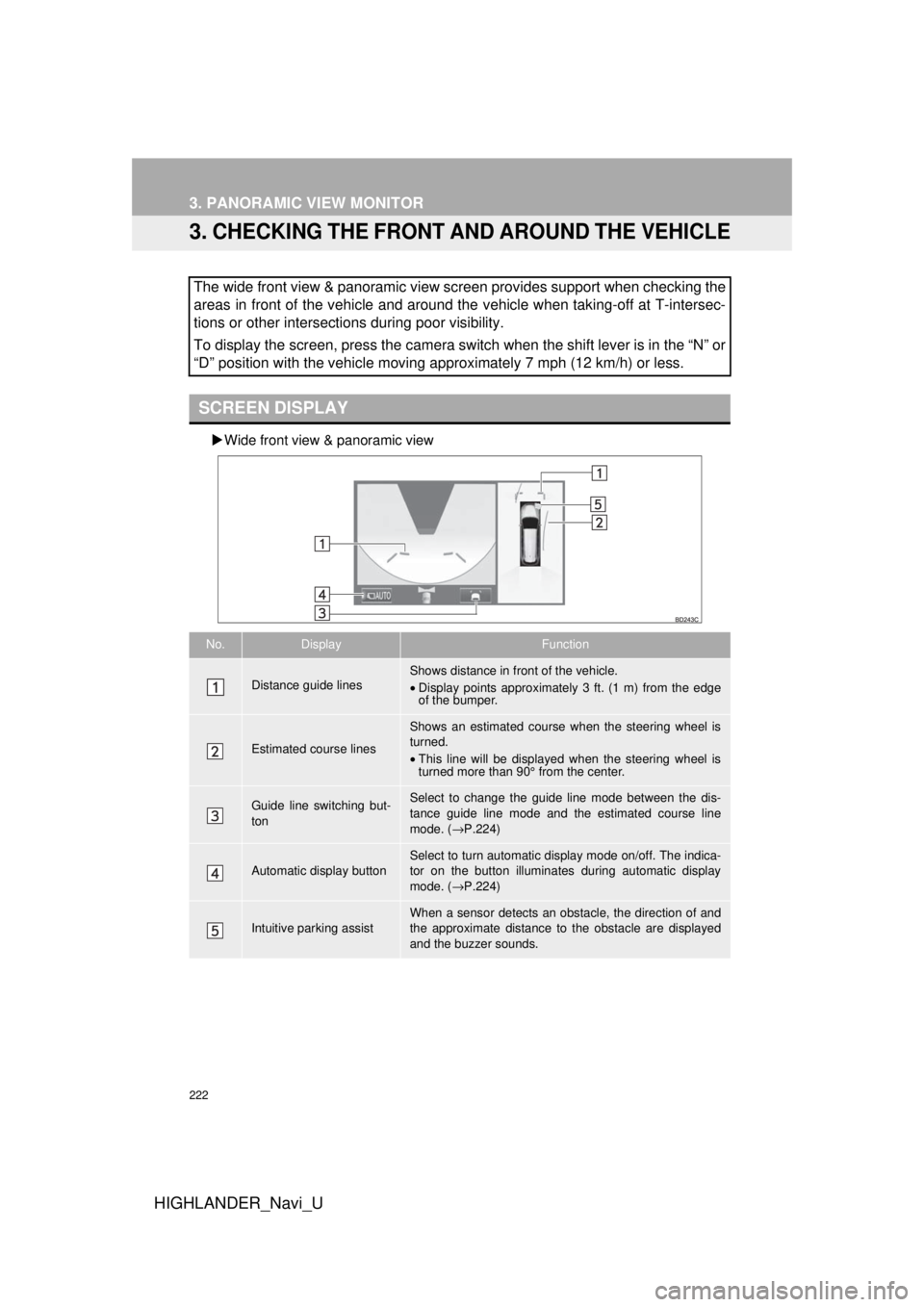
Wide front view & panoramic view
The wide front view & panoramic view screen provides support when checking the
areas in front of the vehicle and around the vehicle when taking-off at T-intersec-
tions or other intersections during poor visibility.
To display the screen, press the camera switch when the shift lever is in the “N” or
“D” position with the vehicle moving approximately 7 mph (12 km/h) or less.
SCREEN DISPLAY
No.DisplayFunction
Distance guide linesShows distance in front of the vehicle.
•Display points approximately 3 ft. (1 m) from the edge
of the bumper.
Estimated course lines
Shows an estimated course when the steering wheel is
turned.
•This line will be displayed when the steering wheel is
turned more than 90° from the center.
Guide line switching but-
tonSelect to change the guide line mode between the dis-
tance guide line mode and the estimated course line
mode. ( →P.224)
Automatic display button
Select to turn automatic display mode on/off. The indica-
tor on the button illuminates during automatic display
mode. ( →P.224)
Intuitive parking assistWhen a sensor detects an obstacle, the direction of and
the approximate distance to the obstacle are displayed
and the buzzer sounds.
Page 225 of 392
225
3. PANORAMIC VIEW MONITOR
HIGHLANDER_Navi_U
PERIPHERAL MONITORING SYSTEM
6
4. CHECKING THE SIDES OF THE VEHICLE
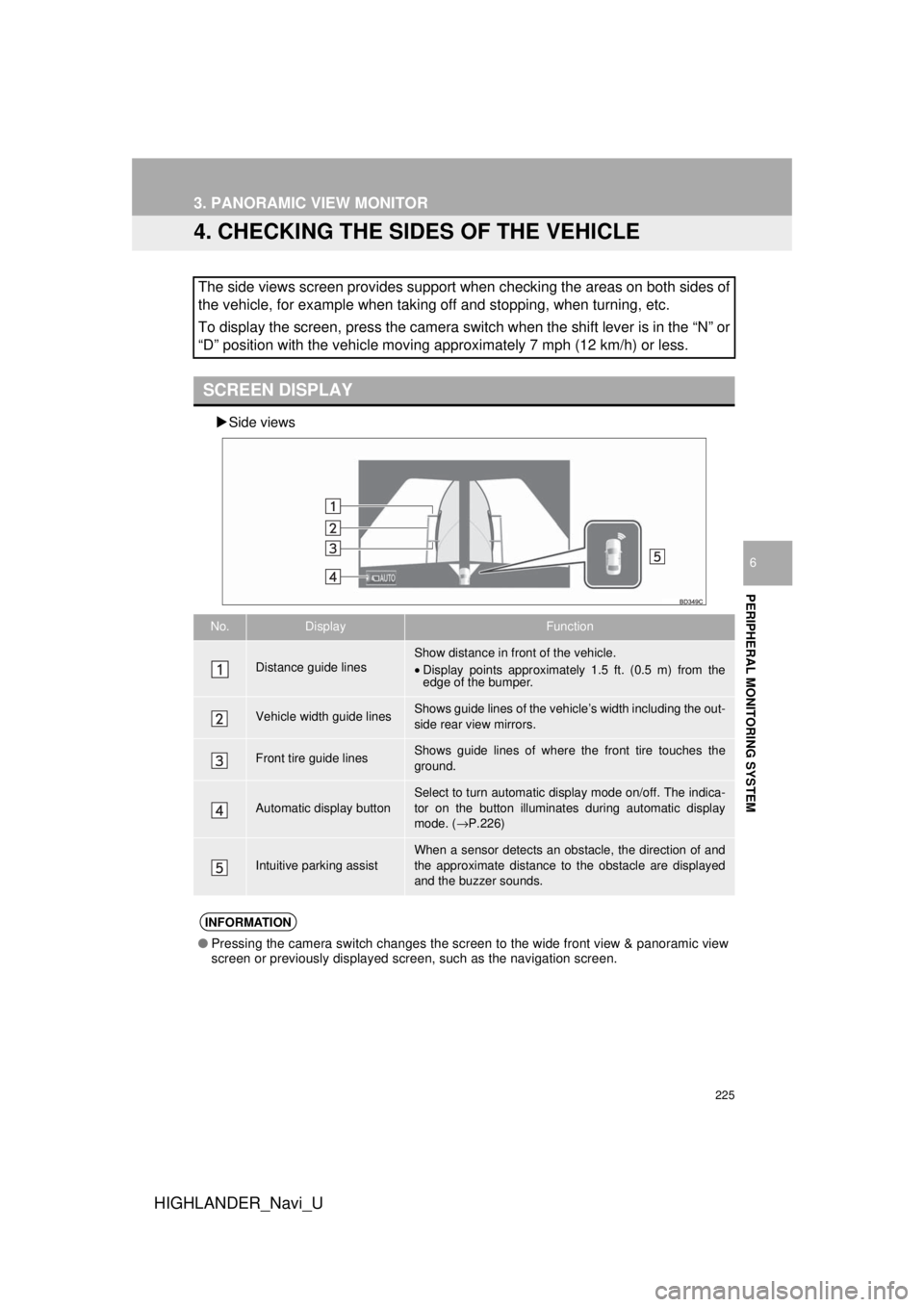
Side views
The side views screen provides support when checking the areas on both sides of
the vehicle, for example when taking off and stopping, when turning, etc.
To display the screen, press the camera switch when the shift lever is in the “N” or
“D” position with the vehicle moving approximately 7 mph (12 km/h) or less.
SCREEN DISPLAY
No.DisplayFunction
Distance guide linesShow distance in front of the vehicle.
•Display points approximately 1.5 ft. (0.5 m) from the
edge of the bumper.
Vehicle width guide linesShows guide lines of the vehi cle’s width including the out-
side rear view mirrors.
Front tire guide linesShows guide lines of where the front tire touches the
ground.
Automatic display button
Select to turn automatic display mode on/off. The indica-
tor on the button illuminates during automatic display
mode. ( →P.226)
Intuitive parking assistWhen a sensor detects an obstacle, the direction of and
the approximate distance to the obstacle are displayed
and the buzzer sounds.
INFORMATION
● Pressing the camera switch changes the screen to the wide front view & panoramic view
screen or previously displayed screen, such as the navigation screen.
Page 229 of 392
229
3. PANORAMIC VIEW MONITOR
HIGHLANDER_Navi_U
PERIPHERAL MONITORING SYSTEM
6
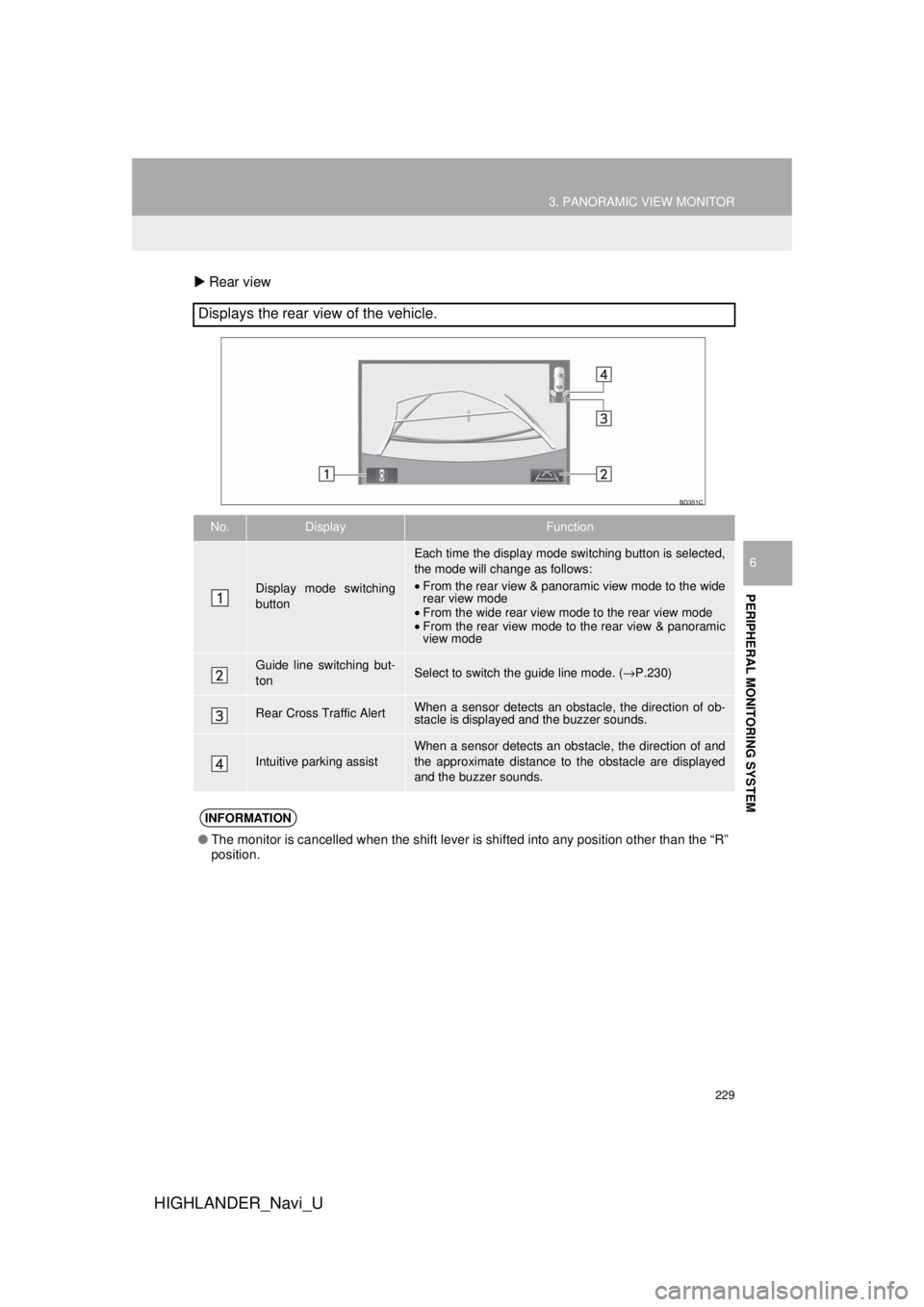
Rear view
Displays the rear view of the vehicle.
No.DisplayFunction
Display mode switching
button
Each time the display mode switching button is selected,
the mode will change as follows:
•From the rear view & panoramic view mode to the wide
rear view mode
• From the wide rear view mode to the rear view mode
• From the rear view mode to the rear view & panoramic
view mode
Guide line switching but-
tonSelect to switch the guide line mode. ( →P.230)
Rear Cross Traffic AlertWhen a sensor detects an obsta cle, the direction of ob-
stacle is displayed and the buzzer sounds.
Intuitive parking assist
When a sensor detects an obstacle, the direction of and
the approximate distance to the obstacle are displayed
and the buzzer sounds.
INFORMATION
● The monitor is cancelled when the shift lever is shifted into any position other than the “R”
position.
Page 230 of 392
230
3. PANORAMIC VIEW MONITOR
HIGHLANDER_Navi_U
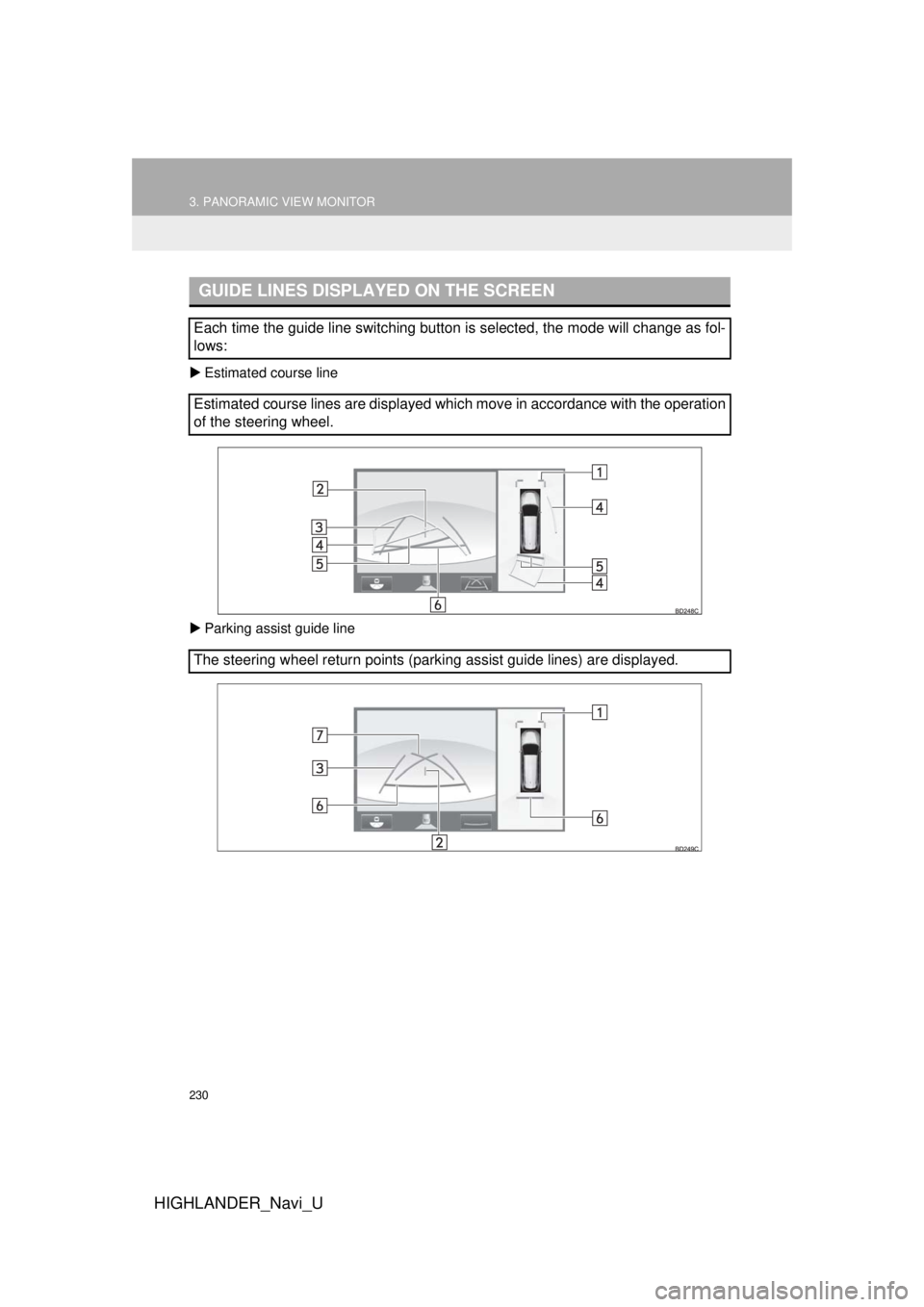
Estimated course line
Parking assist guide line
GUIDE LINES DISPLAYED ON THE SCREEN
Each time the guide line switching button is selected, the mode will change as fol-
lows:
Estimated course lines are displayed which move in accordance with the operation
of the steering wheel.
The steering wheel return points (parking assist guide lines) are disp\
layed.
Page 231 of 392
231
3. PANORAMIC VIEW MONITOR
HIGHLANDER_Navi_U
PERIPHERAL MONITORING SYSTEM
6
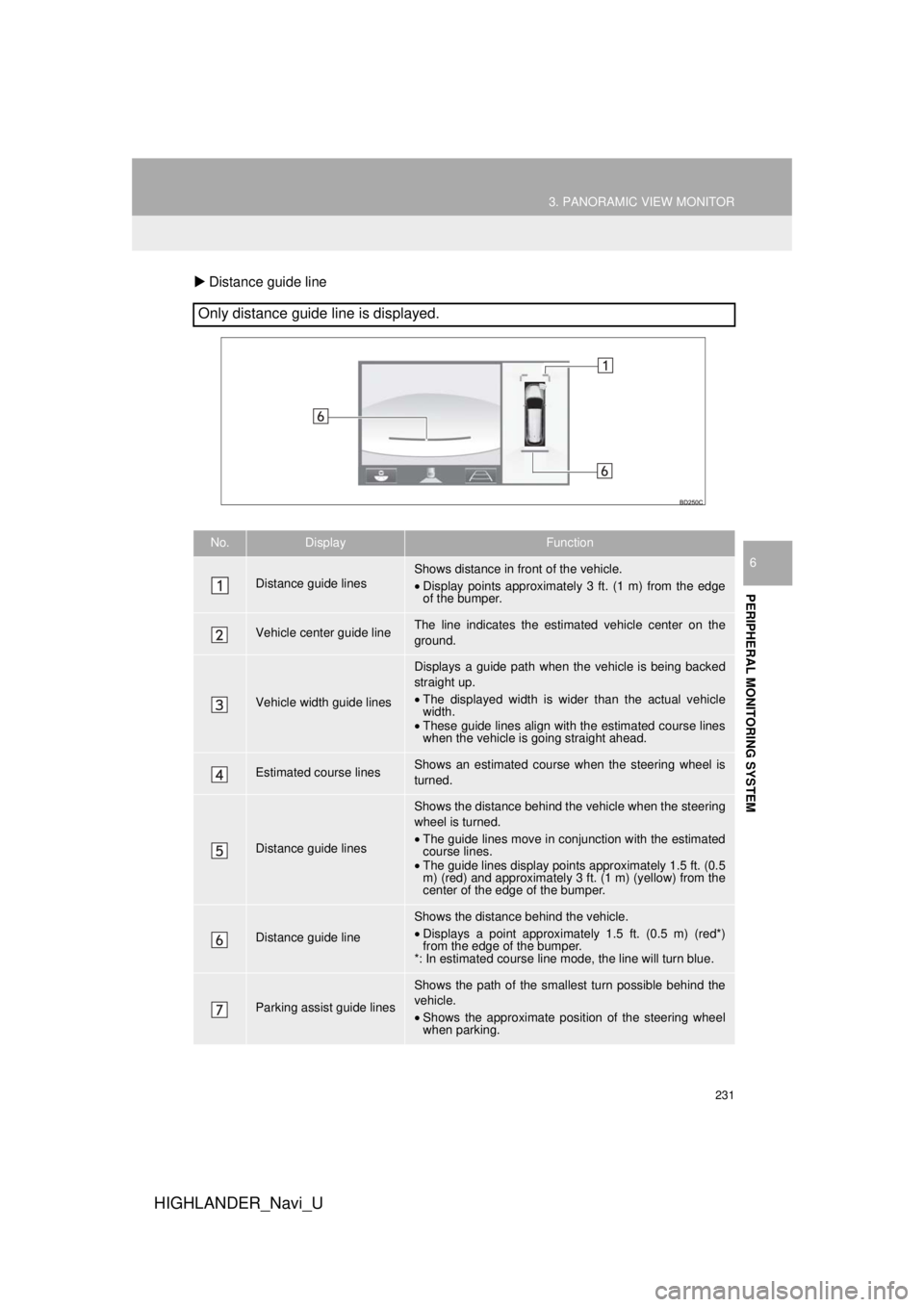
Distance guide line
Only distance guide line is displayed.
No.DisplayFunction
Distance guide linesShows distance in front of the vehicle.
•Display points approximately 3 ft. (1 m) from the edge
of the bumper.
Vehicle center guide line The line indicates the estimated vehicle center on the
ground.
Vehicle width guide lines
Displays a guide path when t he vehicle is being backed
straight up.
• The displayed width is wider than the actual vehicle
width.
• These guide lines align with the estimated course lines
when the vehicle is going straight ahead.
Estimated course linesShows an estimated course when the steering wheel is
turned.
Distance guide lines
Shows the distance behind the vehicle when the steering
wheel is turned.
•The guide lines move in conjunction with the estimated
course lines.
• The guide lines display points approximately 1.5 ft. (0.5
m) (red) and approximately 3 ft. (1 m) (yellow) from the
center of the edge of the bumper.
Distance guide line
Shows the distance behind the vehicle.
• Displays a point approximately 1.5 ft. (0.5 m) (red*)
from the edge of the bumper.
*: In estimated course line mode, the line will turn blue.
Parking assist guide lines
Shows the path of the smallest turn possible behind the
vehicle.
• Shows the approximate position of the steering wheel
when parking.
Page 234 of 392
234
3. PANORAMIC VIEW MONITOR
HIGHLANDER_Navi_U
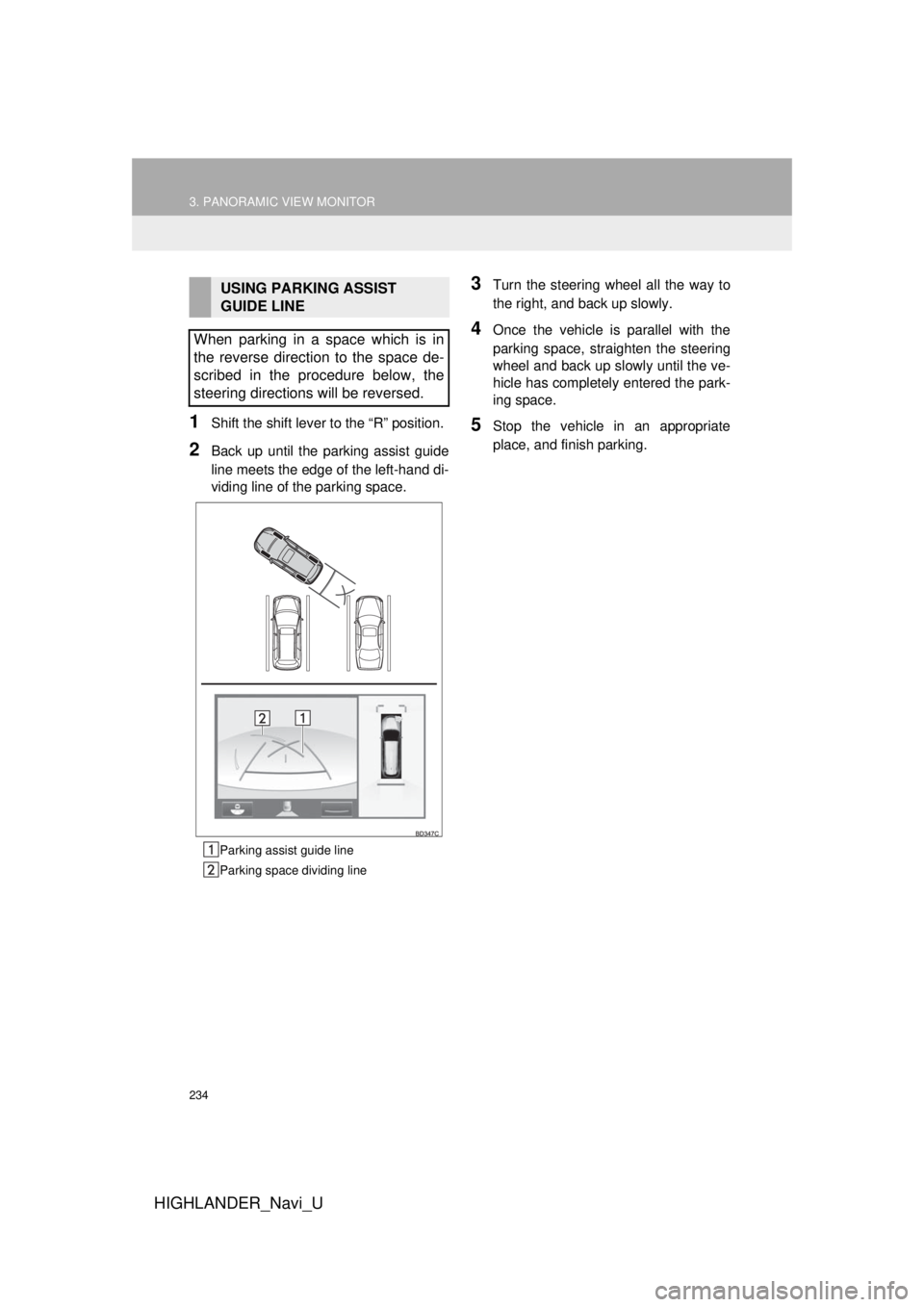
1Shift the shift lever to the “R” position.
2Back up until the parking assist guide
line meets the edge of the left-hand di-
viding line of the parking space.
Parking assist guide line
Parking space dividing line
3Turn the steering wheel all the way to
the right, and back up slowly.
4Once the vehicle is parallel with the
parking space, straighten the steering
wheel and back up slowly until the ve-
hicle has completely entered the park-
ing space.
5Stop the vehicle in an appropriate
place, and finish parking.
USING PARKING ASSIST
GUIDE LINE
When parking in a space which is in
the reverse direction to the space de-
scribed in the procedure below, the
steering directions will be reversed.
Page 235 of 392
235
3. PANORAMIC VIEW MONITOR
HIGHLANDER_Navi_U
PERIPHERAL MONITORING SYSTEM
6
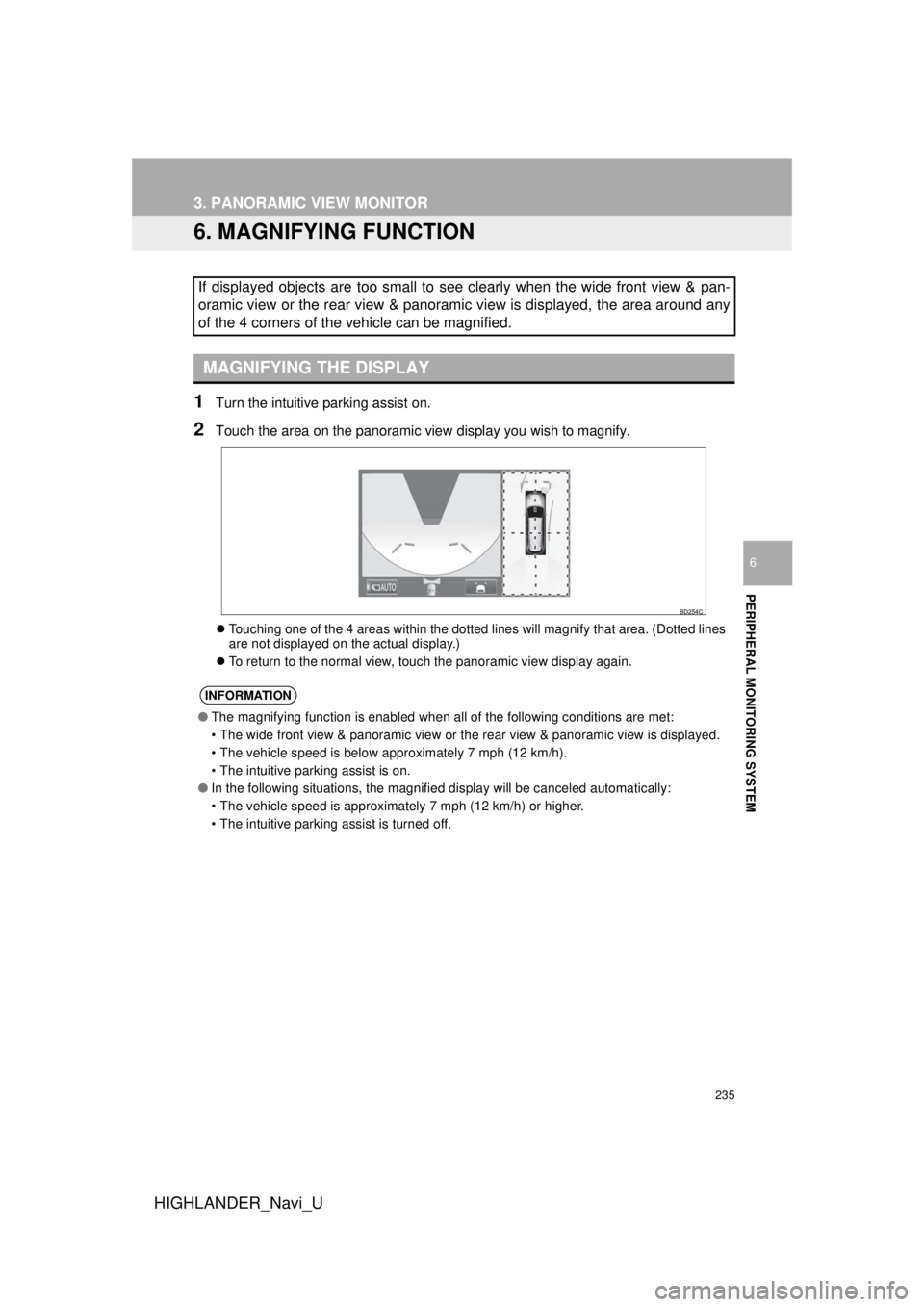
6. MAGNIFYING FUNCTION
1Turn the intuitive parking assist on.
2Touch the area on the panoramic view display you wish to magnify.
Touching one of the 4 areas within the dotted lines will magnify that area. (Dotted lines
are not displayed on the actual display.)
To return to the normal view, touch the panoramic view display again.
If displayed objects are too small to see clearly when the wide front view & pan-
oramic view or the rear view & panoramic view is displayed, the area around any
of the 4 corners of the vehicle can be magnified.
MAGNIFYING THE DISPLAY
INFORMATION
●The magnifying function is enabled when all of the following conditions are met:
• The wide front view & panoramic view or th e rear view & panoramic view is displayed.
• The vehicle speed is below approximately 7 mph (12 km/h).
• The intuitive parking assist is on.
● In the following situations, the magnified display will be canceled automatically:
• The vehicle speed is approximately 7 mph (12 km/h) or higher.
• The intuitive parking assist is turned off.
Page 237 of 392
237
3. PANORAMIC VIEW MONITOR
HIGHLANDER_Navi_U
PERIPHERAL MONITORING SYSTEM
6
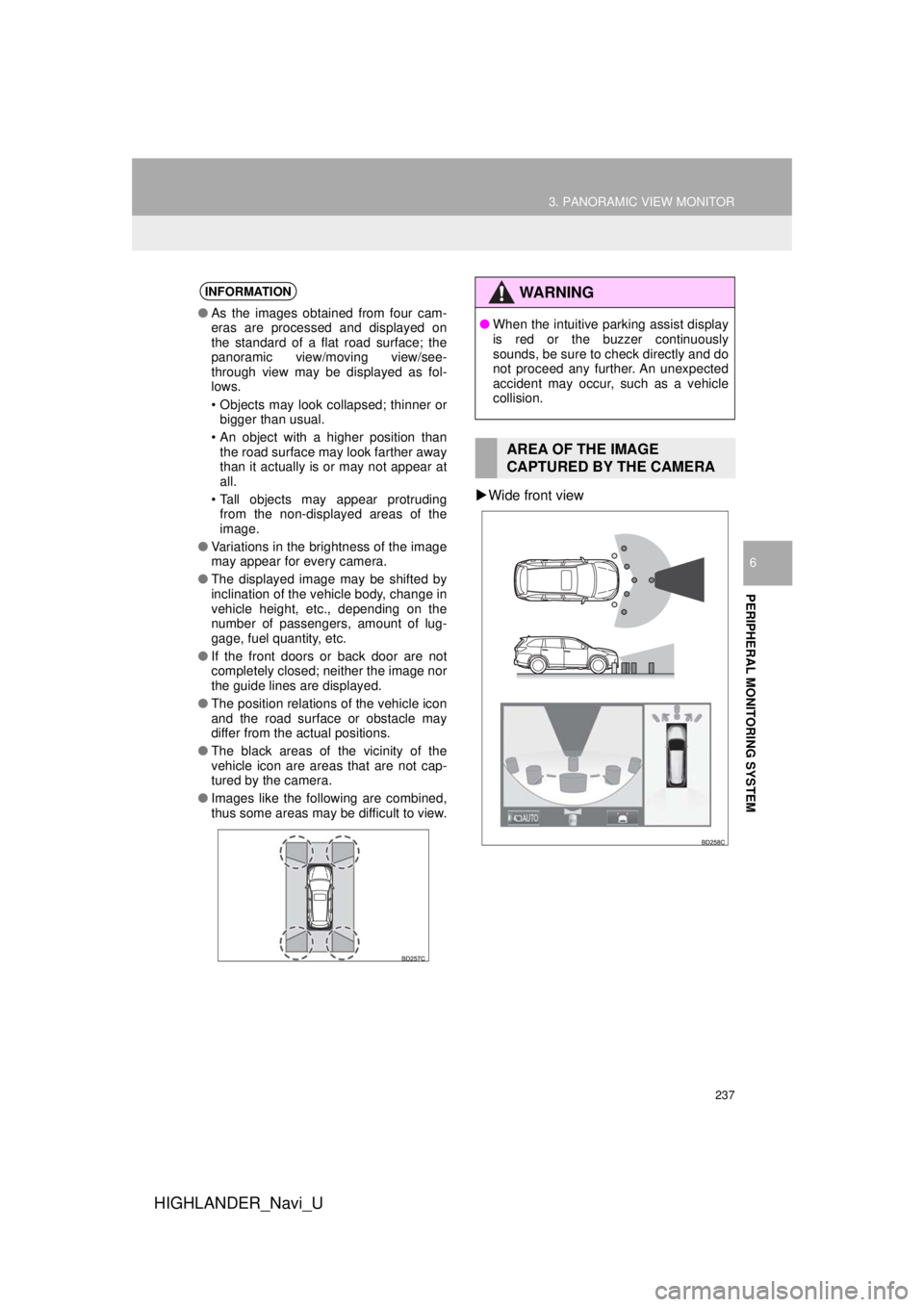
Wide front view
INFORMATION
● As the images obtained from four cam-
eras are processed and displayed on
the standard of a flat road surface; the
panoramic view/moving view/see-
through view may be displayed as fol-
lows.
• Objects may look collapsed; thinner or
bigger than usual.
• An object with a higher position than the road surface may look farther away
than it actually is or may not appear at
all.
• Tall objects may appear protruding from the non-displayed areas of the
image.
● Variations in the brightness of the image
may appear for every camera.
● The displayed image may be shifted by
inclination of the vehicle body, change in
vehicle height, etc., depending on the
number of passengers, amount of lug-
gage, fuel quantity, etc.
● If the front doors or back door are not
completely closed; neither the image nor
the guide lines are displayed.
● The position relations of the vehicle icon
and the road surface or obstacle may
differ from the actual positions.
● The black areas of the vicinity of the
vehicle icon are areas that are not cap-
tured by the camera.
● Images like the following are combined,
thus some areas may be difficult to view.
WA R N I N G
●When the intuitive parking assist display
is red or the buzzer continuously
sounds, be sure to check directly and do
not proceed any further. An unexpected
accident may occur, such as a vehicle
collision.
AREA OF THE IMAGE
CAPTURED BY THE CAMERA
Page 243 of 392
243
3. PANORAMIC VIEW MONITOR
HIGHLANDER_Navi_U
PERIPHERAL MONITORING SYSTEM
6
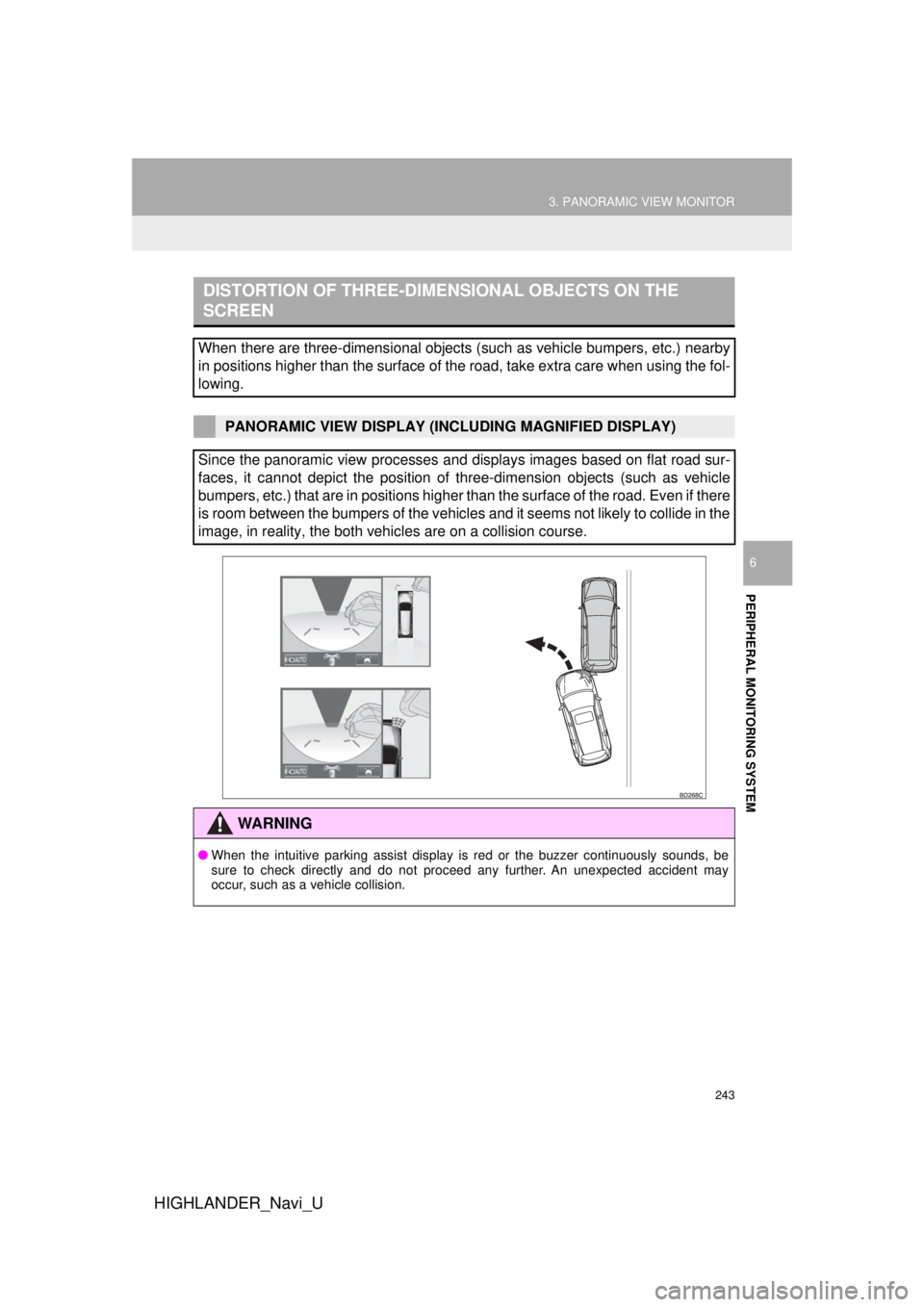
DISTORTION OF THREE-DIMENSIONAL OBJECTS ON THE
SCREEN
When there are three-dimensional objects (such as vehicle bumpers, etc.) nearby
in positions higher than the surface of the road, take extra care when using the fol-
lowing.
PANORAMIC VIEW DISPLAY (INCLUDING MAGNIFIED DISPLAY)
Since the panoramic view processes and displays images based on flat road sur-
faces, it cannot depict the position of three-dimension objects (such as vehicle
bumpers, etc.) that are in positions higher than the surface of the road. Even if there
is room between the bumpers of the vehicles and it seems not likely to collide in the
image, in reality, the both vehicles are on a collision course.
WA R N I N G
● When the intuitive parking assist display is red or the buzzer continuously sounds, be
sure to check directly and do not proceed any further. An unexpected accident may
occur, such as a vehicle collision.