park assist TOYOTA HIGHLANDER HYBRID 2020 Accessories, Audio & Navigation (in English)
[x] Cancel search | Manufacturer: TOYOTA, Model Year: 2020, Model line: HIGHLANDER HYBRID, Model: TOYOTA HIGHLANDER HYBRID 2020Pages: 402, PDF Size: 18.72 MB
Page 319 of 402
3197-3. Panoramic view monitor
HIGHLANDER_HIGHLANDER
HV_NAVI_(U)
7
Peripheral monitoring system
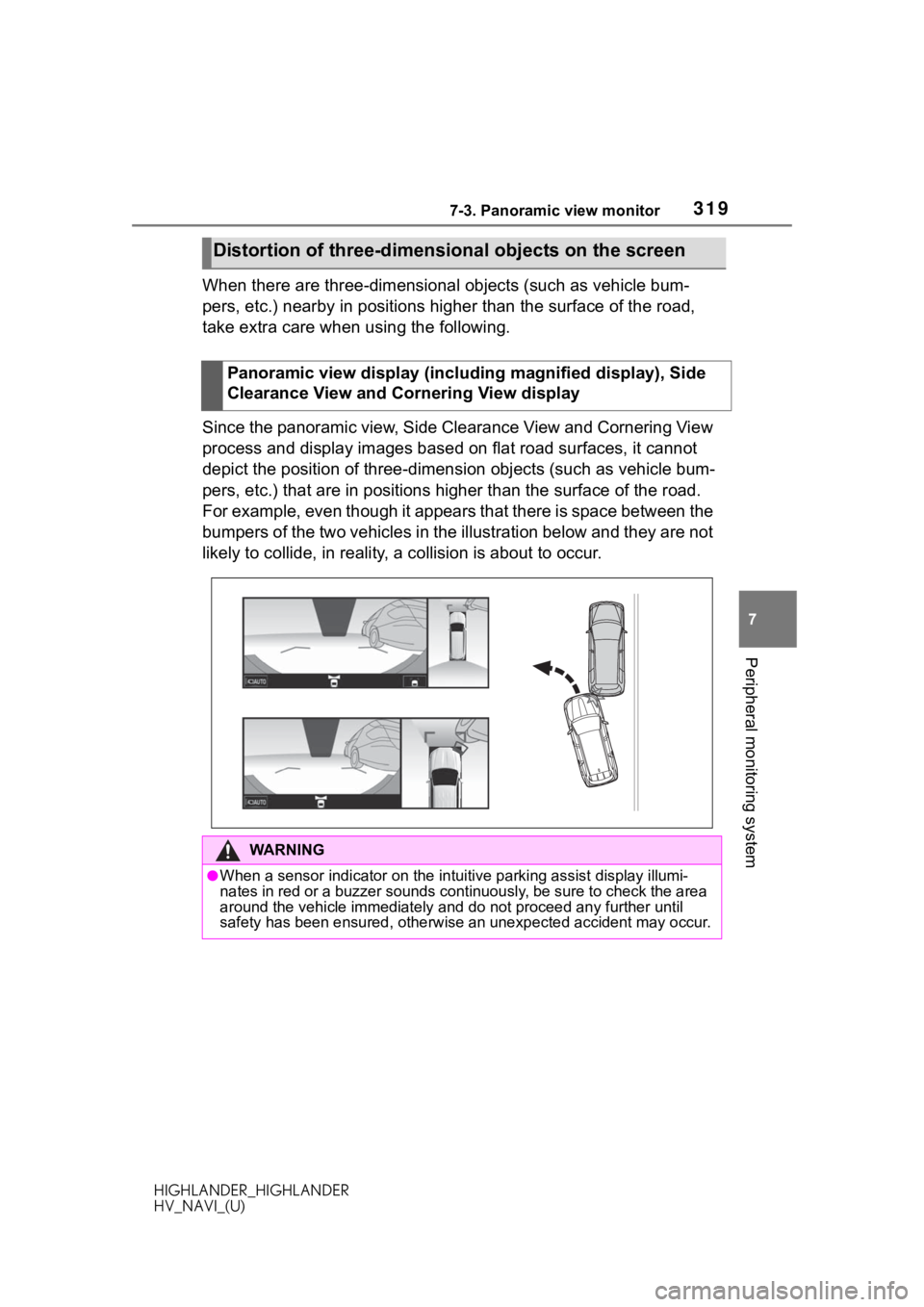
When there are three-dimensional objects (such as vehicle bum-
pers, etc.) nearby in positions higher than the surface of the road,
take extra care when using the following.
Since the panoramic view, Side Clearance View and Cornering Vie w
process and display images based on flat road surfaces, it cann ot
depict the position of three-dimens ion objects (such as vehicle bum-
pers, etc.) that are in positions higher than the surface of th e road.
For example, even though it appears that there is space between the
bumpers of the two vehicles in the illustration below and they are not
likely to collide, in reality, a collision is about to occur.
Distortion of three-dimensi onal objects on the screen
Panoramic view display (including magnified display), Side
Clearance View and Cornering View display
WA R N I N G
●When a sensor indicator on the intuitive parking assist display illumi-
nates in red or a buzzer sounds continuously, be sure to check the area
around the vehicle immediately a nd do not proceed any further until
safety has been ensured, otherwise an unexpected accident may o ccur.
Page 320 of 402

3207-3. Panoramic view monitor
HIGHLANDER_HIGHLANDER
HV_NAVI_(U)
The estimated course lines targe t flat surfaced objects (such as the
road). It is not possible to determine the position of three-dimen-
sional objects (such as vehicles ) using the estimated course lines
and distance guide lines. When app roaching a three-dimensional
object that extends outward (such as the flatbed of a truck), b e care-
ful of the following.
When approaching three-dimensional objects
WA R N I N G
●When a sensor indicator on the intuitive parking assist display illumi-
nates in red or a buzzer sounds continuously, be sure to check the area
around the vehicle immediately a nd do not proceed any further until
safety has been ensured, otherwise an unexpected accident may o ccur.
Page 325 of 402
3257-3. Panoramic view monitor
HIGHLANDER_HIGHLANDER
HV_NAVI_(U)
7
Peripheral monitoring system
The panoramic view dis-
play cannot be magni-
fied
The intuitive parking
assist may be malfunc-
tioning or dirty.
Follow the correction
procedures for malfunc-
tions of the intuitive
parking assist. (Refer to
“OWNER’S MANUAL”)
The See-through
view/Moving view/Side
Clearance View/Corner-
ing View cannot be dis-
played
Product license
SymptomLikely causeSolution
Page 380 of 402

380 Alphabetical Index
HIGHLANDER_HIGHLANDER
HV_NAVI_(U)
Microphone ..................... 244, 331
Mobile Assistant ..................... 253 Connectable devices and avail-able functions ..................... 253
Mobile Assistant operation ... 253
N
Natural language understanding ............................................... 247
Navigation ................................. 78
Navigation button (Setup screen) ................................................. 19
P
Panoramic view monitor ........ 285 Body color changing............. 311
Camera ................................ 316
Camera switch ..................... 287
Checking around the vehicle 292
Checking the front and around the vehicle .......................... 294
Checking the rear and around the vehicle .......................... 303
Checking the sides of the vehicle ........................................... 297
Customize ............................ 311
Difference between the screen and the actual road ............ 317
Display ................................. 287
Display switching.................. 289
Distortion of three-dimensional objects on the screen ......... 319
Driving precautions .............. 285
Magnifying function .............. 310
Parking ................................. 308
Precautions .......................... 312
Things you should know....... 323
When approaching three-dimen- sional objects ..................... 320 Phone............
......................... ..328
About the contacts in the contact list .......................................332
Phone screen operation .......328
Registering/Connecting a Blue- tooth
® phone ......................330
Some basics .........................329
Troubleshooting ....................355
Voice command system .......332
When selling or disposing of the vehicle ................................332
PHONE button...................12, 328
Phone button (Menu screen) ...15
Phone button (Setup screen) ..19
Phone settings ...... ..................345
Contacts/Call history settings347
Message settings .................353
Notification/display settings ..346
Sounds settings ....................346
Placing a call using the Blue- tooth
® hands-free system....333
By call history .......................333
By contacts list .....................334
By favorites list .....................334
By home screen ...................336
By keypad.............................336
POWER VOLUME knob ....12, 134
Projection button (Menu screen) .................................................15
PWR/VOL knob .................12, 134
R
Radio........................................139 Available HD Radio™ technol-ogy......................................144
Displaying the radi o ID .........148
How to subscribe to SiriusXM Satellite Radio ............145, 147
Presetting a station ...............140
Radio broadcast data system143
Page 381 of 402

381 Alphabetical Index
HIGHLANDER_HIGHLANDER
HV_NAVI_(U)
Refer to the table below to iden- tify the problem and take the
suggested corrective action 149
Troubleshooting guide .......... 144
Rear seat entertainment system Function index ...................... 175
Rear seat entertainment system features ................................. 175
Rear view monitor system ..... 262 Camera ................................ 264
Differences between the screen and the actual road ............ 265
Driving precautions .............. 262
Precautions .......................... 264
Screen description ............... 263
Things you should know....... 269
When approaching three-dimen- sional objects ..................... 267
Receiving a call using the Blue- tooth
® hands-free system ... 336
Registering home ............. 25, 113
Registering/Connecting a Blue- tooth
® device .......................... 40
Profiles ................................... 43
Registering a Bluetooth
® audio
player for the first time.......... 43
Registering a Bluetooth
® phone
for the first time .................... 40
Remote Connect ..................... 368
Route guidance ................ 99, 103
Route guidance screen .......... 103 Freeway ............................... 104
Intersection........................... 106
Lane recommendation ......... 104
Turn list screen ..................... 107
Turn-by-turn arrow screen .... 107
Route overview ....................... 100
S
Screen adjustment ................... 38
SEEK/TRACK button ................ 12
Service Connect ..................... 369 Setup........................................ 112
Setup button (Menu screen)
...........................................15, 19
Setup screen .............................19
SiriusXM (SXM) .......................139
Status icon ................................17 Status icon explanation ..........17
Steering switch ...............160, 244 Audio switch .........................160
Talk switch ............................244
SXM (SiriusXM) .......................139
T
Talking on the Bluetooth®
hands-free system ................337 Call screen operation ...........337
Incoming call waiting ............339
Sending tones ......................338
Transmit volume setting .......339
Things you should know ...............................269, 283, 323If you notice any symptoms ...........................269, 283, 323
Tips for the navigation system ...............................................127
Touch screen ............................29 Touch screen gestures ...........29
Touch screen operation ..........30
Toyota Apps ............................370
Toyota Apps button (Setup screen) .....................................19
Toyota Apps settings .............376
Toyota multi-operation touch ..31 Audio/visual system ................33
Toyota multi-operation touch operation ..............................32
Toyota multi-operation touch overview ...............................31
Toyota parking assist monitor ...............................................271Camera.................................278
Page 382 of 402
382 Alphabetical Index
HIGHLANDER_HIGHLANDER
HV_NAVI_(U)
Differences between the screen and the actual road ............ 279
Distance guide line display mode ........................................... 277
Driving precautions .............. 271
Estimated course line display mode .................................. 274
Parking assist gui de line display
mode .................................. 276
Precautions .......................... 277
Things you should know....... 283
Using the system.................. 273
When approaching three-dimen- sional objects ..................... 281
Traffic button (Setup screen) .. 19
Traffic incidents button (Informa- tion screen) ............................. 21
Traffic information .................... 88
Traffic settings ........................ 121
TUNE SCROLL knob ................ 12
U
USB memory ........................... 150
USB port .................................. 135
Use of information accumulated by navigation system........... 126
V
Vehicle alert history button
(Information screen) .............. 21
Vehicle button (Setup screen) ........................................... 19, 72
Vehicle settings ........................ 72 Displaying the vehicle settings screen .................................. 72
Maintenance........................... 73
Valet mode setting .................. 75
Vehicle settings screen .......... 73
Voice button (Setup screen) ........................................... 19, 71 Voice command system .........244
Using the voice command sys-tem .....................................244
Voice command system opera- tion......................................245
Voice guidance p rompts ........108
Voice settings ...........................71 Displaying the voice settings screen...................................71
Voice settings screen .............71
W
Weather ...................................256
Weather button (Information screen) .....................................21
Wi-Fi
® button (Setup screen) ..19
Wi-Fi® Hotspot ..........................53
Connecting a device to the in-vehicle access point .........53
Operating hints .......................57
For more infor mation about the following items, see
the “OWNER’S MANUAL”.
· Fuel consumption
· Energy monitor (HIGH-
LANDER Hybrid)
· Vehicle customization set-
tings
· Intuitive parking assist
· RCTA (Rear cross traffic
alert) function
· PKSB (Parking Support
Brake)