USB TOYOTA iQ EV 2013 Accessories, Audio & Navigation (in English)
[x] Cancel search | Manufacturer: TOYOTA, Model Year: 2013, Model line: iQ EV, Model: TOYOTA iQ EV 2013Pages: 321, PDF Size: 6.88 MB
Page 7 of 321

7
1
2
3
4
5
6
iQ_EV NAVI OM74061U
1. PHONE OPERATION .................... 130
QUICK REFERENCE .......................... 130
PHONE (HANDS-FREE SYSTEM
FOR CELLULAR PHONE) ................ 132
REGISTER A Bluetooth
® PHONE ....... 136
CALL ON THE Bluetooth® PHONE ..... 140
RECEIVE ON THE Bluetooth®
PHONE ............................................. 145
TALK ON THE Bluetooth
® PHONE ..... 146
Bluetooth® PHONE MESSAGE
FUNCTION........................................ 149
2. SETUP ........................................... 152
PHONE SETTINGS ............................. 152
Bluetooth® SETTINGS ........................ 174
1. AUDIO/VIDEO SYSTEM OPERATION ................................ 188
QUICK REFERENCE .......................... 188
SOME BASICS .................................... 190
RADIO OPERATION ........................... 196
HD Radio™ TECHNOLOGY
INFORMATION ................................. 199
RADIO OPERATION (XM Satellite Radio BROADCAST) ... 203
DVD PLAYER OPERATION................ 209
USB MEMORY OPERATION .............. 230
iPod OPERATION ............................... 235
Bluetooth
® AUDIO OPERATION ......... 239
AUDIO/VIDEO REMOTE CONTROLS (STEERING SWITCHES) ................. 248
AUDIO/VIDEO SYSTEM OPERATING HINTS ......................... 250
2. SETUP ........................................... 260
AUDIO SETTINGS .............................. 260
1. INFORMATION DISPLAY ............. 264
ENERGY MONITOR ............................ 264
MAP DATABASE VERSION AND COVERAGE AREA ........................... 266
RANGE MAP ....................................... 268
2. XM FUNCTION-O VERVIEW ......... 270
XM SERVICES .................................... 270
3. XM FUNCTION OPERATION ....... 271
XM Sports ............................................ 271
XM Stocks ............................................ 274
XM Fuel Prices..................................... 277
XM NavWeather™ ............................... 280
XM NavTraffic
®.................................... 283
4. SETUP ........................................... 286
XM SETTINGS..................................... 286
ALPHABETICAL INDEX .................... 288
4PHONE
5AUDIO/VIDEO SYSTEM
6INFORMATION
INDEX
Page 48 of 321
48
2. SETUP
iQ_EV NAVI OM74061U
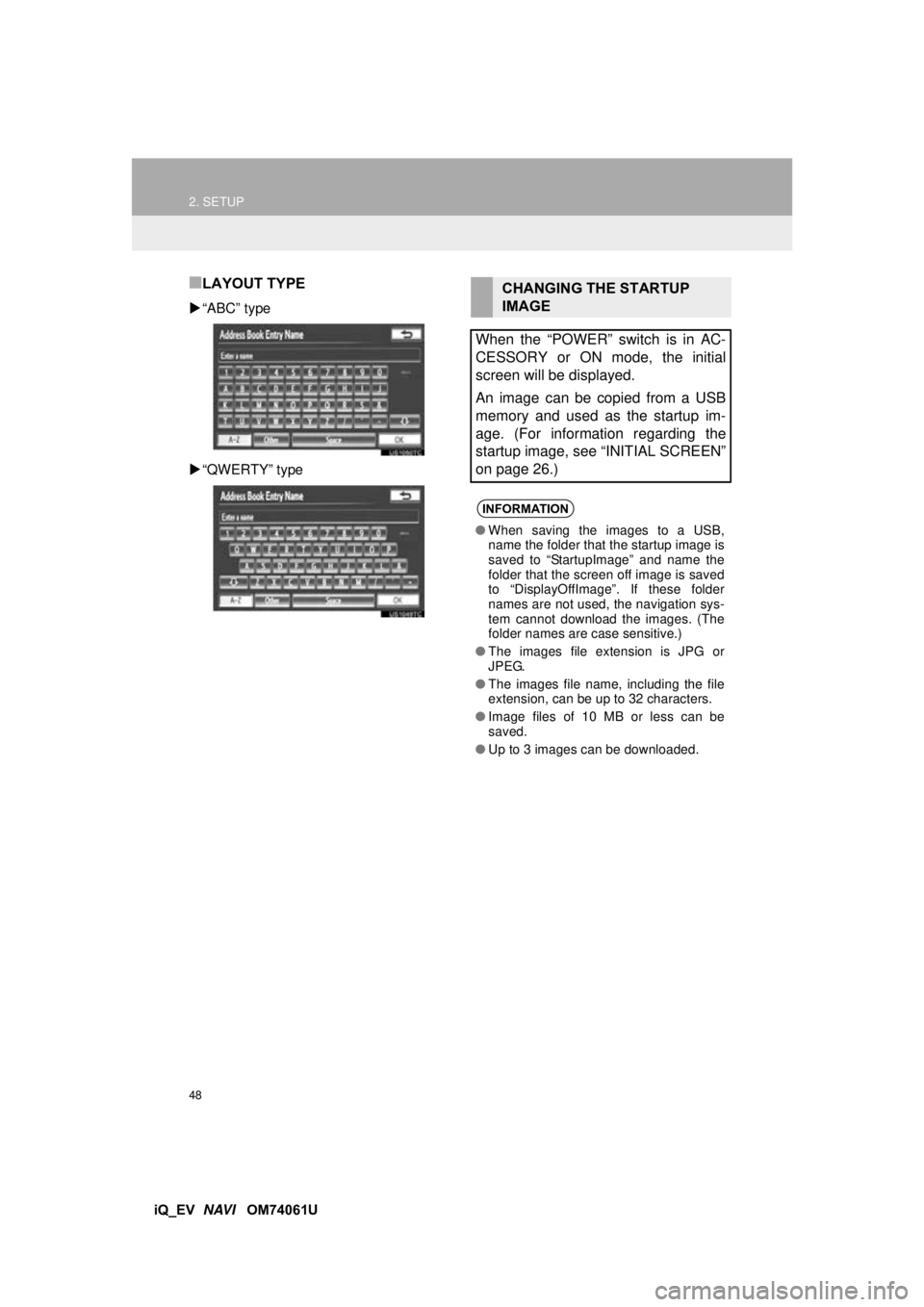
■LAYOUT TYPE
“ABC” type
“QWERTY” type
CHANGING THE STARTUP
IMAGE
When the “POWER” switch is in AC-
CESSORY or ON mode, the initial
screen will be displayed.
An image can be copied from a USB
memory and used as the startup im-
age. (For information regarding the
startup image, see “INITIAL SCREEN”
on page 26.)
INFORMATION
● When saving the images to a USB,
name the folder that the startup image is
saved to “StartupImage” and name the
folder that the screen off image is saved
to “DisplayOffImage”. If these folder
names are not used, the navigation sys-
tem cannot download the images. (The
folder names are case sensitive.)
● The images file extension is JPG or
JPEG.
● The images file name, including the file
extension, can be up to 32 characters.
● Image files of 10 MB or less can be
saved.
● Up to 3 images can be downloaded.
Page 49 of 321
49
2. SETUP
2
BASIC FUNCTION
iQ_EV NAVI OM74061U
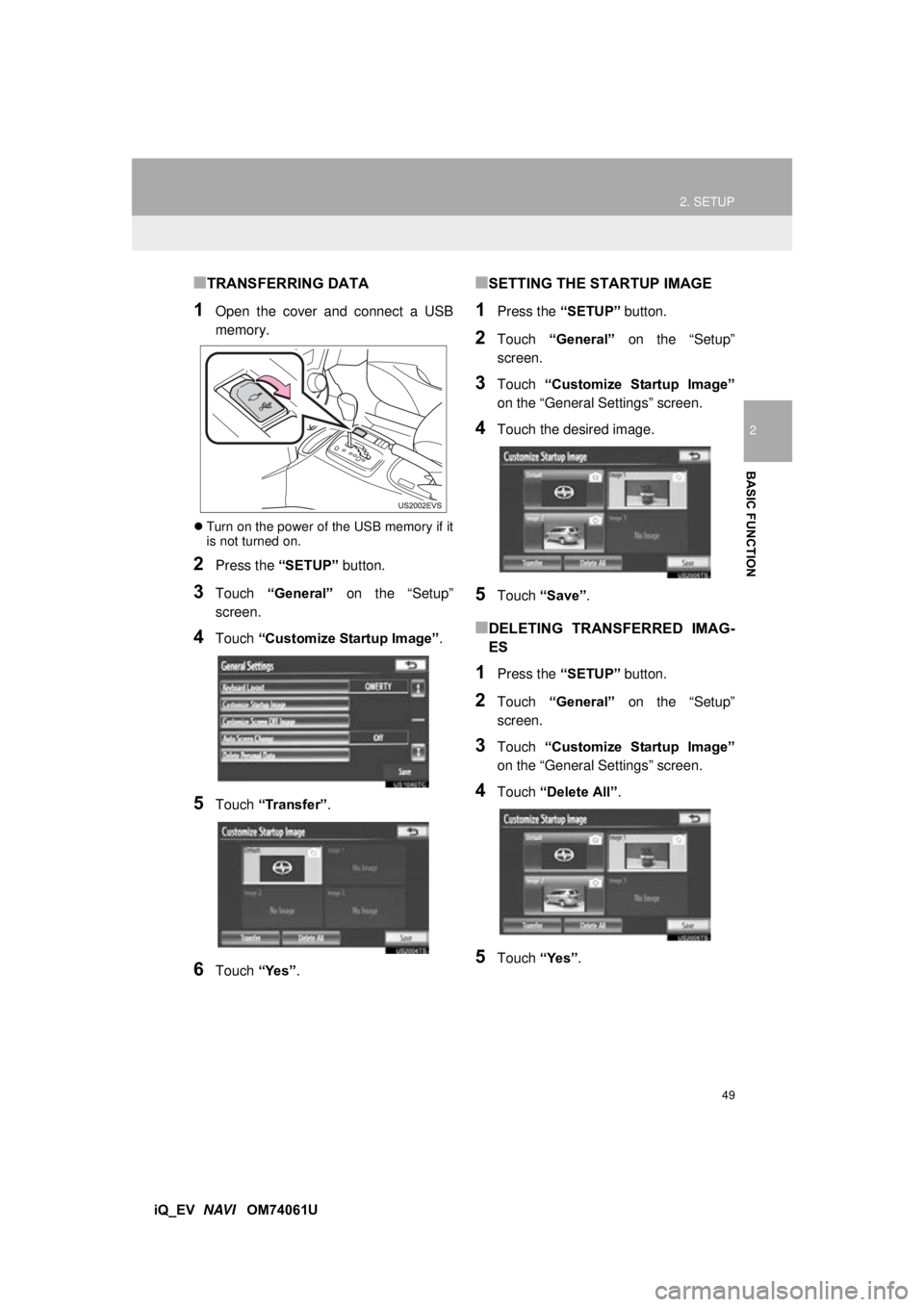
■TRANSFERRING DATA
1Open the cover and connect a USB
memory.
Turn on the power of the USB memory if it
is not turned on.
2Press the “SETUP” button.
3Touch “General” on the “Setup”
screen.
4Touch “Customize Startup Image” .
5Touch “Transfer” .
6Touch “Yes”.
■SETTING THE STARTUP IMAGE
1Press the “SETUP” button.
2Touch “General” on the “Setup”
screen.
3Touch “Customize Startup Image”
on the “General Settings” screen.
4Touch the desired image.
5Touch “Save” .
■DELETING TRANSFERRED IMAG-
ES
1Press the “SETUP” button.
2Touch “General” on the “Setup”
screen.
3Touch “Customize Startup Image”
on the “General Settings” screen.
4Touch “Delete All” .
5Touch “Yes”.
Page 50 of 321
50
2. SETUP
iQ_EV NAVI OM74061U
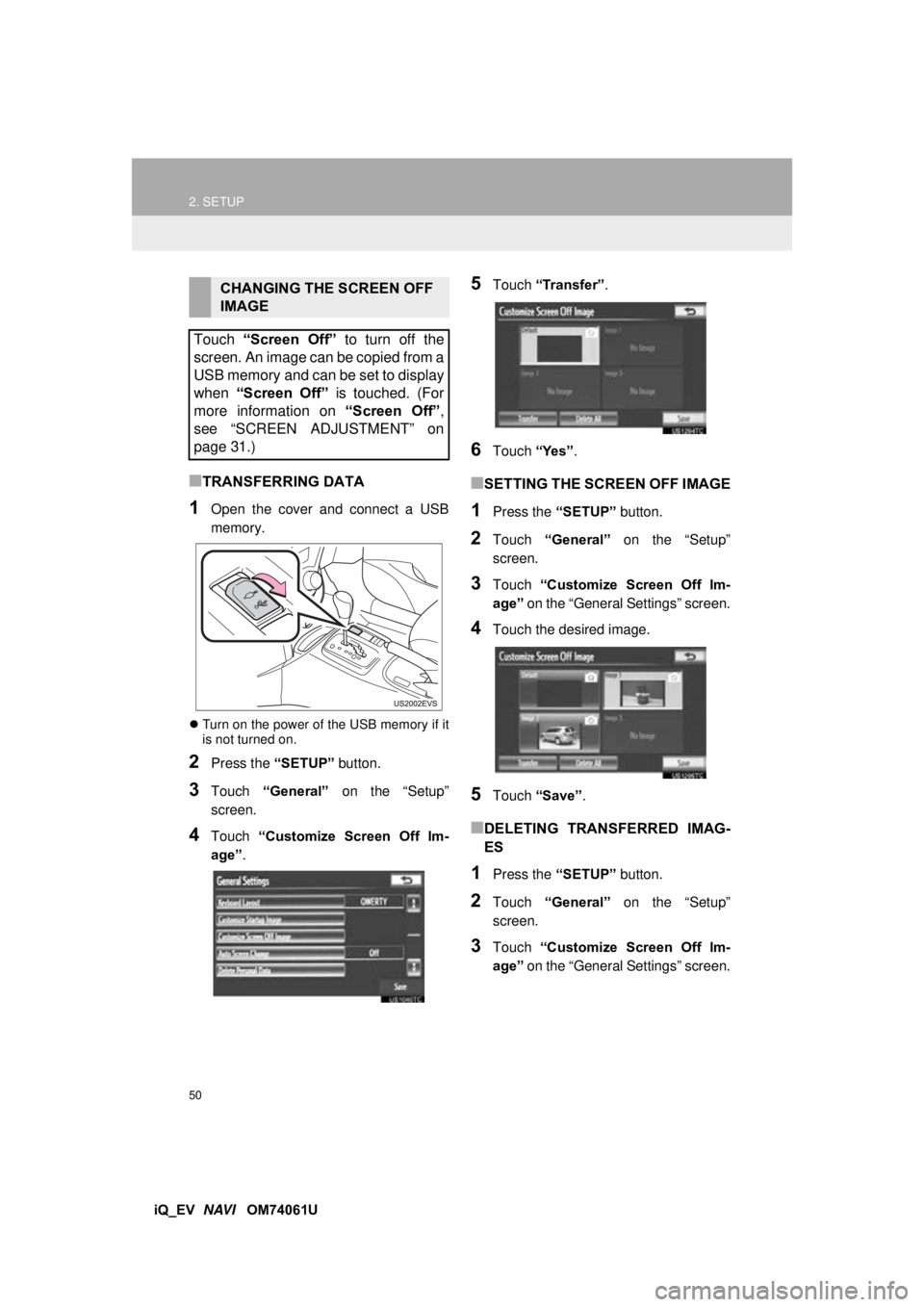
■TRANSFERRING DATA
1Open the cover and connect a USB
memory.
Turn on the power of the USB memory if it
is not turned on.
2Press the “SETUP” button.
3Touch “General” on the “Setup”
screen.
4Touch “Customize Screen Off Im-
age” .
5Touch “Transfer” .
6Touch “Yes”.
■SETTING THE SCREEN OFF IMAGE
1Press the “SETUP” button.
2Touch “General” on the “Setup”
screen.
3Touch “Customize Screen Off Im-
age” on the “General Settings” screen.
4Touch the desired image.
5Touch “Save” .
■DELETING TRANSFERRED IMAG-
ES
1Press the “SETUP” button.
2Touch “General” on the “Setup”
screen.
3Touch “Customize Screen Off Im-
age” on the “General Settings” screen.
CHANGING THE SCREEN OFF
IMAGE
Touch “Screen Off” to turn off the
screen. An image can be copied from a
USB memory and can be set to display
when “Screen Off” is touched. (For
more information on “Screen Off” ,
see “SCREEN ADJUSTMENT” on
page 31.)
Page 186 of 321
186
iQ_EV NAVI OM74061U 1. QUICK REFERENCE .................. 188
2. SOME BASICS ............................ 190
AUDIO SPLIT SCREEN DISPLAY ....... 191
TURNING THE SYSTEM ON AND
OFF.................................................... 191
SWITCHING BETWEEN FUNCTIONS ................... 191
DSP CONTROL ................................... 192
TONE AND BALANCE ......................... 192
SELECTING SCREEN SIZE ................ 193
DVD PLAYER....................................... 194
AUX PORT ........................................... 194
USB PORT ........................................... 195
3. RADIO OPERATION ... ................ 196
LISTENING TO THE RADIO ................ 196
PRESETTING A STATION .................. 196
SELECTING A STATION ..................... 197
RADIO BROADCAST
DATA SYSTEM ................................. 197
TRAFFIC ANNOUNCEMENT .............. 198
4. HD Radio™ TECHNOLOGY INFORMATION ......................... 199
USING HD Radio™ TECHNOLOGY.... 199
AVAILABLE HD Radio™
TECHNOLOGY.................................. 200
TROUBLESHOOTING GUIDE ............. 201
1AUDIO/VIDEO SYSTEM
OPERATION
5
AUDIO/VIDEO SYSTEM
Page 187 of 321
5
187
1
2
3
4
5
6
iQ_EV NAVI OM74061U
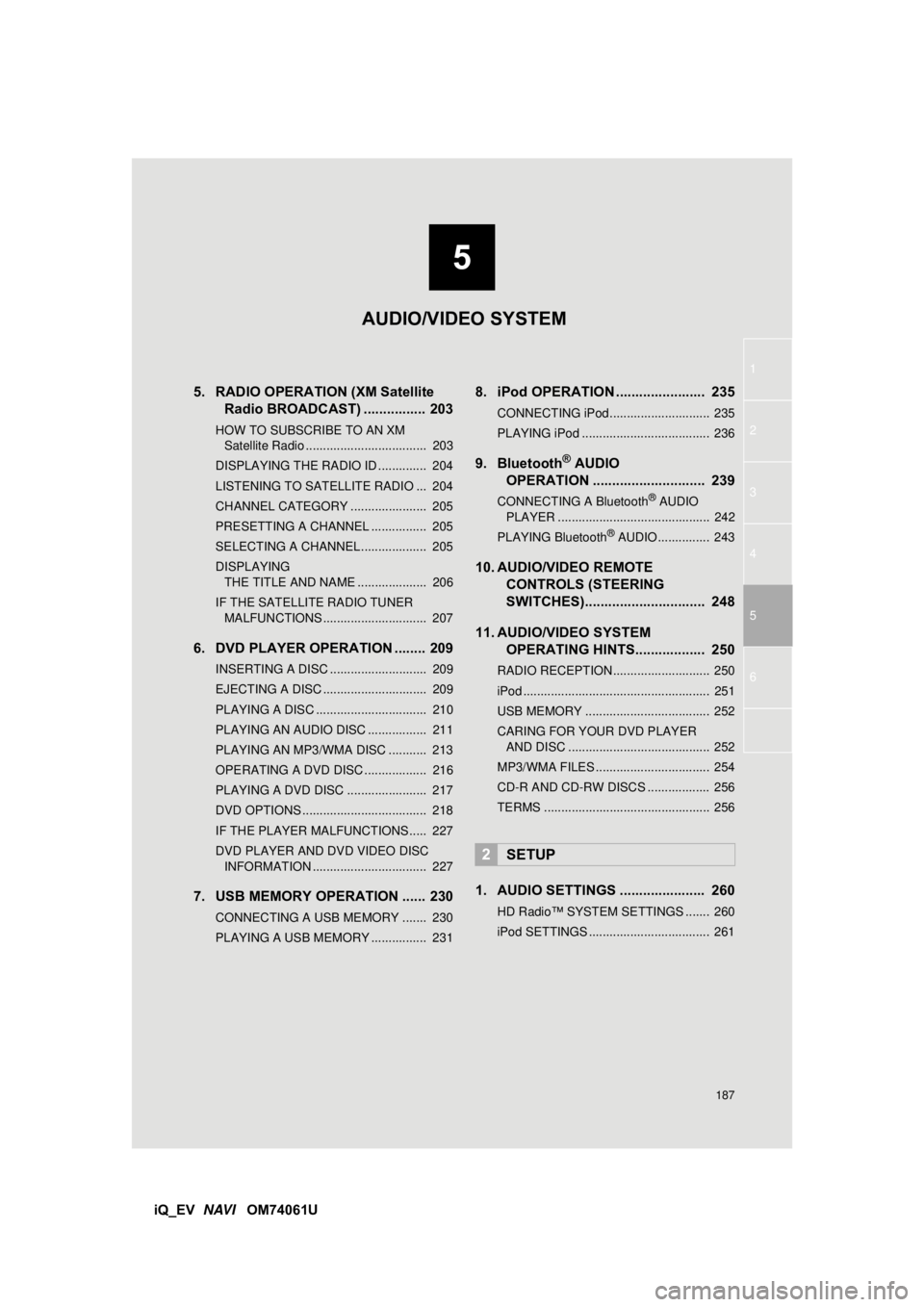
5. RADIO OPERATION (XM Satellite
Radio BROADCAST) ................ 203
HOW TO SUBSCRIBE TO AN XM
Satellite Radio ................................... 203
DISPLAYING THE RADIO ID .............. 204
LISTENING TO SATELLITE RADIO ... 204
CHANNEL CATEGORY ...................... 205
PRESETTING A CHANNEL ................ 205
SELECTING A CHANNEL................... 205
DISPLAYING THE TITLE AND NAME .................... 206
IF THE SATELLITE RADIO TUNER MALFUNCTIONS .............................. 207
6. DVD PLAYER OPERATION ........ 209
INSERTING A DISC ............................ 209
EJECTING A DISC .............................. 209
PLAYING A DISC ................................ 210
PLAYING AN AUDIO DISC ................. 211
PLAYING AN MP3/WMA DISC ........... 213
OPERATING A DVD DISC .................. 216
PLAYING A DVD DISC ....................... 217
DVD OPTIONS .................................... 218
IF THE PLAYER MALFUNCTIONS..... 227
DVD PLAYER AND DVD VIDEO DISC INFORMATION ................................. 227
7. USB MEMORY OPERATION ...... 230
CONNECTING A USB MEMORY ....... 230
PLAYING A USB MEMORY ................ 231
8. iPod OPERATION ....................... 235
CONNECTING iPod ............................. 235
PLAYING iPod ..................................... 236
9. Bluetooth® AUDIO
OPERATION ............................. 239
CONNECTING A Bluetooth® AUDIO
PLAYER ............................................ 242
PLAYING Bluetooth
® AUDIO ............... 243
10. AUDIO/VIDEO REMOTE CONTROLS (STEERING
SWITCHES)............................... 248
11. AUDIO/VIDEO SYSTEM OPERATING HINTS.................. 250
RADIO RECEPTION ............................ 250
iPod ...................................................... 251
USB MEMORY .................................... 252
CARING FOR YOUR DVD PLAYER
AND DISC ......................................... 252
MP3/WMA FILES ................................. 254
CD-R AND CD-RW DISCS .................. 256
TERMS ................................................ 256
1. AUDIO SETTINGS ...................... 260
HD Radio™ SYSTEM SETTINGS ....... 260
iPod SETTINGS ................................... 261
2SETUP
AUDIO/VIDEO SYSTEM
Page 191 of 321
191
1. AUDIO/VIDEO SYSTEM OPERATION
5
AUDIO/VIDEO SYSTEM
iQ_EV NAVI OM74061U
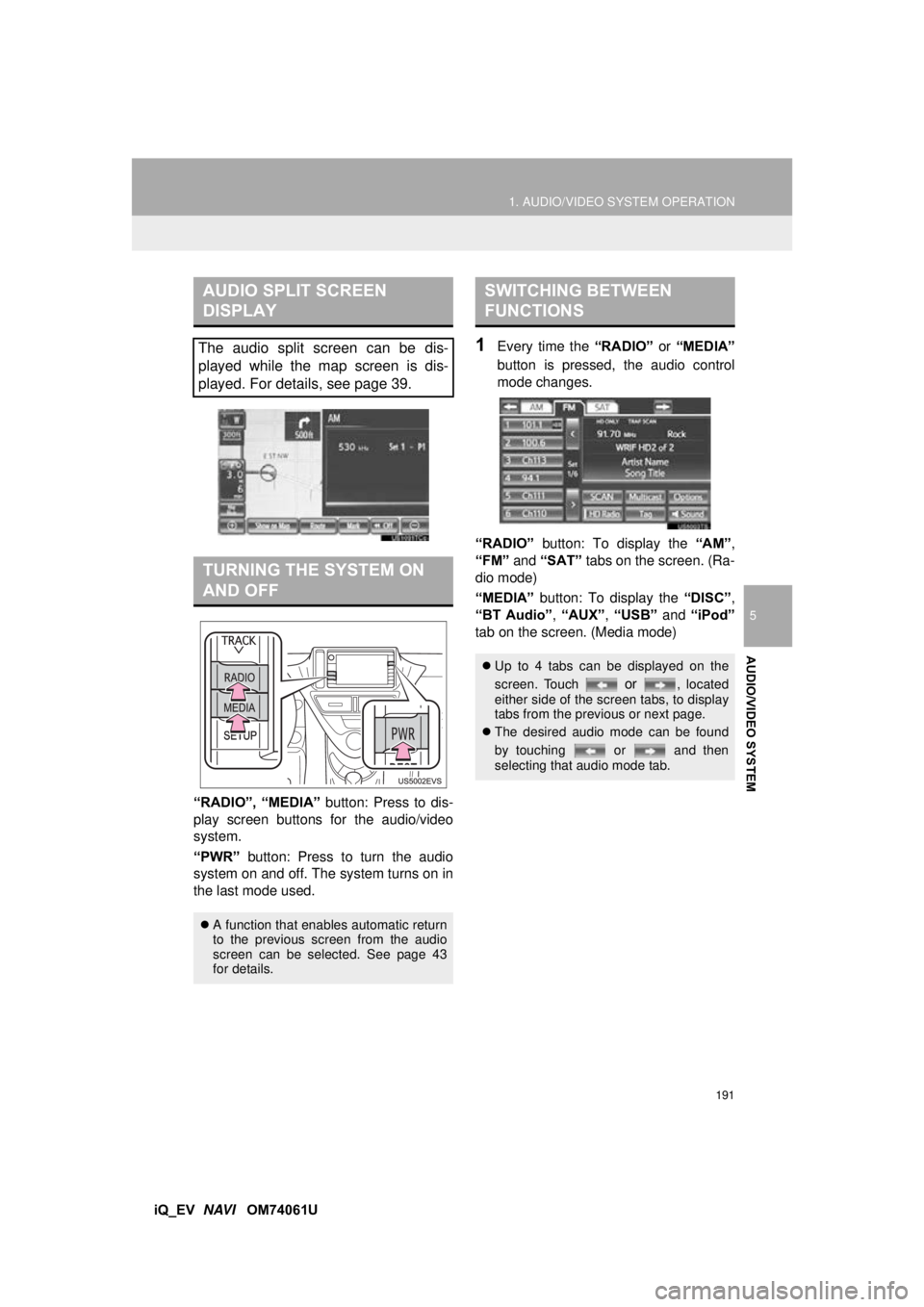
“RADIO”, “MEDIA”
button: Press to dis-
play screen buttons for the audio/video
system.
“PWR” button: Press to turn the audio
system on and off. The system turns on in
the last mode used.
1Every time the “RADIO” or “MEDIA”
button is pressed, the audio control
mode changes.
“RADIO” button: To display the “AM”,
“FM” and “SAT” tabs on the screen. (Ra-
dio mode)
“MEDIA” button: To display the “DISC”,
“BT Audio” , “AUX” , “USB” and “iPod”
tab on the screen. (Media mode)
AUDIO SPLIT SCREEN
DISPLAY
The audio split screen can be dis-
played while the map screen is dis-
played. For details, see page 39.
TURNING THE SYSTEM ON
AND OFF
A function that enables automatic return
to the previous screen from the audio
screen can be selected. See page 43
for details.
SWITCHING BETWEEN
FUNCTIONS
Up to 4 tabs can be displayed on the
screen. Touch
or , located
either side of the screen tabs, to display
tabs from the previous or next page.
The desired audio mode can be found
by touching or and then
selecting that audio mode tab.
Page 195 of 321

195
1. AUDIO/VIDEO SYSTEM OPERATION
5
AUDIO/VIDEO SYSTEM
iQ_EV NAVI OM74061U
1Press the “MEDIA” button to display
the media control screen and touch the
“USB” or “iPod” tab or press the
“MEDIA” button repeatedly to change
to USB memory/iPod mode.
INFORMATION
● When the portable audio player is not
connected to the AUX port, the tab will
be dimmed.
USB PORT
A USB memory/iPod can be connect-
ed to the USB port. For details, see
“CONNECTING A USB MEMORY” on
page 230 and “CONNECTING iPod”
on page 235.
INFORMATION
● When a USB memory/iPod is not con-
nected with the USB port, the tab will be
dimmed.
Page 230 of 321
230
1. AUDIO/VIDEO SYSTEM OPERATION
iQ_EV NAVI OM74061U
7. USB MEMORY OPERATION
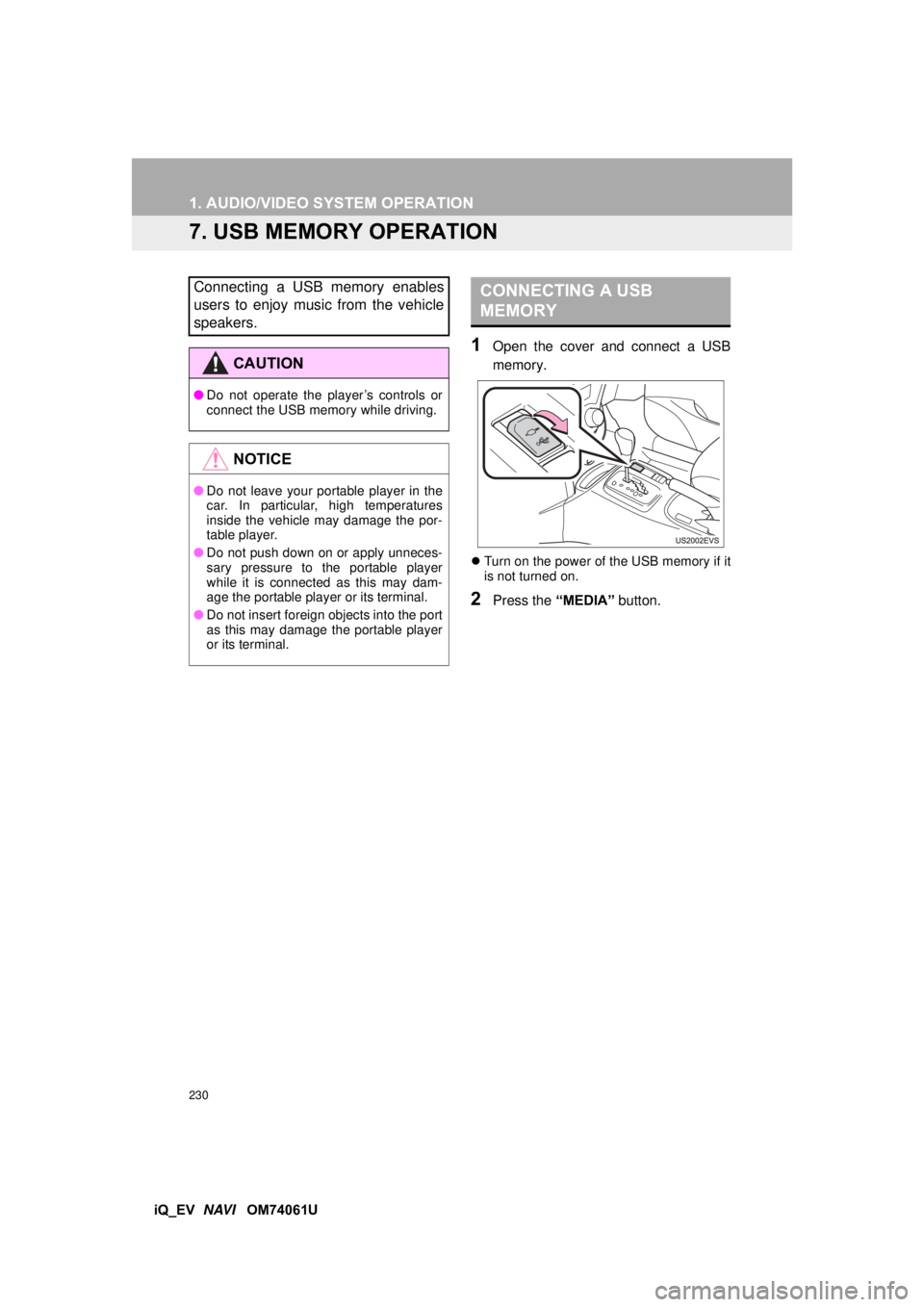
1Open the cover and connect a USB
memory.
Turn on the power of the USB memory if it
is not turned on.
2Press the “MEDIA” button.
Connecting a USB memory enables
users to enjoy music from the vehicle
speakers.
CAUTION
●Do not operate the player’s controls or
connect the USB memory while driving.
NOTICE
●Do not leave your portable player in the
car. In particular, high temperatures
inside the vehicle may damage the por-
table player.
● Do not push down on or apply unneces-
sary pressure to the portable player
while it is connected as this may dam-
age the portable player or its terminal.
● Do not insert foreign objects into the port
as this may damage the portable player
or its terminal.
CONNECTING A USB
MEMORY
Page 231 of 321
231
1. AUDIO/VIDEO SYSTEM OPERATION
5
AUDIO/VIDEO SYSTEM
iQ_EV NAVI OM74061U
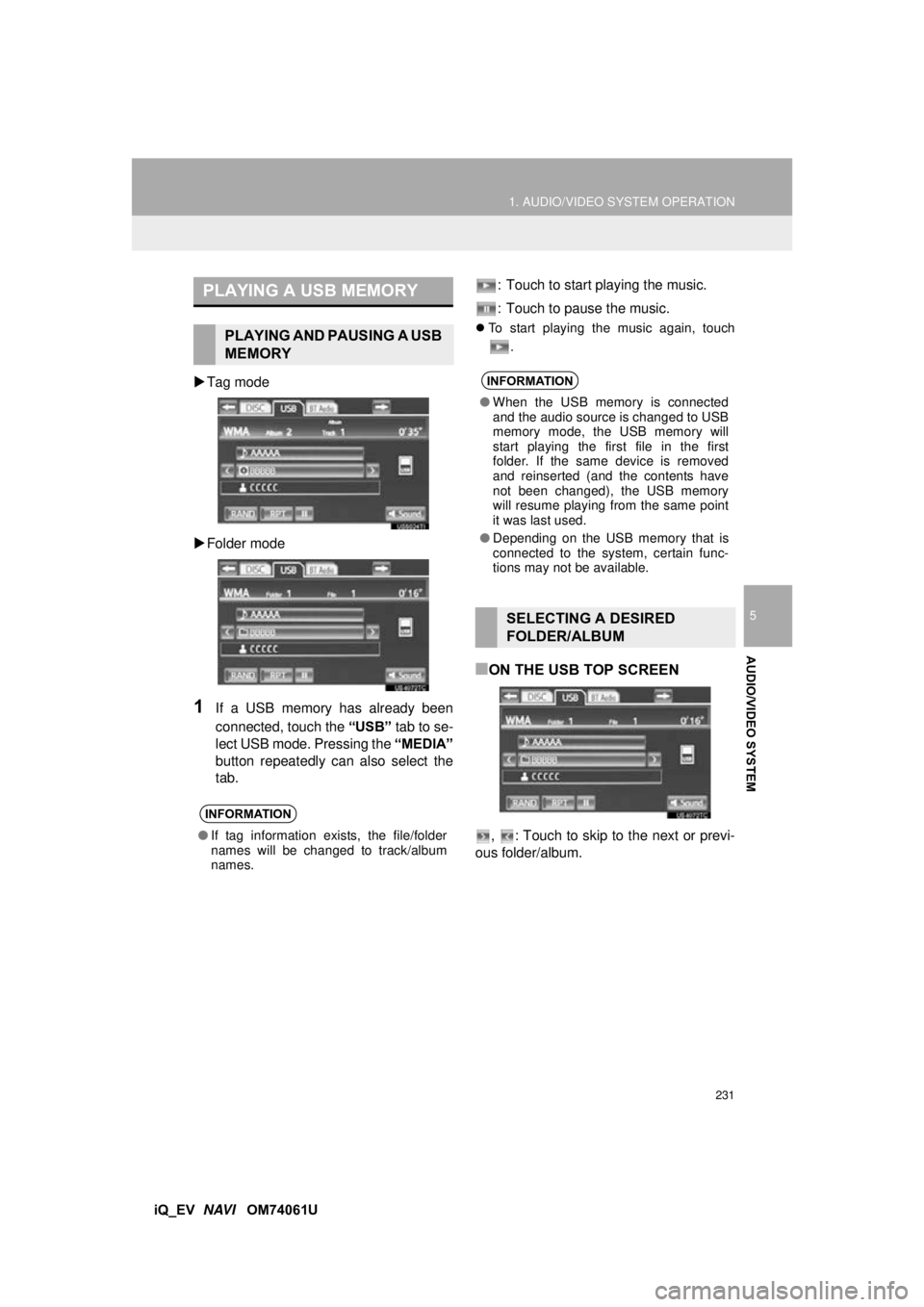
Tag mode
Folder mode
1If a USB memory has already been
connected, touch the “USB” tab to se-
lect USB mode. Pressing the “MEDIA”
button repeatedly can also select the
tab. : Touch to start playing the music.
: Touch to pause the music.
To start playing the music again, touch
.
■ON THE USB TOP SCREEN
, : Touch to skip to the next or previ-
ous folder/album.
PLAYING A USB MEMORY
PLAYING AND PAUSING A USB
MEMORY
INFORMATION
● If tag information exists, the file/folder
names will be changed to track/album
names.
INFORMATION
● When the USB memory is connected
and the audio source is changed to USB
memory mode, the USB memory will
start playing the first file in the first
folder. If the same device is removed
and reinserted (and the contents have
not been changed), the USB memory
will resume playing from the same point
it was last used.
● Depending on the USB memory that is
connected to the system, certain func-
tions may not be available.
SELECTING A DESIRED
FOLDER/ALBUM